

Turn recordings into transcripts and summaries in minutes
Upload audio or video for multilingual transcription, AI notes, and action items
Three days after the meeting, the transcript is still stuck in the recording
You hit record during a Wednesday afternoon client interview, and an hour and a half later it's over. By Friday, the file is still sitting there—because re-listening takes 90 minutes and you only have a 20-minute window.
Most people's first thought is the same: can't I just drop it into Gemini? It's free, it's right there in the browser, it understands Chinese, and it sounds like the least-effort answer.
The problem is that Gemini usually gives you a block of text, not a ready-to-use meeting document you can hand off to a colleague. This article lays out the realistic paths and compares them side by side.
Can Gemini turn audio files into transcripts? Yes, but know the boundaries first
Since the second half of 2025, Google has been gradually rolling out the ability to upload audio files to Gemini and generate transcripts directly. However, availability varies across accounts and versions, and quotas differ between free and paid accounts.
The commonly cited limit is uploads of up to 100MB. Note that "can upload large files" doesn't mean "can process everything inside them"—what actually works depends on the interface you see when you log in.
If you've confirmed your account has this feature, try this prompt: "Convert this into a transcript in Traditional Chinese as commonly used in Taiwan, preserving the original wording as much as possible, but fixing typos, removing filler words, and adding appropriate paragraph breaks." This is widely considered one of the more effective formulations in current tutorials.
Honestly, Gemini's strength is "understanding text," not "managing meetings." It won't create sections, track action items, or store recordings in a shared team database. If that's what you need, you'll have to switch tools.
Before choosing a recording-to-transcript tool, understand these 4 key points
**First, can it accept audio files directly?** Some tools only take text, so you have to convert files yourself; others let you upload mp3 or m4a directly—a big difference.
**Second, how is the free quota calculated?** Is it total minutes per month, or maximum length per file? Some free tiers only allow a few minutes per file, which isn't enough for a single meeting.
**Third, what do you get after transcription?** Just the transcript, or summaries, sections, and action items too? If you still have to re-read 10,000 words yourself, you've only done half the job.
**Fourth, who owns the data?** Is it stored in a personal account or a team workspace? Will files still be there after a colleague leaves? This is especially critical for team use.
Tinrec: the most hassle-free option in hands-on testing
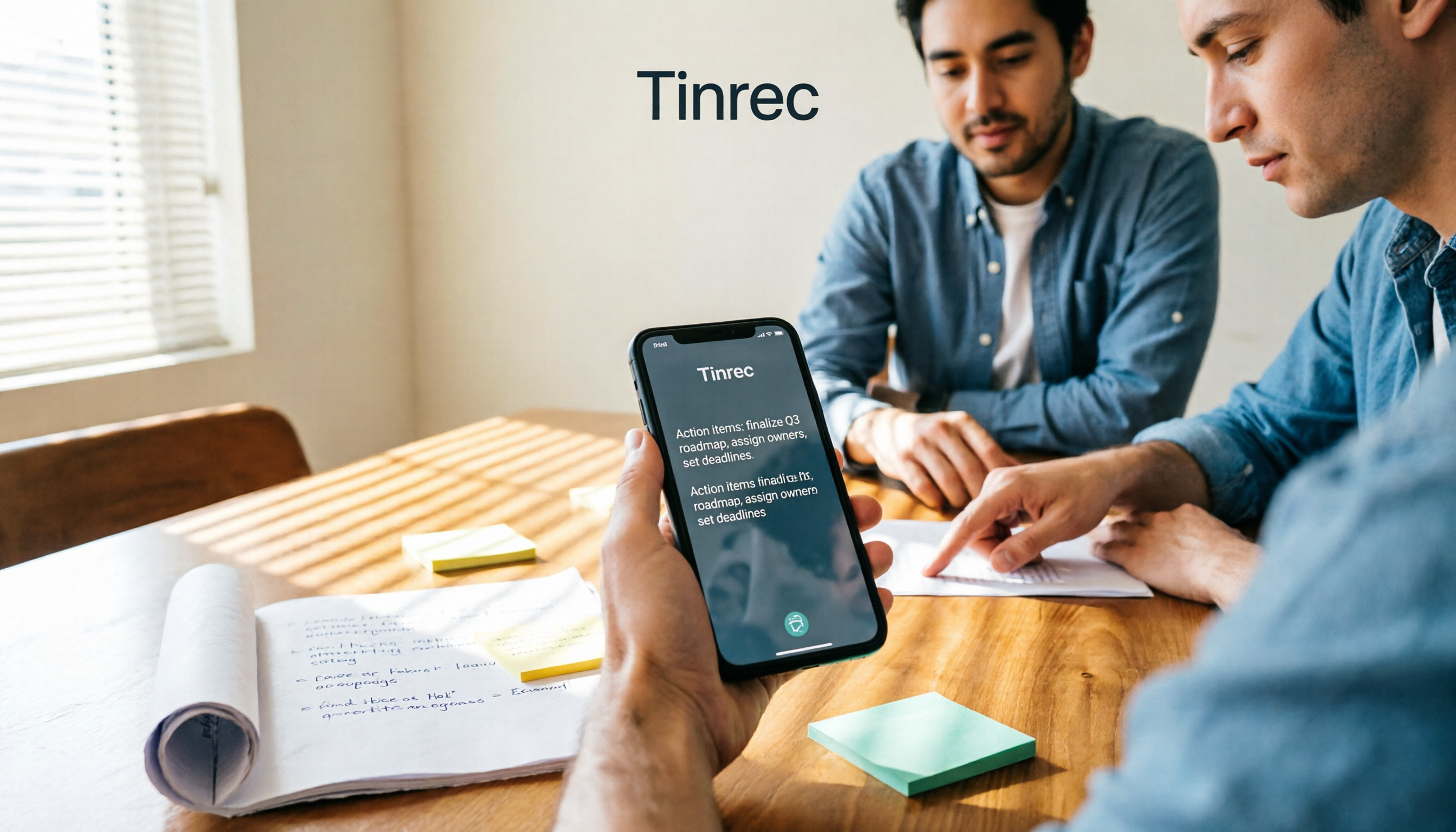
Tinrec is an AI meeting notes and collaboration tool for individuals and teams, available on web, desktop, and mobile. Its positioning isn't "recording-to-text" but turning meetings into searchable, queryable, deliverable data.
In practice, the most immediate benefit is centralized input sources. For in-person meetings, open the app and record while transcribing; for online meetings, the desktop version captures system audio, so you don't need to invite a bot to Zoom, Google Meet, Microsoft Teams, or Webex; existing audio or video files can be uploaded directly for transcription.
What sets it apart is what happens after transcription. The system automatically generates summaries, sections, key points, and action items, so for long meetings you can grasp conclusions just by scanning the structure. Even better is AI Q&A: you can ask "What was the budget ceiling the client mentioned?" and it answers based on the meeting content, rather than dumping a list of keyword search results. Few tools in this price range offer this feature.
It also supports real-time translation during recording, letting you switch between original text, translation, or bilingual view—helpful for meetings with mixed Chinese and English. Finished results can be exported to Notion, Google Docs, OneNote, Dropbox, and other tools to continue writing reports or weekly updates.
For team use, the team edition is a separate collaborative workspace, not multiple people sharing one personal account. Meeting data belongs to the team; you can create multiple spaces, invite members via link, set owners and admins, assign and revoke seats, and administrators can view usage trends and activity logs. Pricing: team monthly is USD 29.80 per paid seat per month, annual is USD 199 per paid seat per year (about USD 16.58 per month). Eligible teams get a 7-day first trial with 1 free seat and 300 minutes of shared import quota; paid seats include 2,000 minutes of shared import quota per month, and real-time recording currently isn't deducted by the minute. Actual prices and benefits are subject to the official purchase page.
Stop organizing recordings by hand
Upload audio or video and automatically get a transcript, summary, and action items
**Note:** Transcription quality is affected by the recording environment—air conditioning noise, people talking over each other, and heavy accents will degrade results. For important content, cross-check against the recording timestamps. Also, the free version is a basic quota; if you're organizing several meetings every week, you'll likely need a paid plan.
**Who it's for:** People who frequently hold online meetings, need to quickly produce minutes and action items afterward, and want data to stay in a team workspace rather than scattered across personal devices.
Besides Tinrec, what other options are there?
**Gemini (Google):** The easiest entry point—open it in your browser and go; some accounts can upload audio files directly for transcription. But it outputs "a big block of text" with no sections, action-item tracking, or team workspace, and recordings aren't saved as queryable data. Suitable for ad-hoc, one-off situations with no security concerns.
**Notta:** A multi-platform transcription tool supporting meeting notes, file import, translation, and team plans. Free version: 120 minutes per month, max 3 minutes per item; Pro annual works out to about USD 8.17 per month with 1,800 minutes per month. Suitable for those who purely want file transcription and subtitles. But if you want no-bot meeting joining and meeting data that stays in a team workspace, that's where Tinrec differs.
**Otter.ai:** A mature choice for English meetings. Basic is free with 300 minutes per month; Pro annual works out to about USD 8.49 per user per month, including 1,200 minutes per month and 10 file imports. If 90% of your meetings are in English, it's a good deal; Chinese meetings and bot-free desktop recording aren't its strong suit.
**TurboScribe:** A high-value file transcription route. Free: 3 files per day, max 30 minutes per file; Unlimited annual is USD 120, with paid version supporting files up to 10 hours and 50 files uploaded at once. Few tools beat it for long documents and batch processing, but it doesn't focus on real-time meetings or post-meeting Q&A.
Pitfall guide: the 4 most common mistakes when choosing a recording-to-transcript tool
**Pitfall 1: Assuming "text output" equals "meeting notes done."** A transcript is just 10,000 words of spoken content with low information density. What really saves time is summaries, sections, and action items—look at that part when choosing a tool.
**Pitfall 2: Only looking at total monthly minutes, not per-file limits.** Some free plans give 120 minutes per month but only 3 minutes per file, so you get stuck after one meeting. Before choosing, confirm "maximum minutes per file."
**Pitfall 3: Ignoring data ownership.** Things transcribed in a personal account disappear when the person leaves. For team use, confirm whether meeting data belongs to the team or the individual uploader. Also note: Tinrec's team edition currently focuses on team-level sharing—all active members can read team data, not file-level granular permissions—so make this clear to colleagues upfront.
**Pitfall 4: Sending AI transcripts as final versions without review.** Names, numbers, and proper nouns will inevitably have errors. At minimum, scan once before sending, or go back and verify key sections against the recording.
Also note that recording and transcription involve local regulations; it's best to inform participants and obtain consent before the meeting.
Conclusion: which one should you choose?
If you just occasionally turn a recording into text, the content isn't sensitive, and you don't plan to query details later, Gemini's free version can handle it—no need to spend extra.
But if you want "something you can deliver right after the meeting," the choice is different:
- Need Chinese meeting transcripts plus summaries and action items in one go—choose Tinrec
- Need to record during online meetings without a bot joining the room—choose Tinrec desktop
- Need to turn past meetings into a queryable database—choose Tinrec's AI Q&A
- Need team-shared meeting data with seat and usage management—choose Tinrec team edition
- 90% of meetings are in English and you just want cheap, large quotas—consider Otter.ai
- Have a pile of long recordings to batch transcribe—TurboScribe fits better
Overall, Gemini solves the "turn into text" step, while Tinrec solves the "what to do after transcription" part. Figure out where you're stuck first, then decide whether to pay—that's more practical than just comparing minutes. Start with a free trial and test with your own real recordings; that's more accurate than any review.
References
- Can Gemini turn audio files into transcripts? 2026 hands-on test and comparison of 5 efficient recording-to-text tools - Tinrec Blog
- Note-taking savior! Google Gemini supports uploading audio files, AI assistant transcribes over 10,000 words of speech in one minute - TNL The News Lens
- Can Gemini turn audio files into transcripts? 2026 recording-to-text tool comparison and practical guide - Tinrec Blog
- Google Gemini supports uploading audio files, AI transcribes over 10,000 words of speech in one minute
- Gemini speech-to-text tutorial 2026 | Turn meeting recordings into transcripts in 2 steps! 10 must-learn prompts + practical prompt cheat sheet
Turn every recording into actionable outcomes
Get 60 free transcription minutes when you sign in. No credit card required.
Related Reading
You might also like

Word Video Recording in 2026: 5 Free Solutions Compared
Word doesn't have a screen recording feature—only dictation and transcription. This guide covers 5 practical approaches, from Word's built-in tools and free add-ins to meeting note tools like Tinrec, helping you choose the right solution for your needs, with free quotas, pricing, and pitfalls to avoid.

The Complete 2026 Guide to iPhone Text-to-Speech: 4 Built-in Methods and When to Use Them
Your iPhone can read text aloud right out of the box, but Live Speech, Speak Screen, Speak Selection, and creating audio files with Shortcuts are very different. Based on real campus scenarios, this guide helps you decide which one to use, how to set up Shortcuts, how output formats differ, and honestly explains what tool to use for turning class recordings into reviewable text.

4 Word Voice Input Solutions Compared in 2026: Where Is the Microphone Button and What to Do After You Speak?
The microphone button in Word is actually Home > Dictate, but finding it is only the first step. This hands-on guide first confirms where dictation is and common sticking points, then compares Word's built-in dictation, Tinrec, Notta, and Otter.ai on meeting notes and post-meeting organization to help you decide which route to take.

2026 Vocal AI Comparison: 4 Tools Tested for Meeting Transcription vs. Voice Generation
People searching "Is Vocal AI good?" actually have two different needs: one is AI voice generation and vocal separation, and the other is turning meeting or interview recordings into organized data. This article first helps you decide which path to take, then tests and compares four tools—Tinrec, Notta, Granola, and PLAUD—on recording method, Chinese recognition, post-meeting organization, free tier, and team collaboration, and summarizes the four most common buying mistakes.

2026 Comparison of 3 Note-Taking Recording Tools: Is the iPhone Built-in Recorder Enough?
Can the Notes app record audio? Yes, but recording alone doesn't mean it's usable. Based on the real needs of a mid-level manager with 15 meetings per week, this article tests and compares the built-in recording in iPhone/Mac Notes, Notta, and Granola, and breaks down how Tinrec differs in transcripts, AI Q&A, action item extraction, and team knowledge retention—helping you choose the one that truly saves you from re-listening to an hour-long meeting.

5 Best Transcription Tools in 2026: Is Yating Good Enough? Which Saves More Post-Meeting Time?
Yating performs well with Taiwanese accents and Taiwanese Hokkien, but organizing the transcript afterward is the real time sink. This article addresses common misconceptions, breaks down the capabilities transcription tools should have, practical use cases, and 5 purchase checkpoints. It uses Tinrec's real-time transcription, AI summaries, bot-free meeting recording, and team spaces as concrete examples to help you decide whether you need 'accurate transcription' or 'fast organization'.
3 Free iPhone Photo-to-Text Methods for 2026: Built-in Features vs. Meeting Notes Compared
No app download needed to turn iPhone photos into text. This guide compares Live Text, Notes scan text, and Shortcuts—three free methods—covering version requirements, best use cases, and limitations. It also contrasts Tinrec's approach to meeting transcription, post-meeting organization, and team collaboration to help you decide which tool fits your needs.

2026 Comparison of 5 Online Meeting Software: Is the Free Version Enough, and How to Fill In Meeting Notes?
A roundup of 5 common online meeting software in 2026: Google Meet, Zoom, Microsoft Teams, Cisco Webex, and LINE, covering their positioning and limitations. It also explains how to use Tinrec to fill in transcripts, summaries, action items, and team knowledge after meetings, with practical judgment on free quotas and team plan pricing.

2026 Screen Recording to Text Tools Compared: Is EverCam's Free Version Enough?
Is EverCam really free? What's the difference between the trial and free versions, what are the actual limitations of the free version, and can recorded videos be exported and published? This article compiles official statements and compares the workflows suited for EverCam, Tinrec, Otter.ai, Notta, and Granola to help you decide if the free version is sufficient and when to switch tools.