

Turn recordings into transcripts and summaries in minutes
Upload audio or video for multilingual transcription, AI notes, and action items
Word Video Recording in 2026: 5 Free Solutions Compared
Your Friday afternoon project meeting just ended, and your manager turns to you: "Record that discussion we just had and send me the notes later." You open Word, scan the ribbon from left to right, and see only "Insert Video" and "Dictate"—no record button anywhere.
You're not blind—Word really doesn't have that button.
But don't rush off to find other software just yet. Most people get stuck here because they're confusing what they actually need.
The Bottom Line: Word Has No Recording Feature, But It's Not Completely Helpless
Word is a word processing application. It doesn't have screen recording built in, nor is it designed as a meeting recording tool. The video feature you see under "Insert" is for placing an existing video file into your document—not for recording.
What it does have is "Dictate" and "Transcribe." Dictate converts your spoken words into text in real time; Transcribe lets you upload an audio or video file and produces a transcript. The output is text, not a video file, and it won't save your audio as a recording either.
A bit of history: Microsoft once offered a free add-in called Community Clips through Office Labs that could be attached to Word, Excel, and PowerPoint for screen recording, including selecting a screen area to record operations. But that was many years ago and isn't recommended as part of a modern workflow.
When You Search "Can Word Record Video," You Usually Mean One of These Three Things
First, you want to record screen operations—for example, making a tutorial video or recording a system walkthrough for a colleague. Word can't help with this; you need a dedicated screen recording tool.
Second, you want to turn meetings, interviews, or lectures into editable text. This is the most common case and the focus of this article. This doesn't require "video recording"—it requires audio recording plus transcription, and Word's transcription capabilities are quite limited.
Stop organizing recordings by hand
Upload audio or video and automatically get a transcript, summary, and action items
Third, you just don't want to type and prefer to speak. This is the simplest case, and Word's Dictate feature can handle it.
Figure out which one you need so you don't download a bunch of tools you'll never use.
Before Choosing an Audio-to-Text Tool, Understand These 5 Key Points
How broad is the audio source support? Online meetings, in-person meetings, phone recordings, and existing audio files—these four scenarios require completely different handling. Some tools excel at file uploads, others at live meetings. First confirm which one accounts for 80% of your use.
Will the audio file be kept? Many people discover this only afterward. Some tools only give you a transcript and don't save the original audio, so you can't go back and listen to a specific sentence to confirm tone. For important meetings, choose one that retains recordings.
Can you use the output directly? Getting just a transcript versus getting organized summaries, sections, and action items—the difference in workload is exponential.
Performance with Chinese and mixed Chinese-English. Meetings in Taiwan rarely use pure Chinese; they typically mix in English product names and technical terms. In these situations, the gap between tools becomes very obvious.
How free quotas are calculated. Don't just look at "minutes per month"—check the per-session limit. Some tools give you 120 minutes per month but only 3 minutes per file, which means you can't even record one normal meeting.
Tinrec (秒聽錄音)—The Most Practical Fix for Word's Gap
Tinrec (秒聽錄音) is an AI meeting notes and collaboration tool for individuals and teams, available on web, desktop, and mobile. It's not screen recording software, but when it comes to "turning audio into usable meeting materials," it fills exactly the gap where Word is weakest.
No bot needed for online meetings. Its desktop version captures system audio directly, so when handling Zoom, Google Meet, Microsoft Teams, or Webex meetings, you don't need to invite an extra bot account. This is practical for client meetings—no unfamiliar name appears in the participant list. Note that this doesn't mean it automatically joins all meetings on your calendar; you still need to actively open Tinrec to start recording.
Transcribes while recording, with notes ready right after. Start live recording during the meeting and the transcript is generated in sync. After the meeting ends, AI summaries, sections, key points, and action items are already organized—who's responsible for what and what to follow up on next time, all at a glance. This skips the two hours you'd otherwise spend typing in Word.
Turn every recording into actionable outcomes
Get 60 free transcription minutes when you sign in. No credit card required.
Related Reading
You might also like

The Complete 2026 Guide to iPhone Text-to-Speech: 4 Built-in Methods and When to Use Them
Your iPhone can read text aloud right out of the box, but Live Speech, Speak Screen, Speak Selection, and creating audio files with Shortcuts are very different. Based on real campus scenarios, this guide helps you decide which one to use, how to set up Shortcuts, how output formats differ, and honestly explains what tool to use for turning class recordings into reviewable text.

4 Word Voice Input Solutions Compared in 2026: Where Is the Microphone Button and What to Do After You Speak?
The microphone button in Word is actually Home > Dictate, but finding it is only the first step. This hands-on guide first confirms where dictation is and common sticking points, then compares Word's built-in dictation, Tinrec, Notta, and Otter.ai on meeting notes and post-meeting organization to help you decide which route to take.
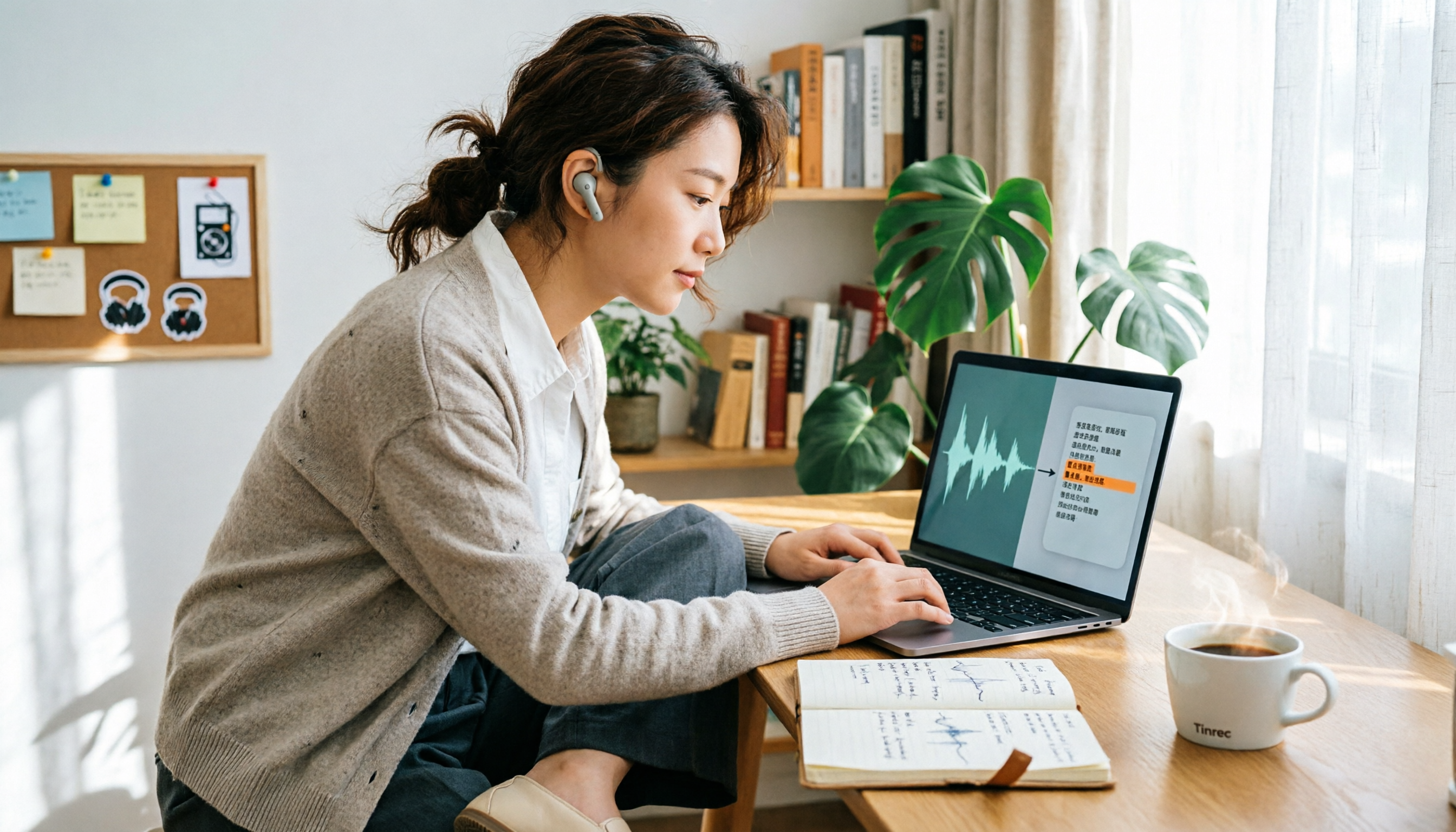
Gemini Audio to Transcript Free Options in 2026: 5 Tools Compared
Can Gemini actually turn audio files into transcripts? This hands-on comparison of 5 free recording-to-text options covers Gemini's upload limits and output format, plus the quotas and post-meeting capabilities of Tinrec, Notta, Otter.ai, and TurboScribe—so you can decide which one truly saves you from re-listening.

2026 Vocal AI Comparison: 4 Tools Tested for Meeting Transcription vs. Voice Generation
People searching "Is Vocal AI good?" actually have two different needs: one is AI voice generation and vocal separation, and the other is turning meeting or interview recordings into organized data. This article first helps you decide which path to take, then tests and compares four tools—Tinrec, Notta, Granola, and PLAUD—on recording method, Chinese recognition, post-meeting organization, free tier, and team collaboration, and summarizes the four most common buying mistakes.

2026 Comparison of 3 Note-Taking Recording Tools: Is the iPhone Built-in Recorder Enough?
Can the Notes app record audio? Yes, but recording alone doesn't mean it's usable. Based on the real needs of a mid-level manager with 15 meetings per week, this article tests and compares the built-in recording in iPhone/Mac Notes, Notta, and Granola, and breaks down how Tinrec differs in transcripts, AI Q&A, action item extraction, and team knowledge retention—helping you choose the one that truly saves you from re-listening to an hour-long meeting.
5 Best Transcription Tools in 2026: Is Yating Good Enough? Which Saves More Post-Meeting Time?
Yating performs well with Taiwanese accents and Taiwanese Hokkien, but organizing the transcript afterward is the real time sink. This article addresses common misconceptions, breaks down the capabilities transcription tools should have, practical use cases, and 5 purchase checkpoints. It uses Tinrec's real-time transcription, AI summaries, bot-free meeting recording, and team spaces as concrete examples to help you decide whether you need 'accurate transcription' or 'fast organization'.
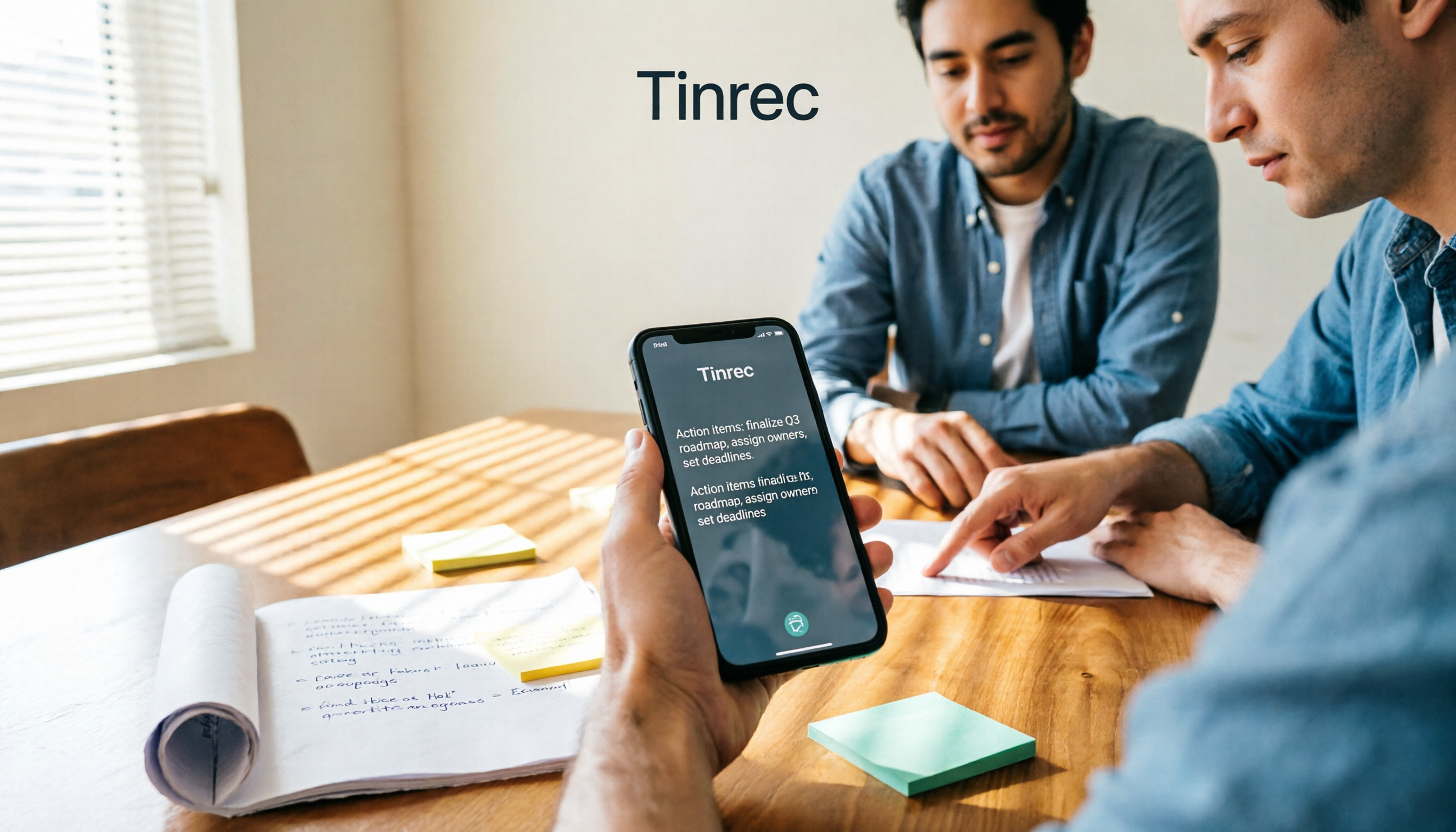
3 Free iPhone Photo-to-Text Methods for 2026: Built-in Features vs. Meeting Notes Compared
No app download needed to turn iPhone photos into text. This guide compares Live Text, Notes scan text, and Shortcuts—three free methods—covering version requirements, best use cases, and limitations. It also contrasts Tinrec's approach to meeting transcription, post-meeting organization, and team collaboration to help you decide which tool fits your needs.

2026 Comparison of 5 Online Meeting Software: Is the Free Version Enough, and How to Fill In Meeting Notes?
A roundup of 5 common online meeting software in 2026: Google Meet, Zoom, Microsoft Teams, Cisco Webex, and LINE, covering their positioning and limitations. It also explains how to use Tinrec to fill in transcripts, summaries, action items, and team knowledge after meetings, with practical judgment on free quotas and team plan pricing.

2026 Screen Recording to Text Tools Compared: Is EverCam's Free Version Enough?
Is EverCam really free? What's the difference between the trial and free versions, what are the actual limitations of the free version, and can recorded videos be exported and published? This article compiles official statements and compares the workflows suited for EverCam, Tinrec, Otter.ai, Notta, and Granola to help you decide if the free version is sufficient and when to switch tools.