

Turn recordings into transcripts and summaries in minutes
Upload audio or video for multilingual transcription, AI notes, and action items
iPhone Voice Memos vs Tinrec (2026): 5-Dimension Comparison, Where to Find Transcripts & Post-Meeting Organization
Bottom line first: iPhone recording transcripts are not in Settings, nor are they a separate recorder app you download—they're in the Voice Memos app. Many people finish a meeting and then dig through Settings, which is the most common mistake. Another mistake is thinking every iPhone automatically generates a transcript after recording; in reality, it depends on the model, system version, language, and region. First-time use may also require a Wi-Fi connection to download the transcription module. Honestly, built-in transcripts are convenient for quick review, but if you need post-meeting organization, team sharing, and AI follow-up questions, relying solely on built-in features can be challenging.
Where Are iPhone Recording Transcripts? Start with Voice Memos, Then Hand Off to Tinrec for Post-Meeting
- Open the Voice Memos app, located in the Utilities folder on iPhone.
- After starting a recording, you'll see a "Text" button at the bottom left of the recording screen. Tap it. The waveform temporarily disappears, and the transcript appears, highlighting the current word being spoken; tap the transcript page to return to the recording screen or waveform.
- After recording, find "View Transcript" and "Copy Transcript" in the recording file options. To copy part of the content, select "View Transcript," select the text, and tap "Copy."
- You can also tap "More" (three dots) in the top right, select "Copy Transcript," or select "Add Transcript to Notes" and then edit in Notes.
- For call recordings, transcripts are viewed in the Notes app; according to Apple Support, this feature is limited to specific regions and languages.
Note that built-in audio transcription requires iPhone 12 or later and iOS 18 or later; for Traditional Chinese transcripts, tutorial reports indicate you need iOS 18.4 or later. Supported languages include English, Spanish, Portuguese, Italian, French, German, Japanese, Korean, Simplified Chinese, and Traditional Chinese, and it's unavailable in some countries or regions. For first-time use, connect to Wi-Fi to download the transcription module; without it, you may not see transcripts.
Why Are People Looking for Alternatives to iPhone Voice Memos Transcripts?
The advantages of built-in transcripts are straightforward: free, right in Voice Memos, and you can review and copy immediately after recording. For occasional recording of an interview, class, or memo, this is sufficient.
But when recording becomes a daily task, the problem is usually not "where is the transcript" but "how to use the transcript afterward." For example, meetings need to be organized across Windows and Mac, summaries and action items need to be generated, teams need to search historical meetings together, or you need to ask follow-up questions about the content. These are the times I'd look for alternatives. AI meeting note tools like Tinrec fill exactly the gap after transcription—organization and collaboration.
Tinrec vs iPhone Voice Memos: 5-Dimension Comparison
1. How Meetings Are Captured iPhone Voice Memos is suitable for in-person recording and personal review, with an intuitive location. Tinrec desktop version directly captures computer system audio, handling online meetings on Zoom, Google Meet, Microsoft Teams, Webex, etc., without needing a meeting bot to join. For those who frequently have online meetings, one less bot step makes recording smoother.
2. Organization After Transcription Built-in transcripts can be viewed, searched, copied, and added to Notes. Tinrec not only provides transcripts but also generates AI summaries, chapters, key points, and action items, and supports AI Q&A. After a meeting, you can directly ask "What are the conclusions?" or "Who is responsible for what?" without manually scrolling through long transcripts.
3. Languages and Translation iPhone built-in transcripts support multiple languages, but actual availability depends on device, system, region, and language. Tinrec focuses on Chinese, Traditional Chinese, and multilingual meetings, and offers real-time translation, original and translated text, or bilingual view. Actual transcription quality is still affected by recording quality, accents, noise, and overlapping speakers; it's not recommended to rely solely on fixed accuracy rates.
4. Team Collaboration and Governance Built-in features are mainly for personal recording. Tinrec team version is a separate team space where meeting data belongs to the team, and you can manage members, roles, seats, sharing permissions, usage analytics, and audit logs. Members who are active but have no seat can still view, play, and read data, but cannot upload, edit, or import/export; this distinction is important when managing seats.
5. Output and Workflow The fastest way with built-in transcripts is to copy or add to Notes for further editing. Tinrec can export results to Notion, Google Docs, OneNote, Dropbox, and other tools, and can also use Agent post-processing to generate reports, tables, and documents. If your workflow is already in these tools, you'll save a lot of copy-paste time.
Tinrec Core Features at a Glance
Real-time speech-to-text: Open Tinrec recording, and text appears as you speak—ideal for offline meetings, interviews, and on-site notes. You can view the transcript synchronously during the meeting, with no need to wait for conversion afterward.
Bot-free online meeting recording: The desktop version captures device system audio, handling meeting audio played on the computer from Zoom, Meet, Teams, Webex, etc. No need to invite an extra bot into the meeting; this captures computer-played meeting audio and is not an official partnership with the platforms.
Stop organizing recordings by hand
Upload audio or video and automatically get a transcript, summary, and action items
AI summaries, chapters, and action items: The biggest fear with long meetings is re-listening afterward. Tinrec organizes content into summaries, chapters, and key points, and extracts action items from discussions—suitable for weekly meetings, project meetings, and client meetings.
AI Q&A and post-meeting outputs: You can ask follow-up questions about single or multiple meeting data, and generate meeting minutes, reports, tables, and documents. For those who need to write reports and do retrospectives, this is a more practical part beyond transcripts.
Team spaces and governance: The team version allows creating multiple team spaces, inviting members via join links, setting owners and admins, and viewing usage trends, member rankings, audit logs, and audio recycle bin. When members leave or lose seats, team resources can be handed over to other active members.
Tinrec Practical Use Cases
Online weekly meetings: Participants are on Zoom or Teams, you open Tinrec desktop to start recording, and after the meeting you get transcripts, summaries, and action items directly. Compared to re-listening to recordings afterward, you save organization time.
Client interviews and sales meetings: Import interview recordings or meeting notes into Tinrec, use AI Q&A afterward to find customer needs, objections, and commitments, then export as follow-up materials. Client names and product terms can be maintained via team hotwords.
Classes and personal notes: Record lectures or ideas on your phone, then organize them into transcripts and summaries with Tinrec when back at your desk. Historical recordings can also be searched centrally, no need to listen from the beginning each time.
Team meeting database: Departments put weekly meetings, review meetings, and decision meetings into team spaces; new members can view historical data, and managers can see usage and audits. This is easier to trace than recordings scattered on personal phones.
Points to Consider When Choosing a Speech-to-Text Tool
First confirm where transcripts are and device limitations: If you only occasionally record on iPhone, first learn to find transcripts in Voice Memos, confirm your device and system version, then decide whether to switch tools.
Look at post-meeting organization, not just transcription: Transcripts are just raw material. Summaries, chapters, action items, AI Q&A, and export are the daily productivity features. Tinrec focuses more on this area.
Cross-platform and meeting sources: Phone, computer, online meetings, audio, and video files—ideally all in one place. Tinrec covers real-time recording, desktop meetings, file import, and mobile.
Team permissions should distinguish roles and seats: The team version is not multiple people sharing one account. When choosing a tool, ask clearly who can manage, who can use, and how data ownership is handled after members leave.
Look at pricing and quotas honestly: Tinrec team version is USD 29.80 per paid seat per month, or USD 199 per paid seat per year (about USD 16.58/month); each paid seat provides 2,000 minutes of team shared import quota per month, and real-time recording under active plans and active seats is currently not deducted by minutes. Prices and promotions are subject to the official purchase page.
Conclusion: Is Tinrec Worth a Try?
If you're asking "Where are iPhone recording transcripts?" the answer is the Voice Memos app; using built-in features for quick review is completely reasonable. Built-in is free, directly located, and friendly for light users.
But if you have meetings every day and transcripts need to become summaries, action items, queryable data, and even shared with your team, Tinrec is closer to a "post-meeting workflow" rather than one-time transcription. It supports bot-free online meeting recording, real-time translation, AI Q&A, multi-format export, and team spaces—things built-in features struggle to satisfy all at once.
We suggest starting with Tinrec's free version basic quota, testing transcripts, summaries, and Q&A with a real meeting to see if it fits your habits. For teams, first learn about the 7-day, 1 free seat, 300-minute team shared import quota trial, then decide on the number of seats. This is more accurate than just looking at a feature list.
FAQ
Q1: Where exactly are iPhone recording transcripts? In the Voice Memos app, located in the Utilities folder on iPhone. After starting a recording, tap the "Text" button at the bottom left of the recording screen, or after recording, find "View Transcript" in the recording file options. Call recording transcripts are viewed in the Notes app, limited to specific regions and languages.
Q2: Why don't my Voice Memos show transcripts? First check if your device is iPhone 12 or later and system is iOS 18 or later; Chinese transcripts require a version that supports Chinese, reported to be iOS 18.4 or later. Also confirm language and region support, and connect to Wi-Fi to download the transcription module on first use. If still not available, your device or language conditions may not meet the requirements.
Q3: How do I copy or add transcripts to Notes? In the recording file, tap "More" (three dots) in the top right, select "Copy Transcript," or select "Add Transcript to Notes." To copy only part of the content, select "View Transcript," select the text, and tap "Copy."
Q4: Are iPhone built-in transcripts accurate? They can be used for quick review, but important content should still be verified against the recording. Transcripts may be affected by recording quality, background noise, accents, overlapping speakers, and technical terms, and cannot be guaranteed 100% accurate.
Q5: How to choose between Tinrec and iPhone Voice Memos? For occasional recording and just wanting to quickly view text, use built-in Voice Memos. If you frequently have online meetings and need summaries, action items, AI Q&A, cross-platform export, or team sharing, Tinrec is more suitable. They are not mutually exclusive; you can use built-in for quick recording and Tinrec for post-meeting organization.
Q6: How is Tinrec team version priced? Currently team monthly is USD 29.80 per paid seat per month, annual is USD 199 per paid seat per year (about USD 16.58/month); each paid seat provides 2,000 minutes of team shared import quota per month. The first eligible team trial is 7 days, 1 free seat, 300 minutes of team shared import quota. Actual prices, currencies, and promotions are subject to the official purchase page.
References:
- Apple Support: View Voice Memos transcripts on iPhone
- BusinessNext: iPhone Notes and Voice Memos also have transcript features
- MrMad: iPhone Voice Memos to text tutorial
References
- View Voice Memos transcripts on iPhone - Apple Support (Taiwan)
- iPhone Notes and Voice Memos also have transcript features! Turn lectures, meetings, and speeches into text in seconds: simple 4-step tutorial | BusinessNext
- iPhone Voice Memos to text tutorial: built-in transcription without third-party apps - MrMad
- Record and transcribe calls on iPhone - Apple Support (Taiwan)
- [iPhone Voice Memos to text] Complete tutorial of 3 methods! iOS built-in, app, recorder, which is best?
Turn every recording into actionable outcomes
Get 60 free transcription minutes when you sign in. No credit card required.
Related Reading
You might also like

2026 iPhone Recording Solutions Compared: Tinrec vs. Voice Memos vs. PLAUD
Recording on an iPhone is never as simple as just pressing the red button. This article tackles three common misconceptions and compares Voice Memos, Tinrec, and PLAUD in real classroom, online meeting, and group project scenarios. It also covers free tiers, Chinese recognition, export workflows, and team permissions to help you find the recording setup you'll actually use after hitting stop.

2026 Speech-to-Text Comparison: Tinrec vs PLAUD Note — Which Is Better for Turning Audio Files into Text?
Many people think of uploading audio files to free tools for transcription, but overlook Chinese punctuation, multi-speaker conversations, and post-meeting organization. This article compares Tinrec and PLAUD Note across 5 dimensions—hardware requirements, meeting recording, file import, team collaboration, and post-meeting workflow—to help you decide which solution better turns audio files into usable text data.

ChatGPT Meeting Notes Free Plans in 2026: 5 Options Compared
How does ChatGPT handle meeting notes? This article covers ChatGPT Record's actual workflow, Chinese-language limitations, and paid requirements, and compares free tiers from Tinrec, Otter.ai, Notta, and Granola. It evaluates recording sources, post-meeting outputs, team collaboration, and privacy consent to help US professionals choose the right meeting notes workflow.
4 Best Audio-to-Text Tools in 2026: Is Recording Legal, Evidence Gathering, and Meeting Notes Explained
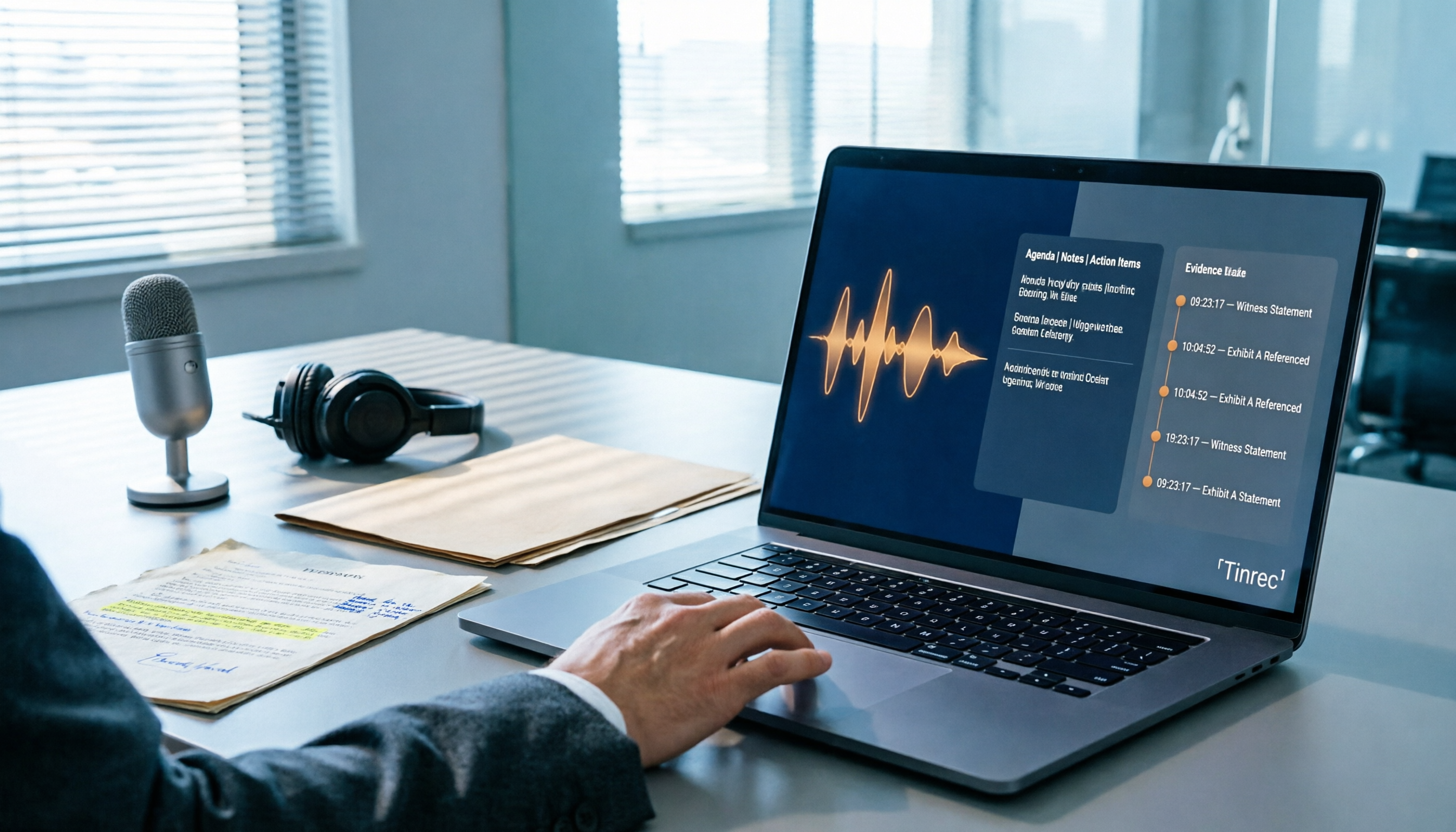
Is recording a conversation illegal? It depends on more than whether you're a party to the conversation. This article covers Taiwan's Criminal Code Article 315-1, the Communication Security and Surveillance Act Article 29, and how courts judge evidence admissibility, then compares Tinrec, Otter.ai, Granola, and TurboScribe for transcription and team workflows.

5 Audio-to-Text Tools Tested for 2026: Google Docs Can't Upload Files—Which Saves the Most Time?
Google Docs cannot directly upload audio files for transcription; it only supports real-time voice input via microphone. This article compares Google Docs, Gemini, Gemini Notebook, Google Cloud Speech-to-Text, and Tinrec through actual workflows to help you decide which method suits meeting transcripts, interview organization, and team collaboration.

3 Transcription Tools Tested and Compared in 2026: What Is Yating Transcription? Which Saves the Most Time?
What is Yating Transcription? This article explains its positioning, pricing, and strengths in 30 seconds, then compares Tinrec, Otter.ai, and Notta in real meeting scenarios across Chinese transcription, AI Q&A, bot-free recording, and team management to help you decide which one to use.

2026 iPhone Transcription Showdown: 3 Methods Tested — Is Built-in Enough or Should You Let AI Handle It?
iPhone's built-in Voice Memos and Notes apps can turn recordings into transcripts, but there are device, OS, and language/region restrictions. This hands-on comparison tests three iPhone transcription options: built-in features, Tinrec, and alternative tools. From recording and reviewing transcripts to post-meeting summaries, action items, and team collaboration — get the full picture.

Google AI Studio in 2026: How to Use It in Chinese (English Interface, Chinese Prompts) + Free Tier Limits
Does Google AI Studio support Chinese? The interface is English-only with no native Traditional Chinese version, but Gemini's Chinese capabilities are more than sufficient. This hands-on guide shows how to lock Chinese output with System instructions, explains free tier limits and available models, and when you should switch to a dedicated Chinese meeting notes tool.

2026 Comparison of 4 Mobile Voice-to-Text Solutions: How to Choose Between Live Dictation and Audio Transcription
Many people asking 'how to do voice-to-text on mobile' are actually confusing live dictation with audio file transcription. This article starts by identifying the scenario, then tests and compares built-in mobile dictation, Notta, PLAUD, and Tinrec, summarizing key purchasing points, common mistakes, and selection advice to help you choose the right tool at once.