

Turn recordings into transcripts and summaries in minutes
Upload audio or video for multilingual transcription, AI notes, and action items
2026 Comparison of 4 Mobile Voice-to-Text Solutions: How to Choose Between Live Dictation and Audio Transcription
Most people searching for 'how to do voice-to-text on mobile' are actually thinking of two completely different things: one is 'I want to type now, speaking is faster,' and the other is 'I've recorded a meeting and want to turn it into text.'
These two needs have completely different solutions. The most common pitfall is recording an hour-long meeting and only later realizing that the microphone on your phone keyboard can't handle audio files at all.
So this article doesn't discuss spec sheets. First, it helps you clarify the scenario, then compares these 4 solutions: built-in mobile dictation, Notta, PLAUD recording hardware, and Tinrec (Miao Ting Lu Yin), which I use most often for finishing up.
Why Do You Get Stuck on 'Mobile Voice-to-Text'? — You Don't Need an Input Method, You Need the Right Scenario
Scenario 1: You're walking or on the subway and want to reply to a message. What you need here is 'live dictation'—you speak, and text appears in the input box. iPhone's dictation and Android's GBoard can both do this, free and with zero installation.
Scenario 2: You've finished a meeting, and there's a 40-minute recording sitting on your phone. What you need here is 'audio file transcription'—and the microphone on the keyboard is completely useless for this.
Scenario 3: The meeting is on Zoom, Google Meet, or Teams. It's difficult for the phone itself to cleanly capture the system audio of online meetings; this usually has to be handled on a computer.
The difference between these three scenarios is where most people get stuck. First, confirm which one you belong to, and then choosing a tool won't waste money.
Before Choosing a Mobile Voice-to-Text Solution, Understand These 4 Key Points
1. Can it handle 'already recorded audio files' This is the most misunderstood point. Keyboard dictation like iPhone dictation and GBoard only processes 'what you say in the moment' and won't transcribe voice memos, LINE voice messages, or recorder files. To transcribe existing recordings, you need a tool that supports uploading audio files.
2. Is the transcribed text directly readable Dictated text often lacks periods, commas, and paragraph breaks; speaking for 10 minutes turns into a big blob. With many participants, you can't tell who said what. If you want content that can be pasted directly into meeting notes, punctuation, paragraphing, and speaker identification are important.
3. After transcription, where does the data go Getting only a transcript means you've completed just one-third of the work. You still have to extract key points and organize action items yourself. So I usually first check whether the tool can also produce summaries, chapters, and action items, and whether it can export to Notion, Google Docs, or other places you already use.
4. Free quota and long-term cost Can the free version really be used? Is payment monthly or annual with a discount? If you handle more than three meetings per week, per-use billing tools quickly become uneconomical.
Tinrec (Miao Ting Lu Yin) — The Solution I Most Often Use for Finishing Up After Testing
Tinrec (Miao Ting Lu Yin) is an AI meeting notes and collaboration tool for individuals and teams, supporting iOS, Android, desktop, and web. It doesn't just convert sound to text; it organizes recordings into data that can be searched, queried, and further processed.
Mobile recording, transcribe while recording For field interviews or impromptu discussions, I directly use the mobile app to start real-time recording, and text appears synchronously. By the time I return to my seat, the transcript is already there, and I don't need to run a separate conversion.
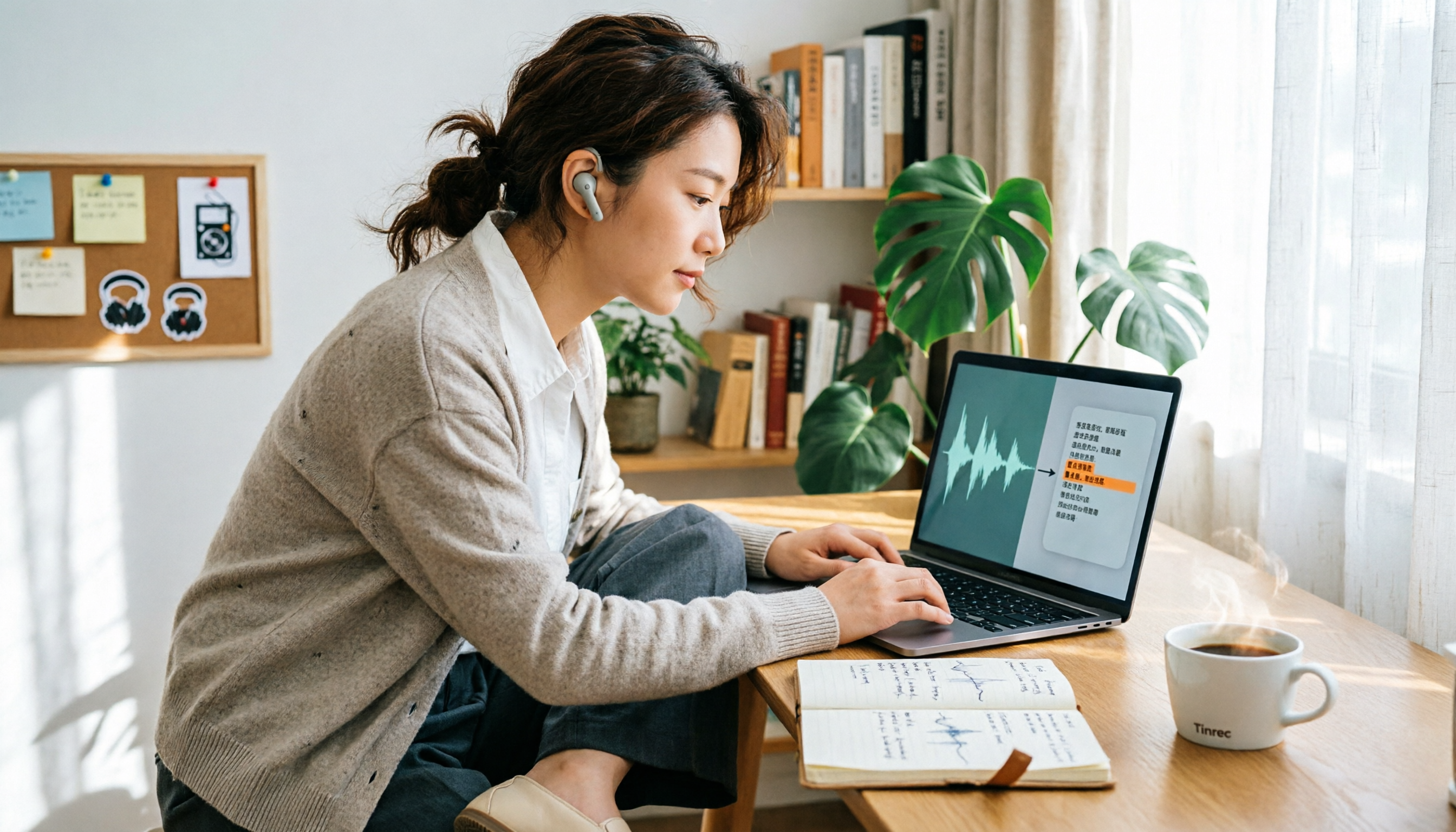
Importing existing audio files—this is the key difference Audio recorded on phone voice memos, voice messages saved from LINE, and files from recorders can all be uploaded for transcription. My test method was to take the same two-person conversation recording with air conditioning background noise indoors and feed it separately to mobile dictation and Tinrec—mobile dictation is unusable at this step because it doesn't accept audio files at all. Under such conditions, the differences between tools truly emerge.
Its value lies after transcription After the meeting, Tinrec provides summaries, chapters, and action items. Even more useful is AI Q&A: you can directly ask 'Who mentioned the budget in this meeting? What was the conclusion?' and it answers based on the content rather than giving you a bunch of keywords. Among tools in the same price range, this feature is not common. It also supports real-time translation; for cross-language meetings, you can switch between original text, translation, or bilingual view, and results can be exported to Notion, Google Docs, OneNote, Dropbox for further use.
No need to invite a bot for online meetings The desktop version directly captures computer system audio, handling meetings on Zoom, Google Meet, Teams, Webex without needing an extra bot account to join the meeting room. Note that this is not 'automatically joining all scheduled meetings'—you have to open Tinrec yourself to start recording.
Stop organizing recordings by hand
Upload audio or video and automatically get a transcript, summary, and action items
Team Edition: Turn meetings into team data If you are a department or project team, the Team Edition is a separate space, not multiple people sharing one account. You can create multiple teams, invite members via link, set owners/admins/regular members, and assign, reclaim, or transfer seats. Paid seats provide 2,000 minutes of team shared import quota per month; real-time recording is currently not deducted by minutes under valid plans and seats. Team monthly payment is USD 29.80 per paid seat per month, annual payment is USD 199 per paid seat per year (about USD 16.58 per month); first eligible teams have a 7-day trial, 1 free seat, and 300 minutes of shared import quota. Actual prices are subject to the official purchase page.
Here's a commonly confused point: roles control 'who can manage the team,' while seats control 'who can record, upload, edit, and export.' Members without seats can still view, play, and read team data but cannot perform resource usage operations.
Three advantages I think are worth it
- Usable on mobile, computer, and web; recordings are stored in one place and won't be scattered across devices.
- The transcript is followed by summaries, action items, Q&A, and export, effectively completing both 'recording' and 'organizing' at once.
- Team data belongs to the team; when members leave or lose seats, resources can be handed over and won't disappear with individual accounts.
Limitations to note The free version only has a basic quota; if you handle long meetings every day, you'll quickly hit the limit and need to evaluate the paid version. Also, no matter how convenient AI-generated summaries and action items are, I still double-check important numbers and commitments against the transcript and recording, because accents, noise, and multiple people talking over each other can affect recognition results.
Who it's for People who need Chinese meeting notes, often handle existing audio files, want to directly get summaries and action items after meetings, and may use it from mobile all the way to computer.
Besides Tinrec, What Other Options Are There?
iPhone Dictation and GBoard (free, but only real-time) On iPhone, go to 'Settings → General → Keyboard' and enable 'Enable Dictation'; then tap the microphone in the input box to speak and convert to text. Android's GBoard also has a microphone icon. They are completely free with almost zero learning curve, suitable for replying to messages and jotting down a few words. But they cannot transcribe existing audio files, have no punctuation or paragraphs, and no speaker identification—these three things are exactly Tinrec's main differences.
Notta (multilingual transcription, clear plan tiers) Notta covers multi-platform transcription, meeting notes, file import, and translation. The free version offers 120 minutes per month with a 3-minute limit per item; Pro annual payment is about USD 8.17 per month with 1,800 minutes per month; Business annual payment is about USD 16.67 per seat per month. If you just need to convert files to text, it's sufficient. However, it doesn't have Tinrec's desktop version method of recording online meetings without joining a bot, and whether you can directly ask AI to extract key points after meetings is also where the two differ.
PLAUD Note/NotePin (hardware recording faction) If what you need is a physical device that you can carry around and record by pressing a button, PLAUD is representative. On the US official website, NotePin is USD 159 and Note Pro is USD 189; membership Starter offers 300 minutes per month, Pro is USD 99.99 per year with 1,200 minutes per month. Its value lies in the hardware form and battery life. In contrast, Tinrec doesn't require buying an extra device; you can record on mobile, web, and desktop, and online meetings and historical audio files are all processed in the same database.
Pitfall Guide: The 4 Most Common Mistakes in Mobile Voice-to-Text
Pitfall 1: Pressing the wrong microphone Next to the input box in LINE or messaging apps, there are usually two microphones: one for 'dictation' and one for 'directly sending a voice message.' If you press the latter, the other person receives a voice message, not text. The dictation-specific microphone is what you want, and its location varies by phone; if you can't find it, search for 'your phone model + voice input.'
Pitfall 2: Thinking keyboard dictation can transcribe audio files This is the most common misunderstanding. Dictation only handles real-time speech; recorded files require a separate tool for upload and transcription.
Pitfall 3: Ignoring the gap with accents and mixed Chinese-English With a Taiwanese accent, fast speech, mixed Taiwanese, or mixed Chinese-English, the performance of various recognition engines will decline. This is more obvious in industries with many technical terms (medical, legal, engineering); it's recommended to test with recordings from your own field before deciding.
Pitfall 4: Forgetting recording authorization Recording and transcription involve personal data and communication secrets; inform participants and obtain consent before meetings. This is not something tools can handle for you.
Conclusion: Which One Should You Choose?
First ask yourself: Do you want to transcribe 'what is being said now' or 'audio that has already been recorded'?
- Just replying to messages or quickly jotting down a few words → iPhone dictation or GBoard, free is enough.
- Transcribing meeting recordings or interview files on your phone → Tinrec, upload to get a transcript.
- Want summaries, action items, follow-up questions, and export after the transcript → Tinrec, this is where it differs most from other solutions.
- Meetings on Zoom, Meet, Teams, and don't want a bot to join → Tinrec desktop version captures system audio.
- Team needs to share meeting data and manage members and usage → Tinrec Team Edition; remember to distinguish roles and seats first.
- Need a physical recording device for on-the-go recording → Hardware like PLAUD, combined with software for organizing.
If you're still unsure, I suggest first using Tinrec's free version basic quota to run one or two of your own recordings, see if Chinese recognition and summary output meet your expectations, and then decide whether to upgrade. When it comes to tools, trying once yourself is more accurate than reading ten introductions.
References
- Mobile Voice-to-Text Tutorial (2026) | Comparison of All Methods for iPhone, Samsung, LINE Voice
- No need to type hard, voice-to-text is the most effortless! 5 Must-Learn LINE Tips | 50+
- Completely Free Your Hands! How to Do Voice-to-Text on Mobile? From Input Methods to AI Notes' Super Efficient Applications - UpToGo
- iPhone Voice-to-Text Setup Tips: 5 Methods to Achieve Recording-to-Text - Mr. Mad
- Practical Guide to Voice-to-Text on iPhone
Turn every recording into actionable outcomes
Get 60 free transcription minutes when you sign in. No credit card required.
Related Reading
You might also like

5 Audio-to-Text Tools Tested for 2026: Google Docs Can't Upload Files—Which Saves the Most Time?
Google Docs cannot directly upload audio files for transcription; it only supports real-time voice input via microphone. This article compares Google Docs, Gemini, Gemini Notebook, Google Cloud Speech-to-Text, and Tinrec through actual workflows to help you decide which method suits meeting transcripts, interview organization, and team collaboration.

3 Transcription Tools Tested and Compared in 2026: What Is Yating Transcription? Which Saves the Most Time?
What is Yating Transcription? This article explains its positioning, pricing, and strengths in 30 seconds, then compares Tinrec, Otter.ai, and Notta in real meeting scenarios across Chinese transcription, AI Q&A, bot-free recording, and team management to help you decide which one to use.

2026 iPhone Transcription Showdown: 3 Methods Tested — Is Built-in Enough or Should You Let AI Handle It?
iPhone's built-in Voice Memos and Notes apps can turn recordings into transcripts, but there are device, OS, and language/region restrictions. This hands-on comparison tests three iPhone transcription options: built-in features, Tinrec, and alternative tools. From recording and reviewing transcripts to post-meeting summaries, action items, and team collaboration — get the full picture.

Google AI Studio in 2026: How to Use It in Chinese (English Interface, Chinese Prompts) + Free Tier Limits
Does Google AI Studio support Chinese? The interface is English-only with no native Traditional Chinese version, but Gemini's Chinese capabilities are more than sufficient. This hands-on guide shows how to lock Chinese output with System instructions, explains free tier limits and available models, and when you should switch to a dedicated Chinese meeting notes tool.

Word Video Recording in 2026: 5 Free Solutions Compared
Word doesn't have a screen recording feature—only dictation and transcription. This guide covers 5 practical approaches, from Word's built-in tools and free add-ins to meeting note tools like Tinrec, helping you choose the right solution for your needs, with free quotas, pricing, and pitfalls to avoid.

The Complete 2026 Guide to iPhone Text-to-Speech: 4 Built-in Methods and When to Use Them
Your iPhone can read text aloud right out of the box, but Live Speech, Speak Screen, Speak Selection, and creating audio files with Shortcuts are very different. Based on real campus scenarios, this guide helps you decide which one to use, how to set up Shortcuts, how output formats differ, and honestly explains what tool to use for turning class recordings into reviewable text.

4 Word Voice Input Solutions Compared in 2026: Where Is the Microphone Button and What to Do After You Speak?
The microphone button in Word is actually Home > Dictate, but finding it is only the first step. This hands-on guide first confirms where dictation is and common sticking points, then compares Word's built-in dictation, Tinrec, Notta, and Otter.ai on meeting notes and post-meeting organization to help you decide which route to take.
Gemini Audio to Transcript Free Options in 2026: 5 Tools Compared
Can Gemini actually turn audio files into transcripts? This hands-on comparison of 5 free recording-to-text options covers Gemini's upload limits and output format, plus the quotas and post-meeting capabilities of Tinrec, Notta, Otter.ai, and TurboScribe—so you can decide which one truly saves you from re-listening.

2026 Vocal AI Comparison: 4 Tools Tested for Meeting Transcription vs. Voice Generation
People searching "Is Vocal AI good?" actually have two different needs: one is AI voice generation and vocal separation, and the other is turning meeting or interview recordings into organized data. This article first helps you decide which path to take, then tests and compares four tools—Tinrec, Notta, Granola, and PLAUD—on recording method, Chinese recognition, post-meeting organization, free tier, and team collaboration, and summarizes the four most common buying mistakes.