

Turn recordings into transcripts and summaries in minutes
Upload audio or video for multilingual transcription, AI notes, and action items
6 Best Bulk Image to Text Tools in 2026: Free Limits, Batch Processing, and Privacy Compared
Hundreds of Screenshots in Your Camera Roll: The Real Bottleneck Isn't Recognition Technology
Open your phone's photo gallery and you'll find thousands of screenshots, lecture slides you photographed, paper documents you re-shot, and price quotes clients sent over. You know there's a lot of data in there, but the thought of typing it all out character by character is exhausting.
Most people first look for a free image-to-text tool, only to run into three common roadblocks: images can't exceed 10MB each, you only get 5 conversions per day, and after conversion you still have to copy, paste, and reformat everything.
There's an even more common scenario: you think you need to process 'images,' but the real volume is in meeting recordings, interview audio, and online courses. OCR tools can't help with that kind of data from the start—you need a different type of tool.
This article lays out the limits of free image-to-text tools, their workflows, and privacy considerations. At the end, we'll also cover which type of tool to look for when transcribing audio.
5 Key Points to Understand Before Choosing a Tool
1. Is the limit on 'number of uses' or 'file size'? Free tools typically have two types of caps: one limits the number of uses (e.g., 5 per day), the other limits individual file size (e.g., 10MB). If you need to process 50 images at once, a tool with a usage limit will stop you halfway through.
2. Does it support batch processing? Uploading and converting one image at a time seems like it only adds a few seconds, but multiply that by 100 images and you're looking at half an hour. Check first whether the tool supports multiple images at once.
3. Languages and content types Multilingual support is usually not a problem, but if your images contain math formulas, tables, or handwriting, recognition difficulty goes up significantly, and you'll definitely need to proofread the results.
4. Does it require registration, and what device do you use? On mobile, built-in messaging app features are the most convenient; on desktop, web tools are the main option. Tools that require registration mean leaving an email address—if you only need it occasionally, no-registration options are less hassle.
5. Where do your images go? Company documents, client lists, and ID scans shouldn't be uploaded to unknown websites. Before using a tool, check whether its privacy policy explains how data is handled.
Top Recommendation: No-Registration Online Tools Like imgtotext.me for Processing Multiple Images at Once
If you have a batch of screenshots or photographed documents and need something that works without registration, these online OCR tools offer the shortest workflow.
The process is simple: open the website → drag images onto the page (or click to upload) → click convert → text appears in the field below within seconds → copy or download.
Take imagetotext.me as an example. Several features listed on its official page are worth noting:
- Supports multiple image formats and UNICODE encoding, recognizing content in English, French, Spanish, and other languages.
- The official site states it can recognize numbers and symbols in math formulas, making it suitable for students and teachers processing lecture materials.
- The privacy policy states that user data will not be sold or shared.
Who it's for: Users who occasionally need to process a batch of images, don't want to create an account, and work on a computer.
Limitations to be clear about: Daily usage limits and per-file size caps for free online services like this may not be clearly stated on the official page. We recommend testing with 1–2 images first (actual limits to be confirmed). Also, recognition results will inevitably contain typos and line-break errors—official documents still need a manual review. Finally, once you upload an image, it leaves your device, so mask sensitive data beforehand.
Tinrec: When Your 'Bulk Transcription' Is Actually Meeting and Interview Audio
Let's be clear upfront: Tinrec is not an image OCR tool—it doesn't process text in photos. It handles another type of 'bulk' data: meeting recordings, interview recordings, and online courses.
If your real pain point is 'several meetings every week and I can't keep up with the notes,' then the tool selection is completely different.
Tinrec is an AI meeting notes and collaboration tool for individuals and teams, available on iOS, Android, desktop, and web.
Here's how it works in practice: start recording during a meeting, and content is transcribed in real time. After the meeting, AI automatically generates summaries, chapters, and action items. For online meetings (Zoom, Google Meet, Microsoft Teams, Webex), the desktop version captures system audio directly—no need to add a meeting bot to the room.
Post-meeting organization is where it differs most from standard transcription tools:
Stop organizing recordings by hand
Upload audio or video and automatically get a transcript, summary, and action items
- Transcripts are searchable and reviewable, with the ability to jump to timestamps for key passages.
- Summaries and chapters condense a two-hour meeting into a few key points.
- Action items are automatically extracted from discussions, so you don't have to re-listen to figure out who's responsible for what.
- AI Q&A lets you ask questions directly about single or multiple meetings—for example, 'Who mentioned the budget in the last meeting?'—and it gives you semantic answers instead of dumping keywords for you to search through.
- Real-time translation is supported, so cross-language meetings can be viewed in original, translated, or bilingual mode.
- Export to Notion, Google Docs, OneNote, Dropbox, and other tools for further processing, and generate reports, tables, and documents.
For team use, meeting data is stored in a separate team space that members can share and view. Admins can assign seats, view usage trends and activity logs, and when members leave, data stays with the team rather than being taken away. The team plan is currently USD 29.80 per paid seat per month, or USD 199 per paid seat per year (about USD 16.58 per month). Each paid seat includes 2,000 minutes of shared team import quota per month; under an active plan and seat, real-time recording currently does not deduct minutes. Eligible teams get a 7-day first trial with 1 free seat and 300 minutes of shared import quota. The personal plan offers a free version, weekly pass, Pro monthly, and Pro annual, so you can choose based on usage frequency. Actual prices are subject to the official website.
Two limitations to be honest about: It cannot recognize images—paper documents and screenshots still need OCR. Also, transcription and summary accuracy can be affected by recording quality, accents, background noise, and multiple people talking over each other. For important decisions, go back and verify against the transcript and recording.
Who it's for: People with regular weekly meetings, interviews, or course recordings who need transcripts plus follow-up organization and team sharing.
5 Other Common Image-to-Text Options
LINE (mobile/desktop) Send an image to yourself in a chat, open it, and you can detect and copy text, plus translate to Traditional Chinese with one click. The advantage is no additional tool needed; the downside is one image at a time, which is time-consuming for large volumes.
Google Drive Upload images to Google Drive and open them with Google Docs—recognized text appears in the document. Good for people who already manage files with a Google account, effectively backing up as you go; layout and formatting often need manual cleanup.
Gaitubao Online OCR A web-based tool with a 10MB per-file limit, supporting jpg, gif, png, and bmp. The official site claims about 90% recognition accuracy, with a limit of 5 uses per day; heavy use requires the pro version. Suitable for occasional conversions without registration.
imagetotext.info Free, no registration, using the open-source tesseract-ocr engine developed by HP and maintained by Google. Supports JPG, PNG, TIFF, and other formats. The official site emphasizes handling scanned documents, receipts, and handwritten notes. Results still need proofreading.
Baimiao (web version) Mentioned in public roundups as suitable for high-volume processing with multilingual needs; check the actual free quota and file limits before use (to be confirmed).
Troubleshooting Guide: 4 Most Common Pitfalls When Processing Bulk Images
Pitfall 1: Only looking at 'free' without checking limits. 5 uses per day, 10MB per file, no batch processing on the free plan—these are buried in page corners but are the most likely reasons you get stuck halfway. Test with 3 images before committing to a full batch.
Pitfall 2: Assuming any photo will work. Glare, camera shake, angled shots, and shadows covering half a line of text will noticeably reduce recognition rates. For photographed documents, flatten them out, use even lighting, and shoot straight on—this is more effective than switching tools.
Pitfall 3: Uploading company documents to unknown websites. Client lists, contracts, and IDs are all sensitive data. Check the privacy policy before uploading, crop out sensitive areas if necessary, or use services where you control the account (like Google Drive).
Pitfall 4: Treating 'converted to text' as the finish line. The output is just raw material. For audio like meetings and interviews, OCR tools can't help from the start—you need a tool that produces transcripts, summaries, and action items, otherwise you're just delaying the organization work.
Conclusion: First Identify Your Data Type, Then Choose Your Tool
- A few scattered screenshots on your phone, with quick translation needed → LINE built-in feature
- Already using Google Drive to organize files → Upload directly and open with Docs
- A batch of images, no registration, working on a computer → No-registration online tools like imgtotext.me
- Only converting a small amount, can accept daily usage limits → Gaitubao (5 per day)
- Need multilingual support and higher volume → Tools like Baimiao web version; confirm quotas first
- Source is meeting, interview, or online course recordings → Tinrec, with focus on summaries, action items, Q&A, and team sharing after transcription
Whichever you use, recognition results need a manual review, and important content should be verified against the original image or recording. First clarify whether you're processing images or audio, and you won't waste time on the wrong tool.
References
- 8 Fast and Simple Image-to-Text Methods! Complete Guide to Free and Paid PDF-to-Text Tools — LeadingMRK
- 2026 Bulk Image-to-Text Free Options Roundup: 5 Tools at a Glance — Tinrec Blog
- Online Image to Text | Free Online Text Recognition | Online OCR Software — Gaitubao
- Image to Text - Extract Text from Images — imagetotext.info
- Image to Text - Convert Scanned Images to Text Files — imagetotext.me
Sources
- 8 Fast and Simple Image-to-Text Methods! Complete Guide to Free and Paid PDF-to-Text Tools — LeadingMRK
- 2026 Bulk Image-to-Text Free Options Roundup: 5 Tools at a Glance - Tinrec Blog
- Online Image to Text | Free Online Text Recognition | Online OCR Software - Gaitubao
- Image to Text - Extract Text from Images
- Image to Text - Convert Scanned Images to Text Files
Turn every recording into actionable outcomes
Get 60 free transcription minutes when you sign in. No credit card required.
Related Reading
You might also like

4 Meeting Transcription Tools Compared for 2026: How to Choose for Chinese Meetings and Bot-Free Recording
You finished the meeting but still haven't listened back to the recording? This article uses four practical questions to compare Tinrec, Otter.ai, Notta, and Granola on Chinese and mixed Chinese-English transcription, online meeting audio capture, post-meeting output, and team data management. It also lists each provider's pricing and limitations to help you decide which tool fits your meeting habits.

Best Free Meeting Transcription Tools in 2026: Tinrec vs Notta Free Tiers and Meeting Notes Features Compared
There are many tools for transcribing meeting recordings, but the key to choosing one is how the free tier is calculated and whether the transcript is directly usable. This article compares Tinrec and Notta's free plans, focusing on differences in meeting recording methods, post-transcription processing, Chinese language experience, and team collaboration, and lists checkpoints worth noting when purchasing. Information verified as of August 2026.

4 Free Meeting Transcription Tools in 2026: Free Tiers and Usage Limits Compared
Is a free plan enough for meeting transcription? This article compares the free tiers, recording methods, and post-meeting organization capabilities of Tinrec, Otter.ai, Granola, and TurboScribe, with key buying factors and common pitfalls to help you choose the right tool for your meeting type. Plans and prices verified as of August 2026.

2026 Comparison of 4 Meeting Transcription Tools: Which Saves the Most Time on Chinese Transcripts and Post-Meeting Organization?
How to choose a meeting transcription tool? This article starts with common misconceptions and compares 4 tools on capture methods, Chinese language performance, post-meeting organization, and team collaboration differences. It also includes selection criteria, pitfalls to avoid, and scenario-based recommendations to help you pick the one that truly saves time.
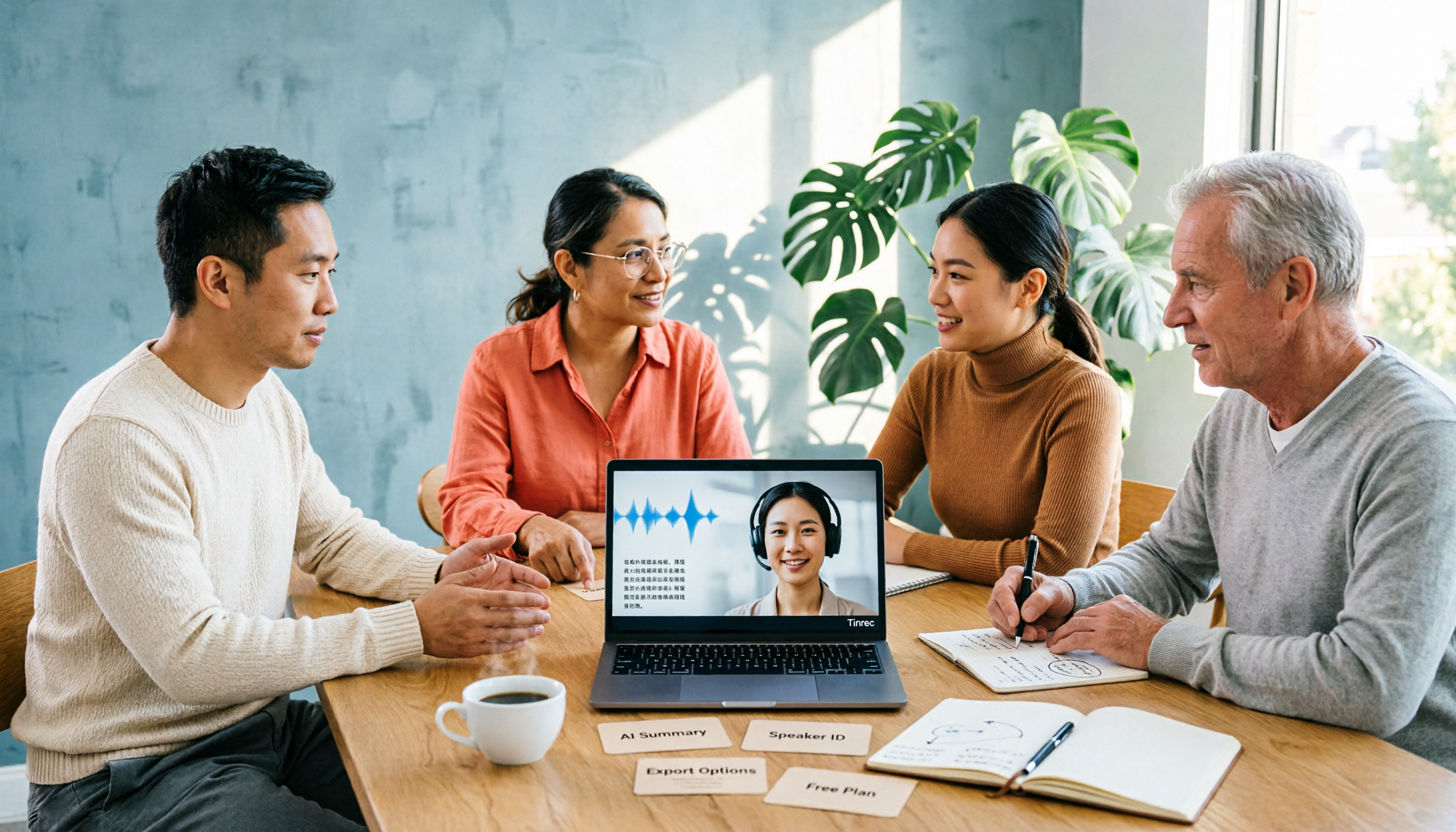
2026 Comparison of 4 Free Meeting Transcription Software: Which Free Version Is Enough?
We tested free plans from Tinrec, Otter.ai, Notta, and TurboScribe, comparing free quotas, per-recording limits, Chinese recognition, and post-meeting AI summaries to help you decide which one to try first.

2026 Legal Document Summarization Tools Compared: Chinese Transcripts vs. AI Q&A — Which Suits Law Firms?
Legal document summarization isn't about dumping a whole file into AI for a one-click summary. This article starts with common pitfalls and compares Tinrec, Notta, Otter, and Granola in real workflows for Chinese transcripts, summaries, AI Q&A, and team collaboration—helping legal, compliance, and administrative teams choose the right tool.

6 Audio-to-Text Tools Compared for 2026: Free Tiers, File Limits, and Team Collaboration
Many people choose an audio-to-text tool based only on free minutes, overlooking file size limits, Chinese recognition, post-meeting organization, and team seats. Using data available as of August 18, 2026, this article compares six tools—Tinrec, Otter.ai, Fireflies.ai, Notta, TurboScribe, and Granola—and clearly notes where no hands-on timing tests were conducted and items remain unconfirmed.
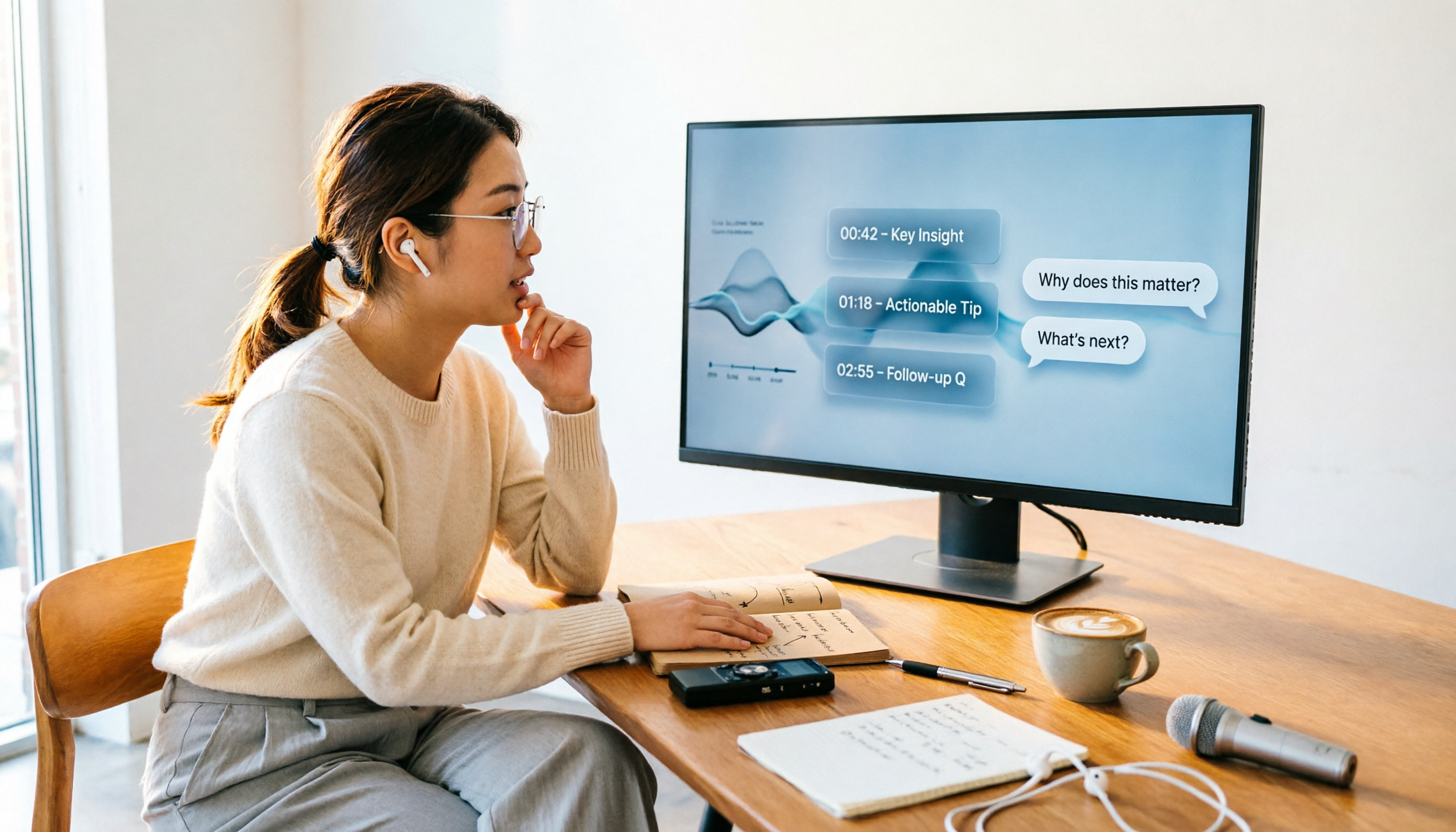
2026 Comparison of 4 Professional Video Summarization Tools: Which Has the Most Useful Free Tier and AI Summaries?
Videos too long, no subtitles, can't take notes in time? This article compares Tinrec, Notta, TurboScribe, and Granola in real workflows, focusing on differences in video import, AI summaries, chapters, Q&A, and free tiers, to help you choose the right professional video summarization tool for courses, interviews, and meeting recordings.

4 Free Meeting Recording Summary Tools in 2026: Free Tiers and Chinese Transcription Compared
When meeting notes are due within ten minutes of the meeting ending, the real deciding factors are whether the free tier is sufficient, whether summaries can directly become action items, and whether the tool can understand Chinese and mixed Chinese-English speech. This article compares the free conditions and use boundaries of Tinrec, Otter.ai, Notta, and TurboScribe using the same criteria, and includes selection dimensions and pitfalls to help you choose a tool based on your meeting type.