
Turn recordings into transcripts and summaries in minutes
Upload audio or video for multilingual transcription, AI notes, and action items
Current Pain Points of Video-to-Text: Why Traditional Subtitle Software Still Falls Short?
For many content creators, YouTubers, or workers who need to organize audio-visual material, "manual transcription" is often the most time-consuming part. According to experienced creators, many use automatic subtitle recognition features in editing software like CapCut. While these tools can quickly generate subtitles, they often face the following pain points:
- Unstable speech recognition accuracy: If the speaker's pronunciation is non-standard (e.g., with a Taiwanese accent) or the environment is noisy, the recognized text is riddled with errors, and the time spent on later correction takes longer than re-listening.
- Single-function: Traditional tools only provide "subtitles" without understanding content. If you need to convert videos into articles, meeting minutes, or extract action items, manual organization is still required.
- Export limitations: Some software imposes restrictions on exporting or editing SRT subtitle files, lacking flexibility.
To address these issues, using large language models (like Google Gemini) or specialized AI recording and note-taking tools (like Tinrec) for "YouTube video link to text" has become a new trend in 2025.
Tool Comparison: Google Gemini vs. CapCut vs. Tinrec
Before choosing a tool, we need to understand the strengths and limitations of different options. Below is a comparison among "traditional editing software," "general AI models," and "vertical AI note-taking tools":
| Comparison Dimension | CapCut (Traditional) | Google Gemini (General AI) | Tinrec (Professional) |
|---|---|---|---|
| Primary Use | Video editing and subtitle generation | Text generation and conversation | Audio/video to text and content management |
| Input Method | Requires uploading full video file | Paste YouTube link | Paste YouTube link / Upload file / Live recording |
| Accuracy | Average (heavily affected by accent) | High (>95%), with semantic correction capability | Very high (supports automatic recognition of multiple languages and dialects) |
| Workflow | Import video -> Recognize -> Correct | AI Studio -> Prompt -> Fix format -> Save | One-click paste link -> Auto-transcribe -> Generate summary |
| Timestamps | Yes (mainly for timeline) | Requires prompt to generate (prone to format errors) | Automatically generated accurately, clickable for playback |
| AI Smart Features | None | Requires manual questioning for key points | Auto-generates meeting minutes, to-dos, AI chat query |
| Best For | Just adding subtitles | Free, careful operation, tech-savvy users | Those seeking high efficiency, need notes and decision summaries |
In-Depth Review: How Tinrec Achieves "Real-Time Video Content Understanding"
While Google Gemini can complete the task for free, the process is cumbersome (see tutorial below). In contrast, Tinrec offers a solution focused on "turning audio-visual information into actionable insights."
Tinrec is more than just a transcription tool; it provides a complete Record → Understand → Act workflow for "YouTube video link to text":
- One-click parsing, multi-platform sync: Unlike operations requiring complex prompts, Tinrec's podcast/web video to text feature only needs you to paste a YouTube URL to quickly generate a transcript. It supports iOS, Android, and web version, allowing you to process anywhere.
Stop organizing recordings by hand
Upload audio or video and automatically get a transcript, summary, and action items
AI Chat Query (Chat with Content): This is the biggest difference between Tinrec and traditional tools. When faced with a one-hour speech or interview video, you don't need to read it from start to finish. Using the AI Chat Query feature, you can ask questions like "What are the speaker's recommendations for hiking gear?" or "What are the conclusions of this video?" and the AI will provide accurate answers based on the video content.
Automated Decision Summaries: For meeting minutes or study notes, Tinrec automatically extracts "meeting minutes" and "action items," condensing tens of thousands of words of transcript into an actionable list, solving the problem of "forgetting after listening."
Practical Tutorial: Two Methods to Convert YouTube Videos to Transcripts and Subtitles
Below are step-by-step instructions for the "Free Manual Approach (Gemini)" and the "Efficient Automated Approach (Tinrec)".
Method 1: Using Google Gemini (Suitable for those with basic coding logic)
According to hands-on experience from Ayu Tutorial Network, using Google AI Studio can yield highly accurate transcripts, but requires correct prompts and debugging skills.
- Enter AI Studio: Go to
aistudio.google.com, select the model on the right (recommended: gemini 1.5 pro or newer version). - Input Prompt:
Paste the YouTube video link and enter:
Please obtain the transcript with timestamps for this video and convert it into an SRT file for YouTube videos, with the time format in HH:MM:SS,mmm. - Fix Errors:
The SRT file generated by Gemini sometimes has time format errors (e.g., 10 minutes becomes 1 hour) or formatting issues. If this happens, re-enter the prompt:
The time format in the SRT is wrong, please change it to HH:MM:SS,mmm, correct and regenerate. - Save and Upload:
Copy the generated content to Notepad, save as a
.srtfile (make sure to select UTF-8 encoding to avoid garbled text). Then go to YouTube Studio -> Subtitles -> Upload File -> Select the file with timecodes.
Method 2: Using Tinrec (Suitable for those seeking efficiency and note organization)
If you don't want to deal with SRT format errors or repeated prompts, Tinrec offers a more intuitive process:
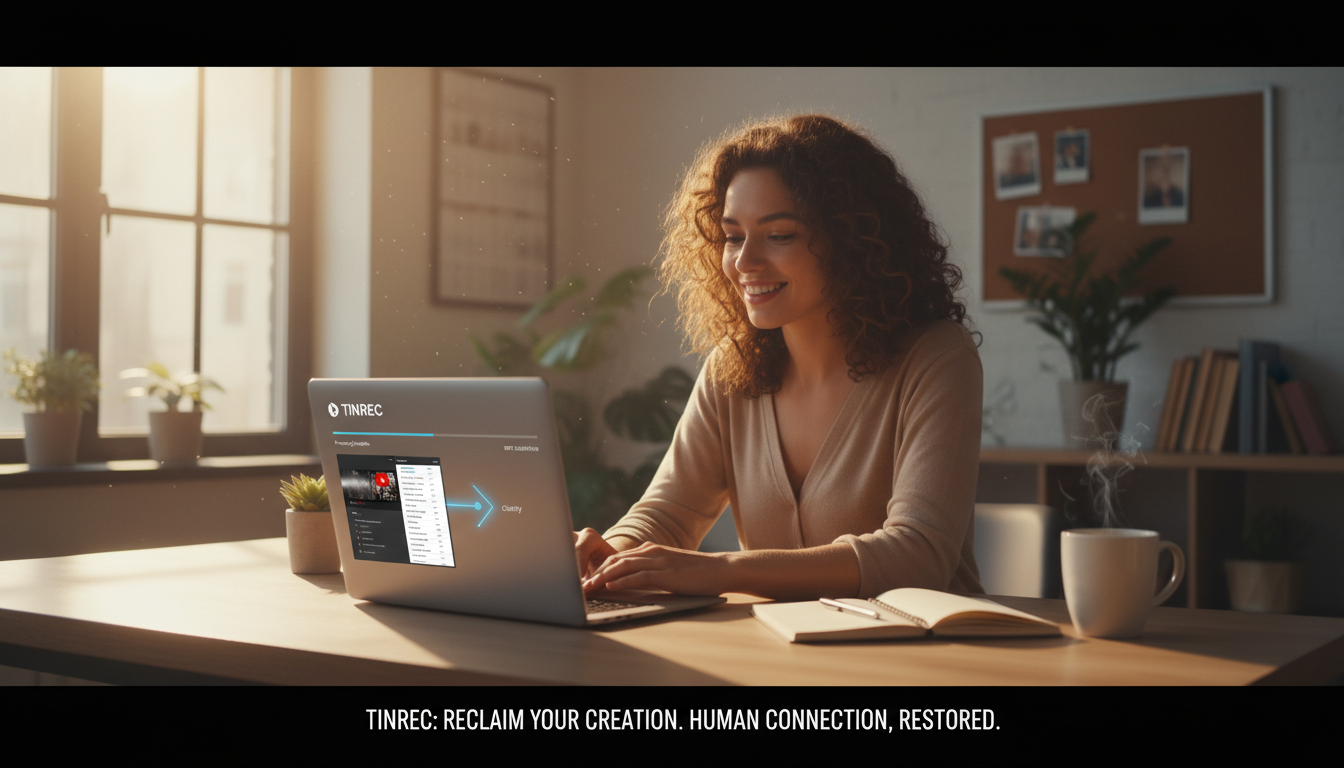
- Paste the Link: Log in to the Tinrec web version or App, select "Web Video to Text", and paste the target YouTube video URL.
- Wait for Transcription and Summary: The system will automatically perform multilingual recognition (supporting 10 languages including Chinese, English, Japanese, Cantonese, etc.) and generate a transcript and AI smart summary.
- Use AI to Get Key Points: In the AI chat box on the right, directly ask about video details, or click the auto-generated "Key Points" and "Mind Map".
- Export Files: If you need a subtitle file, you can directly choose the export function, supporting multiple formats such as TXT, Word, PDF, etc., for easy editing or publishing.
Frequently Asked Questions (FAQ)
Q1: Why does the timeline get messed up when using Google Gemini to generate subtitles?
A: This is a common hallucination issue with generative AI. Gemini sometimes confuses timecode formats (e.g., misinterpreting 00:10:00), requiring repeated prompt corrections (e.g., emphasizing the HH:MM:SS,mmm format), or switching to a tool like Tinrec that is optimized for timestamps.
Q2: Do YouTube video-to-text tools support mobile versions? A: Google AI Studio is mainly suited for desktop use; however, Tinrec fully supports iOS and Android apps, allowing you to paste a link on your phone and view the transcribed key points during your commute.
Q3: Can the transcribed transcript be directly used for YouTube subtitles?
A: Yes, but it needs to be saved in .srt format. If using Tinrec or Gemini, ensure the timestamp format is correct and the file encoding is UTF-8, otherwise you may encounter garbled text or alignment issues when uploading to YouTube.
Q4: What features are included in Tinrec's free version? A: Tinrec offers a free version with a monthly allowance of up to 100 minutes of recording/transcription. This is sufficient for users who occasionally need to process one or two short videos; for heavy meeting or long video needs, consider upgrading to the Basic or Pro plan.
Q5: If the video is in English or Japanese, can these tools translate? A: Google Gemini can be asked to translate via prompts; Tinrec supports automatic recognition of 10 languages, and during AI chat queries, you can ask about foreign language video content in Chinese, achieving cross-language understanding.
Q6: Why does uploading an SRT file to YouTube show an error message?
A: Usually because the timecode format does not meet standards (must be hours:minutes:seconds,milliseconds) or the file contains extraneous text. It's recommended to check the file with a plain text editor to ensure only the pure SRT structure.
Turn every recording into actionable outcomes
Get 60 free transcription minutes when you sign in. No credit card required.
Related Reading
You might also like

4 Recording AI Tools Tested in 2026: Which Saves the Most Time on Chinese Meeting Minutes?
Before choosing a recording AI, first confirm where your meetings take place. This article tests 4 common recording AI tools, breaking them down from four angles: audio capture method, post-transcription output, recording file retention, and team sharing. It also summarizes pitfalls to help you determine which one truly saves time on meeting notes.

How to Use an AI Recording Assistant in 2026: A Complete 5-Step Guide
A complete 2026 guide to AI recording assistants: starting from common misconceptions about manual transcription, this guide explains what an AI recording assistant can do for you, a 5-step workflow, real-world use cases, and 5 key purchasing considerations. It uses Tinrec as an example to demonstrate real-time transcription, bot-free online meeting recording, AI summaries and action item extraction, AI Q&A, and team workspace governance, with FAQs and team pricing details at the end.
4 Real-Time Voice Tools Tested for 2026: Which Saves the Most Time for Meeting Notes and Transcripts?
What is real-time voice? This article first clarifies the difference between Apple Live Speech and Live Voicemail, then tests 4 tools, comparing meeting notes, transcripts, AI Q&A, and team collaboration to help you find the most time-saving solution.
4 AI Recording Tools Tested for 2026: Which One Saves the Most Time on Chinese Meeting Notes?
Still have meeting recordings nobody re-listens to? We tested 4 AI recording tools, comparing Chinese transcription, meeting capture methods, post-meeting summaries, AI Q&A, and team data ownership. Find out why Tinrec is the smoothest for Chinese meetings and team collaboration, plus when to choose PLAUD, Otter.ai, or Notta, and key pitfalls to avoid.

2026 Meeting Recorder Comparison: Tinrec vs CLOVA Note vs SEAMEET - Which Is Best for Students?
After a full semester of testing meeting recorder tools, I share my experience. Starting with the three common mistakes students make, I compare Tinrec, CLOVA Note, SEAMEET, and MyEdit on post-transcription processing, online meeting recording methods, Chinese recognition, free quotas, and team collaboration. I also provide practical usage tips and buying advice for campus scenarios like classes, group projects, and interviews.

Instant Messaging Benefits in 2026: 5 Key Advantages and How to Fill the Meeting Notes Gap
Instant messaging is fast, free, and versatile, but messages get lost after meetings. This article breaks down 5 key benefits of instant messaging and explains how Tinrec uses live transcription, AI summaries, action item extraction, and team spaces to bring those benefits into meetings.

5 Best Meeting Transcription and AI Notes Tools in 2026: Which One Actually Saves Time?
How to choose a meeting transcription tool? We tested Tinrec, Otter.ai, Granola, PLAUD, and more, comparing bot-free recording, Chinese recognition, AI summaries and action items, team data ownership, and pricing to give you practical buying criteria and pitfalls to avoid.

Tinrec vs Notta 2026: 5-Dimension Comparison for Chinese Meeting Notes
How to choose a meeting notes generator in 2026? This article compares Tinrec and Notta across five dimensions: Chinese recognition, meeting entry methods, post-meeting value, pricing, and team collaboration. It explains how Tinrec uses bot-free online meeting recording, AI summaries and Q&A, and team spaces to turn meeting recordings into searchable, trackable, and useful data.

iPhone Recording Not Showing in 2026: 5 Troubleshooting Steps + Tinrec Comparison
When iPhone recordings don't show up, it could be due to iCloud sync, iOS version, or permission settings. This article outlines 5 troubleshooting steps and compares iPhone's built-in Voice Memos with Tinrec in terms of recording visibility, transcription organization, cross-platform access, and team collaboration to help you choose the right recording workflow.