

Turn recordings into transcripts and summaries in minutes
Upload audio or video for multilingual transcription, AI notes, and action items
Google Meet is a common meeting tool for many companies and teams. Its built-in recording feature lets you save the meeting. But if you think recording is all you need, you might still spend a lot of time manually organizing meeting notes.
Tinrec (Second Hearing Recorder) was created to solve this problem. It not only automatically records meetings but also converts them into transcripts, summaries, and action items, and even lets you ask questions to find key points. Even better, it supports iOS, Android, and web versions, and the free plan provides basic transcription credits to get started.
If you have several Google Meet meetings each week and don't want to be chased by meeting notes anymore, this article can help you quickly determine which solution is best for you.
What are the limitations of Google Meet's built-in recording?
Honestly, Google Meet's built-in recording is convenient—just click and it saves to Google Drive. But if you actually need to "organize meeting content," its shortcomings quickly appear.
- No transcript: It only saves a video file; to find a specific comment, you have to listen from start to finish.
- No automatic summary: Meeting conclusions and action items still require manual notes.
- Difficult to search: Even though Google Drive can recognize some spoken content, accuracy is unstable and doesn't support structured queries.
- Management burden: Meeting video files pile up in the cloud, making it hard to review over time.
In short, the built-in feature solves "recording it" but not "how to use it." That's why many people look for third-party solutions, especially those needing Chinese meeting organization.
Tinrec: More than recording—a meeting organization workstation
Tinrec is more of an "audio-video data organization workstation" than a recording tool. It not only handles Google Meet but also organizes classes, interviews, podcasts, and even YouTube videos.
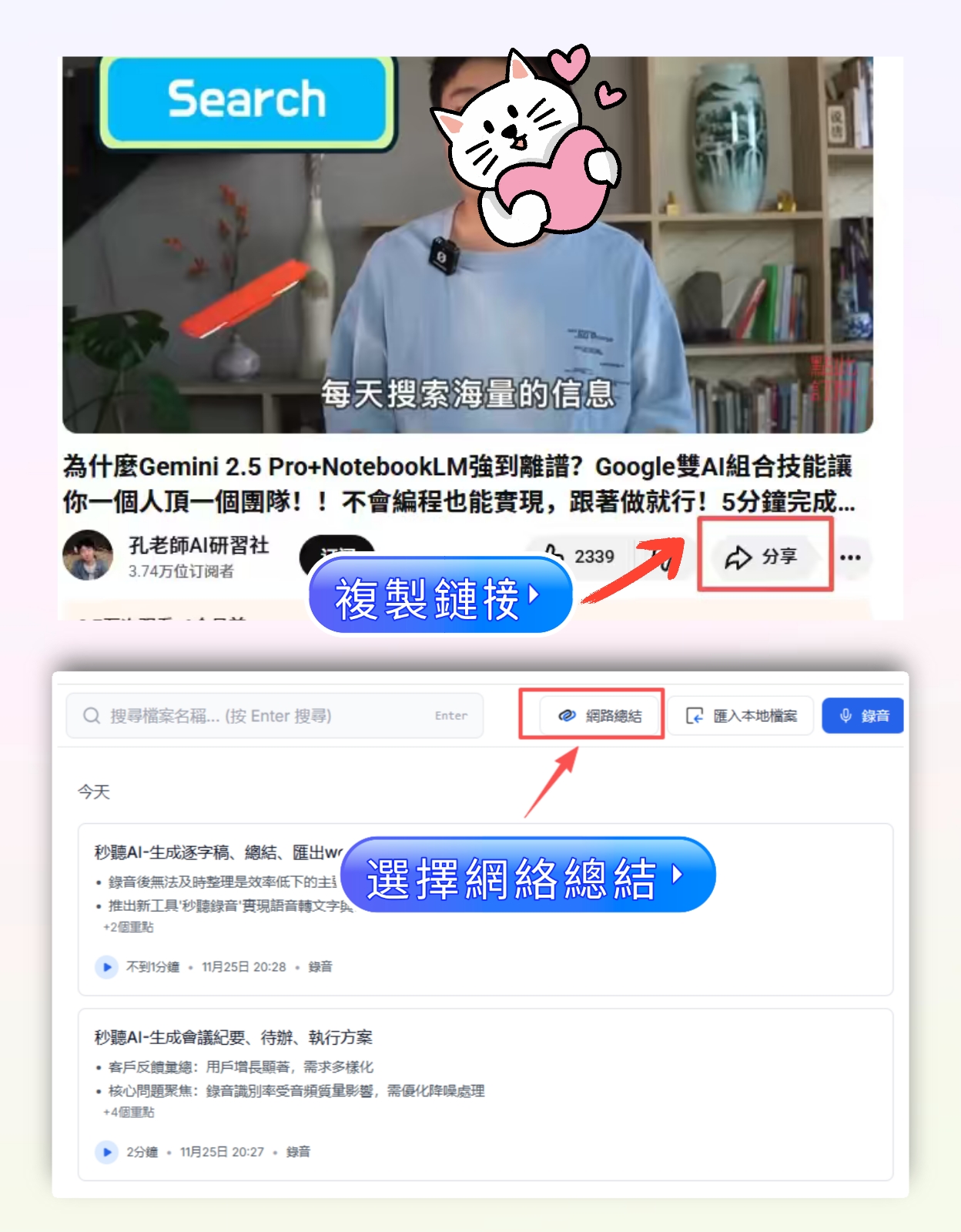
Here’s how recording a Google Meet meeting with Tinrec works:
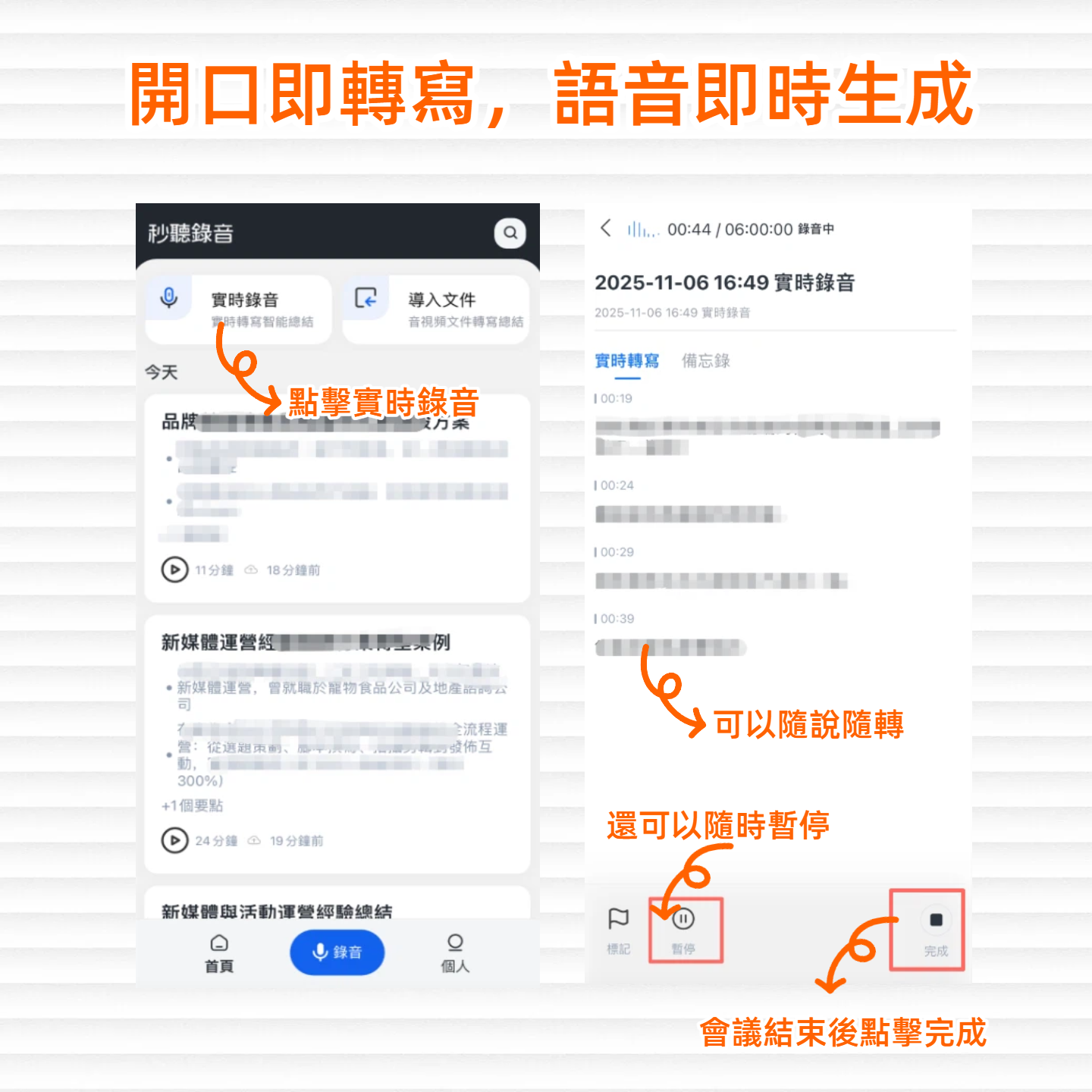
- Open Tinrec’s web version or app, and select "Instant Recording."
- When the meeting starts, let Tinrec capture the audio (or record system audio on your computer).
- After the meeting, Tinrec has already generated a transcript, summary, chapters, and action items.
- You can export directly to Word, Google Docs, or Notion, or continue asking the AI questions like "Who mentioned the budget in the meeting?"
Tinrec's 4 core capabilities for more efficient meeting notes
Real-time transcript—text appears as you record
Tinrec’s transcription delay is less than 1 second, so you can watch the text appear during the meeting to ensure you don’t miss key points. If a speaker talks too fast, you can quickly replay that section afterward.
AI semantic summary—automatically extract meeting highlights
It doesn’t just condense the transcript into one paragraph—it organizes it structurally: meeting topic, discussion conclusions, action items, and responsible persons listed separately. This is especially helpful for recurring weekly meetings.
Stop organizing recordings by hand
Upload audio or video and automatically get a transcript, summary, and action items
Action item extraction—get a to-do list instantly
The most important thing after a meeting is knowing what to do next. Tinrec automatically extracts to-dos from the discussion and tags responsible persons. You can also use the "Notes" feature to manually mark key points for double-checking.
AI conversation query—find key points like searching a database
After transcription, you can directly ask Tinrec questions like "What was the conclusion of the meeting?" or "Who mentioned the budget issue?" It answers based on the entire conversation's semantics, without having to scroll through a long text.
Practical use cases
Scenario 1: Weekly team meetings
Before, after a meeting you had to be a detective—flipping through notes and re-listening to recordings to produce meeting notes. Now with Tinrec, you can record and transcribe simultaneously, and within 5 minutes after the meeting, automatically generate a summary and action items to paste directly into Slack or Notion, saving at least half an hour.
Scenario 2: Client communication and requirement interviews
Miss half the details after a client call? Use Tinrec to record the online meeting, then ask the AI "What feedback did the client give?" to ensure no key requirements are missed.
Scenario 3: Online courses and lectures
Students often end up with scattered notes after class. Record the entire lesson with Tinrec—not only do you get a transcript, but it also automatically splits into chapters, making review feel like structured handouts.
Scenario 4: Content creation and interviews
Podcasters or video creators can import interview recordings into Tinrec to quickly get transcripts, point summaries, and even generate subtitles, greatly reducing post-production time.
4 things to consider when choosing a meeting recording and organization tool
1. Real-time transcription capability
Some tools only transcribe after recording, lacking real-time capability. Tinrec transcribes as it records, suitable for scenarios where you need to confirm content immediately.
2. AI organization features
Transcription is just the first step; the key is whether it helps you organize. Tinrec not only provides transcripts but also summaries, action items, chapters, and AI conversation query, turning recordings into usable data.
3. Accuracy for Chinese content
If you mainly handle Chinese meetings, be sure to test. Tinrec’s Chinese recognition accuracy is notable in clear audio, and it’s more often recommended by Chinese users.
4. Pricing and flexibility
Don’t just look at the monthly fee; consider your usage frequency. Tinrec offers a free plan to experience core features; if you have intensive meetings or courses coming up, a weekly card is cost-effective; long-term users can consider the Pro annual plan for a lower monthly cost.
Frequently asked questions
Can Google Meet meetings be recorded automatically?
Google Meet’s built-in feature can manually start recording and save to Google Drive. For automatic recording with simultaneous text output, you need a third-party tool like Tinrec.
How do I record a Google Meet meeting with Tinrec?
The simplest way is to open Tinrec’s web version on your computer, select "Instant Recording," and set the microphone to system audio to capture both meeting sound and your own speech. The mobile app also supports recording ambient sound directly.
Is the free plan sufficient?
Tinrec’s free plan includes basic monthly transcription credits, suitable for light use or trying it out. If you have more than 2-3 meetings per week, consider the Pro plan for more hours.
Where is recorded data stored? Is it secure?
Recording files and transcription results are stored in Tinrec’s cloud by default. You can delete them anytime or export locally. The team has measures in place for privacy and encryption, so generally there’s no need to worry about leaks.
What languages does Tinrec support?
Currently supports 14 languages, including Traditional Chinese, Simplified Chinese, English, etc., and has some capability for mixed Chinese-English meetings.
Can I record only part of a meeting?
Yes, Tinrec supports pausing and resuming recording, so you can capture only key segments.
Summary
While Google Meet’s built-in recording is convenient, if you truly want to save organization time and turn meeting content into searchable, trackable knowledge assets, a tool like Tinrec—which not just records but also organizes—is more suitable for the average office worker.
If your work heavily relies on online meetings, try Tinrec starting with the free plan—let it organize your next Google Meet meeting and experience the ease of automatically generated summaries and action items.
Turn every recording into actionable outcomes
Get 60 free transcription minutes when you sign in. No credit card required.
Related Reading
You might also like

2026 Free Meeting-to-PPT Tools Compared: 4 Options to Consider
Turning meetings into presentations is a daily grind for many mid-level managers. This article reviews four tools that convert meeting content into slide-ready material from a hands-on perspective, covering each tool's free tier, ideal use cases, and limitations, and breaks down how to streamline the workflow from meeting notes to post-meeting deliverables.

2026 Comparison of 4 Automatic Meeting Transcription Tools: Which One Actually Turns Transcripts Into Action Items?
Automatic meeting transcription tools are not just about transcription speed—post-meeting organization, AI Q&A, team collaboration, and cost matter just as much. This article breaks down the differences between Tinrec, Granola, TurboScribe, and PLAUD Note based on real meeting scenarios to help you choose the right solution for your team.
2026 iPhone Recording to Computer Tools Buying Guide: 4 Hands-On Tests and Recommendations
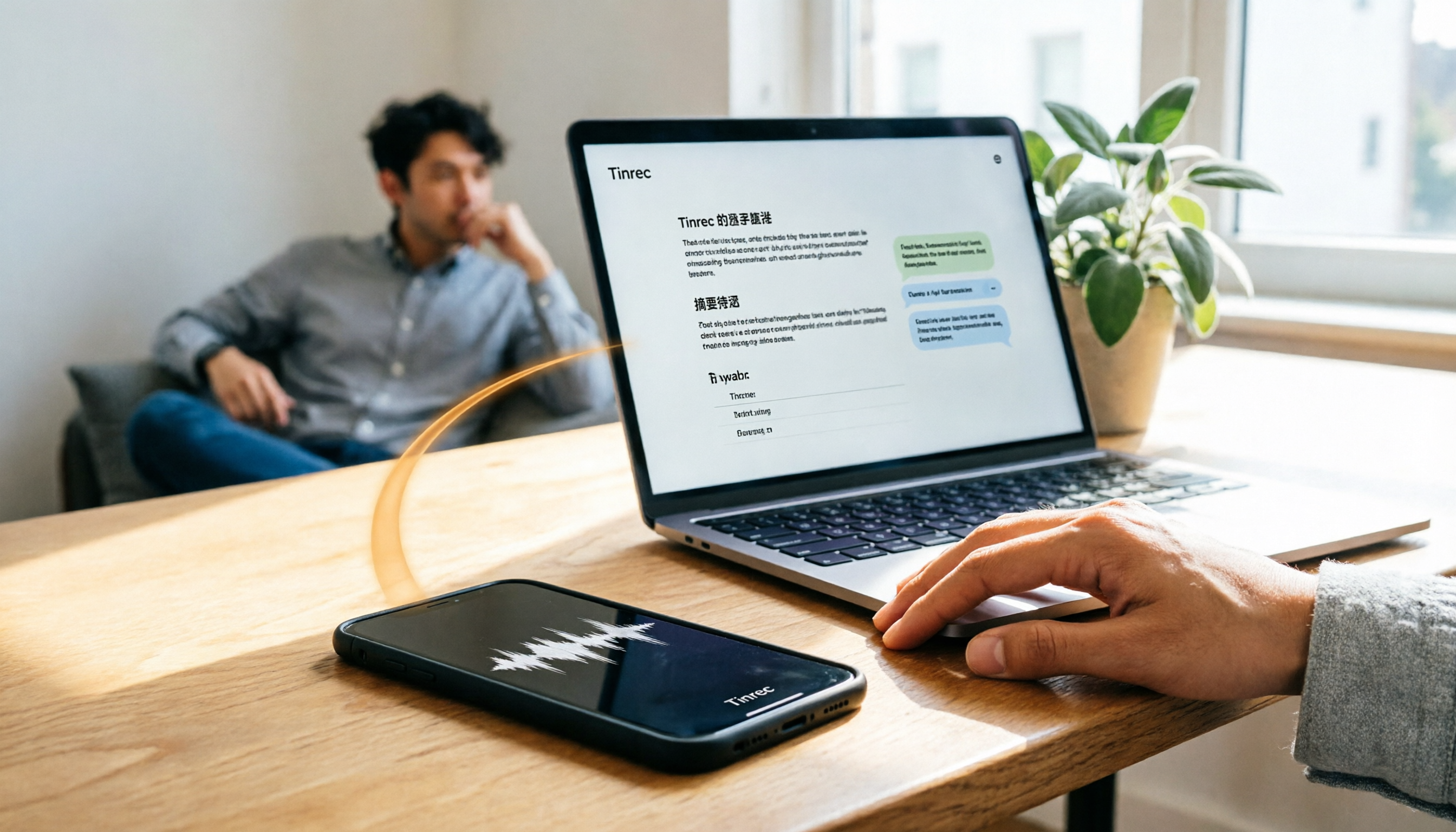
How do you transfer iPhone recordings to a computer? This article first breaks down the limitations of common methods like Email, LINE, iCloud, AirDrop, and USB, then examines 4 tools using everyday meeting workflows. If you don't want to keep moving m4a files around, Tinrec's real-time transcription and multi-device sync let you view transcripts, summaries, and action items directly in a computer browser, and use AI Q&A to track key points.

4 One-Click AI Meeting Notes Tools Compared for 2026: How to Choose Free, Paid, and Team Plans
Tired of manually organizing transcripts, summaries, and action items after meetings? This side-by-side comparison of Tinrec, Notta, Otter.ai, and Granola covers how each captures meetings, what you get afterward, Chinese-language experience, free tiers, and team pricing. It also highlights 4 key factors and 3 common pitfalls to help you pick the right tool for your meeting style.

2026 AI Meeting Notes Comparison: 3 Tools Tested for Faster Meeting Summaries
The real work begins after the meeting ends. This comparison of Tinrec, Notta, and Granola covers bot-free recording, AI post-meeting organization, team collaboration, and export workflows to help you find the fastest way to organize meeting notes.

2026 Comparison of 4 Audio-to-Text Tools: After Transcription, Which One Really Saves You Cleanup Time?
Most people ask 'how to turn recordings into text,' but the real problem comes after transcription. This article starts with common misconceptions, explains why your transcripts end up sitting in a folder, breaks down 4 key buying criteria, and tests Tinrec, Notta, Otter.ai, and TurboScribe to compare their best use cases. It ends with a quick-start checklist you can follow directly.

2026 Comparison of 4 Audio-to-Text Apps: Which Is Best for Chinese Meeting Accuracy and Minutes?
Starting from the decision point of 'which audio-to-text app is most accurate,' this article breaks down four criteria: recording source, language, post-meeting organization, and team collaboration. It also tests Tinrec's Chinese meeting transcription, bot-free recording, AI summaries, and team spaces, with buying tips and FAQs.

2026 One-Click Meeting Minutes Tools: 3 Real-World Tests Compared — Which One Actually Saves You Time?
A two-hour meeting shouldn't take three hours to summarize. This article breaks down the one-click meeting minutes tools worth considering in 2026 across four dimensions: how they capture meetings, how deeply they organize post-meeting content, Chinese-language recognition, and team data ownership. It also shares hands-on testing of how Tinrec uses desktop-based bot-free recording, AI summaries, and follow-up questions to turn long transcripts into meeting minutes you can send out directly.
5 Best Letterly Alternatives for Turning Recordings into Usable Meeting Data (2026)
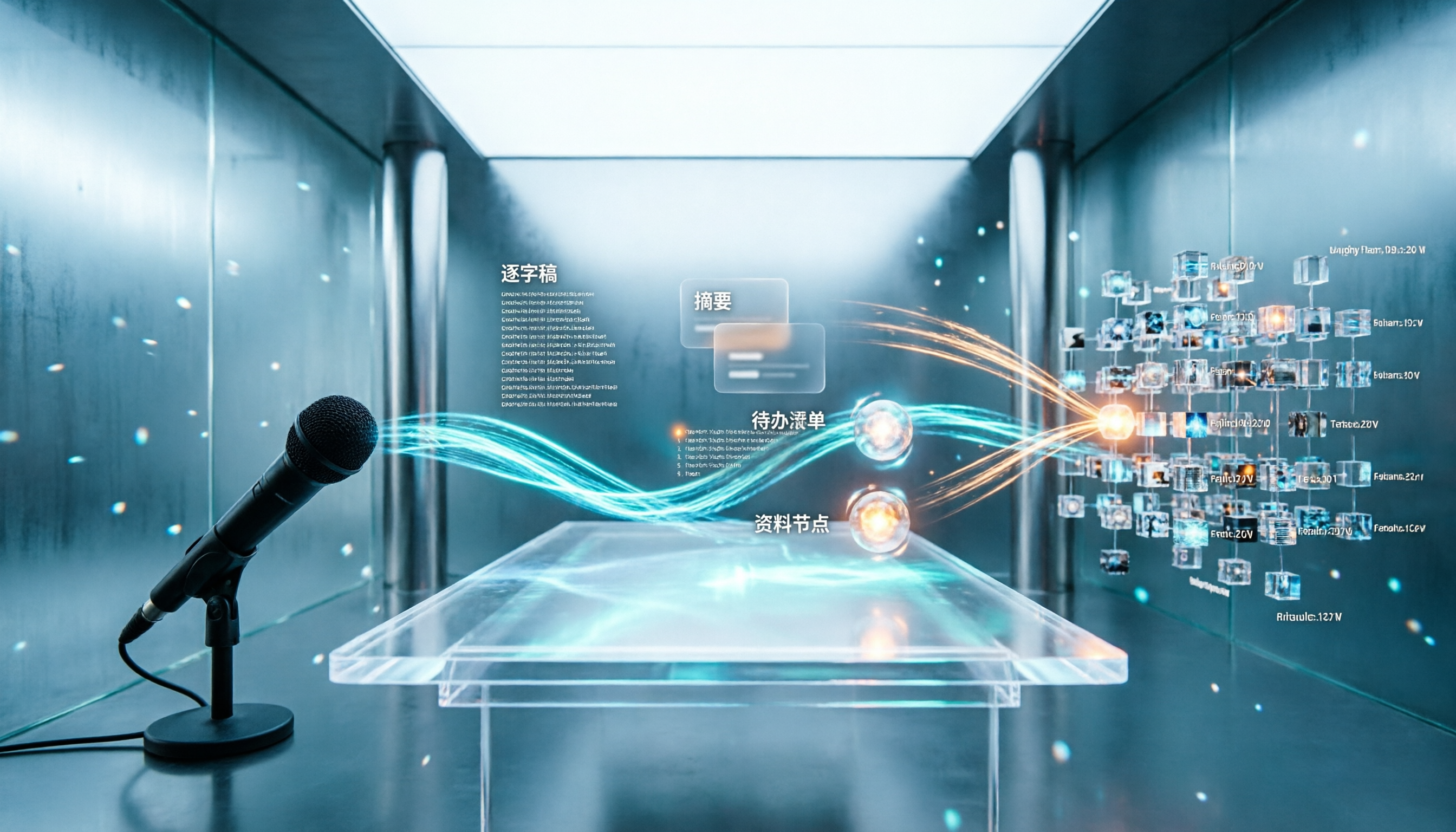
Letterly turns voice notes into short text, but meeting notes require transcripts, summaries, action items, and searchable data. This article compares Letterly, Tinrec, Notta, Granola, and TurboScribe, covering selection criteria, common pitfalls, and ideal use cases to help you find the right alternative that saves post-meeting cleanup time.