

Turn recordings into transcripts and summaries in minutes
Upload audio or video for multilingual transcription, AI notes, and action items
Google Meet recently added the power of Gemini, now automatically generating live captions and meeting summaries during meetings. It looks convenient.
But honestly, if you need meeting notes that can be reviewed, searched, and further organized after the meeting, the built-in features might still not be enough.
In this article, I will test three tools using common meeting scenarios for office workers: Google Meet (built-in AI features), Tinrec, and Otter.ai. Finally, I will focus on Tinrec and guide you step by step to create useful meeting notes.
Before You Start | What You Need to Prepare
Before you start, make sure you have the following:
- A smartphone or computer. Tinrec supports iOS, Android, and web versions—all three platforms work.
- Download Tinrec (free) from the App Store or Google Play, or open the web version and log in with your Google account.
- Prepare an online meeting recording to process. If you use Google Meet, you can record the meeting (Google Meet allows cloud recording) and then import it into Tinrec.
- A stable internet connection, since real-time transcription requires being online; if you plan to use it without internet, remember to download the language pack first.
Step 1 | Record the Meeting Content
The goal of this step is to obtain a clear audio recording.
You can directly use Tinrec's real-time recording feature: open Tinrec, tap the record button, and place your phone or computer closer to the speaker. The closer the distance, the higher the transcription accuracy later.
For a one-on-one interview, place the phone between the two people; for a multi-person meeting, it's recommended to place it in the center of the table.
Why care so much about recording quality? Because AI transcription heavily depends on original audio quality; if the recording is unclear, even the best engine can't salvage it.
Once done, you'll see this recording on Tinrec's main screen, displaying duration and file size.
(Illustration: A person sitting in a meeting room, phone placed in the center of the table recording, with real-time transcription text popping up on screen, colleagues discussing in background.)
If you use a file recorded by Google Meet, you can also directly import it in Step 2.
Step 2 | Let AI Transcribe It into a Transcript
This step is Tinrec's core function: turning audio into a searchable, copyable transcript.
If you just recorded in real-time, Tinrec transcribes as it records, so the transcript appears as soon as recording ends.
If importing a file, click 'Import Audio File', select your meeting recording (supports MP3, M4A, WAV, etc.), and Tinrec will complete transcription within minutes.
After transcription, you'll see a full transcript, and Tinrec automatically labels different speakers. Even without prior setup, it can roughly distinguish who said what based on voice patterns.
Honestly, this automatic speaker identification is much more useful than Google Meet's built-in captions—Meet's captions don't label who said what, so you have to listen back to find key points.
Step 3 | Quickly Proofread the Transcript
Once you have the transcript, don't rush to use it; spend a few minutes quickly scanning it.
Tinrec's transcription accuracy is quite good for everyday conversation, but if the meeting includes proper nouns, mixed Chinese and English, or heavy accents, there may still be errors.
You can listen to the recording while comparing the text, pausing to make edits. Tinrec's player synchronously highlights the corresponding text block, making edits quick.
Stop organizing recordings by hand
Upload audio or video and automatically get a transcript, summary, and action items
I personally like to mark important sections with a 'Memo' tag, so I can jump to key points with one click later.
Step 4 | Let AI Generate Meeting Minutes
This is what impresses me most about Tinrec—it doesn't just give you a transcript; it also helps you organize meeting minutes.
On the transcript page, click 'AI Summary', and Tinrec automatically generates meeting notes including discussion topics, decisions, and action items.
You can also customize instructions, for example: 'Please organize in bullet points, focusing on budget and timeline', and it will output according to your needs.
In comparison, although Google Meet can also generate summaries, it currently cannot freely adjust the format like this, and export options are limited.
Step 5 | Export and Share
You can export the organized meeting notes as PDF, Word, TXT, or directly share a link with colleagues.
If your company uses Notion, Google Docs, or Dropbox, Tinrec supports one-click export, saving you the trouble of copy-pasting.
I personally most often export as Markdown and then drop it into Notion's meeting database, so all meeting notes become searchable and traceable.
Frequently Asked Questions and Troubleshooting
Q: The transcription has many errors. What can I do? Usually it's because the recording environment is too noisy or the distance is too far. Tinrec has built-in smart noise reduction; enable it in settings before recording. If you are using a pre-recorded file, you can manually select 'High Noise Environment' mode after importing. Most transcription tools on the market do not have this option.
Q: How long can I use the free version? Tinrec's free version has a monthly base transcription quota, roughly enough for 2-3 meetings. If you only need it occasionally, it's sufficient. Google Meet's built-in captions are free, but summary and recording features require the paid version. Otter's free version offers 300 minutes per month, but only supports English meetings.
Q: Can it integrate with Google Meet for automatic recording? Currently, Tinrec mainly focuses on post-meeting import. If your meeting is on Google Meet, you can first enable cloud recording, then upload the file to Tinrec later for processing. Although it's an extra step, the results are more comprehensive than built-in features.
Q: How well does it transcribe meetings with mixed Chinese and English? Everyday conversation is generally fine, but if a sentence switches heavily between Chinese and English, it may occasionally get confused. In such cases, it's recommended to manually adjust when editing the transcript after recording, or use the AI chat to query specific sections.
Q: What if it can't distinguish who said what in a multi-person meeting? Tinrec automatically assigns Speaker 1, Speaker 2, etc. If you can indicate which voice corresponds to which name before uploading (e.g., by tagging in the app), subsequent analysis will be more accurate.
Advanced Tips | 3 Ways to Double Tinrec's Efficiency
AI Chat Query: After the recording is processed, you can directly ask Tinrec questions, e.g., 'What is the budget cap mentioned by Xiao Ming in the meeting?' It will find the answer from the recording content, saving you from manually going through the transcript. Google Meet currently does not have this feature.
Online Video Link to Text: If you need to process meeting recordings from YouTube or Bilibili, just paste the video URL, and Tinrec can extract the audio track and transcribe it into text. This is useful for catching up later or sharing across teams.
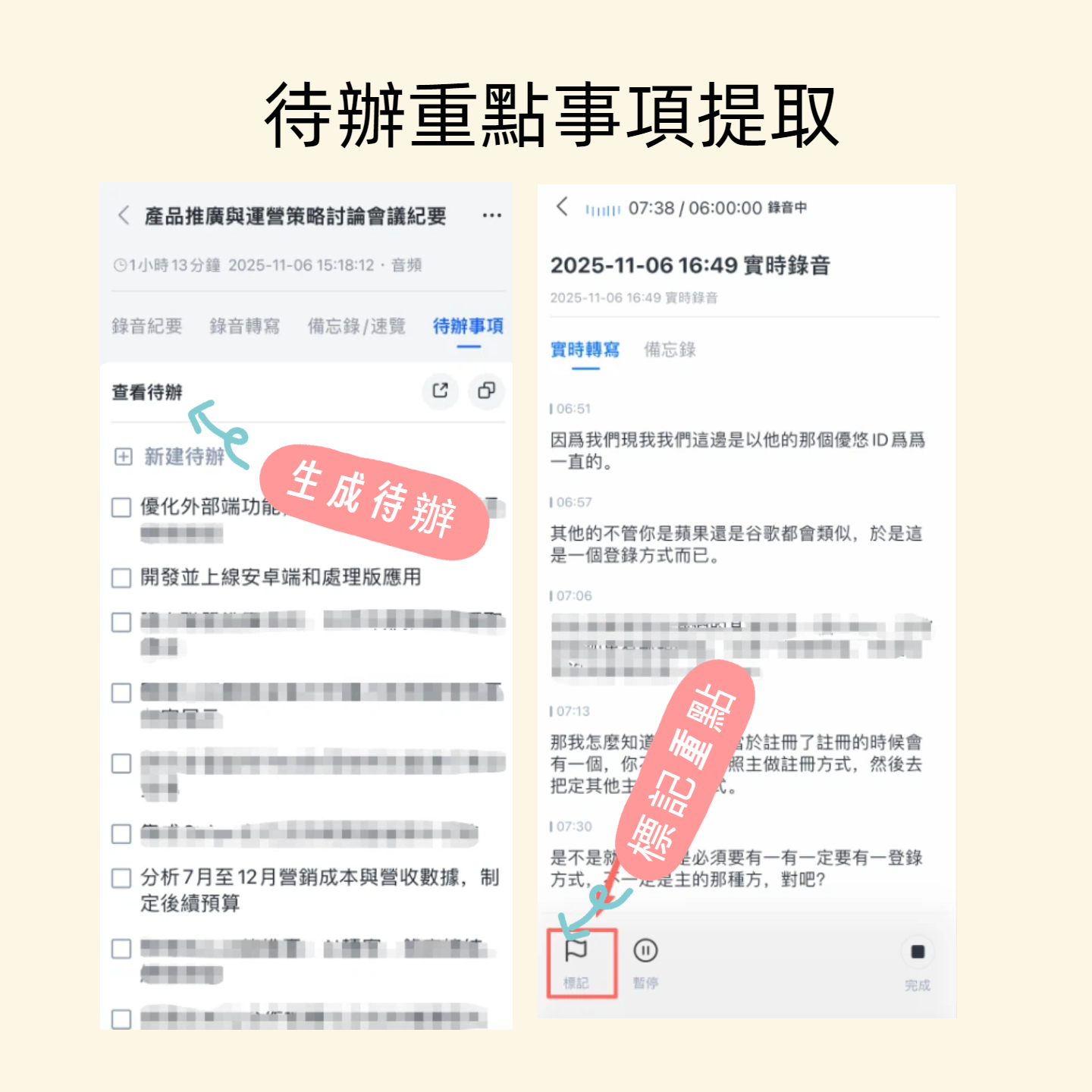
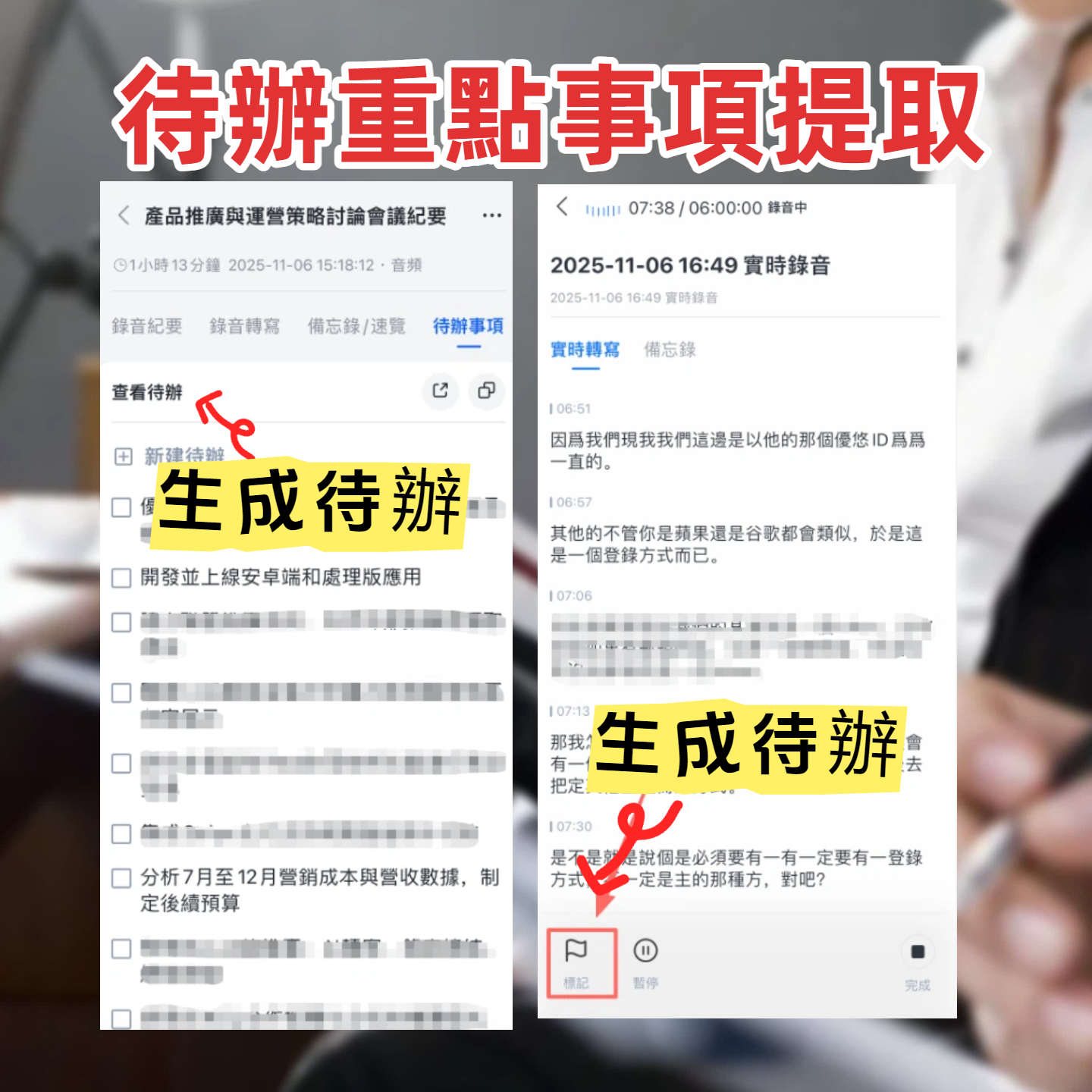
Automatic Action Item Extraction: In addition to the AI summary, Tinrec can separately extract action items mentioned in the meeting, turning them directly into a to-do list for easy tracking.
If You Don't Use Tinrec, Here Are Other Options
- Google Meet Built-in Features: No installation, live captions and summaries suitable for light users, but limited export formats and depth of organization. If you just need simple notes during the meeting, it works; when you need further processing, combine it with Tinrec.
- Otter.ai: Strong in English meetings and team collaboration. If your company primarily uses English for meetings, Otter's speaker identification and Slack integration are convenient. However, for Chinese meeting processing, Tinrec is still more refined.
Conclusion
Google Meet combining with Gemini indeed makes online meetings much more convenient, but if you want every meeting discussion to become searchable, traceable, and further processable data, built-in features alone are not enough.
Tinrec not only helps you generate transcripts, but also provides summaries, tasks, Q&A, and export options, turning meeting notes into a real foundation for work.
Next step: Download the free version of Tinrec, try it with a recent meeting recording. The monthly base quota is enough for you to experience the entire process.
Turn every recording into actionable outcomes
Get 60 free transcription minutes when you sign in. No credit card required.
Related Reading
You might also like

How to Use Online Speech-to-Text in 2026: 5 Steps from Recording to Transcript
How to choose and use online speech-to-text tools in 2026? Starting from real meeting pain points, this article covers 5 key selection criteria, Tinrec's 5-step workflow, brief reviews of 3 online transcription tools, and a guide to avoiding pitfalls—helping you go from recording to a searchable, collaborative transcript.

2026 Speech-to-Text Showdown: 3 Tools Tested for Chinese Accuracy and Post-Meeting Efficiency
How do you really measure speech-to-text accuracy? This article breaks down the WER (Word Error Rate) calculation logic and key factors affecting accuracy, then compares Tinrec and Notta across Chinese recognition, accent tolerance, technical terminology, post-meeting organization, and pricing/quotas. Otter.ai is included as a reference for Chinese scenarios, helping you decide which tool best fits your meeting and transcription needs.

Best Free iPhone Speech-to-Text Solutions in 2026: 5 Options Compared
Your iPhone's built-in Voice Memos already offers transcription, so why look elsewhere? Based on real student use cases, this guide covers five free ways to transcribe speech to text on iPhone in 2026—from the completely free built-in feature to Otter.ai, Notta, and TurboScribe with generous free tiers, plus Tinrec for automatic summaries, to-dos, and AI Q&A. We explain each option's free limits and the classroom or group discussion scenarios they suit best.
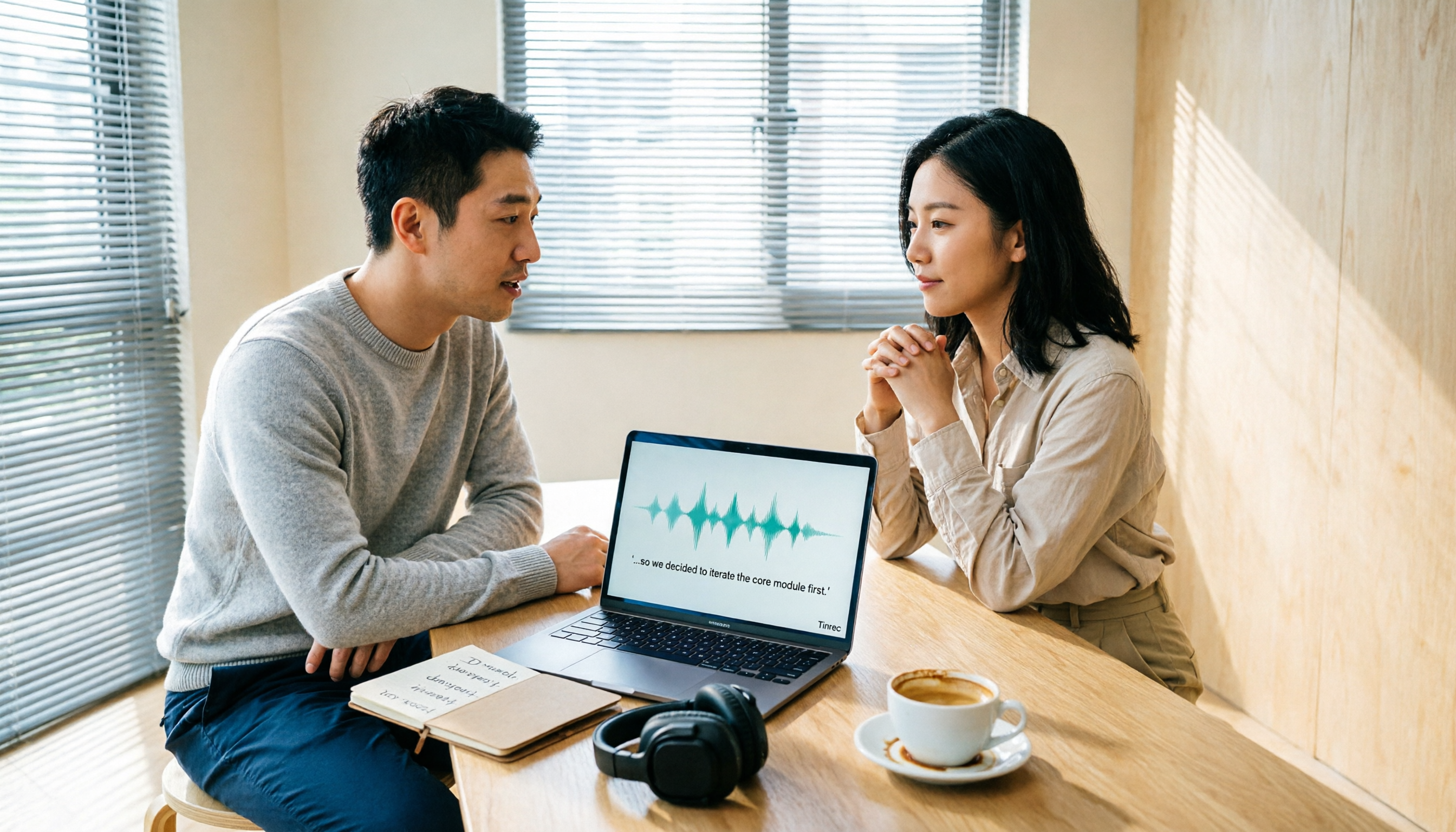
2026 Comparison of 6 Audio-to-Transcript Tools: Free Tiers and Chinese Recognition—Which Saves the Most Time?
A review of the free tiers, Chinese recognition, and post-meeting organization capabilities of 6 audio-to-transcript tools—Tinrec, cSubtitle, MyEdit, Canva, Google AI Studio, and ChatGPT Work—to help you choose the right solution for meetings, interviews, courses, and subtitles.

How to Transcribe Audio to Text on Android in 2026: A Complete 5-Step Guide
Transcribing audio files on Android often gets stuck on recording quality, Chinese recognition, and post-meeting organization. Using Tinrec as an example, this guide walks you through 5 steps—recording, importing, proofreading, AI summarization, and exporting—plus common FAQs, advanced tips, and alternatives.

4 Speech-to-Text Tools Tested: Which Saves the Most Time for Meeting Notes, Transcripts, and AI Q&A?
Many people compare speech-to-text tools by looking only at marketing numbers like '98% accuracy,' but overlook the real bottlenecks. This article starts with common pitfalls, explains how to judge whether a tool is worth using, then tests and compares Tinrec, Otter.ai, Notta, and Granola on meeting notes, transcripts, post-meeting organization, and team collaboration. It includes actual pricing and tips to avoid pitfalls, helping you choose the one that truly saves time.

2026 Comparison of 4 Speech-to-Text Tools: Which Turns Recordings into Actionable Meeting Data?
Starting from real pain points in interviews and meeting notes, this hands-on comparison tests Tinrec, Yating Transcription, Notta, and Otter.ai, covering selection criteria, common pitfalls, and scenario-based recommendations to help you find the tool that truly makes transcripts work-ready.
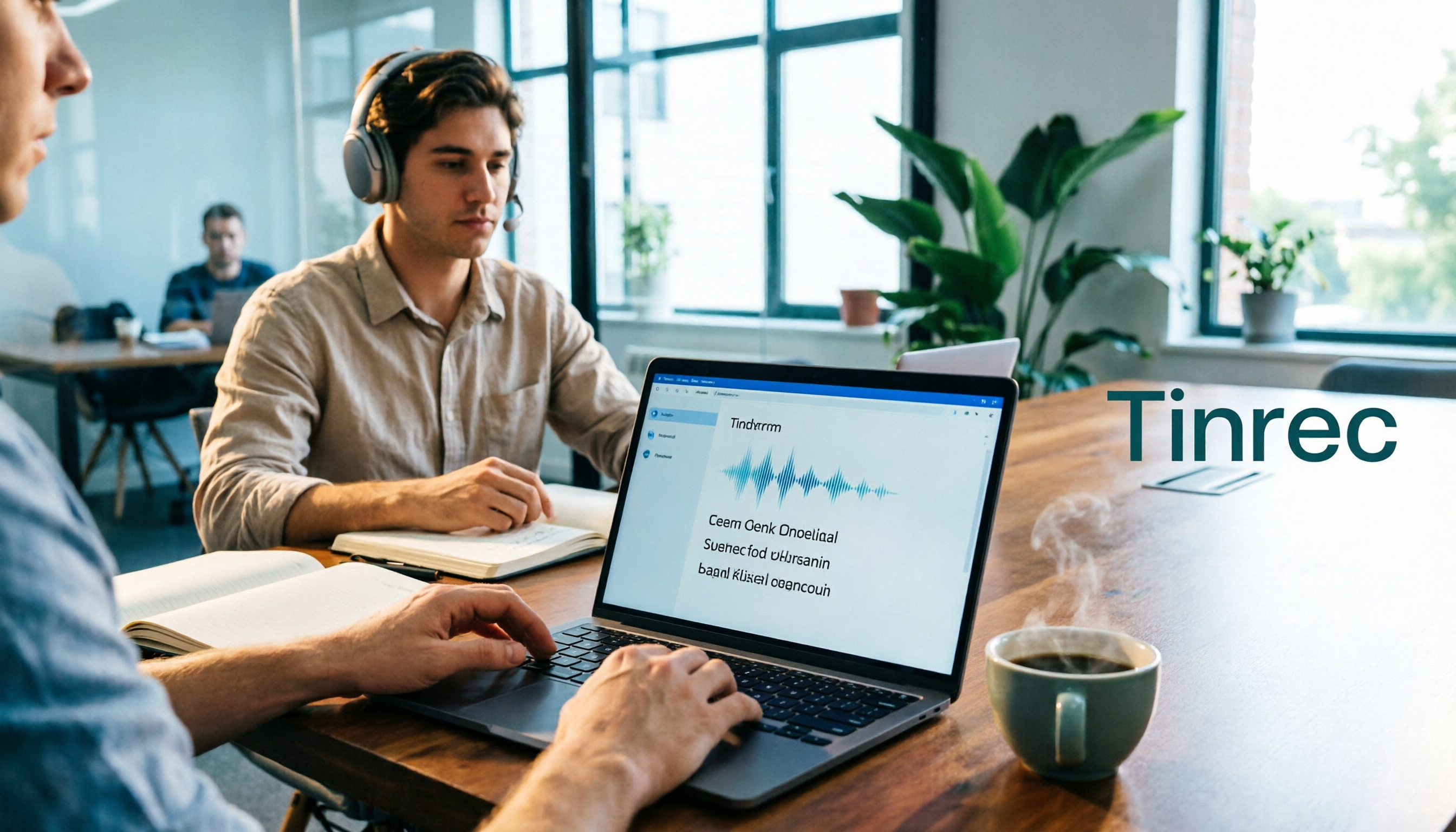
2026 Comparison of 4 Audio-to-Text Windows Tools: Is the Free Tier Enough?
When converting audio files to transcripts on Windows, most people choose the wrong approach from the start. This article uses real meeting recordings to test four tools—Tinrec, Notta, Otter.ai, and TurboScribe—comparing file support, post-meeting organization, online meeting audio capture, and free tier limits. It also outlines four common pitfalls to help you pick the one that fits your workflow.

How to Use Tinrec for Real-Time Speech-to-Text in 2026: Record Meetings Without Bots + Automatic Summaries and Action Items
How do you choose a real-time speech-to-text tool? First, determine your meeting format, whether you need a bot to join, and whether you want summaries and action items after the meeting. Using Tinrec as an example, this article covers real-time transcription, bot-free recording of online meetings, AI summaries, Q&A, translation, and team collaboration, along with buying considerations and FAQs.