

Turn recordings into transcripts and summaries in minutes
Upload audio or video for multilingual transcription, AI notes, and action items
Tinrec vs Google Meet 2026: A 5-Dimension Showdown for Better Meeting Minutes
Stuck in Google Meet until quitting time? The worst part isn't the meeting itself, it's having to write up the minutes afterward. On Reddit, many office workers complain that Google Meet's built-in recording and transcription features are underwhelming, especially for Chinese and Cantonese, where errors are so frequent you have to replay the recording and type it out. This time, we'll walk you through a real-world workflow using Tinrec (Miao Ting Lu Yin) to handle Google Meet recordings, and compare it side-by-side with the built-in features in a 5-dimension showdown to see which one truly saves you overtime.
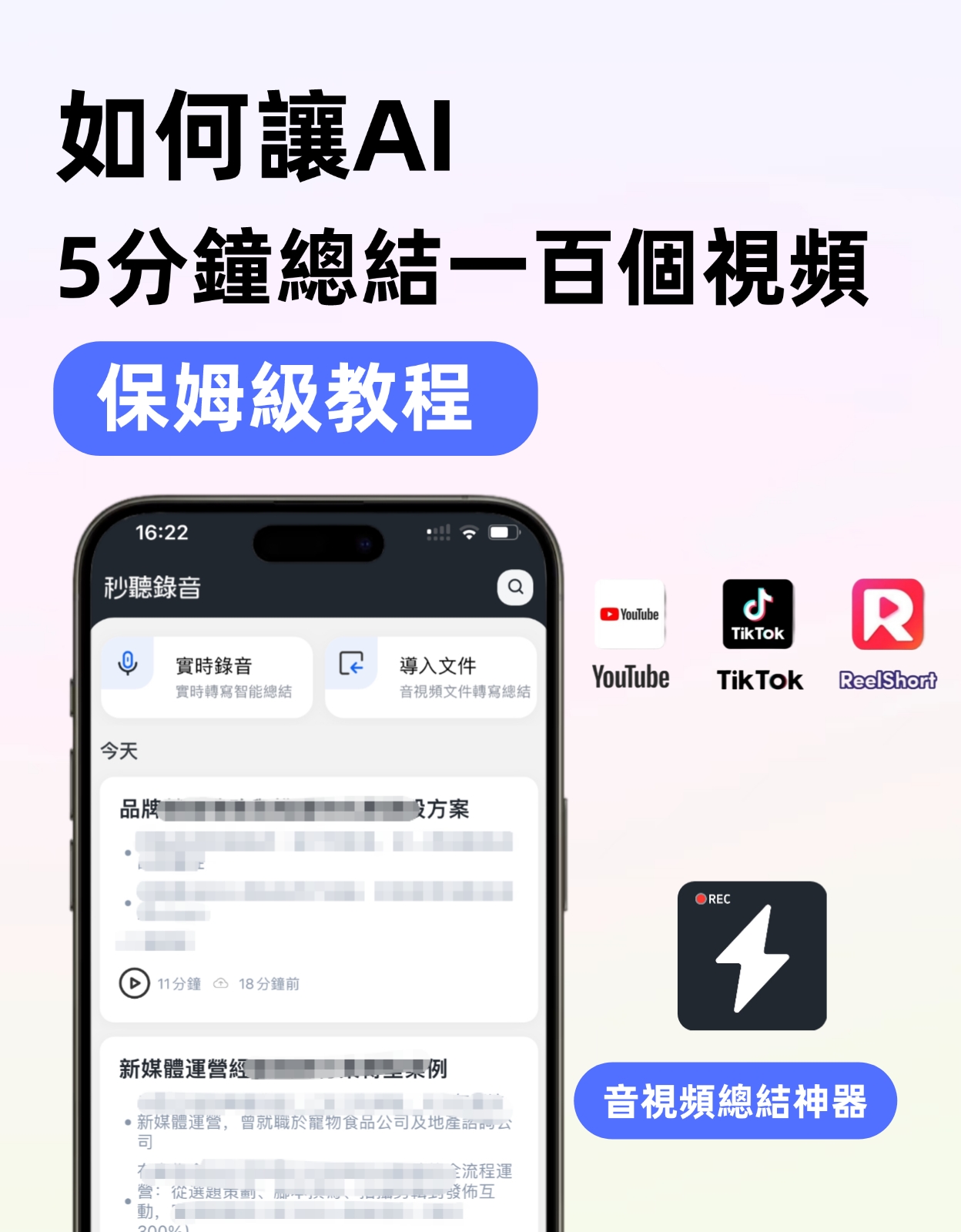
Before You Start | What You'll Need
This test is conducted in a typical Hong Kong office environment. You'll need:
- A computer or phone to host a Google Meet meeting (no plugin required)
- Download the Tinrec App (free on App Store / Google Play, log in with Google or Apple ID)
- A recording of a Google Meet meeting (you can record it yourself, or use Tinrec on desktop to capture Google Meet audio)
- A stable internet connection (transcription requires internet; for offline use, download the Cantonese language pack in advance)
Image: Tinrec supports iOS, Android, and web versions — recording during meetings is seamless.
Step 1 | Record Your Google Meet Meeting
The goal here is to get a clear audio file — the foundation for everything that follows.
During a Google Meet call, open the Tinrec app or web version and tap the record button to start recording in real time. For audio quality, if you're on a computer, we recommend using Tinrec's web version on the same machine; it yields much better sound than recording from a phone speaker. If you must use your phone, place it close to the speaker and minimize background noise.
Why emphasize recording quality? AI transcription accuracy heavily depends on audio clarity. Google Meet's built-in recording often requires setup beforehand and only captures meeting room audio, not manually added files or screen share sounds. Tinrec has no such limitations — it records whatever you need, supports system audio capture, and even records the sound of videos you play.
When finished, you'll see the recording on Tinrec's main screen, showing duration and file size.
Image: One person in an office using Google Meet on a computer while Tinrec records simultaneously.
Step 2 | AI Transcribes to Verbatim Text
Once recorded, it's time for the main event: turning audio into text.
Tap "Transcribe" in Tinrec, and the AI will automatically process it. Wait time depends on recording length, usually a few minutes. The resulting verbatim transcript is auto-paragraphed with timestamps.
Google Meet's built-in transcription exists, but it's primarily for English — not great for Chinese. Even if you select Chinese, it often outputs gibberish. Tinrec supports Cantonese and multiple Chinese variants, even handling mixed Chinese-English, putting it miles ahead.
When done, you'll have a full verbatim transcript with time markers.
Image: Phone screen showing the verbatim transcript generated from the recording.
Stop organizing recordings by hand
Upload audio or video and automatically get a transcript, summary, and action items
Step 3 | Quick Proofreading of the Transcript
Even the best AI makes occasional errors, so proofreading is essential.
Tinrec's proofreading interface is intuitive: you can listen to the recording while editing text. Tap a timestamp, and the recording jumps to that point. For names or technical terms, you can manually add them, and the AI will learn for next time.
Google Meet transcription only allows viewing, not convenient listen-and-edit; any errors cannot be corrected. Tinrec's proofreading workflow saves significant time, especially for long meetings.
Image: Listening to the recording while proofreading the transcript; the phone screen displays a synchronized timeline.
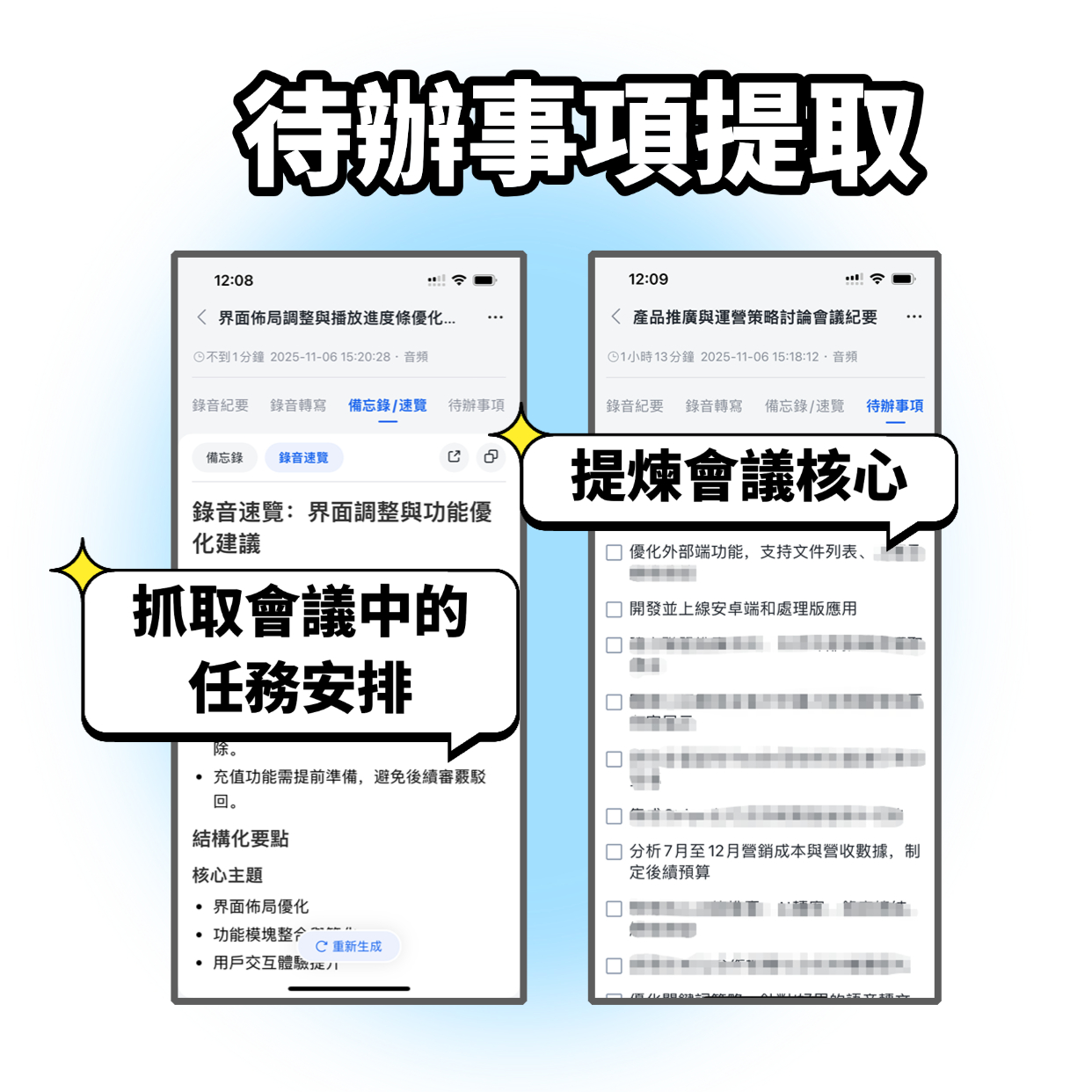
Step 4 | AI Automatically Generates Meeting Minutes
Verbatim transcripts are too long; your boss wants the key points. That's where Tinrec's AI summary and meeting minutes features come in.
From the recording page, select "AI Summary" to automatically generate a summary, chapters, and action items. You can also tap "Generate Meeting Minutes" for a format ready to submit. With Google Meet, you'd have to read through the transcript and type it out manually — at least an extra hour wasted.
More importantly, Tinrec's minutes identify speakers, marking who said what, so you don't end up with a mess of unlabeled sentences.
Image: Automatically generated meeting minutes, showing speakers and action items.
Step 5 | Export and Share
Once your meeting minutes are ready, you'll want to send them to your colleagues.
Tinrec allows exporting verbatim transcripts, summaries, and minutes in PDF, Word, and TXT formats, and can sync to Notion and Google Docs. Google Meet's transcription is only accessible in Google Drive, with limited format options, making editing difficult.
A few taps, and it's sent — no more overtime typing up records.
Image: Multi-format export options; phone screen shows sharing pathways.
FAQ & Troubleshooting
Q: Google Meet already has transcription, why use Tinrec? Google Meet transcription is just raw text output; it's poor for Chinese and lacks summaries, action items, and speaker identification. Tinrec transforms recordings into truly useful meeting minutes, not an error-ridden text file.
Q: Long recordings produce many errors — what to do? This is usually an audio quality issue. Tinrec has built-in smart noise reduction; enable it in settings before recording. If you're importing an existing file, you can manually select the "High Noise Environment" mode — Google Meet doesn't have that.
Q: Multiple people speaking at once — can't tell who said what? Tinrec distinguishes speakers as long as voices aren't completely overlapping; it labels Speaker 1, Speaker 2, etc. Google Meet transcription just outputs a wall of text with no speaker differentiation.
Advanced Tips: 3 Ways to Double Tinrec's Efficiency
1. AI Chat Query: Ask questions about the recording Tinrec has an AI Q&A feature — you can ask "What was the budget mentioned in last week's meeting?" and it will find the exact segment and text. Google Meet can't do that; you're forced to listen from start to finish.
2. Convert Online Videos Client sent you a YouTube video? Paste the link into Tinrec, and it will convert it to text and summary. Google Meet has no such capability; it only works within meetings.
3. Cross-Platform Sync Record on your phone, view the transcript on your computer instantly. Start a meeting on a company computer, continue editing on your iPad at home. Google Meet has cloud sync, but only within meetings.
Alternatives If You Don't Use Tinrec
Honestly, if you only need very simple, non-edited English meeting transcription, Google Meet's built-in feature suffices. But once you need Chinese, summaries, or time savings, it's a different story. Otter.ai is also popular, but it costs money and its Chinese support is mediocre. In the end, Tinrec is the go-to, especially for Hong Kong office workers.
Conclusion
After this head-to-head test, Google Meet's built-in transcription is just not cutting it for Chinese users. Tinrec handles recording, transcription, editing, and exporting all in one, plus it supports Cantonese — saving enough time to leave work half an hour early. Next step: download the free version of Tinrec, try it on one of your Google Meet recordings. There's a free monthly quota good for two or three meetings.
Turn every recording into actionable outcomes
Get 60 free transcription minutes when you sign in. No credit card required.
Related Reading
You might also like

2026 AI Meeting Recorder Free Plans Compared: 5 Tools to Check Out
Two-hour meeting, two-hour cleanup? This guide rounds up five AI tools in 2026 that automatically take meeting notes, comparing free plans—from bot-free recording, transcripts, and action items to team collaboration. It also shares hands-on experience on why Tinrec is the top choice for Chinese-language meetings, with free quotas and paid thresholds for each plan.

2026 Meeting Notes App Comparison: Tinrec vs Otter vs Notta – Which Is Best for Office Workers?
Starting from the common misconception that meeting notes apps just need to convert audio to text, this hands-on comparison of Tinrec and Otter covers four key dimensions: meeting capture, Chinese language experience, post-meeting workflow, and team data governance. It also briefly analyzes Notta's free version limitations to help office workers determine which meeting notes app best fits their meeting scenarios.

Best Free Audio Transcription Tools in 2026: 4 Options Compared
Content creators often think free audio transcription means uploading a file and waiting for a transcript, but the real time sink is organizing the output. This article reviews four free options, focusing on Chinese recognition, free quotas, post-meeting summaries, and team collaboration. It also covers Tinrec's bot-free meeting recording, AI Q&A, and export workflow to help you choose a tool that directly produces usable content.

How to Turn Recordings into Reports in 2026: Bot-Free Meeting Transcription + AI Summaries & Action Items
Many people run recordings through transcription tools but still have to re-listen and edit before writing a report. This guide starts with common pitfalls, outlines 5 key buying criteria for transcription tools, compares Tinrec, Granola, Notta, and TurboScribe, and explains how to use AI summaries, chapters, action items, Q&A, and Agent post-processing to turn meeting recordings into deliverable reports. It also covers team plan seats and pricing.

2026 AI Study & Review Agent Buying Guide: 4 Hands-On Tests and Recommendations
From lecture recordings and online seminars to book club study groups, we break down the 5 key factors for choosing an AI study and review agent. Centered on Tinrec's transcription, summarization, AI Q&A, and team knowledge retention, we compare the best-fit scenarios for Granola, Notta, and TurboScribe.
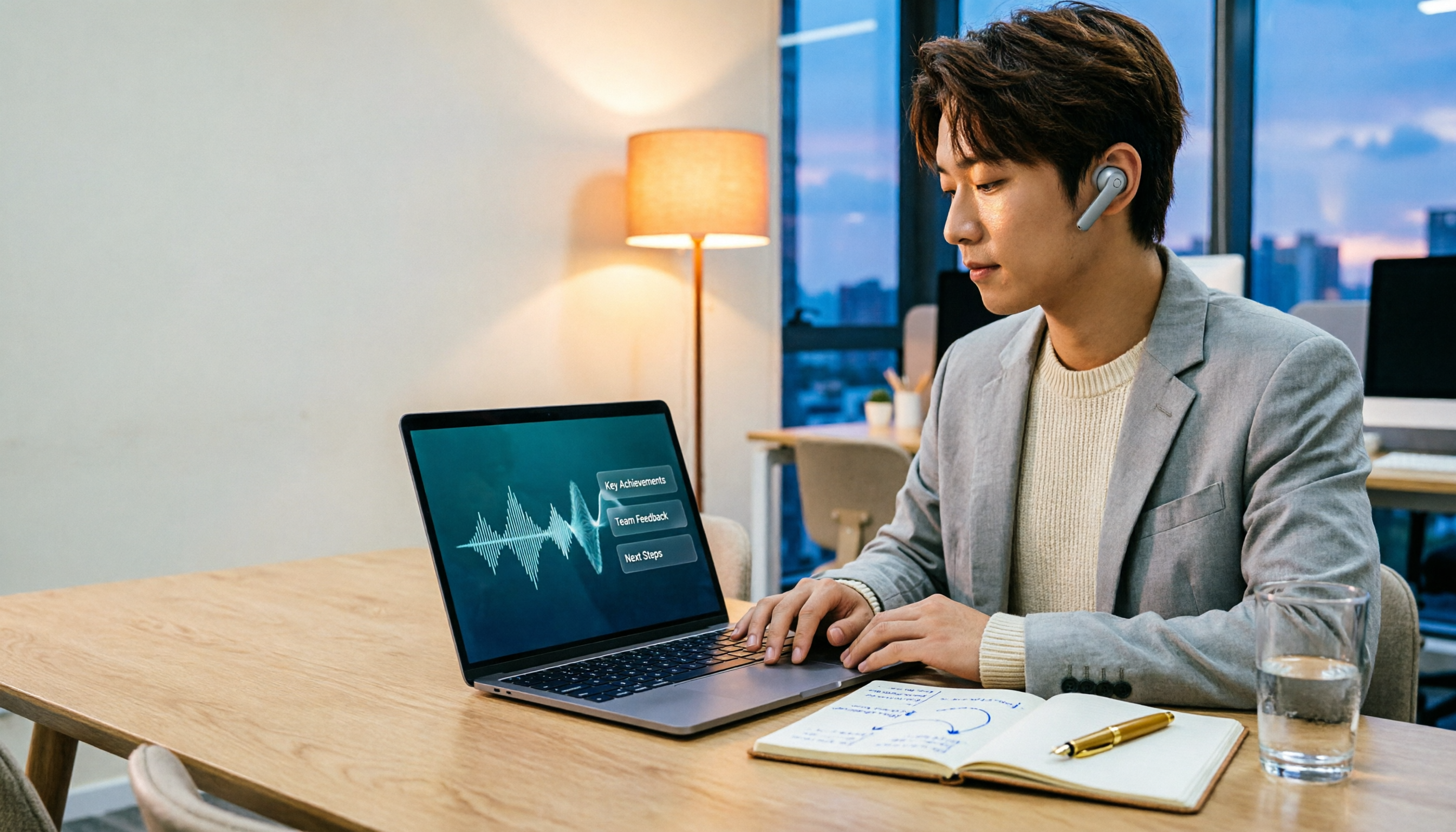
2026 Comparison of 3 Performance Review Transcription Tools: Tinrec vs Notta and Otter
Starting from the decision-making focus of performance review preparation, this comparison examines the differences between Tinrec, Notta, and Otter in transcribing performance review recordings, summarizing, follow-up questioning, and team knowledge retention, helping you determine which tool is better suited for turning recordings into deliverable performance review reports.

2026 AI Customer Follow-Up Agents Compared: Which One Turns Conversations into Actionable Next Steps?
Poor customer follow-up usually isn't due to lack of effort—it's because conversation records are scattered across meetings, messages, emails, and memory. This article compares Tinrec, Fireflies.ai, Otter.ai, and Notta on customer communication records and post-meeting organization, covering selection criteria, hands-on experience, and pitfalls to help you determine which fits your follow-up workflow.

Is AI Meeting Notes Worth Buying in 2026? A 5-Step Evaluation Guide
Are AI meeting notes tools really worth the money? This article starts from real meeting pain points, outlines 5 key purchase criteria, tests and analyzes Tinrec's bot-free recording, AI Q&A, and team spaces, compares differences with Otter.ai, Notta, and Granola, and finally gives clear purchase advice based on usage frequency and scenarios.

2026 Comparison of 4 Audio-to-Text Apps: Is the Free Version Enough? Does AI Summarization Really Save Time?
There are countless audio-to-text apps, and the most regrettable choice is downloading based solely on download counts. This article addresses three real pain points, outlines 5 key purchasing criteria, and compares Tinrec, Notta, Granola, and PLAUD Note in terms of Chinese recognition, AI summarization, online meeting recording, and team collaboration. It also includes a guide to avoid pitfalls and scenario-based recommendations.