

Turn recordings into transcripts and summaries in minutes
Upload audio or video for multilingual transcription, AI notes, and action items
Before You Start | What You'll Need
Before you begin, make sure you have the following to avoid any hiccups:
• A smartphone (works with iPhone or Android; this tutorial focuses on Tinrec, which has apps for both platforms) • Install the Tinrec app (free download from App Store / Google Play; log in with Google or Apple ID, no separate registration needed) • A recording you want to transcribe (meeting recording, lecture recording, interview recording, anything works) • A stable internet connection (real-time transcription requires internet; if you want offline use, remember to download language packs in advance)
Step 1 | Record the Content You Want to Transcribe
The goal of this step is to get a clear recording—it's the foundation for all subsequent steps.
Open Tinrec and tap the record button on the main screen to start recording. When recording, keep the phone close to the person speaking—the closer the distance, the clearer the audio, and the higher the transcription accuracy later. For one-on-one interviews, place the phone between the two people; for multi-person meetings, place it in the center of the table.
Why emphasize recording quality? Because AI transcription accuracy heavily depends on audio quality—even the most powerful transcription engine can't do much with blurry audio. Instead of spending time correcting later, spend an extra 30 seconds confirming the position during recording.
Once done, you'll see the recording on the Tinrec main screen, with duration and file size displayed next to it.
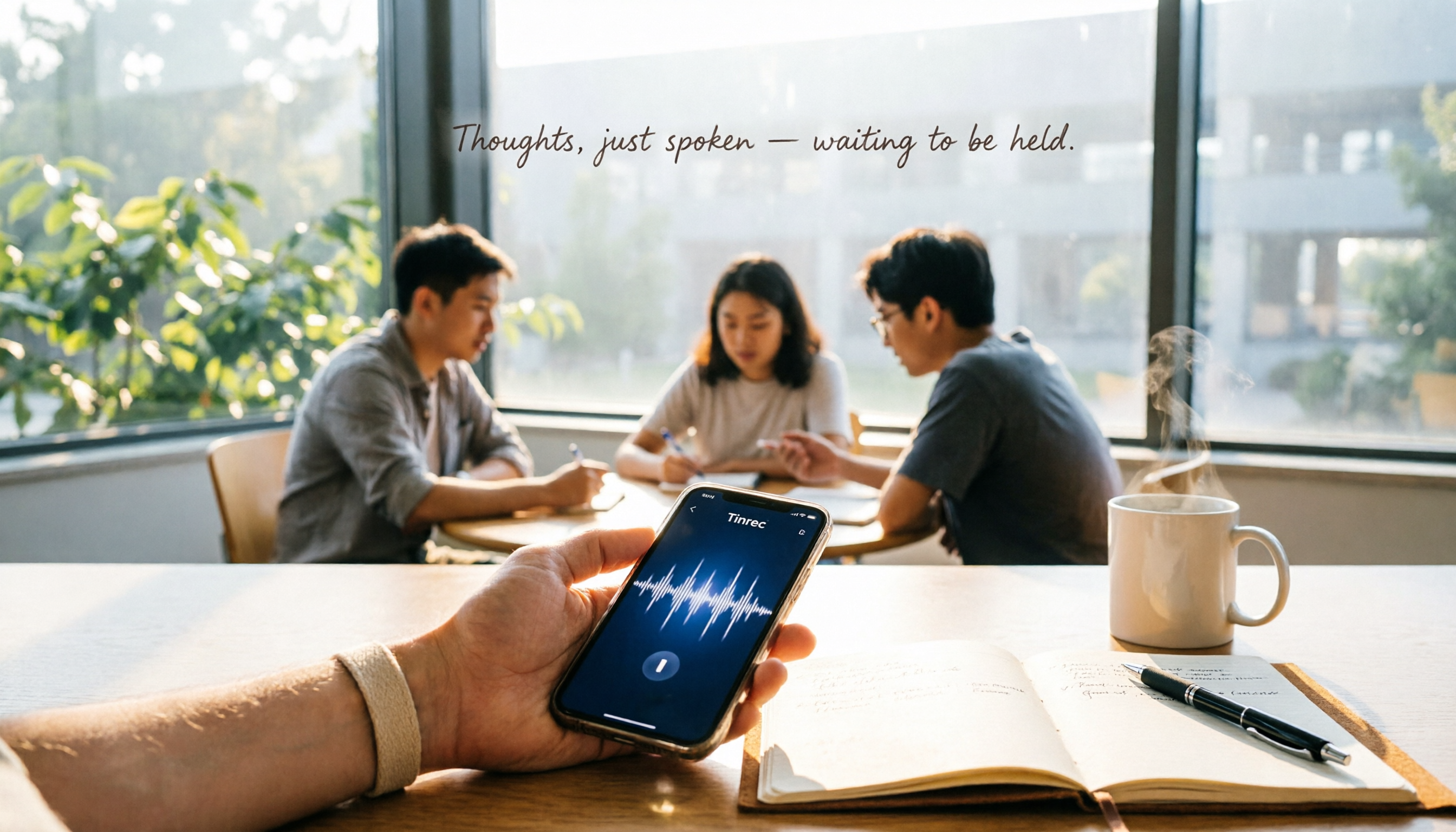
(Illustration: A person recording in a meeting room, phone placed in the center of the table, surrounded by colleagues, professional and natural scene)
Step 2 | Let AI Transcribe the Recording into Text
After recording, the next step is to use Tinrec's AI to turn it into text.
In the recording list, tap the recording you want to transcribe, then press the "Transcribe" button. Tinrec will automatically detect the language (supports Cantonese, Mandarin, English, and many other languages) and generate a transcript automatically. The process typically takes a few seconds to a few minutes, depending on the recording length.
Why no need to select the language? Because Tinrec's speech recognition engine automatically detects it, no manual setting required, saving a lot of time. It can also handle mixed Chinese-English content, which many free tools can't do.
Once complete, you'll see the transcript interface with timestamps and text segments, making it easy to follow along while listening.
(Illustration: Phone screen showing transcript, lines of text clearly arranged, with timestamps on the side, allowing users to listen and proofread simultaneously)
Step 3 | Quickly Proofread the Transcript
AI-generated text is usually over 90% accurate, but it's not perfect—especially with background noise or overlapping voices. So it's worth a quick scan.
Tinrec's proofreading interface allows you to listen and edit simultaneously: tap a word to jump to that timestamp, so you don't have to search manually. You can directly correct typos or add/remove content. Some Cantonese colloquial terms might be converted to written language, which you can manually adjust.
After proofreading, tap "Done" in the top right corner, and the system will save your edited version. This transcript can later be used to generate meeting minutes or summaries, so the more accurate your edits, the better the AI output later.
(Illustration: User listening to recording while editing transcript on phone, tapping text to jump to corresponding recording position, highly efficient)
Step 4 | Let AI Automatically Generate Meeting Minutes
Once you have the transcript, the next step is to turn it into truly useful material. Tinrec's built-in AI can automatically generate summaries, chapters, action items, and even mind maps.
On the transcript page, tap "AI Organize" and choose the format you want. For example, select "Meeting Minutes," and the AI will automatically extract key points, decisions, and action items, generating a well-structured report. Select "Summary" for a concise version, perfect for when your boss wants a quick overview.
The benefit of this feature is that you don't have to read through the entire transcript yourself; the AI summarizes it for you, saving time without missing key points. However, remember that AI summaries are always supplementary; for important decisions, it's best to cross-reference the original text.
Stop organizing recordings by hand
Upload audio or video and automatically get a transcript, summary, and action items
(Illustration: Phone screen showing AI-generated meeting minutes with title, bullet points, and action items, neatly formatted and easy to understand)
Step 5 | Export and Share with Others
After organizing, you'll want to send it to colleagues or save it. Tinrec supports multiple export formats, including plain text, Word, PDF, and even direct sync to third-party tools like Notion and Google Docs.
Tap "Export" in the top right corner and choose your desired format. For meeting minutes, you can select PDF and send directly via WhatsApp or Email; if you want to continue editing, choose Word or Google Docs. All exports preserve formatting and timestamps for easy follow-up.
Additionally, Tinrec has a thoughtful feature: you can set up auto-sync, so recordings and organized data are automatically saved to the cloud, so you won't lose them even if you switch devices.
(Illustration: User selecting export format on phone, screen showing multiple options including PDF, Word, Notion, all done with one tap)
FAQ and Troubleshooting
Q: The transcription has many errors, what should I do? Usually, it's due to a noisy recording environment or being too far away. Tinrec has built-in smart noise reduction—just enable it in settings before recording. If you're using an already recorded file, you can manually select "High Noise Environment" mode after importing. Many transcription tools don't have this option; they use default settings for all recordings, so in noisy environments, Tinrec is clearly better.
Q: How accurate is it with mixed Cantonese and English? Tinrec handles mixed Chinese-English quite well, especially phrases like "開個 meeting 傾下個 project" that Hong Kongers often use; it can handle those. However, if the accent is heavy or speech is fast, some proofreading may still be needed.
Q: What are the limitations of the free version? The free version of Tinrec includes a monthly base transcription quota, which is generally enough for a few trial meetings or lecture recordings. If you need long-term or heavy use, consider the weekly card or Pro version, which are reasonably priced. But for occasional or emergency use, the free version is more than sufficient.
Advanced Tips | 3 Tricks to Save Time with Tinrec
1. AI Conversation Query: Treat the Recording Like a Database Tinrec's unique AI Q&A feature lets you ask AI questions directly on the transcript page, such as "Who is responsible for follow-up in this meeting?" or "What special requirements does the client have?" The AI will find answers within the recording content. Most other transcription tools only output transcripts without this interactive query, saving a lot of time when organizing information.
2. Multi-Language Mixed Organization Tinrec supports over 100 languages, and even if a recording contains Cantonese, Mandarin, and English, it can automatically transcribe in segments. You can then use AI to translate the entire content into a single language, making it easy to communicate with overseas colleagues. This feature is extremely useful in multinational companies or when meeting with overseas clients.
3. Cross-Platform Sync, Use Anywhere Tinrec has mobile apps and a web version, with all recordings and organized data automatically synced to the cloud. This means you can record on your iPhone, then continue proofreading or generating reports on your computer's web version at the office, without transferring files. This seamless experience is something many tools can't match.
If You Don't Use Tinrec, Here Are Other Free Options
Atter (Mobile Voice-to-Text App): Free, no ads, no registration required, supports real-time recording-to-text and AI summaries, perfect for those who want simplicity and speed. However, it's primarily app-based, with no web version or cross-platform sync, making it less convenient for organizing large amounts of data.
cSubtitle (Online Voice-to-Text): Upload audio or video files and get text directly, supports multiple formats and long documents, and includes subtitle files, suitable for those who occasionally need to process long recordings or create subtitles. However, it has no mobile app, requires a browser, and its AI organization features are not as comprehensive as Tinrec's.
If your main need is mobile recording-to-text with AI assistance and cross-platform use, Tinrec is a more comprehensive free solution; Atter and cSubtitle are better for single-purpose use.
Conclusion
Now that you've learned these 5 steps, you can use Tinrec to turn any phone recording into a transcript, automatically generate meeting minutes, and even use AI conversation to find key points. While there are many free tools on the market, Tinrec stands out by handling recording, transcription, organization, and export in one app, with multi-platform sync, fitting the fast-paced lifestyle of Hong Kong office workers. Next step: Download the free version of Tinrec and try it with one of your own recordings. With free monthly transcription minutes, it's enough for a couple of meetings, and it's free—why not give it a try?
References
- 2026 Recommended 6 Voice-to-Text Tools: Free Online Transcription of Audio Files!
- iPhone Recording to Text Free App "Aiko" Tutorial: No Shortcut Needed for Transcription - Mr. Mad
- iPhone Recording to Text Free Transcript! iOS 18 Supports 10 Languages | Quality Life | 500 Times
- Atter Phone Recording to Text App Tutorial! Free Transcript Voice-to-Text AI Multi-Function Tool - Mr. Mad
- Online AI Voice, Video, Audio File to Text - Free Trial - cSubtitle
Turn every recording into actionable outcomes
Get 60 free transcription minutes when you sign in. No credit card required.
Related Reading
You might also like

2026 Hands-On Test of 4 AI Recording Assistants: Which One Handles Chinese Meeting Notes Best?
We tested 4 AI recording assistants for meetings, lectures, interviews, and video transcription to find the best AI secretary for Chinese content. Tinrec stood out in Chinese comprehension and multi-source organization, making it ideal for quickly generating meeting minutes and summaries.

5 Best AI Office Assistant Tools in 2026: Free and Paid Options Compared
Looking to boost office productivity? This article reviews 5 free and paid AI office assistant tools, including Tinrec for recording transcription, Notion AI, Grammarly, Tricuss, and Monica, to help you handle meeting notes, writing proofreading, and workflow automation—easy for regular office workers to get started.

2026 Hands-On Comparison of 2 Recording-to-Text Tools: Tinrec vs Plaud Note – Which One Handles Cantonese Transcription Better?
Hong Kong office workers attend meetings daily—how can you avoid overtime just to write meeting minutes? We tested and compared Tinrec and Plaud Note, from Cantonese recognition and AI features to pricing, to see which one suits Hong Kong users best. Check out the results now.

2026 Free WeChat Voice-to-Text Solutions: 3 Tools Compared
WeChat's built-in voice-to-text isn't the only option—third-party AI tools can help you organize meeting and lecture recordings. We tested Tinrec and Notta to see which suits Hong Kong users better.
Which AI Recording Agent Is Best? 2026 Hands-On Test of 2 Options: This Software Solution Is More Flexible and Cost-Effective
Looking for an AI recording tool to organize meetings, classes, and interviews? This article hands-on tests Tinrec and PLAUD NOTE, comparing them across 5 key dimensions—recording methods, transcription and understanding, pricing, cross-platform support, and more—to help you choose the best option.
2026 Speech-to-Text Tool Buying Guide: Hands-On Review of 2 Tools and Selection Tips
Looking for the fastest and most accurate way to transcribe meetings, lectures, and interviews? We tested Tinrec and Otter.ai side by side, comparing Cantonese recognition, input sources, AI summarization, and export flexibility to help you pick the time-saving solution that fits your needs.
Tinrec 2026 Review: AI Personal Assistant for Recording Transcription and AI-Powered Q&A
Tired of spending hours transcribing meetings, lectures, and interviews? Tinrec (Miao Ting Lu Yin) not only converts recordings to text but also auto-generates summaries and to-dos, and even lets you query the content via AI chat. This hands-on review compares Tinrec with Otter, PLAUD, and Notta to help you choose the best tool for your work and study needs.

2026 Hands-On Test: 3 AI Agent Assistants for Automatic Meeting Notes – Which One Wins?
AI Agent assistants are no longer sci-fi – they can now handle recording-to-text and execute tasks autonomously. We tested 3 popular AI Agent assistant tools to see which one truly delivers automatic meeting minutes, class notes, and interview summaries, so office workers can clock out earlier and skip overtime paperwork.
Tinrec 2026 Review: Auto Meeting Minutes + AI Q&A for Students
Tested from a student's perspective! Tinrec is an AI recording tool that transcribes, summarizes, and creates to-do lists, with AI Q&A to find key points. Is the free plan enough? How does it compare to Otter and Notta for students? Find out in this guide.