
Turn recordings into transcripts and summaries in minutes
Upload audio or video for multilingual transcription, AI notes, and action items
Are you always torn between "listening attentively" and "typing like crazy" during meetings? Although Google Meet is a mainstream video conferencing tool, its built-in recording and transcription features are often limited by account permissions (requiring specific Workspace editions) and language support. For users who want free, cross-platform, or more powerful AI summarization, choosing the right tool is crucial.
This article analyzes Google's latest AI note-taking features as of 2026 and compares third-party tool Tinrec to help you make the best choice based on your needs (e.g., budget, whether you're the meeting host, mobile requirements). Bottom line: if you're an enterprise admin with a sufficient budget, official Gemini is the top choice; if you're an individual user, student, or need more flexible recording management, independent AI recording assistants like Tinrec have the edge.
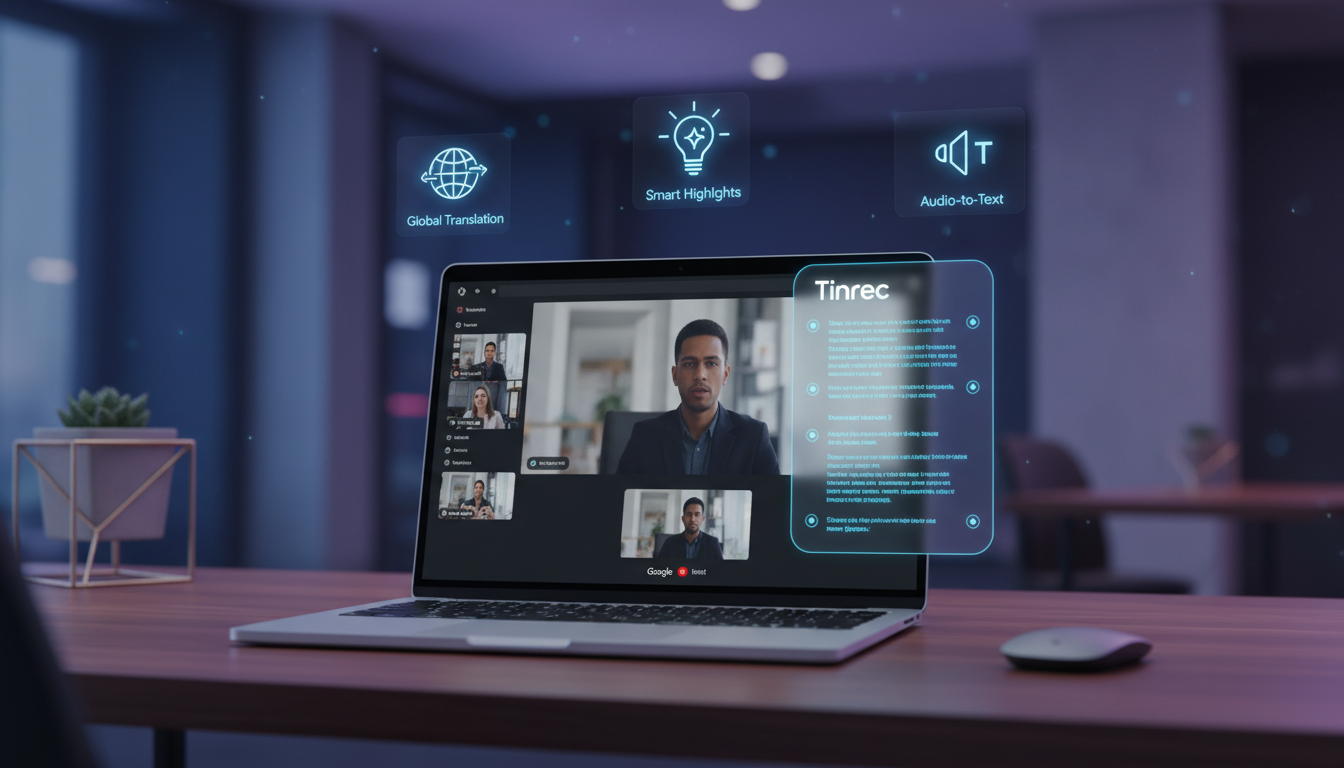
Google Meet Built-in AI Note-Taking: Latest 2025 Updates and Limitations
According to the latest update from Google Workspace in February 2025, the "Take notes for me" feature in Google Meet has received a major upgrade. It now automatically adds "transcript citations" to meeting notes.
Key Feature Highlights
- Timestamped Links: Generated meeting notes include timestamps (e.g., "Sophie discussed the updated marketing plan (00:08:32)").
- Quick Rewind: Clicking a timestamp in the notes jumps to the corresponding dialogue passage in the transcript, making it easy to review full context.
Usage Requirements and Limitations
However, this powerful feature is not available to all users. Specific restrictions include:
- Activation Condition: Both "Take notes for me" and "Transcriptions" must be enabled; if transcriptions are off, notes won't include citation links.
- Account Requirements: Only available on Google Workspace Business Standard/Plus, Enterprise Standard/Plus, and higher tiers, with additional purchase of Gemini Education Premium or Gemini Enterprise add-ons.
- Admin Permissions: Individual users cannot enable it themselves; domain administrators must configure it in the admin console.
This means that for users with free Google accounts, basic school accounts, or non-host meeting participants, alternative solutions for "recording to text" are still needed.
Google Meet Recording-to-Text Tools Comparison: Built-in vs. Third-Party AI Assistants
To help you choose the best tool, we compared Google's built-in feature with the popular AI recording assistant Tinrec across multiple dimensions.
| Dimension | Google Meet (Gemini) | Tinrec | Traditional Recorder/Phone Recording |
|---|---|---|---|
| Core Positioning | Enterprise meeting collaboration suite | All-scenario AI recording & knowledge management assistant | Simple audio recording |
| Eligibility | Requires paid Workspace + Gemini license | Free tier available (monthly credits), plus premium plans | Unlimited, but single-function |
| Recording Permissions | Only host or authorized users can enable | Any participant can use (system audio/microphone recording) | Physical environment only |
| Real-time Transcription | Supported (depends on official language packs) | Supported (real-time speech-to-text, multi-language recognition) | No |
| AI Summary/Action Items | Auto-generates static document | Generates meeting minutes, to-do lists, mind maps | No |
| Interactivity | Read static document | AI chat queries (ask questions about content) | Requires manual replay |
| Use Cases | Internal company formal meetings | Cross-platform meetings, lectures, personal study, interviews | On-site evidence, offline environments |
Stop organizing recordings by hand
Upload audio or video and automatically get a transcript, summary, and action items
In-depth Review: How Tinrec Fills Google Meet's Feature Gaps
In many scenarios, we can't control meeting permissions (e.g., attending external webinars, client meetings) or need more flexible organization. Tinrec, as an independent AI recording tool, offers several key advantages:
1. Platform-Independent Recording
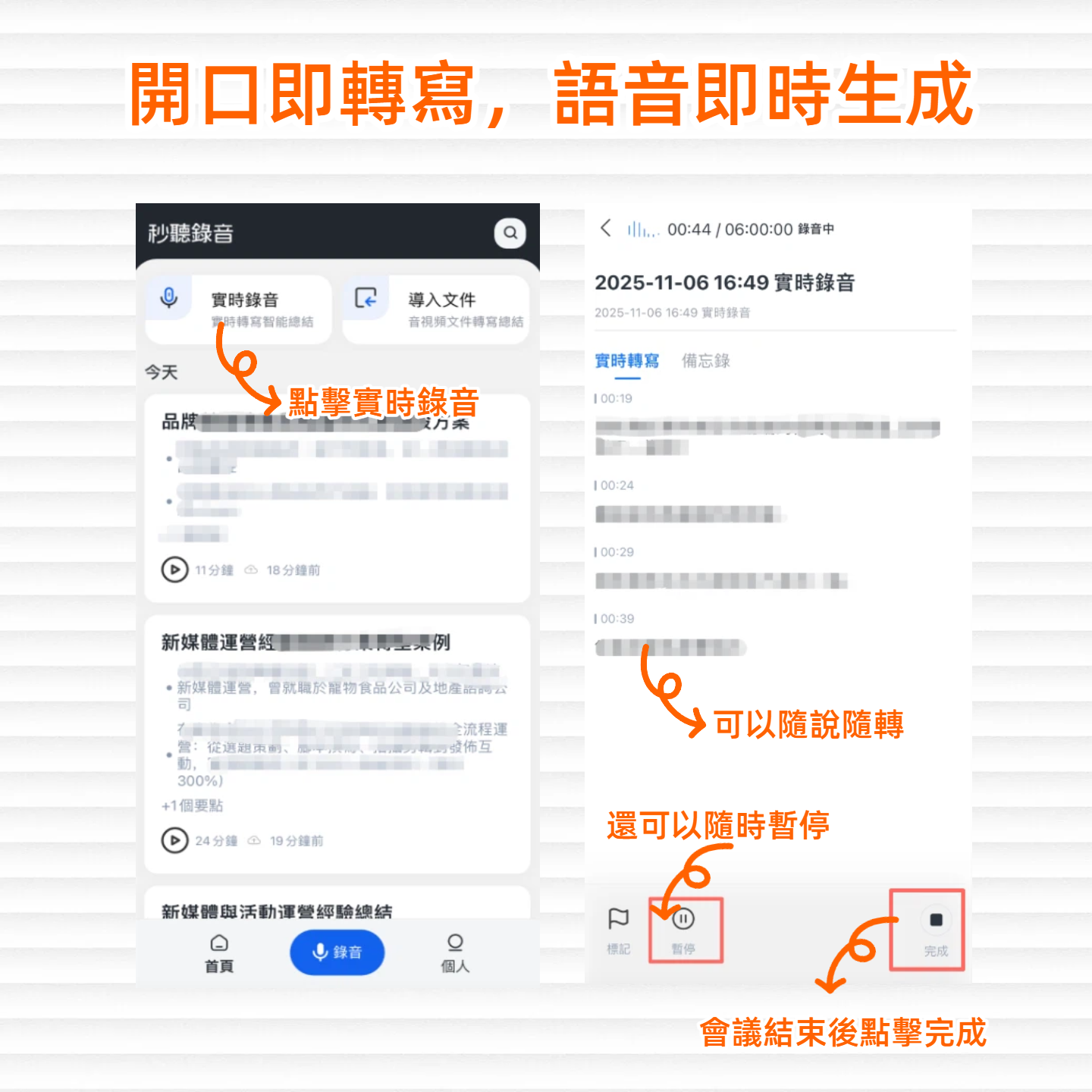
Google Meet's built-in recording requires host permission. Tinrec uses "system audio recording" or "microphone recording" modes, meaning whether you're using Google Meet, Zoom, Teams, or even watching a video in a browser, Tinrec can record in the background and transcribe in real time without needing the host's consent (though it's advisable to inform participants).
2. From Passive Reading to Active Dialogue
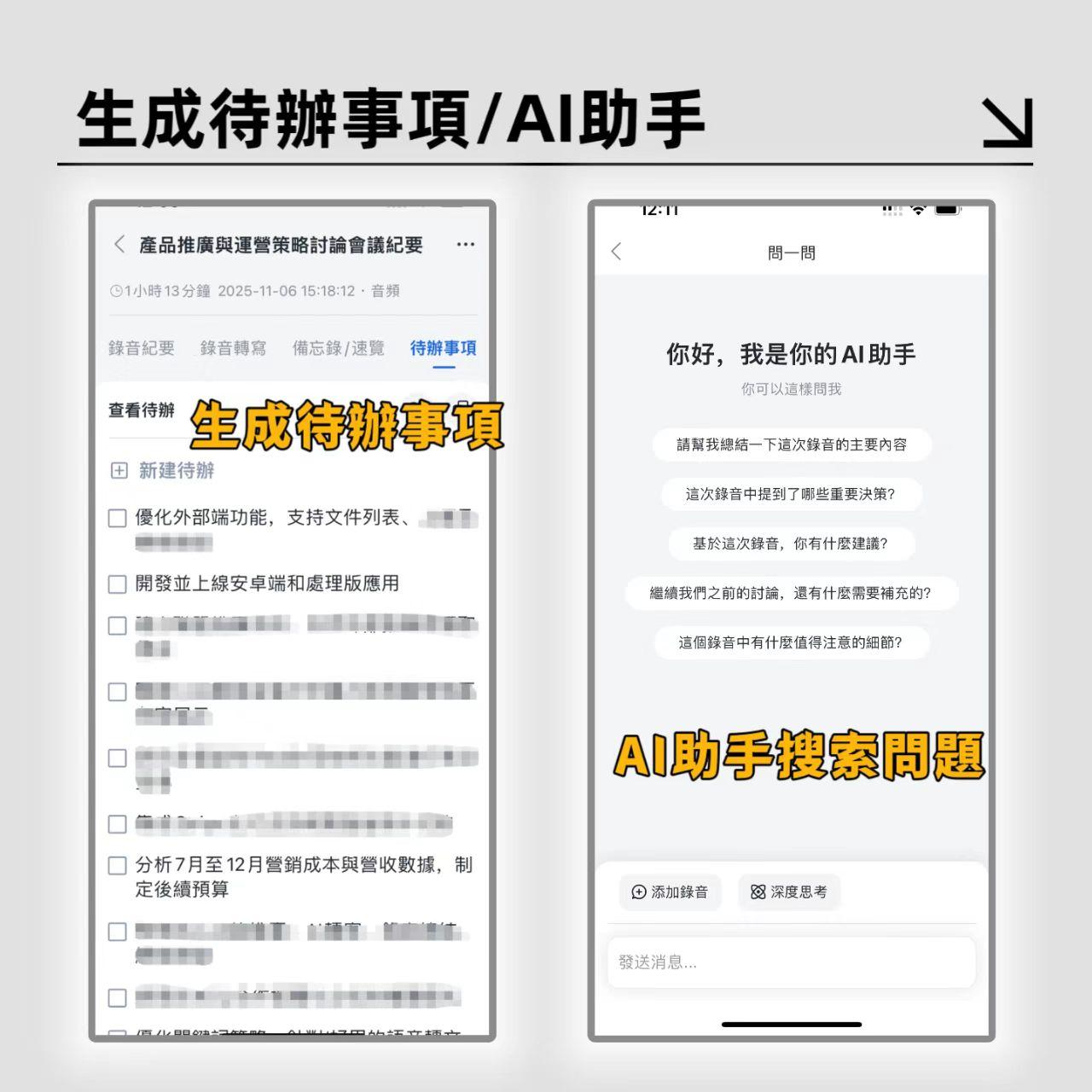
The biggest pain point of traditional transcripts is "too much text, hard to find the point." While Google's new feature adds timestamps, it still requires manual reading. Tinrec differentiates with its "AI chat query" feature. After a meeting, you can ask it like an assistant: "What was the deadline the PM mentioned?" or "List all budget discussions," and the system gives precise answers based on the recording.
3. Automated Action Items and Multi-Format Support
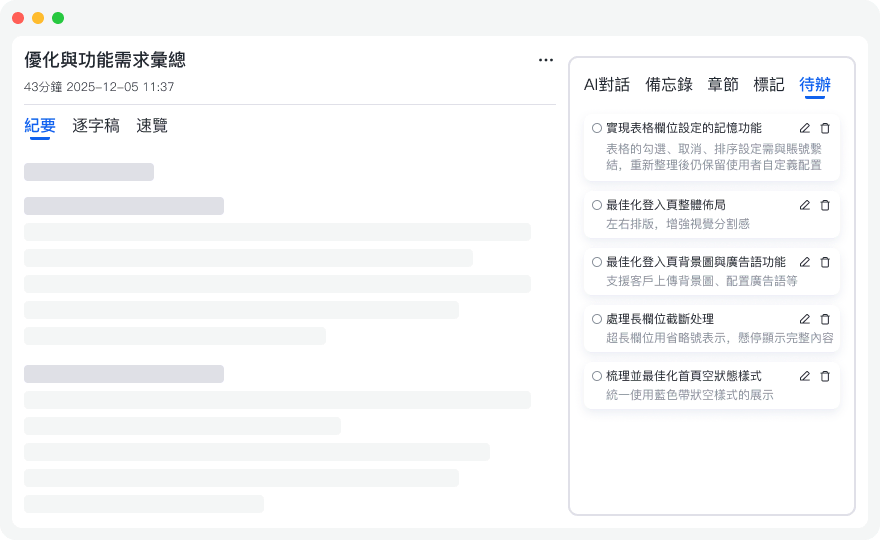
For professionals who value execution, Tinrec can automatically extract "to-do lists" after recording, turning long meeting conversations into actionable tasks. It also supports export to Word, PDF, Markdown, and other formats, making it easy to paste into Notion or corporate documents.
Step-by-Step Guide: 3 Steps to Convert Google Meet Recording to Text
Below, we explain how to use Tinrec for Google Meet meeting notes.
Step 1: Prepare Recording Environment
- Open the Google Meet link and join the meeting.
- Launch Tinrec Web or Mobile App.
- Key Setting: On a computer, select "System Audio" recording to capture participants' speech most clearly without background noise.
Step 2: Start Real-Time Transcription
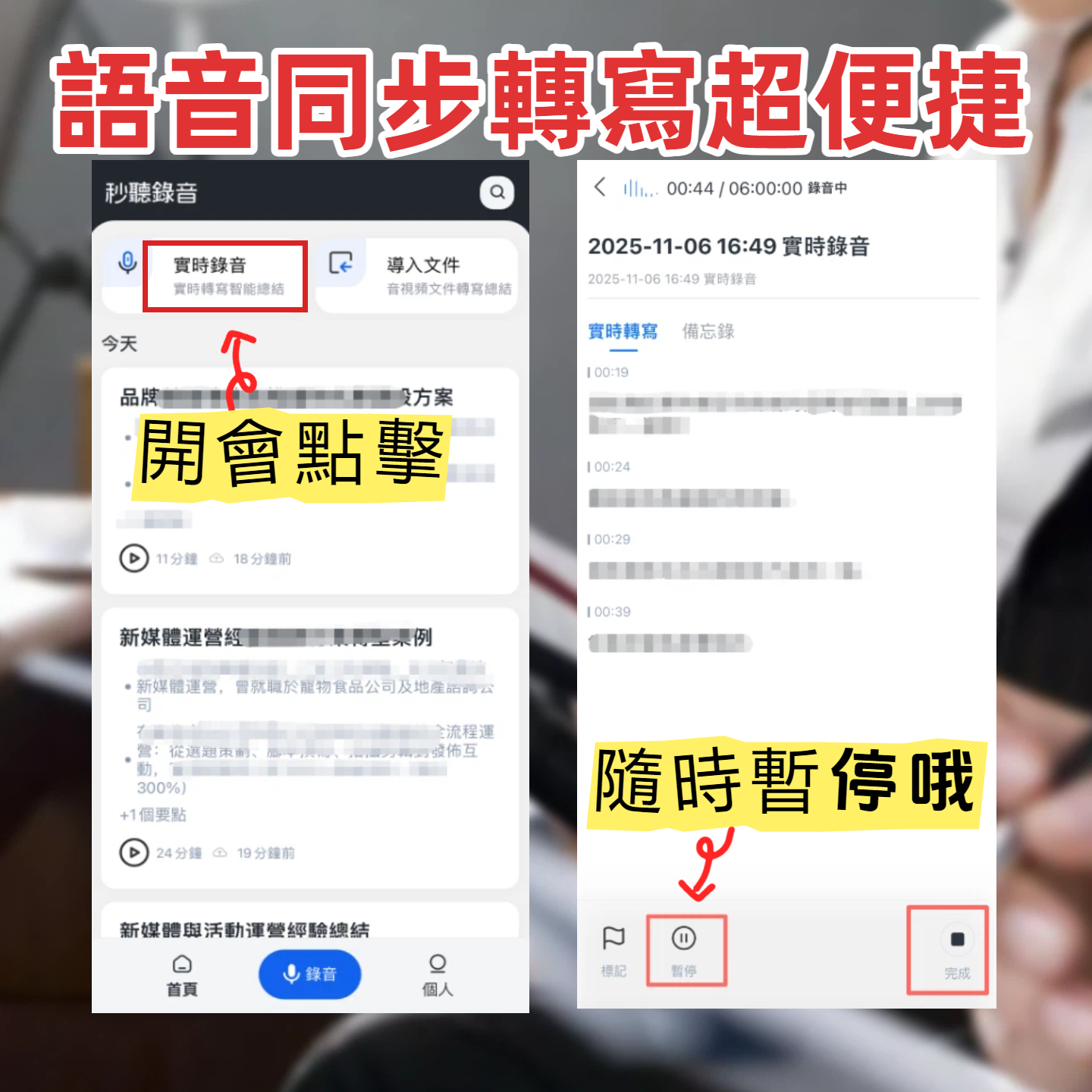
- Click Tinrec's "Start Recording" button.
- The system will display real-time transcribed text on the screen. It supports mixed recognition of Chinese, English, Japanese, and other languages, ideal for international meetings.
- You can click "Mark" at important points for quick review later.

Step 3: Generate AI Meeting Minutes and Action Items
- After the meeting, click Stop Recording.
- Tinrec automatically uploads and performs deep analysis (usually takes a few minutes).
- On the details page, you'll see the full transcript (with speaker identification), AI smart summary, and auto-extracted action items. Click "Export" to save the content as a document.
Google Meet to Text FAQ
Q1: I'm not the Google Meet host, can I use built-in recording? Answer: No. Google Meet's built-in recording is typically limited to the host or authorized users within the same organization. If you're an attendee who wants to record, we recommend using third-party tools like Tinrec for side recording.
Q2: Can I record and transcribe Google Meet on my phone? Answer: Yes. You can use Tinrec's iOS or Android app to run recording in the background, or place your phone near the computer speaker to record; the app will convert audio to text in real time.
Q3: How accurate is the recording to text conversion? Answer: Current mainstream AI tools (including Google Gemini and Tinrec) achieve over 95% accuracy for Chinese with clear audio. For meetings with many proper nouns or overlapping speech, we recommend using the speaker identification feature and making manual adjustments.
Q4: Does Tinrec have a free trial? Answer: Yes. Tinrec offers a free tier with 100 minutes of recording and transcription per month, sufficient for 1-2 short meetings per week. For more hours, consider the Basic or Pro plans.
Q5: Can I export the recording? Answer: Yes. Tinrec supports exporting the audio file, transcript, and AI summary in multiple formats (e.g., Word, TXT, PDF) for further editing or archiving.
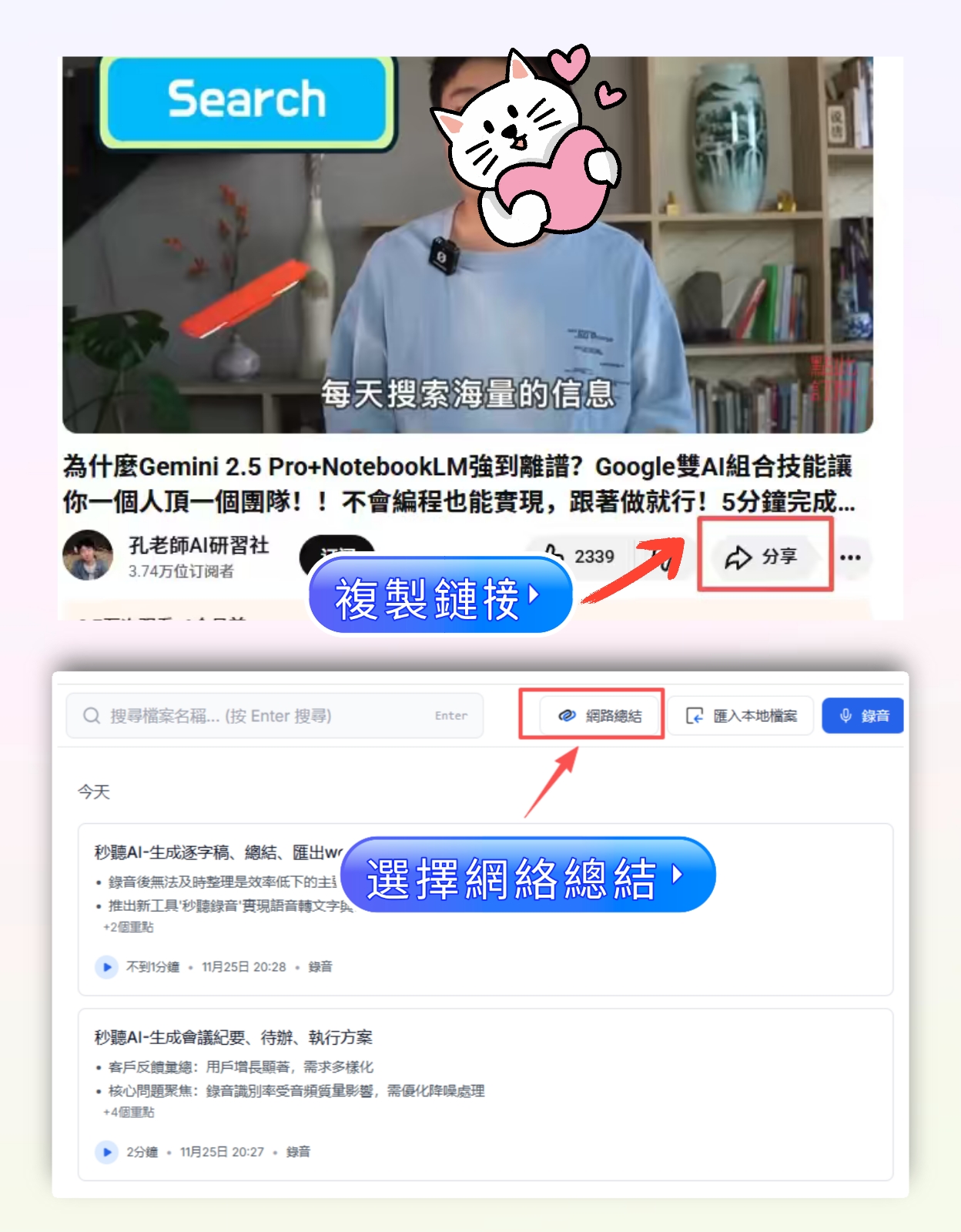
Q6: Can I transcribe YouTube tutorial videos or podcasts? Answer: Absolutely. Tinrec has a "video link to text" feature—just paste a YouTube link to generate a transcript and summary without actually playing the video.
Turn every recording into actionable outcomes
Get 60 free transcription minutes when you sign in. No credit card required.
Related Reading
You might also like

Free Meeting Notes App 2026: Tinrec Free Plan Tested + AI Summaries & Action Items in One Go
How to choose a free meeting notes app? This article uses the standard of 'can the free version handle a full meeting?' to compare the free quotas and limitations of Tinrec, Otter.ai, Notta, and PLAUD Note. It breaks down 5 key decision points and 4 common pitfalls, and fully explains Tinrec's workflow from no-bot recording to AI summaries, action items, and team spaces.

2026 Comparison of 5 Free Meeting Notes Apps: Which Free Version Is Actually Enough?
Which free meeting notes app is better? This article starts with three common misconceptions, then tests and compares free tier limits, Chinese language support, and post-meeting organization capabilities. It uses Tinrec as an example to demonstrate the complete workflow from recording to transcript, summary, action items, and AI Q&A, helping you decide whether a free version is truly sufficient.

2026 Free Meeting Notes App Guide: From Class to Group Projects, How to Choose Your Free Tier
A college student's hands-on review of free meeting notes apps, covering class recordings, group discussions, and capstone projects. We break down the 4 key factors: free tier limits, summary and to-do features, Chinese recognition, and cross-device support. Plus, we share which campus scenarios suit Tinrec, Otter.ai, Notta, and Granola, and what pitfalls to avoid.
5 Free Meeting Transcription Apps Tested for 2026: Which Free Tier Actually Lasts?
Which free meeting transcription app is worth using? We tested five tools with free plans—Tinrec, Granola, TurboScribe, PLAUD, and Otter.ai—comparing free minute limits, Chinese and mixed-language recognition, online meeting recording methods, and post-meeting summaries and Q&A. We also highlight four common pitfalls to help you find the one that truly covers a month of meetings.

5 Free Meeting Notes Apps Compared in 2026: Why Tinrec Beats Notta for Chinese Meetings
A guide to choosing a free meeting notes app in 2026, comparing Tinrec and Notta to help you decide which is better for Chinese meeting recognition, free quotas, post-meeting summaries, and team collaboration.

5 Free Meeting Notes Apps Tested in 2026: Which Free Version Is Actually Enough?
There are countless free meeting notes apps, but is the free version really enough? This article starts with common misconceptions, tests the free plans of several tools, and uses Tinrec as the main example to walk through the full workflow from recording to transcript to summary to action items. It also covers the differences between free and paid plans, 5 key points to consider when choosing, and frequently asked questions.

Free Meeting Notes Apps in 2026: 5 Options Compared
How do you choose a free meeting notes app? This article breaks it down using three key questions: how many meetings you have per month, whether they're online or in person, and whether you need to share notes with a team. It covers Tinrec's free plan and paid options, including real-time transcription, bot-free online meeting recording, AI summaries and Q&A, export and post-processing, and team workspaces, plus 5 buying checkpoints and FAQs to help you decide which plan truly fits your needs.

2 Free Meeting Transcription Apps Compared in 2026: How Do Chinese Transcripts, AI Summaries, and Post-Meeting Organization Differ?
What exactly does "free meeting transcription app" mean? This article breaks down the keyword using a student scenario and compares Tinrec and Otter.ai across five dimensions: free quota, Chinese recognition, meeting capture methods, post-meeting organization, and team collaboration, helping you decide which one better fits your classes and group discussions.

4 Free Meeting Notes Apps Tested for 2026: Which Free Version Is Actually Enough?
Which free meeting notes app is best? We tested Tinrec, Otter.ai, Notta, and Granola across five areas: free limits, Chinese and mixed Chinese-English recognition, recording methods, post-meeting organization, and team collaboration. We also break down free version restrictions, paid pricing, and common pitfalls to help you pick the one that saves the most time.