
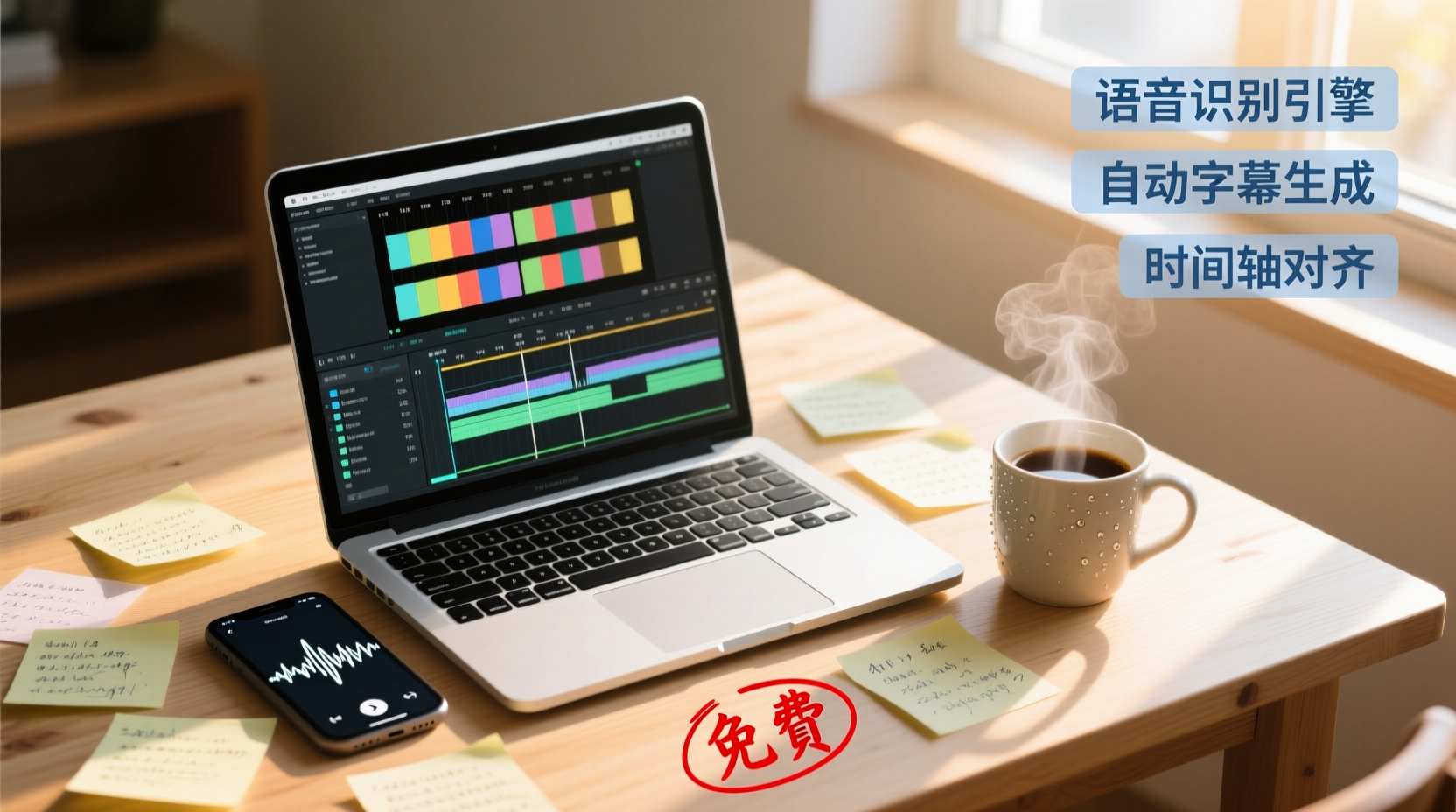
Turn recordings into transcripts and summaries in minutes
Upload audio or video for multilingual transcription, AI notes, and action items
If you're using PowerDirector to edit videos and want to add subtitles without typing every line manually, your first thought might be: doesn't PowerDirector have an AI speech-to-text feature? Is it free?
The answer is: partially free, but with conditions. PowerDirector's AI speech-to-text feature, available since version 21, can be used for free in the basic version (365 Basic), but the free tier usually has limits on usage count or duration, and the availability varies by version and subscription plan. If you only occasionally add subtitles to short videos, the free allowance might be sufficient. However, if you need to process multiple videos each month or want to transcribe meeting recordings, you'll need to understand exactly how much you can transcribe for free and how many times, before deciding whether to upgrade.
This article doesn't just list features; it starts from the actual work you need to accomplish, breaks down the free boundaries of PowerDirector's speech-to-text, and compares other free options to help you find the most suitable tool for subtitle generation or meeting notes without spending money.
PowerDirector Speech-to-Text: Is It Free? How Long Can You Transcribe at Once?
PowerDirector's AI speech-to-text feature is intuitive to use: import a video file, right-click, select "AI Speech-to-Text," confirm the audio source and language, then click "Create" to convert the spoken content in the video into a transcript, which can be directly added as subtitles.
But the key to "free" lies in the version. According to CyberLink's official information and user experiences, PowerDirector 365 Basic (partially free) has offered the AI speech-to-text feature for free since version 21, but the free version typically has monthly or per-transcription limits. The specific duration and number of transcriptions vary by version, subscription plan, and promotions, and the official does not provide a unified free allowance number.
In other words, if you only occasionally add subtitles to a short video, the free version may be more than enough. But if you need to process multiple videos each month or want to transcribe a 1-hour meeting recording, the free allowance is likely insufficient, and you'll need to consider upgrading to a paid version or using other free tools.
The Real Need for Subtitle Generation: What Do You Actually Want When Editing?
Before comparing tools, ask yourself: why do you want to add subtitles to your videos?
Most people's answers fall into the following categories:
- Improve viewing experience: Many people watch videos in silent environments (e.g., commuting, office), and subtitles are necessary for them to finish watching.
- Increase reach and searchability: Subtitle text can be indexed by search engines, helping more people find your videos.
- Facilitate subsequent editing: Converting interviews, tutorials, or meeting content into text allows you to repurpose it into articles, notes, or reports—one source material, multiple uses.
If your need is "to add accurate subtitles to videos," then the built-in transcription feature of editing software like PowerDirector is convenient because it directly maps text to the timeline, making it easy to adjust subtitle positions later.
But if you need "to quickly turn meeting recordings into searchable, actionable text," the transcription feature of editing software may not be the best solution—it usually only outputs a verbatim transcript, lacking summarization, action item extraction, and other post-processing capabilities, so you'll have to spend time summarizing the key points yourself.
Therefore, before choosing a tool, clarify your core task: is it "making subtitles" or "making meeting notes"? The logic for choosing tools is completely different for these two tasks.
Free Plan Comparison: PowerDirector, Tinrec, Otter, Notta, TurboScribe
Below is a comparison of several common free speech-to-text options. Information is based on official pages; actual benefits may change, so please verify before use.
| Tool | Free Allowance | Per-Session Duration Limit | Primary Use | Best For |
|---|---|---|---|---|
| PowerDirector AI Speech-to-Text | Varies by version; basic version partially free | Not clearly announced; may have limits | Video subtitle generation | Video creators who need to convert video speech into subtitles |
| Tinrec (MiaoTing) | Basic free allowance to experience recording, import, summarization, and transcription | Not clearly announced | Meeting notes, audio transcription, AI summaries, and action items | Professionals who need to turn meeting recordings into usable materials |
| Otter.ai | 300 minutes per month | Up to 40 minutes per recording (estimated) | Online meeting notes, English transcription | Users with English-centric meetings |
| Notta | 120 minutes per month | Up to 3 minutes per session | Multilingual transcription, file processing | Those needing multilingual transcription and short audio processing |
| TurboScribe | 3 files per day | Up to 30 minutes per file | Long files, batch transcription, subtitle generation | Those needing to process long videos or large numbers of files |
Stop organizing recordings by hand
Upload audio or video and automatically get a transcript, summary, and action items
PowerDirector: Built-in for Editing, but Limited Free Allowance
PowerDirector's AI speech-to-text has the advantage of being integrated into the editing workflow, with transcribed text directly mapped to the timeline for easy subtitle creation. However, the free version's allowance is usually limited, and its primary purpose is "adding subtitles to videos," not "organizing meeting notes." If you only occasionally add subtitles to short videos, it's the most convenient choice. But if you need extensive transcription or subsequent organization, you'll need to consider other tools.
Tinrec: More Complete for Meeting Notes and Follow-up
Tinrec (MiaoTing) is an AI meeting notes tool. The free version provides a basic allowance to experience recording, file import, transcription, and AI summaries. Unlike PowerDirector, Tinrec emphasizes what happens "after transcription": automatically generating summaries, chapters, key points, and action items, and supporting AI Q&A and multiple export formats. If you often need to turn meeting recordings into minutes and action items, Tinrec's free version lets you experience the complete workflow from recording to usable materials, but the free allowance is limited, making it suitable for occasional use.
Otter.ai: A Mature Choice for English Meetings
Otter.ai's free version offers 300 minutes per month, suitable for light users. It supports recording from Zoom, Teams, and other platforms, and provides AI summaries and action items. However, Otter is primarily English-focused, and Chinese transcription quality may not be as good as other tools. If your meetings are conducted in English, Otter is a reliable free choice. If they are primarily in Chinese, consider other options.
Notta: Multilingual but Strict Per-Session Time Limit
Notta's free version offers 120 minutes per month, but each transcription session is limited to 3 minutes. This is a critical drawback for long meeting recordings—you cannot process an audio file longer than 3 minutes at once; you must transcribe in segments, which is quite inconvenient. Notta supports multiple languages, but the strict time limit in the free version makes it more suitable for short audio files or testing purposes rather than actual meeting notes.
TurboScribe: Advantage for Long Files and Batch Transcription
TurboScribe's free version allows 3 files per day, with each file up to 30 minutes, making it suitable for longer videos or recordings. It supports subtitle generation (SRT, VTT) and multiple languages. For users who need to process files in batches, the free version is relatively generous. However, the limit of 3 files per day may be insufficient for heavy transcription needs.
From Recording to Subtitles: What Can Free Tools Accomplish?
What free tools can accomplish depends on whether your need is "making subtitles" or "making meeting notes."
Making Subtitles: What Free Tools Can Do
- Convert video or audio to verbatim transcript: Most free tools can do this, such as PowerDirector and TurboScribe.
- Export subtitle files (SRT, VTT): Tools like TurboScribe support direct export of subtitle formats, making it easy to import into editing software.
- Basic timecode mapping: PowerDirector can directly map text to the timeline, saving manual syncing.
Making Meeting Notes: What Free Tools Usually Cannot Do
- Automatically generate summaries and key points: Most free versions only provide verbatim transcripts; summarization features require payment.
- Extract action items: Free versions typically do not offer action item extraction.
- AI Q&A and subsequent organization: Free versions cannot answer questions about meeting content or turn action items into reports.
Free tools can save you time on "typing," but the subsequent organization, summarization, and follow-up still require your own time. If your need is "to quickly obtain usable meeting minutes," free options may be just a starting point, not the end.
The Boundary Between Free and Paid: When Should You Upgrade?
The limitations of free plans usually become apparent once you start using them frequently. The following situations may indicate that you should consider upgrading to a paid plan:
Whether to upgrade depends on your usage frequency and depth of needs. For occasional use and short recordings, the free version may suffice. For frequent use, long meetings, or advanced organization, a paid version is necessary.
Recommendations for Different Editing Needs: Amateur, Professional, and Team Collaboration
Amateur Creators: Occasionally Adding Subtitles to Short Videos
If you only occasionally add subtitles to vlogs or short videos, PowerDirector's free AI speech-to-text feature is sufficient. Simply import the video, click to transcribe, and adjust the subtitles—the process is straightforward. If you run out of free allowance, consider TurboScribe's free version (3 files per day, 30 minutes per file) as a supplement.
Professional Editors: High Volume, Need Batch Processing
If you frequently need to add subtitles to multiple videos, free options may not be enough. PowerDirector's paid version offers more transcription allowance, or you could consider TurboScribe's paid version (up to 10 hours per file, upload 50 files at once), which is suitable for large-scale batch processing.
Team Collaboration: Meeting Notes Need Sharing and Follow-up
Important Considerations: Accuracy, Privacy, and the Need for Human Review
When using any speech-to-text tool, keep the following points in mind:
- Accuracy is affected by multiple factors: Recording quality, background noise, accents, overlapping speech, etc., all affect transcription accuracy. No tool can guarantee 100% accuracy, so it's advisable to verify important content against the original recording.
- Privacy and legal compliance: If the recording involves other people or sensitive information, obtain consent from participants in advance and ensure the tool complies with local laws and data protection regulations.
- The necessity of human review: AI-generated summaries, action items, or reports may miss or misinterpret details. For important decisions or content sent externally, always review manually.
Free tools can save you time, but they cannot replace human judgment. Use tools wisely while retaining necessary review steps to ensure output quality.
References
- Tested: 4 Best Online Speech-to-Text Tools Recommended, Free to Convert Recording Files to Transcripts
- Free PowerDirector 365 Speech-to-Text - Upload YouTube Subtitles Without Hassle [CC Subtitles] - YouTube
- The Fastest Way to Auto-Subtitle Videos! AI Subtitles One-Click Speech-to-Text | PowerDirector PC Tutorial - YouTube
- How to Use CyberLink PowerDirector 365's "AI Speech-to-Text" Feature?
- [PowerDirector News #2] PowerDirector 365 Automatic Speech-to-Text Free Tutorial Revealed! April Exciting Updates - YouTube
Turn every recording into actionable outcomes
Get 60 free transcription minutes when you sign in. No credit card required.
Related Reading
You might also like

4 Cantonese Real-Time Translation Tools Tested for 2026: Which One Understands and Translates Accurately?
Cantonese real-time translation actually serves two different needs: understanding on the spot and keeping a record afterward. Choosing the wrong tool makes everything feel cumbersome. This article starts from real usage scenarios and compares Tinrec, Google Translate, Love Cantonese, and PLAUD recording hardware, summarizing key buying factors, common pitfalls, and suitable users to help you choose right the first time.

2026 Courtroom Audio Transcription Tools Compared: A Transcript Must Work as an Evidence Attachment
Turning a hearing recording into usable court documentation isn't just about converting speech to text. Starting from the actual requirements for evidence attachments, this article compares Tinrec, Granola, TurboScribe, and Otter.ai on speaker labels, timestamp jump-back, legal terminology recognition, and team data handover, and outlines the 4 most common pitfalls to help you decide where to allocate your budget.

2026 4 Voice Recorder Comparison: Which AI Summarization Actually Saves Post-Meeting Time?
A mid-level manager who attends over ten meetings a week shares hands-on testing: in 2025, voice recorders have evolved from 'just recording' to 'helping you organize.' This article covers key buying factors, the top pick Tinrec, brief competitor reviews, and a guide to avoiding pitfalls—helping you decide which one to buy and whether to upgrade.
5 Podcast Transcription Tools Tested: Link Parsing, File Upload, or Live Transcription—Which Saves the Most Time in 2026?
How do podcasters choose a recording-to-text tool? This article breaks down five workflows—link parsing, file upload, live recording, online meeting capture, and team collaboration—and uses Tinrec as an example to explain transcripts, AI summaries, chapters, Q&A, and export options, plus buying tips and FAQs.

2026 Comparison of 3 Interview Transcription Tools: Tinrec vs. Notta vs. Subanana — Which Helps Journalists Meet Deadlines?
The biggest pitfall in interview transcription isn't AI accuracy—it's choosing the wrong type of tool from the start. This article, from a journalist's actual workflow, compares Tinrec, Notta, and Subanana on interview format coverage, post-interview organization, Chinese terminology, audio retention, and free quotas, with team plan seat and pricing details, to help you save time before deadline.
4 Recording and Note-Organization Tools Compared for 2026: How Should Therapy Session Recordings Be Organized?
Can therapy sessions be recorded, and if so, how should the recordings be organized? This article starts with three common misunderstandings, breaks down four key points—scope of consent, confidential storage, post-transcription usability, and Chinese terminology—and compares Tinrec, Notta, Otter.ai, and Granola in terms of their practical differences and pitfalls to avoid in therapy recording and note-taking scenarios.

2026 Guide to Choosing a Subtitle Generator for Content Creators: 3 Tools Tested and Recommendations
Starting from the real needs of campus projects and club videos, this guide outlines 4 key points content creators should consider when choosing a subtitle generation tool. It tests Tinrec's transcription and post-meeting organization workflow, and compares the use cases and limitations of YouTube's built-in captions, VideoCaptioner, and TurboScribe, concluding with selection advice for students and small teams.

4 Screenwriting Audio-to-Text Tools Tested: Which One Saves the Most Time on Dictated Scripts in 2026?
Screenwriting often starts with speaking: dictating outlines, brainstorming in writers' rooms, interviewing real-life subjects. This article tests 4 audio-to-text tools in real screenwriting scenarios—from mixed Chinese-English recognition, post-meeting organization, recording online script meetings without bots, to team knowledge retention—to tell you which one truly saves time on transcripts, and how to choose based on different budgets and needs.

2026 Recorder Comparison: PLAUD Note vs Tinrec — Which Is Better for Meeting Notes?
This article compares PLAUD Note and Tinrec across six dimensions—meeting capture, post-transcription workflow, Chinese-language experience, team collaboration, cost, and data traceability—to help you decide whether to buy a dedicated recorder or choose an AI meeting notes tool that requires no extra hardware.