

Turn recordings into transcripts and summaries in minutes
Upload audio or video for multilingual transcription, AI notes, and action items
The Biggest Meeting Fears on a Laptop: Needing to Install Software Last-Minute, Mic Issues, and Can't Find the Join Button
Have you ever been in this situation: You receive a Google Meet link just 3 minutes before a meeting, click it, and the browser pops up permission prompts—unsure if your mic and camera are set up correctly.
To make things worse, some people instinctively think, "Should I download the Google Meet app first?" Then they spend ages searching on their computer, only to realize that Google's official recommendation for laptops isn't a traditional installer at all.
This article walks you through the correct way to use Google Meet on a laptop with practical steps. From opening the web page, creating and joining meetings, to screen sharing, recording, and installing the PWA—everything is covered clearly in one go.
Before Using Google Meet on a Laptop, Understand These 3 Key Points
1. The Browser Is the Primary Entry Point—No Need to Hunt for an Installer
The most direct way to use Google Meet on a laptop is through a browser by visiting meet.google.com.
Google's official documentation also states that while the Google Meet app can be used to create or join scheduled or instant cloud-encrypted meetings, most users on desktop don't actually need to download a traditional installer.
2. Chrome or Safari Offer the Most Stable Experience
For using Google Meet on a laptop, it's recommended to use Google Chrome or Safari.
These two browsers handle permissions for the mic, camera, and screen sharing more comprehensively, making audio or video glitches less likely.
3. Want a Standalone Window? Install the PWA
If you don't like hunting for Meet in a browser tab every time, you can install Google Meet as a PWA (Progressive Web App).
Once installed, Google Meet opens in a standalone window, offering an experience similar to a native desktop app, though it still relies on the browser underneath.
Google Meet on Laptop: Most Tasks Can Be Done in the Browser
Quick Overview
Google Meet is Google's video conferencing service. On a laptop, you can create meetings, join meetings, and use features like screen sharing and live captions directly through the browser.
Creating a New Meeting: 3 Ways for Different Scenarios
Instant Meeting
Go to meet.google.com, click "New meeting," then select "Start an instant meeting."
The system will immediately create a meeting room. You can join directly and share the meeting link with others.
Get a Meeting Link for Later
If you're just preparing a meeting room but aren't ready to start yet, click "New meeting" and then select "Get a meeting link to share."
Copy the meeting code or link and share it with colleagues, friends, or students. Later, paste it into the "Enter a code or link" field to join the meeting.
Scheduling a Meeting with Google Calendar
If the meeting is scheduled for a future time, it's better to create an event in Google Calendar and click "Add Google Meet video conferencing."
This way, all invitees will see the meeting link in the calendar invitation and can join with a single click when the time comes.
Joining Someone Else's Meeting: A Link or Code Is All You Need
When you receive a Google Meet link, simply click it to enter the meeting preview screen.
If your mic and camera are set up, click "Join now." If the host has enabled admission control, you'll see "Ask to join," and you'll enter once the host approves.
Pre-Meeting Audio and Video Check
Before entering a meeting, Google Meet shows a preview screen.
Use this time to verify three things:
- Whether the camera feed looks normal.
- Whether the mic is on and shows volume response when you speak.
- Whether you can clearly hear others through speakers or headphones.
If there are audio issues, click the settings icon to switch between mic, speaker, and camera devices.
The 3 Most Commonly Used Meeting Features on a Laptop
Screen Sharing
During a meeting, click "Present now" to choose between sharing your entire screen, a specific window, or a browser tab.
For laptop users, sharing a single window is safer than sharing the entire screen, as it avoids accidentally exposing other private content.
Turning on Live Captions
Click the "Captions" button at the bottom of the meeting screen to enable live captions.
Stop organizing recordings by hand
Upload audio or video and automatically get a transcript, summary, and action items
This is useful in noisy environments, when the other party has a heavy accent, or when you need to confirm key terms while listening.
Recording the Meeting
If you need to keep a record of the meeting, you can use Google Meet's recording feature.
Note that recording isn't available for all account types, and recordings are typically saved to Google Drive. It's recommended to check your account's recording permissions before the meeting starts.
Installing Google Meet as a PWA
If you want Google Meet to open from your desktop like a standalone app, you can use the browser's install feature.
For example, in Chrome, open meet.google.com, then find the install icon on the right side of the address bar, or select "Install Google Meet" from the browser menu.
Once installed, Google Meet will open in a standalone window from your desktop or app list.
Keep in mind that the PWA still requires the browser to be present; it just saves you the step of manually opening a tab each time.
Beyond Google Meet's Built-in Features: How Else Can You Organize Meeting Notes?
Google Meet itself can handle "meeting" and "recording" needs, but if you need transcripts, summaries, and action items after the meeting, the built-in features are somewhat limited.
Some users choose to use additional recording or transcription tools on their laptop to turn meeting content into searchable, reviewable material.
For example, Tinrec 秒听录音 can capture system audio directly on a laptop without needing to invite a meeting bot to Google Meet. After the meeting, it automatically generates transcripts, summaries, chapters, and action items—ideal for professionals who need to revisit meeting content repeatedly.
However, if you only need basic video calls and brief discussions, the Google Meet web version is more than sufficient, and you don't necessarily need extra tools.
The 4 Most Common Mistakes When Using Google Meet on a Laptop
Mistake 1: Thinking You Must Download an App to Use It
On a laptop, Google Meet doesn't require downloading a traditional installer.
In most cases, you can do everything directly in the browser. The only time you need to install something is if you want the PWA standalone window.
Mistake 2: Discovering Mic Issues Only When the Meeting Starts
Many audio problems can be caught in the pre-meeting preview screen.
Make it a habit to check your mic and speaker devices before joining a meeting—it's more efficient than scrambling to find settings mid-meeting.
Mistake 3: Sharing Your Screen and Exposing Unwanted Content
Sharing your entire screen is convenient, but it's easy to accidentally show private notifications or files.
Unless necessary, it's better to share only a single window or browser tab.
Mistake 4: Not Checking Account Permissions Before Recording
Not every Google account can use the meeting recording feature.
If you plan to record, it's best to confirm in advance whether your account type supports it and where the recording will be stored in Drive.
Summary: For Using Google Meet on a Laptop, the Browser Is the Most Direct Answer
If you just need to join or host video meetings on your laptop, open Chrome or Safari, go to meet.google.com, and you can handle most tasks.
If you want a standalone window, install the PWA; if you need to keep meeting content, use the built-in recording feature or pair it with other meeting note tools for transcripts and action items.
The simplest way to decide: try the web version first. If it's sufficient, you don't need to install anything. Only consider the PWA if you really need a standalone window.
Frequently Asked Questions
Do I need to download an app to use Google Meet on a laptop?
Not necessarily. Google Meet is primarily used through a browser on laptops—just go to meet.google.com. If you want a standalone window, you can install the PWA, but it still relies on the browser.
Which browsers can I use for Google Meet on a laptop?
Google Chrome and Safari are recommended. These browsers have more comprehensive support for mic, camera, and screen sharing, offering a more stable experience.
How do I share my screen on Google Meet on a laptop?
During a meeting, click "Present now" and choose to share your entire screen, a single window, or a browser tab. To avoid exposing private content, it's recommended to share a single window.
Can I record meetings on Google Meet on a laptop?
Yes, but the recording feature depends on your Google account type. Recordings are typically saved to Google Drive, so it's best to confirm your account has recording permissions before the meeting.
How can I make Google Meet open from my desktop like an app?
In Chrome, open meet.google.com, then use the browser's install feature to install Google Meet as a PWA. Once done, you can open it in a standalone window from your desktop or app list.
Does the free version of Google Meet have time limits?
Based on publicly available information, the free version of Google Meet may have meeting duration limits in certain periods or regions, and the actual situation may change with Google's policies. It's best to refer to Google's official documentation.
References
- Download the Google Meet app - Computer - Google Meet Help
- How to use Google Meet on a PC to create, schedule, or join online meetings
- How to Use Google Meet on Your Laptop | Step-by-Step Guide | Times Now
- How to use Google Meet on your laptop or desktop | How to Use Google Meet on a PC - YouTube
- How to Use Google Meet on Laptop or Desktop
Turn every recording into actionable outcomes
Get 60 free transcription minutes when you sign in. No credit card required.
Related Reading
You might also like

4 Audio-to-Text Tools Tested: Which Saves More Time on Chinese Meeting Notes and Post-Meeting Cleanup in 2026?
Audio-to-text tools shouldn't just turn speech into text—they should quickly produce usable meeting notes. Based on real workflows, this article explains how Tinrec handles Chinese meetings, bot-free online meeting recording, AI Q&A, team spaces, and buying considerations, helping you decide if the free version is enough and whether the team version is worth evaluating.

How to Choose a Cantonese Speech-to-Text App in 2026: 5-Step Hands-On Comparison
This article compares Tinrec and Subanana across 5 dimensions—input sources, Cantonese colloquial handling, post-meeting organization, team collaboration, and export/integration—to help you decide between a pure Cantonese transcript tool and a meeting workflow solution.

Tinrec vs Notta 2026: 5-Dimension Comparison — Which Is More Reliable for Chinese Meeting Transcription?
Starting from common misconceptions about audio-to-text accuracy, this comparison evaluates Tinrec and Notta across five dimensions and explains the suitable scenarios for Otter.ai and PLAUD Note, helping you choose the right tool for Chinese meetings and team collaboration.

5 Best Chinese-English Real-Time Translation Tools in 2026: Free vs Paid Comparison
A comparison of 5 Chinese-English real-time translation tools in 2026, from free text translation and meeting voice translation to AI meeting note tools that generate transcripts and action items, helping you choose based on your use case.

How to Transcribe Korean Audio to Text in 2026: A Complete 5-Step Guide
Korean audio transcription is more than just converting speech into words. This guide walks you through 5 steps to turn Korean meeting, interview, and course recordings into transcripts, summaries, and action items, and covers the key factors to consider when choosing a tool—language support, audio file retention, export options, and team permissions—using Tinrec as a practical workflow example.

2026 English Speech-to-Text Tools Tested: Which One Turns Transcripts Into Usable Data?
How do you choose an English speech-to-text tool? Starting from common pitfalls, this hands-on comparison tests Tinrec, Otter.ai, Notta, and TurboScribe, covering five key buying factors: audio sources, post-meeting organization, mixed Chinese-English speech, free quotas, and team data ownership, plus a pitfalls guide and scenario-based recommendations.

4 Phone Recording-to-Text Solutions Tested for 2026: Which Offers the Most Free Minutes and Best Post-Meeting Organization?
Starting from the three most common mistakes students make, this hands-on comparison tests four phone recording-to-text solutions and explains how Tinrec turns classroom and group meeting recordings into searchable, queryable, exportable transcripts and action items. It also covers free quotas, pricing, and what students should consider when choosing a tool.
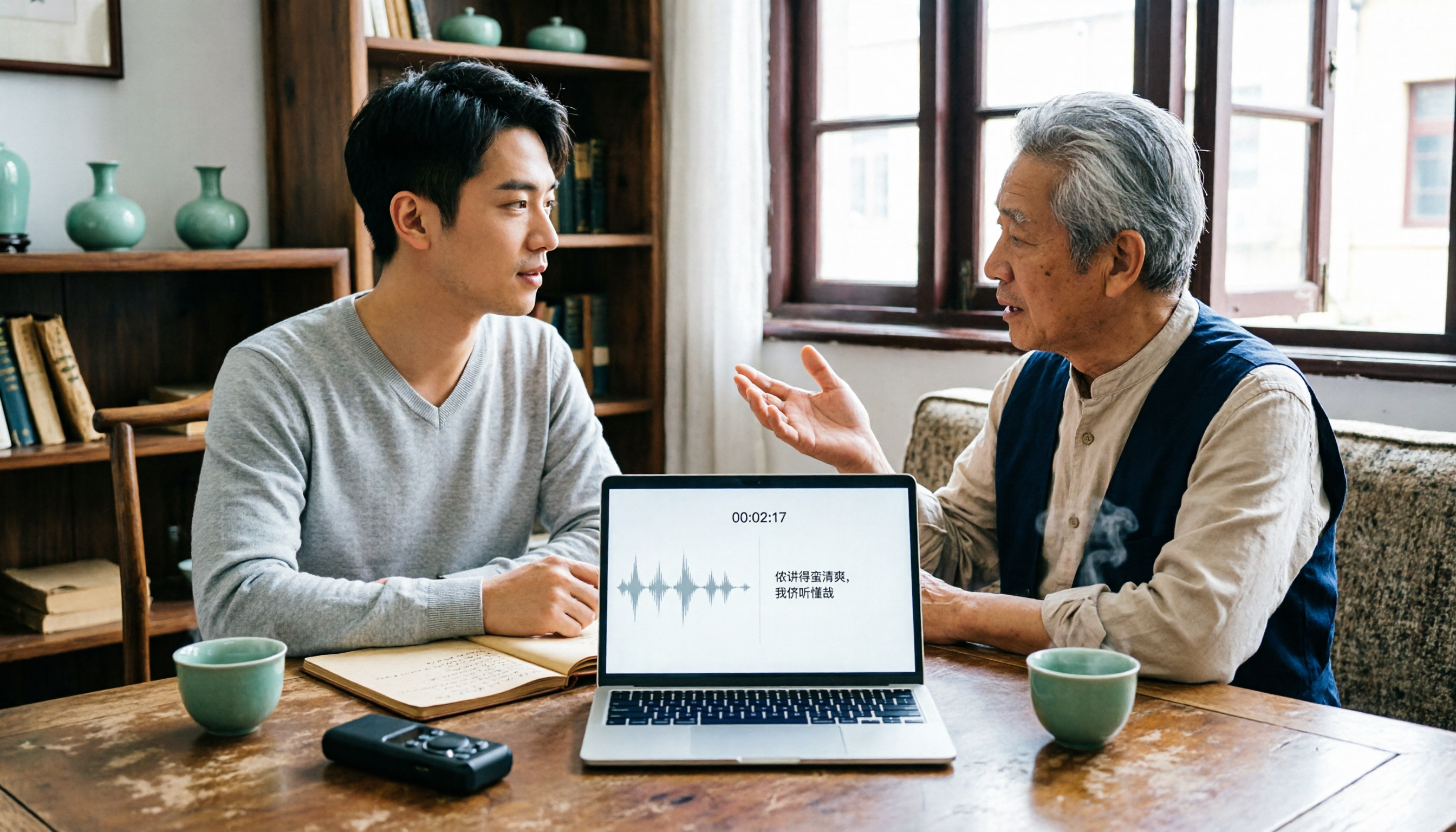
2026 Tested: 3 Shanghainese Speech-to-Text Tools Compared — The Least Painful Way to Process Dialect Interviews
There's no one-size-fits-all answer for transcribing Shanghainese. Instead of hunting for a tool that "supports dialects," change your workflow. This article covers four key points — assessing your recording's language mix, checking timestamps, post-meeting follow-up questions, and preserving team data — and tests Tinrec, Notta, Granola, and Otter.ai on mixed-language interviews, plus the 4 most common buying mistakes.

5 Best Korean Speech-to-Text Tools in 2026: Free vs Paid Comparison
After a one-hour Korean meeting, do you spend three hours organizing the transcript? This article compares five Korean speech-to-text tools: Tinrec, Musely, UniScribe, TurboScribe, and Notta. It breaks down honorific level handling, post-meeting summaries and action items, input sources, team collaboration, and free tier limits, with a guide to avoid pitfalls and scenario-based recommendations to help you find the one that truly saves time.