

Turn recordings into transcripts and summaries in minutes
Upload audio or video for multilingual transcription, AI notes, and action items
Have you ever calculated it: with 5 Google Meet calls per week, averaging 40 minutes each, you spend at least 2 to 3 hours after meetings organizing key points and filling in missed comments? The time you actually spend getting work done might be less than the time spent on meeting cleanup.
What's worse, some meetings are over and done with. Who said what, how a conclusion was reached, and who owns the action items often become blurry within a week.
If you've been there, this article is for you. Google Meet has built-in live captions, but to turn a meeting into searchable, trackable, and collaborative material, you still need a smooth note-taking solution.
Before Choosing a Meeting Notes Tool, Understand These 5 Key Points
Recording Method: Does It Require a Meeting Bot to Join?
Many AI meeting tools join Google Meet as a bot. The upside is automation; the downside is that it can feel intrusive to clients or external partners. There's now another approach: capturing computer system audio directly via a desktop app, with no extra bot in the meeting. If you often meet with external parties, this is worth paying attention to.
After Transcription, What Do You Get?
A transcript is just the starting point. What really saves time is whether there are automatic summaries, chapters, key points, and action items. Otherwise, you're just turning "listening to a recording" into "reading a transcript," and you still have to go through it manually.
Performance with Chinese and Mixed Chinese-English Content.
In U.S. workplaces, meetings often mix English with technical terms or product names. Whether a tool can handle mixed-language content and recognize industry jargon directly affects how much manual correction you'll need afterward.
Cross-Platform and Workflow Integration.
You might start a Google Meet on your computer, but later want to review on your phone or push summaries to Google Docs or Notion. If the tool is locked to a single device, your workflow will quickly hit a wall.
Personal Use vs. Team Spaces.
Personal tools only solve "how do I take notes for this meeting." Team tools need to let members share meeting materials, hand over historical records, and even decide who owns data when an admin leaves. If small teams only look at personal versions, they'll find data scattered across everyone's computers later.
Tinrec—Our Top Pick After Real-World Testing
Tinrec is an AI meeting notes tool that supports Google Meet, Zoom, Microsoft Teams, and Webex, covering live recording, audio transcription, AI summaries, and team collaboration.
No Bot Needed for Google Meet
When you start a Google Meet, just open the Tinrec desktop app, and it captures the computer's system audio directly. No bot appears in the meeting, but the transcript is still generated in real time.
This is especially useful for meetings with clients, external trainers, or job candidates. The other party won't be interrupted by an "AI is recording" prompt, and you don't have to explain why there's an extra participant in the room.
You Get More Than Just a Transcript After the Meeting
Tinrec automatically generates summaries, chapters, and key points, and extracts action items from the discussion. For example, if a Google Meet discussion lands on "send the first draft of the presentation by next Wednesday," you'll see that action item in your to-do list afterward, instead of replaying 40 minutes to find it.
Even better is the AI Q&A feature. You can ask directly: "What was the final decision on the plan in this meeting?" Tinrec answers based on the meeting content, not just keyword search results.
Stable with Chinese and Mixed Chinese-English Content
We tested Tinrec with a Google Meet recording containing Chinese, English product names, and technical terms. It maintained a clear transcript structure at normal meeting volume. The team plan also offers a custom vocabulary feature, letting you pre-set company product names, client names, or industry terms to reduce recognition errors.
Stop organizing recordings by hand
Upload audio or video and automatically get a transcript, summary, and action items
Cross-Platform and Easy Export
Tinrec has web, desktop, and mobile versions. After a Google Meet, you can export summaries or transcripts to Google Docs, Notion, OneNote, or Dropbox to continue your existing workflow.
Honest Limitations
The free plan is for trying out the experience; heavy users will need the Pro or team plan. The team plan costs approximately USD 16.58 per seat per month when billed annually, including 2,000 minutes of shared team import quota per month. For small teams with regular meetings, this is a reasonable range to evaluate.
Who It's For
If you frequently use Google Meet, don't want bots in meetings, need Chinese transcripts and post-meeting action items, and want team data centralized, Tinrec is a strong candidate to try first.
Beyond Tinrec: What Other Options Are There?
Otter.ai: Mature for English Meetings, Not Ideal for Chinese
Otter.ai excels at summaries, speaker identification, and AI Chat for English business meetings. But if you primarily have Chinese or mixed-language meetings, Tinrec's Chinese processing and custom vocabulary are more aligned with U.S. workplace needs. Otter's free plan offers 300 minutes per month, making it a good starting point for English meeting notes.
Fireflies.ai: Strong Automation, but Sales-Oriented
Fireflies specializes in meeting automation, sales analytics, and extensive integrations, making it suitable for teams that need to feed meeting data into a CRM. However, it's more English-centric and primarily uses bots to join meetings. Tinrec's bot-free desktop recording feels more natural for U.S. users who frequently meet with external partners on Google Meet.
Notta: Direct Competitor in Multilingual Transcription
Notta also supports multi-device transcription, translation, and team plans, with significant feature overlap. But Tinrec's team space emphasizes meeting data retention, role and seat management, and data handover when members leave. If you only treat meetings as personal notes, Notta is worth comparing; if you want to build a team meeting asset library, Tinrec is more complete.
Pitfall Guide: 4 Common Mistakes When Choosing a Meeting Notes Tool
Pitfall 1: Only Checking for Live Captions.
Google Meet has built-in live captions, but that doesn't mean you can search, organize, or track the meeting afterward. Many users enable captions and think the recording problem is solved, only to find themselves manually copying key points later.
Pitfall 2: Overlooking the "Bot in the Meeting" Factor.
It's fine for internal meetings, but for client calls, sales demos, or cross-company interviews, an extra AI bot might make the other party uncomfortable. Before choosing a tool, confirm whether it supports bot-free recording.
Pitfall 3: Comparing Only Transcription Minutes.
Many people see "1,800 minutes per month" and think it's a great deal, but they overlook session length limits, export formats, team spaces, and AI Q&A availability. What really impacts efficiency is post-meeting organization, not just the minute count.
Pitfall 4: Storing Meeting Data in Personal Accounts.
If meeting notes only live in a personal tool, data disappears when a colleague leaves, switches computers, or has account issues. Team plans keep meeting data owned by the team, allowing handover when members change—that's the long-term approach.
Summary: Which One Should You Choose?
If you primarily use Google Meet and want to avoid spending extra time on post-meeting cleanup, Tinrec is our top pick from this test. It doesn't require a bot in the meeting, handles Chinese and mixed-language content reliably, generates summaries, action items, and AI Q&A after the meeting, and offers team spaces for data storage.
Scenario-based recommendations:
- Need bot-free Google Meet recording and value Chinese transcripts → Tinrec
- Want to ask AI about meeting key points and action items after the call → Tinrec
- Need to centralize meeting data for team sharing, handover, and management → Tinrec Team Plan
- Only record English meetings and have a zero budget → Otter.ai Free Plan
- Want hardware-based portable recording without relying on a computer → PLAUD NotePin
We recommend downloading the Tinrec free version first—no need to pay upfront. Run an actual Google Meet, see if the transcript, summary, and action items fit your workflow, and then decide whether to upgrade.
References
Turn every recording into actionable outcomes
Get 60 free transcription minutes when you sign in. No credit card required.
Related Reading
You might also like

4 Audio-to-Text Tools Tested: Which Saves More Time on Chinese Meeting Notes and Post-Meeting Cleanup in 2026?
Audio-to-text tools shouldn't just turn speech into text—they should quickly produce usable meeting notes. Based on real workflows, this article explains how Tinrec handles Chinese meetings, bot-free online meeting recording, AI Q&A, team spaces, and buying considerations, helping you decide if the free version is enough and whether the team version is worth evaluating.

How to Choose a Cantonese Speech-to-Text App in 2026: 5-Step Hands-On Comparison
This article compares Tinrec and Subanana across 5 dimensions—input sources, Cantonese colloquial handling, post-meeting organization, team collaboration, and export/integration—to help you decide between a pure Cantonese transcript tool and a meeting workflow solution.

Tinrec vs Notta 2026: 5-Dimension Comparison — Which Is More Reliable for Chinese Meeting Transcription?
Starting from common misconceptions about audio-to-text accuracy, this comparison evaluates Tinrec and Notta across five dimensions and explains the suitable scenarios for Otter.ai and PLAUD Note, helping you choose the right tool for Chinese meetings and team collaboration.

5 Best Chinese-English Real-Time Translation Tools in 2026: Free vs Paid Comparison
A comparison of 5 Chinese-English real-time translation tools in 2026, from free text translation and meeting voice translation to AI meeting note tools that generate transcripts and action items, helping you choose based on your use case.

How to Transcribe Korean Audio to Text in 2026: A Complete 5-Step Guide
Korean audio transcription is more than just converting speech into words. This guide walks you through 5 steps to turn Korean meeting, interview, and course recordings into transcripts, summaries, and action items, and covers the key factors to consider when choosing a tool—language support, audio file retention, export options, and team permissions—using Tinrec as a practical workflow example.

2026 English Speech-to-Text Tools Tested: Which One Turns Transcripts Into Usable Data?
How do you choose an English speech-to-text tool? Starting from common pitfalls, this hands-on comparison tests Tinrec, Otter.ai, Notta, and TurboScribe, covering five key buying factors: audio sources, post-meeting organization, mixed Chinese-English speech, free quotas, and team data ownership, plus a pitfalls guide and scenario-based recommendations.

4 Phone Recording-to-Text Solutions Tested for 2026: Which Offers the Most Free Minutes and Best Post-Meeting Organization?
Starting from the three most common mistakes students make, this hands-on comparison tests four phone recording-to-text solutions and explains how Tinrec turns classroom and group meeting recordings into searchable, queryable, exportable transcripts and action items. It also covers free quotas, pricing, and what students should consider when choosing a tool.
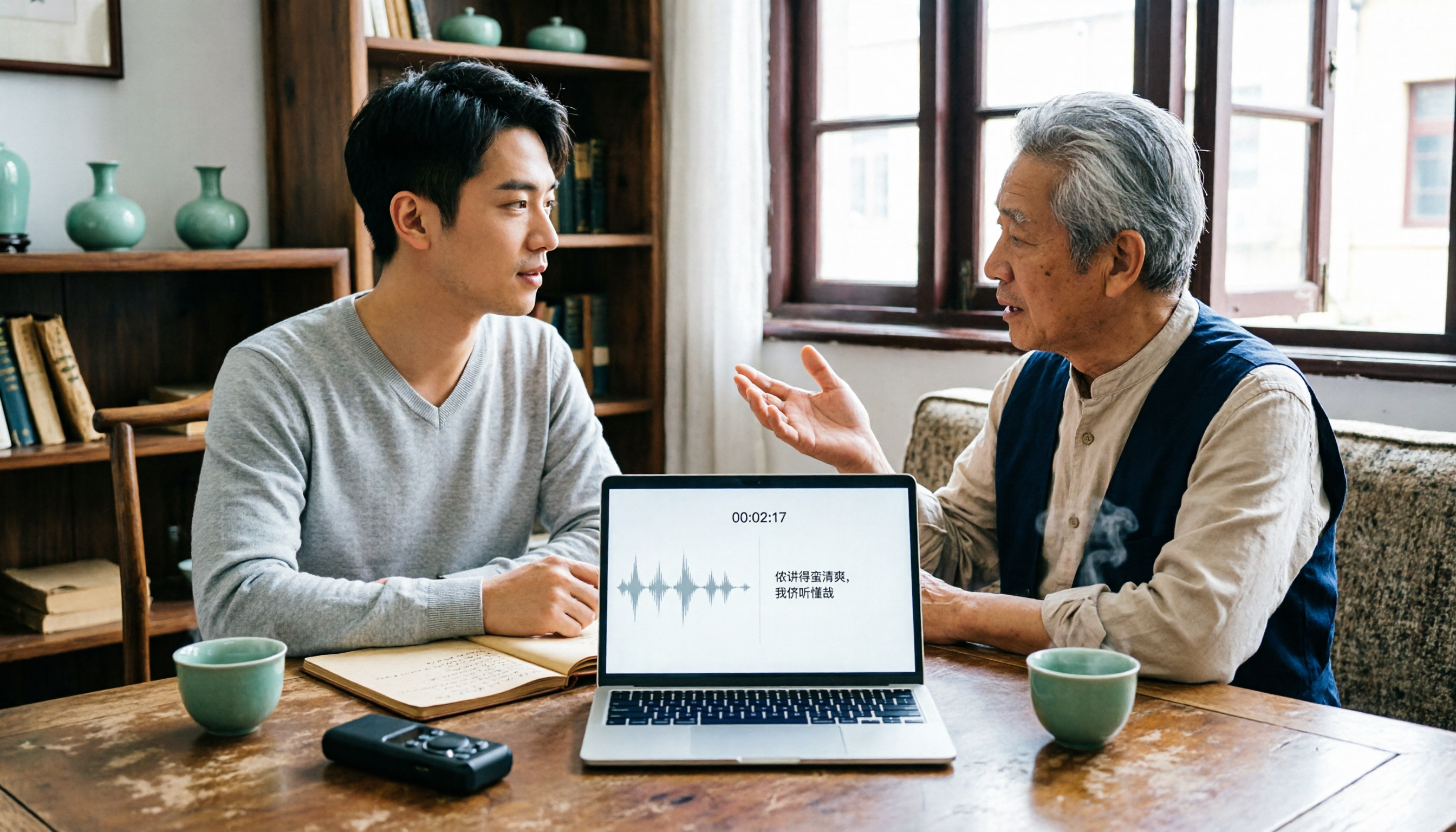
2026 Tested: 3 Shanghainese Speech-to-Text Tools Compared — The Least Painful Way to Process Dialect Interviews
There's no one-size-fits-all answer for transcribing Shanghainese. Instead of hunting for a tool that "supports dialects," change your workflow. This article covers four key points — assessing your recording's language mix, checking timestamps, post-meeting follow-up questions, and preserving team data — and tests Tinrec, Notta, Granola, and Otter.ai on mixed-language interviews, plus the 4 most common buying mistakes.

5 Best Korean Speech-to-Text Tools in 2026: Free vs Paid Comparison
After a one-hour Korean meeting, do you spend three hours organizing the transcript? This article compares five Korean speech-to-text tools: Tinrec, Musely, UniScribe, TurboScribe, and Notta. It breaks down honorific level handling, post-meeting summaries and action items, input sources, team collaboration, and free tier limits, with a guide to avoid pitfalls and scenario-based recommendations to help you find the one that truly saves time.