
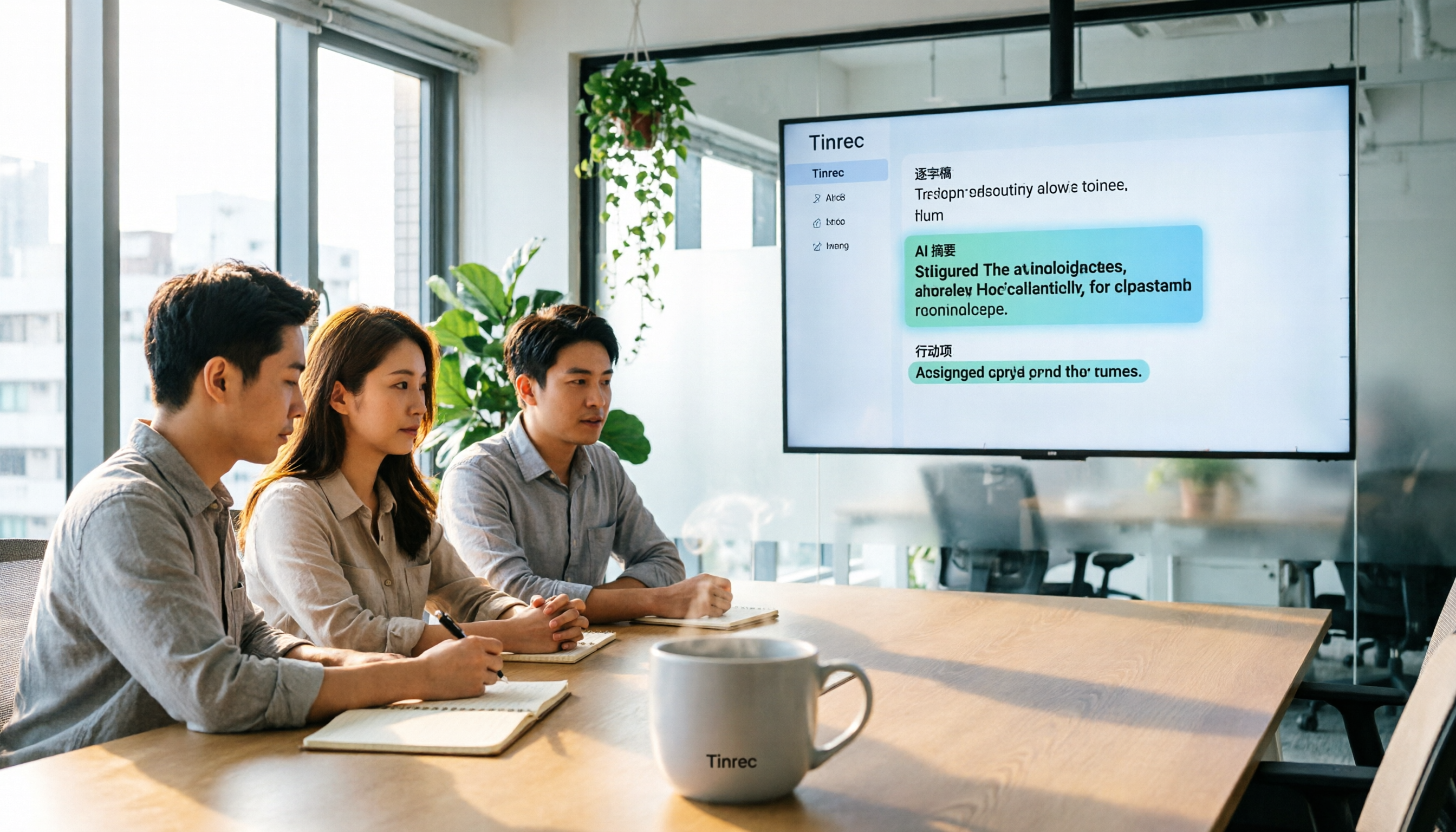
Turn recordings into transcripts and summaries in minutes
Upload audio or video for multilingual transcription, AI notes, and action items
Want to Buy Google Meet Premium? First, Understand You're Not Actually Buying "Meet"
Many people search for "how to purchase google meet premium," thinking there's a standalone "Google Meet Premium" product they can buy directly with a credit card.
In reality, Google Meet's advanced features are bundled into Google One or Google Workspace subscriptions.
What you really need to do is figure out which plan covers the features you need, then decide which entry point to upgrade from.
An even more common misconception is that buying Premium automatically gives you full meeting notes, transcripts, and follow-up summaries.
But Google Meet's recording, transcription, and AI summary features have clear eligibility differences across plans.
This article lays it all out for you.
Before You Buy, Understand These 4 Key Points
First, do you need "meeting features" or "cloud storage"?
Google One Premium offers 2TB of storage and unlocks some advanced Meet features.
If you already need cloud storage, this is a cost-effective path.
But if you need more comprehensive meeting notes and team management, Google One alone may not be enough.
Second, Google Meet's recording features aren't the same across all plans.
The free version of Google Meet lets you host meetings, but features like recording, saving to the cloud, and generating transcripts require an eligible subscription.
According to Google Meet's official documentation, only the Google One Premium 2TB plan qualifies for some advanced Meet features.
Google Workspace, depending on the edition, offers different levels of recording, watermarking, and translation capabilities.
Third, transcripts and AI summaries are not the same thing.
A transcript is a word-for-word text record, while an AI summary is a condensed overview of key points.
Google Meet's built-in features lean toward the former; follow-up task tracking, cross-meeting search, and team knowledge retention usually require additional tools.
Fourth, cross-platform meeting organization matters more than you think.
Today you're on Meet, tomorrow on Zoom, and the day after on Teams. If each platform's records are scattered, reviewing them later becomes a nightmare.
A tool that unifies meeting notes across platforms is often more valuable than a single platform's Premium plan.
Google One Premium: The Most Direct "Meet Premium" Entry Point
If your need is to "unlock Meet recording, noise cancellation, and longer meeting durations," Google One Premium is currently the most direct entry point.
Google One Premium provides 2TB of storage and qualifies for some advanced Google Meet features, such as noise cancellation, meeting recording, and watermarks (eligibility required).
Purchasing is simple: log into your Google account, go to the Google One page, select the Premium 2TB plan, and complete payment.
Note that Google One Premium's Meet features are geared toward "personal use."
Recorded videos are saved to your Google Drive, but transcripts, AI summaries, and task organization still need to be handled manually or with other tools.
If you only have 2–3 meetings a week and mainly want to record and archive them, Google One Premium is sufficient.
Google Workspace: Best for Teams Needing Watermarks, Translation, and Management Features
If you need more advanced Meet features like watermarks, real-time speech translation, and attendance reports, Google Workspace is the official route.
According to Google Meet's official documentation, watermarking requires an eligible Google Workspace subscription.
Speech Translation (real-time), Studio sound, and Studio look require an eligible Google Workspace or Google One AI Premium subscription.
Google Workspace's strength lies in team management: admins can centrally control members' Meet features, recording permissions, and data retention.
However, Workspace's billing is more complex, requiring admin access in the Admin Console, making it harder for individual users to purchase directly.
If you're a regular employee rather than a company admin, this route usually requires your company's IT department.
Tinrec: Turning Meet Meetings into Searchable, Collaborative Assets
Tinrec is an AI meeting notes and collaboration tool designed for individuals and teams.
It supports real-time recording, bot-free online meeting transcription, audio/video file import, and real-time translation, and automatically generates summaries, chapters, action items, and mind maps.
Bot-free recording is Tinrec's most notable feature.
Stop organizing recordings by hand
Upload audio or video and automatically get a transcript, summary, and action items
Tinrec's desktop app captures your computer's system audio directly, so you don't need to add a meeting bot to Google Meet.
Just open Tinrec desktop, start recording, and get real-time transcripts.
This is a thoughtful design for users who don't want unfamiliar bot accounts appearing in meetings.
The post-meeting workflow is where Tinrec differs most from Google Meet's built-in features.
After recording in Google Meet, you get a video file and possibly a transcript.
Tinrec goes further by generating AI summaries, chapters, and action items, and you can even ask it: "Who mentioned the budget in the last meeting?"
It doesn't just return keyword search results; it answers based on semantic understanding.
Team spaces keep meeting data from scattering.
The team version centralizes meeting recordings, transcripts, summaries, and action items in one space, allowing members to view and reuse historical meeting data.
Admins can manage roles, seats, sharing permissions, usage, and audits, turning every conversation into sustainable team knowledge.
Who is it for?
If you have multiple online meetings a week and want more than just video archives—like quick key-point summaries, action item tracking, and unified cross-platform meeting management—Tinrec is a more complete solution than buying Meet Premium alone.
Beyond Google One and Tinrec: What Other Options Are There?
Otter.ai: A mature choice for English meetings, with a generous free tier of 300 minutes per month. The Pro plan costs about USD 8.49/user/month when billed annually, including 1,200 minutes of in-app recording and 10 file imports per month. However, its experience with Chinese meetings isn't as natural as Tinrec's, and it only recently added desktop capabilities. If you primarily record English content, Otter.ai is worth considering.
Fireflies.ai: Its strengths are meeting automation and sales analytics, with the Pro plan at USD 10/seat/month. But it relies mainly on meeting bots, and "unlimited transcription" is still subject to storage and AI credit limits. If you need extensive CRM integrations and sales meeting analytics, it's worth a look; if you just want bot-free recording and Chinese meeting organization, Tinrec is more straightforward.
Notta: A transcription tool with significant overlap with Tinrec. The free tier offers 120 minutes per month, and the Pro plan costs about USD 8.17/month when billed annually. Notta's multilingual transcription is solid, but for team spaces, AI Q&A, and agent-based post-processing, Tinrec is better suited for users who want to turn meetings into team assets.
Pitfall Guide: 4 Common Mistakes When Buying Meet Premium
Pitfall 1: Assuming there's a standalone product called "Google Meet Premium."
Google doesn't have a separate Meet Premium subscription button.
You must upgrade through Google One or Google Workspace to unlock advanced Meet features.
When searching "how to purchase google meet premium," content that directs you to buy "Meet Premium" directly is often misleading or omits key prerequisites.
Pitfall 2: Focusing only on recording, ignoring post-meeting organization.
Recording is easy; organizing is painful.
If you expect Premium to automatically produce trackable action items and meeting minutes, you'll likely be disappointed.
Google Meet's built-in features lean toward recording and transcripts; for summaries, action item tracking, and cross-meeting search, consider pairing it with tools like Tinrec.
Pitfall 3: Overlooking cross-platform needs.
Your company uses Meet, clients use Zoom, and contractors use Teams—meeting notes end up scattered across three platforms.
A single platform's Premium can't solve this.
Choosing a tool that unifies cross-platform meetings will save you more effort in the long run.
Pitfall 4: Sharing one account across the team.
Many people share a single Google One account to save money.
This leads to messy recording files, unmanageable permissions, and unclear data ownership when a member leaves.
If meeting notes need to be shared and managed by a team, choosing a plan with team spaces and seat management is much healthier than sharing a personal account.
Summary: Which One Should You Choose?
If you only need to record Meet meetings occasionally and already need 2TB of cloud storage, Google One Premium is the most straightforward choice.
If you need watermarks, real-time translation, and team management, and your company already uses Google Workspace, ask your admin to confirm your edition's eligibility.
If you have multiple meetings a week and need transcripts, AI summaries, action item tracking, and unified cross-platform meeting data, Tinrec is currently the more complete solution.
Scenario-based recommendations:
- Just need recording + cloud storage → Google One Premium
- Need watermarks, translation, team control → Google Workspace
- Need transcripts, summaries, action items, AI Q&A → Tinrec
- Team needs shared meeting data, seat and usage management → Tinrec Team Plan
- Only record English meetings on a budget → Otter.ai free tier
We recommend starting with free trials: Google One offers a trial period, and Tinrec's free version includes basic credits to test recording, import, and summary features.
Only by actually using them will you know which plan best fits your meeting habits.
References
- How To Purchase Google Meet Premium 2026 (FULL GUIDE) - YouTube
- How To Purchase Google Meet Premium Tutorial - YouTube
- Premium Meet features for Google Workspace - Google Meet Help
- How To Purchase Google Meet Premium 2025 Guide - YouTube
- I want to purchase google meet premium - Google Workspace Admin Community
Turn every recording into actionable outcomes
Get 60 free transcription minutes when you sign in. No credit card required.
Related Reading
You might also like

4 Audio-to-Text Tools Tested: Which Saves More Time on Chinese Meeting Notes and Post-Meeting Cleanup in 2026?
Audio-to-text tools shouldn't just turn speech into text—they should quickly produce usable meeting notes. Based on real workflows, this article explains how Tinrec handles Chinese meetings, bot-free online meeting recording, AI Q&A, team spaces, and buying considerations, helping you decide if the free version is enough and whether the team version is worth evaluating.

How to Choose a Cantonese Speech-to-Text App in 2026: 5-Step Hands-On Comparison
This article compares Tinrec and Subanana across 5 dimensions—input sources, Cantonese colloquial handling, post-meeting organization, team collaboration, and export/integration—to help you decide between a pure Cantonese transcript tool and a meeting workflow solution.

Tinrec vs Notta 2026: 5-Dimension Comparison — Which Is More Reliable for Chinese Meeting Transcription?
Starting from common misconceptions about audio-to-text accuracy, this comparison evaluates Tinrec and Notta across five dimensions and explains the suitable scenarios for Otter.ai and PLAUD Note, helping you choose the right tool for Chinese meetings and team collaboration.

5 Best Chinese-English Real-Time Translation Tools in 2026: Free vs Paid Comparison
A comparison of 5 Chinese-English real-time translation tools in 2026, from free text translation and meeting voice translation to AI meeting note tools that generate transcripts and action items, helping you choose based on your use case.

How to Transcribe Korean Audio to Text in 2026: A Complete 5-Step Guide
Korean audio transcription is more than just converting speech into words. This guide walks you through 5 steps to turn Korean meeting, interview, and course recordings into transcripts, summaries, and action items, and covers the key factors to consider when choosing a tool—language support, audio file retention, export options, and team permissions—using Tinrec as a practical workflow example.

2026 English Speech-to-Text Tools Tested: Which One Turns Transcripts Into Usable Data?
How do you choose an English speech-to-text tool? Starting from common pitfalls, this hands-on comparison tests Tinrec, Otter.ai, Notta, and TurboScribe, covering five key buying factors: audio sources, post-meeting organization, mixed Chinese-English speech, free quotas, and team data ownership, plus a pitfalls guide and scenario-based recommendations.

4 Phone Recording-to-Text Solutions Tested for 2026: Which Offers the Most Free Minutes and Best Post-Meeting Organization?
Starting from the three most common mistakes students make, this hands-on comparison tests four phone recording-to-text solutions and explains how Tinrec turns classroom and group meeting recordings into searchable, queryable, exportable transcripts and action items. It also covers free quotas, pricing, and what students should consider when choosing a tool.
2026 Tested: 3 Shanghainese Speech-to-Text Tools Compared — The Least Painful Way to Process Dialect Interviews
There's no one-size-fits-all answer for transcribing Shanghainese. Instead of hunting for a tool that "supports dialects," change your workflow. This article covers four key points — assessing your recording's language mix, checking timestamps, post-meeting follow-up questions, and preserving team data — and tests Tinrec, Notta, Granola, and Otter.ai on mixed-language interviews, plus the 4 most common buying mistakes.

5 Best Korean Speech-to-Text Tools in 2026: Free vs Paid Comparison
After a one-hour Korean meeting, do you spend three hours organizing the transcript? This article compares five Korean speech-to-text tools: Tinrec, Musely, UniScribe, TurboScribe, and Notta. It breaks down honorific level handling, post-meeting summaries and action items, input sources, team collaboration, and free tier limits, with a guide to avoid pitfalls and scenario-based recommendations to help you find the one that truly saves time.