

Turn recordings into transcripts and summaries in minutes
Upload audio or video for multilingual transcription, AI notes, and action items
Why Did I Start Looking Into Google Meet?
Last semester, one of my classes moved online, and the professor used Google Meet for lectures. I figured I could just click the link and listen, but by midterms, I realized my entire semester of notes consisted of just the "meeting link" and a few blurry screenshots of slides.
That's when it hit me: I didn't need a link to join a meeting—I needed a way to capture the class content so I could actually review it later.
Google Meet is widely used in schools, but if you're seriously considering it as a learning tool for the first time, there are some limitations you should know about sooner rather than later.
What's the Biggest Limitation of Google Meet for Students?
Google Meet is a video conferencing tool, not a note-taking tool. These are two very different things.
From my experience, Google Meet excels at stable real-time connections, works with your school account, and requires no complicated software installation. But if you expect it to automatically organize your lectures into key points, you'll be disappointed.
The recording feature—whether on the school or personal plan—saves the entire meeting as a video file. When reviewing, you have to rewatch everything and pick out the important parts yourself. For a three-hour lecture, just finding the segment where the professor explains a specific concept can take forever.
This isn't a flaw in Google Meet; it's simply not designed for "post-class review."
How Did I Handle Lecture Notes Afterward?
I tried a few different approaches.
At first, I used Google Meet's built-in recording to capture lectures, thinking I'd watch them later before finals. But I recorded so many that I never had time to rewatch them all.
Then I switched to another method: I started recording the Google Meet audio directly into Tinrec during class. It transcribes the audio in real time, so by the end of the lecture, I already had a full transcript.
The biggest difference for me: I no longer need to rewatch entire videos. Tinrec automatically generates summaries and chapters, and after class, I can ask its AI things like "What are the key points for the final exam?" and it pulls answers straight from the transcript.
How Can Tinrec and Google Meet Work Together?
Here's my current workflow:
During class: I join the Google Meet lecture and simultaneously run the Tinrec desktop app to record the computer's audio.
Stop organizing recordings by hand
Upload audio or video and automatically get a transcript, summary, and action items
After class: Tinrec already has the transcript, summary, and action items. I ask the AI, "Did the professor mention the midterm report deadline?" without having to re-listen to anything.
Before exams: I upload all semester's lecture recordings into Tinrec's team space, turning them into a searchable database. I can search for keywords like "regression analysis" and jump straight to the exact moment it was discussed across any lecture.
The beauty of this combo: Google Meet handles the live class, while Tinrec turns the content into something I can actually study from.
Is the Free Plan Enough?
Students have tight budgets, and that's a reality. Google Meet itself is free with a school account, so that's not an issue.
But if you want to turn your lectures into text, Google Meet's built-in features won't get you far. Tinrec's free plan offers basic credits, which is perfect for trying it out on one class. If you're like me and need to process three or four lectures a week, the Pro monthly fee is roughly the cost of skipping two late-night snacks.
My advice: don't rush to pay. Use the free plan to record the one class you most need to review, see if the transcript and summary actually help, and then decide whether to upgrade.
What I Look for When Choosing a Tool
If you're also looking for a way to complement Google Meet for class notes, here are a few things worth considering:
Can you search the recordings?: Google Meet video files aren't searchable, but text transcripts are. This makes a huge difference when cramming for exams.
Does it offer automatic summaries?: A two-hour lecture can produce thousands of words of transcript. Auto-generated summaries and chapters let you quickly grasp what was covered.
Can you ask the AI questions?: My most-used feature is asking directly, "What are the assignment requirements?"—it's way faster than manually scrolling through a transcript.
Is it cross-device friendly?: I use my computer during class and my phone to review transcripts on the go. If a tool only works on one device, it's a hassle for students.
Final Thoughts: Google Meet Works Best With the Right Companion Tool
For students, Google Meet is a reliable platform for online classes, but it won't organize your lecture content for you. If you just need to attend meetings, it's more than enough.
But if you're like me and want to quickly find key points before finals, try using Tinrec to record your Google Meet audio and let it automatically generate transcripts, summaries, and action items.
I'd suggest starting with the free plan and testing it on one of your own lectures. Rather than taking my word for it, record one class and see if the transcript and AI Q&A actually improve your review process.
References
Turn every recording into actionable outcomes
Get 60 free transcription minutes when you sign in. No credit card required.
Related Reading
You might also like

4 Audio-to-Text Tools Tested: Which Saves More Time on Chinese Meeting Notes and Post-Meeting Cleanup in 2026?
Audio-to-text tools shouldn't just turn speech into text—they should quickly produce usable meeting notes. Based on real workflows, this article explains how Tinrec handles Chinese meetings, bot-free online meeting recording, AI Q&A, team spaces, and buying considerations, helping you decide if the free version is enough and whether the team version is worth evaluating.

How to Choose a Cantonese Speech-to-Text App in 2026: 5-Step Hands-On Comparison
This article compares Tinrec and Subanana across 5 dimensions—input sources, Cantonese colloquial handling, post-meeting organization, team collaboration, and export/integration—to help you decide between a pure Cantonese transcript tool and a meeting workflow solution.

Tinrec vs Notta 2026: 5-Dimension Comparison — Which Is More Reliable for Chinese Meeting Transcription?
Starting from common misconceptions about audio-to-text accuracy, this comparison evaluates Tinrec and Notta across five dimensions and explains the suitable scenarios for Otter.ai and PLAUD Note, helping you choose the right tool for Chinese meetings and team collaboration.

5 Best Chinese-English Real-Time Translation Tools in 2026: Free vs Paid Comparison
A comparison of 5 Chinese-English real-time translation tools in 2026, from free text translation and meeting voice translation to AI meeting note tools that generate transcripts and action items, helping you choose based on your use case.

How to Transcribe Korean Audio to Text in 2026: A Complete 5-Step Guide
Korean audio transcription is more than just converting speech into words. This guide walks you through 5 steps to turn Korean meeting, interview, and course recordings into transcripts, summaries, and action items, and covers the key factors to consider when choosing a tool—language support, audio file retention, export options, and team permissions—using Tinrec as a practical workflow example.

2026 English Speech-to-Text Tools Tested: Which One Turns Transcripts Into Usable Data?
How do you choose an English speech-to-text tool? Starting from common pitfalls, this hands-on comparison tests Tinrec, Otter.ai, Notta, and TurboScribe, covering five key buying factors: audio sources, post-meeting organization, mixed Chinese-English speech, free quotas, and team data ownership, plus a pitfalls guide and scenario-based recommendations.

4 Phone Recording-to-Text Solutions Tested for 2026: Which Offers the Most Free Minutes and Best Post-Meeting Organization?
Starting from the three most common mistakes students make, this hands-on comparison tests four phone recording-to-text solutions and explains how Tinrec turns classroom and group meeting recordings into searchable, queryable, exportable transcripts and action items. It also covers free quotas, pricing, and what students should consider when choosing a tool.
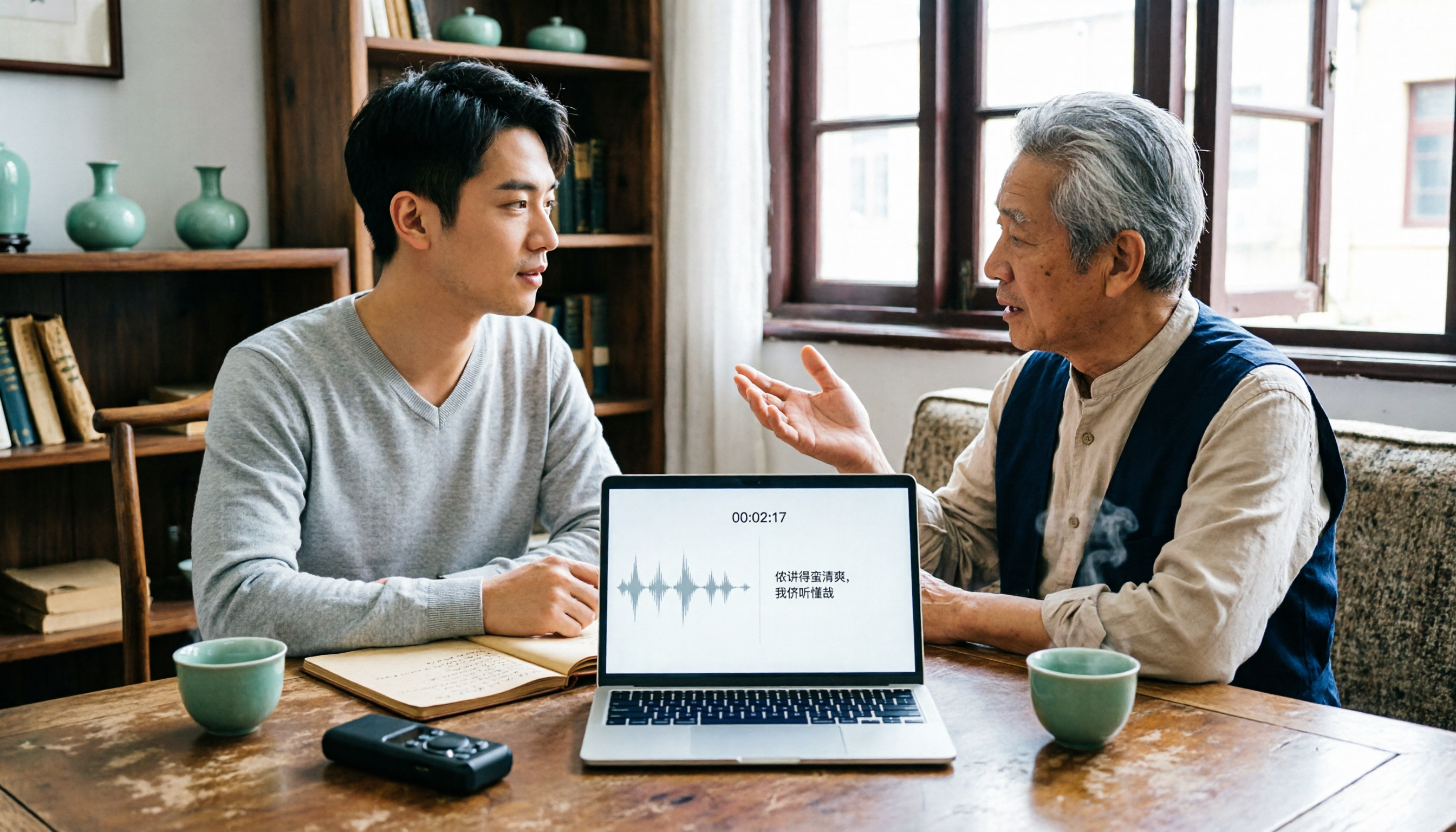
2026 Tested: 3 Shanghainese Speech-to-Text Tools Compared — The Least Painful Way to Process Dialect Interviews
There's no one-size-fits-all answer for transcribing Shanghainese. Instead of hunting for a tool that "supports dialects," change your workflow. This article covers four key points — assessing your recording's language mix, checking timestamps, post-meeting follow-up questions, and preserving team data — and tests Tinrec, Notta, Granola, and Otter.ai on mixed-language interviews, plus the 4 most common buying mistakes.

5 Best Korean Speech-to-Text Tools in 2026: Free vs Paid Comparison
After a one-hour Korean meeting, do you spend three hours organizing the transcript? This article compares five Korean speech-to-text tools: Tinrec, Musely, UniScribe, TurboScribe, and Notta. It breaks down honorific level handling, post-meeting summaries and action items, input sources, team collaboration, and free tier limits, with a guide to avoid pitfalls and scenario-based recommendations to help you find the one that truly saves time.