

Turn recordings into transcripts and summaries in minutes
Upload audio or video for multilingual transcription, AI notes, and action items
Why Do People Compare Google Meet and WhatsApp?
Last semester, our team was working on our capstone project, with one member in Taipei, another in Taichung, and a third studying abroad. Our first instinct was simple: create a group chat and hop on a WhatsApp call, right? But we quickly realized that when our advisor needed to join, share a screen to review slides, or record the meeting, WhatsApp started to feel clunky.
On the surface, Google Meet and WhatsApp both support video and messaging, so many people treat them as interchangeable. In reality, one is designed for "formal meetings and classroom discussions," while the other is closer to "everyday contact and quick calls." If you just need to confirm a group assignment with classmates, WhatsApp is more than enough. But if you're running a discussion that requires slides, a record of what was said, and multiple people speaking at once, Google Meet will feel much smoother.
If you often switch between group discussions and online classes, understanding these differences upfront can save you a lot of headaches.
Google Meet vs WhatsApp: What's Different in Core Experience?
1. Meeting vs. Call Positioning
This is where most people trip up. WhatsApp calls are more like "pick up your phone and dial"—great for family, friends, or urgent contact. Google Meet, on the other hand, is built for scheduled meetings with an agenda and screen sharing. For classes or formal discussions, Google Meet's scheduling, meeting links, and browser-based joining are far more stable than an impromptu group call.
2. Stability for Multi-Person Discussions
In my experience, once a group exceeds four people, WhatsApp video calls tend to lag or drop audio for someone. Google Meet holds up better when multiple people are speaking and sharing slides, and it's less likely that one person's poor connection will derail the whole session. If you're rehearsing class presentations, you'll notice this difference right away.
3. Screen Sharing and Presentations
Google Meet lets you share a tab, slides, or your entire screen directly—essential for group presentations and remote teaching. WhatsApp does support video, but trying to talk while everyone views the same deck is far less intuitive. When you need to show code, data, or design mockups, Google Meet saves you a lot of back-and-forth explanation.
4. Meeting Records and Follow-Up
This is a difference many overlook. Google Meet offers live captions and meeting recording, so you can at least review what happened later. WhatsApp is more about real-time conversation; finding a specific discussion point afterward usually means scrolling through messages or relying on memory. If you want every discussion to have a record, key points, and trackable progress, WhatsApp alone won't cut it.
5. Ease of Joining and Usage Habits
WhatsApp's strength is that almost everyone has it, and it's tied to a phone number, making it quick to find people. Google Meet, meanwhile, lets you join via a link or Google account without adding contacts. Students typically have both, so the question isn't "which can I use?" but "which works better for the situation?"
Going Beyond Recording: Turning Meeting Content into Searchable, Trackable Data
Google Meet solves the "multi-person video" problem, but if you want to turn lecture recordings, group discussions, or internship meetings into truly usable material, video tools alone aren't enough. I personally started using Tinrec to fill that gap in my workflow.
Stop organizing recordings by hand
Upload audio or video and automatically get a transcript, summary, and action items
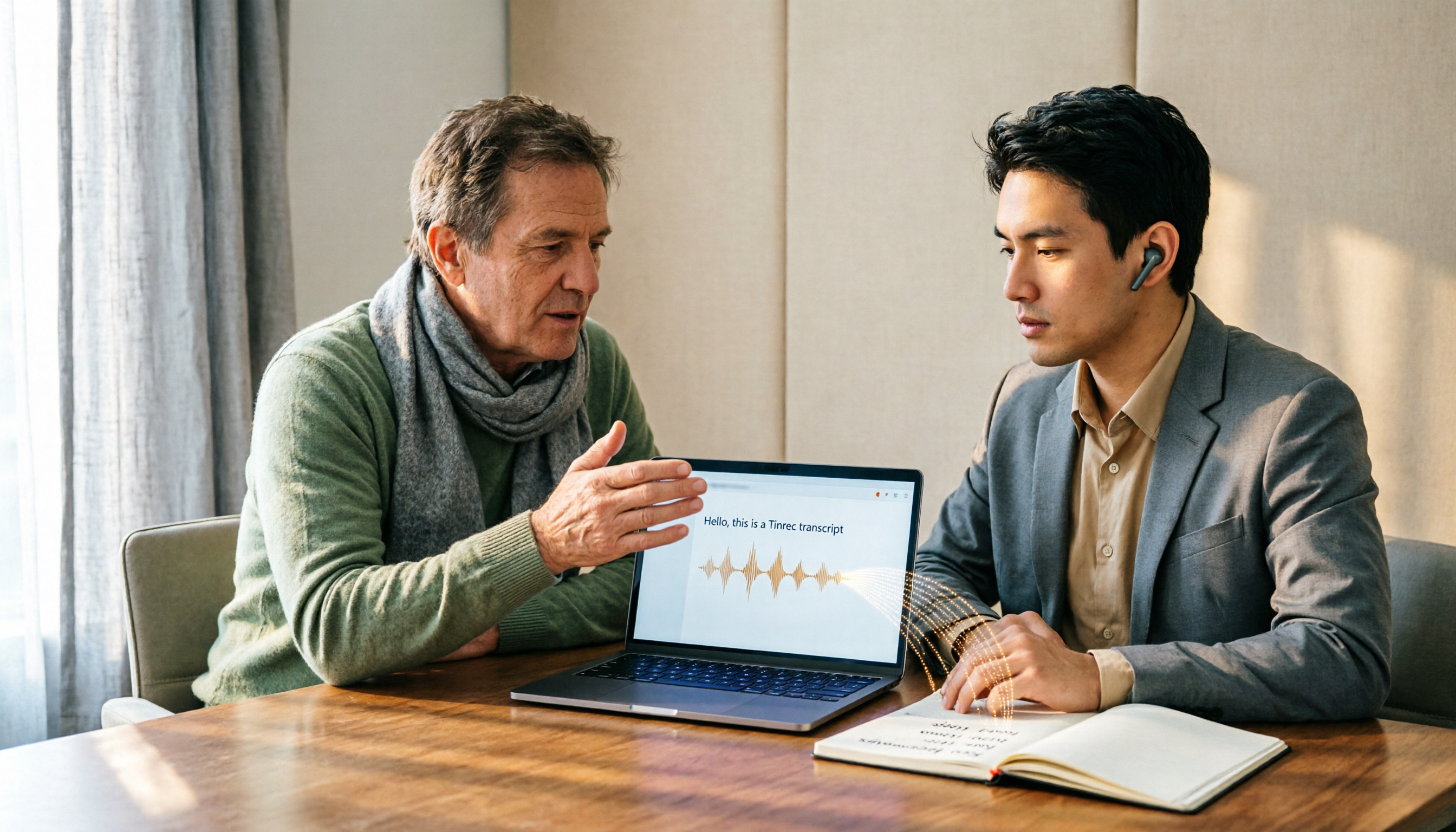
Tinrec is an AI meeting notes and collaboration tool that transcribes audio in real time, then generates summaries, chapters, key points, and action items. For every capstone discussion, I'd open Tinrec to record, then afterward ask it directly: "What was the conclusion of this discussion?" or "Who's responsible for which part?" No more manually digging through transcripts.
For students, the most useful part is that it doesn't just give you a transcript—it organizes the content into searchable, queryable, exportable material. You can export meeting results to Notion or Google Docs to continue working on project documents, which is far more efficient than just recording audio or screenshotting group messages.
Real-World Scenarios: How a Student Can Use These Tools in a Day
Lecture Recording and Key Point Summaries
In class, open Tinrec for real-time transcription, and by the time class ends, you'll have the transcript and highlights. When a professor talks too fast or flips slides too quickly, you don't have to beg a classmate for notes—just search for keywords to review.
Online Courses and Remote Discussions
Google Meet handles the video and slides, while Tinrec captures and organizes the content. Tinrec's desktop version can capture system audio directly, so you don't need to add a bot to the meeting. For students who don't want to disrupt the flow of discussion, this is a big plus.
Group Projects and Task Tracking
After each discussion, use Tinrec to compile action items, confirming who's responsible for what and what needs to be done before the next meeting. Compared to getting buried in WhatsApp group messages, having a clear post-meeting record makes it much harder to miss something.
Internship Interviews and Interview Reviews
If you need to record internship interviews, user interviews, or expert consultations, Tinrec can convert audio to text and let you ask questions about the content. Questions like "What are the three main pain points the interviewee mentioned?" help you quickly pull out usable material.
What to Keep in Mind When Choosing Tools
When picking a video tool or meeting notes tool, start by clarifying your use case. If you're just quickly confirming something with classmates, WhatsApp is fine. If you need slides, multi-person discussion, and a record, Google Meet is the better fit.
Next, consider "can I keep using it after the meeting?" Just recording something without being able to find the key points is of limited help. Tools like Tinrec turn recordings into transcripts, summaries, and action items, which is far more valuable for courses and projects you need to revisit.
Price is also a big concern for students. Free tiers usually handle light use, but if you have meetings or classes to record every week, check monthly or annual plans. The key is to test the free quota first and confirm it fits your usage frequency before paying.
Finally, think about cross-platform support and record retention. You might use your phone in class, a laptop in the dorm, and a tablet in meetings. Whether a tool syncs across devices directly affects how likely you are to stick with it. Instead of adapting to something new each time, pick a solution that just works when you open it.
Summary: Google Meet and WhatsApp Aren't Either/Or—It Depends on the Scenario
Google Meet and WhatsApp serve fundamentally different needs: one is for formal meetings, screen sharing, and multi-person discussions; the other is for everyday contact and quick calls. The most common mistake students make is throwing everything into a WhatsApp group, which leads to inefficient discussions and no post-meeting record.
If you need to turn lectures, group discussions, and internship meetings into searchable, trackable material, try pairing Google Meet for video and Tinrec for notes and organization. Start with the free tier and test it on your own lecture recordings—that's more direct than reading any number of reviews.
References
- Google Meet vs WhatsApp Comparison (2026) - GetApp
- Google Meet vs WhatsApp - 2026 Comparison - Software Advice
- Compare Google Meet vs WhatsApp 2026 | Capterra
- r/whatsapp on Reddit: Do you think WhatsApp is ready to replace Google Meet as a full conference platform (audio and/or video) on mobile, desktop and web?
- Google Meet vs WhatsApp 2026: In-Depth 4-Dimension Comparison – Which One Should You Use? - Official Tinrec Blog
Turn every recording into actionable outcomes
Get 60 free transcription minutes when you sign in. No credit card required.
Related Reading
You might also like

4 Best Speech-to-Text Tools in 2026: Live Transcription vs. Post-Meeting Notes and Team Knowledge
Compare Tinrec, Notta, Otter.ai, and TurboScribe on positioning, pricing, and use cases, focusing on live transcription and post-meeting organization. Includes 4 key buying factors and 4 common pitfalls to help you choose the right speech-to-text tool with a single table.

5 Southern Min Input Methods Compared (2026): Is Free Good Enough, and Which One Should You Start With?
Most people install a Southern Min input method but still can't type—the problem usually isn't the software, but unclear romanization schemes, dictionary sources, and cross-platform support. This hands-on comparison covers the Ministry of Education Taiwan Southern Min Chinese Character Input Method, PhahTaigi, Lohankha, RIME, and built-in mobile options, outlining selection criteria, common pitfalls, and use cases to help you choose the right one.

2026 Comparison of 6 Audio-to-Text Tools: Accuracy Isn't About Official Numbers, It's About Real-World Scenarios
Audio-to-text accuracy isn't just about the advertised 98% figure. This article summarizes key evaluation points for 6 tools in Chinese, noise, multi-person conversations, and post-meeting organization, and compares free and paid plans to help you find a truly usable transcription tool.

4 Best Speech-to-Text Tools for 2026: Free Tiers and Post-Meeting Workflows Explained
Looking for a speech-to-text tool? Based on real meeting scenarios, this guide compares Tinrec, Otter.ai, Notta, and TurboScribe—covering free tiers, limitations, and ideal users. It also explains 4 key factors to consider before choosing, 4 common pitfalls, and scenario-based recommendations.

5 Free Speech-to-Text Tools Tested and Compared in 2026: Which Free Tier Is Actually Enough?
Comparing the free speech-to-text options from Tinrec, Notta, TurboScribe, Otter, and MyEdit across free quota, online meeting recording, post-meeting organization, and team data, to help you decide which free version is truly sufficient.

4 Desktop Speech-to-Text Tools Tested: Free Tiers, Chinese Accuracy, and Post-Meeting Organization
After an online meeting, do you still spend two hours typing up the transcript? This article compares four desktop speech-to-text tools based on real-world use cases: which can record computer system audio directly, which only offer web upload, which just give you text, and which can also generate summaries, action items, and AI Q&A. It includes free tiers, pricing, and team seat details to help you choose the one that truly saves time.

2026 Korean Speech-to-Text Showdown: Tinrec vs Musely — Which Is Better for Teams?
Starting from the pain of organizing notes after a meeting with a Korean client, this comparison of Tinrec and Musely across 5 dimensions — audio capture, Korean honorific handling, post-meeting organization, export, and team governance — helps you decide between a Korean-specific transcription tool and a collaborative meeting-notes platform.
How to Choose Audio-to-Text Software in 2026: 5 Steps to Avoid Pitfalls and Pick the Right Tool
Many people looking for audio-to-text software make the mistake of treating Word dictation as a transcription tool. This article uses 5 checkpoints to help you avoid pitfalls around free quotas, Chinese recognition, and post-meeting organization, and compares Tinrec and Otter.ai dimension by dimension to help you determine which one fits your workflow.

2026 Multilingual Speech-to-Text Comparison: Which Tool Handles Cantonese and Mixed Chinese-English Best?
Instead of comparing how many languages a tool supports, look at real meeting performance. This article uses the same Cantonese and mixed Chinese-English meeting recording to test 4 popular multilingual speech-to-text tools, explains selection criteria, each tool's strengths and weaknesses, and gives clear recommendations by scenario.