

Turn recordings into transcripts and summaries in minutes
Upload audio or video for multilingual transcription, AI notes, and action items
Why Are People Comparing Zoom and Google Meet?
In my senior year, almost every class, group discussion, and internship interview relies on online meetings. When I first started college, everyone used Google Meet—because you could join a meeting directly with your school email. But by junior and senior year, more classmates switched to Zoom, especially when we needed to record sessions, share screens for presentations, or coordinate with students from other departments.
If you're wondering whether to install Zoom or Google Meet, this article compiles my hands-on experience from this semester. I'll also share a common pain point for students: how to organize transcripts and key points after a meeting ends.
My Real-World Experience with Zoom and Google Meet
Ease of Joining for Classes and Group Discussions
Google Meet's biggest advantage is that there's no separate sign-up. Just use your school Google account, click the link, and you're in. During freshman and sophomore years, most classmates defaulted to Google Meet because there was no learning curve.
Zoom, on the other hand, requires downloading the app and setting up your microphone and camera on first use. For less tech-savvy users or those new to online meetings, the barrier is slightly higher. But for MIS students like us, Zoom offers more advanced features, especially when you need recording, breakout rooms, or sharing multiple screens at once.
Free Plan Limitations
Students care most about free limits. Google Meet's free version allows 60-minute meetings, which is usually enough for regular classes or group discussions. But for midterm project discussions or online oral exams, 60 minutes can be tight—when time runs out, everyone has to rejoin a new meeting.
Zoom's free version caps meetings at 40 minutes. This is a common complaint among students because a typical class lasts longer than 40 minutes. Some use school-provided education accounts, but if you're on a personal account, the 40-minute limit is indeed annoying.
Screen Sharing and Annotation
When I present group projects on Zoom, my go-to features are screen sharing and annotation. Zoom lets you draw, type, or mark directly on someone else's shared screen, which is incredibly helpful for reviewing code or co-editing documents. Google Meet's screen sharing is more straightforward—you can see the screen, but the interactivity isn't as strong as Zoom's.
Additionally, Zoom allows you to pause screen sharing. If you need to switch to another tab to look something up, you don't have to stop the entire share. This small detail is surprisingly handy during class presentations.
Recording and Post-Class Review
Google Meet's recording feature requires admin enablement via school or Workspace settings; it's not always available on the free personal plan. Zoom's recording is more robust, letting you save to the cloud or locally.
But here's the honest truth: recording is just the first step. What really gave me a headache was finding key points after recording a two-hour lecture. Eventually, I started using Tinrec to process audio files. After uploading a recording, it automatically generates a transcript, summary, and action items. Before midterms and finals, I no longer had to listen to the entire recording from start to finish—I could just search for keywords to find what the professor emphasized.
Stop organizing recordings by hand
Upload audio or video and automatically get a transcript, summary, and action items
How Tinrec Fills the Gaps in Zoom and Google Meet
No Meeting Bot Needed to Organize Meeting Content
Both Zoom and Google Meet have their own recording or transcription features, but they often require specific plans or admin permissions. Tinrec's desktop version can directly capture your computer's system audio, so you don't need to add a bot to the meeting. This is convenient for students because school Google Meet accounts may not allow recording, but Tinrec can convert the meeting audio playing on your computer into text.
Post-Recording Organization Is What Matters
Last semester, I took a course where the professor spoke quickly and flipped through slides even faster. I used Tinrec to record the entire class and then reviewed the generated summary and chapters after class. Compared to frantically scribbling notes, this approach saved me a lot of time during midterm review.
Tinrec also supports AI Q&A. I can directly ask: "What are the assignment requirements for this class?" or "Did the professor mention the final exam scope?" It pulls relevant segments from the recording, so I don't have to manually sift through the transcript.
Handling Chinese and Multilingual Content
Some courses at my school are taught in a mix of Chinese and English; professors might switch from Chinese to English technical terms mid-sentence. Tinrec offers better support for Chinese and Traditional Chinese than many international tools, and it also supports real-time translation and bilingual viewing. This is especially useful for students dealing with original English materials.
Common Student Use Cases
Class Recording and Exam Review
With the professor's permission, I use Tinrec to record key lectures. After class, it automatically generates a transcript and summary. When reviewing for exams, I search for keywords like "midterm scope" or "assignment deadline" to find the corresponding lecture segments.
Group Discussions and Task Tracking
The worst part of group meetings is when no one remembers the conclusions afterward. For our senior project this semester, we recorded every meeting with Tinrec and then posted the action items directly to our group chat. Who's responsible for what and what needs to be done before the next meeting—everything is crystal clear.
Online Seminars and Lecture Notes
Our department often hosts online talks by industry speakers. Some sessions don't provide slide decks, so I record them with Tinrec and turn them into my own notes later. Compared to relying on memory, this approach makes writing reflection reports much easier.
Key Considerations When Choosing Online Meeting and Recording Tools
Is the Free Limit Really Enough?
Zoom's free plan offers 40 minutes, and Google Meet's free plan offers 60 minutes—neither is generous for students. If you need recording-to-text features, also check the tool's free transcription minutes and test it with your own recordings first.
Does It Support Chinese Content?
Many international meeting tools are optimized for English, but Chinese and mixed Chinese-English scenarios are what we encounter daily. When choosing a tool, specifically test the quality of Chinese transcripts.
Can You Quickly Find Key Points After Recording?
Getting a transcript isn't enough. Whether the tool can auto-generate summaries, search keywords, and extract action items directly impacts your post-class review efficiency.
Does It Support Multiple Input Sources?
Beyond online meetings, you might have classroom recordings, interview audio, or downloaded lecture videos to organize. A tool that handles both live recording and file uploads offers more flexibility.
Conclusion: How Should Students Choose?
If you want the simplest way to hold meetings and everyone around you uses Google accounts, Google Meet is the lowest-barrier option. If you need advanced screen sharing, annotation tools, and recording features, Zoom is more suitable.
But whichever you choose, organizing meeting and class content is where the real time goes. Tinrec fills the gap where Zoom and Google Meet fall short: turning recordings into searchable, summarizable, and actionable study materials. I recommend starting with the free version—upload your own lecture recordings and see how the Chinese transcript and summary turn out. For students, saving time from re-listening to recordings before exams is the most direct value.
References
Turn every recording into actionable outcomes
Get 60 free transcription minutes when you sign in. No credit card required.
Related Reading
You might also like

2026 Comparison of 4 Speech-to-Text Tools: Free Tiers and Post-Meeting Organization—Which Is Enough?
Many people think speech-to-text just means dropping an audio file into a tool and waiting for the text. What really slows things down is post-meeting organization, finding key points, and tracking action items. This article compares Tinrec, Notta, Otter.ai, and Granola using real meeting scenarios—from free tiers, Chinese transcription, bot-free recording, AI Q&A, to team data retention—to help you decide which one best fits your workflow.

2026 Comparison of 3 AI Transcription Tools: Free Tiers, Chinese Recognition, and Post-Meeting Organization—Which One Really Saves Time?
Most people misunderstand AI transcription—they think it's just about turning voice into text. This article addresses three common misconceptions, explaining that transcripts are only raw material; the real time savings come from post-transcription summaries, action items, Q&A, and team knowledge retention. Using Tinrec as an example, it walks you through features, use cases, purchasing considerations, and FAQs.
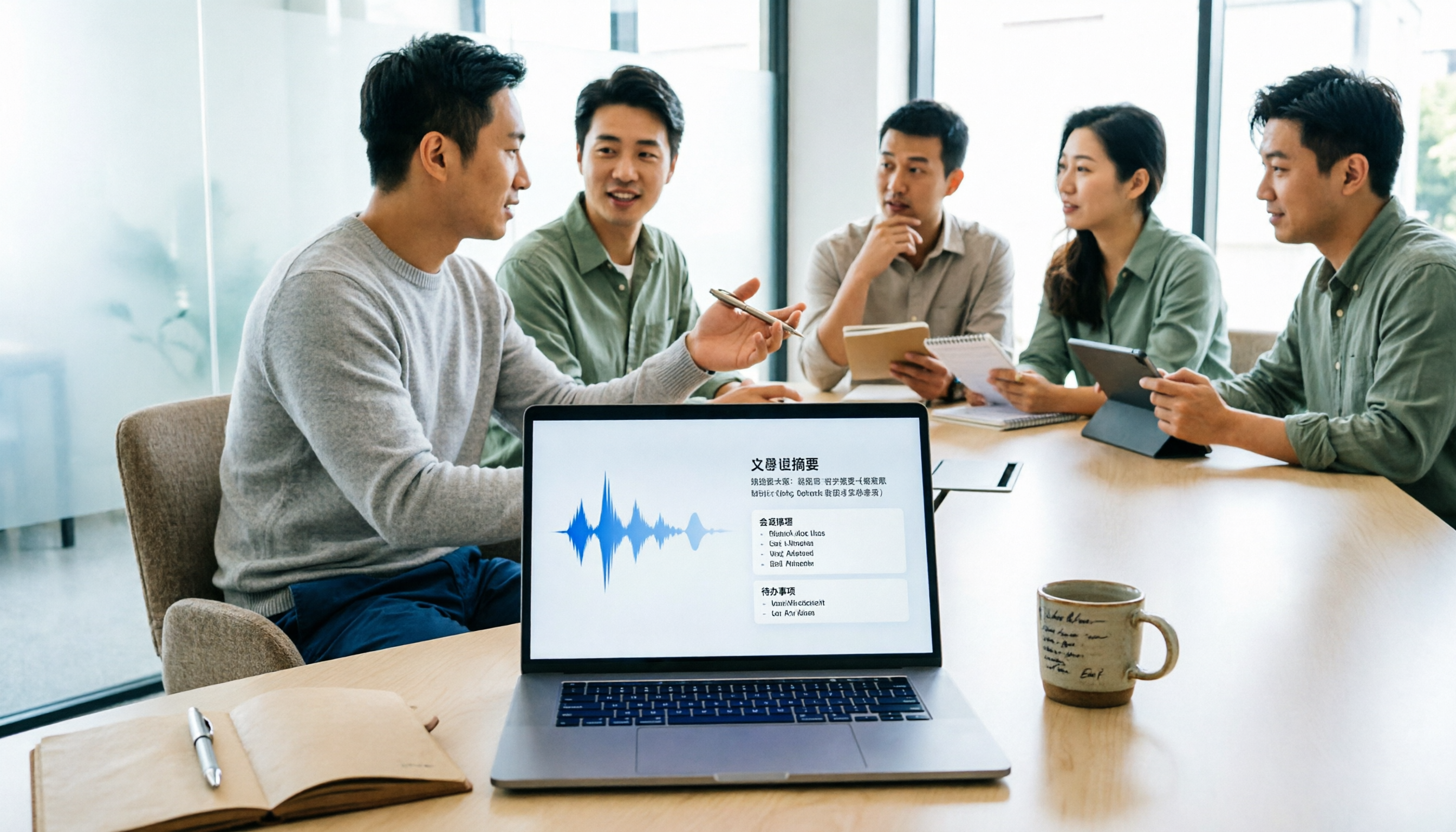
5 Meeting Minutes Software Compared: Which One Actually Saves Time with Chinese Recognition and Post-Meeting Organization?
After a meeting, you're left with just two lines of notes while two hours of discussion stay locked in the recording? This article starts from real meeting scenarios, breaks down the 4 key dimensions for choosing meeting minutes software, and compares Tinrec, Otter.ai, Notta, Granola, and TurboScribe on Chinese recognition, meeting capture methods, post-meeting outputs, and team authorization differences. It also includes a pitfalls guide and selection advice.

2026 Guide: Turn AI Transcripts into Meeting Minutes & Action Items in One Go
Meeting transcripts are often long and messy, taking more time to organize than the meeting itself. This guide, from a mid-level manager's real work scenario, breaks down four key steps for transcript organization, tests Tinrec's bot-free recording and AI Q&A workflow, and honestly compares Notta, Otter.ai, and Granola's applicable boundaries, with three common mistakes and selection advice.

4 Interview Recording-to-Text Tools Tested: Which One Handles Visit Notes and Thank-You Letters in One Go?
The real trouble starts after the interview ends: no one wants to organize the transcript, key points rely on memory, and the thank-you letter gets delayed until the third day. This article uses real scenarios from student project interviews and corporate visits to test 4 tools that turn interview recordings into text, and summarizes selection criteria, the 4 most common pitfalls, and whether the free version is actually enough.
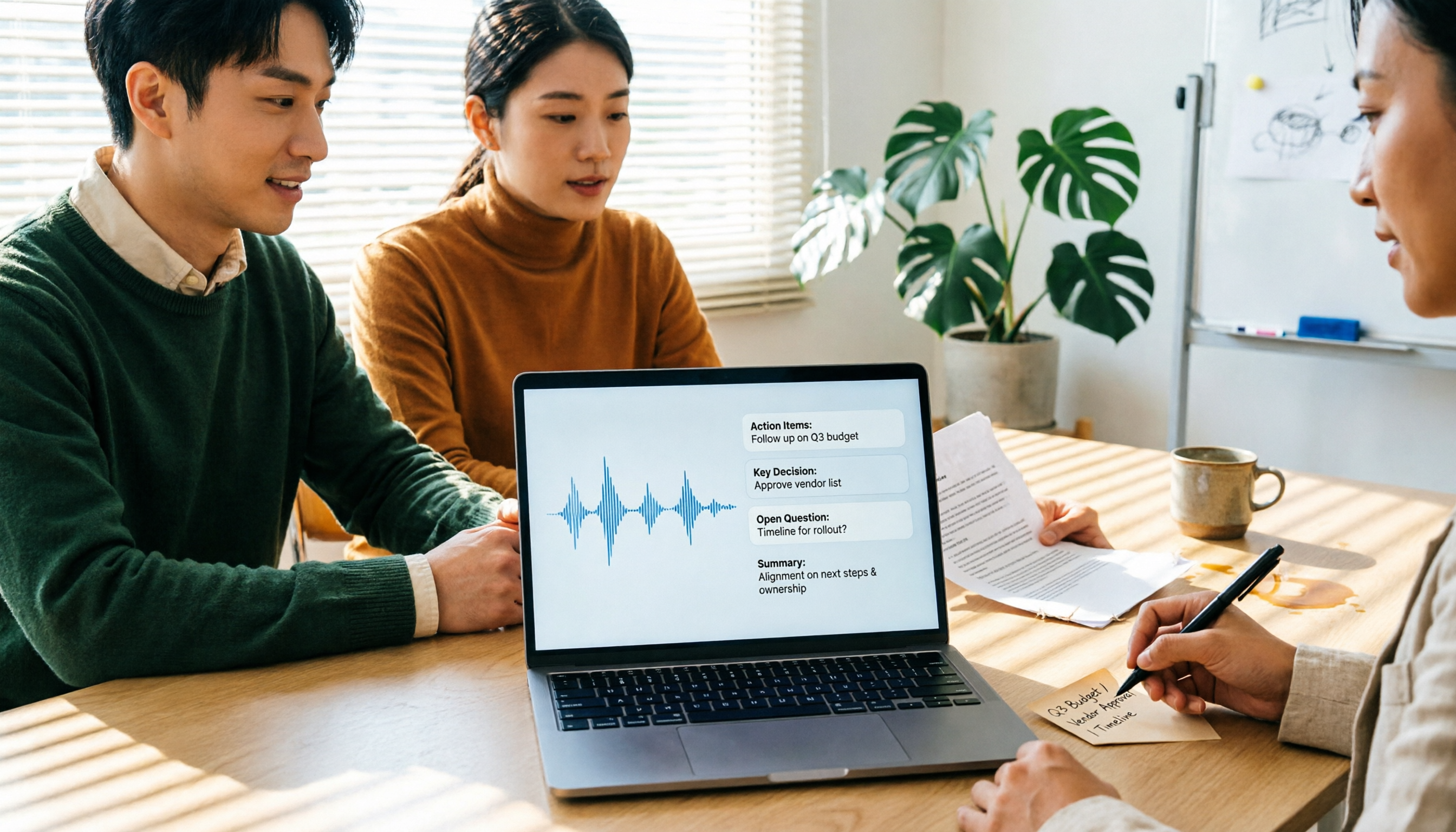
2026 Transcription Tools Guide: AI Transcription Selection Tips + Tinrec Workflow
There are countless transcription tools, but the real challenge isn't transcription—it's what to do after. This guide covers selection criteria, hands-on testing, and pitfalls to avoid, rounding up transcription tools worth considering in 2026, and demonstrates how Tinrec turns meeting recordings into searchable, queryable, and shareable team knowledge.

4 AI Meeting Recorders Tested for 2026: Which Free Tier Works Best for Students?
A student's hands-on comparison of AI meeting note tools—Tinrec, Notta, Granola, and Otter.ai—covering free tiers, per-recording limits, post-transcript organization, and cross-platform use, with recommendations for class recordings, group projects, and final exam review.

How to Write Meeting Minutes in 2026: 5-Step Template Tutorial
Struggling to produce meeting minutes after the meeting ends? This article provides a ready-to-use meeting minutes template with fields and a 5-step process, and compares "template-only handwriting" vs. "template plus AI workflow" across recording, organizing, tracking, and team knowledge retention, helping you choose the right meeting minutes approach for your team.

2026 Tested: 4 AI Meeting Minutes Generators Compared — Which One Actually Saves You That Hour After the Meeting?
AI meeting minutes generation isn't just about uploading a recording. From the perspective of a mid-level manager who holds 15 meetings a week, I break down the most common misconceptions, 4 key purchasing criteria, and hands-on comparisons of Tinrec, Notta, Otter.ai, and Granola across Chinese-language meetings, bot-free recording, post-meeting Q&A, and team knowledge retention — with final recommendations by scenario.