

Turn recordings into transcripts and summaries in minutes
Upload audio or video for multilingual transcription, AI notes, and action items
Why Can't Some People Find the Recording Feature on iPhone 13?
Many people getting their first iPhone 13 instinctively look for recording in the Camera or Settings app, only to come up empty after searching around. In reality, iOS's recording feature isn't tucked inside the Camera—it's a standalone app called Voice Memos.
If you've never used it before, you might even think the iPhone doesn't have a built-in recorder and go download a third-party recording app. But actually, just searching for "Voice Memos" on the Home Screen or in the App Library will bring it up. If you accidentally deleted it, you can also re-download it for free from the App Store.
If you want more than just recording—like quickly turning recordings into transcripts, highlights, and reports—this guide also covers how students can pair tools for that.
Voice Memos vs. General Recording Tools: Differences in iPhone 13's Built-in Options
Let's clarify the core difference first. Voice Memos is a built-in iOS tool, with the advantage of being free, requiring no extra installation, and saving recordings directly to your phone. However, it's mainly for recording and basic editing, not a professional speech-to-text tool.
If you only occasionally record a class highlight, interview, or meeting, Voice Memos is more than sufficient. But if you want automatic transcripts, summaries, to-do lists, or even the ability to ask questions about the recording content, you'll need to consider AI recording organization tools like Tinrec.
Where Recordings Are Saved
Voice Memos recordings are stored within the app, where you can play, rename, and share them directly from the recording list. If you export them through other methods, they may also default to the Downloads folder in the Files app. For students, the simplest approach is to manage everything within Voice Memos to avoid confusion.
Recording Quality Settings
Voice Memos offers options for Stereo or Spatial Audio. When you select Stereo or Spatial Audio, the iPhone 13 uses multiple microphones to record left and right channels. For listening back to class content later, standard Stereo is usually sufficient; if you care about spatial presence, you can try Spatial Audio, but files may be larger.
Overview of Tinrec's Core Features: What Happens After Recording Is Key
For students, the most tedious part is usually not the recording itself, but how to organize it afterward. A two-hour class is impossible to re-listen to entirely before midterms. The core value of tools like Tinrec is turning recordings into searchable, summarizable, and queryable data.
Real-Time Speech-to-Text
When you open Tinrec, text appears as you record. During class or meetings, you can glance at the text to ensure you're not missing key points, and by the time it's over, the transcript is already done—no need to type it out later at home.
AI Summaries and Chapters
Long recordings are most problematic when they lack structure. Tinrec automatically generates summaries and chapters, breaking two hours of content into more digestible sections. When reviewing for midterms, you can start with the summary, then jump back to specific chapters you don't understand.
AI Q&A
This is the feature I use most myself. After recording a group discussion or lecture, you can ask directly: "What was the conclusion of this discussion?" or "Did the professor mention the midterm scope?" Tinrec provides answers based on the recording content, so you don't have to manually sift through dozens of pages of transcript.
Stop organizing recordings by hand
Upload audio or video and automatically get a transcript, summary, and action items
To-Do Extraction and Export
For group meetings, Tinrec can extract action items from the discussion, such as who is responsible for what and deadlines. You can then export to tools like Notion or Google Docs to continue organizing class or meeting materials into reports.
Practical Use Cases: How to Use iPhone 13 with Recording Organization
Class Recording and Midterm Review
Record lectures with Voice Memos on your iPhone 13, then upload the file to Tinrec at home to get a transcript. Next, use AI summaries to quickly grasp the course structure, and ask questions about areas you don't understand. This is far more efficient than listening from start to finish.
Group Discussions and Task Division
Group discussions often get chaotic, and no one remembers the conclusions afterward. After recording, use Tinrec to organize action items and share the division of labor directly in the group chat—no more guessing from memory.
Interviews or Research Projects
If you're working on a capstone project or user interviews, transcription can be a huge time sink. After converting interview recordings to text, use AI Q&A to pinpoint key viewpoints from interviewees, saving hours of playback time.
Personal Notes and Inspiration
When an idea strikes, record a quick voice note on your iPhone 13 and organize it into text later. Compared to typing, recording is better for capturing thoughts on the go or before bed.
Key Considerations When Choosing a Recording Organization Tool
Is the Free Tier Sufficient?
For students, the free tier is crucial. First, check how many minutes per month you can upload or record, then assess your usage. If you only occasionally organize key classes, the free version might be enough; if you need to organize every class, consider a paid plan.
Does It Support Chinese and Mixed Chinese-English Content?
Many university courses mix Chinese and English, especially in IT, business, or engineering. When choosing a tool, verify its Chinese recognition and mixed-language performance to avoid a transcript riddled with errors.
Can You Continue Organizing After Recording?
Having just a transcript isn't enough. It's best to choose a tool that can generate summaries, to-dos, and AI Q&A, so you truly save time on review and organization.
Is Export to Other Note-Taking Tools Easy?
Students typically centralize materials in Notion, Google Docs, or OneNote. If the recording tool can export directly, it'll make subsequent report writing or collaborative notes much smoother.
Does It Support Multiple Devices?
You might record on your iPhone 13 in class and organize on your computer back at the dorm. Make sure the tool supports both phone and computer so you're not tied to a single device.
Summary: How Should You Use the iPhone 13 Recording Feature?
If you're just looking for the recording feature on iPhone 13, the most direct answer is Voice Memos. It's free, built-in, and easy to use, perfect for quickly capturing classes, meetings, or ideas.
But if you want to avoid spending hours replaying recordings and instead get automatic transcripts, summaries, to-dos, or even ask questions about the content, you can pair it with an AI organization tool like Tinrec. Record with your iPhone 13 first, then hand the file to the tool for organization—this workflow makes life much easier for students.
We recommend starting with a free plan and testing it with your own class recordings to see how well Chinese recognition and organization work before deciding to pay. Don't buy a tool just for the sake of buying; the key is whether it genuinely saves you from last-minute panic before midterms and finals.
References
- Record audio and video on iPhone - Apple Support (Taiwan)
- Record audio in Voice Memos on iPhone - Apple Support (Taiwan)
- 【iPhone Recording Tutorial】iOS Built-in Voice Memos, One-Tap Quick Recording - YouTube
- iPhone Built-in Recording Feature! Voice Memos Tips, Post-Edit After Recording - Applealmond - Apple iPhone/iOS/Tech Media
- Where is the recording function on iPhone? The correct way to use iPhone's built-in recording feature_Memo
Turn every recording into actionable outcomes
Get 60 free transcription minutes when you sign in. No credit card required.
Related Reading
You might also like

4 Transcription Tools Compared (2026): Free Tiers, AI Summaries, and Post-Meeting Organization
Transcription isn't the problem—organizing is. Based on real meeting scenarios, this article compares four transcription tools' free tiers, meeting capture methods, AI summaries, and post-meeting outputs, and explains which tool fits which use case.

2026 Comparison of 4 Meeting Minutes Word Solutions: Manual Templates vs. AI Auto-Generation—Which Is Faster?
Most people searching for "meeting minutes Word" download a template first, but still end up scrambling to fill in details afterward. This article starts with common pitfalls and compares the meeting minutes workflows of manual Word templates, Tinrec, Otter.ai, Notta, and Granola. It also covers essential fields for Word meeting minutes, a guide to avoiding mistakes, and selection advice.

5 Audio-to-Text Transcription Tools Tested for 2026: Which Free Version Is Good Enough?
How do you choose an audio-to-text transcription tool? This guide breaks down core capabilities like real-time transcription, AI summaries, action item extraction, export, and team collaboration based on real-world use cases. It includes hands-on testing with Tinrec, plus a look at free quotas, team plan pricing, and buying considerations to help you decide which option truly fits your needs.

Tinrec vs Yating Transcription 2026: 5-Dimension Comparison — Which Is More Practical for Team Meeting Transcripts?
There are many transcript generation tools, but what really affects your daily下班 time is 'what you can do after recording.' This article compares Tinrec and Yating Transcription from the perspective of a mid-level manager, across 5 dimensions: input sources, post-meeting organization, Chinese recognition, cross-platform, and team knowledge retention. It also covers suitable scenarios for cSubtitle and inFin, plus 4 key pitfalls to avoid when choosing a tool.

5 AI Meeting Transcription Tools Tested for 2026: Free Tiers, Chinese Recognition, and Post-Meeting Organization Compared
Meeting transcription isn't just about uploading a recording. This article addresses two common misconceptions, compares five approaches to meeting transcription, and uses Tinrec (Miao Ting Lu Yin) as a hands-on example to break down the complete workflow: real-time transcription, bot-free recording, summary chapters, AI Q&A, export, and team knowledge retention. Includes details on free and paid quotas.

2026 Comparison of 4 Speech-to-Text Tools: Free Tiers and Post-Meeting Organization—Which Is Enough?
Many people think speech-to-text just means dropping an audio file into a tool and waiting for the text. What really slows things down is post-meeting organization, finding key points, and tracking action items. This article compares Tinrec, Notta, Otter.ai, and Granola using real meeting scenarios—from free tiers, Chinese transcription, bot-free recording, AI Q&A, to team data retention—to help you decide which one best fits your workflow.

2026 Comparison of 3 AI Transcription Tools: Free Tiers, Chinese Recognition, and Post-Meeting Organization—Which One Really Saves Time?
Most people misunderstand AI transcription—they think it's just about turning voice into text. This article addresses three common misconceptions, explaining that transcripts are only raw material; the real time savings come from post-transcription summaries, action items, Q&A, and team knowledge retention. Using Tinrec as an example, it walks you through features, use cases, purchasing considerations, and FAQs.
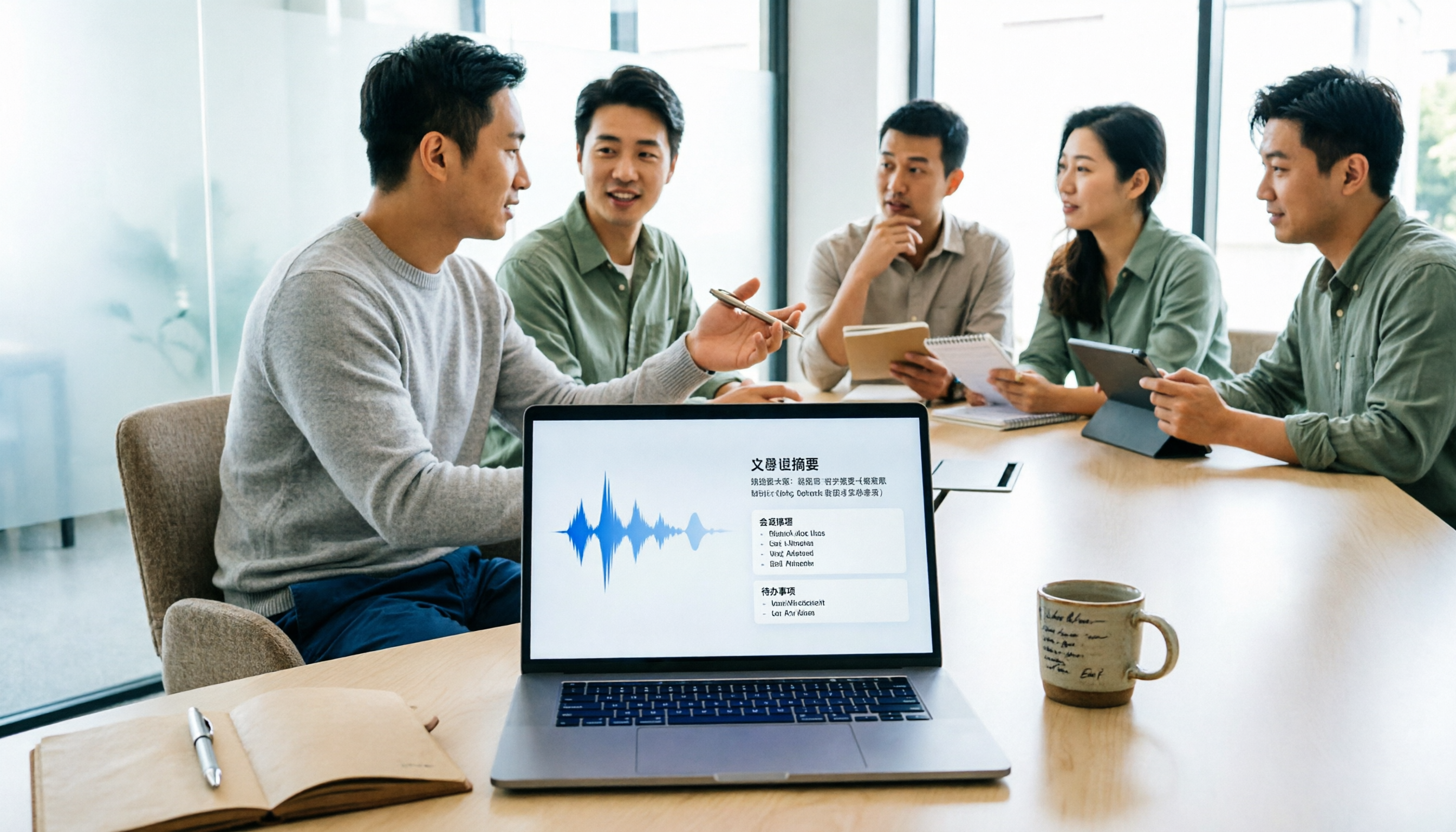
5 Meeting Minutes Software Compared: Which One Actually Saves Time with Chinese Recognition and Post-Meeting Organization?
After a meeting, you're left with just two lines of notes while two hours of discussion stay locked in the recording? This article starts from real meeting scenarios, breaks down the 4 key dimensions for choosing meeting minutes software, and compares Tinrec, Otter.ai, Notta, Granola, and TurboScribe on Chinese recognition, meeting capture methods, post-meeting outputs, and team authorization differences. It also includes a pitfalls guide and selection advice.

2026 Guide: Turn AI Transcripts into Meeting Minutes & Action Items in One Go
Meeting transcripts are often long and messy, taking more time to organize than the meeting itself. This guide, from a mid-level manager's real work scenario, breaks down four key steps for transcript organization, tests Tinrec's bot-free recording and AI Q&A workflow, and honestly compares Notta, Otter.ai, and Granola's applicable boundaries, with three common mistakes and selection advice.