

Turn recordings into transcripts and summaries in minutes
Upload audio or video for multilingual transcription, AI notes, and action items
Have You Ever Done the Math? A 1-Hour Meeting Costs You 40 Minutes to Summarize and 20 More to Decode Your Own Notes
Many people's iPhone recording workflow goes like this: open Voice Memos, hit the red button, and only after the meeting ends realize you're staring at a 60-minute audio file, forced to manually drag the timeline to find key points.
What's worse, if five people spoke in rotation during that meeting, you'll replay the audio repeatedly just to confirm who said what. Recording itself isn't hard—the real challenge is turning that audio into usable information afterward.
This article won't just tell you to open Voice Memos. I'll compare four methods for recording and organizing meeting content on iPhone, including built-in tools and third-party apps, using real work scenarios so you can see which one fits your habits best.
Before Choosing an iPhone Recording Tool, Understand These 4 Key Points
1. Are You Recording "Live Audio" or "Phone/Online Meetings"?
This is the first question to clarify. For in-person interviews, classes, or quick idea capture, the iPhone's built-in Voice Memos is sufficient.
But if you need to record LINE calls, Zoom, Google Meet, or Microsoft Teams meetings, holding your phone up to the speaker usually results in poor audio quality. In such cases, you need a tool that can capture system audio directly, rather than relying on the microphone for secondary pickup.
2. Recording Is Just the First Step—Transcription and Organization Are the Real Cost
Many people obsess over recording app audio quality, but the most time-consuming part is post-meeting organization. If you have to handle transcripts, summaries, and action items yourself, recording becomes another burden.
So when choosing a tool, I first look at what it can do after transcription: does it just provide text, or can it automatically extract key points and action items?
3. Check the "Per-Session Limit" on Free Tiers, Not Just Total Minutes
Some apps advertise 300 free minutes per month, but each recording is capped at 3 minutes. If you regularly record 1-hour meetings, that free plan is useless to you.
My advice: first determine your average recording length, then check the per-session cap and monthly total on free plans.
4. Cross-Device Support Matters More Than You Think
You record on your iPhone today, but tomorrow you want to edit the transcript on your computer at the office. If the tool only supports mobile, you'll have to figure out how to transfer files yourself.
For office workers, having a web or desktop version makes the entire workflow much smoother.
Tinrec (Miao Ting Lu Yin) — Our Top Pick After Testing
Tinrec (Miao Ting Lu Yin) is an AI recording and meeting organization tool that supports multilingual transcription, covering iOS, Android, and web. It doesn't just record—it bundles the post-recording organization work into one package.
Core Features in Real-World Scenarios
In-Person Meeting Recording to Text: Open the Tinrec mobile app, hit the record button, and it generates a transcript in real time. By the time the meeting ends, most of the text is already done—no waiting for file conversion.
Online Meetings Without Adding a Bot: This is what I find most convenient about Tinrec. The desktop version can directly capture your computer's system audio, recording Zoom, Google Meet, Microsoft Teams, and other meetings without needing to invite a bot into the session. For those who dislike seeing unfamiliar participants in meetings, this design is thoughtful.
AI-Powered Key Point Extraction After Recording: Tinrec automatically generates summaries, chapters, and action items. Even better, you can ask questions directly about the meeting content, like "Who mentioned the budget earlier?" It answers based on the meeting content, not just keyword search results. This feature is incredibly useful for anyone who needs to regularly review past meetings.
Multi-Format Export: You can export organized content to Notion, Google Docs, OneNote, and other tools, seamlessly integrating into your existing workflow.
Stop organizing recordings by hand
Upload audio or video and automatically get a transcript, summary, and action items
Pros
- No Extra Hardware Needed: No need to buy a separate recorder or wearable device—just install the app on your iPhone.
- Stable Chinese and Multilingual Performance: Ideal for Taiwanese users who handle Chinese meetings or mixed Chinese-English content.
- Team Sharing for Meeting Data: The team plan offers a dedicated space where members can view historical meeting data, and admins can allocate seats, monitor usage, and access audit logs.
Limitations
The free version has basic usage limits, and heavy users will need to upgrade to a paid plan. However, for those who attend 2–3 meetings a week, the free version is sufficient for testing its effectiveness.
Who It's For
If you need quick access to transcripts, meeting summaries, and action items after recording, or want centralized meeting data management, Tinrec is a highly recommended option right now.
Beyond Tinrec: What Other Options Are There?
iPhone's Built-in "Voice Memos"
If you only need recording without transcription, Voice Memos is the most straightforward choice. It's free, requires no installation, and syncs via iCloud across your Apple devices.
But its limitations are clear: no automatic transcription, no AI summaries, and all post-recording organization is on you. If you only record 1–2 short audio clips a week, Voice Memos suffices; but if you need meeting notes, Tinrec will save you significantly more time.
Otter.ai
Otter.ai is highly mature for English meeting transcription, offering 300 free minutes per month—generous for English speakers.
However, its strength lies in English content. If you primarily handle Chinese meetings, Tinrec's Chinese experience and real-time translation are more tailored to the Taiwanese context. Otter.ai suits those with English-centric meetings who occasionally need AI summaries.
Notta
Notta is also a multi-platform transcription tool that supports file import and translation, with some feature overlap with Tinrec.
However, in areas like bot-free online meeting recording, AI Q&A, and team data management, Tinrec offers more complete integration. If you only need simple file-to-text conversion, Notta is worth considering; if you need a one-stop solution for recording, organization, and collaboration, Tinrec is a better fit.
Pitfall Guide: 4 Common Mistakes When Choosing an iPhone Recording Tool
Pitfall 1: Assuming Clear Recording Is Enough
Many people choose a recording app solely based on audio quality, overlooking transcription and organization features. The result? They accumulate recordings but never revisit them.
The right approach: think about what you'll do after recording. If you need transcripts or meeting notes, choose a tool with AI organization capabilities.
Pitfall 2: Ignoring Per-Session Recording Limits
Some free plans look generous but cap each recording at 3–5 minutes. If you often record long meetings, such plans are effectively unusable.
Check your average recording length first, then review the per-session limits of any plan.
Pitfall 3: Using the Wrong Tool for the Wrong Scenario
I've seen people use Voice Memos to record online meetings, placing their phone next to the laptop speaker, only to end up with echo louder than the voices.
To record online meetings clearly, the tool must capture system audio directly. Tinrec's desktop bot-free recording is designed precisely for this scenario.
Pitfall 4: Not Confirming Consent Before Recording
In Taiwan, recording without consent can raise legal issues. Whether it's an in-person interview or an online meeting, you should inform participants and obtain consent before starting to record.
Tinrec's design lets you control when to record, but the legal obligation to inform remains with you, the recorder.
Summary: Which One Should You Choose?
If you just want a simple recording tool, the iPhone's built-in Voice Memos is sufficient.
But if your goal is to organize meeting notes, track action items, and share data with your team, Tinrec is currently the most integrated choice.
Here are recommendations for common scenarios:
- Recording only, no transcription needed → iPhone Voice Memos
- Need Chinese transcripts and AI summaries → Tinrec
- Need to record online meetings without adding a bot → Tinrec Desktop
- English-centric meetings with generous free tier → Otter.ai
- Team needs centralized meeting data management → Tinrec Team Plan
I recommend downloading the Tinrec free version first and testing it on a real meeting to see how recording, transcription, and AI organization work. Upgrade to paid only if you find it useful—no need to commit upfront.
References
- iPhone Recording Made Easy: One-Tap Quick Self-Protection at Critical Moments
- Record Audio in Voice Memos on iPhone - Apple Support (Hong Kong)
- How to Record Audio and Voice on iPhone with 3 Simple Methods
- Record Audio and Video on iPhone - Apple Support (Taiwan)
- How to Record iPhone Calls? Latest iOS 26 Supports One-Tap Recording to Text! [2025]
Turn every recording into actionable outcomes
Get 60 free transcription minutes when you sign in. No credit card required.
Related Reading
You might also like

4 Transcription Tools Compared (2026): Free Tiers, AI Summaries, and Post-Meeting Organization
Transcription isn't the problem—organizing is. Based on real meeting scenarios, this article compares four transcription tools' free tiers, meeting capture methods, AI summaries, and post-meeting outputs, and explains which tool fits which use case.

2026 Comparison of 4 Meeting Minutes Word Solutions: Manual Templates vs. AI Auto-Generation—Which Is Faster?
Most people searching for "meeting minutes Word" download a template first, but still end up scrambling to fill in details afterward. This article starts with common pitfalls and compares the meeting minutes workflows of manual Word templates, Tinrec, Otter.ai, Notta, and Granola. It also covers essential fields for Word meeting minutes, a guide to avoiding mistakes, and selection advice.

5 Audio-to-Text Transcription Tools Tested for 2026: Which Free Version Is Good Enough?
How do you choose an audio-to-text transcription tool? This guide breaks down core capabilities like real-time transcription, AI summaries, action item extraction, export, and team collaboration based on real-world use cases. It includes hands-on testing with Tinrec, plus a look at free quotas, team plan pricing, and buying considerations to help you decide which option truly fits your needs.

Tinrec vs Yating Transcription 2026: 5-Dimension Comparison — Which Is More Practical for Team Meeting Transcripts?
There are many transcript generation tools, but what really affects your daily下班 time is 'what you can do after recording.' This article compares Tinrec and Yating Transcription from the perspective of a mid-level manager, across 5 dimensions: input sources, post-meeting organization, Chinese recognition, cross-platform, and team knowledge retention. It also covers suitable scenarios for cSubtitle and inFin, plus 4 key pitfalls to avoid when choosing a tool.

5 AI Meeting Transcription Tools Tested for 2026: Free Tiers, Chinese Recognition, and Post-Meeting Organization Compared
Meeting transcription isn't just about uploading a recording. This article addresses two common misconceptions, compares five approaches to meeting transcription, and uses Tinrec (Miao Ting Lu Yin) as a hands-on example to break down the complete workflow: real-time transcription, bot-free recording, summary chapters, AI Q&A, export, and team knowledge retention. Includes details on free and paid quotas.

2026 Comparison of 4 Speech-to-Text Tools: Free Tiers and Post-Meeting Organization—Which Is Enough?
Many people think speech-to-text just means dropping an audio file into a tool and waiting for the text. What really slows things down is post-meeting organization, finding key points, and tracking action items. This article compares Tinrec, Notta, Otter.ai, and Granola using real meeting scenarios—from free tiers, Chinese transcription, bot-free recording, AI Q&A, to team data retention—to help you decide which one best fits your workflow.

2026 Comparison of 3 AI Transcription Tools: Free Tiers, Chinese Recognition, and Post-Meeting Organization—Which One Really Saves Time?
Most people misunderstand AI transcription—they think it's just about turning voice into text. This article addresses three common misconceptions, explaining that transcripts are only raw material; the real time savings come from post-transcription summaries, action items, Q&A, and team knowledge retention. Using Tinrec as an example, it walks you through features, use cases, purchasing considerations, and FAQs.
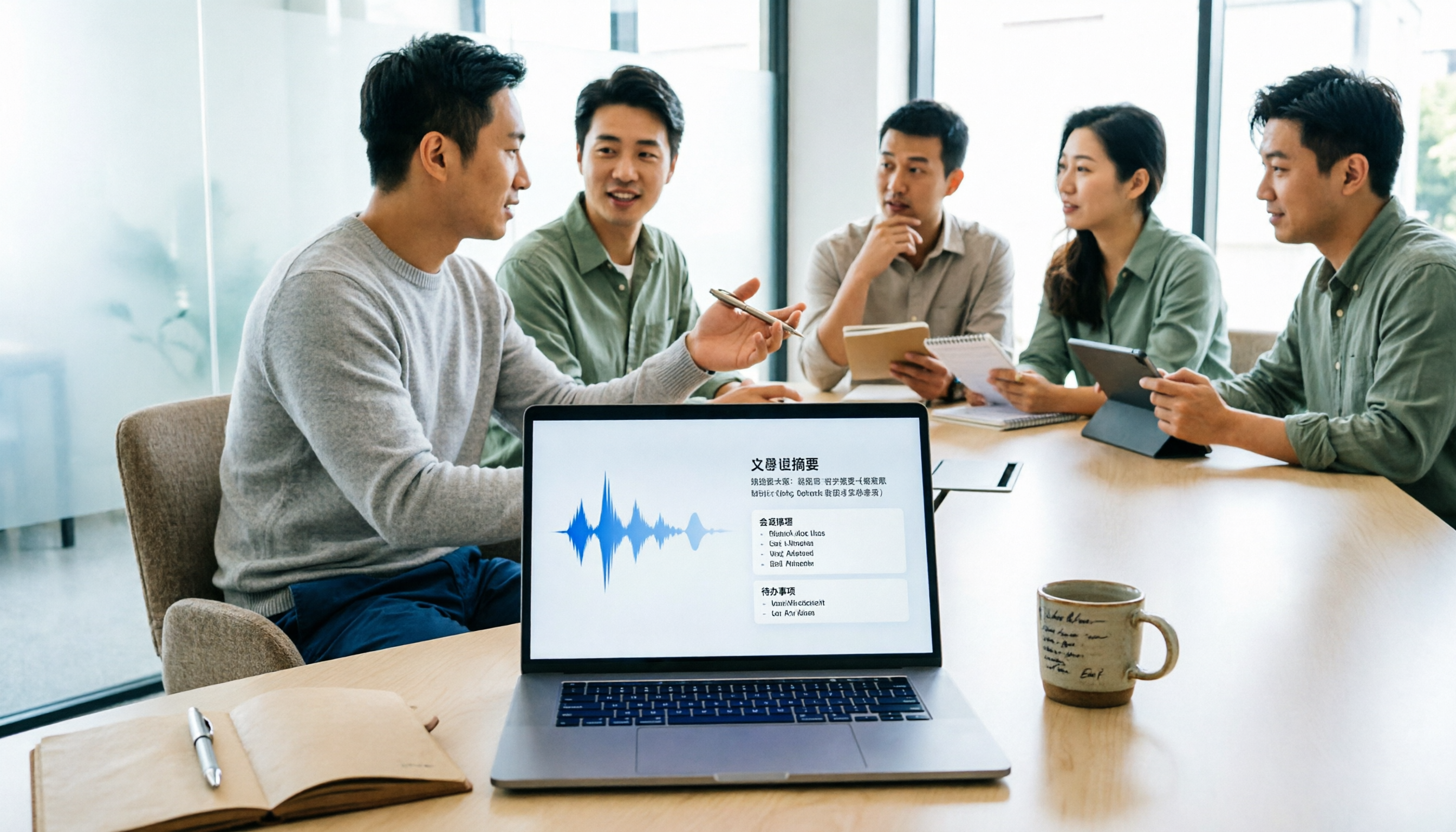
5 Meeting Minutes Software Compared: Which One Actually Saves Time with Chinese Recognition and Post-Meeting Organization?
After a meeting, you're left with just two lines of notes while two hours of discussion stay locked in the recording? This article starts from real meeting scenarios, breaks down the 4 key dimensions for choosing meeting minutes software, and compares Tinrec, Otter.ai, Notta, Granola, and TurboScribe on Chinese recognition, meeting capture methods, post-meeting outputs, and team authorization differences. It also includes a pitfalls guide and selection advice.

2026 Guide: Turn AI Transcripts into Meeting Minutes & Action Items in One Go
Meeting transcripts are often long and messy, taking more time to organize than the meeting itself. This guide, from a mid-level manager's real work scenario, breaks down four key steps for transcript organization, tests Tinrec's bot-free recording and AI Q&A workflow, and honestly compares Notta, Otter.ai, and Granola's applicable boundaries, with three common mistakes and selection advice.