

Turn recordings into transcripts and summaries in minutes
Upload audio or video for multilingual transcription, AI notes, and action items
Why Turn Your iPhone Recording into a Ringtone?
Many people want to use an iPhone recording—like a child's laugh, a partner's reminder, or a funny conversation—as their ringtone, only to find that iOS has no "Set This Recording as Ringtone" button. That's because iPhone ringtones must be in .m4r format with a length limit, and the .m4a or .caf files saved by the built-in Voice Memos app can't be used directly.
To turn a recording into a ringtone, the key is to work around this format restriction. Below are three practical methods, from free DIY options to paid time-savers, explained by complexity and use case.
Method 1: GarageBand – The Most Complete Free Option
If you don't want to spend money and want full control over your ringtone, GarageBand is currently the most complete solution. It's completely free, has the best compatibility, and can be done entirely on your iPhone—no computer needed.
Here's the general workflow:
- First, record the sound you want in Voice Memos, or prepare an audio file.
- Open GarageBand, select "Audio Recorder" or "Create New Audio Recording."
- Import the recording into the track and trim the section you want. Ringtones can be up to 30 seconds long; anything longer needs manual adjustment.
- Share the project as "Ringtone," then go to iOS Settings > Sounds & Haptics > Ringtone to select it.
The pros of this method are that it's free and highly customizable; the cons are that it involves more steps, and the first time may take 10–20 minutes to get familiar with the interface. If you only occasionally make a ringtone or two, this time cost is acceptable; but if you change ringtones often and have to repeat the process each time, it can feel a bit tedious.
Method 2: Voice Memos + Files App – Best for Those Who Already Have Recordings
If you already have recordings saved in Voice Memos, this method saves you from re-recording, but it still requires GarageBand for conversion.
The core idea is: first share the file from Voice Memos to the Files app, then import that file into GarageBand for trimming and exporting. The advantage is that your recording source is more flexible—you don't have to re-record within GarageBand; the downside is that the workflow still doesn't bypass GarageBand's editing environment, so the overall time is similar to Method 1.
This is best for when you've accumulated several recordings you want to turn into ringtones and want to organize and export them in batches.
Stop organizing recordings by hand
Upload audio or video and automatically get a transcript, summary, and action items
Method 3: Buy Ringtones Directly from the iTunes Store – Fastest but Paid
If you want to avoid editing software altogether, the most direct way is to buy ready-made ringtones from the iTunes Store. For a small fee, you can directly set a music ringtone you like—the process takes less than a minute.
The pros are speed and near-zero learning curve; the cons are that you can only use content offered by the store, so you can't turn your own recordings into ringtones. If you want a personalized recording ringtone, this method won't help; but if you just want a music ringtone that's not the same as everyone else's, it's the most efficient choice.
How to Choose Among These 3 Methods?
- If you want to turn a child's laugh or a family member's voice into a ringtone and are willing to spend 10–20 minutes: choose GarageBand (Method 1).
- If you already have multiple recordings to process in batches: organize them in Voice Memos first, then export via GarageBand (Method 2).
- If you just want a music ringtone that's not the same as others and don't want to learn any steps: buy directly from the iTunes Store (Method 3).
- If you want a zero-cost, fully customizable option: GarageBand is the only choice.
3 Things to Know Before Turning iPhone Recordings into Ringtones
- The ringtone format is .m4r, not .m4a: This is a common sticking point. Voice Memos files can't be used directly; you must export them as ringtone format via GarageBand.
- Ringtones are limited to 30 seconds: Recordings longer than 30 seconds must be trimmed first. It's best to keep recordings under 30 seconds from the start to save editing time later.
- If you delete GarageBand, you can re-download it for free from the App Store: It's Apple's own app, so there's no extra cost. Just download it and follow the steps to complete the process.
Summary
Yes, you can use iPhone recordings as ringtones—iOS just doesn't offer a one-tap conversion feature. You'll need to use GarageBand to handle the format conversion. If you want a free, fully customizable personal ringtone, GarageBand is the most complete option; if you value speed and don't mind paying, buying a ringtone from the iTunes Store is the most time-efficient. Decide how much time you're willing to invest, then pick the method that fits—that way, you'll avoid the most frustrating trial-and-error.
References
- Create a custom ringtone on iPhone - Apple Support (Taiwan)
- Can iPhone recordings be used as ringtones? 2026 latest tutorial and AI transcription tool recommendations - 秒聽錄音Blog
- 2026 iPhone ringtone creation tips! 4 methods to make ringtones without a computer - 瘋先生
- How to use recordings as ringtones on iPhone? Customize your own ringtone and avoid the same tones - 比迪行銷
- Many people don't know there's a hidden button on iPhone that can set music, voice memos, or audio files as ringtones in one second!
Turn every recording into actionable outcomes
Get 60 free transcription minutes when you sign in. No credit card required.
Related Reading
You might also like

4 Transcription Tools Compared (2026): Free Tiers, AI Summaries, and Post-Meeting Organization
Transcription isn't the problem—organizing is. Based on real meeting scenarios, this article compares four transcription tools' free tiers, meeting capture methods, AI summaries, and post-meeting outputs, and explains which tool fits which use case.

2026 Comparison of 4 Meeting Minutes Word Solutions: Manual Templates vs. AI Auto-Generation—Which Is Faster?
Most people searching for "meeting minutes Word" download a template first, but still end up scrambling to fill in details afterward. This article starts with common pitfalls and compares the meeting minutes workflows of manual Word templates, Tinrec, Otter.ai, Notta, and Granola. It also covers essential fields for Word meeting minutes, a guide to avoiding mistakes, and selection advice.

5 Audio-to-Text Transcription Tools Tested for 2026: Which Free Version Is Good Enough?
How do you choose an audio-to-text transcription tool? This guide breaks down core capabilities like real-time transcription, AI summaries, action item extraction, export, and team collaboration based on real-world use cases. It includes hands-on testing with Tinrec, plus a look at free quotas, team plan pricing, and buying considerations to help you decide which option truly fits your needs.

Tinrec vs Yating Transcription 2026: 5-Dimension Comparison — Which Is More Practical for Team Meeting Transcripts?
There are many transcript generation tools, but what really affects your daily下班 time is 'what you can do after recording.' This article compares Tinrec and Yating Transcription from the perspective of a mid-level manager, across 5 dimensions: input sources, post-meeting organization, Chinese recognition, cross-platform, and team knowledge retention. It also covers suitable scenarios for cSubtitle and inFin, plus 4 key pitfalls to avoid when choosing a tool.

5 AI Meeting Transcription Tools Tested for 2026: Free Tiers, Chinese Recognition, and Post-Meeting Organization Compared
Meeting transcription isn't just about uploading a recording. This article addresses two common misconceptions, compares five approaches to meeting transcription, and uses Tinrec (Miao Ting Lu Yin) as a hands-on example to break down the complete workflow: real-time transcription, bot-free recording, summary chapters, AI Q&A, export, and team knowledge retention. Includes details on free and paid quotas.

2026 Comparison of 4 Speech-to-Text Tools: Free Tiers and Post-Meeting Organization—Which Is Enough?
Many people think speech-to-text just means dropping an audio file into a tool and waiting for the text. What really slows things down is post-meeting organization, finding key points, and tracking action items. This article compares Tinrec, Notta, Otter.ai, and Granola using real meeting scenarios—from free tiers, Chinese transcription, bot-free recording, AI Q&A, to team data retention—to help you decide which one best fits your workflow.

2026 Comparison of 3 AI Transcription Tools: Free Tiers, Chinese Recognition, and Post-Meeting Organization—Which One Really Saves Time?
Most people misunderstand AI transcription—they think it's just about turning voice into text. This article addresses three common misconceptions, explaining that transcripts are only raw material; the real time savings come from post-transcription summaries, action items, Q&A, and team knowledge retention. Using Tinrec as an example, it walks you through features, use cases, purchasing considerations, and FAQs.
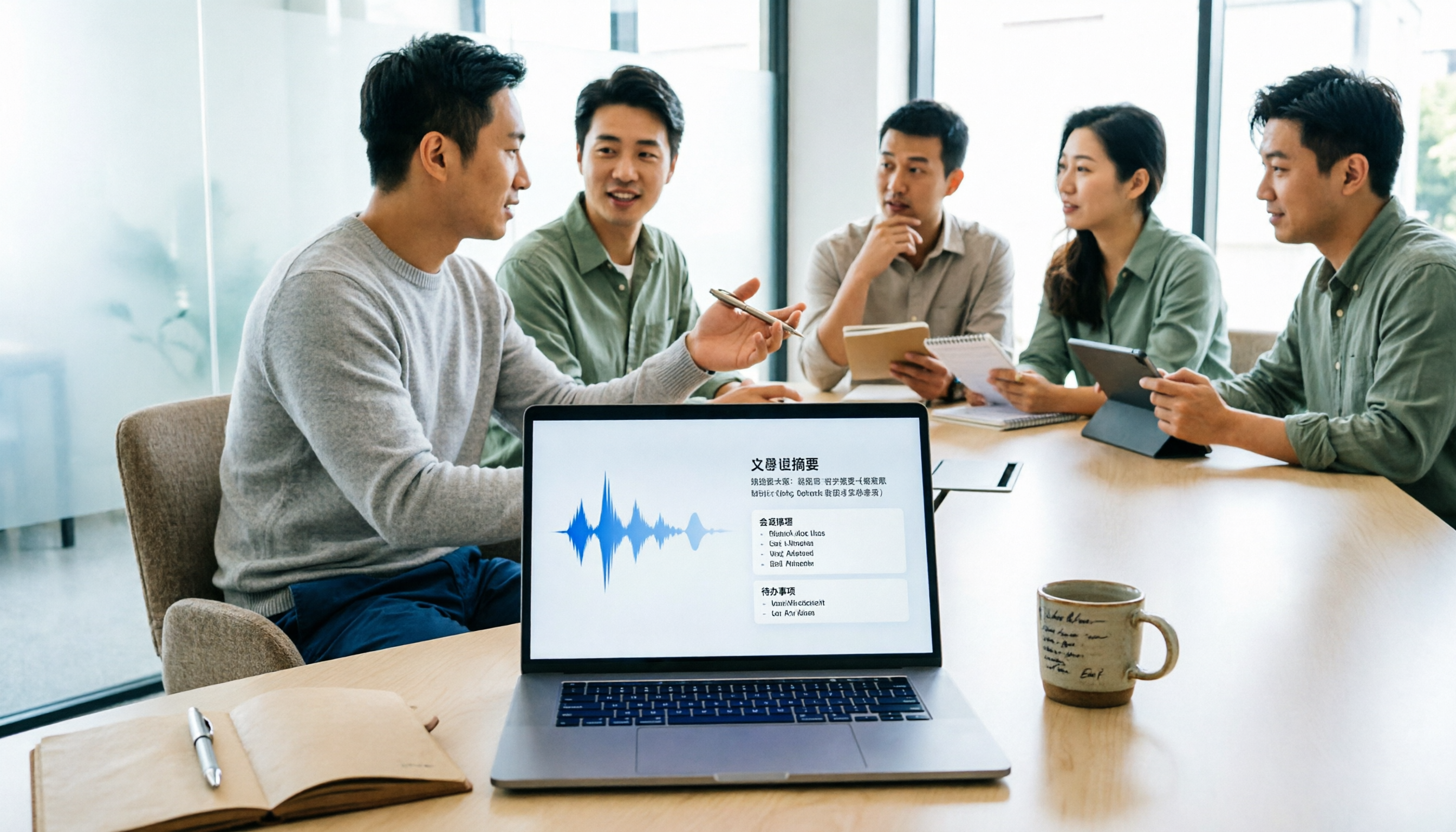
5 Meeting Minutes Software Compared: Which One Actually Saves Time with Chinese Recognition and Post-Meeting Organization?
After a meeting, you're left with just two lines of notes while two hours of discussion stay locked in the recording? This article starts from real meeting scenarios, breaks down the 4 key dimensions for choosing meeting minutes software, and compares Tinrec, Otter.ai, Notta, Granola, and TurboScribe on Chinese recognition, meeting capture methods, post-meeting outputs, and team authorization differences. It also includes a pitfalls guide and selection advice.

2026 Guide: Turn AI Transcripts into Meeting Minutes & Action Items in One Go
Meeting transcripts are often long and messy, taking more time to organize than the meeting itself. This guide, from a mid-level manager's real work scenario, breaks down four key steps for transcript organization, tests Tinrec's bot-free recording and AI Q&A workflow, and honestly compares Notta, Otter.ai, and Granola's applicable boundaries, with three common mistakes and selection advice.