

Turn recordings into transcripts and summaries in minutes
Upload audio or video for multilingual transcription, AI notes, and action items
First, a Key Question: Do You Need to Record a "Call" or a "Meeting"?
Many readers searching for "iPhone call recorder app recommendations" actually have two very different needs. One is to record regular phone calls, such as client calls, bank confirmations, or legal consultations. The other is to capture meetings, interviews, or course content, which they later need to turn into text.
These two scenarios require very different approaches on the iPhone. Call recording is restricted by system privacy policies, so third-party apps cannot directly record call audio. Meeting recording, on the other hand, is relatively unrestricted—you can record directly through an app and then convert it into transcripts and summaries.
Clarifying your needs first will save you from researching the wrong direction.
iPhone Built-in Call Recording: iOS 18 Finally Adds It, but with Limitations
Apple introduced "call recording" and "recording transcription" features for the first time in iOS 18, released in September 2024. You can tap the record button directly on the call screen, and the system will notify the other party that "this call will be recorded," avoiding privacy disputes.
The advantages of this feature are that it's free, requires no installation, and recordings can be transcribed using Apple Intelligence. For those who occasionally need to record a call, it's the most straightforward solution.
However, there are several things to keep in mind. First, it doesn't support automatic call recording—you have to manually enable it for every call. Second, a tone plays before recording starts, which some users find awkward in business or private situations. Third, if you need more than just a transcript—like summaries, action items, or team sharing—the built-in feature falls short.
In short, iOS 18's built-in recording is suitable for light users who occasionally record a call and only need basic text records.
Third-Party Call Recorder Apps: Who Are TapeACall and Cube ACR For?
Since iOS doesn't allow third-party apps to directly record calls, most call recording tools on the market use three-way calling technology. The approach involves dialing into a recording server number, merging the other party into the call, and having the server record the conversation. TapeACall is a representative of this type of tool.
This method can record regular phone calls, but it involves more steps, and call quality may be affected by the cellular network. Cube ACR, on the other hand, focuses more on recording VoIP calls, such as WhatsApp or Skype, making it suitable for those who frequently use these communication apps.
Note that these services typically require a paid subscription, and recording files are stored on the service provider's servers. If you care about data storage location and privacy control, be sure to review the terms of service before using them.
If Your Goal Is Meeting Minutes: Tinrec Is a More Complete Choice
Compared to call recording tools, Tinrec is positioned as an AI meeting minutes and collaboration tool. It doesn't just record audio; it also transcribes recordings into text and automatically generates summaries, chapters, key points, and action items.
For readers who need to organize client interviews, project meetings, or course content, this is far more practical than just getting an audio file. You can search for keywords, review key sections, and even use AI Q&A to ask follow-up questions about the meeting content.
Tinrec supports multiple input sources, including live recording, audio file upload, and online meetings. The desktop version can capture computer system audio, so you don't need to add a meeting bot to Zoom, Google Meet, or Teams—a thoughtful design for those who don't want an extra participant in their meetings.
Stop organizing recordings by hand
Upload audio or video and automatically get a transcript, summary, and action items
Tinrec Personal vs. Team Plans: Is the Free Version Enough?
Tinrec offers a free plan with 100 minutes per month, suitable for light users to try out recording, transcription, and summarization features. If you only occasionally organize an interview or meeting, the free plan is sufficient.
For short-term intensive meeting or interview needs, consider a weekly pass; if you have steady weekly usage, a Pro monthly or annual plan is more cost-effective. The annual plan has a lower monthly equivalent cost, making it ideal for those who want to build a long-term archive of recordings.
The team plan is a separate workspace, not multiple people sharing one account. Team data is stored centrally, members can share and view, and admins can allocate seats, monitor usage, and review audit logs. For departments or project teams, this ensures meeting materials aren't scattered across personal phones, and when a member leaves, their resources can be handed over to others.
Tutorial: How to Record Meetings with Tinrec on iPhone
Step 1: Download and Log In to Tinrec
Download Tinrec from the App Store and log in with your account. You can start with the free plan—no need to pay right away.
Step 2: Choose to Record or Import an Audio File
For in-person meetings or interviews, tap the live recording button, and the app will transcribe as it records. If you already have an audio file, choose the import feature, upload it, and wait for transcription to complete.
Step 3: Review the Transcript and AI Summary
Once transcription is done, you'll see the full transcript with an AI-generated summary and chapters at the top. For long meetings, start with the summary, then jump to the sections that interest you.
Step 4: Extract Action Items or Ask Follow-Up Questions
To organize action items, use the action item extraction feature. To dive deeper into the meeting content, ask questions directly in the AI Q&A, such as "What concerns did the client raise?"
Step 5: Export or Share
Meeting results can be exported in formats like TXT, PDF, or DOCX, and can also be taken to Notion, Google Docs, or Slack for further use.
Frequently Asked Questions
Can the iPhone automatically record every call?
iOS 18's built-in recording doesn't support automatic recording—you need to manually enable it for each call. Third-party call recorder apps do offer automatic recording, but they typically rely on three-way calling servers, making the process more complex.
Do I have to notify the other party before recording?
iOS 18's built-in recording automatically plays a tone to let the other party know the call is being recorded. This is Apple's privacy design. Regardless of the method you use, it's advisable to check local laws and obtain consent where required.
Can Tinrec record regular phone calls?
Tinrec is primarily designed for meetings, interviews, and course recordings, and it's not recommended for recording regular phone calls. If you need to record calls, consider iOS 18's built-in feature or three-way calling tools like TapeACall.
Is the free version of Tinrec sufficient?
The free plan offers 100 minutes per month, suitable for light use. If you only occasionally organize a recording, start with the free plan and consider a paid plan once you confirm it meets your needs.
How accurate is the transcription?
Actual performance depends on recording quality, background noise, accents, and overlapping speech. Tinrec provides high-quality transcription for clear audio and common scenarios, but for critical content, we still recommend cross-checking with the original recording.
What happens to meeting data when a team member leaves?
It doesn't disappear. In Tinrec's team plan, data belongs to the team. When a member exits or loses their seat, their resources can be handed over to other active members, so meeting data doesn't vanish with the individual's account.
References
- 4 Essential iPhone Call Recorder Apps for 2026: A Review to Solve Call Recording and Transcription Challenges - Tinrec Blog
- How to Record iPhone Calls? 5 Methods Revealed!
- Top 5 Call Recorder Apps for 2026: Comprehensive Review with Auto-Recording and Transcription - AirDroid
- 2026 iPhone Call Recorder App Recommendations: Comparing 5 Tools and Avoiding Pitfalls - Tinrec Blog
- Call Recorder App Recommendations: The Most Practical Mobile Call Recording Apps for 2026
Turn every recording into actionable outcomes
Get 60 free transcription minutes when you sign in. No credit card required.
Related Reading
You might also like
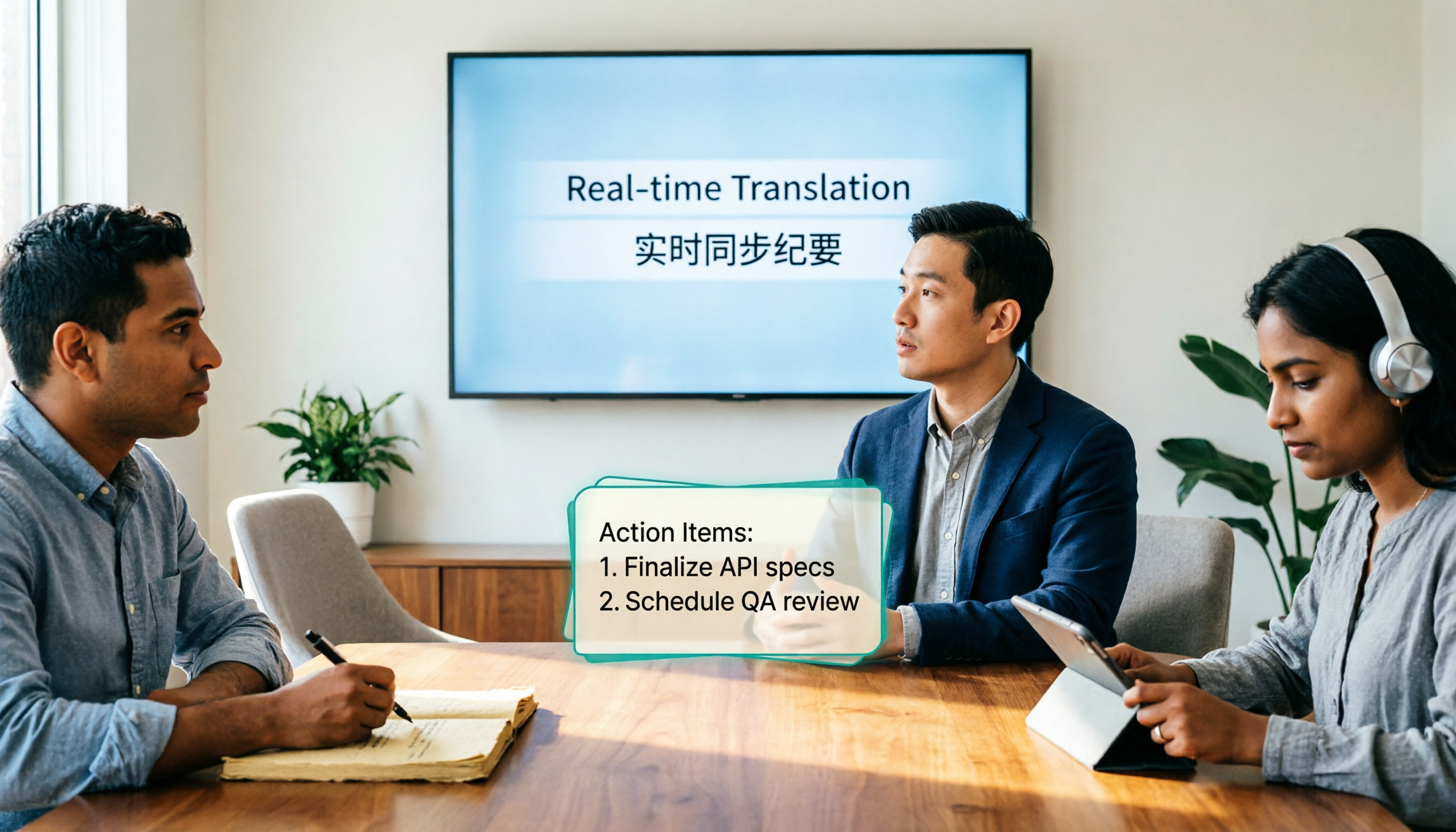
4 Real-Time Translation Tools Tested for 2026: Which One Leaves You With Usable Meeting Notes?
Real-time translation tools solve the problem of understanding in the moment, but the real cost comes after the meeting. This article compares Tinrec, Transync AI, Vurbo.ai, and Notta on real-time translation, bilingual transcripts, post-meeting AI Q&A, and team management, and provides 4 key purchasing criteria, 3 common pitfalls to avoid, and scenario-based recommendations to help you explain clearly why you chose a particular tool.

Best Real-Time Translation Tools in 2026: 4 Tested, Top Free Pick for Meetings
How to choose a free real-time translation tool? This article covers three needs: web reading, ad-hoc interpretation, and cross-language meetings. We tested Tinrec, Google Translate, Immersive Translate, and Transync AI, summarizing free quotas, limitations, and use cases, and explain how Tinrec turns meeting recordings into transcripts, summaries, action items, and team data.

Tinrec vs Notta 2026: Real-Time Translation AI 5-Dimension Comparison, Which Is Better for Chinese Meetings?
Real-time translation AI isn't just about the number of languages—it's also about meeting capture methods, bilingual subtitles, post-meeting organization, AI Q&A, and team data ownership. This article compares Tinrec and Notta across 5 dimensions and explains which Chinese meeting scenarios each suits.

4 Free Simultaneous Interpretation Tools Tested: Which Offers Enough Free Minutes and Post-Meeting Value?
How to choose a free simultaneous interpretation tool? This article reviews four free-trial real-time translation tools—Tinrec, JotMe, Transgull, and Felo Translate—comparing them across five aspects: free quota calculation, translation presentation, recording and transcript retention, post-meeting organization, and team collaboration. It also includes a pitfalls guide and buying advice to help you find the one that truly saves time.

2026 Comparison of 3 Meeting Transcription Tools: Tinrec Turns Transcripts into Action Items
Turning meeting recordings into transcripts isn't hard—the hard part is post-meeting organization. Starting from meeting transcription needs, this article compares Tinrec, Notta, Good Tape, and Yating Transcript, covering transcription, online meeting recording, summary and to-dos, AI Q&A, and team collaboration to help you find the right meeting notes tool.

2026 Online Simultaneous Interpretation Guide: Tinrec Real-Time Translation + Bilingual Transcripts as an Alternative to Traditional Translation Apps
Online simultaneous interpretation is not just about real-time translation—it also depends on whether post-meeting materials are usable. This article addresses common misconceptions and explains how Tinrec uses desktop bot-free recording, real-time transcription, and bilingual translation, combined with summaries, action items, AI Q&A, and team spaces, to turn cross-language meetings into searchable, collaborative records.

How to Use Real-Time Voice Translation in 2026: 5 Steps from Recording to Bilingual Transcript
In cross-language meetings, front-desk reception, and international calls, real-time voice translation needs to solve more than just "understanding in the moment"—it also needs to leave you with usable records afterward. This article breaks down real-time voice translation tools using 5 key selection criteria, compares Tinrec, Transync AI, Vurbo.ai, and JotMe in hands-on testing, and summarizes 4 common pitfalls to help you choose the one that truly works for you.

How to Generate Transcripts with Tinrec in 2026: Bot-Free Recording + AI Summaries and Action Items
Transcript generation isn't just about feeding an audio file into a tool. This guide tackles four common pitfalls and compares Tinrec with Yating Transcription across meeting capture, Chinese recognition, post-meeting organization, AI Q&A, export, and team governance to help you decide which workflow truly saves time.

2026 Comparison of 3 Transcription Tools: Which One Actually Turns Meeting Recordings into Usable Data?
The real difference between transcription tools isn't speed—it's whether the output is ready to use. Starting from the question 'Do you want text or results?', this article outlines 4 key buying criteria, compares Tinrec, Notta, Otter.ai, and Granola on meeting recording, transcript organization, AI Q&A, export, and team collaboration, and includes a pitfalls guide and scenario-based recommendations.