
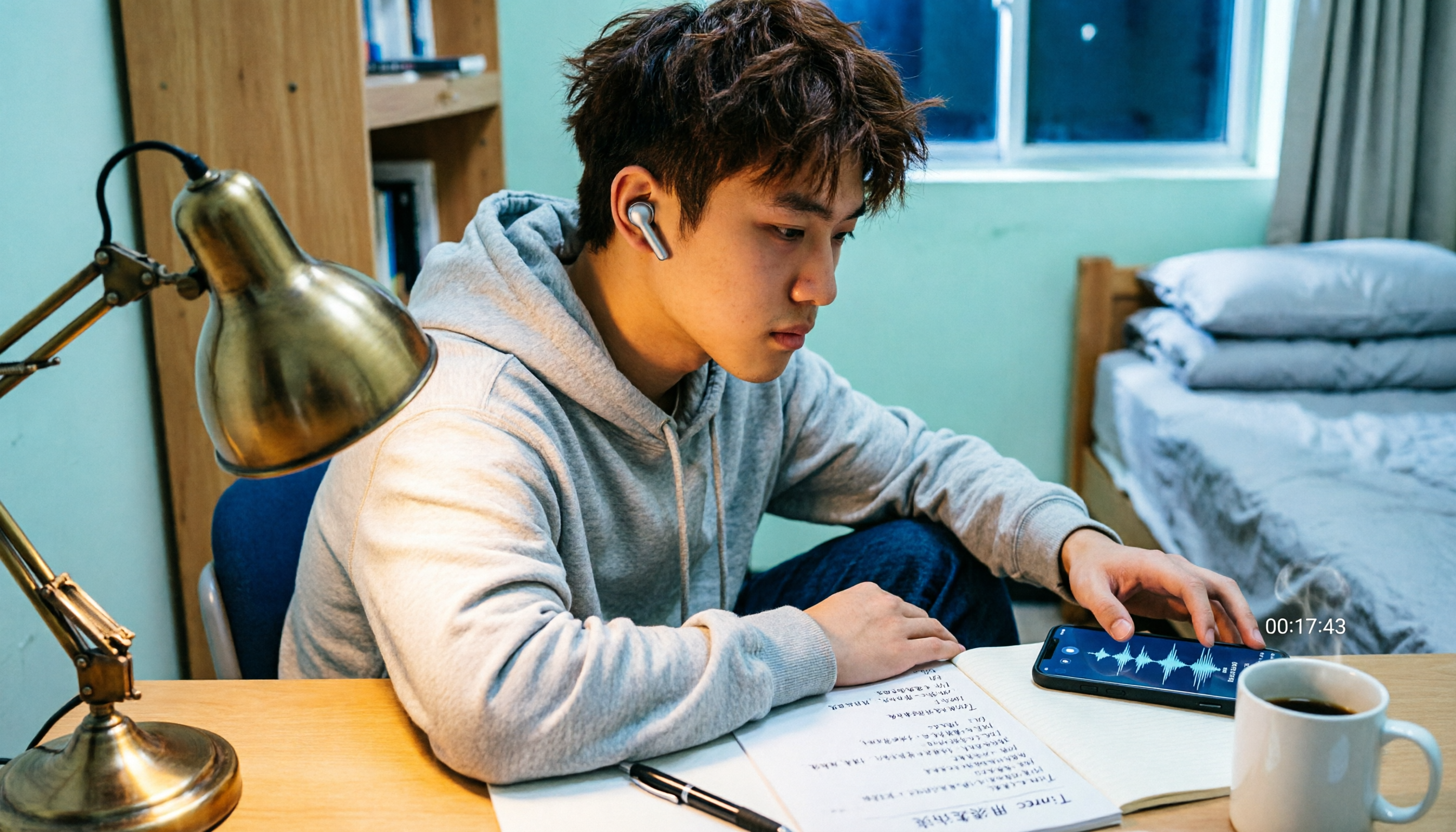
Turn recordings into transcripts and summaries in minutes
Upload audio or video for multilingual transcription, AI notes, and action items
How to Choose iPhone Call Recording: Understand Your Key Priorities First
Last semester, I needed to record several interviews for my graduation project. The interviewees called me on their iPhones, and I thought I could just hit the record button—but I quickly found out that iPhones don't have a direct call recording button. Later, I realized this issue comes down to three scenarios: whether your iOS version is new enough, whether you're okay with the other party hearing a notification tone, and whether you need just an audio file or a ready-to-use transcript. These three questions will determine whether you should go with built-in features, free apps, or third-party tools.
This article is a summary of what I've learned through trial and error, written from a student's perspective, with a particular focus on free limits and real-world usability.
iOS Built-in Call Recording: Free, but Know the Limitations First
If you've updated to iOS 18 or later, your iPhone actually has a built-in call recording feature. My personal workflow is: during a call, I open the "Voice Memos" app or the system's recording prompt, and when recording starts, the other party hears a notification that says "This call will be recorded." The recorded file is saved in Voice Memos, where you can replay it, but it won't automatically generate a transcript for you.
For students, this feature has two main benefits. First, it's free—no need to download any apps. Second, it has a low learning curve, making it suitable for situations where you need to keep a record on the fly. However, its limitations are clear: the other party will always know you're recording, and there's no transcription feature. If you're recording interviews, you'll have to go back and manually transcribe everything, which isn't time-efficient for students with busy schedules.
Free Third-Party Apps: My Experience with Call Recorder
I found an app called "Call Recorder™" on the App Store. It shows as free to download, but after using it, I realized the free version has limited capabilities—like restrictions on recording count and length—and you need a subscription to unlock full features. It typically works through three-way calling to record, so your carrier must support three-way calling, which you should verify before using it in the U.S.
My personal take is that this type of app works as a quick fix for someone who records calls occasionally. But if you're like me and have frequent interviews and discussions, you'll quickly hit limits on usage or features. Plus, it still produces just an audio file, so you'll still need to put in the effort to organize the key points.
Stop organizing recordings by hand
Upload audio or video and automatically get a transcript, summary, and action items
Another Approach: Record the Call First, Then Use AI for Transcription
I later discovered that what really helps students isn't just "whether you can record," but "how to quickly turn the recording into notes." Tools like Tinrec take a different route than pure recording apps. Instead of directly intervening in phone call recording, they let you upload the audio file or online meeting content you've recorded, and then automatically convert it into transcripts, summaries, and to-do items.
My own approach is: if the interviewee is okay with using speakerphone or an online meeting, I record the entire conversation on my computer or phone, then upload it to Tinrec for processing. After transcription, I not only get the full transcript, but I can also ask AI questions like "What are the key points of this interview?" or "What budget constraints did the interviewee mention?"—saving a ton of time on re-listening. For students who need to organize interview data or group discussion notes, this is much more practical than a simple recording app.
How to Combine Free Options for Maximum Savings
If you're on a tight budget like me, here's what I'd suggest:
- When you need a quick record and the other party doesn't mind the notification tone, use iOS built-in call recording—it's zero cost.
- For occasional call recording without spending money, try the free version of Call Recorder, but don't expect unlimited recording or automatic organization.
- If you need transcripts and key points right after recording, consider AI-powered tools like Tinrec. Start with the free version or a short-term plan, and decide whether to pay based on your actual usage.
Reminders for Student Use
Always respect the other party before recording. In the U.S., recording a call with one-party consent is generally legal, but if it's an interview or group discussion, it's better to let the other person know in advance to avoid any disputes later. Also, "free" apps often come with usage limits or feature restrictions, so read the subscription terms carefully before downloading—don't wait until you're mid-recording to find out you need to pay to unlock features.
Conclusion: Decide Whether You Need an Audio File or Notes
If you just need to keep a record of the call, iOS built-in recording or a free call recording app is enough. But if you're like me and need to turn the recording into a report, find key points, and track action items, relying solely on a recording app will be painful. Instead of spending time re-listening, let the right tools handle the recording, and then use AI to convert it into usable data. For students, the most cost-effective combo is: free recording features for "capturing," and AI-powered tools for "using."
References
- Call Recorder™ App - App Store
- How to Record iPhone Calls? 5 Methods Revealed!
- Free iPhone Call Recording Methods (2026) | iOS 26 Built-in Features + App Comparison
- Top 4 iPhone Call Recording Apps in 2026: Solve Call Recording and Transcription Challenges - Tinrec Blog
- Top 5 Free Mobile Recording Apps in 2023: Side Recording, Ringtones, and Voiceovers
Turn every recording into actionable outcomes
Get 60 free transcription minutes when you sign in. No credit card required.
Related Reading
You might also like
4 Real-Time Translation Tools Tested for 2026: Which One Leaves You With Usable Meeting Notes?
Real-time translation tools solve the problem of understanding in the moment, but the real cost comes after the meeting. This article compares Tinrec, Transync AI, Vurbo.ai, and Notta on real-time translation, bilingual transcripts, post-meeting AI Q&A, and team management, and provides 4 key purchasing criteria, 3 common pitfalls to avoid, and scenario-based recommendations to help you explain clearly why you chose a particular tool.

Best Real-Time Translation Tools in 2026: 4 Tested, Top Free Pick for Meetings
How to choose a free real-time translation tool? This article covers three needs: web reading, ad-hoc interpretation, and cross-language meetings. We tested Tinrec, Google Translate, Immersive Translate, and Transync AI, summarizing free quotas, limitations, and use cases, and explain how Tinrec turns meeting recordings into transcripts, summaries, action items, and team data.

Tinrec vs Notta 2026: Real-Time Translation AI 5-Dimension Comparison, Which Is Better for Chinese Meetings?
Real-time translation AI isn't just about the number of languages—it's also about meeting capture methods, bilingual subtitles, post-meeting organization, AI Q&A, and team data ownership. This article compares Tinrec and Notta across 5 dimensions and explains which Chinese meeting scenarios each suits.

4 Free Simultaneous Interpretation Tools Tested: Which Offers Enough Free Minutes and Post-Meeting Value?
How to choose a free simultaneous interpretation tool? This article reviews four free-trial real-time translation tools—Tinrec, JotMe, Transgull, and Felo Translate—comparing them across five aspects: free quota calculation, translation presentation, recording and transcript retention, post-meeting organization, and team collaboration. It also includes a pitfalls guide and buying advice to help you find the one that truly saves time.

2026 Comparison of 3 Meeting Transcription Tools: Tinrec Turns Transcripts into Action Items
Turning meeting recordings into transcripts isn't hard—the hard part is post-meeting organization. Starting from meeting transcription needs, this article compares Tinrec, Notta, Good Tape, and Yating Transcript, covering transcription, online meeting recording, summary and to-dos, AI Q&A, and team collaboration to help you find the right meeting notes tool.

2026 Online Simultaneous Interpretation Guide: Tinrec Real-Time Translation + Bilingual Transcripts as an Alternative to Traditional Translation Apps
Online simultaneous interpretation is not just about real-time translation—it also depends on whether post-meeting materials are usable. This article addresses common misconceptions and explains how Tinrec uses desktop bot-free recording, real-time transcription, and bilingual translation, combined with summaries, action items, AI Q&A, and team spaces, to turn cross-language meetings into searchable, collaborative records.

How to Use Real-Time Voice Translation in 2026: 5 Steps from Recording to Bilingual Transcript
In cross-language meetings, front-desk reception, and international calls, real-time voice translation needs to solve more than just "understanding in the moment"—it also needs to leave you with usable records afterward. This article breaks down real-time voice translation tools using 5 key selection criteria, compares Tinrec, Transync AI, Vurbo.ai, and JotMe in hands-on testing, and summarizes 4 common pitfalls to help you choose the one that truly works for you.

How to Generate Transcripts with Tinrec in 2026: Bot-Free Recording + AI Summaries and Action Items
Transcript generation isn't just about feeding an audio file into a tool. This guide tackles four common pitfalls and compares Tinrec with Yating Transcription across meeting capture, Chinese recognition, post-meeting organization, AI Q&A, export, and team governance to help you decide which workflow truly saves time.

2026 Comparison of 3 Transcription Tools: Which One Actually Turns Meeting Recordings into Usable Data?
The real difference between transcription tools isn't speed—it's whether the output is ready to use. Starting from the question 'Do you want text or results?', this article outlines 4 key buying criteria, compares Tinrec, Notta, Otter.ai, and Granola on meeting recording, transcript organization, AI Q&A, export, and team collaboration, and includes a pitfalls guide and scenario-based recommendations.