
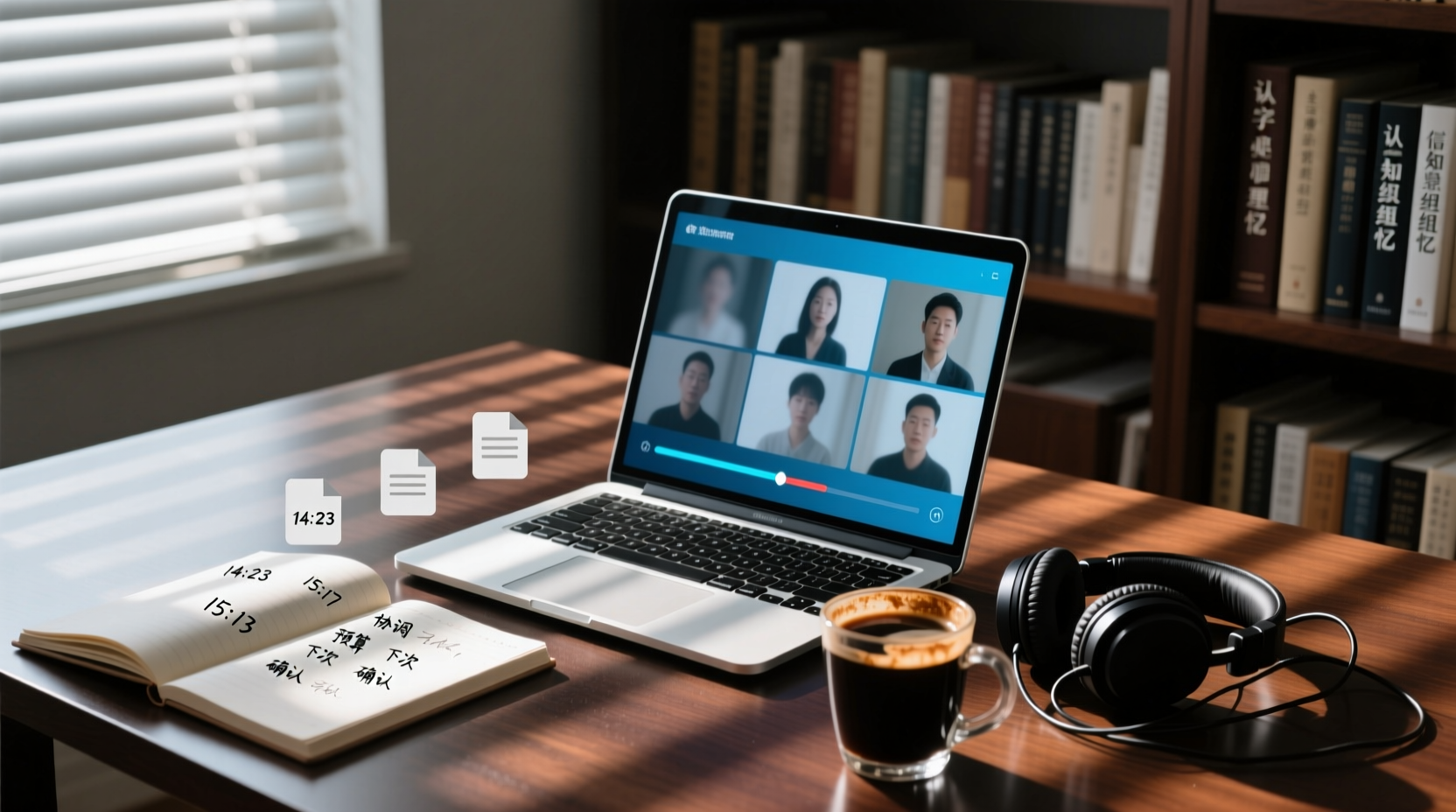
Turn recordings into transcripts and summaries in minutes
Upload audio or video for multilingual transcription, AI notes, and action items
What Google Meet's Built-In Recording Is: A One-Sentence Definition and the Problem It Solves
Google Meet's built-in recording is a feature during a Google Meet meeting that saves the meeting's video and audio as a video file, so people who couldn't attend can watch it later, or attendees can look back months later to confirm what actually happened.
According to Google Workspace's official documentation, the purpose of this feature is stated plainly: record the meeting, share it with people who couldn't attend, or recall the meeting content later. In other words, it solves the problem of "preserving the meeting process."
Here we need to separate two layers:
- The meeting process: who said what, what was shared on screen, what the discussion context was.
- The meeting conclusions: what was decided, who is responsible for what, when it's due.
Built-in recording handles the former. The latter doesn't happen automatically just because a video file exists.
Prerequisites for Recording: Plan, Admin Settings, and Participant Consent
If you're planning to hit record in your next Google Meet, confirm the following first, or the button may not even exist.
First, whether your account plan supports it. According to Google's official documentation, recording is a feature of specific Google Workspace editions, and free personal accounts typically can't use it. In other words, whether you can record depends on your plan type, not on whether you're signed into a Google account.
Second, whether your organization's admin has enabled it. According to Google Workspace admin documentation, IT admins can decide at the organizational level whether to allow meeting organizers and participants to record and download Meet meetings. If the admin has turned off this setting, you can't record even if your plan supports it.
Third, recording requires someone to start it manually. Recording doesn't happen automatically; a participant in the meeting needs to press record. It's not a background feature that starts recording the moment the meeting begins.
Fourth, participant consent. Organizations may require all participants to give explicit consent before enabling certain features. This isn't just a platform rule; it also involves local laws governing audio and video recording. In practice, announcing it verbally in the meeting and obtaining consent before recording is the safer approach.
There's also an easy-to-miss detail: according to Google's documentation, if you join a meeting only to present, you can't record. You must first join the video meeting, then start presenting, and only then can you record. Before starting a presentation directly from Google Docs, Sheets, or Slides, it's also advisable to join the meeting first and confirm whether the meeting is being recorded.
What Recording Leaves Behind: The Video File, Storage Location, and Sharing Methods
After you press record, what do you get?
The answer: a video file. According to Google's official documentation, once recording is complete, the file is saved to the meeting organizer's Google Drive.
This has a big impact on team collaboration:
- If you're not the meeting organizer, the video file isn't in your Drive.
- For others to view it, they have to wait for the organizer to share the file.
- If the organizer leaves the company, their account is deactivated, or they forget to share, access to that video file breaks down.
The video file itself can be downloaded and its link shared, which solves the need to "let people who missed it catch up." But it's a linear video, not a document you can search, annotate, or assign tasks from.
A Video File Is Not Meeting Minutes: Where the Real Post-Meeting Gap Is
This is the most important thing to clarify in this entire article.
A video file records "the meeting process," while meeting minutes capture "the meeting conclusions." Between the two lies work that someone must do:
| What the video file has | What meeting minutes need |
|---|---|
| Complete video and audio | Decisions and conclusions |
| Statements arranged by time | Summaries organized by topic |
| Requires playing from the start to find a segment | Searchable, skimmable text |
| No ownership assigned | Action items, owners, deadlines |
Stop organizing recordings by hand
Upload audio or video and automatically get a transcript, summary, and action items
A common scenario: after a 60-minute weekly meeting, you have a video file. What usually follows is re-listening, pulling out key points, writing minutes, assigning action items, and reporting up a level. This work often takes considerable time, effectively doubling the meeting time.
So the real gap isn't "whether it was recorded," but "who turns it into usable data after recording."
From Video File to Transcript: Turning Audio into Searchable Text
If you don't want to re-listen to an hour-long video from the start, the first step is turning audio into text.
In practice, you can upload the meeting video or audio file to a transcription tool to produce a transcript. Take Tinrec, for example: it supports audio and video file transcription, turning existing meetings, interviews, and historical recordings into text data.
A transcript solves the "searchability" problem:
- You can search for a keyword directly in the text and jump to the corresponding section.
- You can copy a statement and paste it into minutes or a reply message.
- You can verify whether a number or commitment was actually said that way.
One caveat: transcription quality is affected by audio quality, background noise, accents, overlapping speakers, and technical terminology. For important content, it's advisable to cross-check the transcript timestamps against the original recording playback, rather than treating the transcript as the final version.
From Transcript to Summary and Action Items: How Far an AI Assistant Can Take It
With a transcript in hand, the next step is turning it into usable meeting material. This usually includes:
1. Summary and chapters: breaking a long meeting into a browsable structure to quickly grasp the key discussion points.
2. Action item extraction: organizing action items from the discussion, rather than leaving them scattered in the conversation.
3. AI Q&A: continuing to ask questions about the meeting content, such as "What were the client's concerns about the budget?"
4. Post-meeting outputs: using an AI assistant to build on the meeting minutes and context to further process action items into action plans, follow-up materials, reports, tables, or documents.
Here we need to clarify the role boundaries of an AI assistant (Agent). Its focus isn't redoing the summary, but taking on the work after the meeting. For example, action items from a project meeting can be further organized into an action plan; commitments from a client meeting can be processed into follow-up materials; discussions from a management meeting can be organized into reports or tables.
However, important commitments, external communications, and key decisions should still be confirmed by a human before sending. AI can reduce manual organizing costs, but it shouldn't be treated as the final decision-maker.
If you run more than one meeting and need to report conclusions to your team, then "the video file is on someone's Drive" will eventually become a problem.
Part two: Post-meeting outputs can be followed up on by members. Once transcripts, summaries, and action items are placed in a team space, members can view, search, and reuse historical meeting data, instead of having to ask "What was the conclusion last time?" every time. Managers can use member and seat management to distinguish who can manage the team and who can record and edit. To be clear: roles determine governance permissions, while seats determine whether someone can record, upload, edit, and export; effective members without a seat can still view, play, and read team data.
(The above is a feature description, not a specific company case.)
Usage Boundaries and Pre-Handoff Checklist
Before incorporating Google Meet's built-in recording into your meeting workflow, it's advisable to check the following:
- Plan and admin settings: Does your account plan support recording? Has your organization's admin enabled it? This isn't something you can decide unilaterally.
- Participant consent: Have all participants been informed and consented before recording? Does it comply with local laws and company policy?
- File ownership: The video file is stored in the meeting organizer's Google Drive. Who is responsible for sharing it? If the organizer is unavailable, who is the backup?
- Follow-up processing: After recording, who is responsible for producing the transcript, summary, and action items? Where are these materials stored, and who can access them?
- Human confirmation: Have the contents involving commitments, external communications, and key decisions been confirmed by the responsible person?
- Accuracy expectations: Transcription and summarization are affected by audio conditions. For important information, it's advisable to cross-check against the original text and recording.
Once these points are clear, Google Meet's built-in recording isn't just "a video saved"—it becomes a starting point that connects to follow-up processing and team follow-through.
References
- Record Meeting for Google Meet™ - Google Workspace Marketplace
- Record a video meeting - Computer - Google Meet Help
- Record a video meeting - Android - Google Meet Help
- Turn Meet recording on or off for your organization | Google Workspace Help
- Record a video meeting - Computer - Google Workspace Individual Help
Turn every recording into actionable outcomes
Get 60 free transcription minutes when you sign in. No credit card required.
Related Reading
You might also like
4 Audio-to-Text Tools Tested: Which Is Fastest for Chinese Meeting Transcripts in 2026?
Transcribing audio isn't just typing—you need to decide whether you want a transcript or a time-coded subtitle file. We tested Tinrec, cSubtitle, TurboScribe, and Notta with real meeting recordings, comparing Chinese recognition, post-meeting summaries, AI Q&A, team collaboration, and pricing limits to help you choose the right workflow for meeting notes, interview organization, and video subtitles.

5 Free Auto Subtitle Solutions Compared in 2026: What Tinrec Adds Beyond CapCut and pyTranscriber
There are many free auto subtitle tools, but their quota calculations, output formats, and post-meeting organization capabilities vary widely. This article starts with 5 common free solutions, breaks down what gaps Tinrec fills in audio-to-text, summarization, AI Q&A, and team collaboration, and includes version selection advice.

2026 Free Subtitle Generator Comparison: Which Tool Saves More Time on Chinese Meeting Transcripts?
How do you choose a free subtitle generator? This article compares two practical options, Tinrec and Otter.ai, across free quotas, Chinese transcription, meeting recording methods, post-meeting outputs, and team governance to help you decide which is better suited for Chinese meetings and video content organization.

2026 Comparison of 3 Online Subtitle Generators: Which Saves More Time for Chinese Meetings and Videos?
There are many online subtitle generation tools, but the key is whether the output is usable. This article starts with common misconceptions and compares Tinrec, Subanana, VEED, and Clideo on Chinese recognition, long audio processing, and post-meeting organization. It also covers free quotas, export formats, and practical limitations of team collaboration to help you choose the right tool.
2026 Video-to-Text Tools Compared: Which One Makes Subtitles Easiest?
Video-to-text isn't just about generating a transcript—it's also about producing subtitle files with timecodes. This article compares Tinrec, Notta, TurboScribe, and Granola from four angles: output formats, Chinese punctuation, post-meeting organization, and free quotas. It outlines each tool's limitations, pricing, and ideal users to help you avoid the trap of having to redo everything manually after transcription.

2026 Auto Subtitle Generator Comparison: Which Tool Produces the Most Effortless Chinese Video Transcripts?
There are many auto subtitle generators, but do you need subtitles burned into the video or a searchable, summarizable, and queryable transcript? This article compares Tinrec, FlexClip, VEED, and CapCut based on real-world use cases, and provides buying criteria, common mistakes, and scenario recommendations to help you choose the right tool.

4 Auto Subtitle Generators Tested: Which Handles Chinese Transcription with the Least Editing?
Auto subtitles aren't a one-click finish. This article tackles the common pain point of still having to edit every line after auto-captioning. It covers 4 key factors to consider when choosing an auto subtitle generator, compares Tinrec, VEED, FlexClip, and Clideo on Chinese transcription, post-meeting organization, and team collaboration, and outlines common buying mistakes and scenario-based recommendations to help you decide which tool fits your video and meeting workflow.

2026 Free Simultaneous Interpretation Software Options: 2 Tools Compared
Starting from a real-world experience of missing a delivery deadline in a Japanese meeting, this article compares two simultaneous interpretation tools—Tinrec and Notta—from the perspective of a mid-level manager, covering five dimensions: Chinese recognition, meeting capture methods, post-meeting output, team governance, and free plan limits, along with each tool's unique strengths and ideal use cases.

2026 Subtitle Generation Tools Compared: Which Transcripts Are Actually Usable?
How to choose a subtitle generation tool? We tested Tinrec, Notta, TurboScribe, and Otter.ai with the same mixed Chinese-English meeting recording, breaking down transcription quality, post-meeting output, export workflow, and team management—plus 3 common pitfalls to help you pick a tool that delivers usable results.