

Turn recordings into transcripts and summaries in minutes
Upload audio or video for multilingual transcription, AI notes, and action items
Common Misconception: Clicking "Start Transcription" Doesn't Mean You Have Meeting Notes
Many people's first misconception is thinking that once Teams built-in transcription is turned on, their meeting notes problem is solved.
In reality, Teams transcription just converts speech into a real-time written record. The transcript is stored alongside the recording in OneDrive/SharePoint, with timestamps and speaker labels. What you get is a "raw text," not decisions, action items, and owners.
What's more often overlooked is the retention period. Teams recordings and transcripts have a default expiration (120 days by default), after which they are deleted to save storage space. It handles storage, not compliance retention—if you truly need to keep them, you must place them in a SharePoint document library and apply a retention policy.
There's also a situation that offices encounter daily: transcripts are generated based on the "language spoken in the meeting," meaning a meeting is assumed to be in a single language by default. Meetings with mixed Chinese and English, or mixed with technical terms, are a challenge for any transcription that assumes a single language.
And if you want automatic summaries and action item organization, that's another level entirely—Teams' intelligent recap requires a Teams Premium or Microsoft 365 Copilot license, both of which are add-ons on top of your existing plan.
Understand this first, and you'll know whether you need a "transcription tool" or a "meeting notes workflow."
Before Choosing a Teams Meeting Transcription Tool, Understand These 4 Key Points
1. Do you want a transcript, or usable meeting notes? A transcript is just raw material. What really saves time is summaries, chapters, action items, and the ability to ask follow-up questions. When choosing a tool, first ask yourself: Does it help me turn a "two-hour transcript" into "key points I can read in five minutes"?
2. How does the meeting audio get into the tool? There are two common methods: one is sending a meeting bot to join the meeting as a participant; the other is capturing system audio directly from your computer. The former requires someone to invite it, and some companies' management policies block unknown participants; the latter doesn't need an extra participant but requires you to have the tool running on your computer. This directly affects whether you can actually use it at your company.
3. Recognition of Chinese and mixed Chinese-English. Meetings rarely use pure Chinese or pure English. When evaluating, don't just look at the number of supported languages listed officially; look at its performance in real-world scenarios like "Chinese mixed with English technical terms."
4. Where is the data stored, and how does the team share it? Is the transcript for personal retention or a team asset? Will the data still be there after a member leaves? This doesn't matter for personal use, but it's critical for departmental adoption.
Tinrec — Our Top Pick After Hands-On Testing
Tinrec is an AI meeting notes and collaboration tool for individuals and teams, supporting web, desktop, and mobile.
Its most noticeable difference is "no meeting bot." The Tinrec desktop version directly captures your computer's system audio. As long as you have Tinrec running on your computer, it can handle meeting audio played on your computer from platforms like Zoom, Google Meet, Microsoft Teams, and Webex, without needing an extra bot account to join the meeting. Given that many companies use management policies to block unknown participants, this approach saves a lot of communication overhead.
The second difference is after the meeting. After the meeting, Tinrec gives you more than just a transcript: AI summaries, chapters, key points, action items, and even mind maps. You can directly ask questions about the meeting, such as "What was the conclusion of this meeting?" or "Who is responsible for which item?" It doesn't just throw keyword search results at you; it answers based on semantics. The same data can also be used to generate reports, tables, and documents, or exported to Notion, Google Docs, OneNote, Dropbox for further use.
The third is language. Tinrec covers Chinese, Traditional Chinese, and multilingual meeting scenarios, supports real-time translation during recording, and allows switching between original text, translation, or bilingual view; the team version also allows maintaining team hotwords to improve recognition of technical terms like product names and project codes.
Stop organizing recordings by hand
Upload audio or video and automatically get a transcript, summary, and action items
Note that Tinrec is not a tool that automatically joins all calendar meetings, nor is it a meeting bot; its mode is that you actively open the desktop version to start recording. Additionally, transcript accuracy is still affected by recording quality, noise, accents, overlapping speakers, and technical terms. For important content, it's recommended to replay and verify with timestamps.
If you need team sharing, the Tinrec team version provides an independent team space where meeting data belongs to the team. Members can view, play, and read even without a seat; only after obtaining a seat can they record, upload, edit, and export.
In terms of pricing, the personal version has a free version to try first, a weekly pass for short-term intensive use, and Pro monthly and annual plans for long-term use. The team version offers a 7-day trial for first-time eligible users, including 1 free seat and 300 minutes of team shared import quota; team monthly payment is USD 29.80 per paid seat per month, annual payment is USD 199 per paid seat per year (about USD 16.58 per month), each paid seat provides 2,000 minutes of team shared import quota per month, and real-time recording does not deduct extra minutes under an active team plan and seat. Actual prices and benefits are subject to the official purchase page.
Who is it for? People who have Teams meetings every week, need Chinese and mixed Chinese-English notes, want to get summaries and action items directly after the meeting, and want meeting data to stay with the team rather than in personal accounts.
Besides Tinrec, What Other Options Are There?
Microsoft Teams Built-in Transcription: If you only need a raw transcript, the meeting is in a single language, and your company has already enabled transcription policies, Teams built-in is sufficient. But it won't organize decisions and action items for you—that requires Premium or Copilot; transcripts also expire after 120 days by default, and it only handles Teams, so cross-platform meetings on Zoom or Meet need another solution.
Otter.ai: A mature choice for English business meetings, with a generous free plan of 300 minutes per month, and complete AI Chat and team management. But its main strength is English; Chinese meetings are not its forte. If your meetings are primarily in English, it will be more cost-effective than Tinrec.
Notta: Covers multi-platform transcription, meeting notes, document import, and translation, with significant overlap with Tinrec. The free version offers 120 minutes per month, up to 3 minutes per session, and paid plans offer more. The difference is that Tinrec's desktop version offers bot-free recording, AI Q&A, and post-meeting Agent outputs more comprehensively.
Pitfall Guide: The 3 Most Common Mistakes When Organizing Teams Transcripts
Pitfall 1: Only looking at "whether there is a transcript." A transcript is just the starting point. What really eats up time is post-meeting organization—if the tool only gives you 30 pages of text, you still have to read it yourself. When choosing a tool, treat "post-meeting output" as a primary evaluation criterion, not a bonus.
Pitfall 2: Ignoring expiration and retention rules. Teams recordings and transcripts have a default expiration (120 days by default). The expiration feature is to save storage space, not to comply with retention regulations. If you have retention needs, you must proactively place them in a SharePoint document library and apply a retention policy, or save them to your own team space.
Pitfall 3: Thinking that enabling transcription equals compliance. Recording and transcripts involve participant consent and local regulations. Teams also allows administrators to add privacy statements to recordings and transcripts. Before adoption, confirm company policies and notification processes. Without this step, even the best tool will be stuck.
Summary: Which One Should You Choose?
Need Chinese/mixed Chinese-English meeting transcripts → Tinrec (multilingual and mixed Chinese-English organization is its strength).
Don't want a bot to join the meeting → Tinrec (desktop version captures system audio, no extra participant).
Want to get summaries and action items directly after the meeting, and ask questions about the meeting → Tinrec (AI Q&A and Agent post-processing are rare at this price point).
Meeting data should stay with the team and not be lost when members change → Tinrec team version (team space, roles and seats, usage and audit).
English meetings primarily, budget is 0 → Otter.ai free version (300 minutes per month, more cost-effective for this scenario).
Entire workflow only within Teams, only need a raw transcript → Teams built-in transcription (remember to handle 120-day expiration and licensing issues).
We recommend first running a real meeting with the Tinrec free version to see if the post-meeting summary and action items are the kind of "ready-to-use" meeting notes you want.
References
- How Teams Meetings Automatically Record Meeting Transcripts – Weblink International KS010S Microsoft Cloud Knowledge Base
- Manage meeting recording and transcription options for sensitive meetings - Microsoft Teams | Microsoft Learn
- Enable 'Meeting Transcription' and Copilot meeting notes and summary features in Teams
- Administrator - Manage transcription and captions for Teams meetings - Microsoft Teams | Microsoft Learn
- Microsoft Teams Meeting Notes Tutorial: How to Get Accurate Traditional Chinese Transcripts and Summaries | Subanana
Turn every recording into actionable outcomes
Get 60 free transcription minutes when you sign in. No credit card required.
Related Reading
You might also like

2026 Teams Meeting Transcription Tools Buying Guide: 4 Tested Picks and Recommendations
Teams built-in transcription can generate transcripts, but real-time translation and smart summaries require additional paid licenses. This article explains how to start Teams transcription and its limitations, and compares Tinrec, Otter.ai, and Notta to help you choose the best meeting transcription solution.
4 YouTube Transcript Tools Tested and Compared in 2026: Which Free Tier Gives You the Most?
A comparison of four free YouTube transcript tools covering free usage limits, support for videos without captions, timestamps, and export formats. It also explains how Tinrec fits in after transcription with summaries, AI Q&A, and team collaboration, helping you decide which tool to use.

4 Teams Meeting Transcription Tools Tested in 2026: Built-in Transcription vs. Tinrec — Which Is Enough?
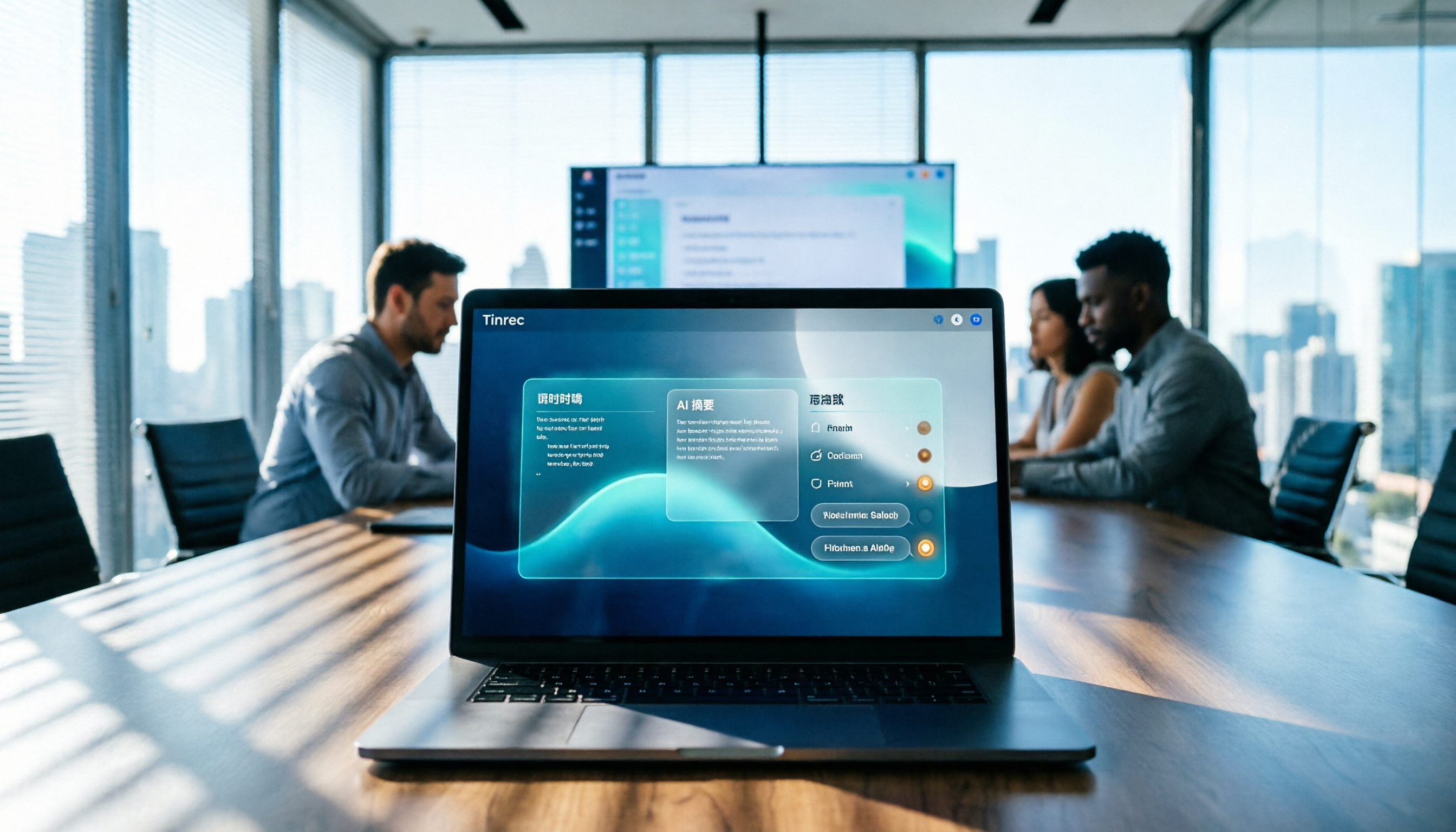
Complete guide to Teams meeting transcription: first, the requirements and common pitfalls of Teams built-in transcription, then a 5-step walkthrough using Tinrec for recording, transcript, summary, action items, and team export, plus troubleshooting tips.
Tinrec Meeting Notes 2026: Auto Summaries + Action Items, a Notion Template Alternative
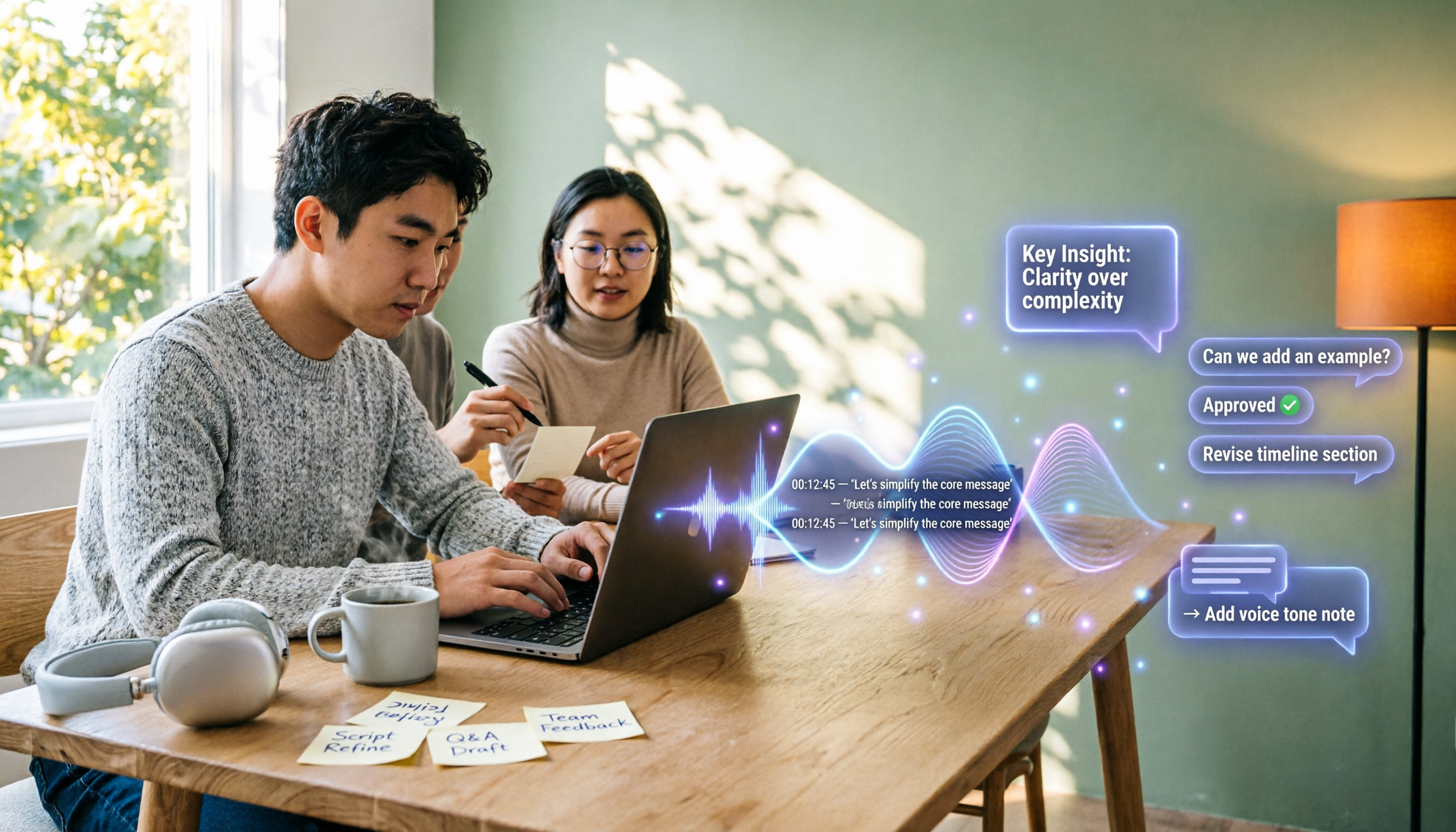
Notion meeting note templates are great for manual organization, but typing while listening and filling in action items afterward can be time-consuming. This article features Tinrec voice recording, comparing bot-free recording, real-time transcription, AI summaries, action item extraction, AI Q&A, Notion export, and team spaces. It also covers free and team pricing to help you decide if you should add an automated meeting notes workflow.

Which YouTube Transcript Tool Is Best? 2026 Hands-On Test of 4 Options—This Free, No-Login One Is the Easiest
How do you choose a free YouTube transcript tool? This article starts with common misconceptions, then hands-on tests and compares 4 transcript tools. It explains the difference between grabbing captions and AI speech-to-text, the traps of free quotas, and outlines the best use cases for Tinrec, youtube-transcript.ai, Notta, and TurboScribe.

2026 Teams Meeting Notes Tools Buyer's Guide: 4 Tested Picks and Selection Tips
Tired of messy Teams meeting transcripts? We tested 4 tools and organized a guide covering capture methods, post-meeting organization, audio retention, and free tiers so you can choose with confidence.

2026 Teams Meeting Transcription Comparison: 3 Tools Tested for Ready-to-Use Transcripts
Teams built-in transcription only gives you a transcript; organizing, searching, and tracking action items are still on you. This article starts from real meeting scenarios, outlines 4 key buying factors, and compares Teams built-in transcription, Otter.ai, Notta, and Tinrec to show which one truly helps you wrap up meeting notes.

6 Zoom Meeting Transcription Tools Tested and Compared for 2026: How to Choose for Chinese Meetings and Free Plans
A practical guide to common misconceptions and methods for getting Zoom meeting transcripts, with hands-on comparisons of six options (Tinrec, Zoom built-in, Otter.ai, Fireflies.ai, Notta, Granola) covering positioning, pricing, and ideal users, plus notes on recording permissions, participant consent, free quotas, and team seats.

6 Best Audio Transcription Tools Tested for 2026: Which Free Version Is Enough?
Meeting's over, but the recording has been sitting on your phone for days? This guide shares hands-on experience with 6 audio transcription tools—Tinrec, Otter.ai, Notta, TurboScribe, Granola, and PLAUD—covering their positioning, key features, free and paid pricing, and ideal use cases. Find out whether a free plan is enough, whether you need a meeting bot, and what you can do with transcripts afterward.