

Turn recordings into transcripts and summaries in minutes
Upload audio or video for multilingual transcription, AI notes, and action items
4 YouTube Transcript Tools Tested and Compared in 2026: Which Free Tier Gives You the Most?
When looking for a free YouTube transcript tool, most people's first question is "which one doesn't cost money?"
But the real sticking point is usually the second question: once you have that long block of text, what are you going to do with it?
What You Need Isn't a Transcript—It's Data You Can Actually Use
A two-hour interview video turns into over ten thousand words of raw text. No sections, no highlights. If you want to find "the part where the speaker mentions pricing," you still have to scan from the beginning yourself.
The same goes for online courses. You have the transcript, but to turn it into notes or pull out key assignment points, you still have to spend another round of time.
If your need stops at "just having text," then free tools are indeed enough. But as soon as you want to save time on the organizing that comes after, the gap between tools becomes immediately obvious.
Before Choosing a Tool, Understand These 4 Key Points
How free usage is calculated. Some say "free" but limit the length of a single video, while others limit the number of videos per day. When looking at plans, don't just look at the price column—look at the limits column.
Whether videos without captions can be transcribed. Some tools pull existing YouTube captions, so if a video has no captions, they're stuck. Others use AI to recognize audio directly. The latter has a much wider range of use.
Whether there are timestamps. If a transcript has no timestamps, you can't go back to check the original video. Being able to click a timestamp to jump and search by keyword makes a huge difference in organizing long videos.
Processing after transcription. This is the biggest differentiator. Pure transcription tools give you text; some tools also summarize, organize chapters, and even let you ask questions directly about the content.
Tinrec—Turning Transcripts into Data You Can Keep Using
Tinrec is an AI meeting notes and collaboration tool for individuals and teams. It supports iOS, Android, and web, and the desktop version can directly capture computer system audio.
It normally handles online and offline meetings, but it can also import audio and video files to convert to text. I gave it the longest section because it does an entire extra step.
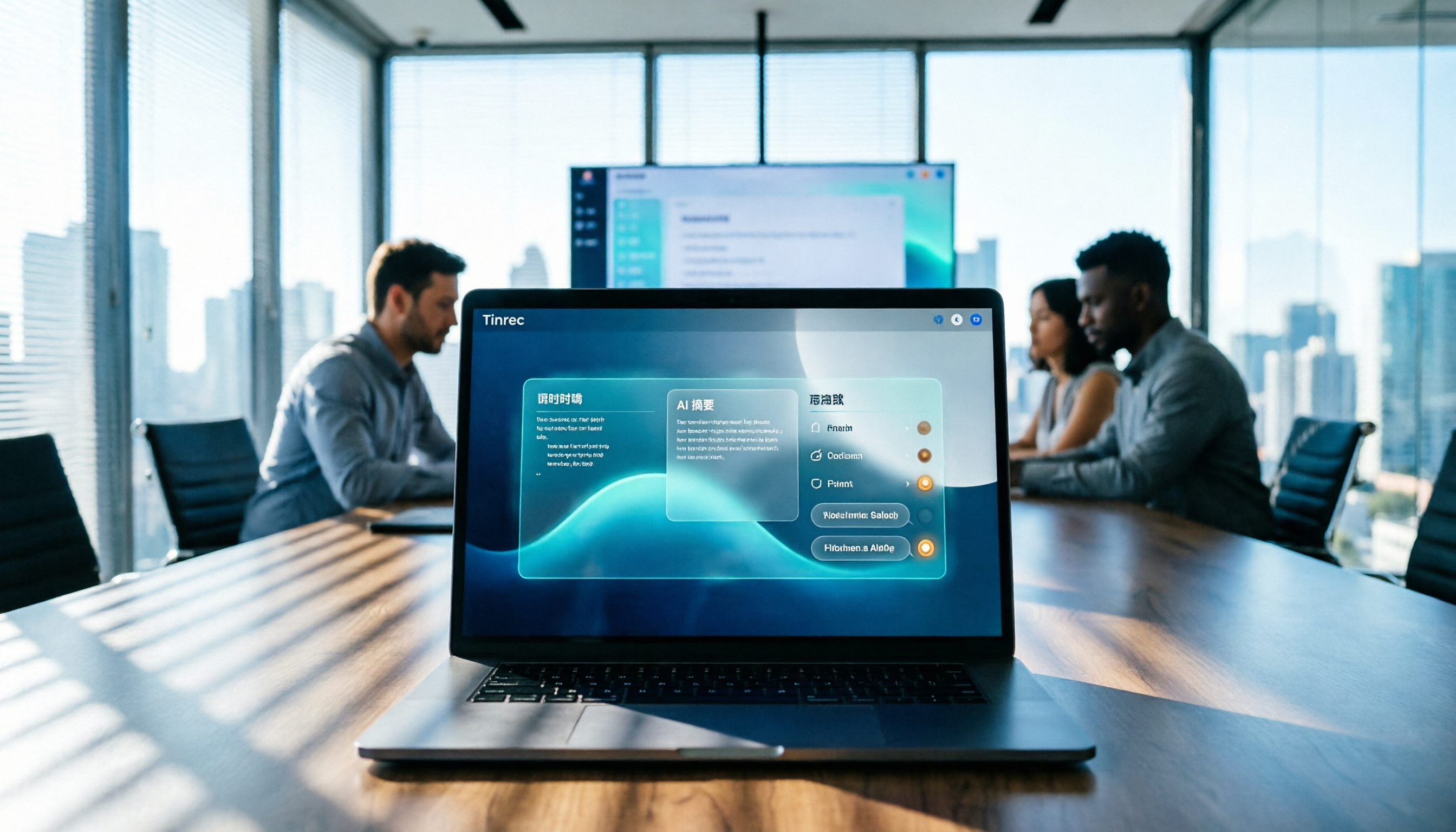
After importing a file, besides the transcript, it automatically organizes a summary, chapters, and key points. You don't have to read through ten thousand words from the start—just look at the chapters to grasp the structure.
Even better is the AI Q&A. You can directly ask it "what did the speaker say about pricing" or "which tools were mentioned in this video." It answers based on semantics, not by throwing a list of keyword search results. Most free transcript tools currently don't have this layer.
Output is covered too. Transcripts can be exported in common formats and brought into Notion, Google Docs, OneNote, or Dropbox for continued use. For foreign-language content, you can view the original, translation, or bilingual side-by-side during the process.
Stop organizing recordings by hand
Upload audio or video and automatically get a transcript, summary, and action items
Limitations need to be clear: Tinrec's main focus is meeting notes and team collaboration, not a dedicated YouTube downloader. Handling some public video links is a supplementary capability. The free version provides a basic quota; heavy usage requires payment, and prices are subject to the official purchase page. Transcription performance is affected by recording quality, accent, background noise, and technical terminology, and should not be promised as a fixed accuracy rate.
If what you want isn't just text, but data that can be summarized, questioned, exported, and stored long-term, it's the smoothest workflow I've found so far. For team use, there are also team spaces, role and seat management, usage analytics, audit logs, and an audio recycle bin.
Besides Tinrec, What Other Free Options Are There?
WayinVideo. Paste a YouTube link, click generate, and you have a transcript in seconds. You can copy or download as TXT, SRT, VTT, or DOC. Videos without captions can also be transcribed. It's free and doesn't require login, and supports keyword search and timestamp jumping. If you just want a clean transcript, it's more than enough; but it stops at the transcript, with no summaries, to-dos, or team spaces—exactly the extra step Tinrec does.
GitMind. The free version can produce captions for one video under 30 minutes per day, and each device gets one free transcription of a video without captions. It supports multilingual caption translation and is very practical for class notes. Keep in mind the free quota is counted by "number of videos," so heavy usage requires an upgrade; it also lacks Tinrec's AI Q&A and team database.
youtube-transcript.ai. Paste a link to get a transcript, no registration required, very fast, and you can copy the text into ChatGPT or Claude for translation. Suitable for occasional users. The difference is that organizing, questioning, and exporting require connecting other tools yourself, whereas Tinrec does it all in one workflow.
Pitfall Guide: The 3 Most Common Traps with Free Transcripts
Pitfall 1: Only looking at the word "free." Many tools are free but limit single video length or daily count. You only find out they don't work when you actually need to process a two-hour interview. Read the limits column first.
Pitfall 2: Treating the transcript as the end point. Getting the text is just the starting point. If the summarizing, key points, and notes all have to be done yourself, you haven't saved much overall time.
Pitfall 3: Ignoring format and timestamps. Without timestamps, you can't go back to check. Without export formats, it's hard to reuse. These two specs matter far more than whether the interface looks nice.
Pitfall 4: Ignoring licensing and privacy. Before uploading someone else's video or meeting recording, pay attention to local regulations and participant consent. Don't throw content that shouldn't be leaked into an uncertain service.
Conclusion: Which One Should You Choose?
- Occasionally need text from a video → Instant transcription tools like WayinVideo and youtube-transcript.ai are enough.
- Video needs to become notes, summaries, and data you can question → Tinrec. Transcript, chapters, summary, and AI Q&A are completed in one workflow.
- Course and interview content needs long-term accumulation and team sharing → Tinrec team version. Data belongs to the team, and member changes won't take the whole package away.
- Transcript needs to go into Notion or Google Docs for further processing → Tinrec's multi-format export.
I suggest trying Tinrec's free version first. Take the video you process most often and throw it in to feel how much difference a transcript plus summary and Q&A makes. If it works for you, then consider paying. There's no need to spend money from the start.
References
- YouTube Transcript Generator | Free One-Click Text Conversion, No Login Required - WayinVideo
- YouTube Transcript Download Tool — Free AI Video to Text | youtube-transcript.ai
- YouTube Transcript Generator: Free YouTube Video to Text Converter Online - EaseMate AI
- Free YouTube Transcription Generator - Fast, Accurate, Works Without Captions
- Free Online YouTube Caption Download Tool | GitMind
Turn every recording into actionable outcomes
Get 60 free transcription minutes when you sign in. No credit card required.
Related Reading
You might also like

2026 Teams Meeting Transcription Tools Buying Guide: 4 Tested Picks and Recommendations
Teams built-in transcription can generate transcripts, but real-time translation and smart summaries require additional paid licenses. This article explains how to start Teams transcription and its limitations, and compares Tinrec, Otter.ai, and Notta to help you choose the best meeting transcription solution.

4 Teams Meeting Transcription Tools Tested in 2026: Built-in Transcription vs. Tinrec — Which Is Enough?
Complete guide to Teams meeting transcription: first, the requirements and common pitfalls of Teams built-in transcription, then a 5-step walkthrough using Tinrec for recording, transcript, summary, action items, and team export, plus troubleshooting tips.
Tinrec Meeting Notes 2026: Auto Summaries + Action Items, a Notion Template Alternative
Notion meeting note templates are great for manual organization, but typing while listening and filling in action items afterward can be time-consuming. This article features Tinrec voice recording, comparing bot-free recording, real-time transcription, AI summaries, action item extraction, AI Q&A, Notion export, and team spaces. It also covers free and team pricing to help you decide if you should add an automated meeting notes workflow.

Which YouTube Transcript Tool Is Best? 2026 Hands-On Test of 4 Options—This Free, No-Login One Is the Easiest
How do you choose a free YouTube transcript tool? This article starts with common misconceptions, then hands-on tests and compares 4 transcript tools. It explains the difference between grabbing captions and AI speech-to-text, the traps of free quotas, and outlines the best use cases for Tinrec, youtube-transcript.ai, Notta, and TurboScribe.

2026 Teams Meeting Notes Tools Buyer's Guide: 4 Tested Picks and Selection Tips
Tired of messy Teams meeting transcripts? We tested 4 tools and organized a guide covering capture methods, post-meeting organization, audio retention, and free tiers so you can choose with confidence.

2026 Teams Meeting Transcription Comparison: 3 Tools Tested for Ready-to-Use Transcripts
Teams built-in transcription only gives you a transcript; organizing, searching, and tracking action items are still on you. This article starts from real meeting scenarios, outlines 4 key buying factors, and compares Teams built-in transcription, Otter.ai, Notta, and Tinrec to show which one truly helps you wrap up meeting notes.

6 Zoom Meeting Transcription Tools Tested and Compared for 2026: How to Choose for Chinese Meetings and Free Plans
A practical guide to common misconceptions and methods for getting Zoom meeting transcripts, with hands-on comparisons of six options (Tinrec, Zoom built-in, Otter.ai, Fireflies.ai, Notta, Granola) covering positioning, pricing, and ideal users, plus notes on recording permissions, participant consent, free quotas, and team seats.

2026 Teams Meeting Transcription: Auto Transcribe + AI Summary Guide
Teams built-in transcription only gives you a raw transcript, summaries require an add-on license, and transcripts expire after 120 days by default. This article addresses common misconceptions, breaks down 4 key factors for choosing a Teams meeting transcription tool, shares hands-on experience with Tinrec, and covers alternatives and pitfalls to help you build a truly workable meeting notes workflow.

6 Best Audio Transcription Tools Tested for 2026: Which Free Version Is Enough?
Meeting's over, but the recording has been sitting on your phone for days? This guide shares hands-on experience with 6 audio transcription tools—Tinrec, Otter.ai, Notta, TurboScribe, Granola, and PLAUD—covering their positioning, key features, free and paid pricing, and ideal use cases. Find out whether a free plan is enough, whether you need a meeting bot, and what you can do with transcripts afterward.