
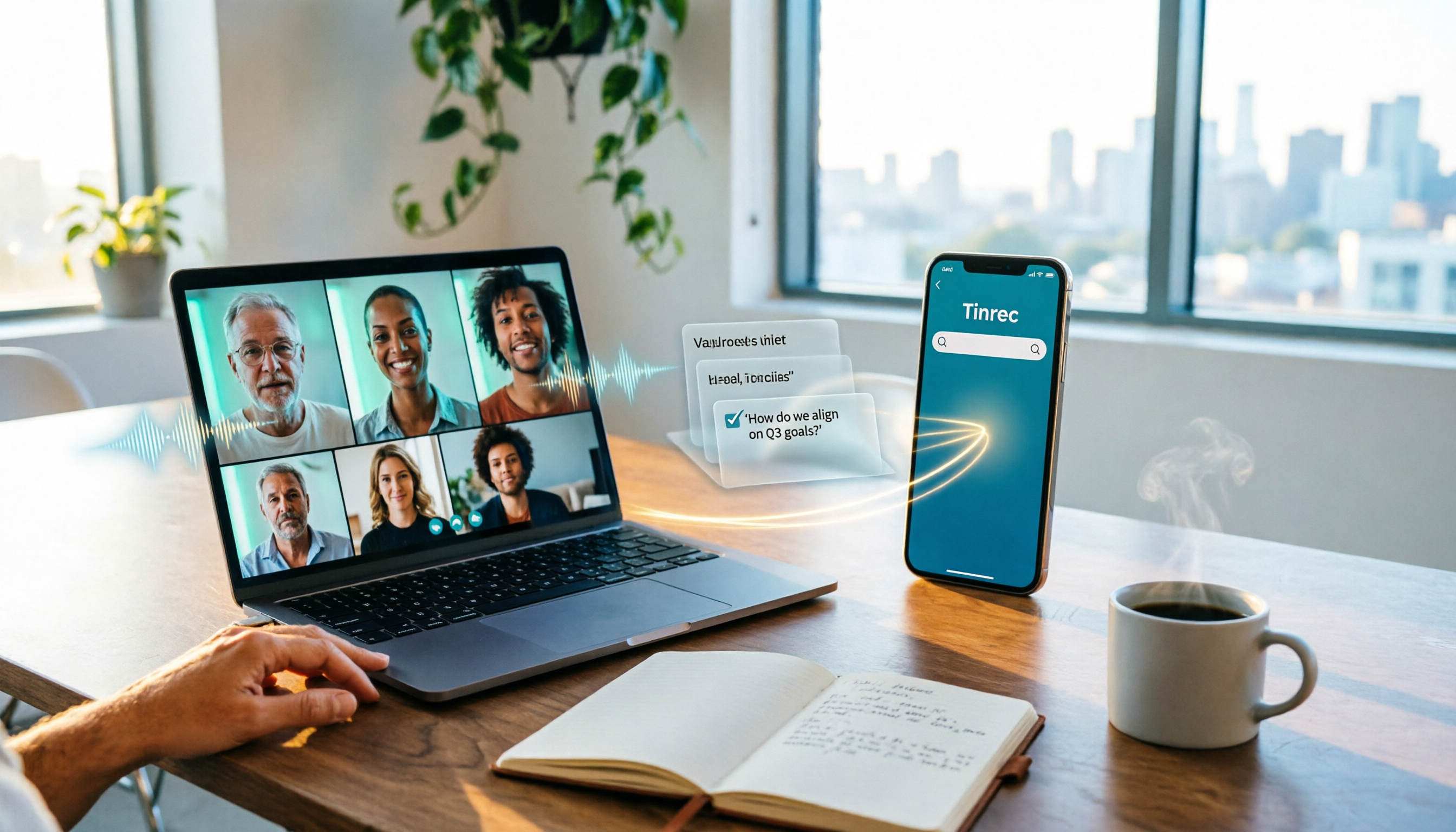
Turn recordings into transcripts and summaries in minutes
Upload audio or video for multilingual transcription, AI notes, and action items
Presentation has video, but the audience can't hear anything—this long-standing problem is finally solved
When presenting in Google Meet, you may have encountered this: a video in your presentation plays smoothly and the screen is shared, but attendees only see a silent movie; or you play an audio file on your computer, but the other person says "I can't hear anything."
In the past, there was only one workaround: put the content in a Chrome tab and share that tab's audio. If the audio came from a desktop player, another browser, or a voice message in a messaging app, it simply couldn't be shared. That's why many people, midway through a presentation, had to ask everyone to "just look at the screen."
Now Google Meet has opened up the ability to share device audio, so you can send the sound from your entire computer along with your presentation. Below, we explain the steps to enable it, system requirements, and limitations.
What changed in this update? How it differs from the old method
In a nutshell: before, you could only share the audio of that Chrome tab; now, you can share audio from the entire device.
- Old method: When sharing a Chrome tab, that tab's audio was shared by default; if you shared a window or the entire screen, attendees heard no sound.
- New method: When you choose to share "A window" or "Your entire screen," an additional audio toggle appears. Turn it on, and all sound playing on your device is transmitted to attendees.
Google's official explanation says this provides a more immersive experience for attendees while reducing echo and keeping presentations clear and professional. Other reports note that this update also brings high-quality stereo support: when the audio source is stereo, it will automatically be sent in stereo, but currently it can only be received on the web version (Chrome or Firefox).
How to enable it? 3 steps
- In a meeting, click "Present" at the bottom.
- Choose "A window" or "Your entire screen." When sharing a Chrome tab, you'll still see the existing "Also share tab audio"; when sharing a window or your entire screen, the new "Also share system audio" toggle appears.
- Turn on that toggle, then click "Share."
Note: This option is not the default; you must turn it on again for every presentation.
Before you use it: system requirements and 6 limitations
- OS requirements: According to Google's official documentation, you need macOS 14.2 or later, or Windows 11 or later. Some reports also mention Chrome 142 or later, but please refer to official documentation and your domain's rollout status.
- Rollout timeline: Rapid Release domains have been gradually rolling out; Scheduled Release domains will begin on January 13, 2026, and gradually become available within about 1 to 3 days.
- Must be manually enabled each time: The feature is off by default and is a per-presentation setting.
- Echo handling: Google recommends setting Meet's audio output to your system's default output device to avoid audio looping back and causing echo.
- Adaptive sound exception: If your audio is merged with other devices via adaptive sound, you cannot share full system audio and must use Chrome tab audio instead.
- Simultaneous presentation limit: A meeting can have up to 10 simultaneous presentations.
Stop organizing recordings by hand
Upload audio or video and automatically get a transcript, summary, and action items
After the presentation: how to preserve meeting content
Google Meet solves the "can hear" problem, but after the presentation and meeting end, "how to preserve the content and find it later" is another matter. Transcripts scattered everywhere and action items only in someone's head are often the real cost for teams.
Tinrec is an AI meeting notes and collaboration tool for individuals and teams, available on iOS, Android, and web. The desktop version can directly capture computer system audio, processing meeting audio played on Google Meet, Zoom, Microsoft Teams, and Webex without needing to invite an extra meeting bot.
In practice, it does more than just convert audio to text:
- Real-time transcription: Transcribes as the meeting happens.
- Post-meeting organization: Automatically generates summaries, chapters, key points, and action item lists.
- AI Q&A: After recording, you can directly ask "Who mentioned the budget in the last meeting?" without manually scrolling through a 30-minute transcript.
- Multilingual and translation: Supports Chinese, Traditional Chinese, and multilingual meetings, and can be viewed in original, translated, or bilingual mode in real time.
- Export and post-processing: Can export results to Notion, Google Docs, OneNote, Dropbox, and other tools, and generate reports, tables, and meeting minutes.
- Team space: Meeting data belongs to the team, and you can manage members, roles, seats, usage, and audit logs.
Limitations to be honest about: File import and some features are subject to plan quotas; transcription accuracy also varies with recording quality, ambient noise, accents, and overlapping speakers. For important content, we recommend cross-checking with transcript timestamps and recording playback.
If you need multi-person collaboration, the team version offers an independent team space. First-time eligible users can try it for 7 days, with 1 free seat and 300 minutes of team shared import quota; team monthly is USD 29.80 per paid seat per month, annual is USD 199 per paid seat per year (about USD 16.58 per month), with 2,000 minutes of team shared import quota per seat per month. Real-time recording under an active plan and seat is currently not deducted by minutes. Please refer to the official purchase page for pricing and benefits.
As for other options, built-in meeting transcription and meeting bot tools each have their convenience in pure English, standard online meeting scenarios; if your focus is mixed Chinese-English meeting content, you need to keep recordings, and you want to ask questions directly about the content afterward, a bot-free desktop recording plus post-meeting workflow will be more suitable.
Conclusion: When should you use this feature?
- You need to play videos or audio during a presentation, and the source is not a Chrome tab → Turn on "Also share system audio."
- You're just sharing web content → Share a Chrome tab and keep tab audio; it's the simplest.
- Audio is merged with other devices using adaptive sound → You can only use tab audio; this is a current hard limitation.
- You want discussions beyond the presentation to become searchable, queryable records → Consider using a meeting notes tool like Tinrec to capture transcripts, summaries, and action items together.
The feature itself can be enabled in just three steps. What you really need to think about first is: what do you want to keep after this meeting ends?
References
- Google Workspace Updates: Share your device’s audio when presenting in Google Meet
- Google Meet's Long Standing Audio Sharing Limitation is Now Solved
- Google Meet Now Lets You Share Full System Audio During Presentations - Gizbot News
- Google Meet finally adds full system audio sharing and high-quality stereo sound
- Present during a video meeting - Computer - Google Meet Help
Turn every recording into actionable outcomes
Get 60 free transcription minutes when you sign in. No credit card required.
Related Reading
You might also like
6 Ways to Use Google Meet on Apple TV in 2026: Screen Mirroring, Streaming Devices, and Post-Meeting Tools Compared
Google Meet doesn't have an official Apple TV app. This guide covers 6 practical workarounds, from AirPlay screen mirroring and Mac mirroring to Google TV streaming devices, plus post-meeting tools like Notta, Granola, and Tinrec, with free and paid pricing to help you decide which is easiest.

How to Use Google Meet in Gmail (2026): Start a Meeting in 3 Steps & Auto-Organize Notes
Google Meet is built right into the Gmail sidebar, so you can start or join video meetings without switching to Calendar. This guide walks you through 3 steps, explains entry points for different account types, and tackles the part most people get stuck on—organizing transcripts, summaries, and action items after the meeting.

How to Record Google Meet Without a Bot and Auto-Generate Action Items with AI (2026 Guide)
Tired of forgetting key points after a Google Meet call? This guide explains the relationship between Google Meet and Google One plans, then hands-on tests Tinrec's bot-free desktop recording, AI summaries, and action item extraction. We also compare Otter.ai, Notta, and Granola, with key buying factors and pitfalls to avoid.

Google Meet Time Limit in 2026: Free 60-Minute Cap and Which Meeting Notes Tool to Choose
Google Meet free version limits group meetings with 3+ participants to 60 minutes, while 1-on-1 calls can last up to 24 hours. Paid Workspace plans allow up to 24 hours. This article breaks down how the limit actually works and compares Google Meet with Tinrec for meeting notes, cross-platform support, post-meeting output, and team data retention, helping you decide which to choose.

Best Google Meet Note-Taking Tools in 2026: 7 Tested, This One Excels for Chinese Meetings Without a Bot
Starting from the need to join a meeting via Google Meet now, this guide reviews 7 Google Meet note-taking and transcription tools, including Tinrec, Otter, Fireflies, Notta, Granola, TurboScribe, and Google Meet's built-in capabilities. It compares Chinese meeting support, bot-free recording, AI Q&A, team knowledge retention, and pricing.

Google Meet Pricing in 2026: Free Plan Limits and Tinrec as an Alternative
Google Meet's free version caps group meetings at 60 minutes, and recording and AI features are tied to Workspace subscriptions (annual billing around $7/$14/$22 per user per month). This article, from a student's hands-on perspective, explains why post-meeting organization is the real pain point and compares Tinrec's differences in bot-free recording, Chinese transcription, AI summaries, and team knowledge retention.

3 Google Meet on Windows Options Tested in 2026: Which Meeting and Note-Taking Method Saves the Most Time?
Using Google Meet on Windows, most people only solve the meeting itself but not how to keep the post-meeting data. This article walks you through: from browser and PWA to Tinrec desktop bot-free recording, automatically turning Google Meet meetings into transcripts, summaries, action items, and team-searchable data.

How to Check Your Google Meet Version in 2026: 4 Steps to Confirm the Latest Version
Can't find the version number in Google Meet settings? This guide covers how to check and update Google Meet across web, Android, iOS, Meet hardware, and the REST API, plus a practical way to organize transcripts, summaries, and action items after meetings.

4 Google Meet Call Recording Tools Tested in 2026: Which One to Switch to When Call History Won't Show?
When Google Meet call history won't show, most people's first instinct is to reinstall the app or switch browsers, but the problem often lies with the account, device, or organization permissions—not user error. This article addresses this common misconception, explains why call history may be missing, outlines 4 key factors for choosing a meeting recording tool, and compares Tinrec with Notta, Granola, and Otter.ai. It also includes a pitfalls guide and selection recommendations.