
Turn recordings into transcripts and summaries in minutes
Upload audio or video for multilingual transcription, AI notes, and action items
Why Do People Want to Put Google Meet on Apple TV?
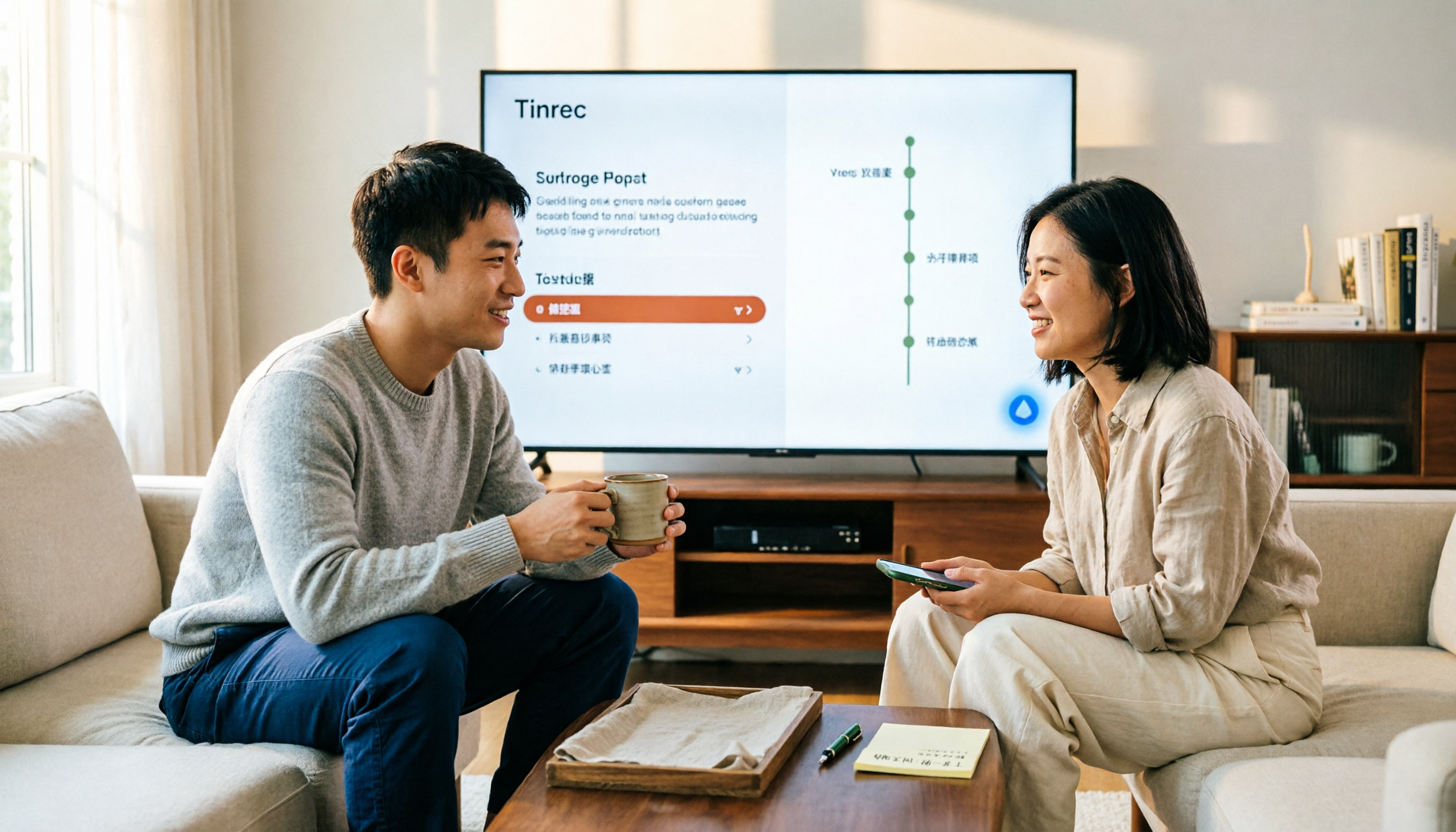
Google Meet currently has no official Apple TV app, a point repeatedly mentioned in Reddit's Apple TV community and Google Meet's official forums. If you want to hold a meeting on a big screen in the living room or conference room, you'll need to take a detour.
The most common approach is AirPlay screen mirroring. A larger screen, not having to hold your phone constantly, and multiple people being able to watch without crowding around a small screen—these are real benefits.
But one thing to consider first: casting is only the first step. What really takes time is post-meeting transcription and organizing meeting notes.
Below I've put together 6 practical methods, from casting options to post-meeting tools, so you can pick the one that fits your situation.
Option 1 | Tinrec – Turn Meetings into Searchable, Collaborative Data
Tinrec is an AI meeting notes and collaboration tool for individuals and teams. It doesn't solve casting—it solves what happens after the meeting ends.
Casting to Apple TV just makes things visible; someone still has to organize the transcript, extract action items, and write up minutes. Its desktop version captures system audio directly, handling online meetings on Zoom, Google Meet, Microsoft Teams, Webex, and more—no bot needs to join as a participant; the user initiates the recording themselves.
It generates live transcripts during the meeting and automatically produces summaries, chapters, key points, and action items afterward. Even better is the AI Q&A: you can ask "What concerns did the client raise in this meeting?" and it will find answers from the meeting content. It can also generate reports, tables, documents, or export to Notion, Google Docs, OneNote, or Dropbox for further use.
It supports Chinese meetings, mixed Chinese-English, and multilingual scenarios, with real-time translation available in original, translated, or bilingual view. Note that actual transcription quality can be affected by recording quality, noise, accents, and multiple people speaking at once—it's not recommended to treat it as a 100% accuracy guarantee.
For plans, individuals can try the free version first. For short-term intensive use, there's a weekly pass; for regular weekly meetings, the Pro monthly plan; for long-term data accumulation, the annual plan. The team version offers a separate team workspace, not multiple people sharing one account: first-time eligible users can try 7 days free, including 1 free seat and 300 minutes of shared team import quota; monthly payment is USD 29.80 per paid seat, annual payment is USD 199 per paid seat (about USD 16.58/month), with each paid seat getting 2,000 minutes of shared import quota per month. Live recording under an active team plan currently does not deduct minutes.
Who it's for: People who have online meetings every week, need Chinese transcripts and post-meeting organization, or want to turn meeting data into a team asset.
Option 2 | AirPlay Screen Mirroring – Zero-Cost Method for iPhone and iPad
If you just want to get Google Meet onto your TV, this is the most cost-effective method—no purchase necessary.
The steps are simple: On iPhone X or later, or iPad with iOS 12 or later, swipe down from the top-right corner to open Control Center; on iPhone 8 or earlier, or iOS 11 or earlier, swipe up from the bottom. Tap "Screen Mirroring," select your Apple TV from the list, wait for the screen to appear on TV, then open Google Meet and join the meeting.
Keep in mind that the microphone and camera are still on your phone; the TV only displays. When multiple people speak, the phone needs to be placed where everyone can hear. Also, AirPlay has latency, so presentations and audio may occasionally be out of sync—test it once before the meeting.
Who it's for: People who occasionally want to put meeting screens on a big screen without spending extra.
Option 3 | Mac Screen Mirroring – Smoother for Computer-Based Meetings
If you usually use a Mac for Google Meet, you can mirror directly from Mac to Apple TV. The advantage is that presentations, tabs, and chat are all on the same screen—no switching between phone and TV.
In macOS Control Center, there's "Screen Mirroring"—select Apple TV. Again, make sure the audio output device is set correctly, otherwise sound will come from the computer and the TV will only show video.
Who it's for: People who mainly use a laptop for meetings and need to see both presentation and participants.
Stop organizing recordings by hand
Upload audio or video and automatically get a transcript, summary, and action items
Option 4 | Google TV, Chromecast Streaming Devices – No Manual Mirroring Each Time
If you find manually mirroring every meeting a hassle, consider connecting a Google ecosystem device to your TV, such as Chromecast or Google TV. This is the route many people ultimately choose in Reddit discussions, because you don't have to switch repeatedly, and Google Meet naturally works better within the Google ecosystem.
The downside is the extra hardware cost, plus another remote and power source on your TV. Those who already have Apple TV usually won't switch devices just for this.
Who it's for: People who haven't bought a TV box yet, or already use an Android phone.
Option 5 | Notta – An Alternative for Multilingual Transcription
Notta overlaps significantly with Tinrec, covering multi-platform transcription, meeting notes, file import, and translation. Its free version offers 120 minutes per month, with a maximum of 3 minutes per session; Pro annual billing is about USD 8.17/month for 1,800 minutes per month; Business annual billing is about USD 16.67/seat/month.
The difference is that Tinrec's desktop version uses bot-free system audio capture and integrates team workspace, member seats, and usage management. If you just need bulk file transcription, these types of tools are also worth comparing.
Who it's for: People who need multilingual transcription and primarily work with files.
Option 6 | Granola – Bot-Free Meeting Notes with a Free Version
Granola is also a bot-free AI meeting notes tool that transcribes in real time via desktop system audio and microphone, then combines with your handwritten notes to generate content. It supports live transcript viewing, copying, and searching.
Note that Granola doesn't support uploading pre-recorded audio files and doesn't save meeting audio files. Basic is free, Business is USD 14/user/month, Enterprise is USD 35/user/month.
Who it's for: People who like to take notes during meetings and value cross-meeting context.
With So Many Options, How Should You Choose?
- Want to solve post-meeting organization, need Chinese transcripts, AI Q&A, and action items → Tinrec
- Want to turn meeting data into a team asset, need member, seat, and usage management → Tinrec Team
- Just want to occasionally enlarge the screen, completely free → AirPlay screen mirroring (iPhone or Mac)
- Already use an Android phone, haven't bought a TV box → Google TV or Chromecast
- Primarily need file transcription and translation → Notta
- Prefer handwritten notes, don't need to keep audio → Granola
4 Things to Know Before Using Google Meet with Apple TV
- Google Meet has no official Apple TV app—any method is a workaround. Don't expect one-click login to start a meeting.
- When casting, the microphone and camera are still on the original device; the TV only displays. Arrange the microphone position beforehand.
- AirPlay mirroring has latency—test important presentations in advance.
- Recording and transcription involve participant rights; depending on local regulations, prior consent may be required.
Summary
To get Google Meet on Apple TV, the simplest is AirPlay screen mirroring; for more stability, consider a Google ecosystem streaming device. But if your real problem is that no one wants to organize notes after the meeting, a bigger screen won't solve that.
Tinrec brings together transcripts, summaries, action items, AI Q&A, and team workspace—a more complete solution for those with weekly meetings. Try the free version for one meeting and see how much time you can save on post-meeting organization.
FAQ
Q1: Can Apple TV download Google Meet directly? A: Not currently. Google Meet has no official Apple TV app; you can only use AirPlay screen mirroring or switch to devices like Google TV or Chromecast.
Q2: When AirPlay mirroring Google Meet, can the other party hear me speak? A: Yes. Mirroring only sends the screen to the TV; the microphone is still on your phone or computer. Audio quality depends on the original device's position.
Q3: Will Tinrec automatically join my Google Meet meetings? A: No. Tinrec's desktop version is user-initiated, capturing system audio directly—no bot joins the meeting. It's not currently a mode that automatically joins all calendar meetings.
Q4: What's the difference between Tinrec Team and Personal? A: The team version has a separate team workspace, meeting data belongs to the team, and includes members, roles, seats, usage analytics, and audit logs. Members without a seat can still view data but cannot upload or edit.
Q5: Is Tinrec's free version enough? A: If you only occasionally organize a recording, the free version's basic quota is a good start. If you have weekly meetings, consider the Pro plan.
Q6: Can transcription accuracy be guaranteed? A: It's not recommended to think of it that way. Actual results are affected by recording quality, noise, accents, and multiple people speaking at once. For important content, verify against transcript timestamps.
References
- Screen Mirroring to an Apple TV - Google Meet Community
- 2026 Comparison: 3 Ways to Use Google Meet on Apple TV – Which Saves the Most Effort for Meeting Minutes? - Official Tinrec Blog
- r/appletv on Reddit: Features supported by Apple TV
- Look Blog: How to cast a Google Meet on your TV: A Brief Guide
- How to cast Google Meet all methods - GChromecast Hub
Turn every recording into actionable outcomes
Get 60 free transcription minutes when you sign in. No credit card required.
Related Reading
You might also like
How to Use Google Meet in Gmail (2026): Start a Meeting in 3 Steps & Auto-Organize Notes
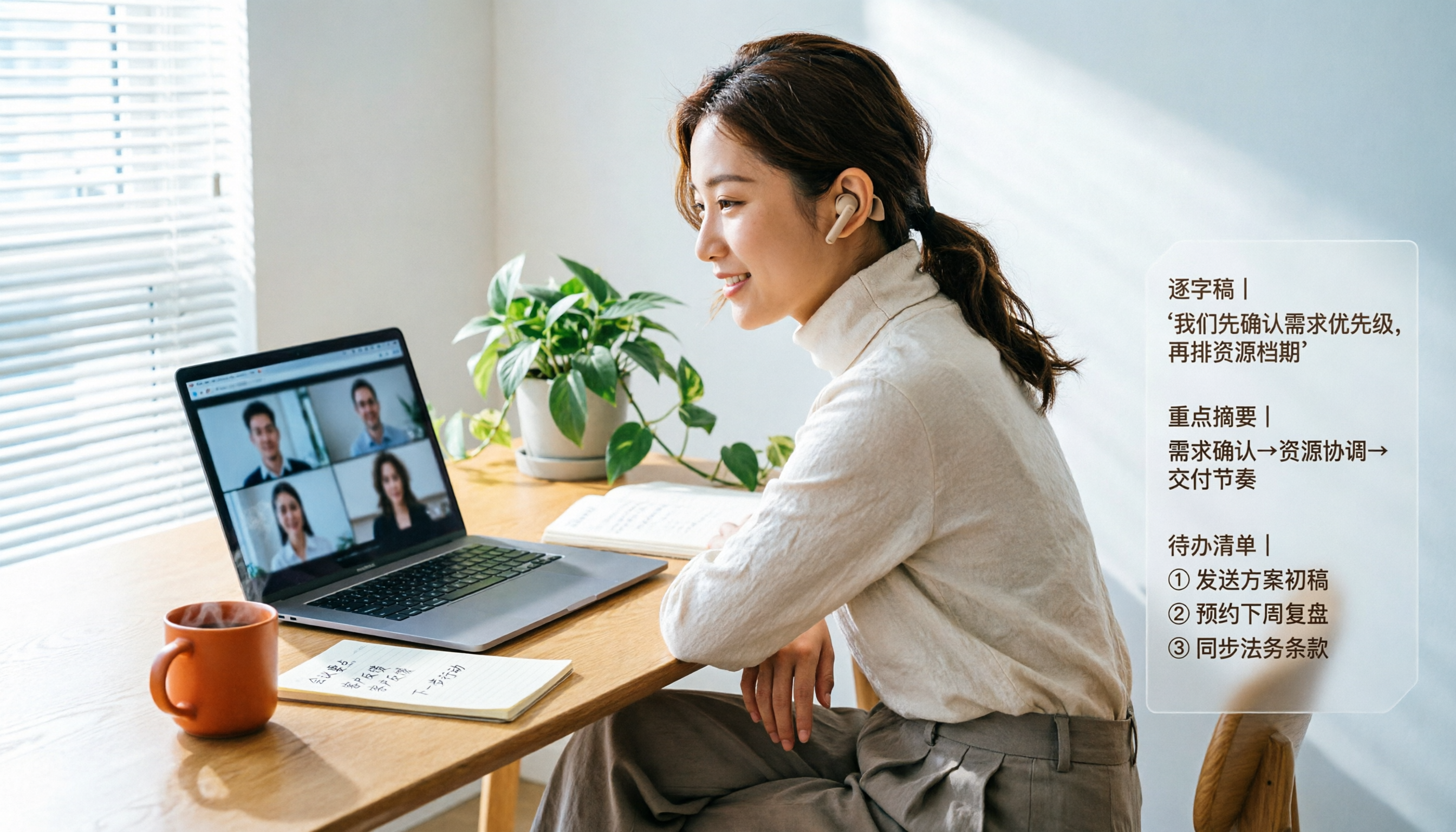
Google Meet is built right into the Gmail sidebar, so you can start or join video meetings without switching to Calendar. This guide walks you through 3 steps, explains entry points for different account types, and tackles the part most people get stuck on—organizing transcripts, summaries, and action items after the meeting.

How to Record Google Meet Without a Bot and Auto-Generate Action Items with AI (2026 Guide)
Tired of forgetting key points after a Google Meet call? This guide explains the relationship between Google Meet and Google One plans, then hands-on tests Tinrec's bot-free desktop recording, AI summaries, and action item extraction. We also compare Otter.ai, Notta, and Granola, with key buying factors and pitfalls to avoid.

Google Meet Time Limit in 2026: Free 60-Minute Cap and Which Meeting Notes Tool to Choose
Google Meet free version limits group meetings with 3+ participants to 60 minutes, while 1-on-1 calls can last up to 24 hours. Paid Workspace plans allow up to 24 hours. This article breaks down how the limit actually works and compares Google Meet with Tinrec for meeting notes, cross-platform support, post-meeting output, and team data retention, helping you decide which to choose.

Best Google Meet Note-Taking Tools in 2026: 7 Tested, This One Excels for Chinese Meetings Without a Bot
Starting from the need to join a meeting via Google Meet now, this guide reviews 7 Google Meet note-taking and transcription tools, including Tinrec, Otter, Fireflies, Notta, Granola, TurboScribe, and Google Meet's built-in capabilities. It compares Chinese meeting support, bot-free recording, AI Q&A, team knowledge retention, and pricing.

Google Meet Pricing in 2026: Free Plan Limits and Tinrec as an Alternative
Google Meet's free version caps group meetings at 60 minutes, and recording and AI features are tied to Workspace subscriptions (annual billing around $7/$14/$22 per user per month). This article, from a student's hands-on perspective, explains why post-meeting organization is the real pain point and compares Tinrec's differences in bot-free recording, Chinese transcription, AI summaries, and team knowledge retention.
How to Share System Audio in Google Meet (2026): Full System Sound + High-Quality Stereo
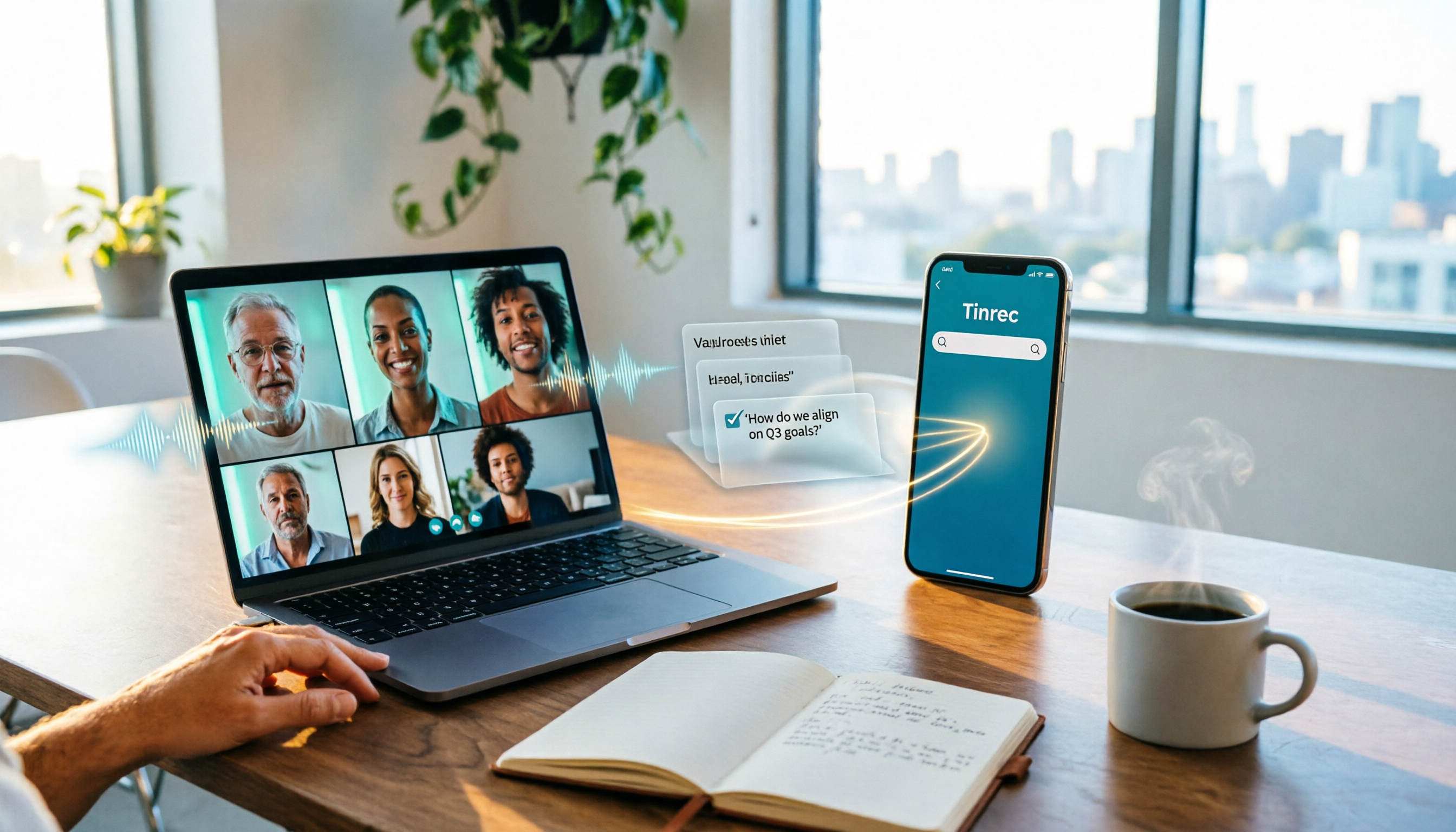
Google Meet now lets you share your entire device's system audio during presentations, not just Chrome tab audio. This guide covers the steps to enable it, system requirements, rollout timeline, and common limitations, plus how to use Tinrec after a presentation to turn transcripts, summaries, and action items into searchable meeting records.
3 Google Meet on Windows Options Tested in 2026: Which Meeting and Note-Taking Method Saves the Most Time?
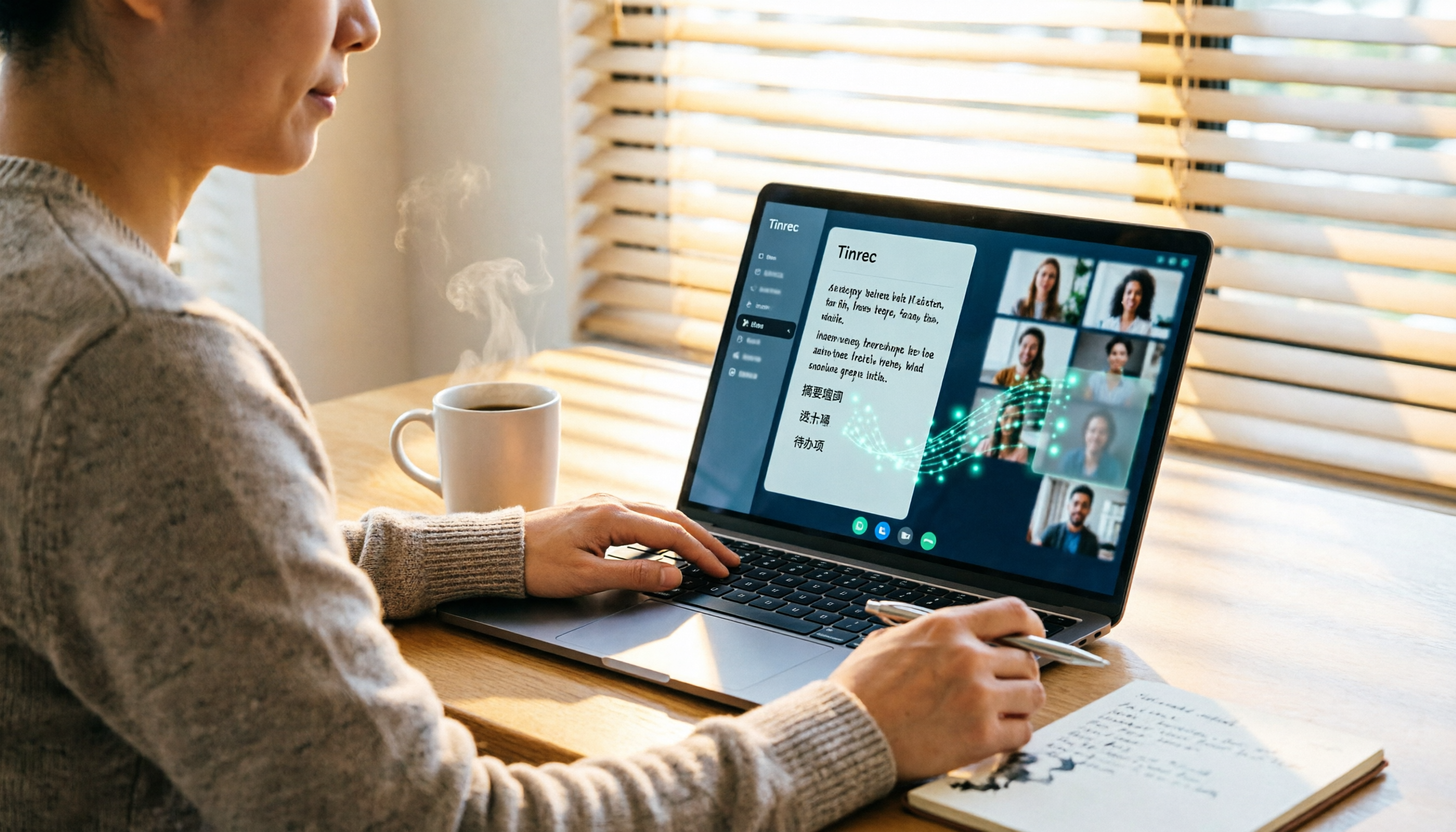
Using Google Meet on Windows, most people only solve the meeting itself but not how to keep the post-meeting data. This article walks you through: from browser and PWA to Tinrec desktop bot-free recording, automatically turning Google Meet meetings into transcripts, summaries, action items, and team-searchable data.

How to Check Your Google Meet Version in 2026: 4 Steps to Confirm the Latest Version
Can't find the version number in Google Meet settings? This guide covers how to check and update Google Meet across web, Android, iOS, Meet hardware, and the REST API, plus a practical way to organize transcripts, summaries, and action items after meetings.

4 Google Meet Call Recording Tools Tested in 2026: Which One to Switch to When Call History Won't Show?
When Google Meet call history won't show, most people's first instinct is to reinstall the app or switch browsers, but the problem often lies with the account, device, or organization permissions—not user error. This article addresses this common misconception, explains why call history may be missing, outlines 4 key factors for choosing a meeting recording tool, and compares Tinrec with Notta, Granola, and Otter.ai. It also includes a pitfalls guide and selection recommendations.