

Turn recordings into transcripts and summaries in minutes
Upload audio or video for multilingual transcription, AI notes, and action items
2026 Comparison of 3 Teams Meeting Tools: How to Run Meetings and Who Can Auto-Organize After?
The Most Common Mistake in Teams Meetings: Thinking You Just Need to Hit Start
Many people think starting a Teams meeting is just clicking "Meet now," but often the meeting ends and no one remembers what was decided.
Or when suddenly asked "What was that decision last time?" you can only frantically scroll through chat history.
More commonly, if transcription wasn't turned on during the meeting, post-meeting notes can only rely on memory.
Actually, running a meeting isn't hard; the hard part is turning the meeting into searchable, trackable data. This article not only teaches you how to run a Teams meeting but also tests 3 post-meeting organization tools to help you find the most time-saving solution.
Before Starting a Teams Meeting, Understand These 4 Key Points
1. Meeting Type: Scheduled vs. Instant
Scheduled meetings are for formal meetings with invitations and calendars. Instant meetings are for ad-hoc discussions; on the left side of Teams, select "Meet now" from the calendar. But instant meetings can also share a link.
2. Participant Permissions
External participants need to join via link, and the lobby can control entry. If within the organization, you can invite directly.
3. Meeting Recording and Transcription
Teams has built-in recording, but transcription and post-meeting organization capabilities are limited. If you need AI summaries and action item extraction, you can use tools like Tinrec.
4. Where Post-Meeting Data Goes
If meeting notes only stay in the chat, they can easily get lost. It's best to save them centrally in a team space for easy future search.
Tinrec — Our Top Choice After Testing
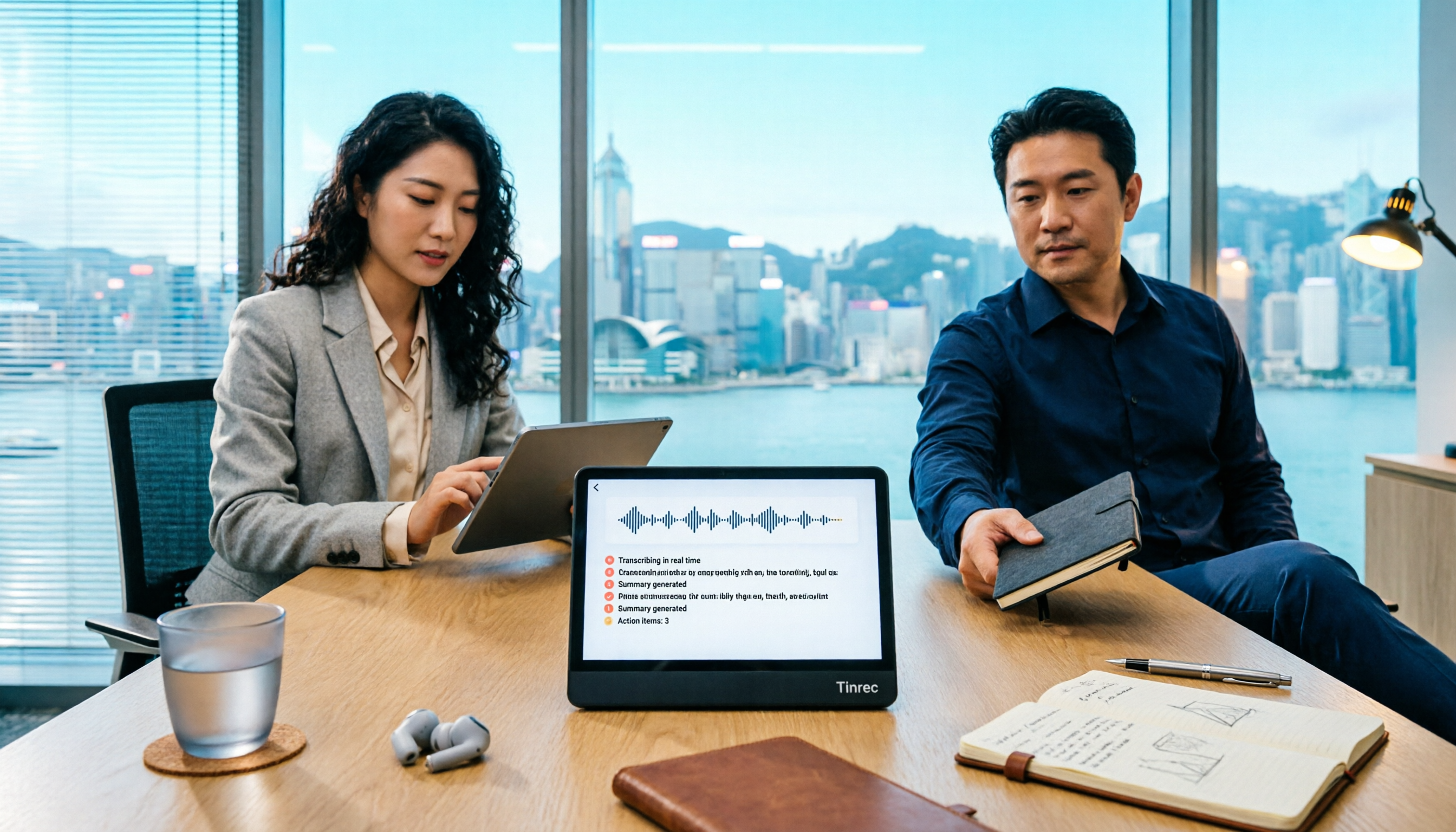
Tinrec is a multilingual AI meeting notes and collaboration tool available on iOS, Android, and web. Its most unique feature is that the desktop version can directly capture computer system audio, without inviting a meeting bot to join the Teams meeting, and can record and generate real-time transcripts.
The actual workflow is: open Teams on your computer for the meeting, simultaneously open Tinrec desktop, and select to record system audio. During the meeting, Tinrec transcribes as it records. Afterward, AI automatically generates summaries, chapters, and action items—who is responsible for what and what the deadlines are, all clear at a glance.
We tested a 15-minute Chinese meeting recording (Teams online meeting, indoor environment), and Tinrec's transcript correctly recognized most content. Mixed Chinese-English proper nouns can also be optimized through team hotwords. After the meeting, you can directly ask Tinrec: "Who mentioned the budget last meeting?" It will give you an answer based on semantic understanding, rather than just throwing keyword search results.
Stop organizing recordings by hand
Upload audio or video and automatically get a transcript, summary, and action items
Tinrec's advantages include: bot-free recording that doesn't disrupt the meeting; post-meeting summaries, action items, and mind maps; support for exporting to Notion, Google Docs, and other tools. The limitation is that the free version has a monthly quota, and heavy users need to pay; the team version offers seat management and team spaces, suitable for multi-person collaboration. If you frequently need to keep records of Teams meetings, Tinrec is a very worthwhile choice to try.
Besides Tinrec, What Other Options Are There?
Otter.ai: The top choice for English meetings, free version 300 minutes per month. But Chinese meeting recognition is not as good as Tinrec, and it mainly joins as a meeting bot. If you mainly have English meetings, consider it.
Notta: A multilingual transcription tool supporting file upload and meeting notes. Free version 120 minutes per month, 3 minutes per session. It lacks the intuitive bot-free desktop recording workflow, and post-meeting AI Q&A is not as complete as Tinrec.
Granola: A bot-free meeting note tool emphasizing user handwritten notes plus AI enhancement. But it does not retain meeting audio and does not support uploading pre-recorded files. If you only need real-time notes and no audio retention, you can consider it.
Pitfall Guide: The 3 Most Common Mistakes in Teams Meetings
Mistake 1: Only using instant meetings, no scheduling.
Instant meetings are convenient, but without a calendar invitation, it's easy to lose the meeting link and records afterward. For formal meetings, use scheduling and include an agenda in the invitation.
Mistake 2: Thinking Teams built-in recording is enough.
Teams recorded videos are not very convenient to download or share, and there are no AI summaries and action items. If you need post-meeting organization, use a dedicated meeting notes tool.
Mistake 3: Meeting notes scattered across personal accounts.
If notes only exist in personal OneDrive or chat, once someone leaves or changes devices, the data is hard to recover. Team meetings should be saved centrally in team spaces with proper member permissions.
Summary: How to Run Teams Meetings Most Efficiently?
In one sentence: Use Teams for meetings, use Tinrec for post-meeting organization.
If you need bot-free recording of Teams meetings and automatic post-meeting summaries and action items → Tinrec.
If you mainly have English meetings and a limited budget → Otter.ai.
If you only need real-time notes and no audio retention → Granola.
If you need multi-person team collaboration, seat management, and a team database → Tinrec team version.
We suggest trying Tinrec free version first to experience bot-free recording and AI Q&A, then decide whether to upgrade.
References
- How to Start an Online Meeting in Teams – Acer International KS010S Microsoft Cloud Knowledge Base
- — Computer Version User Guide — Teams Meetings
- Start an instant meeting in Microsoft Teams | Microsoft Support
- Create a meeting in Microsoft Teams Free | Microsoft Support
- Join a Microsoft Teams meeting by ID | Microsoft Teams
Turn every recording into actionable outcomes
Get 60 free transcription minutes when you sign in. No credit card required.
Related Reading
You might also like

5 Ways to Record LINE Calls in 2026: Which One Should You Use?
LINE doesn't have a built-in call recording feature, but you can use iPhone's built-in capabilities, screen recording, Android third-party apps, or desktop tools to get the job done. This article tests and compares 5 methods, explaining their use cases and limitations, and shows how to use Tinrec to turn recordings into searchable, queryable, actionable records.

5 iPhone Recording Methods Compared: Where Is the Record Button? Tinrec Saves the Most Time
Can't find the iPhone record button? We tested 5 quick ways to start recording—built-in Voice Memos, Control Center, Siri, Back Tap, and Action Button—and compared note-taking tools like Tinrec, Otter, and Notta to show how to generate transcripts, summaries, and action items with one tap after recording.

4 LINE Call Recording & Storage Methods Tested for 2026: How to Save Voice Messages Before They Expire
LINE doesn't have a built-in call recording feature, and voice messages can expire and disappear. This article tests and compares 4 ways to record LINE calls and save voice messages—from LINE Keep and phone screen recording to Tinrec's transcription and AI organization workflow—to help you decide which method truly saves, finds, and uses your recordings.

2026 Teams Meeting Tools Comparison: How to Schedule a Teams Meeting and Who Handles the Minutes?
Sending a Teams meeting invite takes 30 seconds, but post-meeting cleanup takes 90 minutes. This article first explains three scenarios for sending Teams meetings (calendar scheduling, channel meetings, and instant meetings), then compares Tinrec, Otter.ai, Notta, and Granola in terms of meeting capture methods, post-meeting outputs, and team data management. It also lists 4 common pitfalls to help you choose the right tool for post-meeting follow-up.

Best Online Speech-to-Text Tools in 2026: We Tested 4, and This One Saves the Most Time for Chinese Meetings
How do you choose an online speech-to-text tool? We tested four tools—Tinrec, MyEdit, cSubtitle, and Otter.ai—comparing Chinese recognition, post-transcription processing, online meeting recording methods, and team data ownership. We also highlight the three most common pitfalls to help you pick the right one based on your budget and use case.
Tinrec vs Teams Built-in Transcription 2026: 5-Dimension Comparison — Which Keeps Meeting Records Better?
In Teams meetings, 'retention' has two meanings: call hold and post-meeting record retention. This article breaks down the blind spots of Teams built-in transcription and retention policies, compares Tinrec and Teams built-in solutions across 5 dimensions, and briefly reviews Otter.ai and Granola to help professionals choose a method that truly retains meeting content.

2026 Top 3 Teams Meeting Transcription Tools Compared: Which Saves the Most Time with Automatic Transcripts?
This article first breaks down the 3 most common misconceptions and correct approaches when starting a Teams meeting, then explains how to choose a meeting transcription tool. Using Tinrec as an example, the desktop version captures system audio without a meeting bot, transcribes Teams meetings in real time, and automatically generates summaries, chapters, and action items—ideal for professionals who want to save time on post-meeting organization.

2026 Voice-to-Text Tools Comparison: Tinrec vs Yating Transcript, Which Is Better for Chinese Meetings?
There are plenty of voice-to-text tool recommendations, but the real challenge for most people is choosing the right one. This article compares Tinrec and Yating Transcript across five dimensions: Chinese recognition, online meeting handling, post-transcription usability, cross-platform quotas, and team collaboration, to help you decide which better fits your meeting and organization needs.

Best Speech-to-Text Software in 2026: We Tested 5, and This One Nails Chinese Meetings
For knowledge workers who need to organize meeting, interview, and lecture recordings. I tested several speech-to-text tools, from Chinese recognition to post-meeting organization and team collaboration, and found Tinrec to be the smoothest for Chinese meetings and post-meeting AI Q&A. Here I share my selection method and a list of pitfalls to avoid.