
Turn recordings into transcripts and summaries in minutes
Upload audio or video for multilingual transcription, AI notes, and action items
Many professionals and remote workers share a common pain point: having important LINE calls or meetings, then wanting to confirm details later, only to find that the official app has no recording feature! Particularly iPhone users are often restricted by system privacy settings, making it difficult to fully capture both sides of the conversation. And even if you manage to record it, replaying a half-hour audio file just to find one sentence is extremely time-consuming.
This article will thoroughly cover the latest solutions for LINE call recording in 2025, providing a comparison table and practical methods for iPhone, Android, and PC. It will also teach you how to convert lengthy recordings into actionable items and FAQs using AI.
Quick Navigation:
- To record both sides for free: iPhone users should first enable the "Integrate with Phone" feature; Android users can look for built-in screen recording with media audio settings.
- For post-meeting efficiency: after recording, instead of listening slowly, prioritize importing audio into AI tools like Tinrec to quickly generate key points and to-do lists.
Why Can't LINE Record Calls Directly? Current Status and Pain Points
According to LINE's official statement, the reason for not enabling call recording is primarily to protect users' communication privacy, preventing unauthorized recording of voice calls. While this ensures security, it creates significant challenges for users who need meeting notes or client interview memos.
Most people currently face two major pain points:
- Device limitations: Many recording methods can only capture your own voice, leaving the other party's voice unclear, failing to achieve "two-way audio."
- High post-meaning listening cost: Traditional recording has very low information density. Even if you successfully record a 40-minute voice call, turning it into a transcript or to-do list is still time-consuming and laborious.
LINE Call Recording Solution Comparison: iPhone vs Android vs PC
To address these issues, various solutions have emerged, ranging from built-in system settings to external devices. The following evaluation dimensions will help you quickly choose:
| Solution | Supported Devices | Two-Way Audio | Summary & Action Items | AI Query | Price / Free Tier |
|---|---|---|---|---|---|
| iOS Local Recording | iPhone (some new versions) | No (only clear own voice) | No | No | Free |
| Integrate with Phone Call | iOS 18+ / Some Android | Yes | No | No | Free |
| Computer Recording Software | Windows / Mac | Yes | No | No | Free trial available |
| Third-Party Recording App | iOS / Android | Depends on device | No | No | Often paid subscription |
| Tinrec Recording & Processing | Web / iOS / Android | Requires speakerphone or import audio | Yes | Yes | Free tier: 100 minutes/month |
Bypassing Restrictions: Free Solutions for iPhone and Android
1. Two Methods for iPhone Users
If you're an iPhone user, there are two main free methods:
- iOS Local Recording: Add "Screen Recording" to Control Center, enable microphone, and select "Audio Only" during the call. However, this method usually only captures your own voice clearly; the other party's voice may be muffled.
- Integrate with iPhone Call Feature (Recommended): If your system is iOS 18 or later, go to LINE's "Calls" settings, enable "Integrate with iPhone calls" and "Integrate with iPhone call history." After answering, tap the "Record" icon in the upper left to record both sides via Voice Memos.
Stop organizing recordings by hand
Upload audio or video and automatically get a transcript, summary, and action items
2. Android User Guide
Recording methods on Android vary by brand:
- Screen Recording Settings: Some models (e.g., ASUS, OPPO, Samsung) have built-in screen recording with "Media Audio Recording" option, allowing you to capture both sides of LINE voice calls.
- Call Recording Integration: A few models (e.g., Zenfone 10) can enable "Auto call recording" via network and internet settings under advanced call settings. If not supported, many try third-party apps like Cube ACR, but stability may vary.
Advanced Workplace Scenario: PC Recording and High-Level Workflow
Sometimes we hold LINE voice meetings directly on a computer. In that case, using PC recording software (e.g., FonePaw Screen Recorder's audio recording feature) can easily capture both microphone and speaker simultaneously, solving the two-way recording problem.
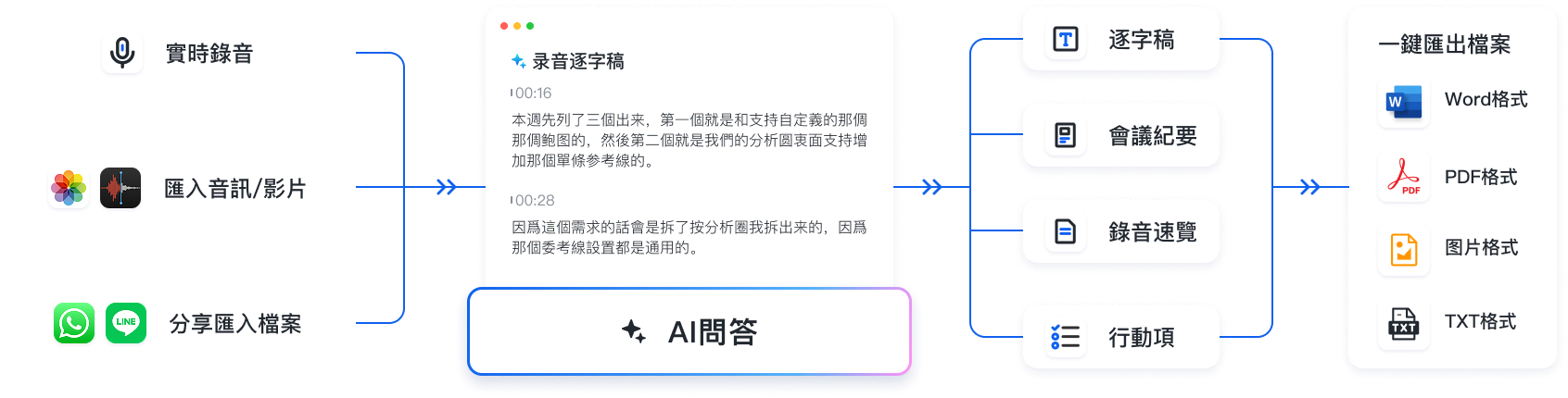
However, solving "how to record" is just the first step. How to quickly utilize the recording is the key to work efficiency. A transcript without a decision summary is just hard-to-read text. At this point, combining your recording with AI tools to create a workflow from "record → understand → act" can save 80% of processing time.
Hands-On Tutorial: After Recording LINE Calls, How to Quickly Summarize Meeting Points with AI?
Taking Tinrec, which supports multilingual recognition and post-meeting summaries, as an example, follow these steps to quickly transform your recordings or meeting scenarios into high-value text records:
Step 1: Use Speakerphone, Real-Time Transcription
If your phone doesn't have built-in recording settings, simply enable speakerphone during a LINE call and open the real-time voice-to-text feature on a computer or another phone. The system will transcribe the conversation in real time, allowing you to grasp key points without waiting, especially useful for multilingual client discussions.
Step 2: Import Existing Audio, Generate Transcript with One Click
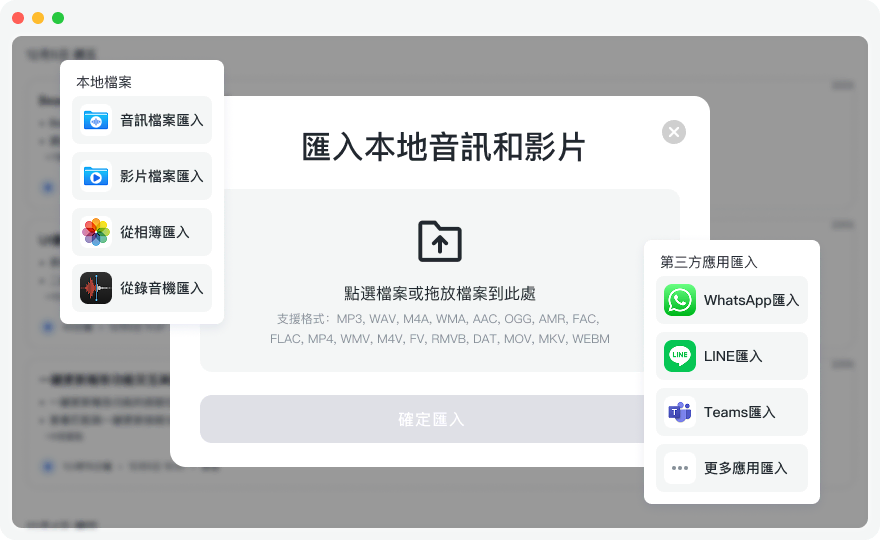
If you've already recorded a LINE meeting via Voice Memos or PC software, use the audio file to text feature. It supports multiple formats; after uploading, you'll not only get a transcript but also automatically receive meeting minutes and action items.

Step 3: Process External Links
If your team uploaded a LINE video meeting recording to YouTube or the cloud, you don't have to watch it all. Paste the URL into the podcast/web video to text feature to quickly parse the content and automatically generate a summary.
Step 4: Say Goodbye to Ctrl+F, Use Semantic Queries to Find Key Points
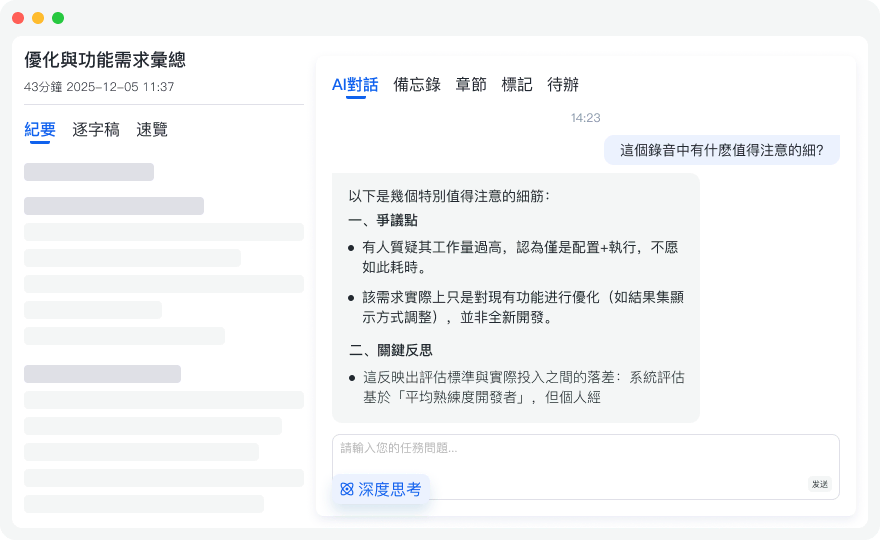
Traditional transcripts only allow keyword search; if you forget the exact term, it's hard to find. With the AI chat query function, you can directly ask like an assistant: "What were the details of the discount plan the client mentioned?" AI will answer precisely based on the recording content, greatly reducing decision-making costs.
Frequently Asked Questions About LINE Call Recording
Q1: Why can't LINE record calls? Primarily due to privacy protection concerns, preventing users from recording calls without consent from both parties.
Q2: Can LINE calls be monitored? No. Neither telecom carriers nor LINE can monitor internet calls. It is strongly recommended to obtain consent before recording to avoid legal issues.
Q3: Are there free methods to record LINE calls? Yes. The "Integrate with Phone Call" recording on iOS 18+ is completely free. Additionally, if you need post-meeting summaries, AI tools like Tinrec offer a free tier of 100 minutes per month.
Q4: How can I record both sides of a LINE call on iPhone? Make sure you've updated to iOS 18 or later, and enable "Integrate with iPhone calls" in LINE settings. After answering, tap the record icon in the upper left; the system will record both sides via Voice Memos and will play a beep before starting.
Q5: How do I set up recording during calls on Android? Some Android phones (e.g., ASUS, Samsung) can use screen recording from the quick settings panel and change the setting to "Media audio recording." If your model does not support it, you may need to evaluate third-party call recording apps.
Q6: The recorded audio is too long. How can I quickly convert it to a transcript? Once you have the audio file, there's no need to manually transcribe. Just upload the file to an audio-to-text tool (e.g., Tinrec) to automatically recognize multiple languages, differentiate speakers, and extract action items.
Turn every recording into actionable outcomes
Get 60 free transcription minutes when you sign in. No credit card required.
Related Reading
You might also like

Tinrec vs Yating Transcript in 2026: 5-Dimension Comparison — Which Is Better for Post-Meeting Organization?
Yating Transcript pricing is not a fixed monthly fee; instead, you purchase hours based on audio length. The billing logic differs between real-time recording and uploaded audio files. This article compares Tinrec and Yating Transcript across 5 dimensions—cost, free quota, post-meeting organization, online meeting recording, and team collaboration—to help you decide which one better suits your use case.

4 Transcription Tools Tested in 2026: Which One Finds Its Features Fastest When the Toolbar Disappears?
After recording, the toolbar is gone—export button, playback bar, all missing. This article first helps you recover the toolbar in Yating Transcriber (5 troubleshooting steps), then compares Yating Transcriber, Tinrec, Otter.ai, and Notta from four angles: interface stability, feature discoverability, post-transcription capabilities, and pricing, to tell you which one is least likely to get you lost.

Yating Transcript Pricing Guide 2026: How It Works, Free Minutes, and How to Choose
Is Yating Transcript free or paid? This guide breaks down the cost structure, free-tier limits, post-meeting organization, accent recognition, and team collaboration, with a side-by-side comparison to Tinrec, so you can decide which pricing model fits your meeting frequency.

2026 Comparison of 3 Transcription Apps: Is Yating Transcriber Free Version Enough?
Is Yating Transcriber free? Is the free version sufficient? This article compares Yating Transcriber, Tinrec, and Notta from four perspectives: free quota, Chinese recognition, post-meeting organization, and team collaboration, to help you decide which one suits your meeting and interview scenarios.

2026 Comparison of 3 Transcription Tools: Yating, Built-in Platforms, and Tinrec — Which to Choose?
A breakdown of Yating transcription costs and common billing misconceptions, plus an explanation of which use cases Tinrec suits from the perspectives of meeting notes, AI summaries, action item extraction, and team collaboration.

How Much Does Yating Transcription Cost in 2026? 5 Steps to Understand Online Pricing and Alternatives
How is Yating Transcription's online pricing calculated? This article breaks down the actual cost of hourly pricing in 5 steps, from free real-time recording and uploading audio files at NT$100 per hour to monthly usage estimates and team collaboration needs. It also shares a mid-level manager's real experience with Tinrec, explaining its differences in post-meeting summaries, action items, and AI Q&A, helping you choose the tool that fits your meeting volume.

2026 Comparison of 4 Transcription Software Costs: Is Yating Transcription Worth It?
How is Yating Transcription priced? This article breaks down the difference between pay-per-duration and free trial credits, and compares the pricing structures and post-meeting workflows of Tinrec, Otter.ai, and Notta to help you determine which pricing model saves the most.

How to Use Yating Transcript Toolbar in 2026: 5-Step Tutorial and Hands-On Comparison
How exactly do you use the Yating Transcript toolbar? This guide walks you through 5 steps, from recording in the app, dealing with the 99% progress bar stuck, to exporting from the top right corner, and also covers a practical limitation: one account cannot be used on multiple devices simultaneously. At the end, we compare Tinrec's differences in Chinese meetings, bot-free recording, and post-meeting AI Q&A to help you decide which one fits your meeting workflow.

2026 iPhone Recording Management Tools Compared: Where Recordings Are Stored and How to Turn Them into Transcripts
Where do iPhone recordings actually live? Without exporting, they stay in the Voice Memos app; they sync only if iCloud is enabled, and they appear in the Files app only after export. This guide first explains the three storage locations and export steps, then compares Tinrec, Notta, Otter.ai, and PLAUD for recording organization to help you choose the right tool.