
Turn recordings into transcripts and summaries in minutes
Upload audio or video for multilingual transcription, AI notes, and action items
Just finished recording an important meeting on your iPhone, but can't figure out where the recording is saved? Even if you find it, listening back to a one-hour voice memo and transcribing it word by word is time-consuming and prone to missing key details.
This article fully explains the default storage location for iPhone recordings and provides practical export tutorials. Additionally, we break down the differences between the native Voice Memos app and AI transcription tools, complete with a multi-dimensional comparison table, step-by-step practical guides, and a FAQ section.
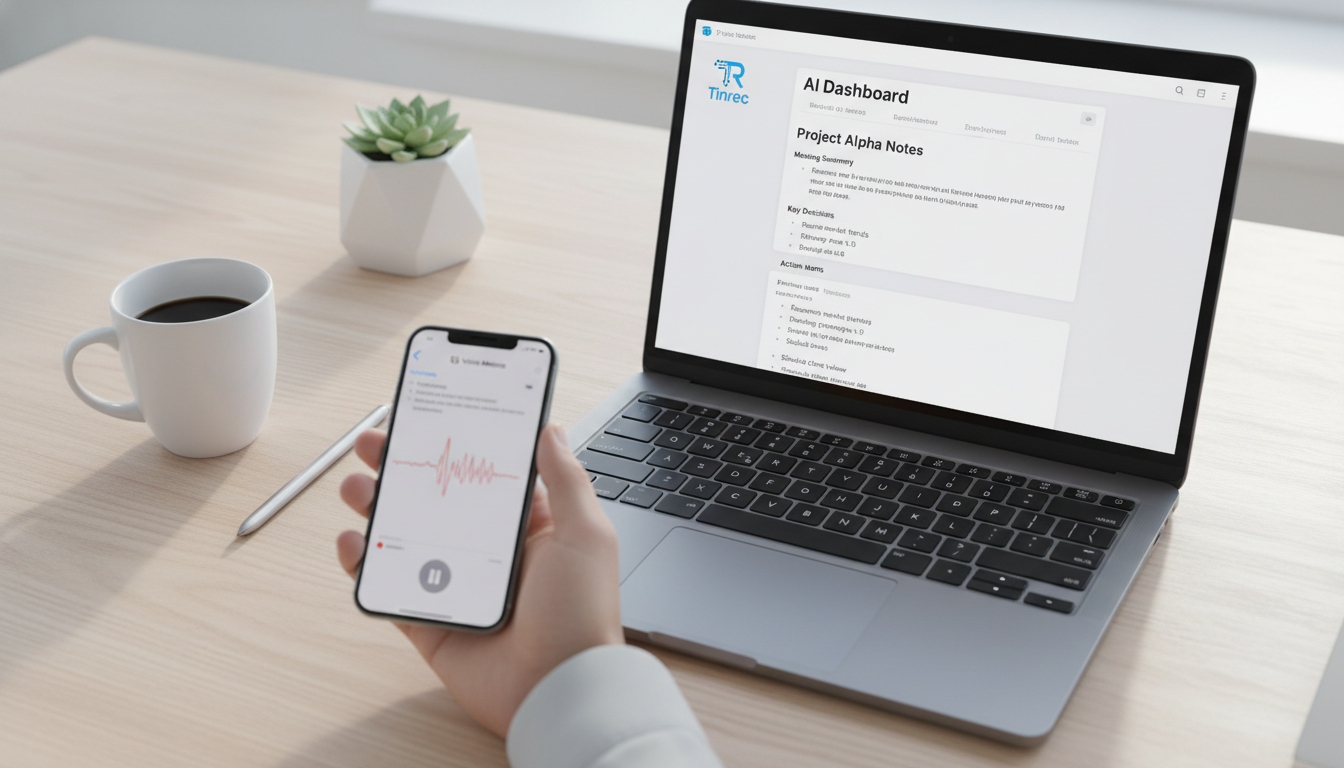
Quick navigation suggestion: If you only need to play back audio, refer to the native tool search guide below. If you need to convert meeting recordings into transcripts, extract action items, or search for key points, we recommend directly checking out the AI recording assistant (like Tinrec) alternatives and transcription tutorials.
1. Where Are iPhone Recordings? 3 Quick Methods to Find and Manage Them
On iPhone, all recordings are saved by default in the built-in Voice Memos app. If you're not sure how to find them, try the following methods:
1. Find Directly via the Voice Memos App
Go to your iPhone's home screen and look for the Voice Memos app (usually in the Utilities folder). Open it, and you'll see a list of recordings named "New Recording" or after your location.
2. Use Spotlight Search
If you can't find the app on the home screen, swipe down from the center of the screen to open the search bar and type "Voice Memos." Tap to open it and view all saved audio files.
3. Find via iCloud Cross-Device Sync
If you have enabled Voice Memos sync in iCloud settings, your recordings will automatically upload to the cloud. By logging into the same Apple ID, you can seamlessly view and play these files on your iPad or Mac's Voice Memos app.
2. Pain Points of the Native Voice Memos App: Can't Find the Highlights After Recording?
iPhone's Voice Memos is a free, built-in tool that supports stereo and spatial audio recording and can even filter background noise (voice isolation), making it great for capturing quick ideas or simple memos. However, when used for business meetings, lectures, or in-depth interviews, the native tool's limitations become apparent:
- Low information density: Recordings are time-based content; a one-hour meeting requires a full hour to replay, making review costly.
- No text search: Although you can rename files, you cannot search for specific dialogue within the recording—finding key points is like finding a needle in a haystack.
- Lack of follow-up assistance: After the meeting, you still need to manually type out transcripts and to-do items; no automatic summary or action items are generated.
3. iPhone Recording Upgrade: Native Tool vs. AI Recording Assistant Comparison
To solve these pain points, many business professionals and students export iPhone recordings and use AI tools for subsequent processing. Below, we compare Apple's native Voice Memos with AI recording tools that offer a complete workflow, helping you decide when to switch tools.
Stop organizing recordings by hand
Upload audio or video and automatically get a transcript, summary, and action items
| Comparison Dimension | Apple Voice Memos (Native) | AI Recording Assistant (e.g., Tinrec) |
|---|---|---|
| Primary Use | Basic audio recording and cross-device playback | Complete workflow: Record → Understand → Act |
| Real-time Transcription | Not supported (audio only) | Supports real-time transcription for instant content access |
| Multi-language Support & Translation | None | Supports automatic recognition of 10+ languages including Chinese, English, Japanese, Korean, Taiwanese, Cantonese |
| Summary & Action Items | None | Automatically generates meeting minutes, conclusions, and to-do action items |
| AI Chat Query | Can only manually drag the progress bar | Supports semantic-based AI queries, allowing direct questions about content |
| Export & Integration | Can export as m4a audio file | Supports multi-format text export, can import audio/video links for parsing |
| Free Tier | Depends on iCloud storage space | Free version: 100 minutes of recording per month |
4. How to Turn iPhone Recordings into High-Value Notes (Practical Tutorial)
After recording on your iPhone, how do you transform that audio into scannable, searchable, actionable text? Here are practical steps using AI tools:
Step 1: Export iPhone Audio Files
- Open the Voice Memos app on your iPhone.
- Tap the recording you want to transcribe, then tap the Share icon.
- Save the file to Files or transfer it to your computer via AirDrop or messaging apps.
Step 2: Convert Audio Files to Text
If you already have a meeting recording:
- Open the AI recording assistant's Audio to Text page.
- Upload the recording exported from your iPhone (supports common formats).
- The system will automatically identify speakers and quickly generate a transcript and AI summary.
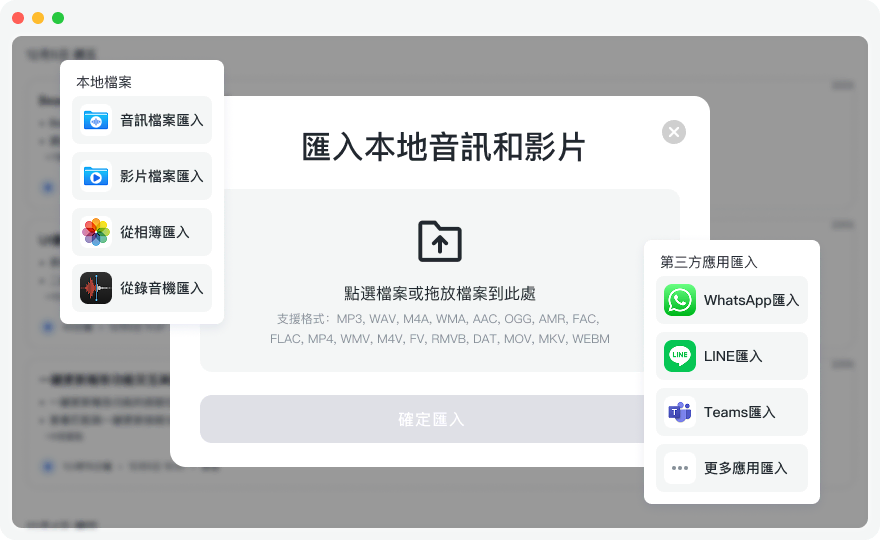
Step 3: Real-time Transcription (Recommended for Future Meetings)
If you don't want to export afterward, for future meetings, use the web or mobile app directly:
- Go to the Real-time Transcription page.
- Tap Start Recording; the system will transcribe speech to text in real time—no waiting.
- When the meeting ends, meeting minutes and action items are generated simultaneously.
Step 4: Parse Video Links or Podcasts
For online courses or YouTube video references:
- Copy the video URL.
- Go to the Podcast/Online Video to Text page.
- Paste the URL; the system will automatically parse and extract the transcript and key points.

Step 5: Use AI Chat Query for Quick Retrieval
For transcripts with tens of thousands of words, traditional Ctrl+F can only find specific terms.
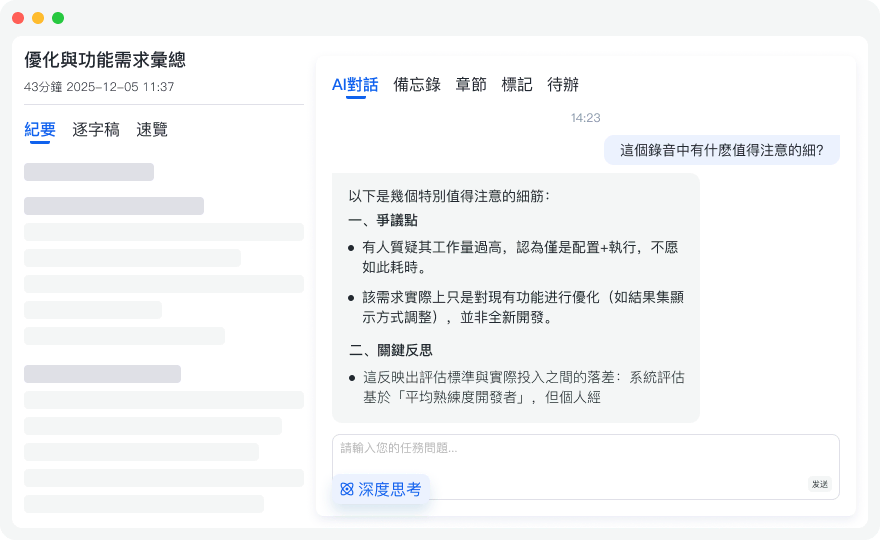
- In the completed transcript interface, enable the AI Chat Query feature.
- Ask the AI directly, e.g., "What was the final marketing budget decided in this meeting?" or "List the tasks assigned by Manager A."
- The AI will answer accurately based on the audio content, just like asking a participant.
5. Frequently Asked Questions (FAQ)
Q1: In which folder can I find iPhone recordings? By default, recordings are saved in the Voice Memos app. If you export them, they are usually stored in the Files app, depending on the path you chose (e.g., iCloud Drive or On My iPhone).
Q2: Can iPhone recordings be directly transcribed to text? The built-in Voice Memos app does not automatically generate transcripts. To convert to text, you need to export the file and use a third-party AI transcription tool.
Q3: If I use Teams or Google Meet for meetings, do I still need to record on my phone? For remote meetings, you can use an AI recording assistant on your computer to capture system audio and generate meeting transcripts. For hybrid meetings (in-person + remote), you can place your phone on the table to record audio and use AI real-time transcription.
Q4: Does uploading a one-hour recording take a long time to transcribe? Modern AI tools are very fast; typically, a one-hour audio file takes only a few minutes to generate the transcript, speaker diarization, and meeting minutes.
Q5: Can AI tools handle multilingual meetings? Yes. Advanced transcription tools (like Tinrec) support automatic recognition of multiple languages such as Chinese, English, and Japanese, making them ideal for cross-language meetings, foreign language classes, or international content review, significantly reducing comprehension barriers.
Q6: Are these AI transcription tools free? Most tools offer a free trial. For example, the tool mentioned provides 100 minutes of recording per month in the free version. For heavier use (such as student lecture notes or frequent meetings), you can consider subscribing to a premium plan for more minutes and full features.
Turn every recording into actionable outcomes
Get 60 free transcription minutes when you sign in. No credit card required.
Related Reading
You might also like

2026 Comparison of 4 Meeting Transcription Tools: Actionable Transcripts Without a Meeting Bot
Meeting transcription isn't just uploading an audio file. This hands-on comparison of Tinrec, Notta, Otter.ai, and Granola breaks down selection criteria, common pitfalls, and team seat differences to help you find a solution that truly produces actionable meeting notes.

5 Meeting Transcription Methods Tested for 2026: Which One Actually Saves You from Re-listening?
Meeting transcription isn't just about dumping audio into a tool. This article tackles common misconceptions and compares five approaches: manual transcription, built-in platform transcription, meeting bots, bot-free desktop recording, and file upload. We break down key selection criteria, practical limitations, and team collaboration differences to help you find a method that truly saves post-meeting cleanup time.

4 Meeting Transcription Tools Tested for 2026: Which Free Version Is Actually Good Enough?
Meeting transcription tools have changed a lot since 2024. The key question is no longer whether they can transcribe, but what they can do for you after transcription. This article starts with common misconceptions, explains 4 key points for choosing a tool, then compares Tinrec, Otter.ai, Notta, and TurboScribe in terms of positioning, free quotas, and paid plans, and finally offers scenario-based recommendations to help you avoid pitfalls from looking only at free quotas.

How to Transcribe Meeting Audio in 2026: Real-Time Transcripts + AI Summaries and Action Items in One Go
How can you transcribe meeting recordings without working overtime? This guide starts with four key criteria for choosing a tool, then hands-on breaks down Tinrec's bot-free recording, real-time transcription, AI Q&A, and team seat management. It also compares who Notta, Otter.ai, and Granola each suit best, with three common pitfalls to watch out for.

2026 Meeting Transcription Comparison: Bot-Free Recording + AI Summaries Made Easy
How to choose a meeting transcription tool? This article uses a comparison chart to break down the differences between four approaches: meeting bots, pure transcription, recording hardware, and Tinrec. It covers real-time transcripts, AI summaries, action item extraction, team spaces, and pricing quotas to help you decide which suits your meeting style.

Tinrec vs Notta 2026: 5-Dimension Showdown — Which Is Faster for Chinese Meeting Transcripts?
A two-hour meeting takes three hours to transcribe? This guide breaks down the five key dimensions of meeting audio-to-text — from recording and transcription to proofreading and team archiving — with hands-on comparisons of Tinrec and Notta in Chinese meeting scenarios. Plus, four common pitfalls to help you find the right tool within free limits.

2026 Comparison of 4 Meeting Transcription Apps: Cantonese Meetings, AI Summaries, and Team Knowledge Retention—Which One Wins?
A hands-on comparison of 2026 meeting transcription tools—Tinrec, Otter.ai, Notta, and PLAUD—covering capture methods, post-meeting organization, Chinese and Cantonese meeting experience, team collaboration, and pricing structures, to help Hong Kong office workers decide whether they need 'a transcript' or 'meeting materials they can act on directly.'

2026 Comparison of 5 Meeting Transcription Tools: Which Offers the Best Free Tier and Chinese Recognition?
How to choose a meeting transcription tool? This article examines four key aspects: recording method, post-meeting output, free tier limits, and Chinese recognition. It compares Tinrec, Otter.ai, Notta, PLAUD, and other mainstream tools, outlines team plan pricing and seat details, and includes a pitfalls guide and scenario-based recommendations to help you select the right transcription tool for your needs.

How to Transcribe Platform Meeting Recordings in 2026: Bot-Free Recording + AI Summaries & Action Items
From Zoom, Google Meet, Teams to in-person meetings, this guide covers key considerations, workflow, and tool comparisons for transcribing platform meeting recordings. Using Tinrec as an example, it explains bot-free recording, transcripts, summaries, action items, AI Q&A, and team plan limitations, and compares Otter.ai, Granola, Notta, and other options.