
Turn recordings into transcripts and summaries in minutes
Upload audio or video for multilingual transcription, AI notes, and action items
4 Apple Watch Recording to iPhone Tools Compared in 2026: Sync, Transcribe, AI Summarize
Before You Record on Apple Watch and Move It to iPhone, Decide: Do You Want to “Archive” It or Make It “Usable”?
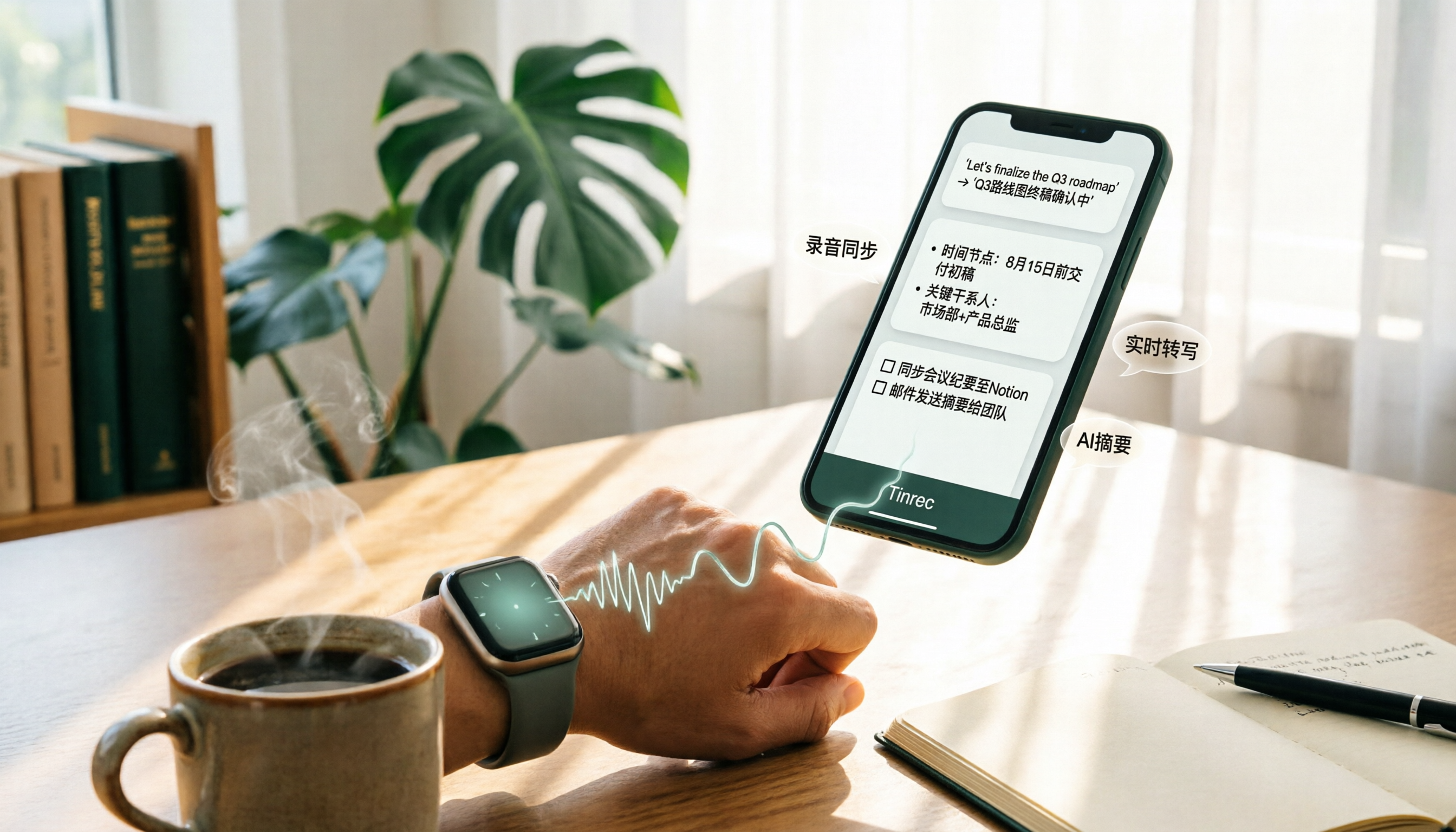
Recording on Apple Watch is convenient—press the red button and it starts recording, and it can keep recording in the background even when the watch screen turns off. But after recording, many people only get as far as “syncing to iPhone,” and the file sits in Voice Memos and never gets opened again.
The real question isn’t how to sync—it’s what you want to do with it after syncing. If you just want to save it, the built-in Voice Memos app is enough. But if you want to transcribe it, create meeting notes, search keywords, or even have AI summarize it for you, you’ll need a companion organization tool.
This article first shows you the correct settings to sync Apple Watch recordings to iPhone, then compares 4 practical tools side by side.
Recording from Apple Watch to iPhone Is Just the First Step—Check These 4 Key Points Before Choosing an Organization Tool
Before choosing a tool, you need to make sure your Apple Watch recordings can actually get to your iPhone. First, your iPhone and Apple Watch must be signed in with the same Apple ID. Then go to iPhone “Settings” → your name at the top → “iCloud,” scroll down to find “Voice Memos” and turn on sync. If iCloud storage is full, recordings may not sync, so remember to free up space or upgrade. After syncing successfully, open the iPhone “Voice Memos” app and you’ll see a “Watch Recordings” folder containing the recordings made on your watch.
Once you have the files, here are 4 key points for choosing an organization tool:
- Chinese and mixed Chinese-English support: Meetings in Taiwan often mix in English technical terms, so whether the tool can recognize them accurately matters.
- Can it import existing audio files? Apple Watch recordings are existing files, not live meetings, so the tool must support uploading audio files—not just recording live meetings.
- Does it have AI summaries and Q&A? A transcript is just the basics. Being able to automatically generate summaries and action items, and even let you ask directly “Who mentioned the budget?”, is what really saves time.
- Cross-platform and export: Recording on phone and organizing on computer is common, so support for iOS, Android, and web is more convenient.
Tinrec—Our Top Pick After Testing
Tinrec is an AI meeting notes and collaboration tool for individuals and teams, supporting iOS, Android, and web. It doesn’t just turn sound into text—it also helps you turn Apple Watch recordings synced to iPhone into searchable, summarizable, and queryable material.
In practice, you can first export the Apple Watch recording from iPhone Voice Memos, then upload it to Tinrec. It quickly produces a transcript and automatically generates summaries, chapters, and action items. This workflow is especially useful when you can’t take notes during a meeting: after the meeting, open Tinrec and immediately see who is responsible for what and what the deadlines are. Even better is AI Q&A—you can ask Tinrec directly “What was the conclusion of the last meeting?” or “Which competitor did the client mention?” It gives answers based on semantic understanding, rather than just throwing keyword search results at you. Among tools at the same price point, this kind of conversational query feature is not common.
Another advantage of Tinrec is its handling of Chinese and mixed Chinese-English content. It covers Chinese, Traditional Chinese, and multilingual meeting scenarios, and also supports real-time translation and bilingual viewing. If you often record Chinese meetings or interviews, this will feel very helpful. In addition, the Tinrec desktop version can directly capture computer system audio, so you can record online meetings on Zoom, Google Meet, Microsoft Teams, Webex, and more without needing a meeting bot to join; however, Apple Watch recordings are existing files, so you can just use the import function.
Stop organizing recordings by hand
Upload audio or video and automatically get a transcript, summary, and action items
In terms of advantages: First, the post-transcription workflow is complete—summaries, action items, Q&A, and export all in one place. Second, it supports multiple input sources, including live recording, audio/video files, and mobile recordings. Third, the team version provides an independent team space, and meeting data belongs to the team, making it easy to accumulate and hand off.
We should also be honest about the limitations: The free version has a basic quota, so if you record a lot every day, you may need to consider Pro or the team version. Also, Tinrec does not have a dedicated Apple Watch app, so watch recordings still need to be synced to iPhone first and then imported. Actual transcription quality can be affected by recording quality, background noise, accents, and overlapping speakers, so for important content it’s best to check against the recording.
Who is it for? If you often use Apple Watch to record and afterward need Chinese transcripts, AI summaries, action item extraction, or even team-shared meeting notes, Tinrec is a very worthwhile option to try right now.
Besides Tinrec, What Other Apple Watch Recording Organization Options Are There?
Otter.ai: The top choice for English meetings, with a generous free plan of 300 minutes per month. But Chinese content support is not its strength, and AI Q&A is mainly in English. If you only record English meetings, Otter.ai is a great value; but if you often handle Chinese recordings, Tinrec’s recognition and organization will be smoother.
Notta: A multilingual transcription tool with a free plan of 120 minutes per month. It has decent transcription capability, but lacks AI conversational query—after recording, you can only manually search the transcript. Tinrec, on the other hand, lets you ask questions directly to quickly find meeting highlights.
Granola: A bot-free AI meeting note tool focused on live meetings. But it does not save meeting audio files, nor does it support uploading files already recorded by Apple Watch. If you need to keep the original recording and import existing files, Tinrec better fits the need.
Pitfall Guide: The 3 Most Common Mistakes When Organizing Apple Watch Recordings
Pitfall 1: Assuming Apple Watch recordings will automatically turn into text. The watch only records audio; transcription depends on an app on your iPhone. After syncing to Voice Memos, you still need a separate transcription tool.
Pitfall 2: Ignoring iCloud sync and storage. If your iPhone and Apple Watch are not on the same Apple ID, or if iCloud Voice Memos sync is not turned on, the recording will not appear on your iPhone. Insufficient iCloud storage can also cause sync failure.
Pitfall 3: Choosing a transcription tool that only supports live recording and cannot import files. Apple Watch recordings are already-recorded files, and some tools only support real-time recording via meeting bots and cannot handle existing audio files. When choosing, be sure to confirm that uploading audio files is supported—Tinrec, for example, supports importing audio and video files.
Conclusion: After Recording on Apple Watch and Moving It to iPhone, Which One Should You Choose?
Simply put, first confirm your needs:
- Only need to sync and save recordings → iPhone built-in Voice Memos (free, simplest).
- Need Chinese transcript + AI summary + Q&A → Tinrec (try the free version first; teams can consider the team version).
- Only record English meetings, limited budget → Otter.ai (free 300 minutes/month).
- Need batch transcription of long files → TurboScribe (but no meeting organization or Q&A).
- Need team-shared meeting data, seat and usage management → Tinrec team version (provides team space, member management, and auditing).
We suggest starting with the Tinrec free version: sync an Apple Watch recording to iPhone and import it, then see whether the transcript and summary fit your workflow. If you find it useful, consider upgrading—no need to pay from the start.
References
- How to use Apple Watch recordings on your phone? Sync Voice Memos to iPhone! - Tech Girlz
- Apple Watch can also be a voice recorder! Learn how to record in the background on Apple Watch / sync to iPhone - Apple Almond - iPhone/iOS/Recommended Tech Media
- Record and play audio on Apple Watch - Apple Support (Hong Kong)
- How to transcribe Apple Watch recordings? First look at these 3 tested solutions and operation guide - Tinrec Blog
- How to sync Apple Watch recordings to iPhone?
Turn every recording into actionable outcomes
Get 60 free transcription minutes when you sign in. No credit card required.
Related Reading
You might also like
5 Recording Organization Tools Compared in 2026: Fixing LINE Recording Audio Issues and Converting to Text
What to do when you can't hear LINE recordings? This article first guides you through troubleshooting common causes of no sound during LINE calls and silent voice message playback (including iPhone call integration, Whoscall version, media volume, and output devices), then compares Tinrec, Notta, Granola, TurboScribe, and Otter.ai, explaining how to generate transcripts, summaries, and action items once your recordings are fixed.

2026 Complete Guide to Transcript Organization: From Recording to Meeting Minutes
Tired of listening to recordings and typing transcripts after meetings? This article addresses common workplace pain points and shows you how to automate transcript organization with Tinrec. From real-time transcription, AI summaries, and action item extraction to team collaboration, understand the core features and key considerations for choosing a transcript tool—say goodbye to the tedious process of manually pasting into ChatGPT.

Best Free Zoom Meeting AI Note Takers in 2026: 5 Tools Tested, This One Excels in Chinese
We tested 5 AI meeting note takers that work with free Zoom: Tinrec, Otter, Notta, Granola, and TurboScribe. Compare features, pricing, and use cases to get usable transcripts and action items right after your meeting.

2026 iPhone Recording Solutions Compared: Microphone Locations, Audio Capture, and Transcription
Where exactly are the iPhone's recording microphones? The small hole next to the camera, the earpiece mesh, and the areas beside the charging port each have distinct roles. This article first clears up common misconceptions and explains the correct audio capture positions, then compares two recording solutions—Tinrec and PLAUD Note—across multiple dimensions to help you decide whether to use the iPhone's built-in microphones with software or add dedicated recording hardware.

Tinrec Review 2026: No-Bot Meeting Recording & Auto-Generated Summaries
How do you choose a speech-to-text tool in 2026? Using Tinrec as an example, this guide breaks down real-time transcription, no-bot online meeting recording, AI summaries and action items, AI Q&A, and team spaces. It also covers 5 key buying considerations and FAQs to help you find a speech-to-text tool that truly fits your workflow.

2026 Comparison of 5 Recording Tools: How to Choose Between Plaud Voice Recorder and AI Meeting Assistants
Starting from Plaud recording use cases, this guide compares Plaud Note, NotePin, Tinrec, Otter, Notta, and TurboScribe in terms of recording, transcription, summarization, and pricing to help you decide whether to buy hardware or use an AI meeting tool.

Free Zoom Meetings in 2026: 100 Participants and 40-Minute Limit Explained
Free Zoom meetings support up to 100 participants, but meetings with 3 or more people are limited to 40 minutes. This article breaks down the actual limits of the free plan and common misconceptions, explains why post-meeting organization is the real time sink, and tests how Tinrec uses bot-free desktop recording, real-time transcription, AI summaries, and action items to turn Zoom meetings into searchable, trackable meeting data.

PLAUD NotePin Review 2026: AI Transcription Tested + Tinrec Meeting Notes Comparison
PLAUD NotePin review and buying guide. We test the wearable recording capsule from hardware audio capture to AI meeting notes, and compare Tinrec's Chinese meeting support, bot-free recording, and team collaboration to help you choose the right tool.

Tinrec vs PLAUD NotePin 2026: 5-Dimension Comparison — Is a Voice Recorder Worth Buying?
Starting from the PLAUD voice recorder trending on Dcard, this comparison examines PLAUD NotePin, Note Pro, and Tinrec across five dimensions: audio capture, post-meeting organization, team collaboration, cross-device support, and cost structure, helping you decide whether to buy hardware or choose software.