

Turn recordings into transcripts and summaries in minutes
Upload audio or video for multilingual transcription, AI notes, and action items
Still Working Overtime Typing Transcripts After Recording? First Check If You've Fallen Into These 3 Traps
After a meeting, the recording sits quietly in Voice Memos, and then you put on headphones, listen back sentence by sentence, and type it all out. A one-hour meeting takes two hours to type. This scene should be familiar to any office worker in Central.
But the problem usually isn't whether you recorded it—it's that you used the wrong method from the start:
Trap 1: Listening back and typing at the same time. Your phone already has a transcription feature, yet you're still using the most primitive method of replaying. With air conditioning noise in the meeting room and colleagues talking over each other, you'll want to give up by the third listen.
Trap 2: Thinking "dictation" equals transcription. Dictation requires you to speak directly into the device for it to produce text; during a meeting you don't have the chance to read slowly sentence by sentence, and the recorded file won't automatically turn into text.
Trap 3: Treating a big block of text as job done. A thirty-minute transcript may contain only six sentences that actually need follow-up: who's responsible, when it's due, how much budget. As a result, you still have to use Ctrl+F to search slowly.
So what really needs solving isn't how to record, but whether after recording there's a path to turn your voice into a file that can be found, edited, and delivered.
Before Choosing a Method, Understand These 4 Key Points
1. Is your device and OS version new enough? Apple officially states that iPhone 12 or later is required for audio transcription; and to support Traditional or Simplified Chinese, you need iOS 18.4 or later. Also, this feature is unavailable in some countries or regions, so it's best to test it yourself before relying on it. If you use a Mac, you also need an M chip and macOS Sequoia or later.
2. How wide is the input source? Voice Memos records in .m4a, which can be processed directly; but what about your .mp3 files, audio recorded on older iOS versions, or Zoom/Teams meeting recordings—can they be imported? If a tool only accepts its own recordings, you'll definitely run into problems later.
3. Is the output "a block of text" or "a file"? Can the transcript be copied in full, exported to Notion, Google Docs, OneNote, Dropbox? Does it have automatic summaries, chapters, to-dos? These determine whether you can actually finish your work.
4. Are you using it alone or as a team? Recordings under a personal account can't be seen by colleagues. If meeting notes need to become team knowledge, you need to consider team spaces, member roles, and seat allocation—these can't be solved by just "sharing a link."
Tinrec (Instant Recording) — Our Top Pick After Testing
Tinrec (Instant Recording) is an AI meeting notes and collaboration tool for individuals and teams, available on iOS, Android, desktop, and web. For iPhone users, its biggest value is: it doesn't just produce a transcript, it turns your voice into data you can continue working with.
The meeting goes on, the transcript comes out. When you record with Tinrec on iPhone, it transcribes while recording. Previously you had to start organizing after the meeting ended, but now the moment the meeting ends, you already have a transcript.
No bot needed for online meetings. This is the biggest difference from most meeting bots. Tinrec's desktop version directly captures computer system audio to handle Zoom, Google Meet, Microsoft Teams, Webex, and similar meetings without inviting a bot into the meeting room—reducing the awkwardness of "a stranger account present" and not affecting the participant list. Note, however, that you actively open Tinrec to start recording; it doesn't automatically join all meetings on your calendar.
After recording, you can ask it directly. This is my most-used feature. After recording an interview, instead of flipping through the transcript, I directly ask: "What were the three objections the client mentioned?" "Who's responsible for the budget?" It answers directly based on the meeting content, rather than throwing a bunch of keyword search results at you. For the same recording, it also automatically generates summaries, chapters, key points, and to-dos, which can be exported to Notion, Google Docs, OneNote, Dropbox, and other tools for continued use, and can also use Agent post-processing to generate reports, tables, and documents. For cross-language meetings, you can view the original, translation, or bilingual content while recording.
Stop organizing recordings by hand
Upload audio or video and automatically get a transcript, summary, and action items
Limitations stated clearly. The free version uses a basic quota to experience recording, import, summaries, and transcription. If you have several meetings every week, consider a weekly card or Pro. Also, transcription quality is affected by recording quality, background noise, accents, overlapping speech, and technical terminology. We won't tell you "guaranteed X% accuracy"—important content is best verified against timestamps and the recording.
For team use. The team version isn't "several people sharing one account," but an independent team space: meeting data belongs to the team, you can invite members, set owner/admin/regular member roles, allocate and reclaim seats, centrally store recordings and to-dos, view team usage trends and member details, manage team hotwords, query and export audit logs, and there's an audio recycle bin. Note that roles and seats are two different things: a valid member without a seat can view, play, and read team data, but to record, upload, edit, import/export, they need a seat.
Who it's for. If you have meetings every day, record Chinese or mixed Chinese-English content, want to use AI to find key points and generate to-dos right after recording, or need to switch between phone and computer, Tinrec is currently the smoothest choice.
Besides Tinrec, What Other Options Are There?
Apple built-in Voice Memos transcription. Free, with iPhone 12 or later plus iOS 18.4 or above, you can view the transcript during or after recording, and during playback the corresponding text is highlighted in sync, and you can select part of the transcript to copy. However, it's limited to the Apple ecosystem, audio recorded on older iOS versions may not have transcription, .mp3 and other formats must first be converted to .m4a, and there's no AI Q&A, no export workflow, no team space—you have to move that text yourself after recording.
PLAUD NotePin. A representative of AI recording hardware, official price US$159, Pro membership US$99.99/year. The advantage is portability, can record phone calls and in-person meetings without keeping an app open. But you need to carry an extra device, remember to charge it, and your iPhone can already record audio. Tinrec doesn't require buying hardware, works on web, desktop, and mobile, and handles online meetings and historical files equally well.
Otter.ai. A veteran choice for English meetings, free version 300 minutes per month, Pro annual billing equivalent to US$8.49/user/month, with mature meeting assistant, summaries, and team management. If your meetings are mainly in English, it's the only exception recommended in this article. But if your meetings are mainly in Chinese, or even mixed Chinese-English, Otter isn't focused on that scenario, while Tinrec handles Chinese meetings, mixed Chinese-English, and team hotwords—this is very practical for Hong Kong office workers.
Pitfall Guide: The 4 Most Common Mistakes in iPhone Speech-to-Text
Trap 1: Thinking all recordings automatically have transcripts. Audio recorded on iOS 17 or earlier may not support transcription; you need iOS 18.4 or above and iPhone 12 or later to be safe, and it's unavailable in some countries or regions. Before starting, test with an old recording—that's the most practical approach.
Trap 2: Not checking audio file format. Voice Memos files are .m4a and can be used directly; if you have .mp3, you need to convert first. "Has transcription feature" and "your file can be imported" are two different things.
Trap 3: Only looking at "how many languages supported," not the actual recording environment. A meeting room with air conditioning noise, keyboard typing, and people talking over each other is a different world from a recording studio. Rather than trusting promotional numbers, take your own meeting recording and test it to see if proper nouns, names, and company names come out correctly.
Trap 4: Treating it only as "audio to text." If you only get the transcript, you're using only one-third of the tool's capability. After recording, directly ask "What was the conclusion of this meeting?" "Who needs to follow up?"—much faster than flipping through a thirty-minute transcript yourself.
One last note: Before recording and transcribing, pay attention to local legal requirements and obtain participant consent when needed, especially for meetings involving client data.
Conclusion: How Should You Actually Choose?
- Only occasionally record a segment, want zero cost, use iPhone and Mac → Apple built-in Voice Memos is enough
- Frequent online meetings, need Chinese or mixed Chinese-English transcripts, don't want to add a meeting bot → Tinrec
- Want to use AI to find key points, generate to-dos, export to Notion/Google Docs right after recording → Tinrec
- Switch between phone and computer → Tinrec (iOS, Android, desktop, web)
- Team needs to share meeting data, manage seats and usage → Tinrec team version (first eligible trial 7 days, 1 free seat, 300 minutes team shared import quota; team monthly US$29.80/paid seat/month, annual US$199/paid seat/year, equivalent to about US$16.58/month, paid seats get 2,000 minutes team shared import quota per month; real-time recording under valid plan and seat currently not deducted by minute. Actual prices subject to official purchase page)
- Mainly record English meetings, zero budget → Otter.ai free version (300 minutes per month)
- Need portable hardware, want to record phone calls → PLAUD NotePin
Honestly, most Hong Kong office workers' recordings are Chinese meetings. Rather than listening back sentence by sentence and typing, use the free quota to test one or two meetings first, see if the transcript and AI summary quality suit your needs—only consider upgrading if it works well, no need to pay from the start.
References
- iPhone's speech recognition feature: Voice Memos, automatic punctuation and paragraphing - Let's Write
- View Voice Memos transcript on iPhone - Apple Support (Taiwan)
- [iPhone Voice Memos to Text] Complete tutorial of 3 major methods! iOS built-in, app, recorder, which is best?
- iPhone speech-to-text setup tips, use 5 methods to achieve audio-to-text - Mr. Mad
- iPhone Voice Memos to text method tutorial, transcript can be done without third-party built-in - Mr. Mad
Turn every recording into actionable outcomes
Get 60 free transcription minutes when you sign in. No credit card required.
Related Reading
You might also like
4 Speech-to-Text Tools Tested on PC in 2026: Is Google Docs Voice Typing Really Enough for Transcribing?
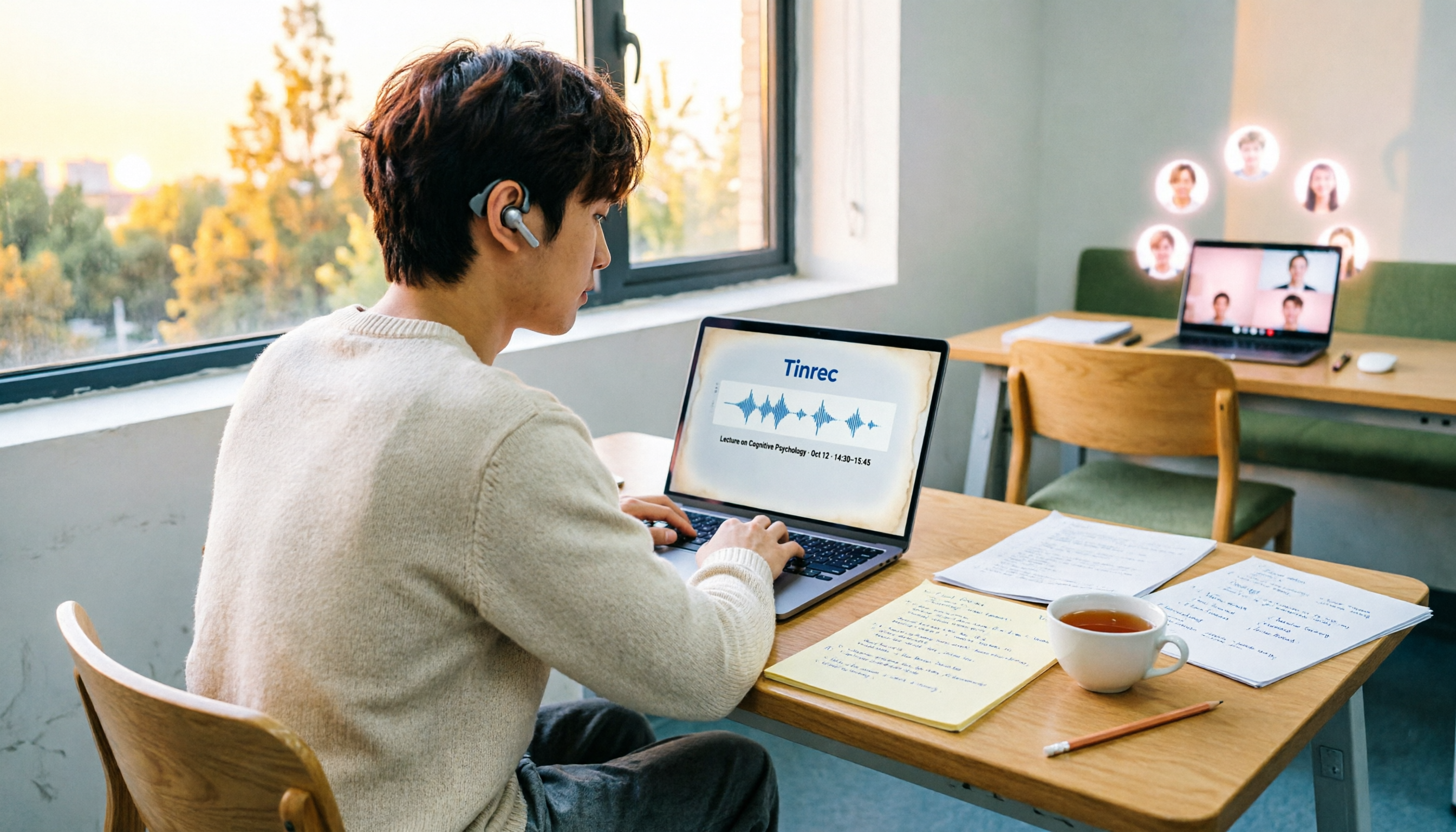
In 2026, I tested 4 methods for speech-to-text on a computer: Google Docs voice typing, Google Cloud Speech-to-Text API, the VoiceIn extension, and Tinrec, which I ended up keeping. Using student class recordings and small-group online meetings, I explain what each method can and cannot do, and whether free tiers are enough for students.

2026 Best Speech-to-Text Tools Compared: Which One Handles Cantonese Most Accurately?
We tested 4 speech-to-text tools in real Hong Kong workplaces in 2026. First, we explain 5 key factors for choosing a tool, then take a deep dive into Tinrec's bot-free recording, AI Q&A, and team spaces. We also briefly review Otter.ai, Granola, and Notta, and finish with a pitfalls guide and scenario-based recommendations.

Tinrec vs Notta 2026: 5-Dimension Comparison for Chinese Speech-to-Text
How to choose a Chinese speech-to-text tool? This article compares Tinrec and Notta across five dimensions: Chinese recognition, meeting capture methods, post-meeting output, audio retention, and team collaboration. It also includes options like Google Docs voice typing and Otter.ai, plus four common pitfalls to help you find the right transcription and meeting organization solution for Chinese meetings.

2026 Voice-to-Text AI Comparison: Which Free Tier Works Best for Students?
A 100-minute class, over a dozen sessions per semester—it's impossible to re-listen to everything before finals. This is my year-long, real-world test of voice-to-text AI as a student: how to evaluate free tiers, differences in recognizing Chinese and mixed Chinese-English, and hands-on experience with Tinrec, Notta, Otter.ai, and PLAUD, plus the four most common pitfalls students fall into.

5 AI Speech-to-Text Tools Compared in 2026: How to Choose from Free to Team Collaboration
How do you choose among AI speech-to-text tools often recommended on Dcard? This article first takes a quick look at the positioning of Tinrec, MyEdit, PowerDirector, cSubtitle, and Yating Transcription, then compares Tinrec and MyEdit dimension by dimension across Chinese recognition, pricing, online meeting recording, post-meeting output, and team collaboration, helping you decide whether to use a free tool or a meeting workflow.

2026 Comparison of 4 Google Speech-to-Text Methods: Which One Can Actually Save Recordings as Text Files?
Turning speech into text with Google isn't hard; the hard part is turning it into a truly usable text file. This article compares four methods: Google Docs voice typing, Google Cloud Speech-to-Text, Google Live Transcribe app, and Tinrec. From real-time recording, processing old audio files, post-meeting summaries, to team sharing, we help you find the easiest path.

4 iOS Speech-to-Text Apps Tested in 2026: Which Free Version Is Enough?
We tested 4 iOS speech-to-text apps, comparing input sources, AI post-processing, Chinese language support, and team collaboration to find which free version is most useful. We also explain why Tinrec is our top pick for meeting notes.
3 LINE Voice-to-Text Methods Tested in 2026: Which One Produces a Usable Transcript File?
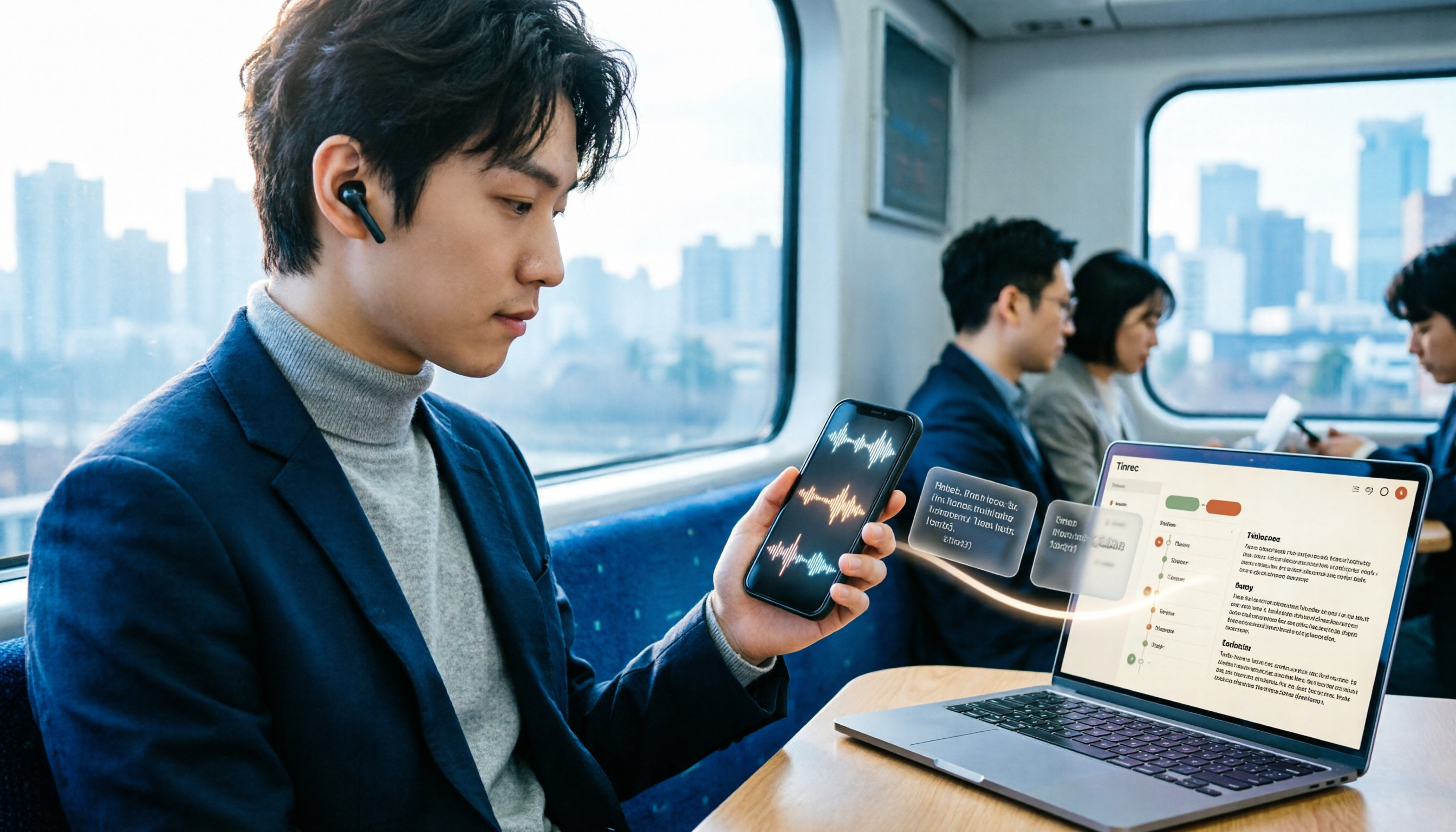
LINE voice messages can't be played during meetings or commutes, and there are several ways to convert them to text. This article compares LINE's built-in transcript, iPhone Shortcuts, and AI transcription tools to explain which one truly leaves you with a searchable, organized transcript file.

2026 Comparison of 5 Speech-to-Text Tools: Which Is Best for Chinese Recognition and AI Summarization?
There are many speech-to-text tools available, but Chinese recognition and post-meeting organization are the deciding factors. This article tests 5 tools from four angles: Chinese recognition, AI summarization, cross-platform support, and team collaboration. It also tests Tinrec's bot-free online meeting recording, AI conversational query, and team spaces to help you determine which one best fits your meeting scenarios.