
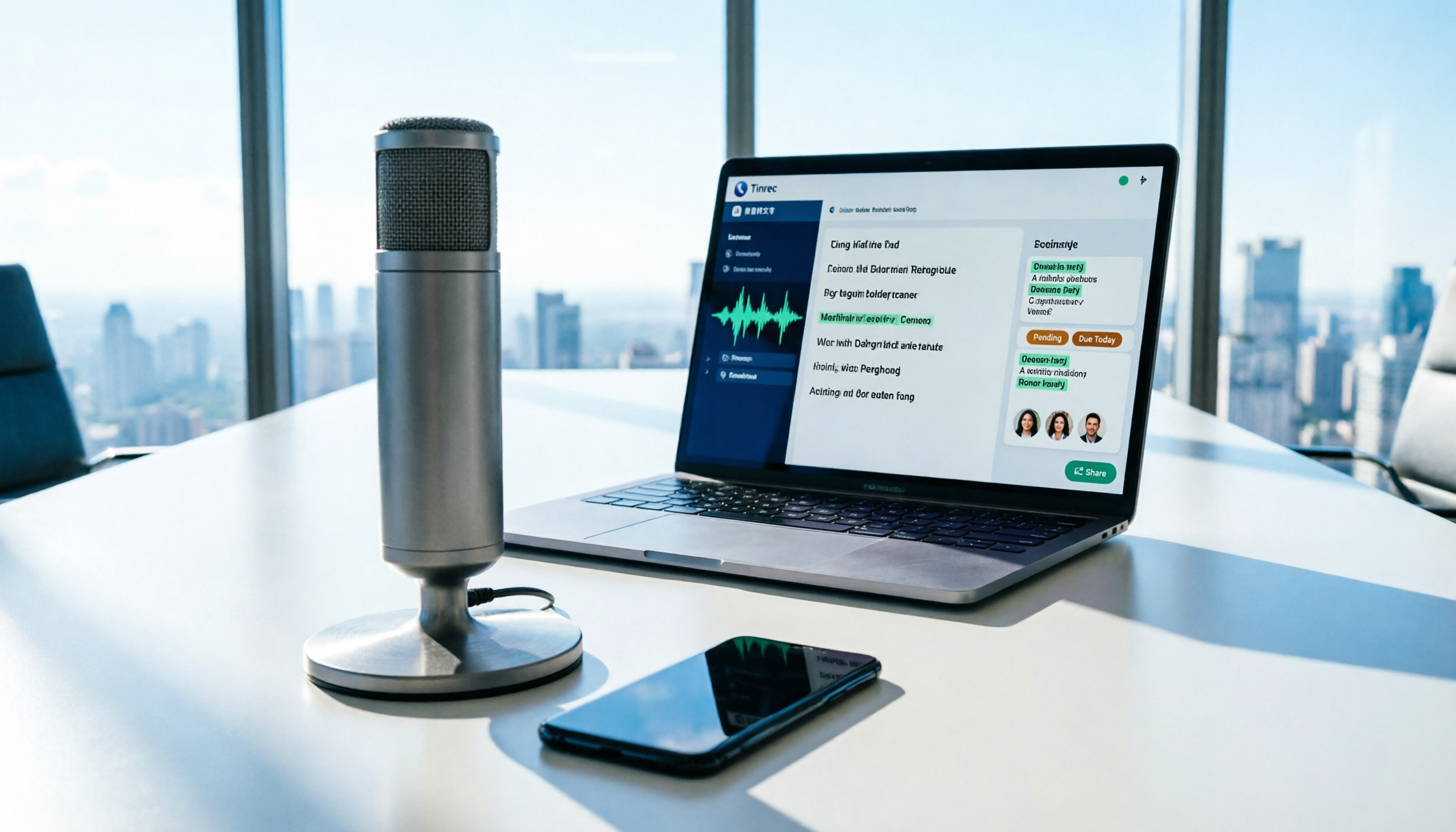
Turn recordings into transcripts and summaries in minutes
Upload audio or video for multilingual transcription, AI notes, and action items
How to Use AI for Meeting Recordings in 2026: A Complete 5-Step Tutorial
After a meeting, you look at a two-hour recording and think, "How long will this take to organize?" This isn't an exaggeration—it's the daily reality for most office workers. This article uses Tinrec as an example to walk you through turning meeting recordings into transcripts, summaries, and action items—no manual typing, and no need to send a bot into the meeting room.
Before You Start | What You Need to Prepare
- A smartphone or computer (Tinrec supports app, desktop, and web versions).
- A Tinrec account (you can sign up with Google or Apple ID).
- A meeting recording you want to organize (can be live recording, uploaded audio, or online meeting).
- A stable internet connection (real-time transcription requires internet).
- If the meeting has cross-language needs, first check Tinrec's real-time translation and multilingual support.
Using Tinrec as an example, the desktop version can directly capture computer system audio to handle online meetings on Zoom, Google Meet, Microsoft Teams, Webex, etc., without needing a meeting bot to join.
Step 1 | Record the Content You Want to Convert to Text
The purpose of this step is to obtain a clear recording file—this is the foundation for all subsequent steps.
Open Tinrec, and you can choose live recording or initiate online meeting recording on the desktop version. Tinrec desktop version records meetings by capturing device system audio, without needing an additional bot as a participant. For in-person meetings, place your phone in the center of the table so the microphone covers all participants; for one-on-one interviews, place the phone between the two people.
Why emphasize recording quality? Because AI transcription accuracy depends on audio quality—even the best transcription engine can't handle unclear recordings. Instead of spending time proofreading later, spend 30 extra seconds confirming the position when recording.
After completion, you will see this recording on the Tinrec main screen, with duration and file information displayed next to it.
(Illustrative image: A person sitting in a meeting room, phone or laptop placed in the center of the table, screen showing real-time transcript text, professional and natural meeting atmosphere)
Step 2 | Let AI Transcribe for You
The purpose of this step is to turn sound into searchable, editable text.
Tinrec supports real-time recording to text, as well as uploading audio or video files. If you recorded an online meeting, Tinrec will generate a transcript simultaneously; if it's an existing recording file, AI will process it automatically after upload.
Tinrec supports Chinese, Traditional Chinese, and multilingual meeting scenarios, and can also handle mixed Chinese-English content. Actual transcription results will be affected by recording quality, noise, accents, overlapping speakers, and technical terminology. It is recommended to use under clear audio conditions.
After completion, you will get a transcript with timestamps, and you can click on the text to review the corresponding segment.
(Illustrative image: A meeting transcript displayed on a laptop screen, with timestamps next to the text, and a user browsing)
Step 3 | Quickly Proofread the Transcript
The purpose of this step is to correct proper nouns or names that AI may have misheard.
After the transcript is generated, you can edit the text directly in Tinrec. If your team frequently uses specific product names, abbreviations, or industry terms, you can use the "Team Hotwords" feature in the team version to maintain common terminology and improve professional term recognition.
Why proofread? Because AI transcription is not 100% perfect. Important names, numbers, and decision content should be verified by replaying the recording. Tinrec retains the audio, so you can click on a transcript segment to replay the original sound at any time.
After completion, you will get a more accurate transcript, which serves as the basis for subsequent summary and action item extraction.
(Illustrative image: A user wearing headphones, listening to the recording while editing the transcript text on the screen)
Step 4 | Let AI Generate Meeting Minutes for You
The purpose of this step is to extract key points, decisions, and action items from the transcript.
Tinrec automatically generates AI summaries, chapters, and action items. You can quickly grasp the structure and key points of long meetings, and also organize action items from discussions. If you need to go further, you can also conduct AI Q&A on the meeting content—for example, ask "What are the three concerns the client mentioned?" Tinrec will find answers from the meeting data.
In addition, Tinrec supports real-time translation, so cross-language meetings can view original text, translation, or bilingual content. After the meeting, you can also use Agent post-processing to generate reports, tables, and documents.
After completion, you will have not only a transcript but also meeting minutes that can be directly used for reporting.
Stop organizing recordings by hand
Upload audio or video and automatically get a transcript, summary, and action items
(Illustrative image: A meeting summary card displayed on the screen, listing "Decisions," "Action Items," and "Chapter Highlights")
Step 5 | Export and Share
The purpose of this step is to bring meeting results into the team's workflow.
Tinrec supports multiple export formats, allowing you to bring transcripts, summaries, and action items to tools like Notion, Google Docs, OneNote, Dropbox, etc. for continued use. For team work, the team version provides an independent team space where meeting data is centrally stored, and members can share and view historical meetings.
The team version also manages members, roles, and seats: active members without a seat can still view, play, and read team data; only after obtaining a seat can they record, upload, edit, import, and export. When a member leaves or loses their seat, team resources are transferred to other active members and will not disappear with the individual's departure.
After completion, your meeting records no longer just sit on personal devices but become searchable, collaborative team data.
(Illustrative image: Team members viewing meeting summaries in a shared folder, showing a multi-person collaboration scenario)
FAQs and Troubleshooting
Q: There are many typos in the transcribed text. What should I do? Usually, the recording environment is too noisy or the distance is too far. Tinrec supports clear audio processing, but it is recommended to keep the phone close to the speaker when recording. If it's an already recorded file, you can select appropriate language and scene settings after import. Most transcription tools on the market use default modes to process all recordings, while Tinrec provides team hotwords to improve professional term recognition.
Q: How do I record online meetings? Do I need a bot to join? No. Tinrec desktop version directly captures computer system audio to handle meetings on platforms like Zoom, Google Meet, Microsoft Teams, Webex, without inviting a meeting bot as a participant. You just need to initiate recording on the desktop version.
Q: After the meeting recording is transcribed, how can I quickly find the key points? Tinrec automatically generates summaries, chapters, and action items, and you can also use AI Q&A to ask questions directly. For example, "What was decided in this meeting?" or "Who is responsible for next week's proposal?" AI will organize answers from the transcript. This is much faster than manually searching the transcript.
Q: Can team members view meeting records together? Yes. Tinrec team version provides a team space where members can share and view meeting data. Administrators can assign seats to control who can record, upload, and edit. Members without seats can still read and play team data.
Q: Can I use the free version? Tinrec free version provides basic quota, which can be used to experience recording, import, summary, and transcription. If you have stable meeting needs every week, you can consider Pro monthly or annual plans; for team use, there is a team version plan, billed by seat. Actual prices and benefits are subject to the official purchase page.
Advanced Tips | 3 Ways to Double Your Efficiency with Tinrec
Use AI Q&A to uncover hidden key points Tinrec supports follow-up questions around meeting content, such as "Compare the common needs of these three client meetings." This is not keyword search but AI understanding semantics and providing an organized answer. Most tools that only do transcription do not have this cross-meeting Q&A capability.
Enable real-time translation for cross-language meetings If the meeting has foreign colleagues or clients, Tinrec can display original text, translation, or bilingual content during recording. After the meeting, you can also use bilingual transcripts to organize minutes, reducing the time needed to find a translator.
Use team hotwords to improve professional term recognition The team version can maintain common terminology, such as product codes, project names, or industry abbreviations. This will improve AI's recognition of these terms and reduce proofreading time. This is one of the unique governance features of the team version.
If You Don't Use Tinrec, Here Are Other Options
Notta supports multi-platform transcription, meeting notes, document import, and translation. The Business plan offers unlimited transcription and role permissions, suitable for teams needing multilingual document processing. Otter.ai is a mature English business meeting assistant, providing real-time transcription, speaker identification, and AI Chat. The Basic free plan offers 300 minutes per month. These two have their advantages in English meetings and document transcription, but if you value Chinese meeting experience, bot-free desktop recording, and team data accumulation, Tinrec will be more suitable.
Conclusion
With the above 5 steps, you can now use Tinrec to turn meeting recordings into transcripts, automatically generate summaries and action items, and use AI Q&A to find key points. Tinrec desktop version does not require a meeting bot to record online meetings; the team version centralizes meeting data into a team space, where members can share, view, and manage seats and usage. Next step: download the Tinrec free version and try it with one of your own meeting recordings. Actual transcription results will be affected by audio quality; important content should be verified by replaying the recording.
References
- Meeting Ink - 2026 AI Meeting Notes Tool Review | 7 Voice-to-Text and Summary Speed Comparison | Meeting Ink - AI Meeting Notes Assistant Automatic Transcription Transcript Summary Meeting Minutes
- Get Meeting Minutes Done! How to Do AI Voice-to-Transcript? Gemini Notebook, Gemini, EchoScript Operation Analysis | 104 Workplace
- Recently many people ask me if there are any AI tools for meeting notes. They are still typing manually, often can't multitask, and waste time. I always answer—SeaMeet. Why recommend? Here are the key points: -Linked to Google Meet, online meetings sync transcripts and real-time summaries, super convenient. -No need to refresh, after the meeting, directly email all participants. -Operation is super simple, even middle-aged and elderly people who have never used AI tools, I taught them in 10 minutes. -In-person meetings
- How to Use AI for Meeting Minutes? How to Organize Meeting Transcripts? | AI Voice-to-Transcript Tutorial | 104 Workplace
- I Spent Four Hours Building an AI Meeting Notes Tool, Cost Less Than Ten Taiwan Dollars | WenHao Yu
Turn every recording into actionable outcomes
Get 60 free transcription minutes when you sign in. No credit card required.
Related Reading
You might also like

2026 Webcam Recording Guide: From Video Capture to AI Meeting Notes
Can a webcam record video? Yes. This guide covers standard webcam recording methods and compares them with Tinrec's AI meeting notes workflow, showing how to turn recordings into searchable, collaborative, and actionable meeting data.

4 AI Transcription Tools Tested in 2026: Which Saves the Most Time for Chinese Meetings?
Still spending two hours after a meeting to clean up transcripts? This article compares Tinrec, Yating Transcription, Google AI Studio, and Notta from four angles: Chinese recognition, post-meeting organization, online meeting recording methods, and team data retention. It also covers free quotas, pricing, and three common pitfalls in choosing a tool, helping you find the one that saves the most time.

4 Audio-to-Text Apps Tested for 2026: Which Saves the Most Time in Cantonese Meetings?
2026 audio-to-text app comparison. We used the same Cantonese meeting recording with mixed English to compare transcription and post-meeting organization across 4 tools, breaking down 4 key buying factors, pitfalls to avoid, and scenario-based recommendations. We also tested Tinrec's desktop bot-free meeting recording, AI Q&A, and team seat management.

4 Best Browser Audio Recorders in 2026: Which One Transcribes While Recording and Keeps the Audio?
We tested and compared 4 tools for recording browser audio, analyzing recording sources, format limits, transcription, and team collaboration. We cover key buying factors and common pitfalls, and explain how Tinrec turns browser recordings into searchable, actionable transcripts and summaries.

4 AI Transcription Tools Tested in 2026: Which Saves the Most Time on Chinese Meeting Transcripts?
AI transcription isn't just pressing record. This article addresses common misconceptions and compares four AI transcription tools—Tinrec, Notta, Otter.ai, and TurboScribe—on recording methods, Chinese language performance, and post-meeting organization. It also outlines selection criteria and pitfalls to avoid.

2026 Comparison of 4 AI Meeting Note-Takers for Chinese: Which Saves the Most Time on Chinese Transcription and Post-Meeting Organization?
How to choose an AI meeting note-taker for Chinese? This article compares Tinrec, Notta, Otter.ai, and Granola on Chinese recognition performance, recording methods, and post-meeting organization capabilities. It covers free tiers, team collaboration, and common pitfalls to help you find the most time-saving Chinese meeting note-taking tool.
2026 Comparison of 4 Web Recording Tools: Which One Can Record Both Microphone and System Audio?
The most common reason web recording fails isn't the tool—it's setting the wrong audio source and not organizing the recording afterward. This article first highlights three common pitfalls, then uses Tinrec as an example to explain the core capabilities of web recording, practical use cases, 5 key factors to consider when choosing a tool, and the differences and costs between personal and team plans, ending with an FAQ.

2026 AI Meeting Notes Tools Comparison: Tinrec vs Notta — Which Is Better for Chinese-Speaking Teams Across 5 Key Areas?
Starting from common misconceptions, this hands-on comparison of Tinrec and Notta examines 5 key areas: Chinese meeting recording, post-meeting organization, team governance, pricing and quotas, and export workflows. It also answers 6 common questions to help you decide which AI meeting notes workflow best fits your work style.

2026 AI Meeting Recorder Showdown: Tinrec vs PLAUD Note — Which Is Better for Chinese Meetings?
Tinrec or PLAUD Note? We tested both across meeting capture, Chinese transcription, post-meeting AI organization, team collaboration, and pricing to help you decide whether software or recording hardware fits your meeting workflow.