

Turn recordings into transcripts and summaries in minutes
Upload audio or video for multilingual transcription, AI notes, and action items
How to Record iPhone Calls in 2026: Built-in Feature Steps + Transcript Guide
Which Method Should You Use for iPhone Call Recording? Decide These 3 Things First
For years, iPhone had no built-in call recording. To keep a record of a call, you had to put it on speaker and record with another phone, or buy a separate recording device. Starting with iOS 18.1, Apple finally built call recording into the system. But there are three hurdles—it's not something everyone can just tap and use.
Before you start, answer these three questions:
- Does your system version and region support it? iOS 18.1 is the minimum, but some regions still can't use it.
- Do you just want an audio file, or something searchable, excerptable, and shareable? This determines whether you need an extra organization step.
- Does the other party agree? This isn't a technical issue—it's a legal one.
Different answers lead to different approaches. Below, we'll cover the criteria, then break down the actual steps for iPhone's built-in call recording, and finally compare several alternatives.
4 Key Points to Understand Before You Start Recording
1. System Version: iOS 18.1 or Later
Built-in call recording is available starting with the official iOS 18.1 release. As long as the iPhone doing the recording is updated to iOS 18.1 or later, it works. The other person doesn't need to support the feature or have the same phone.
2. Regional Restrictions: Unavailable in Some Countries and Regions
This is the most commonly overlooked point for users in Taiwan. Apple's support page clearly lists the following regions where call recording is currently unavailable: Azerbaijan, Bahrain, Egypt, the European Union, Iran, Iraq, Jordan, Kuwait, Morocco, Nigeria, Oman, Pakistan, Qatar, Russia, Saudi Arabia, South Africa, Turkey, the United Arab Emirates, and Yemen. Taiwan is not on the restricted list, but if you frequently travel to these regions or use a local SIM there, you'll need another method.
3. The Other Party Hears an Alert Tone—No Secret Recording
After you tap call recording, a 3-second countdown appears on screen. When it ends, both parties hear an alert saying "This call will be recorded." In other words, the other person will almost certainly know you're recording. This design is based on privacy and legal considerations and cannot be turned off.
4. Recordings Are Saved in Notes, and So Are Transcripts
Call recordings are saved in the Notes app. In supported regions and languages, you can view a transcript, and the system automatically identifies each speaker. Two things to note: deleting the recording also deletes the transcript; transcripts only support certain languages. If you don't see a transcript, it usually means your iPhone doesn't meet the minimum requirements or didn't detect a supported language. If Apple Intelligence is enabled, you can also see call recording summaries in the Phone app.
Legal Reminder
In Taiwan, it's recommended to get both parties' consent before recording. Secretly recording without the other party's consent may violate the Criminal Code's offense of breach of privacy. If the call involves trade secrets or personal data, you should explain the purpose in advance and obtain consent.
How to Use iPhone's Built-in Call Recording: 4 Steps
Step 1: Check version and region. Go to Settings → General → Software Update to confirm you're on iOS 18.1 or later, then check Apple's iOS feature availability page to confirm your region and language support call recording.
Step 2: Tap record during a call. Whether you're making or receiving a call, a call recording button appears on the call interface. Tap it and a 3-second countdown begins.
Step 3: Recording starts after both parties hear the alert. Once the countdown ends and the alert finishes playing, recording begins. In practice, it's a good idea to repeat important information (amounts, dates, names, addresses) once—this significantly improves the usability of the later transcript.
Step 4: Check Notes after hanging up. The recording is saved in the Notes app, where you can play it, view the transcript, and see speaker segments. If Apple Intelligence is enabled, you can also get a call summary.
One common misconception: Control Center's "Local Capture" or screen recording only captures your side of the audio, not the other person's. You can't record a full call that way.
Tinrec — Turn Calls into Usable Data After Recording
iPhone's built-in call recording solves the "record it" part, but there's usually more work afterward: in a 30-minute call, you need to find the budget number the other person mentioned, the promised delivery date, and the follow-up items—then organize it all into an email or meeting notes. That's exactly where Tinrec comes in.
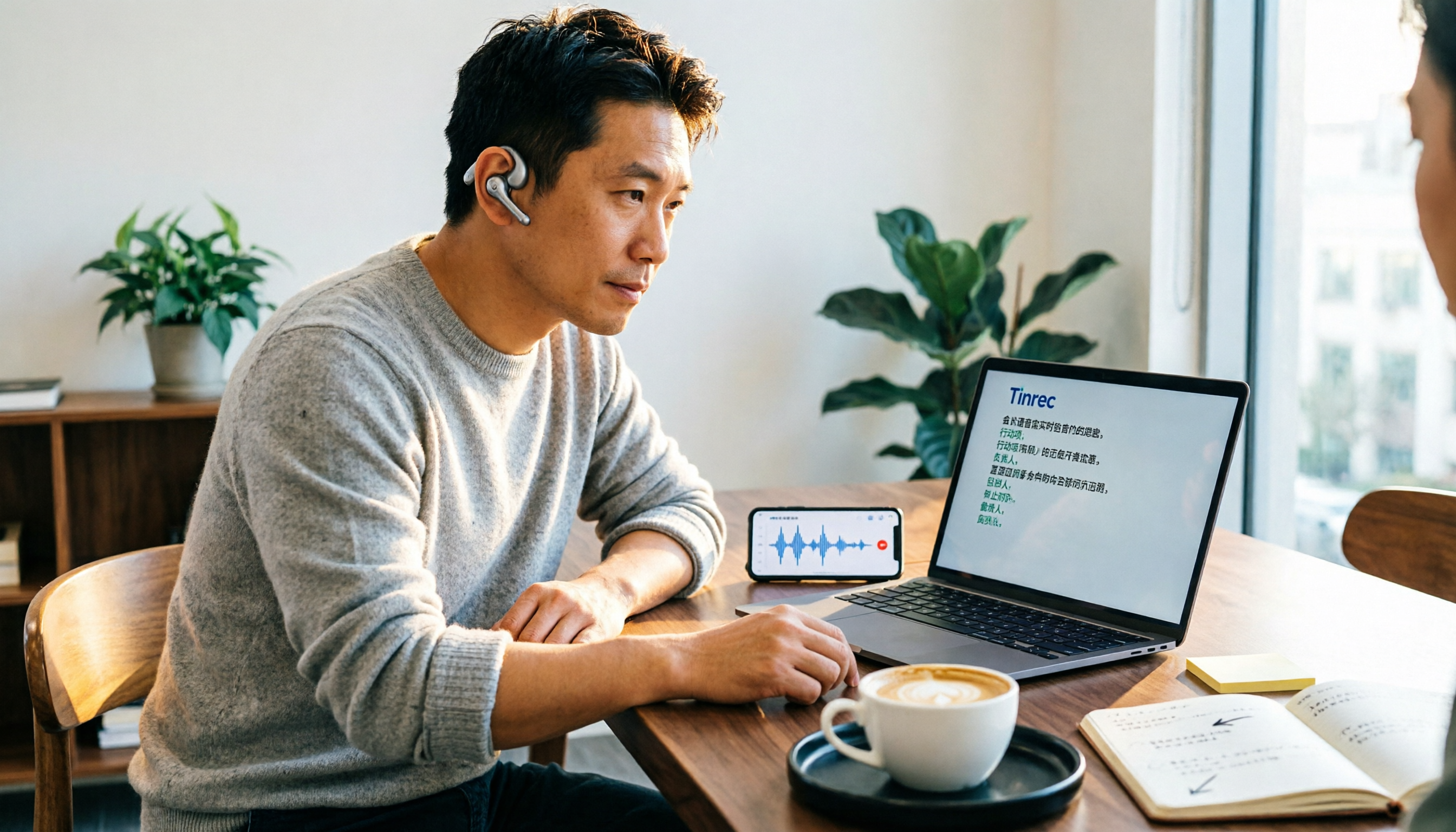
Tinrec is an AI meeting notes and collaboration tool for individuals and teams, available on web, desktop, and mobile. It supports real-time audio-to-text, audio and video file transcription, AI summaries and chapters, action item extraction, AI Q&A, real-time translation, and multi-format export, and it lets you store data in a team space.
Import audio and get transcripts, summaries, and chapters. Whether it's a call recorded with iPhone's built-in feature or existing meeting audio or video files, you can import them into Tinrec to get transcripts, along with automatically generated AI summaries and chapters. The worst part of long calls is having to listen from the beginning again—with chapters, you can jump straight to key sections.
Stop organizing recordings by hand
Upload audio or video and automatically get a transcript, summary, and action items
Ask questions directly after recording. This is where Tinrec differs most from ordinary transcription tools. "In the last call with the client, what was the budget ceiling they mentioned?" You can ask questions directly about the meeting or call content, and it answers based on semantics rather than dumping a list of keyword search results. Most tools in the same price range don't have this capability yet.
From transcript to deliverable. Tinrec can extract action items from call content, then use Agent post-processing to generate reports, tables, and documents, and export to Notion, Google Docs, OneNote, Dropbox, and other tools for further work. For anyone who needs to produce meeting notes, client interview summaries, or course notes, it saves more than just typing time.
Team Edition: Call data belongs to the team, not individuals. If these calls are sales interviews, client requirements, or project decisions, storing data in personal accounts is risky. Tinrec's Team Edition provides a separate team space where meetings and recording resources belong to the team, with governance features like member and role management, seat allocation, sharing rights, usage analytics, audit logs, team hotwords, and an audio recycle bin (30-day retention). When a member leaves or is removed, their resources can be handed over to other members, so data doesn't leave with the person. Currently, the Team Edition offers first-time eligible users 7 days, 1 free seat, and 300 minutes of shared team import quota; paid plans are USD 29.80 per paid seat per month, or USD 199 annually (about USD 16.58/month), with each paid seat providing 2,000 minutes of shared team import quota per month. Actual prices and benefits are subject to the official purchase page.
Limitations to know. Tinrec doesn't promise a fixed accuracy rate—recording quality, ambient noise, accents, overlapping speakers, and technical jargon all affect recognition. For important content, verify against the transcript timestamps and original audio. Also, Tinrec isn't a tool for recording iPhone calls; it's the organization and collaboration layer after recording. The call itself still needs to be recorded first via iPhone's built-in feature or a recording device. The free version offers basic quota to try; if you have steady needs every week, consider a weekly card or Pro plan.
Who it's for. If you frequently need to turn calls, meetings, or interviews into searchable, quotable data; if you're in sales, project management, or customer service and call content extends into follow-up deliverables and action items; if you want this data to stay with the team rather than on someone's phone—Tinrec will be a better fit than a simple recording or transcription tool.
Besides Built-in Features and Tinrec, What Other Options Are There?
PLAUD Note / NotePin (AI recording hardware) A physical recording card, suitable for users with older iPhones that can't upgrade to iOS 18, or situations requiring discreet recording on the go. On the US official site, NotePin is currently USD 159 and Note Pro is USD 189; membership plans are Starter at 300 minutes/month, Pro at USD 99.99/year (1,200 minutes/month), and Unlimited at USD 239.99/year. Its value is in hardware and battery life, but if call content needs to become team-searchable data, PLAUD leans toward device and personal membership management. Tinrec's team space, seat governance, and desktop bot-free online meeting recording are things it lacks.
Notta (general transcription tool) A multi-platform transcription and translation tool. Free version: 120 minutes/month, max 3 minutes per file; Pro annual billing is about USD 8.17/month (1,800 minutes/month); Business annual billing is about USD 16.67/seat/month, offering unlimited transcription, role permissions, and usage reports. Suitable for those who simply want to convert audio to text. But its focus is transcription and subtitles, while Tinrec adds desktop bot-free online meeting recording and Agent post-processing to directly generate reports, tables, and documents.
Otter.ai (English meeting assistant) One of the most mature AI meeting assistants. Basic is free with 300 minutes/month; Pro annual billing is about USD 8.49/user/month (1,200 minutes of in-app recording and 10 file imports per month). If your calls and meetings are almost all in English, Otter is a reasonable choice. But if your content is mainly Chinese or mixed Chinese-English, and you want to directly generate reports and tables after recording, Tinrec's Chinese experience and post-processing workflow will be smoother.
Pitfall Guide: 4 Most Common Mistakes in iPhone Call Recording
Pitfall 1: Only checking iOS version, not region. Many people upgrade to iOS 18.1 and still can't find the record button, thinking their phone is broken. In fact, some regions simply don't support it. Check Apple's feature availability page first—don't rush to send it for repair.
Pitfall 2: Thinking you can record secretly. The system counts down 3 seconds and plays an alert tone, so the other person will almost certainly hear it. Quiet recording via the built-in feature isn't possible. If you truly have a need not to inform the other party, check the legal risks first and don't act rashly.
Pitfall 3: Using screen recording or "Local Capture" to record calls. This only captures your side of the audio; the other person's side is silent, making the recording useless.
Pitfall 4: Recording without organizing. After the recording is saved in Notes, if there's no transcription, summary, or action items, you won't open it again two weeks later. What really saves time isn't "having recorded" but "being able to use it right after recording"—which is why most people later pair it with tools like Tinrec.
Summary: Which Method Should You Actually Use?
Call in Taiwan, iPhone updated to iOS 18.1 or later → Use built-in call recording. Free, no app needed, but remember the other party will hear the alert tone.
iPhone too old to upgrade to iOS 18 → Consider recording hardware like PLAUD. The stability of hardware recording is its value.
Call content needs to become transcripts, summaries, action items, or reports → Use Tinrec. It supports real-time recording, audio and video transcription, AI Q&A, action item extraction, multi-format export, and can store data in a team space, turning call records into team assets rather than an audio file on someone's phone.
Calls and meetings are almost all in English → Otter.ai is a reasonable choice. This is one of the few situations in this article where we recommend another tool.
Purely need to transcribe large amounts of long audio → Tools like Notta are more efficient. Its paid plans offer more generous file transcription quotas.
No matter which you choose, two things don't change: first confirm the other party's consent, then confirm where the data will ultimately be stored. Recording is just the starting point—whether it can be found, cited, and handed over is the real value of a call record.
References
- Record and transcribe calls on iPhone - Apple Support (Taiwan)
- How to record iPhone calls? 5 iPhone call recording methods revealed!
- iPhone call recording tutorial: Step-by-step guide to recording calls
- How to use iPhone call recording? Full analysis of built-in iOS call recording and transcription - Mr. Mad
- [Phone Tips] 2026 iPhone built-in call recording tutorial! iOS enable call recording/key points to note | Jyes Communication ~ Challenging the lowest phone prices
Turn every recording into actionable outcomes
Get 60 free transcription minutes when you sign in. No credit card required.
Related Reading
You might also like

Where Is iPhone Voice Memo Transcription in 2026? 4 Steps to Find It and Turn It Into Meeting Notes
iPhone's built-in Voice Memos app can already generate transcripts, but many first-time users can't find where they're hidden, which models support them, or whether they need to update for Chinese. This article walks you through 4 steps to find and copy transcripts, and compares built-in features with AI meeting tools like Tinrec to help you decide whether to use the built-in option or switch tools.

2026 AI Speech-to-Text Comparison: Tinrec vs Otter.ai for Chinese Meetings
How to choose an AI speech-to-text tool? This in-depth comparison of Tinrec and Otter.ai covers Chinese recognition, meeting recording methods, post-meeting organization, team collaboration, and pricing to help you find the best fit for Chinese meetings and team knowledge retention.

4 MP3 Transcription Tools Tested in 2026: Which Free Version Is Good Enough?
Looking for an MP3 transcription tool? We tested 4 popular options, comparing Chinese recognition, summary and to-do extraction, AI Q&A, free quotas, and team collaboration, with Tinrec as the main test subject, to help you avoid common pitfalls like focusing only on free versions or settling for raw transcripts.

Best Transcription Tools in 2026: We Tested 4, and This One Handles Chinese Meetings Best
What is a transcript, and why do most people no longer type them out by hand? This article first explains what a transcript is and how it differs from meeting minutes, then outlines 4 key factors for choosing a transcription tool. We tested and compared 4 options—Tinrec, Otter.ai, Notta, and PLAUD Note—and provide clear recommendations based on budget and use case.

2026 Comparison of 3 Online MP3-to-Text Tools: Which Offers the Best Free Tier, Chinese Recognition, and Team Collaboration?
There are countless online MP3-to-text tools, but are the free ones enough? This article focuses on Tinrec and Notta, comparing them across five dimensions: online meeting recording methods, Chinese and mixed Chinese-English recognition, post-transcription summaries and action items, export and audio retention, and team spaces and governance. It honestly lists free quotas and paid prices to help you decide which approach suits your meetings, interviews, and team scenarios.

5 Best AI Speech-to-Text Tools in 2026: Which One Handles Chinese Meeting Notes and Post-Meeting Organization Best?
We tested and compared 5 AI speech-to-text tools, analyzing Tinrec, Otter.ai, Notta, Granola, and TurboScribe across Chinese recognition, meeting recording methods, post-meeting organization, and team collaboration to help you find the best speech-to-text solution for your workflow.
How to Transcribe Audio to Text in 2026: Google Docs Voice Typing vs. Tinrec AI Meeting Notes
Can you really transcribe audio files with Google Docs? First, understand the limitations of Google Docs voice typing and the virtual audio cable workaround. Then compare Tinrec, Google Cloud Speech-to-Text, and Otter.ai. A mid-level manager's hands-on experience tells you which path saves the most time.

Gemini Audio to Transcript in 2026: Common Limitations & Tinrec Alternative
Can you just drop an audio file into AI and get a transcript? This article breaks down the three most common misconceptions about using Gemini for transcription, then demonstrates a complete workflow with Tinrec—from recording and transcription to meeting minutes, action items, and team collaboration. It also covers 5 key factors to consider when choosing a tool and answers frequently asked questions.

Which iPhone Recording to MP3 Converter Is Best? Comparing 5 Methods in 2026 — No-Install Online Conversion Is the Easiest
iPhone Voice Memos are saved as m4a by default. To convert them to MP3, you can use online converters, apps, or desktop software. This article compares 5 methods, covering differences, batch processing, audio quality settings, and the 3 most common conversion mistakes. It also explains that if the recording is actually a meeting or interview, generating a transcript, summary, and action items directly is usually more time-saving than just converting the format.