
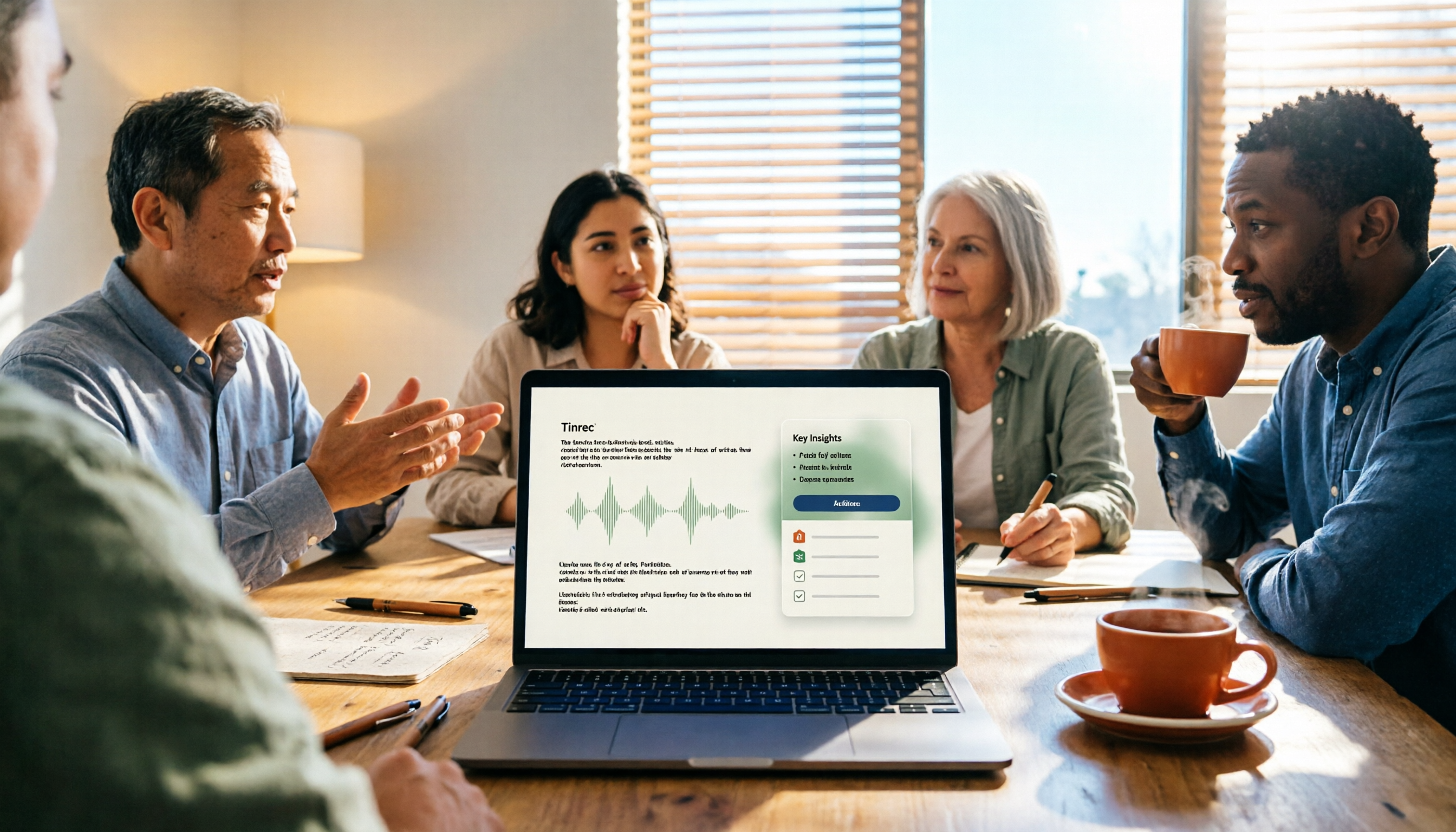
Turn recordings into transcripts and summaries in minutes
Upload audio or video for multilingual transcription, AI notes, and action items
How to Take Meeting Minutes in 2026 with Tinrec: 3 Steps to Transcripts + Action Items
Why Your Meeting Minutes Are Never Done: Three Most Common Mistakes
I've coached many teams on improving their meeting processes, and the reason post-meeting organization gets stuck is almost never slow typing.
It's using the wrong method.
Mistake 1: Treating meeting minutes as a verbatim transcript.
Is every word in the meeting important? For the people who will read these minutes later, most of the conversation doesn't need to be preserved. What truly matters are the key discussion points, the decisions made, and who will do what next.
Mistake 2: Writing furiously during the meeting, planning to organize later.
This is the most damaging approach. You're listening and writing at the same time, doing neither well, and then you have to transcribe everything again afterward—doing the same work twice.
Mistake 3: Delaying organization until the next day or even next week.
In the half hour right after the meeting, you still have the full context of the discussion in your head. After 24 hours, all you have left are a few illegible lines in your notes.
A more reasonable approach: write the skeleton during the meeting, fill in details after.
The skeleton has only three columns—topics, conclusions, action items. During the meeting, you fill in just these three columns. The rest—transcript, summary, chapters, action items—let the tool handle it.
In the past, filling in details meant replaying the recording and going through it segment by segment; now it can be compressed to just a few minutes after the meeting ends.
What Can Tinrec Do for You?
Let's start with the result. Using Tinrec as an example, the core time savings come from eliminating the need to re-listen to recordings after the meeting.
Scenario 1: Meeting minutes ready 5 minutes after the meeting.
Previously, after a two-hour meeting, you might spend another hour organizing. Tinrec converts content to text while the meeting is happening, and immediately after the meeting produces summaries, chapters, and action items—who's responsible for what and when it's due, listed line by line.
Scenario 2: No need to add a bot to online meetings.
When using Zoom, Google Meet, Microsoft Teams, or Webex, Tinrec's desktop version captures your computer's system audio directly, without inviting an extra meeting bot. This is especially critical for external client meetings.
Scenario 3: Your manager suddenly sends you an old recording.
"Please organize last month's client interview for me." Upload the audio or video file to Tinrec, and you'll get a transcript, key summary, and can even ask questions directly about the content.
Scenario 4: Your whole team's meeting minutes start having one home.
The worst thing about meeting minutes is when they're scattered across everyone's computers and chat rooms. Tinrec's team space centralizes transcripts, summaries, and action items, so new members can also look back at historical meetings.
My 3-Step Workflow
Step 1: Build the skeleton 30 seconds before the meeting. Create a new note in Tinrec, title it "Date + Meeting Name," for example "0501 Curriculum Team Meeting." Including the date in the title makes it fastest to find later.
Step 2: During the meeting, fill in only three columns; let the tool handle recording. Topics, conclusions, action items—just these three columns. Your attention goes to "which problem does this discussion relate to," not transcribing every word. At the same time, press start on Tinrec to record; the transcript generates in real time, so you don't have to worry about missing anything.
Step 3: After the meeting, fill in details by cross-referencing, and send within 24 hours. Open Tinrec's AI summary and chapters, and fill in the gaps against your handwritten skeleton. Always verify names, numbers, and proper nouns yourself, then export and send.
What Core Capabilities Enable Fast Meeting Minutes?
Real-time transcription: text appears as you record, not after. During the meeting, you can watch the text to confirm you haven't missed key points. If a proper noun isn't captured correctly, you can fix it on the spot. Tinrec supports Chinese, Traditional Chinese, and multilingual meeting scenarios, and can handle mixed Chinese-English content.
AI summary and chapters: not just condensing the transcript into a paragraph. It's structured organization—meeting topic, key discussion points, conclusions, and action items listed separately. Long meetings are divided into chapters, so when you need to review a specific topic, you can jump directly to that section.
Action item extraction: turning "let's discuss next time" into "who will finish what by when." Tinrec extracts action items from the discussion. In practice, I use this prompt to confirm:
"Based on this transcript, please organize: 1. Meeting topic and one-sentence conclusion 2. Three main discussion points 3. Action items (owner/task/deadline, mark as TBD if not mentioned) 4. Items to discuss. Only use the transcript content, do not add speculation."
AI Q&A: questions that come up after the meeting don't require re-listening. "What were the client's concerns about the quote?" "How many decisions were made in this meeting?" You can ask questions directly about the meeting content, and Tinrec answers based on semantic understanding, not just keyword matching.
Export and post-processing: connecting meeting minutes back to your existing workflow. Tinrec supports export to Notion, Google Docs, OneNote, Dropbox, and other tools, and can further generate reports, tables, and documents. The team version also offers team hotwords, so your company's internal product names and project codes are recognized more accurately.
Stop organizing recordings by hand
Upload audio or video and automatically get a transcript, summary, and action items
Real-World Use Cases
Online recurring meetings (weekly meetings, project meetings) Meetings with a fixed rhythm are best suited for automation. Use Tinrec's desktop version for bot-free recording, and get transcripts and summaries directly after the meeting. You only need to spend five minutes confirming action item owners and deadlines, then send out the minutes. Over time, this builds a searchable history of project decisions.
Client interviews and requirements meetings The biggest fear in client meetings is missing commitments. Tinrec preserves recordings and transcripts, so you can go back and confirm "how exactly was this said at the time." After the meeting, use AI Q&A to organize client needs, concerns, and follow-up actions, turning them directly into internal sync materials.
Classes, lectures, and internal training This type of content has high information density; listening and writing simultaneously guarantees omissions. Let Tinrec handle complete recording while you focus on listening. Afterward, use summaries and chapters to review; when you need to cite a specific section, search the transcript by keyword.
Accumulation and handover of team meeting materials If meeting minutes only exist in personal accounts, data scatters when people leave. Tinrec's team version stores meeting materials in a team space, accessible and searchable by all members. When a member leaves or loses their seat, their resources can be handed over to other active members.
5 Things to Check When Choosing a Meeting Notes Tool
1. Can it handle your actual meeting formats? Online meetings, in-person meetings, and existing audio files are three different scenarios. Tinrec's desktop version handles online meetings via system audio, the mobile app is suitable for field and on-site recording, and it also supports uploading audio and video files.
2. Chinese and multilingual performance. If your meetings mix Chinese and English, first confirm the tool's ability to handle Chinese and mixed-language sentences. Tinrec covers Chinese, Traditional Chinese, and multilingual scenarios, and supports real-time translation and bilingual viewing during recording. Actual results are affected by recording quality, noise, accents, and overlapping speakers; we recommend testing with your own recordings.
3. Can it organize after transcription? A tool that only gives you a transcript is just handing the work back to you unchanged. Tinrec goes beyond transcription with summaries, chapters, action items, and AI Q&A—that's where the real time savings come from.
4. Can the output connect back to your workflow? Confirm whether it can export to formats and tools you already use. Tinrec supports multiple export formats and can bring results to Notion, Google Docs, OneNote, Dropbox for further processing.
5. Team governance capabilities. For team use, distinguish between "roles" and "seats": roles determine who can manage the team and view audits, seats determine whether members can record, upload, edit, and export. Tinrec's team space provides member and seat management, usage analytics, audit logs, and an audio recycle bin (30-day retention). The team version also offers a 7-day free trial, 1 free seat, and 300 shared import minutes. Paid seats provide 2,000 shared team import minutes per month; real-time recording under an active team plan is not deducted by the minute. Prices, currencies, and promotions are subject to the official purchase page.
Frequently Asked Questions
What exactly should meeting minutes include? Just three things: what topics were discussed, what decisions were made, and who will do what next. Leave the transcript to the tool; your value is in judging what's worth keeping.
Can I start with the free version? Yes. Tinrec's free version provides basic quota, enough to experience the recording, transcription, summary, and export process for a few meetings. If you only occasionally organize a recording, the free version is sufficient; for short-term intensive meetings or interviews, consider a weekly pass; for steady weekly needs, the Pro monthly or annual plan is more suitable.
Do I need to invite a bot to online meetings? No. Tinrec's desktop version captures system audio without adding extra participants. However, remember that you need to manually start recording in Tinrec before the meeting—it's not a mechanism that automatically joins all calendar meetings.
Can AI-generated meeting minutes be sent directly? It's recommended to manually verify first. AI may misjudge names, company names, and proper nouns. I spend two minutes checking key information against the transcript before sending to colleagues. For important information, it's also advisable to keep the recording and timestamps for future verification.
What's the difference between the team version and personal version? Personal version data is managed under your personal account. The team version is a separate team space where data belongs to the team, with additional features like member invitations, role and seat management, shared benefits, usage analytics, audit logs, and audio recycle bin. Members without a seat can still view and play team data but cannot upload, edit, or export.
What should I pay attention to when recording? Different regions have different regulations on recording and transcription. Before recording, please confirm compliance with local laws and obtain participant consent when necessary.
Summary
The key to fast meeting minutes has never been typing speed—it's whether you've broken down the work correctly.
During the meeting, do only one thing: write the skeleton. After the meeting, do only one thing: fill in details against the AI summary, verify key information, and send within 24 hours.
Benefits recap:
- No more being a typing machine during meetings—you can actually participate in the discussion
- Transcripts, summaries, and action items ready minutes after the meeting
- Questions that come up later can be looked up with AI Q&A
- Meeting data stored centrally, searchable and transferable
Quick start checklist:
- Install Tinrec desktop and mobile
- Create a new note titled "Date + Meeting Name"
- Press record when the meeting starts
- During the meeting, fill in only topics, conclusions, and action items
- After the meeting, use AI summary to fill in details, verify names and numbers
- Export or share, send within 24 hours
Start testing with your next meeting. Adjust gradually, and you too can turn meeting minutes from a chore into something that's mostly done before the meeting ends.
References
- How to Take Meeting Minutes? A Complete Guide for Beginners in 2026 - Meta Note
- 9 Tips for Writing Better Meeting Minutes 2025 • Asana
- Meeting Minutes So Painful? Learn to Use "NotebookLM + One Set of Prompts" to Send Emails 3 Minutes After the Meeting! | BusinessNext
- Easily Complete Meeting Minutes Before Leaving Work: Three Efficient Methods for Handling Meeting Minutes
- Meeting Minutes = Transcript? Professional Meeting Minutes Only Record 3 Key Points | Writing Tips and Templates at a Glance | 104 Workplace
Turn every recording into actionable outcomes
Get 60 free transcription minutes when you sign in. No credit card required.
Related Reading
You might also like

Tinrec vs Otter.ai 2026: 5-Dimension Comparison — Who Transcribes 180 Words Per Minute More Accurately?
Average Chinese speech rate is about 160-220 words per minute, so a 60-minute meeting can produce over 10,000 words of transcript. This article first clarifies the actual number of words per minute in typical speech, then reviews 7 audio-to-text solutions and compares Tinrec and Otter.ai across 5 dimensions to help US readers choose the right tool and save time on meeting notes.

How to Use Gemini for Meeting Notes in 2026: Audio Transcription Test + Tinrec Bot-Free Organization
Can Gemini take meeting notes? This article breaks down Gemini's audio upload, Google Meet's Take Notes for Me, and Gemini Notebook's practical limitations, and compares Tinrec's bot-free recording, AI Q&A, to-dos, and team spaces to help you choose the right meeting notes tool.

2026 Audio-to-Transcript Tools Compared: Is Gemini Enough? Tinrec Saves Time on Chinese Meeting Notes
2026 hands-on comparison: Can Gemini really turn audio files into transcripts? This article answers that question from a student's perspective and compares real-time recording, file import, AI summaries, action item extraction, AI Q&A, and team collaboration. It explains why Tinrec is better suited for students and small groups who need Chinese meeting notes and searchable, shareable transcripts, with 5 key buying tips and FAQs.

ChatGPT Recording Mode 2026: 120-Minute Limit + Transcript Tested
ChatGPT's recording mode has a single-session limit of about 120 minutes, and audio is deleted after transcription. This article explains what that limit really means and its usage constraints, then compares Tinrec, Notta, Otter.ai, and Granola using 5 key buying factors, and outlines 4 common pitfalls to help you find a tool that truly saves time on meeting notes.

4 Transcription Tools Tested and Compared in 2026: What Does 'Verbatim' Mean? Which Saves the Most Time for Chinese Meetings?
What does 'verbatim' mean? This article starts with dictionary definitions to clarify the pronunciation, part of speech, and usage of 'verbatim,' then explains why verbatim transcripts (audio typing, stenography) are so time-consuming. It compares Chinese recognition, post-meeting organization, team collaboration, and pricing of transcription and AI meeting note tools like Tinrec, Otter.ai, Notta, and PLAUD Note, helping you decide which type of tool you actually need.

6 Ways to Launch Google Gemini in 2026: Phone, Computer, and Voice Compared
How do you launch Google Gemini? This guide covers 6 practical ways to wake it up, from Android's "Ok Google" voice command and long-pressing the power button to asking about screen content, Gemini Live, the iPhone app, and the desktop web version. It includes setup paths and common troubleshooting reasons so you can figure out which method to use on your device.

2026 Audio-to-Text Solutions Compared: Beyond ChatGPT, Why Tinrec Is Better for Meeting Notes
Can ChatGPT actually transcribe audio files? The answer depends on your plan, version, and usage limits. This article compares ChatGPT and Tinrec in real meeting scenarios, covering audio sources, Chinese recognition, transcript post-processing, team collaboration, and pricing. It also includes 7 FAQs to help you decide which approach fits your workflow.

5 Best Audio-to-Transcript Tools in 2026: Which One Handles Chinese Meetings and Post-Meeting Workflows Best?
Audio-to-transcript tools do more than just convert sound to text. This article examines real-world use cases, covering core capabilities like real-time transcription, AI summaries, action item extraction, Q&A, and team collaboration. It also outlines 5 key buying criteria and answers common questions to help you choose a transcript tool that truly saves time.

2026 Comparison of 3 Transcription Tools: Which AI Auto-Summarizer Saves the Most Time?
What does a transcript mean? This article starts with common misconceptions, explains the difference between a transcript and meeting minutes, and uses Tinrec to demonstrate real-time transcription, AI summaries, action item extraction, and AI Q&A. It also covers 5 key points to consider when choosing a transcription tool, along with recording compliance and FAQs.