
Turn recordings into transcripts and summaries in minutes
Upload audio or video for multilingual transcription, AI notes, and action items
Many office workers and students often face long meetings or classes and worry, "How long can my iPhone record audio?" Here's the answer: As long as your iPhone storage and battery are sufficient, the built-in Voice Memos app can record continuously for up to approximately 48 hours. However, long recordings not only test storage and battery—the real disaster is "post-meeting processing": a 3-hour recording often takes 3 hours to listen back to. This article analyzes the physical limitations of iPhone recording and provides tips to avoid pitfalls. By comparing traditional tools with AI recording solutions, you'll learn how to use "real-time voice-to-text" and "AI chat queries" to completely solve the transcription headache. If you value generating action items after meetings, prioritize AI-assisted tools.
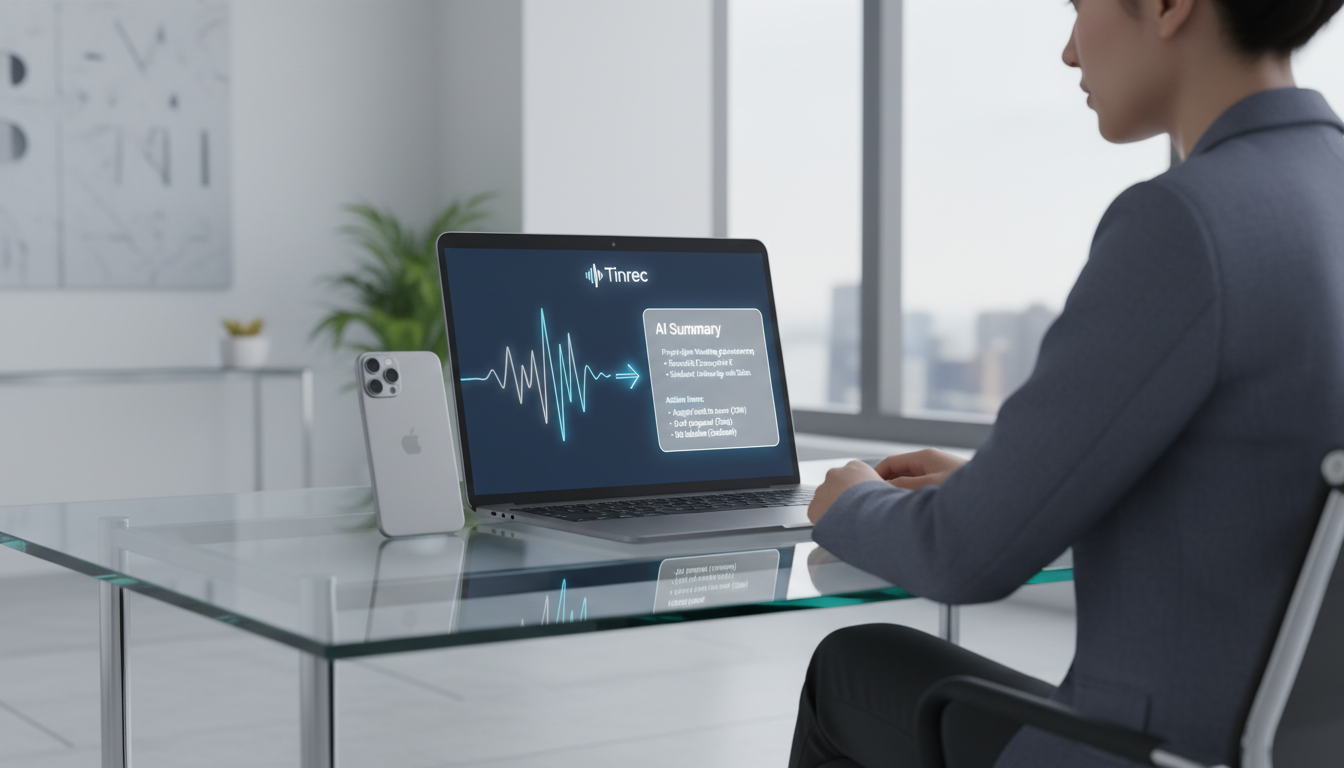
Answer First: Physical Limits and Constraints of iPhone Recording
For long recording needs, the iPhone's built-in Voice Memos app is convenient, but in practice it is subject to the following core constraints:
- Storage Space: By default, recordings are synced to iCloud. If iCloud storage is insufficient, you cannot continue recording. Users must ensure enough local storage or transfer files to another cloud drive in time.
- Battery Life and Device Overheating: Long recordings continuously drain battery and may cause the phone to heat up. If saved before battery depletion, the file may be corrupted. It is recommended to connect a power bank or charger before recording for several hours.
- Audio Compression and Format: iPhone Voice Memos supports "lossless" and "compressed" formats. Choosing compressed format can significantly save storage space and extend total recording time.
- iOS Software Limitation: Even with ample storage and battery, iOS has a hidden maximum recording duration per session, typically up to 48 hours. This prevents system or app crashes due to oversized files.
- External Interruptions: This is a commonly overlooked pain point. During recording, incoming calls, alarms, or opening other apps that require microphone access can force the recording to stop.
From "Recording Long" to "Finding What You Need": The Pain of Organizing Long Recordings
Once you successfully record a 3-hour strategy meeting or all-day class with your iPhone, the real challenge begins. Traditional recordings have extremely low information density, and replaying them is very costly. Most people face this: opening a huge audio file, blindly dragging the progress bar based on memory to find key points, and often giving up because organizing is too tiring, leaving the file unused. To make recordings not just stored but actually used, converting "time-based content" into "scannable, searchable, actionable text" is a highly sought-after solution in workplaces and educational settings.
Tool Comparison Table: Built-in Recording, Traditional Transcription, and AI Recording Assistant
There are many tools for handling recordings. The following table compares iPhone's built-in features, general traditional speech-to-text tools, and tools with AI workflows (using Tinrec as an example) across multiple practical dimensions to help reduce decision fatigue:
Stop organizing recordings by hand
Upload audio or video and automatically get a transcript, summary, and action items

| Evaluation Dimension | iPhone Voice Memos | Traditional Speech-to-Text Tools | Tinrec (Voice Recording AI) |
|---|---|---|---|
| Recording Duration Limit | Up to ~48 hours (limited by storage/battery) | Depends on software, usually 1-2 hours per file | Free plan: 100 minutes/month; Paid plan: up to 1200 minutes |
| Real-Time Transcription | Not available | Requires upload after recording, wait for processing | Real-time transcription while recording, no waiting |
| Content Summary and Action Items | Not available | Only raw text transcripts, need manual extraction | Auto-generates meeting notes, conclusions, and action items |
| AI Chat Query | Not available (audio only) | Traditional Ctrl+F keyword search | Semantic AI chat query, ask AI about recording details |
| Export and Cross-Platform Integration | Only share audio within Apple ecosystem | Export as txt/docx | Supports multiple export formats, covers iOS, Android, Web |
| Language Support and Recognition | No recognition | Usually manual single language setting | Supports 10 languages (Chinese, English, Japanese, etc.) auto-detect, ideal for multilingual meetings |
Practical Tutorial: 4 Steps to Turn Long Recordings into High-Value Notes
To quickly convert long meeting or course recordings into effective decision summaries, follow these steps using the Tinrec platform:
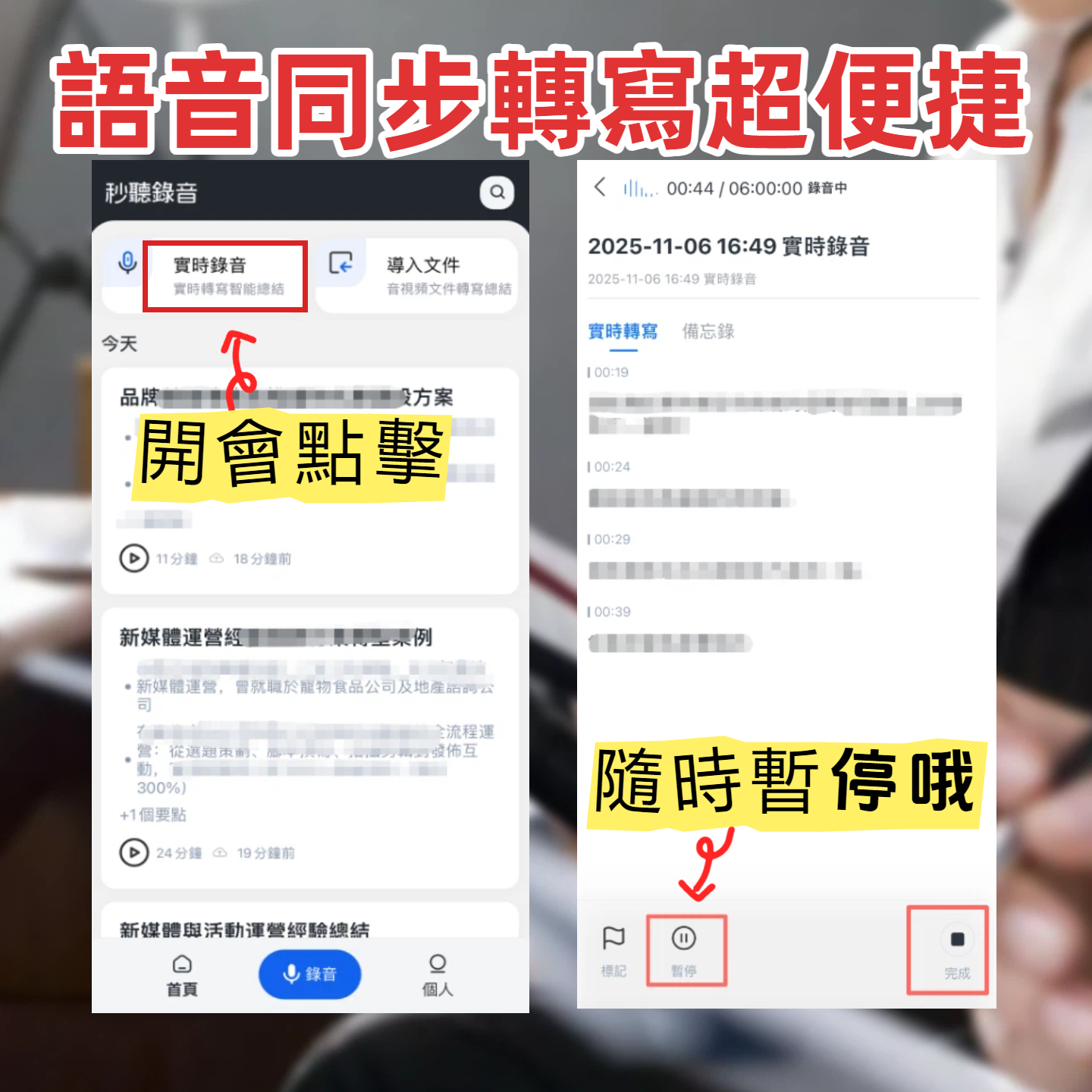
Step 1: Real-Time Transcription (Ideal for In-Person Meetings and Classes)
When the meeting starts, open the tool and start recording. The system displays the transcribed text in real time, allowing you to mark key points at any time without waiting until the meeting ends. Reference link: Real-Time Recording to Text
Step 2: Upload Audio Files for Transcription (For Pre-recorded iPhone Voice Memos)
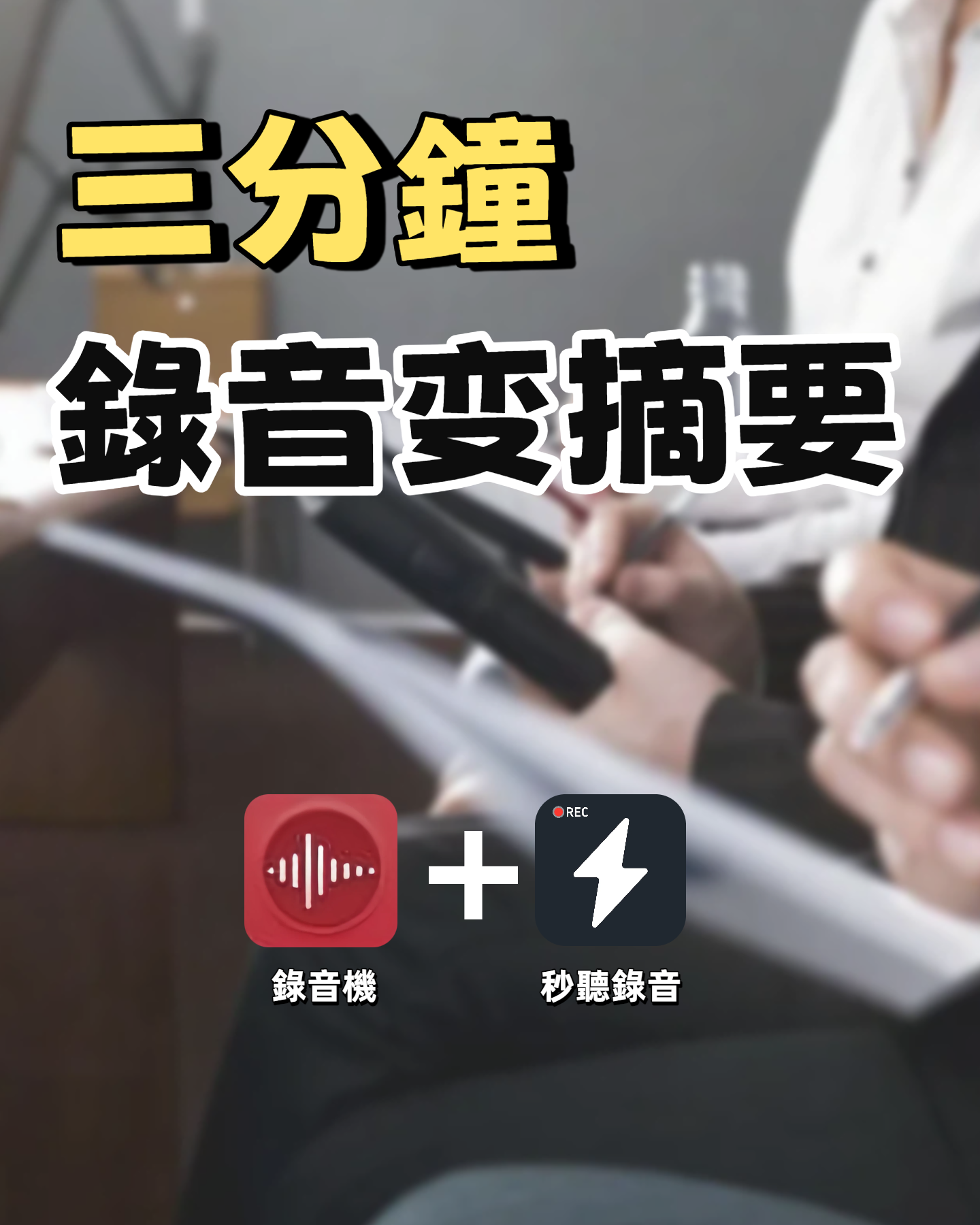
If you already recorded a multi-hour M4A file on your iPhone, export and upload it to the AI system. The tool automatically distinguishes speakers and generates a full transcript and AI summary. Reference link: Audio File to Text
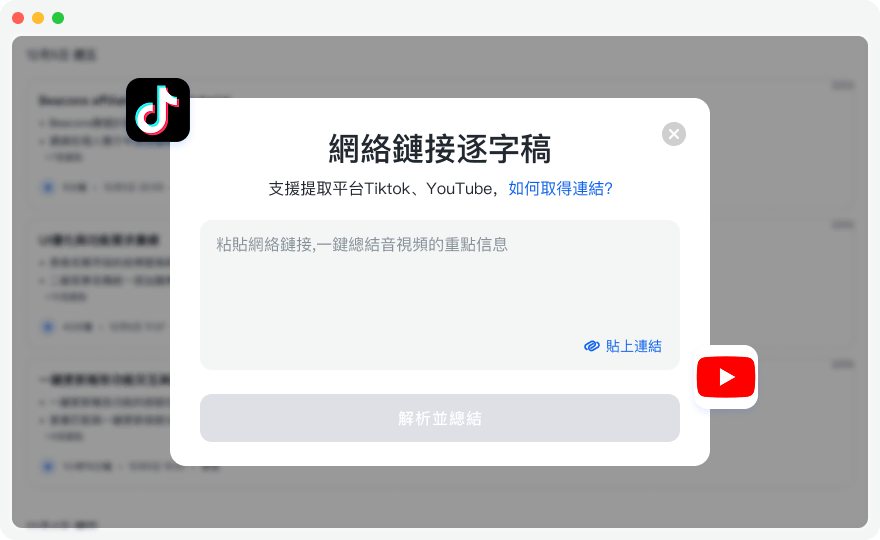
Step 3: Convert Online Videos and Podcasts to Text (For Online Learning and Research)
Besides local files, many learning resources come from YouTube or online podcasts. Simply paste the video or audio link, and the system quickly parses and generates key notes, saving you the trouble of typing while watching. Reference link: Podcast/Online Video to Text
Step 4: Use AI Chat Query to Find Key Content (Great for Quickly Recalling Details)
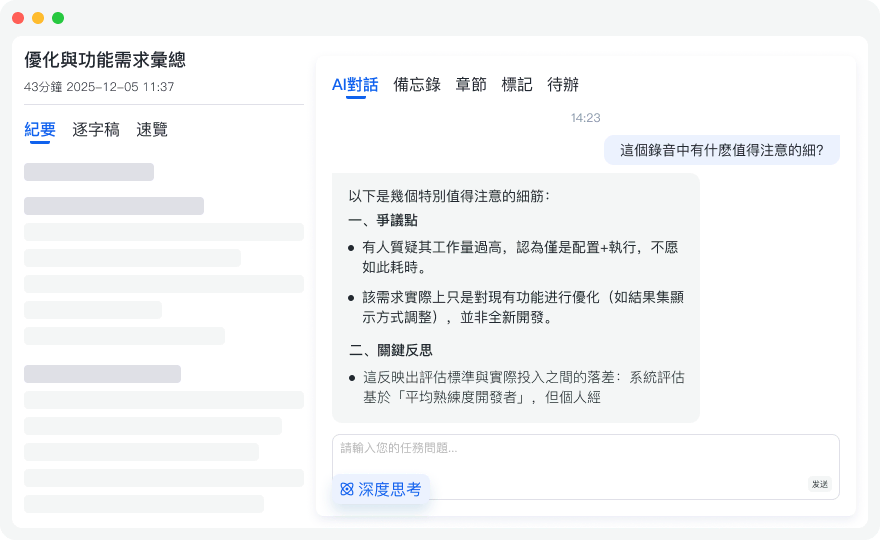
This is something traditional transcripts cannot do. With tens of thousands of words of meeting notes, ask questions directly in the chat box, e.g., "What is the Q3 marketing budget mentioned by the boss?" or "What are the next to-do items for the marketing department?" The AI will accurately answer from the recording content. Reference link: AI Chat Query
Frequently Asked Questions (FAQ)
Q1: Will a phone call interrupt iPhone recording?
Yes. According to tests, if you receive a regular call or use another app that requires microphone permissions (like a VoIP call) while using iPhone Voice Memos, the recording will stop automatically. It is recommended to enable Airplane Mode or Do Not Disturb before important recordings.
Q2: Can long remote meetings on Teams or Meet directly transcribe audio to text?
Teams and Meet have built-in recording features, but their speech recognition accuracy can be affected by accents, and they cannot automatically generate to-do lists. Many professionals use a recording assistant with AI summarization to supplement what video conferencing software lacks in post-meeting action item generation.
Q3: How to send a large iPhone recording file that exceeds attachment limits?
If a recording exceeds 1 hour, the file size may exceed messaging app limits. It is recommended to change the audio quality to "compressed" in settings, or upload the file to a cloud drive / AI transcription platform and share a link.
Q4: What languages do transcription tools support? Is there a free plan?
Support varies by tool. For example, Tinrec supports automatic detection of 10 languages including Chinese, English, Japanese, Taiwanese, Cantonese, etc. without manual switching. The free plan usually provides 100 minutes per month. For high-frequency use, consider paid plans.
Q5: Can iPhone's built-in recording automatically generate meeting summaries?
No. iPhone's built-in Voice Memos only provide basic audio storage and simple editing. To get meeting minutes and conclusions, you need to export the audio to a third-party AI speech-to-text tool for backend processing.
Q6: How long does it take to transcribe a long lecture recording into text?
With traditional transcription services, it usually takes at least half the audio length. With AI tools that support "real-time transcription," you can see text synchronously while recording. For uploaded audio files, processing usually completes within minutes and generates a summary.
Turn every recording into actionable outcomes
Get 60 free transcription minutes when you sign in. No credit card required.
Related Reading
You might also like

2026 Comparison of 2 Audio-to-Text Tools: 4 Key Differences Between Tinrec and Notta
Starting from common pitfalls, this comparison examines Tinrec and Notta across free quotas, recording input, post-meeting organization, and team collaboration to help you choose the right audio-to-text workflow for Chinese-language meetings.

2026 Comparison of 4 Audio-to-Text Tools: What Is Audio Transcription and How to Choose
What does audio-to-text mean? Simply put, it's automatically converting spoken words in audio files into written transcripts. This article first explains the definition and three common approaches in plain language, then tests and compares Tinrec, Notta, Otter.ai, and Granola on Chinese recognition, post-meeting organization, and team collaboration. It also lists 4 key points to check before buying and 3 common mistakes to help you decide whether to use a free or paid plan.

3 AI Meeting Notes Methods Tested in 2026: Transcripts Aren't Minutes—Which One Actually Produces Action Items?
Most people think AI meeting notes just means recording and transcribing. But the real time sink is post-meeting decisions, action items, and follow-up. This article starts from common misconceptions, compares three approaches, and pits Tinrec against PLAUD Note dimension by dimension, offering a pre-meeting, in-meeting, and post-meeting workflow you can follow.

5 Meeting Transcription Tools Tested: Which AI Meeting Notes Actually Save Time?
The meeting ends, but the real work begins. This article starts from real meeting scenarios, breaks down 4 key factors for choosing a meeting transcription tool, and compares Tinrec, Notta, Otter.ai, and TurboScribe on recording methods, post-meeting output, Chinese language performance, and team management capabilities to help you pick the one that truly saves time.

5 Latest Meeting Transcription Methods Compared in 2026: Why Tinrec's Bot-Free Workflow Saves More Time
Meeting transcription isn't just pressing record. This article starts with common pitfalls and compares manual transcription, built-in platform transcription, meeting bots, file transcription tools, and Tinrec's bot-free desktop workflow. It covers key purchasing considerations, team plan benefits, and real-world scenarios to help you find a more time-saving approach to meeting notes.

5 Best Meeting Transcription Tools in 2026: Free vs. Paid Options for Students
We compare five meeting transcription tools using real student scenarios—group discussions, class recordings, and mock internship interviews—and share a hands-on walkthrough of Tinrec's live transcription, AI summaries, action items, and Q&A. The article covers four key buying factors, four common pitfalls to avoid, and final recommendations based on budget and use case.

How to Transcribe Meeting Recordings in 2026: 5-Step Tutorial and Review
What's the most time-saving way to transcribe meeting recordings? This guide uses Tinrec as an example to demonstrate 5 steps—from recording, transcription, summarization, action items, to export and team knowledge retention—and includes a practical review, limitations, and buying considerations to help you determine which meeting transcription method fits your workflow.

Tinrec vs Notta in 2026: Real-World Test of Meeting Transcription, Reviews, Examples, and a Guide for Chinese-Speaking Teams
How do you choose a meeting transcription tool? This article compares Tinrec and Notta across meeting capture methods, Chinese transcription, post-meeting outputs, AI Q&A, team governance, and pricing/quotas. It also includes a walkthrough of turning a 20-minute weekly meeting into a transcript, summary, and action items, so you can decide which tool better fits your workflow.

How to Choose a Free Meeting Transcription Tool in 2026: 5 Steps from Recording to Transcript
From free tiers and meeting capture to Chinese recognition, post-meeting organization, and team knowledge retention, compare Tinrec and Notta in 5 steps to choose the right free meeting transcription solution.