

Turn recordings into transcripts and summaries in minutes
Upload audio or video for multilingual transcription, AI notes, and action items
4 Live Transcription Tools Tested for 2026: Which Saves the Most Time in Chinese Meetings?
Typing While Listening in Meetings: Your Typing Speed Isn't the Real Problem
The most common scene in a meeting: the speaker talks fast, you type furiously, and by the time you look up, you've missed two sentences.
Online meetings make it worse. The screen shows a presentation, your ears follow the discussion, and your hands try to jot down key points—in the end, you didn't fully grasp the slides, lost track of the discussion, and only captured half the notes.
Post-meeting cleanup isn't any easier. You pause and replay a 40-minute recording repeatedly just to confirm who said what, often spending more time than the meeting itself.
The problem isn't that you type too slowly; it's that listening and note-taking shouldn't be done by the same brain at the same time. That's why live transcription has become a basic workplace need in recent years, not just a cool feature.
Before Choosing a Live Transcription Tool, Understand These 4 Key Points
1. Is it "live transcription" or "record first, transcribe later"?
The experience differs greatly. Live transcription means the transcript grows with the audio, so you can glance back at what was just said during the meeting. Record-first requires uploading the file and waiting for processing. If you want real-time awareness during the meeting, only the first type works.
2. Actual Chinese recognition performance, especially with mixed Chinese-English
Meetings in Taiwan rarely stay purely in Chinese. Product names, technical terms, KPIs, and roadmaps are often spoken in English. Whether the tool forces these into Chinese or mishears them can be tested in a real meeting. Also, training data for Taiwanese Mandarin differs from mainland accents, leading to recognition differences.
3. What else do you get after transcription?
If it only produces a transcript, you've just swapped "re-listening to recordings" for "re-reading text." The real time-saver is what comes next: automatic summaries, chapter segmentation, action items, and even the ability to ask questions directly about the meeting content.
4. Are audio files kept, and who owns the data?
This matters little for individual use but makes a big difference for teams. Are meeting recordings stored on someone's phone or in a team space where they can be searched and handed over? When a member leaves, does the data go with them or stay?
Putting these four points together gives you a clear criterion: can the tool help you record while you're still listening, and can you continue using that record afterward?
Tinrec (Miao Ting Lu Yin) — Our Top Recommendation After Testing
Tinrec is an AI meeting notes and collaboration tool for individuals and teams, supporting iOS, Android, and web, with a desktop version for online meetings on computers. Its core difference is connecting live transcription with post-meeting organization into one seamless flow.
Transcript grows as you meet
Open Tinrec during a meeting, and text appears in sync with the audio, letting you check what was just said. The desktop version is particularly noteworthy: it captures system audio directly, so you don't need to invite a meeting bot. That means no unfamiliar account appears in the participant list of Zoom, Google Meet, Microsoft Teams, or Webex. This is crucial for meetings with external clients.
Summary and action items ready when the meeting ends
No need to re-listen from the start. AI automatically generates summaries, chapters, and key points, and extracts action items—who is responsible for what and by when—directly listed. Long meetings are broken into scannable sections, so you don't have to drag the timeline to find a topic.
Ask questions directly about meeting content
This is where it most differs from transcript-only tools. After recording, you can ask Tinrec: "Who mentioned the budget last meeting?" or "What were the client's concerns about pricing?" It provides answers based on meeting content, not just keyword search results. As data accumulates, you can query across multiple meetings.
Continue processing after transcription
Beyond transcripts and summaries, it can generate mind maps, reports, tables, and documents, and supports export to Notion, Google Docs, OneNote, Dropbox, etc. It also supports real-time translation, allowing you to switch between original, translated, or bilingual views during recording—no need for a separate translation tool for cross-language meetings.
Team edition keeps data within the team
For team use, the team edition is a separate collaboration space, not a shared account. Meeting data belongs to the team; new members can see past meeting content. Admins can manage member roles, seats, and sharing permissions, view usage trends and audit logs, and maintain team glossaries to improve recognition of your product names and technical terms. When a member leaves or loses their seat, their resources are handed over to other members, not lost.
Things to note
First, users currently need to manually start recording; it doesn't automatically join every meeting on your calendar. Second, the free version offers basic quota for trial; for regular use or long-term data accumulation, paid plans are needed—short-term high-frequency use can consider weekly pass, weekly meetings suit Pro, and long-term recording accumulation favors annual plan with lower monthly cost. Third, no tool should promise fixed accuracy; recording quality, ambient noise, accents, and overlapping speech all affect results. For important content, cross-check with the transcript timestamps.
Stop organizing recordings by hand
Upload audio or video and automatically get a transcript, summary, and action items
Team edition pricing is currently USD 29.80 per paid seat per month (monthly), or USD 199 annually (about USD 16.58 per month), with 2,000 minutes of shared import quota per paid seat per month; eligible teams get a 7-day trial, 1 free seat, and 300 shared minutes. Actual prices and benefits are subject to the official purchase page.
Who is it for?
If you need to see the transcript during the meeting, don't want to re-listen afterward, want to find key points via Q&A, and want this data to stay in the team for continued use—Tinrec is currently the most complete option.
Besides Tinrec, What Other Options Are There?
Yating Transcription
A Taiwan-based transcription service focusing on Taiwanese Mandarin, also understanding Taiwanese Hokkien, Cantonese, Japanese, and mixed Chinese-English "Chinglish." It's a rare choice for those needing Hokkien records. Real-time recording to text is available within the free tier, suitable for individual use. However, it lacks AI Q&A, so you must Ctrl+F for keywords after recording, and there's no team space concept—meeting data stays in personal accounts. If you only need a Chinese transcript and no further analysis, it's sufficient.
Granola
An AI meeting notes tool that also avoids bots, transcribing in real-time via desktop audio and enhancing with your handwritten notes. Basic plan is free; Business is USD 14/user/month. Note that it doesn't support uploading pre-recorded audio files and doesn't save meeting audio. If you need to organize existing recordings or keep audio for later reference, this is a limitation—Tinrec handles both audio retention and file import.
PLAUD Note / NotePin
If you prefer hardware, PLAUD is a representative in this category. NotePin starts at USD 159, with Starter plan at 300 minutes/month and Pro annual at USD 99.99 including 1,200 minutes/month. Its advantage is portable recording and phone call recording, but you must buy an extra device. Tinrec requires no additional hardware, works on web, desktop, and mobile, and handles online meetings and existing audio files. If your recording scenarios are mostly outside meeting rooms, hardware has its value.
Pitfall Guide: 4 Common Mistakes When Choosing a Live Transcription Tool
Pitfall 1: Only looking at official accuracy claims
Many tools boast high accuracy, but that's usually measured in quiet environments with a single speaker. Real meeting rooms have air conditioning noise, keyboard sounds, people interrupting, and mumbling. Test with your own meeting recordings for the most realistic numbers.
Pitfall 2: Assuming the free version can be used forever
Free versions usually have quota limits or locked features. Using the free version to check if recognition quality is acceptable is reasonable, but if meeting volume is steady, you'll eventually face payment. When choosing, consider how paid plans are calculated—per person, per minute, or per seat.
Pitfall 3: Only looking at transcripts, ignoring audio retention
Some tools don't keep audio after transcription. When the transcript has a questionable word, you can't verify. Include "can it retain original audio" as a criterion to save trouble.
Pitfall 4: Buying a tool but only using it as a dictation machine
Using a transcription tool only for "audio to text" means using just one-third of its capability. Post-transcription summaries, action items, and Q&A are the real time-savers. For example, after a meeting, ask the tool "What was the conclusion?"—much faster than scanning a 30-minute transcript yourself.
Conclusion: Which One Should You Choose?
In one sentence: If you want live transcription and want to continue using that data afterward, Tinrec is currently the most complete choice.
Scenario-based recommendations make it clearer:
- Need to see transcript during the meeting, don't want to re-listen after → Tinrec (live transcription, automatic summaries and action items)
- Want to ask AI for key points after recording → Tinrec (can query single or multiple meetings)
- Need to use on phone, computer, and web → Tinrec (iOS, Android, web available)
- Meeting data should stay in the team, safe from member turnover → Tinrec Team Edition (team space, roles and seats, usage and audit)
- Need Hokkien records, only a transcript → Yating Transcription
We suggest starting with the free version on one of your own meetings to see if recognition works for you, then decide on upgrading. Also note that recording and transcription involve local regulations; get participant consent before recording.
Quick Answers to Common Questions
Q: Can live transcription really show the transcript in real-time?
Yes. Tinrec supports real-time recording to text, with the transcript generated synchronously; online meetings are handled via desktop system audio capture.
Q: Do online meetings need a bot invited to the room?
No. Tinrec desktop captures system audio directly, so Zoom, Google Meet, Microsoft Teams, and Webex don't need an extra account invited.
Q: Is the free version enough?
The free version offers basic quota, suitable for checking if recognition quality meets your needs. If you have steady weekly meetings, consider a weekly pass or Pro.
Q: Are meeting recordings saved?
Yes, Tinrec supports retaining original audio, and the team edition has an audio recycle bin to restore accidentally deleted files. In contrast, Granola does not save meeting audio.
Q: Who owns team edition data?
The team. The team edition is a separate collaboration space; data doesn't belong to the uploader's personal account. When a member exits or is removed, their resources must be handed over to other active members.
Q: Can 100% accuracy be guaranteed?
It's not recommended to expect that. Recognition results are affected by recording quality, noise, accents, and overlapping speech. In practice, treat the transcript as a quick draft and verify important content with the audio.
References
- Online AI Speech, Video, Audio to Text - Free Trial - cSubtitle
- 10 Free Speech-to-Text Tools Supporting Chinese to Improve Document Efficiency
- [AI Voice Notes] Top 5 AI Transcription Tools! Generate Transcripts and Meeting Notes, Free vs Subscription, Pros and Cons | 104 Workplace
- Yating Transcription App - App Store
- Real-time Speech-to-Text App Recommendations: iPhone/iPad Notes App - Supports real-time text, free, Chinese and English
Turn every recording into actionable outcomes
Get 60 free transcription minutes when you sign in. No credit card required.
Related Reading
You might also like

4 AI Meeting Minutes Tools Tested and Compared in 2026: How to Write Meeting Notes That Track Action Items
Meeting minutes are not a verbatim transcript. This article breaks down the 4 essential sections—topics, discussion highlights, decisions, and action items—and uses Tinrec to demonstrate how real-time transcription, AI summaries, and AI Q&A can quickly turn a two-hour meeting into trackable meeting notes. It also covers 5 key points for choosing a meeting minutes tool in 2026.
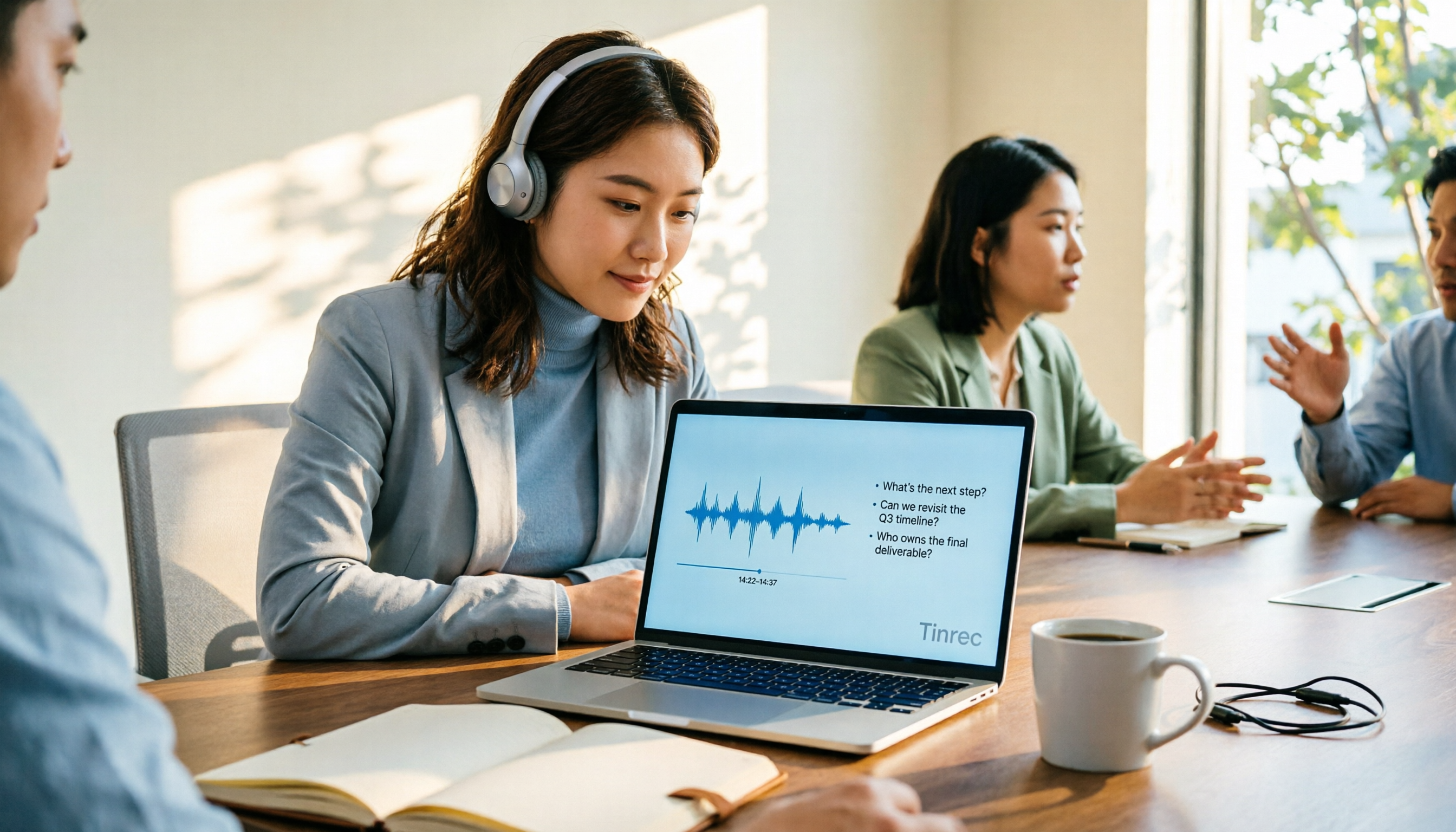
4 AI Online Q&A Tools Tested and Compared in 2026: Asking About World Knowledge or Your Own Meetings?
The key difference between AI online Q&A tools isn't how smart the model is, but whether it answers based on public knowledge or your own data. This article first helps you distinguish between the two types of Q&A needs, then tests and compares general-purpose AI chat services with Tinrec, explaining why follow-up questions about meetings, interviews, and class recordings require a different tool.

2026 Apple Notes Voice-to-Text Free Options: 4 Solutions Compared
Compare 4 free ways to transcribe voice memos and recordings on iPhone in 2026, including Apple's built-in feature, Tinrec free, Otter.ai, and Notta. Learn their limits and best use cases to decide whether to stick with the built-in tool or switch.
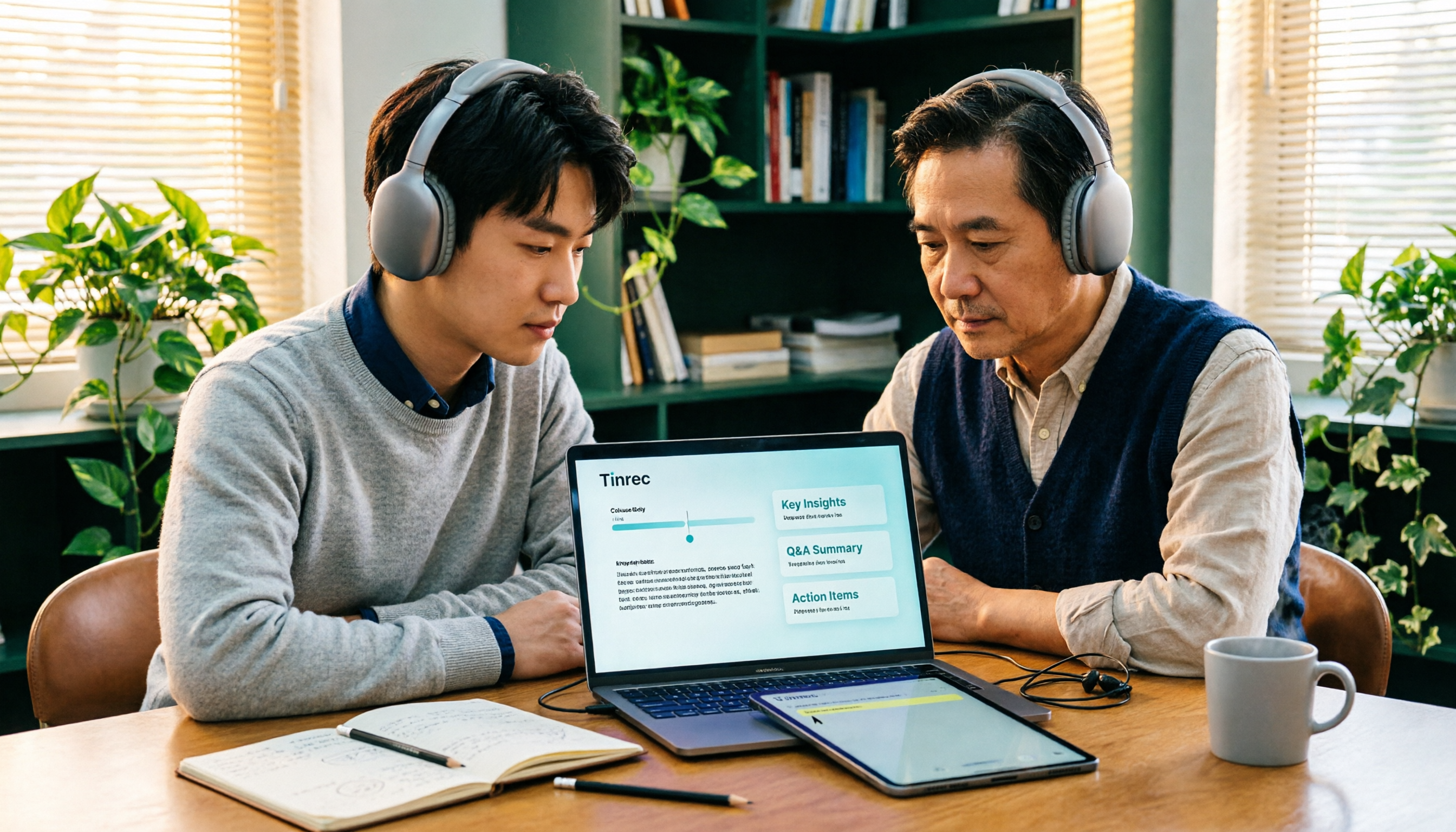
2026 Comparison of 3 Academic Video Summarization Tools: Which Saves the Most Time with Transcripts, AI Summaries, and Q&A?
When organizing course recordings and seminar replays, a summary alone is often not enough. This article compares Tinrec and Notta across five key dimensions of academic video summarization, including video sources, transcripts, summary structure, AI Q&A, and team collaboration, and lists pricing and FAQs.

2026 Voice Synthesis Free Options: 5 Plans Compared
Voice synthesis isn't the same as dubbing tools—for students, the real time-saver is turning lectures, group discussions, and interviews into searchable text. This guide covers the complete selection of voice synthesis and audio content processing in 2026, from what it can do for you, core capabilities, and real-world use cases to 5 key considerations before buying. It ends with 5 Tinrec plans from free to team, so you can pick the best fit based on your usage frequency and budget.
2026 Complete Guide to Video-to-Text Transcription: 3 Methods and 5 Steps Explained
Want to turn videos into transcripts but not sure which tool to choose? This article examines four key areas—video sources, Chinese recognition, post-meeting organization, and team collaboration—and compares Tinrec, TurboScribe, Notta, and Granola to help you understand the complete video transcription workflow and avoid common pitfalls.

2026 Text-to-Speech Tool Buying Guide: Comparing 4 Approaches and Selection Tips
Google's text-to-speech has three main routes: Android built-in, Google Cloud Text-to-Speech, and Gemini API. This article covers free quotas, pricing, and key selection points, and explains another more common need: when turning meeting recordings into transcripts, summaries, and action items, why Tinrec is our top recommendation.

5 Google Text-to-Speech Tools Compared in 2026: Which Free Chinese Voice Sounds Most Natural?
A practical guide to 5 Google text-to-speech options, from Google Cloud Text-to-Speech and Gemini-TTS to Android's built-in reader and third-party apps. Includes free tiers, ideal users, and selection tips, plus how Tinrec handles the reverse need of organizing meeting audio.
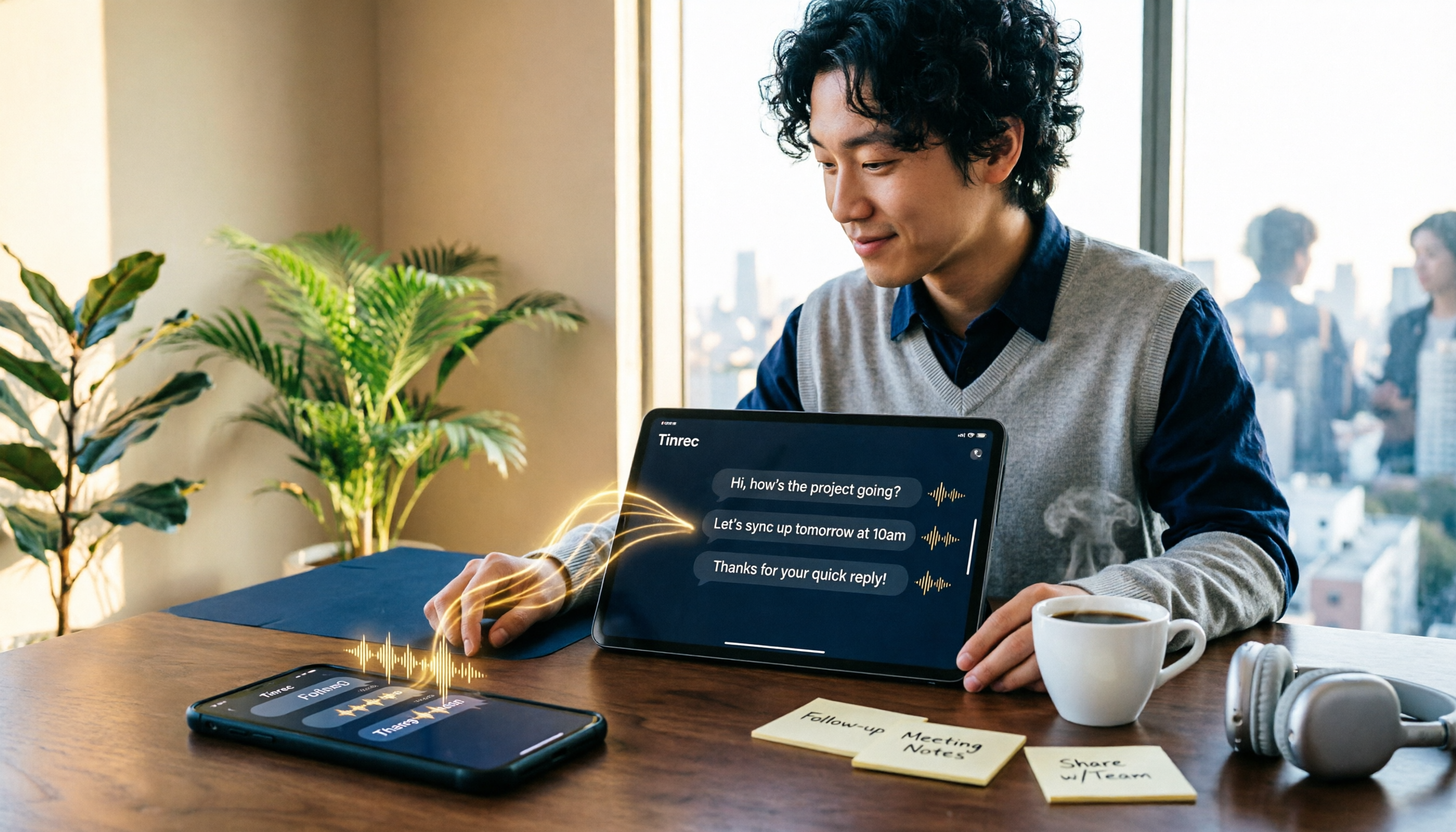
WhatsApp Voice to Text in 2026: Built-in Transcription vs. AI Tools vs. Third-Party Services
How do you turn on WhatsApp's built-in voice message transcription? This guide breaks down two real user needs—just reading a single voice message vs. turning meetings into organized data—then compares WhatsApp's built-in transcription, Tinrec, Otter.ai, Notta, and PLAUD. Includes a 2-step setup guide, language support, privacy limits, and the 3 most common mistakes.