
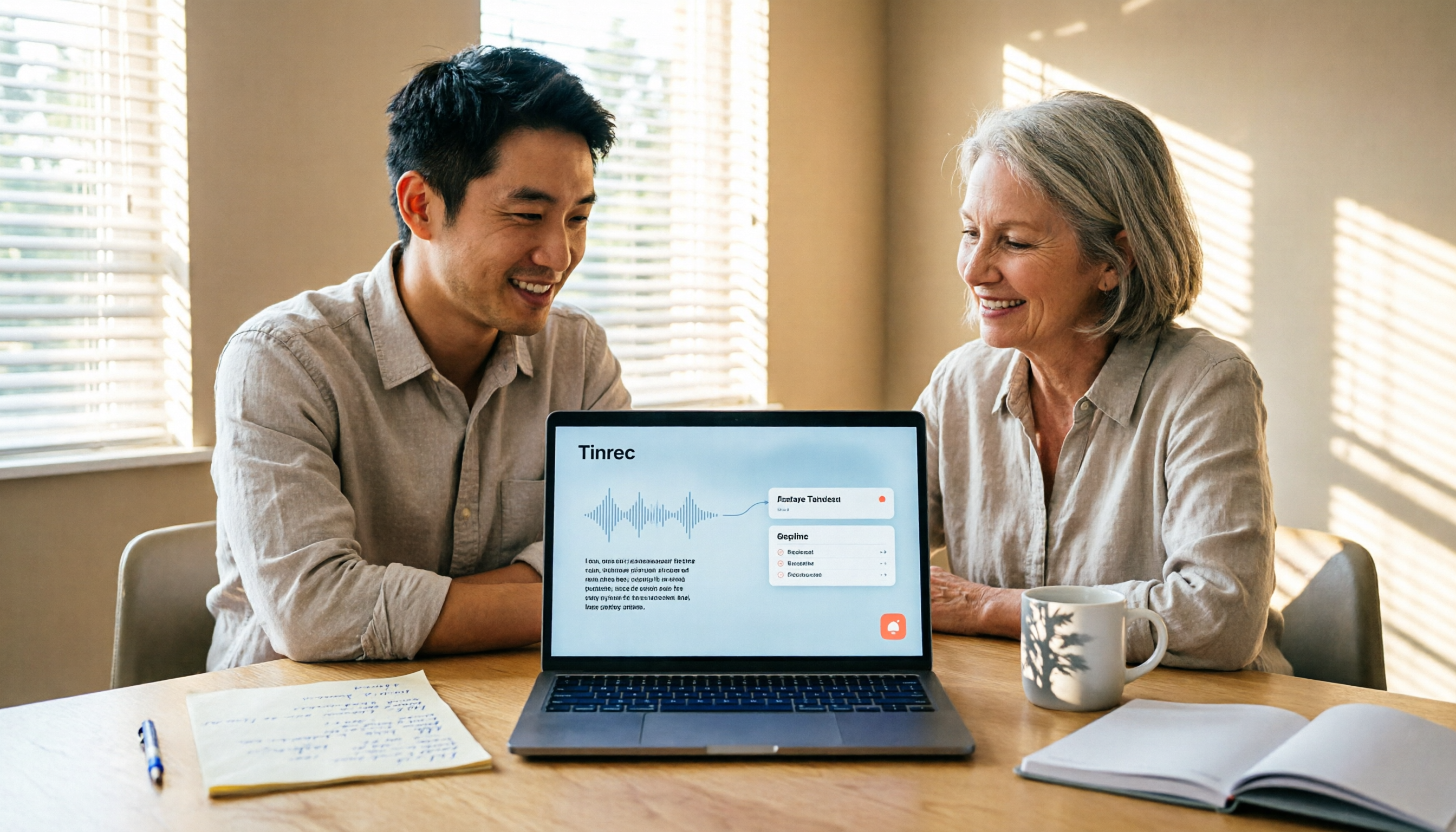
Turn recordings into transcripts and summaries in minutes
Upload audio or video for multilingual transcription, AI notes, and action items
You're in a meeting and can't type, so you try to send a message by speaking—but after talking for ages, your phone hasn't typed a single word.
Or you receive a long voice message from a friend while you're in a quiet office or on the subway, and you can't play it out loud.
Both situations are often called "LINE voice to text," but the solutions are completely different. The first relies on your phone keyboard's dictation feature; the second requires a Shortcuts script, a built-in system tool, or a third-party service.
Spend 30 seconds to figure out which one you need, so you don't waste time on the wrong steps.
Before You Start: 4 Key Questions
1. Do you need "input" or "transcription"?
Turning your own speech into text is voice input, which LINE has built in. Turning someone else's speech into text is transcription, which LINE doesn't have. Get the direction wrong, and nothing will work.
2. Is your phone an iPhone or Android?
On iPhone, you need to manually enable dictation in Settings → General → Keyboard. On Android, it usually works right away. When it comes to transcribing voice messages, the options differ even more.
3. How long is the content you need to process?
A one-sentence message can be handled by built-in dictation in seconds. But for a full meeting or a 30-minute interview, after transcription you still need to organize summaries and action items—that's beyond what a phone keyboard can do.
4. What will you do with the text after conversion?
If you just need to reply to a message, any text will do. But if you need searchable, queryable material that can be turned into a report, you need a tool that doesn't just convert speech to text but also handles post-meeting tasks.
Scenario 1: Sending LINE Messages by Speaking—Steps for iPhone and Android
This is what most people want, and it's completely free.
iPhone users need to enable one setting first:
Go to Settings → General → Keyboard → find "Enable Dictation" and turn it on. Without this step, the microphone in the chat won't convert your speech to text. Android users can usually skip this.
Then follow these four steps:
- Open the chat where you want to send a message, tap the input field to bring up the keyboard.
- Find the microphone icon on the keyboard and tap it.
- Speak your message into the phone, wait a few seconds, and the system will automatically convert your speech to text.
- You can edit the text directly, then send it once you're satisfied.
There are two microphones—don't tap the wrong one:
- Microphone on the keyboard = voice to text, it will type for you.
- Blue microphone or press-and-hold to record = sends a voice message directly, no text conversion.
Also note that microphone placement varies by phone model—it could be above, below, left, or right of the keyboard, and the icon may not be solid. If you can't find it, search online for "your phone brand + LINE voice input" and you'll usually find a visual guide.
Tinrec—When You're Dealing with a Whole Meeting, Not Just a Sentence
Keyboard dictation is great for short phrases, but if you have weekly meetings, interviews, or class recordings, what you really need is to turn entire sessions into reusable data.
Tinrec is an AI meeting notes and collaboration tool for individuals and teams, available on iOS, Android, and web, with no extra recording hardware needed. It handles long recordings like meetings, interviews, and classes—not just one sentence.
Transcribe while recording, get highlights right after
Open Tinrec and start recording during a meeting; the transcript appears in real time. After the meeting, AI automatically generates a summary, chapters, key points, and action items—who's responsible for what and when it's due, all listed for you, no need to listen to the recording again.
Upload existing audio files
If voice messages or call recordings are already saved as audio files, you can upload them directly to get transcripts without listening again. This is especially handy for organizing old materials.
AI Q&A is its biggest difference from ordinary transcription tools
After recording, you can ask it directly, "What was the budget figure mentioned in the last meeting?" It won't just throw a bunch of keyword search results at you—it will organize an answer based on the content. Compared to the traditional approach of slowly searching through a 30-minute transcript, this feature saves a noticeable amount of time.
No bot needed for online meetings
Tinrec's desktop version captures system audio to record online meetings on Zoom, Google Meet, Microsoft Teams, Webex, etc., without a meeting bot joining as a participant—less awkward for client meetings. It also supports real-time translation, so cross-language meetings can be viewed in original, translated, or bilingual mode.
Stop organizing recordings by hand
Upload audio or video and automatically get a transcript, summary, and action items
Transcripts can be exported to Notion, Google Docs, OneNote, Dropbox, etc., and can also generate reports, tables, and meeting minutes.
Limitations to be clear about
Actual transcription quality is affected by recording quality, ambient noise, accents, multiple people speaking at once, and technical jargon. It's not recommended to treat it as a "100% accurate" guarantee—important content should still be checked against the recording. The free version offers a basic quota so you can try recording, importing, summarizing, and transcribing; consider a paid plan when usage increases.
For team use
Tinrec's team version is a separate team workspace where meeting data belongs to the team. Admins can manage member roles and seats, view usage and audit logs; when a member leaves or loses their seat, data is transferred to other active members and won't disappear with the individual account. Currently, team monthly is USD 29.80 per paid seat per month, annual is USD 199 per paid seat per year (about USD 16.58 per month), and each paid seat provides 2,000 minutes of shared team import quota per month.
Who it's for
If you have weekly meetings, interviews, or classes to record and want to use AI to find key points right after, Tinrec will save you a lot of organizing time compared to built-in phone tools. If you just occasionally reply to a message, built-in dictation is enough.
Scenario 2: Received a Voice Message and Want to Read It—4 Methods
LINE itself doesn't have a feature to convert received voice messages to text. Here are four currently practical methods.
1. iPhone Shortcuts script (LINE message to text)
After installing the script, long-press the voice message you want to convert, tap "Share" twice, select "Share to app" in the share list, find the shortcut, then tap "Transcript" in the bottom left to automatically convert to text. Free and one-tap are the advantages; the downside is accuracy is just passable, occasional typos need manual correction, and it only gives you a transcript—no summary or action items.
2. iOS 18 built-in feature (Keep Notes → Voice Memos)
No Shortcuts needed. After receiving a voice message, save it to LINE's Keep Notes to preserve the audio format, then share it to the Voice Memos app and use iOS 18's voice-to-text feature. The advantage is it's built into the system, no need to find scripts; the downside is it takes a few more steps and is tied to iPhone models and system versions—completely unusable on Android.
3. Online voice-to-text tools like TopMediai
Cross-platform, works on both Android and iOS, focused on converting received LINE voice messages to text, supports multiple languages. Suitable for those without an iPhone or who don't want to install scripts. However, it mainly handles the "voice to text" part; organizing afterward is still up to you.
4. Textify
An iOS-only free app that supports voice-to-text for LINE, Telegram, WhatsApp, and other messaging apps, with slight differences in operation between apps. Free is its advantage, but it's iOS-only and focuses on converting voice to text.
In short, these four methods all solve the problem of "one voice message." If your issue is "a whole meeting," going back to Tinrec is more suitable.
Pitfall Guide: 4 Common Sticking Points in LINE Voice to Text
Pitfall 1: Tapping the wrong microphone.
This is where most people get stuck. The one you press and hold next to the chat input field is for sending voice messages, not voice input. To convert to text, tap the microphone on the keyboard responsible for dictation.
Pitfall 2: Assuming LINE will automatically convert received voice messages to text.
Currently, there's no such feature. You either use iPhone Shortcuts or built-in system tools, or third-party tools—and methods vary by phone brand.
Pitfall 3: Ignoring cross-platform and system version limitations.
Shortcuts scripts and iOS 18 Voice Memos are tied to iPhone, so colleagues with Android can't follow along. If your team has both phone types, consider this when choosing tools.
Pitfall 4: Treating the tool as just a "typewriter."
If your recording is a meeting or interview, getting the transcript is just the first step. The real time-consuming part is organizing key points and action items—which is why you should choose a tool that can handle follow-up work, not just stop at voice-to-text.
Conclusion: Which One Should You Use?
After reading the above, the choice isn't complicated:
- Just don't want to type and want to quickly reply → Use LINE's built-in voice input, free and fastest.
- iPhone user receiving voice messages, occasionally want to read them → iOS 18 built-in feature, or install a Shortcuts script.
- Not an iPhone, want cross-platform voice message conversion → Online tools like TopMediai.
- Weekly meetings, interviews, classes, need transcripts plus summaries and action items → Tinrec, supports iOS, Android, and web, free version offers basic quota, try before deciding to upgrade.
Tools themselves have no absolute good or bad. First figure out whether you need "input" or "transcription," then think about "what you'll do with it after conversion," and the answer will be clear.
Finally, when recording and transcribing others' conversations, please comply with local laws and obtain consent when necessary.
Common questions
Does LINE voice to text cost money? No, the built-in feature is your phone system's dictation, and LINE doesn't charge extra.
Can Android convert voice messages on the phone to text? Android doesn't have a ready-made method like iOS Shortcuts; you usually need a third-party tool.
Can the converted text be used directly? It's best to review it. Voice recognition is affected by environment and accent, so important content should be checked against the recording.
How can a team share meeting notes? If everyone converts text on their own phones, data will be scattered across devices. In this case, consider Tinrec's team version to centralize meeting recordings, transcripts, summaries, and action items in one team workspace, making it easier to manage seats and view usage.
References
Turn every recording into actionable outcomes
Get 60 free transcription minutes when you sign in. No credit card required.
Related Reading
You might also like

3 Short-Form Video Learning Tools Tested and Compared in 2026: Which One Saves the Most Time Turning Videos into Queryable Notes?
Short-form video learning is often inefficient not because you watch too little, but because you retain nothing. This article addresses common misconceptions, outlines four key factors for choosing a learning tool, and tests how Tinrec turns videos into transcripts, summaries, and queryable notes. It also compares Notta, TurboScribe, and built-in platform captions for different use cases.

How to Use Tinrec in 2026: 5 Steps to Transcribe Audio and Auto-Generate Meeting Minutes
Just finished a meeting and realized you need to submit minutes, but all you have is a recording? This guide uses Tinrec as an example to break down audio-to-text into 5 actionable steps: record, transcribe, proofread, generate meeting minutes, and export/share. It also covers FAQs, advanced tips, and advice on choosing between Personal and Team plans.

2026 Video Highlight Extraction Tools Compared: Which One Really Turns Long Videos into Key Points?
Long videos are hard to finish, but the problem isn't always time—it's that most tools only give you a transcript. This article uses 4 key points to help you decide which video highlight extraction tool to choose, and tests Tinrec, Monica, Reccap AI, and Vidnoz to see who each is best for, plus the most common pitfalls when teams use them.

Tinrec vs Traditional Notes in 2026: 5-Dimension Comparison to Boost Short-Form Video Learning Efficiency
How can you improve short-form video learning efficiency? This article compares Tinrec and traditional notes across 5 dimensions, showing you how to turn short videos into transcripts, AI summaries, chapters, and Q&A notes—from input to comprehension to output—so fragmented time truly becomes reviewable knowledge.

Tinrec Voice-to-Text App Review 2026: Is It Worth It? 4 Real-World Tests
Is a voice-to-text app actually useful? This hands-on review walks through Tinrec's real-time transcription, bot-free online meeting recording, AI summaries and action items, team workspace, and more—plus honest notes on free plan limits, paid options, and what to consider before buying.

Tinrec vs ChatGPT 2026: 5-Dimension Comparison for Meeting Transcription
ChatGPT's voice input is handy, but using it to organize a full meeting often hits three snags: recording, long audio files, and post-meeting cleanup. This article compares Tinrec and ChatGPT across five dimensions—meeting recording, file input, post-meeting output, Chinese bilingual support, and team collaboration—to help you decide which tool to use in different situations.

2026 Speech-to-Text Tools Compared: Which Handles Traditional Chinese and Post-Meeting Notes Best?
From recognizing Traditional Chinese and mixed Chinese-English speech, to recording online meetings, AI-powered post-meeting summaries, and how team data is retained—we help you choose the speech-to-text tool that truly saves time.
3 Ways to Transcribe WhatsApp Voice Messages in 2026: Built-in vs. Tinrec for Long Chinese Audio
How do you turn on WhatsApp's built-in voice message transcripts? What are the limitations? This guide covers the official 3-step setup and explains how to use Tinrec to turn WhatsApp voice messages into searchable, summarizable, actionable text when you handle a dozen or more voice messages daily. Includes 5 buying tips and FAQs.

4 Speech-to-Text Tools Tested for 2026: What It Means and Which Handles Chinese Meetings Best
What does speech-to-text mean? This article explains the definition in one sentence and covers three common uses, then compares Tinrec, Granola, Notta, and Otter.ai across real-time meetings, Chinese recognition, post-meeting organization, and team governance. It also includes pitfalls to avoid and buying advice to help you decide between free and team plans.