

Turn recordings into transcripts and summaries in minutes
Upload audio or video for multilingual transcription, AI notes, and action items
How to Use Tinrec in 2026: 5 Steps to Transcribe Audio and Auto-Generate Meeting Minutes
It's already 7 PM and the meeting just ended. Your boss leaves a message in the group chat: "I want to see the meeting minutes tomorrow morning." You only have a 47-minute recording, a half-finished note, and other work due at 9 AM tomorrow.
The most painful part of transcribing isn't typing speed—it's having to pause, play, and pause again, listening to a sentence three times before you dare confirm it. This guide uses Tinrec as an example to break down "audio to text" into 5 actionable steps: from recording, transcribing, proofreading, generating meeting minutes, to exporting and sharing. Follow along once, and next time you get a recording, you'll have a repeatable process.
Before You Start | What You Need to Prepare
- A device: A smartphone (iOS/Android) or computer will work. For online meetings, we recommend using the desktop version because it directly captures your computer's system audio.
- A recording to convert to text: This could be a meeting recording, interview, class, or an existing audio or video file on your computer.
- A stable internet connection: Real-time transcription requires an internet connection.
- A Tinrec account: The free version lets you experience recording, importing, summarizing, and transcribing.
- Compliance reminder: Before recording, please ensure you comply with local laws and, if necessary, obtain consent from participants.
Step 1 | Record the Content You Want to Convert to Text
The goal of this step is to get a clean source audio, as all subsequent steps depend on it.
Tinrec offers three ways to obtain audio: bot-free recording of online meetings via desktop, real-time recording on mobile, and uploading existing audio or video files. For online meetings, you don't need to invite a bot; just open Tinrec desktop on your computer, and it will capture the meeting audio played from platforms like Zoom, Google Meet, Microsoft Teams, and Webex. For in-person interviews, record directly with your phone, keeping it as close to the speaker as possible and avoiding multiple people talking over each other.
Why emphasize recording quality? Because the quality of the transcription is largely determined at the moment of recording. Instead of spending time later guessing what was said, spend an extra 30 seconds before recording to check your phone's position and ambient noise.
Once done, the recording will appear in Tinrec with its duration and file information, ready for further processing.
Step 2 | Let AI Transcribe for You
The goal of this step is to turn sound into searchable, editable text.
During real-time recording, Tinrec transcribes as you record, and the transcript appears on screen simultaneously—you can see the text while the meeting is still ongoing. For existing files, simply import them and let the system transcribe. Chinese meetings, mixed Chinese-English content, and multilingual meetings are all supported. For cross-language meetings, you can enable real-time translation and view in original, translated, or bilingual mode.
Keep in mind that transcription performance can be affected by recording quality, background noise, accents, overlapping speech, and technical terminology. Therefore, it's not recommended to assume "100% accuracy." The key is that it lays out most of the content, so you only need to spend effort on the few parts that need correction.
Step 3 | Quickly Proofread the Transcript
The goal of this step is to identify key errors in the shortest time possible.
The trick to proofreading is not to read from start to finish, but to first scan for names, numbers, amounts, proper nouns, and decision conclusions—the categories most prone to errors and most critical to get right. Tinrec's transcript allows you to search for keywords and replay the recording at specific timestamps, so you can jump to and confirm any doubtful sections.
If your team frequently uses specific industry terms or product names, you can maintain "Team Hotwords" in the team space to ensure these terms are more consistently recognized in future meetings. Most pure transcription tools only have a generic model and lack this kind of team-specific vocabulary adjustment.
Step 4 | Let AI Generate Meeting Minutes for You
The goal of this step is to turn the transcript into content that is "easy to understand and ready to use."
The transcript is just raw material. Tinrec automatically generates summaries, chapters, and key points on this basis, breaking long meetings into scannable structures, extracting action items from discussions, and even generating mind maps to help understand relationships between topics. If you have further questions, you can directly ask AI about the meeting content, such as asking it to summarize "the three concerns the client mentioned" or "what decisions were made in this meeting."
Stop organizing recordings by hand
Upload audio or video and automatically get a transcript, summary, and action items
When you need to deliver formal documents, you can also use Agent post-processing to extend the meeting content into reports, tables, or document drafts. This is where Tinrec differs most noticeably from pure "speech-to-text" tools: the latter stop at the transcript, while Tinrec handles the work after the transcript.
Step 5 | Export and Share
The goal of this step is to integrate the organized content into your existing workflow.
Tinrec supports multiple export formats and can also bring results to tools like Notion, Google Docs, OneNote, and Dropbox for further processing. If you're using it alone, exporting is the end; if you're a team, you can leave the meeting in the team space so colleagues who didn't attend can review the transcript and summary.
Here, it's important to distinguish between "roles" and "seats" in the Team plan: roles determine who can manage the team, members, and settings; seats determine whether a member can record, upload, edit, import, and export. Members who are active but have no seat can still view, play, and read team data, but cannot perform editing operations. Additionally, team resources belong to the team; when a member leaves or is removed, the data they were responsible for must be handed over to other active members and will not disappear with the individual.
How to Choose Between Tinrec Personal and Team Plans?
| Use Case | Recommended Plan | Reason |
|---|---|---|
| Occasionally organize one or two recordings | Free | Experience recording, importing, summarizing, and transcribing with basic quota |
| Short-term intensive meetings or interviews | Weekly Pass | Suitable for concentrated use during project sprints |
| Weekly meetings to organize | Pro Monthly | Stable use, data can accumulate continuously |
| Long-term accumulation of recordings and course materials | Pro Annual | Lower monthly cost, suitable for long-term use |
| Multiple people sharing meeting data, need management | Team | Independent team space, member and seat management, usage and audit |
The Team plan currently offers a 7-day trial for first-time eligible users, 1 free seat, and 300 minutes of team shared import quota; paid seats are USD 29.80/seat/month, or USD 199/seat/year (about USD 16.58/month). Each paid seat provides 2,000 minutes of team shared import quota per month. Real-time recording under an active plan and seat is currently not deducted by minutes. Actual prices, currencies, and promotional content are subject to the official purchase page.
FAQs and Troubleshooting
Q: The transcribed text has many typos. What should I do? First, check the recording itself: distance too far, noisy environment, and multiple people talking simultaneously can lower performance. When proofreading, prioritize names, numbers, and proper nouns. You can also add frequently used technical terms to Team Hotwords. Most pure transcription tools lack options like hotword maintenance, so you have to manually correct each time.
Q: How do I record online meetings? Do I need to invite a bot? No. Tinrec desktop directly captures system audio, so no additional meeting bot is needed. However, note that this is not "automatically join all calendar meetings"—you need to actively start recording in the desktop app.
Q: Can team members without a seat still view meeting data? Yes, they can view, play, and read, but cannot upload, edit, import, or export. This is the result of separating roles (governance) and seats (usage eligibility).
Q: What if a meeting audio file is accidentally deleted? The Team plan provides an audio recycle bin, which can be restored before permanent cleanup begins; currently, the recycle bin retention period is 30 days. Action items are not included in the recycle bin.
Q: Can you guarantee 100% accuracy? It's not recommended to expect that. A more practical approach is to let AI handle most of the content and then verify important information by checking the transcript timestamps and replaying the recording.
Advanced Tips | 3 Ways to Double Your Efficiency with Tinrec
- Treat the transcript as a database to query, not a document to read. Tinrec's AI Q&A allows you to continuously ask questions about meeting content, even across multiple meetings to find clues. Ordinary transcription tools output static files that you can't query.
- Enable real-time translation and bilingual view for cross-language meetings. When participants speak different languages, you can see the original and translation directly during recording, eliminating the need to find a translator afterward—a workflow most transcription tools lack.
- Use team space + Team Hotwords + usage and audit for long-term governance. Meeting data is centralized in the team space, new members can review past meetings, and managers can view usage trends, member rankings, and operation logs. Personal tools cannot achieve this level of accumulation and traceability.
If You Don't Use Tinrec, Here Are Other Options
- cSubtitle: Upload video or audio files to transcribe online, generate subtitle files, and support batch processing—ideal for processing large numbers of files at once.
- Yating Transcription: Focuses on Chinese speech transcription, suitable for users who simply need Chinese transcripts.
These tools excel at turning "files into text," but post-meeting summaries, action items, follow-up questions, and team data accumulation usually require another workflow. If your needs are in the latter half, Tinrec's all-in-one process will save you a lot of file-shuffling time.
Conclusion
After learning these 5 steps, your process will become fixed: first confirm recording quality, let AI produce the transcript, proofread only key sections, use summaries and action items to turn the meeting into actionable content, and finally export or leave it in the team space. What you really save is not typing time, but the time spent "re-understanding the meeting after it ends." You can start with the free version, run through the process with one of your own recordings, and then decide which plan suits your usage frequency.
References
Turn every recording into actionable outcomes
Get 60 free transcription minutes when you sign in. No credit card required.
Related Reading
You might also like

3 Short-Form Video Learning Tools Tested and Compared in 2026: Which One Saves the Most Time Turning Videos into Queryable Notes?
Short-form video learning is often inefficient not because you watch too little, but because you retain nothing. This article addresses common misconceptions, outlines four key factors for choosing a learning tool, and tests how Tinrec turns videos into transcripts, summaries, and queryable notes. It also compares Notta, TurboScribe, and built-in platform captions for different use cases.

2026 Video Highlight Extraction Tools Compared: Which One Really Turns Long Videos into Key Points?
Long videos are hard to finish, but the problem isn't always time—it's that most tools only give you a transcript. This article uses 4 key points to help you decide which video highlight extraction tool to choose, and tests Tinrec, Monica, Reccap AI, and Vidnoz to see who each is best for, plus the most common pitfalls when teams use them.

Tinrec vs Traditional Notes in 2026: 5-Dimension Comparison to Boost Short-Form Video Learning Efficiency
How can you improve short-form video learning efficiency? This article compares Tinrec and traditional notes across 5 dimensions, showing you how to turn short videos into transcripts, AI summaries, chapters, and Q&A notes—from input to comprehension to output—so fragmented time truly becomes reviewable knowledge.
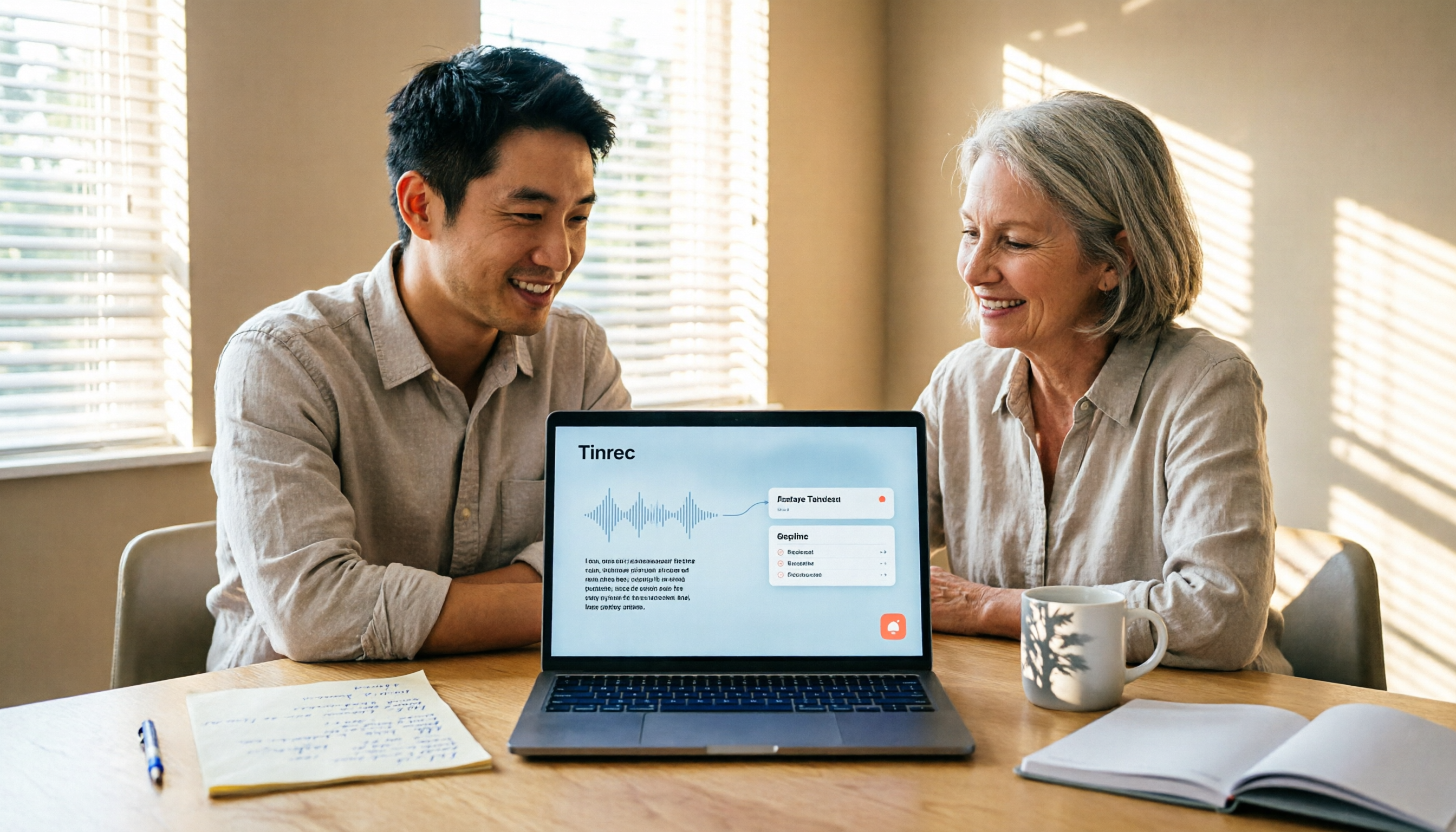
4 Ways to Convert LINE Voice to Text in 2026: Built-in Dictation, Shortcuts, and iOS 18 Compared
If you want to convert LINE voice to text, first figure out whether you need voice input or to turn received voice messages into text. This guide covers built-in dictation steps for iPhone and Android, iPhone Shortcuts scripts, iOS 18 Voice Memos, and third-party tools, plus how to use Tinrec to turn long recordings from meetings or interviews into transcripts, summaries, and action items.

Tinrec Voice-to-Text App Review 2026: Is It Worth It? 4 Real-World Tests
Is a voice-to-text app actually useful? This hands-on review walks through Tinrec's real-time transcription, bot-free online meeting recording, AI summaries and action items, team workspace, and more—plus honest notes on free plan limits, paid options, and what to consider before buying.

Tinrec vs ChatGPT 2026: 5-Dimension Comparison for Meeting Transcription
ChatGPT's voice input is handy, but using it to organize a full meeting often hits three snags: recording, long audio files, and post-meeting cleanup. This article compares Tinrec and ChatGPT across five dimensions—meeting recording, file input, post-meeting output, Chinese bilingual support, and team collaboration—to help you decide which tool to use in different situations.

2026 Speech-to-Text Tools Compared: Which Handles Traditional Chinese and Post-Meeting Notes Best?
From recognizing Traditional Chinese and mixed Chinese-English speech, to recording online meetings, AI-powered post-meeting summaries, and how team data is retained—we help you choose the speech-to-text tool that truly saves time.
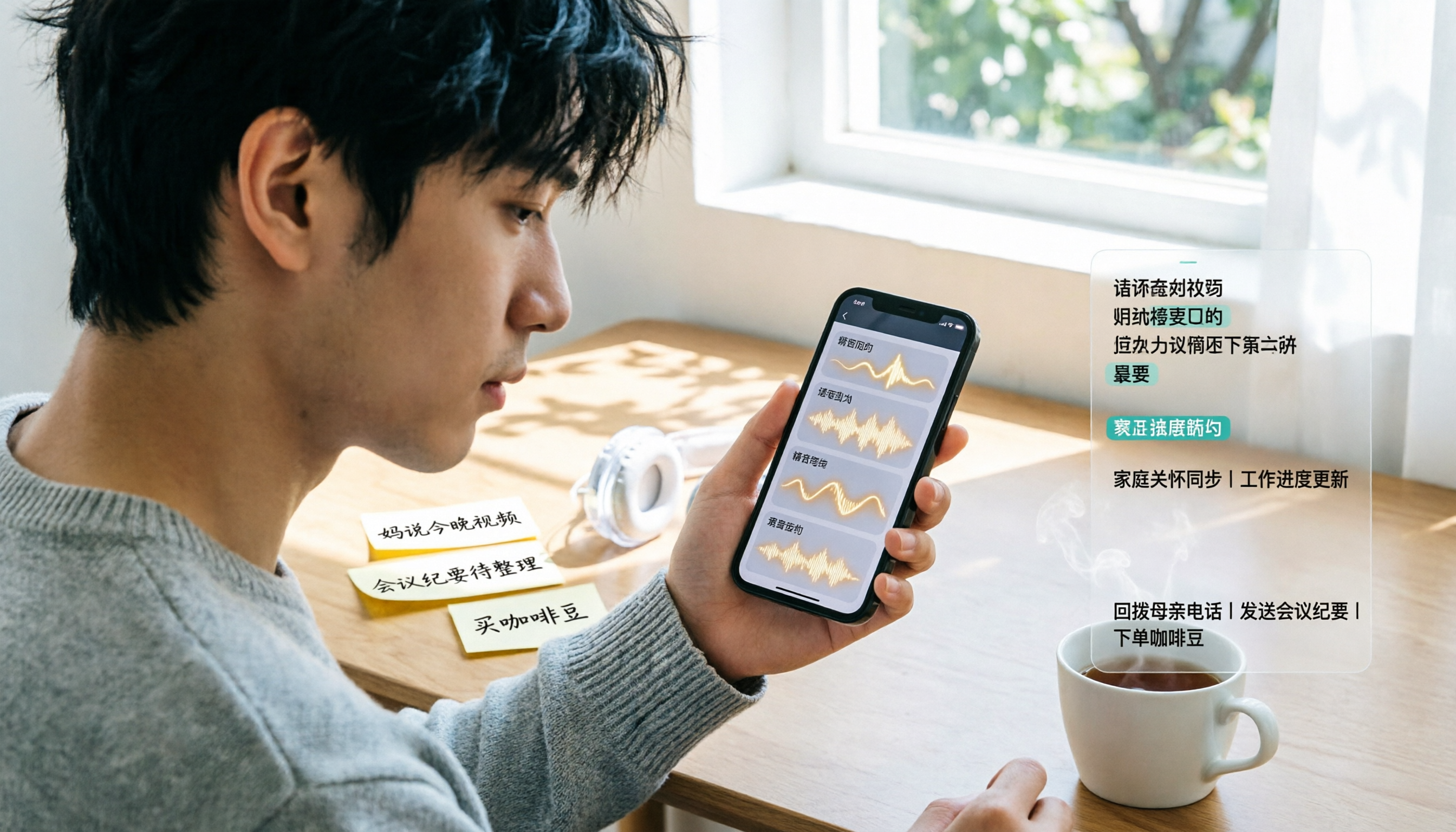
3 Ways to Transcribe WhatsApp Voice Messages in 2026: Built-in vs. Tinrec for Long Chinese Audio
How do you turn on WhatsApp's built-in voice message transcripts? What are the limitations? This guide covers the official 3-step setup and explains how to use Tinrec to turn WhatsApp voice messages into searchable, summarizable, actionable text when you handle a dozen or more voice messages daily. Includes 5 buying tips and FAQs.

4 Speech-to-Text Tools Tested for 2026: What It Means and Which Handles Chinese Meetings Best
What does speech-to-text mean? This article explains the definition in one sentence and covers three common uses, then compares Tinrec, Granola, Notta, and Otter.ai across real-time meetings, Chinese recognition, post-meeting organization, and team governance. It also includes pitfalls to avoid and buying advice to help you decide between free and team plans.