

Turn recordings into transcripts and summaries in minutes
Upload audio or video for multilingual transcription, AI notes, and action items
4 Best iPhone Transcription Tools in 2026: Is Apple's Built-in Transcription Enough?
The meeting room empties out, and your iPhone now holds a 90-minute recording—but you haven't written a single word of the meeting notes yet.
If you work in a busy office, this scenario is all too familiar:
- Re-listening after a meeting is the most expensive cost. A two-hour meeting, then another two hours re-listening and typing—staying late just to get those few pages of notes done.
- Classes, interviews, and client calls are just as painful. Recording takes one second, but organizing takes two or three listens, and you have to figure out the key points yourself.
- Mixed languages are the ultimate test. Meetings often switch between languages mid-sentence, and many transcription tools fail completely, leaving you to rewrite everything yourself.
The good news: your iPhone can turn recordings into text on its own, for free. The bad news: it only does half the job. This article first shows you how to use the built-in feature, then compares other options, and finally tells you which one to choose.
How to Transcribe iPhone Recordings: 4 Built-in Steps
First, the requirements: you need an iPhone 12 or later, running iOS 18 or later; the first time you use it, you must connect to Wi-Fi to download the language module, or the transcript may not appear. Some Chinese transcripts require an even newer system version (sources vary on the exact version, so it's best to update to the latest before trying).
Step 1: Open Voice Memos The app is in the Utilities folder. You can also record directly in the Notes app, which also supports live transcription.
Step 2: Start recording Tap the record button. To pause, tap pause, then tap Resume.
Step 3: View the transcript On the recording screen, tap "View Transcript" in the bottom left corner (some versions show "Text"). Once the transcript appears, tap any sentence and the playback will jump to the corresponding time in the recording—very convenient for checking the original words without listening from the beginning.
Step 4: Copy and use Tap the "..." in the top right corner, select "Copy Transcript," then paste it into an email, note, or any document to edit. You can also select just a portion of the text to copy.
By the way: if you open a recording made in iOS 17 or earlier, as long as it contains speech, Voice Memos will automatically transcribe it for you. For detailed instructions, refer to Apple's official support page (https://support.apple.com/zh-tw/guide/iphone/iph00953a982/ios).
This process is free and right on your phone—perfect for casual "record and glance" use. But its ceiling is clear: it gives you a transcript, not meeting notes.
Before Choosing a Tool, Understand These 4 Key Factors
1. After transcription, how much more work do you need to do? For a 90-minute meeting, what you really need is "what was decided, who is responsible, and when it's due." The built-in feature only gives you a block of text; summaries and action items must be organized yourself. Whether a tool can automatically generate these right after recording is the biggest differentiator.
2. Language and accent differences only show up in real scenarios. Don't just look at marketing numbers. A quiet studio is very different from a real meeting room—air conditioning noise, keyboard clicks, multiple people talking over each other, mixed languages, and technical jargon are the real tests. Before choosing, try it with your own real recording.
3. Cross-device and team features are more important than you think. Today you record on iPhone, tomorrow you organize on your computer, the day after a colleague needs to take over—if the data is stuck on one person's phone, you have to transfer files every time. Tools with team spaces keep meeting data centralized, searchable, and accountable, and members leaving won't take the data with them.
4. Understand free limits and paid benefits clearly. Free versions usually have usage limits, and file imports and live recording may be counted differently. Try the free version first, confirm the workflow suits you, then decide whether to pay.
Tinrec – Our Top Recommendation After Testing
Tinrec is an AI meeting notes and collaboration tool for individuals and teams, available on mobile, desktop, and web. It doesn't just turn audio into text—it turns meetings into searchable, collaborative, actionable data.
During meetings: no bot invitations needed. The desktop version captures your computer's system audio directly, so it can record Zoom, Google Meet, Microsoft Teams, and Webex meetings without an extra bot account joining. It transcribes while recording, and you can view the original text, translation, or bilingual content as needed.
After meetings: not just a transcript, but a deliverable result. After the meeting, AI automatically generates summaries, chapters, key points, and action items—who is responsible and when it's due, all clear at a glance. For deliverables, you can directly generate reports, tables, and documents.
Stop organizing recordings by hand
Upload audio or video and automatically get a transcript, summary, and action items
The most impressive feature is AI Q&A. After recording, you can ask it directly: "Who mentioned the budget last time?" It won't just throw a bunch of keyword search results at you—it answers based on semantic understanding. The most common situation in meeting notes is "I remember it was mentioned, but I can't remember which part." This feature is designed for exactly that. Among similar tools, few can connect "recording, transcript, summary, follow-up questions, export, and team space" into one seamless workflow.
Export and import are both smooth. Transcripts, summaries, mind maps, reports, tables, and documents can all be exported to Notion, Google Docs, OneNote, Dropbox, and other tools for further processing; existing audio and video files can also be imported directly for organization.
The team version is on another level. The team version isn't "a few people sharing one account"—it's an independent team space: meeting data belongs to the team, new members can see past meetings, admins can manage roles, seats, usage, and audit logs, and when a member leaves or loses their seat, data can be handed over to others without disappearing.
Our testing experience: the biggest time-saver in the whole process is "not having to organize everything yourself again." Of course, actual recognition accuracy is affected by recording quality, background noise, accents, overlapping speech, and technical jargon. For important content, it's recommended to cross-check with the transcript timestamps and the recording.
Pros:
- No bot needed for online meetings—just start manually, no need to change meeting invitations.
- One-stop post-transcription organization (summaries, action items, Q&A) saves the most time-consuming part after meetings.
- Works for both individuals and teams; meeting data can be accumulated and reused.
Limitations: The free version offers basic quota—try before deciding; file imports use shared quota, so heavy users should consider paid plans. Also, the team version focuses on team-level sharing with role and seat management, not per-file permission settings.
Who it's for: If you have frequent meetings and need summaries and action items right after, or if your meetings are in mixed languages and you need to share meeting data with colleagues, Tinrec is currently the most suitable choice.
Besides Tinrec, What Other Options Are There?
iPhone Built-in Voice Memos Transcription Free and right on your phone—view the transcript immediately after recording, tap a word to jump back to that point in the recording. But it only provides a transcript: no summaries, no action items, no AI Q&A, and data stays only on your phone. Chinese transcription also depends on the system version, and the first use requires Wi-Fi to download the language module. For occasional personal recordings, the built-in feature is enough; if you need meeting minutes right after, you'll need another tool.
PLAUD NotePin A representative AI recording hardware—standalone device, portable recording. Official pricing: NotePin at USD 159, Note Pro at USD 189; subscription Starter at 300 minutes per month, Pro at USD 99.99 per year including 1,200 minutes per month (subject to official page). The trade-off is carrying an extra device and paying for hardware and subscription; Tinrec requires no extra hardware and works on mobile, desktop, and web, and can record online meetings directly.
Granola A bot-free AI meeting notes tool that captures system audio on desktop. Basic is free, Business is USD 14 per user per month (subject to official page). It also takes the bot-free approach, but does not retain meeting audio and does not support uploading pre-recorded files. Tinrec retains recordings, supports direct import of audio and video files, and offers Chinese and mixed-language organization, live translation, and team data management.
Pitfall Guide: 4 Most Common Mistakes When Choosing an iPhone Transcription Tool
Pitfall 1: Assuming transcription works after a system update. You need an iPhone 12 or later, iOS 18 or later, and Wi-Fi to download the language module the first time; some Chinese transcripts require an even newer version. If conditions aren't met, no text will appear—check first before blaming the tool.
Pitfall 2: Only looking at "supports transcription" and ignoring language and scenarios. Transcription works for everyone in a quiet environment. The real differentiator is mixed languages, multiple people talking over each other, and technical jargon in real meeting rooms. Testing with your own recording on the free version is more useful than reading ten promotional articles.
Pitfall 3: Treating the transcript as the end goal. A transcript is just raw material. If you always get a big block of text and still have to read it yourself and write action items, you've only saved half the time. When choosing a tool, check if it offers summaries, action items, and Q&A.
Pitfall 4: Forgetting legal and consent issues around recording. Recording and transcription involve personal data and privacy. Notify participants before recording and comply with local laws and company policies.
Conclusion: Which One Should You Use?
In a nutshell: If you just want to "record and glance," the built-in iPhone transcription is enough; if you want summaries, decisions, and action items right after meetings, or even team sharing of meeting data, choose Tinrec.
Scenario breakdown:
- Occasional recording for personal reading → iPhone built-in Voice Memos
- Need automatic summaries + action items after meetings → Tinrec
- Want to ask AI "who mentioned the budget last time" → Tinrec
- Need to use on mobile, desktop, and web → Tinrec
- Team needs to share meeting data, manage seats and usage → Tinrec Team
- Want a physical recorder for portable recording → PLAUD (the only exception)
- Mainly English meeting notes, no need to retain recordings → Granola
We recommend trying the free version first with a real meeting of your own. If it works for you, then consider upgrading—no need to pay upfront.
References
- View Voice Memos transcripts on iPhone - Apple Support (Taiwan)
- iPhone Voice Memos to Text Tutorial: Built-in Transcription Without Third-Party Apps - Mr. Mad
- iPhone Notes and Voice Memos Apps Also Have Transcription! Turn Lectures, Meetings, and Speeches into Text in 4 Simple Steps | BusinessNext
- [iPhone Voice Memos to Text] Complete Guide to 3 Methods! Built-in iOS, Apps, Recorders—Which Is Best?
- Free iPhone Transcription! iOS 18 Supports 10 Languages | Quality Life | 500 Times
Turn every recording into actionable outcomes
Get 60 free transcription minutes when you sign in. No credit card required.
Related Reading
You might also like

How to Transcribe Apple Watch Recordings in 2026: A 5-Step Guide
Recording on Apple Watch is intuitive, but the real challenge is turning those recordings into text. This guide walks through 5 steps from recording on the watch, syncing to iPhone, choosing a transcription tool, organizing the transcript, and exporting it. It also covers 4 key factors to consider before choosing a tool and common pitfalls, and compares Tinrec, Notta, Otter.ai, and Apple's built-in solution to help you decide which fits your needs.

4 Best Android Transcription Apps in 2026: Free to Paid Options Compared
A mid-level manager who attends 15 meetings a week tested 4 Android transcription apps: from completely free live dictation to meeting tools that automatically generate summaries, action items, and AI Q&A. We break down each app's free limitations, best use cases, and pitfalls to help you choose the one that truly saves time.

2026年4款抖音视频语音转文字工具横向对比:从免费到付费一次看懂
实测4款抖音视频语音转文字工具,从免费到付费,比较转写准确度、AI摘要、翻译与团队协作,并分享选购标准与避坑指南。

5 Best IG Reels to Transcript Tools in 2026: Which Saves More Time for Chinese Recognition and Post-Meeting Organization?
IG Reels to transcript is not just about turning video into text. This article starts with common misconceptions, breaks down what transcripts can do for content creators and social teams, what core capabilities to look for, and 5 key points when choosing a tool. Using Tinrec's recording transcription, AI summary, AI Q&A, and team space as an example, it explains how to turn a single Reel into reusable text assets.

4 Xiaohongshu Video-to-Text Tools Tested for 2026: Which One Can Actually Transcribe Videos Without Subtitles?
Extracting text from Xiaohongshu videos isn't about whether a tool exists—it's about what you plan to do with the text. This article starts with three key questions and compares four tools: Tinrec, BibiGPT, Shiyi, and SnapWC. Learn the difference between grabbing subtitles and AI speech-to-text transcription, plus workflows for videos without subtitles, output formats, and tips for team sharing.

5 Huawei Phone Audio-to-Text Tools Tested in 2026: Which AI Meeting Notes Save the Most Time?
A hands-on 2026 comparison of audio-to-text tools for Huawei phones, tested in real meeting scenarios. The article compares Huawei's built-in recorder, Otter.ai, Notta, and Tinrec, and explains four key factors for choosing a tool: real-world accuracy, post-meeting organization, bot-free online meeting recording, and cross-platform export. It highlights Tinrec's AI summaries, action item extraction, and AI chat query, and concludes with recommendations for different use cases.
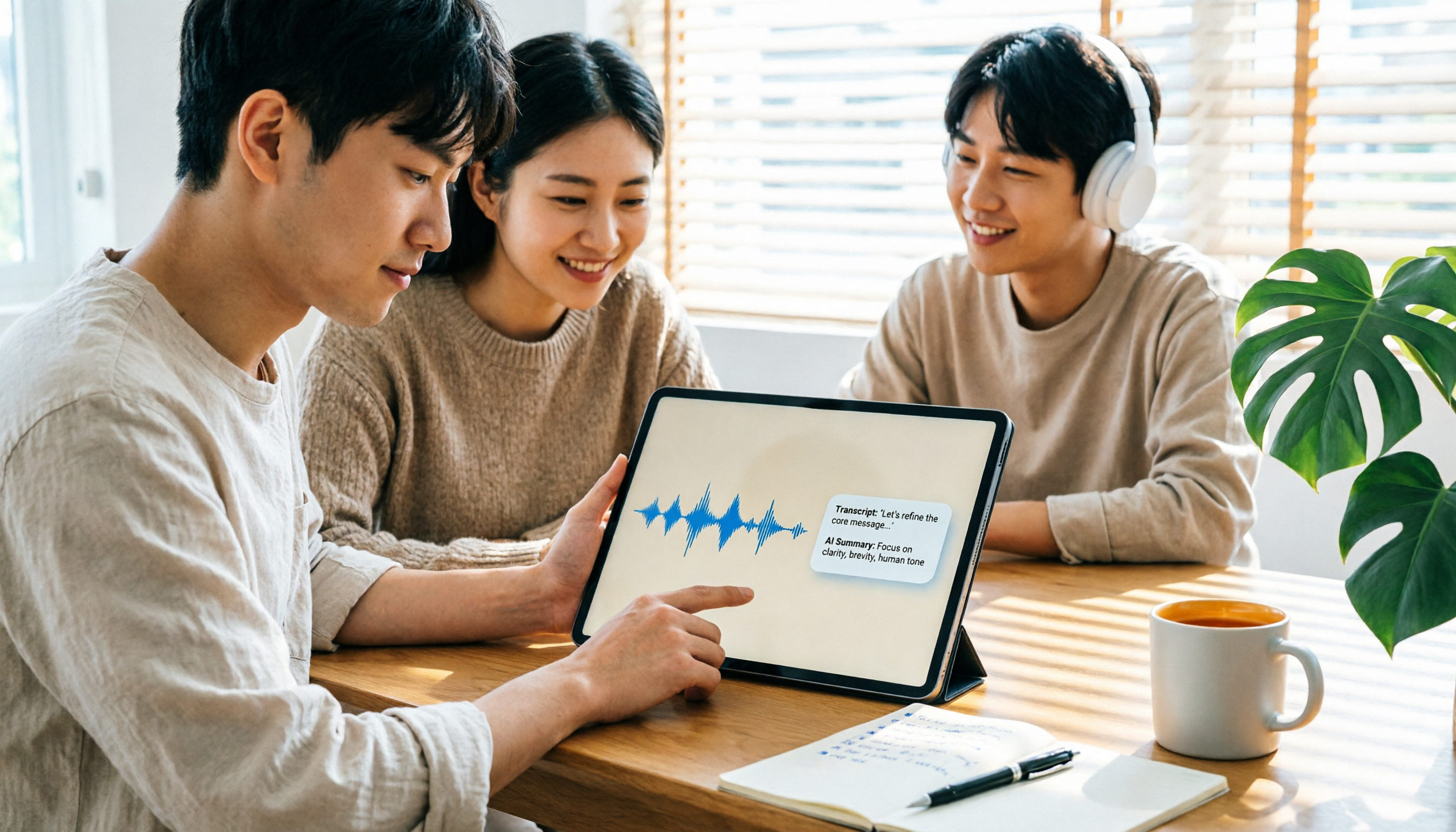
2026 iPad Audio-to-Text Note-Taking Guide: Real-Time Transcripts, AI Summaries, and Tool Selection
Should you use built-in features or third-party apps for iPad audio-to-text note-taking? This guide covers selection criteria, Chinese transcription, post-meeting AI organization, cross-platform export, and team permissions, comparing Tinrec, Apple Notes, Otter.ai, and PLAUD Note, plus practical tips to avoid pitfalls.

5 Best Browser-Based Audio-to-Text Tools in 2026: No Install, Which Handles Chinese Meetings Best?
How do you choose a browser-based audio-to-text tool without wasting time? This article examines four key factors—no installation, Chinese recognition, post-meeting organization, and team data ownership—and compares Tinrec, Notta, TurboScribe, Granola, and Otter.ai from a mid-level manager's hands-on perspective. It covers Tinrec's real-world performance and limitations in bot-free recording, AI Q&A, action item extraction, and team workspaces.

Tinrec vs OmniTranscript 2026: 5-Dimension Comparison for Chinese TikTok Transcripts
How to choose a TikTok video-to-text tool? This article reviews 5 transcript tools: Tinrec, OmniTranscript, WayinVideo, BibiGPT, and Dictationer, comparing them across Chinese language support, AI post-processing, export formats, free quotas, and team collaboration to help you find the best TikTok transcription solution.