

Turn recordings into transcripts and summaries in minutes
Upload audio or video for multilingual transcription, AI notes, and action items
How to Transcribe Apple Watch Recordings in 2026: A 5-Step Guide
You Pressed Record on Your Watch—Now What?
“Recording on Apple Watch is so convenient—just raise your wrist and tap.” That’s only half true.
Recording was never the problem; organizing is. That tap gives you 30 or 40 minutes of continuous audio, not “who’s responsible for what” or “what was decided.”
There are two common misconceptions.
First: thinking that the watch’s “Dictation” feature equals recording transcription. Actually, dictation lets you speak into a text field to input text—it’s completely different from processing an existing audio file.
Second: assuming a transcript appears automatically after recording. The watch captures audio, the iPhone syncs it, but turning that audio into readable, searchable, editable text—that part isn’t handled by the default Apple workflow.
Another often-overlooked reality: the watch’s microphone range is limited. Close-range recording quality is actually decent—some even find it cleaner than iPhone—but if your arm is hanging down or too far from the sound source, it barely picks up anything.
So the problem isn’t the watch; it’s whether the post-recording workflow is smooth.
5-Step Guide: From Apple Watch Recording to a Usable Transcript
Step 1: Start Recording with Voice Memos on Apple Watch
Open the Voice Memos app on your watch and tap the red record button to start. The screen can turn off and recording continues in the background—perfect for meetings or classes without keeping the display on.
If you can’t find the app, you probably deleted it before; just re-download it from the App Store.
Step 2: Make Sure Recordings Sync to iPhone Automatically
No manual file transfer needed. As long as your watch is connected to Wi-Fi, paired with your iPhone, and signed into the same Apple ID, recordings sync automatically to Voice Memos on iPhone, iPad, or Mac.
Open Voice Memos on iPhone and you’ll see items labeled as watch recordings.
Step 3: Send the Audio to a Transcription Tool
At this point, you still have an audio file.
To turn it into text, you need a transcription tool. For example, with Tinrec, you can import the synced recording from your phone and get a transcript; if the recording is already on your computer, the desktop version can process existing audio files directly.
Step 4: Let the Tool Extract Summaries, Chapters, and Action Items
A transcript is just “readable text”—the real time-saver is the organization that follows.
For a 40-minute meeting, you want a summary, key points, who promised what, and when it’s due. If you have to dig through the transcript yourself, you’ve only done half the work.
Step 5: Export to Where You Work
The final step is taking the organized results with you.
Whether saving as a document, report, or exporting to Notion, Google Docs, OneNote, Dropbox for further editing, the key is that it fits into your existing workflow—not becoming another silo.
4 Key Factors to Understand Before Choosing a Transcription Tool
1. How “Clean” Is Your Recording Environment?
A meeting room with air conditioning, keyboard clicks, and people talking over each other is a different world from a quiet room. When reading reviews, pay attention to test conditions, not just conclusions.
2. How Well Does It Handle Chinese and Mixed Chinese-English?
Meetings in Taiwan rarely use a single language throughout—mixing product names and English technical terms is the norm. If a tool struggles with code-switching, the transcript will be painful to read.
3. What Else Can It Do After Transcription?
A tool that only does “audio to text” just saves typing time. A tool that can also summarize, extract action items, and let you ask questions about the content saves understanding time.
4. Is This Recording for Personal Use or Team Sharing?
If meeting notes will be shared with colleagues, handed off, or searched later, then whose account holds the data is something to think about early.
Tinrec — Our Pick After Testing
Tinrec is an AI meeting notes and collaboration tool for individuals and teams, available on web, desktop, and mobile.
Drop Your Watch Recordings Right In
First sync Apple Watch recordings to iPhone, then import into Tinrec to get a searchable transcript. This is especially useful for those who’ve already recorded interviews or classes—no need to re-record, just add text to old files.
The Real Value Is After the Transcript
Stop organizing recordings by hand
Upload audio or video and automatically get a transcript, summary, and action items
Tinrec automatically generates summaries and chapters, breaking long meetings into structured sections and pulling out action items from discussions. After a project meeting, you don’t need to re-listen—just see who’s responsible for what and when it’s due.
Ask Questions Directly About the Meeting Content
This is where it differs most from similar tools. After recording, you can ask: Who mentioned the budget in the last meeting? It answers based on semantic understanding, not just a list of keyword search results.
From Personal to Team Use
For teams sharing meeting data, Tinrec for Teams offers a dedicated team space to store transcripts, summaries, and action items, with member, role, and seat management. Active members can view and play team data even without a seat; a seat is required to record, upload, edit, and export. The team plan also includes usage analytics, audit logs, team glossary, and audio recycle bin.
My Personal Experience
I tested with a meeting recording that had mixed Chinese-English and background air conditioning noise. The transcript readability was noticeably better than relying solely on real-time dictation, and proper nouns were less often guessed wrong. Of course, heavy accents and overlapping speech still cause errors—that’s true for any tool.
Things to Note
Tinrec’s free plan offers basic quota to try recording, importing, summarizing, and transcribing; heavy usage requires payment. Also, it doesn’t claim a fixed accuracy rate—actual performance depends on recording quality, noise, accent, and overlapping speech. For important content, we recommend cross-checking with audio playback.
Team plan pricing is USD 29.80 per paid seat per month, or USD 199 per paid seat per year (about USD 16.58 per month), with each paid seat including 2,000 minutes of shared team import quota per month; eligible teams get a 7-day trial, 1 free seat, and 300 minutes of shared import quota for the first time. Actual prices and benefits are subject to the official purchase page.
Who It’s For
Those who already have a pile of Apple Watch recordings, need mixed Chinese-English transcripts, want to use AI to find key points right after recording, or need meeting data to accumulate within a team.
What Other Options Are There Besides Tinrec?
Apple’s Built-in Voice Memos Free, zero learning curve, and the most seamless integration with Apple Watch. If you just need to record a 1-minute memo or a quick note while driving, the built-in solution is enough. But it won’t turn recordings into queryable, collaborative data—that’s exactly what Tinrec fills in.
Notta Covers multi-platform transcription, meeting notes, file import, and translation—overlaps most with Tinrec. Official free plan: 120 minutes per month, max 3 minutes per file; Pro annual plan about USD 8.17 per month, 1,800 minutes per month. The difference is Tinrec adds desktop bot-free recording and team space with seat governance.
Otter.ai A mature choice for English business meetings. Free plan: 300 minutes per month; Pro annual plan about USD 8.49 per user per month. If almost all your recordings are English meetings, it’s a cost-effective option. But Chinese and mixed Chinese-English are not its strong suit, and it lacks Tinrec’s real-time translation and bilingual side-by-side review.
Pitfall Guide: 4 Most Common Mistakes in Apple Watch Recording Transcription
Pitfall 1: Mistaking the Watch’s “Dictation” for Recording Transcription Dictation turns spoken words into input text for replying to messages or searching. It won’t process an existing audio file. To transcribe a file, you still need a dedicated transcription tool.
Pitfall 2: Assuming the Watch Will Capture Audio from Anywhere The watch’s microphone has directional and distance limitations. If your arm is down or too far from the sound source, you might only record ambient noise. During meetings, rest your wrist naturally on the table and point it toward the speaker for better audio quality.
Pitfall 3: Only Looking at Advertised Accuracy Numbers Numbers from a quiet studio don’t reflect a meeting room with air conditioning, keyboard clicks, and overlapping speech. We recommend testing with your own real recording to see how it performs in your scenario.
Pitfall 4: Using a Transcription Tool Only as a Typewriter If you only use it to get a transcript, you’re using only a third of its potential. For example, Tinrec’s AI Q&A—asking directly what the meeting concluded—is much faster than manually scanning a 40-minute transcript.
Conclusion: Which One Fits Your Scenario?
- Just quick notes, memos under 1 minute → Use Apple’s built-in Voice Memos, free and straightforward.
- Apple Watch recordings to transcript, mixed Chinese-English → Tinrec, its strong suit is Chinese and code-switching.
- Want to use AI to find key points and action items right after recording → Tinrec, AI Q&A and summary/action items are its core.
- Meeting data to share with team, need handoff → Tinrec for Teams, team space, seats, and usage management.
- Almost only English meetings, budget priority → Otter.ai, generous free tier, mature English experience.
We suggest first recording a typical scenario with your watch, then trying the free plan’s basic quota for transcription and summary. The best way to know if it works for you is to test with your own recording.
References
- How to Transcribe Apple Watch Recordings? 3 Solutions Tested and Operation Guide - Tinrec Blog
- Record and play Voice Memos on Apple Watch - Apple Support (Taiwan)
- Enter text on Apple Watch - Apple Support (Taiwan)
- How to Use Apple Watch Recording? Record Audio with Voice Memos or Recording App - Tech Girlz
- Apple Watch Can Be a Voice Recorder! How to Record in Background / Sync to iPhone - Apple Almond
Turn every recording into actionable outcomes
Get 60 free transcription minutes when you sign in. No credit card required.
Related Reading
You might also like

4 Best iPhone Transcription Tools in 2026: Is Apple's Built-in Transcription Enough?
iPhone's built-in Voice Memos can turn recordings into transcripts, but you only get text—no summaries or action items. This article shows you the 4 steps to generate text from iPhone recordings, then compares the built-in feature, Tinrec, PLAUD, and Granola, with key buying factors, pitfalls to avoid, and scenario-based recommendations.

4 Best Android Transcription Apps in 2026: Free to Paid Options Compared
A mid-level manager who attends 15 meetings a week tested 4 Android transcription apps: from completely free live dictation to meeting tools that automatically generate summaries, action items, and AI Q&A. We break down each app's free limitations, best use cases, and pitfalls to help you choose the one that truly saves time.

2026年4款抖音视频语音转文字工具横向对比:从免费到付费一次看懂
实测4款抖音视频语音转文字工具,从免费到付费,比较转写准确度、AI摘要、翻译与团队协作,并分享选购标准与避坑指南。

5 Best IG Reels to Transcript Tools in 2026: Which Saves More Time for Chinese Recognition and Post-Meeting Organization?
IG Reels to transcript is not just about turning video into text. This article starts with common misconceptions, breaks down what transcripts can do for content creators and social teams, what core capabilities to look for, and 5 key points when choosing a tool. Using Tinrec's recording transcription, AI summary, AI Q&A, and team space as an example, it explains how to turn a single Reel into reusable text assets.

4 Xiaohongshu Video-to-Text Tools Tested for 2026: Which One Can Actually Transcribe Videos Without Subtitles?
Extracting text from Xiaohongshu videos isn't about whether a tool exists—it's about what you plan to do with the text. This article starts with three key questions and compares four tools: Tinrec, BibiGPT, Shiyi, and SnapWC. Learn the difference between grabbing subtitles and AI speech-to-text transcription, plus workflows for videos without subtitles, output formats, and tips for team sharing.
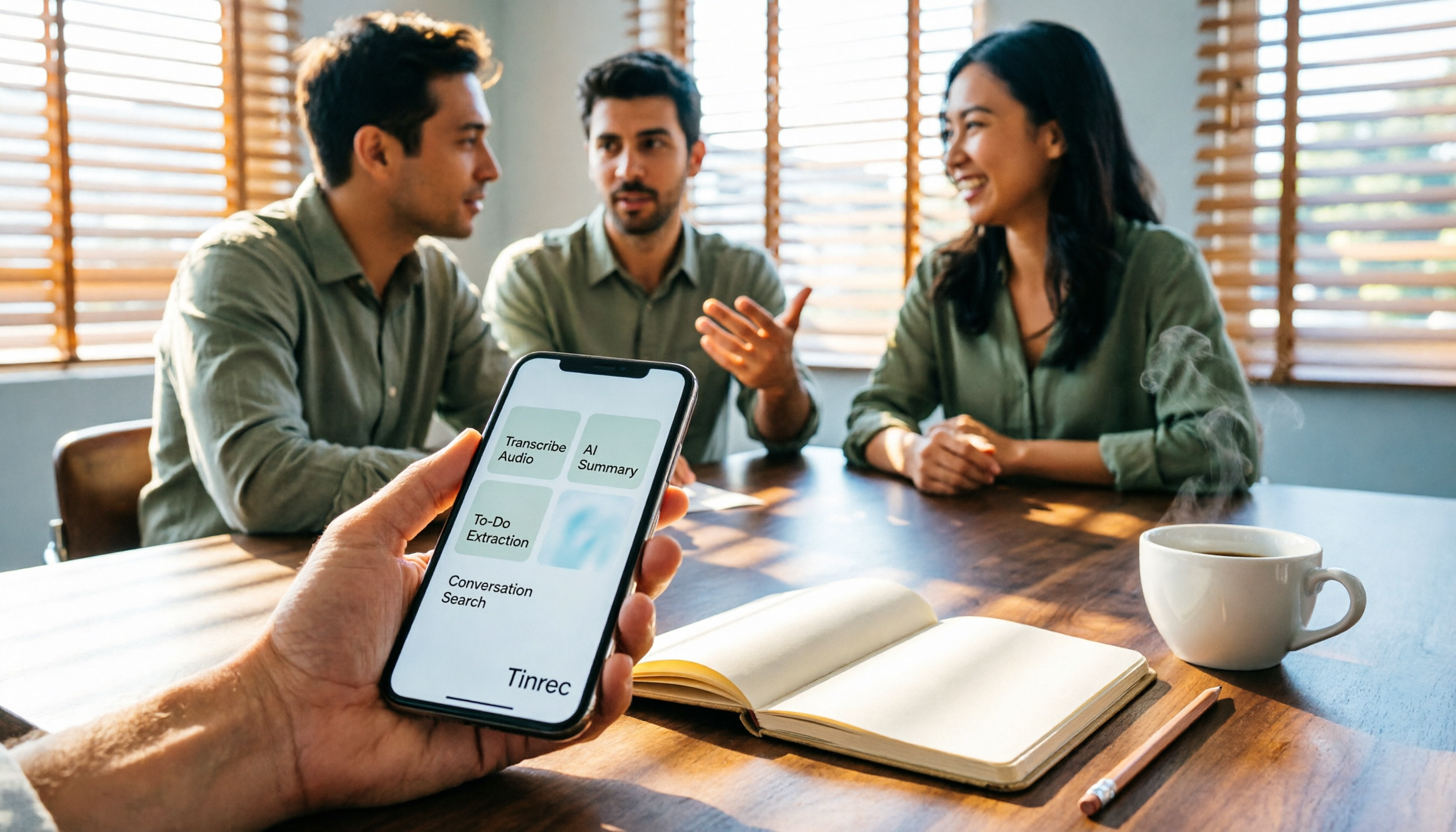
5 Huawei Phone Audio-to-Text Tools Tested in 2026: Which AI Meeting Notes Save the Most Time?
A hands-on 2026 comparison of audio-to-text tools for Huawei phones, tested in real meeting scenarios. The article compares Huawei's built-in recorder, Otter.ai, Notta, and Tinrec, and explains four key factors for choosing a tool: real-world accuracy, post-meeting organization, bot-free online meeting recording, and cross-platform export. It highlights Tinrec's AI summaries, action item extraction, and AI chat query, and concludes with recommendations for different use cases.
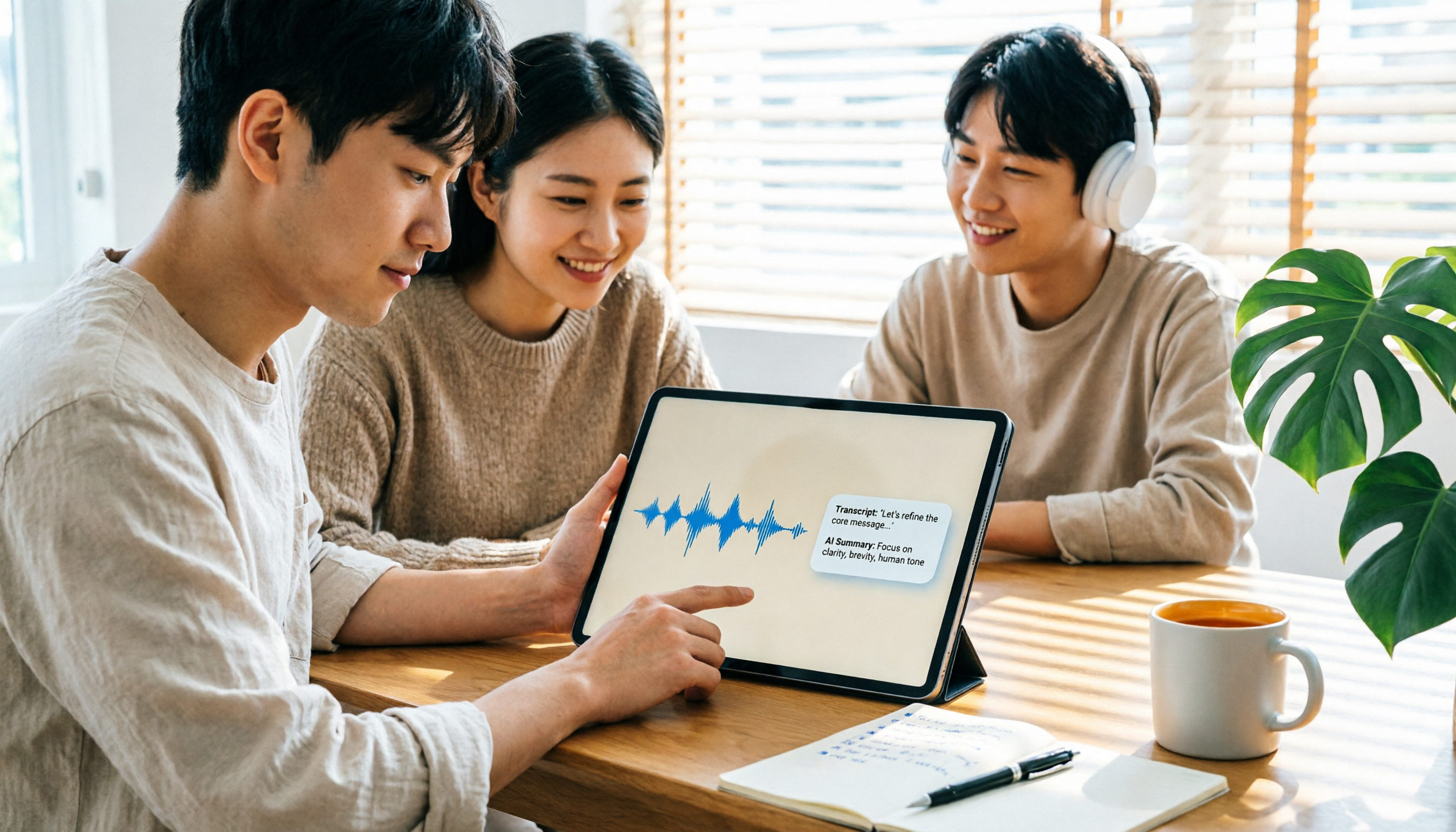
2026 iPad Audio-to-Text Note-Taking Guide: Real-Time Transcripts, AI Summaries, and Tool Selection
Should you use built-in features or third-party apps for iPad audio-to-text note-taking? This guide covers selection criteria, Chinese transcription, post-meeting AI organization, cross-platform export, and team permissions, comparing Tinrec, Apple Notes, Otter.ai, and PLAUD Note, plus practical tips to avoid pitfalls.

5 Best Browser-Based Audio-to-Text Tools in 2026: No Install, Which Handles Chinese Meetings Best?
How do you choose a browser-based audio-to-text tool without wasting time? This article examines four key factors—no installation, Chinese recognition, post-meeting organization, and team data ownership—and compares Tinrec, Notta, TurboScribe, Granola, and Otter.ai from a mid-level manager's hands-on perspective. It covers Tinrec's real-world performance and limitations in bot-free recording, AI Q&A, action item extraction, and team workspaces.

Tinrec vs OmniTranscript 2026: 5-Dimension Comparison for Chinese TikTok Transcripts
How to choose a TikTok video-to-text tool? This article reviews 5 transcript tools: Tinrec, OmniTranscript, WayinVideo, BibiGPT, and Dictationer, comparing them across Chinese language support, AI post-processing, export formats, free quotas, and team collaboration to help you find the best TikTok transcription solution.