
Turn recordings into transcripts and summaries in minutes
Upload audio or video for multilingual transcription, AI notes, and action items
As a senior editor with years of experience testing communication software, I'm often asked how to set up LINE call recording. LINE itself does not offer a built-in recording feature, but both iPhone and Android users can work around this through system settings or third-party apps. However, successfully recording a call is only the first step. The real pain point for most people is having to spend twice as long replaying a half-hour recording to extract key points. This article will walk you through 4 practical LINE recording methods and compare 3 speech-to-text tools, helping you go from tedious re-listening to one-click transcripts and action items.
1. Can LINE Record Calls Natively? Current Limitations & Pain Points
1.1 Native Feature Limitations
Currently, LINE does not provide a one-tap recording button in its call interface. Whether for voice or video calls, users must rely on the phone's operating system features or download additional apps to capture audio. Additionally, iOS and Android have different privacy restrictions, leading to distinct setup procedures.
1.2 The "Re-Listening Hell" Problem
Even after successfully saving a business negotiation, class lecture, or important interview via LINE recording, you're faced with a huge time cost. Traditional audio files have low information density—if you forget which minute and second holds the conclusion, you're stuck fast-forwarding and replaying. That's where a tool that converts speech to text and extracts key points becomes essential for completing the task.
2. [iPhone/Android] 4 Practical Methods for Recording LINE Calls
Depending on your phone's operating system, here are the four most effective recording methods:
Method 1: iPhone iOS 18.1 Native Call Recording Integration
If your iPhone is updated to iOS 18.1, you can record via system settings:
- In LINE's main page, go to Settings > Calls.
- Enable "Integrate with iPhone's call function" and "Integrate with iPhone's call log."
- When answering or making a LINE call, tap the "Call Recording" button at the top left of the screen to start recording.
Method 2: Android - Use Cube ACR Call Recorder App
Android users have more third-party options; Cube ACR is a popular free tool:
- Download and install "Cube ACR" from the app store.
- Open the app and grant the necessary permissions.
- Go to "Recording Settings" and enable "Auto Start Recording." When you make a LINE call, a recording icon will appear on screen, indicating recording is in progress.
Method 3: Use the Built-in Screen Recording Feature
This is a universal solution that doesn't require any additional app (using iPhone as an example):
- Swipe down from the top right corner of the screen to open Control Center.
- Long-press the "Screen Recording" icon and make sure the microphone is turned on (red icon).
- Start recording, then switch back to your LINE call. The video will be saved to your Photos app with both audio and video.
Method 4: Use a Dedicated External Voice Recorder for LINE Calls
If your phone's settings are restrictive, consider a MagSafe-compatible magnetic voice recorder (e.g., Magmo):
- Download the recorder's companion app.
- Attach the recorder to the back of your iPhone.
- When on a LINE call, turn on speakerphone and press the recorder's recording button.
3. What Tools to Use for Organizing LINE Recordings? Comparison of 3 Mainstream Tools
Once you have the audio file, how do you choose a tool to process it? We compare the built-in voice memos on phones, traditional speech-to-text apps (represented by Yating Transcript), and an AI-powered recording assistant (Tinrec) across several dimensions to help you decide.
Stop organizing recordings by hand
Upload audio or video and automatically get a transcript, summary, and action items
| Evaluation Dimension | Built-in Voice Memos | Traditional Speech-to-Text App | Tinrec (Instant Voice Recorder) |
|---|---|---|---|
| Language Support | Single language, moderate accuracy | Mostly English and Chinese | Auto-detects 10 languages including Chinese, Japanese, English, Korean, etc. |
| Real-Time Transcription | Recording only, no live text | Requires waiting after recording | Transcribes in real-time as you record |
| Summary & Action Items | None | Transcript only | Auto-generates meeting minutes and to-do action items |
| AI Query | None | Ctrl+F keyword search only | Supports AI-powered semantic query via chat |
| Export/Integration | Audio file only | TXT/DOC export | Multi-format file export |
| Pricing / Free Tier | Completely free | Limited free hours per month | Up to 100 minutes of free transcription per month |
Quick Decision Guide: If you just want to save audio, use your phone's voice memos. If you need an English transcript, a traditional speech-to-text app is a choice. But if you value "direct output of conclusions and to-do items after a meeting" and want cross-platform use, Tinrec with its AI summarization and query capabilities is the most efficient option.
4. From Recording to Transcript & Meeting Minutes: Step-by-Step Tutorial
Once you've recorded a LINE call using one of the methods above, here's how to turn the audio or video into actionable text:
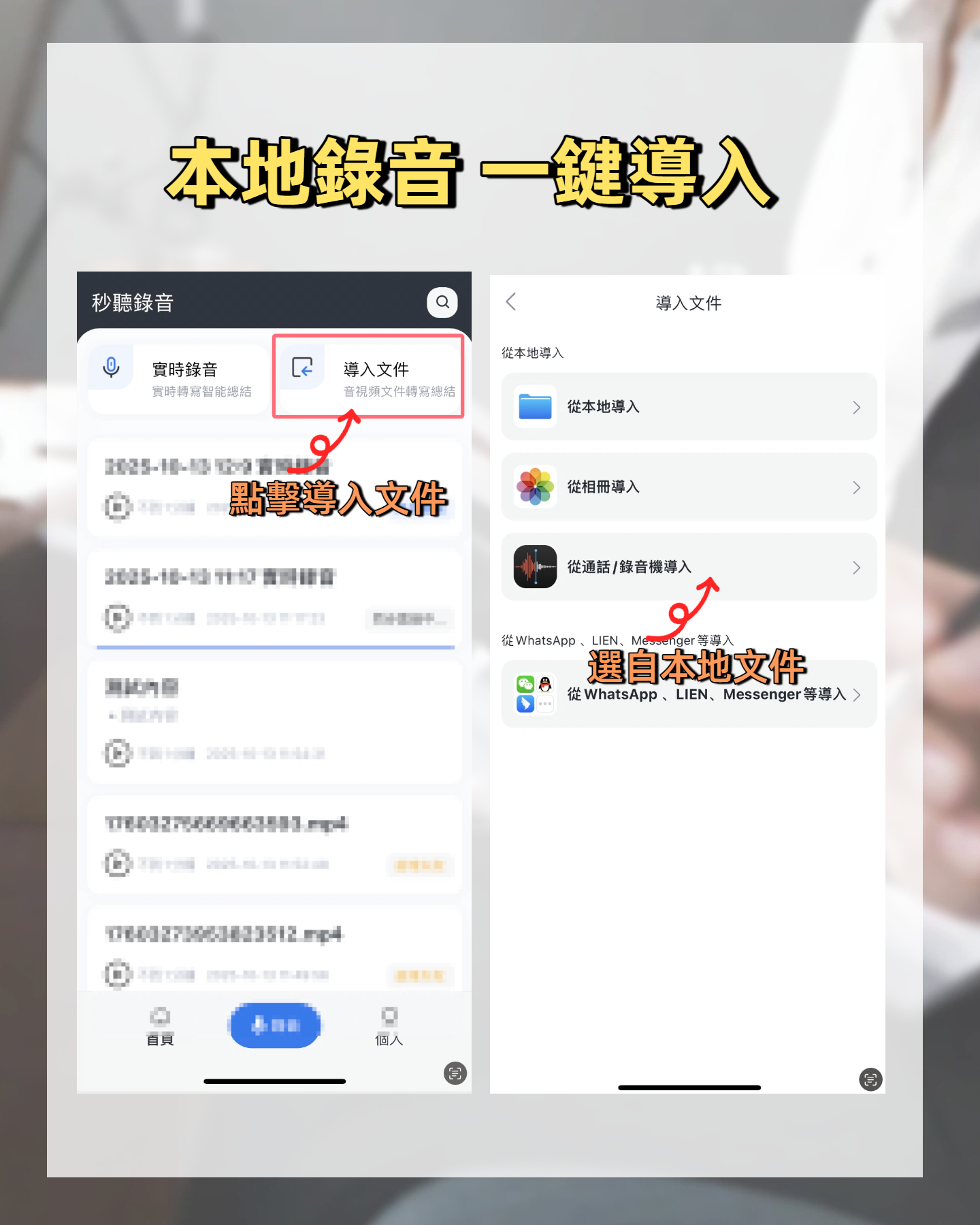
Step 1: Import Audio File for Fast Transcription
If you obtained an audio file using Cube ACR or iOS recording, you can upload it for processing.
- Get the recording file from your phone (usually M4A or MP3).
- Go to the Audio to Text interface.
- Upload the file; the system will quickly generate a transcript with automatic speaker differentiation.
Step 2: Use Speakerphone for Real-Time Transcription
If you don't want to upload later, you can put the LINE call on speakerphone and use another device to transcribe in real-time.
- Open Real-Time Speech-to-Text on your computer or a second device.
- Tap start recording; the screen will display live transcription instantly.
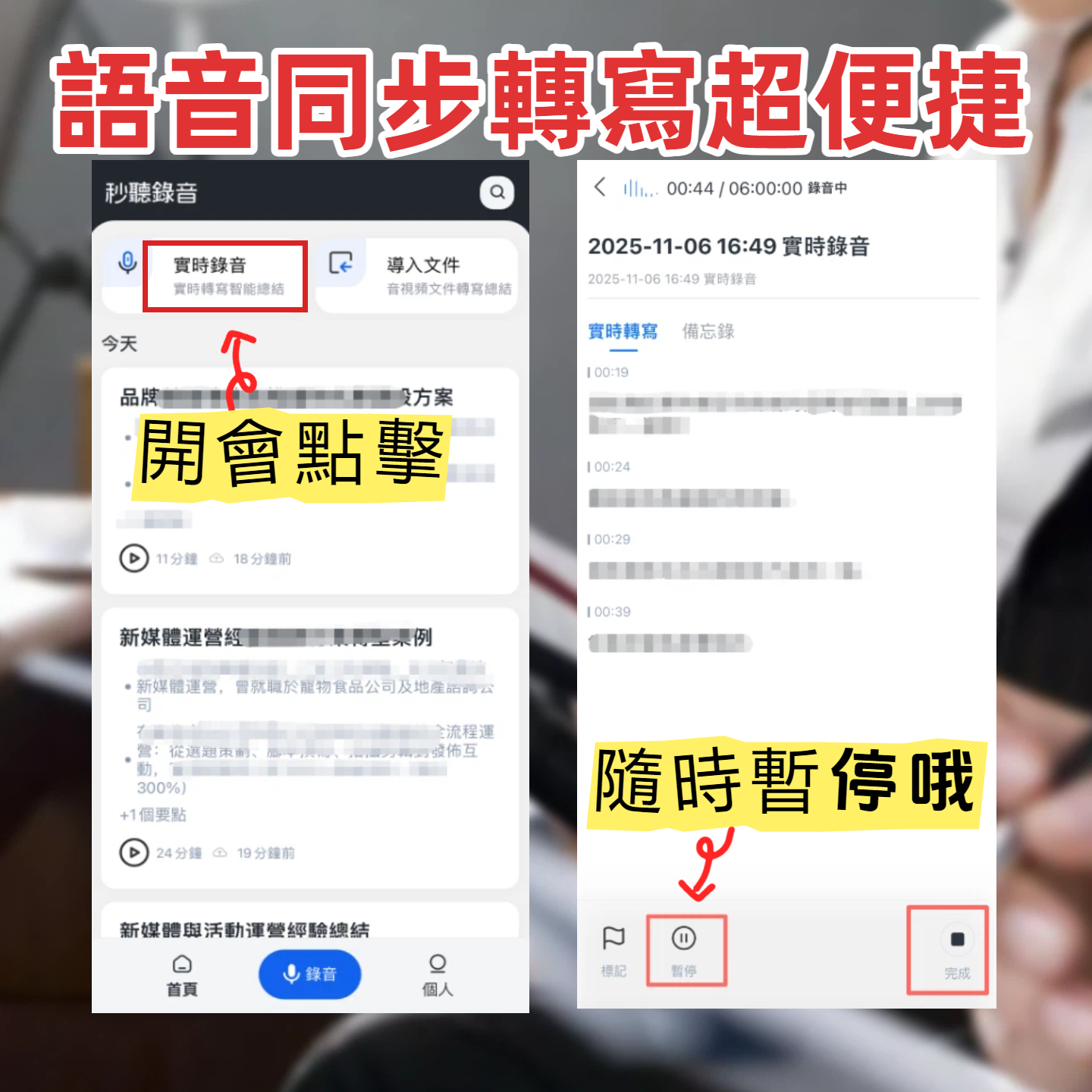
- When the call ends, the system automatically generates meeting minutes and a to-do list.

Step 3: Use AI Chat to Query Key Content
Traditional transcripts only allow keyword search, which is still time-consuming for long calls.
- Click to open the transcribed document.
- Use the AI Chat Query feature.
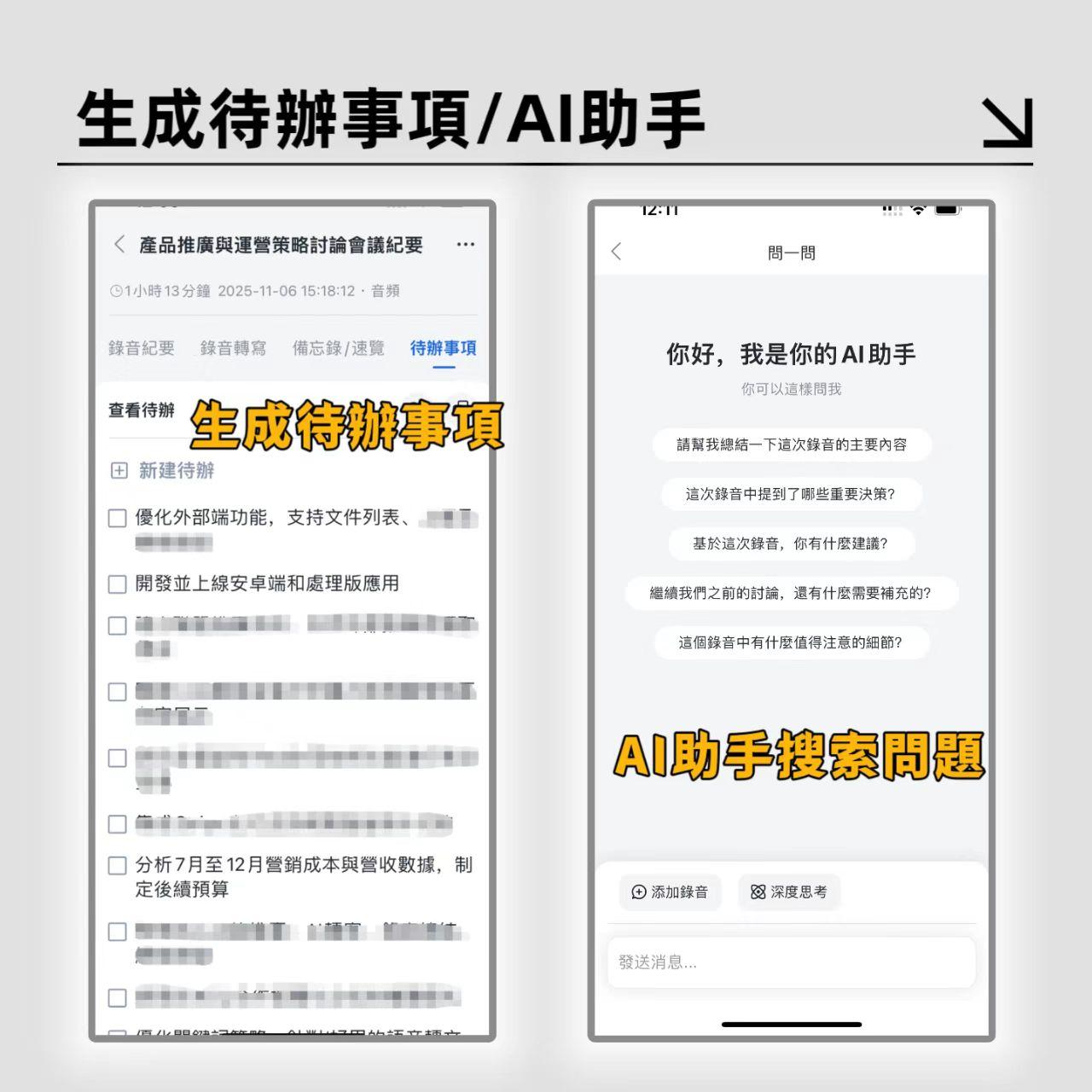
- Type your question directly, such as "What was the price the client mentioned?" The AI will semantically search and answer, just like asking an assistant.
Step 4: (Bonus Tip) Convert Online Video Links to Text
If someone shares a YouTube or podcast link during the call, you can quickly digest it too.
- Copy the URL of the video or podcast.
- Paste it into the Podcast/Online Video to Text section.
- The system will automatically parse the content and produce a transcript with key highlights.
5. FAQ on LINE Call Recording & Speech-to-Text
Q1: Can LINE voice calls be retrieved from the system later as recordings? No. LINE does not store call audio. You can only enable "Show Calls" in settings to see call history (time and contact), but you cannot play unrecorded conversations.
Q2: Do voice messages sent in LINE expire? Yes. Depending on file size: voice messages under 50 MB are stored permanently in the chat; files over 50 MB are stored only for 30 days. Download backups promptly.
Q3: How can I save a LINE voice message (or voice call record) to my device? Long-press the voice message and select "Save to Keep" for later viewing, or long-press, tap "Share," then "Save to Files" to store the audio file on your phone.
Q4: Why does my iPhone screen recording of a LINE call have no audio? Before starting screen recording, long-press the screen recording icon in Control Center and make sure the microphone icon is red (on). Only then will both sides' audio be recorded.
Q5: What is Tinrec's free tier? Who is it suitable for? The free version offers up to 100 minutes of transcription per month. Ideal for students taking class notes, employees recording remote meetings (e.g., Teams, Meet), and freelancers needing to transcribe interviews.
Q6: Can the transcript differentiate between speakers? Yes. Modern AI speech-to-text tools (including those mentioned here) can automatically recognize different voiceprints and label speakers (Speaker 1, Speaker 2, etc.) in the transcript, making meeting notes clear and easy to follow.
Turn every recording into actionable outcomes
Get 60 free transcription minutes when you sign in. No credit card required.
Related Reading
You might also like

Tinrec vs Otter.ai in 2026: A 5-Dimension Comparison for Chinese Meeting Notes
We tested Tinrec and Otter.ai across 5 key dimensions—Chinese transcription, bot-free recording, AI Q&A, team collaboration, and more—and provided meeting note examples and a pitfall guide to help you choose the right tool.

2026 Hands-On Comparison of 2 Smart Meeting Recorders: For Chinese Meetings and Team Collaboration, Tinrec Is the More Practical Choice
We tested Tinrec and Otter.ai hands-on, comparing them across five key dimensions: bot-free recording, Chinese language experience, file import, post-meeting workflow, and team governance—to help Taiwanese office workers find the best AI meeting notes tool.

2026 Hands-On Comparison of 4 AI Meeting Recorders: Which One Turns Meetings into Actionable Data?
We tested Tinrec, Otter, Notta, and Granola—four AI meeting note tools—covering bot-free recording, Chinese language experience, AI Q&A, and team spaces to help you find a real time-saver.

2026 Review: 5 Smart Meeting Note Tools Compared – Tinrec (Miao Ting Lu Yin) Saves the Most Time with Bot-Free Recording and AI Q&A
Hong Kong professionals tested 5 AI meeting note tools. Tinrec (Miao Ting Lu Yin) stands out with bot-free recording, AI Q&A, and team spaces, helping you save post-meeting time. Find out which one suits you best.

2026 Smart Meeting Recorder Tools Compared: Tinrec vs Plaud Note – Which Is Better for Office Workers?
This article compares Tinrec and Plaud Note across five dimensions: hardware requirements, online meeting recording, file import, AI summaries, and team collaboration, to help you decide which is more suitable for the average office worker.

2026 Smart Meeting Notes Comparison: Why Tinrec Is the Best Choice for Hong Kong Workers?
Hong Kong workers attend meetings daily, then have to work overtime to organize meeting notes? We tested 4 smart meeting note tools and ended up keeping Tinrec. It supports Cantonese, doesn't require adding a bot to record online meetings, and has team spaces, truly helping you leave work on time.

2026 Tinrec Smart Meeting Minutes: Bot-Free Recording + AI Auto Summary & To-Dos
How to choose a smart meeting minutes app in 2026? This article focuses on Tinrec, teaching you how to record online meetings without bots, auto-generate summaries and to-dos, and compares Otter, Notta, Granola, etc., to help you quickly find the right meeting notes solution.

2026 Smart Meeting Minutes Tools Compared: Tinrec's 3 Key Features + Team Collaboration Tested
Spending two hours in a meeting and another two organizing the notes? This article starts with common pitfalls, helps you understand what to look for in smart meeting minutes tools, tests Tinrec's bot-free recording, AI Q&A, and team spaces, and compares Otter and PLAUD to help you avoid selection traps.
Tinrec Meeting Recorder 2026 Tutorial: Record Meetings Without Bots + AI Q&A to Find Key Points
Spending two hours in a meeting and another two hours writing up notes? This article tests Tinrec's meeting recorder, showing you how to record online meetings without bots and use AI Q&A to quickly find key points. We also compare Granola, PLAUD Note, and Notta to help you choose the right tool.