
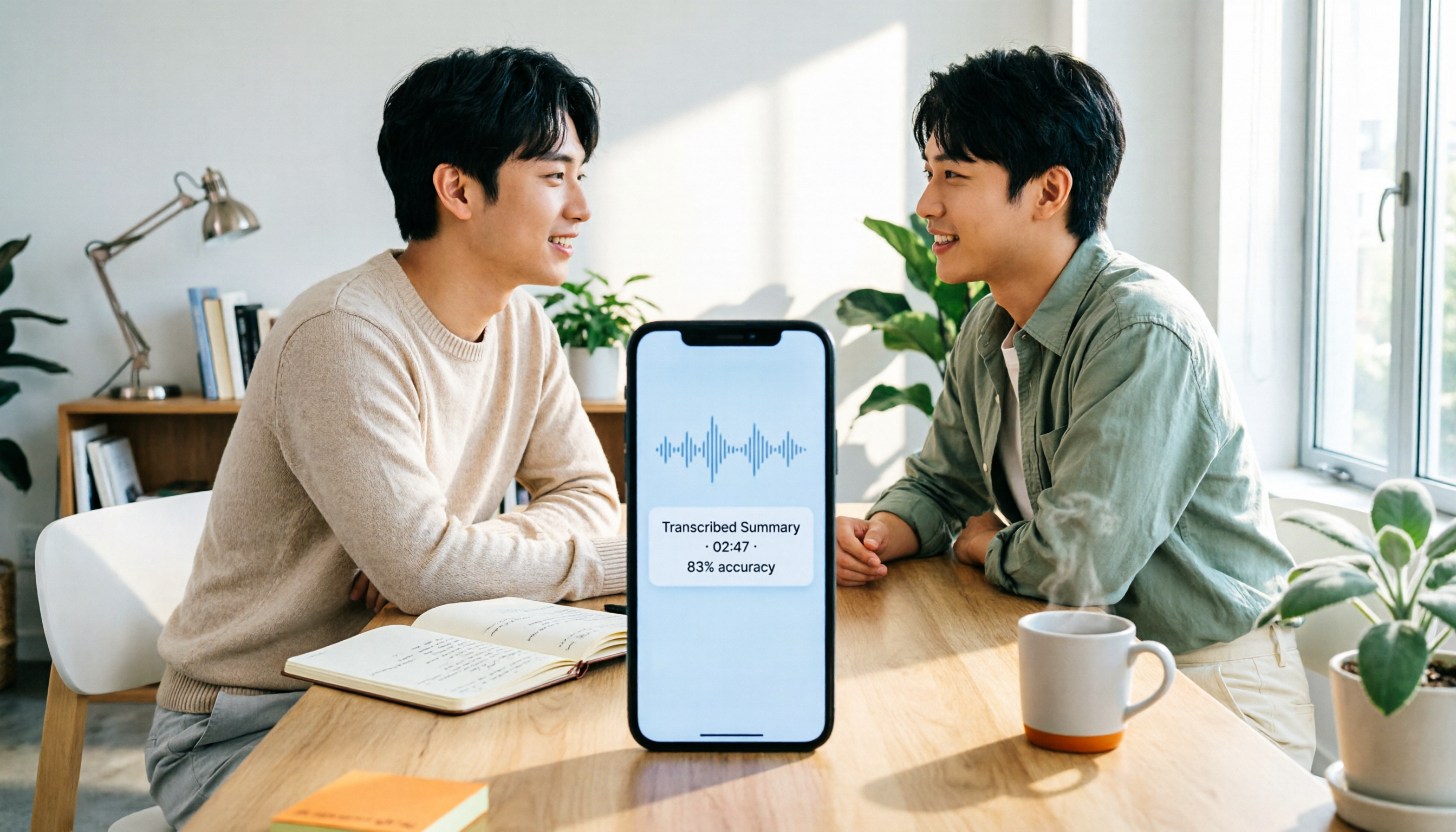
Turn recordings into transcripts and summaries in minutes
Upload audio or video for multilingual transcription, AI notes, and action items
How to Record Audio on iPhone in 2026: 5 Steps from Recording to AI Organization
Recording on iPhone isn't hard; the hard part is what to do after you record. First, decide: is this recording just for storage, or will you need to search, organize, and query it later? If it's just for archiving, the built-in Voice Memos app is enough. But if you're recording meetings, interviews, or classes and then spending time writing summaries, finding key points, and tracking action items, then instead of just recording, you should connect your recordings to an AI meeting notes tool like Tinrec. This article uses 5 steps to take you from iPhone recording all the way to transcripts, summaries, and queryable meeting data. Before recording, also be mindful of local laws and obtain consent when necessary.
What Can iPhone Recording Do for You? 3 Real-World Scenarios
Scenario 1: No more re-listening to two-hour meetings In the past, after recording a meeting on iPhone, you might have to put on headphones and re-listen while typing notes. Now you can import the audio file into Tinrec and let it generate transcripts, summaries, chapters, and action items; who is responsible for what and what to follow up on next meeting can be seen directly in the organized results. iPhone handles the recording, Tinrec turns it into actionable meeting data.
Scenario 2: Quickly capture key points from classes and interviews During classes or interviews, instead of frantically taking notes, record with your phone first. Later, use Tinrec to convert to text, then use AI Q&A to ask follow-up questions like "What were the three cases the professor mentioned?" or "What were the interviewee's concerns about pricing?" No need to scrub through the timeline to find segments.
Scenario 3: Never miss spontaneous ideas and important conversations For inspiration, key phone call points, or impromptu discussions, quick recording on iPhone is the most direct. After recording, drop it into Tinrec to help you segment, title, and organize action items; when you need it later, just search by keyword instead of digging through a pile of audio files from memory.
How to Record on iPhone: 5 Steps from Recording to Organization
Step 1: Find the recording entry point, decide between built-in and Tinrec
iPhone's Voice Memos is in the Utilities folder, suitable for quickly recording a memo. If you want transcripts and summaries immediately after recording, you can also use Tinrec's mobile recording to put "recording" and "organization" in the same workflow. The two don't conflict: built-in recording is good for temporary archiving, Tinrec is good for content that needs later organization.
Step 2: Set up quick launch, record even from the lock screen
If you record often, set up a shortcut. You can use Settings > Accessibility > Touch > Back Tap and assign the action to Voice Memos; you can also add recording to Control Center, or change the lock screen shortcut to Voice Memos. If your model supports the Action button, you can assign Voice Memos in Settings > Action Button and start recording with one press even when locked. This step takes only a few minutes but saves you the time of finding the app each time.
Step 3: Start recording, pause and resume as needed
Open Voice Memos and tap the record button to start. During recording, you can pause and resume, which is useful for breaks or segmented notes; you can also choose "Stereo" or "Spatial Audio" in settings to let Voice Memos use multiple microphones. If iCloud sync for Voice Memos is enabled, recordings will sync across devices with the same Apple account. This is built-in iPhone capability, perfect for turning your phone into a portable recording device.
Step 4: Hand the audio file to Tinrec, convert to searchable transcript
After recording, instead of just leaving the audio file on your phone, import it into Tinrec to convert to text. Tinrec supports audio and video file transcription, as well as real-time recording to text; you can choose "record first then upload" or "record and transcribe simultaneously" depending on the scenario. Once transcription is complete, the transcript can be searched and reviewed, which is more efficient than repeatedly scrubbing the playback bar. If you're recording an online meeting, Tinrec's desktop version can capture computer system audio to handle Zoom, Google Meet, Microsoft Teams, Webex, and other meetings without needing an extra bot to join.
Step 5: Use Tinrec to generate summaries, action items, then query and export
The transcript is just raw material. Next, use Tinrec to generate AI summaries, chapters, and key points, breaking long meetings into easily browsable structure; then extract action items so follow-up actions have a basis. When you need to find details, use AI Q&A to ask questions about the meeting content; finally export results to common formats or workflows like Notion, Google Docs, OneNote, Dropbox. At this point, iPhone recording truly becomes "usable data" rather than space-consuming audio files.
What Are Tinrec's Core Capabilities? 5 Keys After Recording
Real-time transcription, process while recording Tinrec supports real-time recording to text, suitable for offline meetings, interviews, and on-site notes. You don't have to wait until recording ends to start organizing; you can confirm content on the fly during recording. For iPhone users, this means the phone is not just a recorder but an entry point for meeting data.
Bot-free online meeting recording Tinrec's desktop version directly captures computer system audio to handle Zoom, Google Meet, Microsoft Teams, Webex, and other online meetings without pulling an extra bot into the meeting. This complements iPhone on-site recording: record offline with iPhone, record online with desktop version, and everything goes into the same organization workflow. Note that this is not "automatically joining all meetings" but user-initiated recording.
AI summaries, chapters, and action items Tinrec doesn't just provide transcripts; it also generates summaries, chapters, key points, and action items. The biggest fear with long meetings is "having a recording but no one wants to re-listen." Summaries and chapters first pull out the structure, and action items connect discussion back to action. For managers, this is easier to track than a simple audio file.
Stop organizing recordings by hand
Upload audio or video and automatically get a transcript, summary, and action items
AI Q&A and real-time translation After transcription, you can ask Tinrec directly about the meeting content, such as "What was the budget range the client mentioned?" or "What were the three conclusions of this meeting?" It answers based on semantic understanding. Cross-language meetings can also use real-time translation, viewing in original, translated, or bilingual format. Actual results will be affected by recording quality, noise, accents, and overlapping speech; for important content, it's recommended to cross-check with transcript timestamps and recording playback.
Multi-format export and team workspace Tinrec can export results to common formats and third-party tools, letting meeting data enter your existing workflow. The team version further provides independent team workspace, members and roles, seat management, usage analytics, audit logs, and audio recycle bin, turning recordings scattered on individual phones into team-searchable, collaborative, and traceable data. The team version is billed per paid seat; actual pricing and benefits are subject to the official purchase page.
Practical Application Scenarios: How iPhone Recording + Tinrec Work Together
Meeting notes: record offline with iPhone, online with desktop version For offline meetings, use iPhone Voice Memos or Tinrec mobile recording; for online meetings, use Tinrec desktop version for bot-free recording. After the meeting, Tinrec uniformly transcribes, generates summaries and action items, then exports meeting minutes to attendees. Attendees don't need to re-listen to the whole session; they can take over just by reading the summary and action items.
Client interviews: capture requirements, objections, and commitments When sales or customer success teams visit clients, record the interview with their phone and import into Tinrec back at the office. Transcripts can be searched for budget, competitors, and decision process mentioned by the client; AI Q&A can quickly pull out "the three things the client cares about most." When later organizing content into a requirements document or follow-up email, you can continue working from Tinrec's organized results.
Classes and lectures: from recording to reviewable notes Recording classes is common, but recordings often never get opened again. After converting to transcript with Tinrec, chapters and summaries can serve as a review skeleton, and AI Q&A can be used to confirm unclear sections. If the speaker mixes Chinese and English, you can also use real-time translation and bilingual view to reduce re-listening costs.
Personal knowledge management: make old recordings searchable again Inspiration, reading notes, self-meetings—over time they become a pile of audio files. Import important recordings into Tinrec to turn them into searchable text data; when writing articles or making decisions later, just ask "What was my thought on this topic last time?" which is more reliable than digging through files from memory.
5 Things to Consider When Choosing an iPhone Recording Organization Tool
1. Is the recording entry point convenient, and can it continue across devices First check if the tool supports the devices you commonly use. Tinrec has mobile, desktop, and web versions; after recording on iPhone, you can continue organizing on your computer; the desktop version can also handle online meeting system audio. Rather than just looking at single-app features, look at whether "recording to organization" is the same workflow.
2. Chinese and multilingual transcription capability If your meetings are in Chinese, mixed Chinese-English, or multilingual, language support is more important than price. Tinrec covers Chinese, Traditional Chinese, and multilingual meetings, and supports real-time translation and team hotwords. Don't treat a fixed accuracy rate as the only metric; actual results are affected by audio conditions, so it's recommended to test with your own recordings.
3. Can it help you organize after transcription Transcript is just the first step. You need to confirm whether the tool can generate summaries, chapters, key points, and action items. Tinrec puts these in the post-transcription workflow and also allows AI Q&A to follow up on details; for people who "still spend an hour organizing after recording," this is where real time savings come from.
4. Is export compatible with existing workflows Meeting results usually need to go into documents, project management, or note-taking tools. Tinrec supports multi-format export and third-party tools like Notion, Google Docs, OneNote, Dropbox, so organized results don't need manual copy-paste. When choosing, first confirm whether the tools your team commonly uses can connect.
5. Team governance and data ownership If used by a team, don't just look at "can it be shared." Tinrec's team version distinguishes roles and seats: roles manage permissions, seats manage usage qualifications such as recording, uploading, editing, and exporting; team data belongs to the team and can be handed over when members change. This governance capability is more suitable for enterprises than simply sharing one account among multiple people.
Frequently Asked Questions
Q1: Where are iPhone recordings stored? They are stored in the Voice Memos app; if iCloud sync is enabled, they update across devices with the same Apple account. You can also import audio files into Tinrec to turn recordings into searchable transcripts and summaries.
Q2: Can Voice Memos recordings be converted to text? Yes, but through a transcription tool. Import Voice Memos audio files into Tinrec to generate transcripts, then further create summaries, chapters, action items, and AI Q&A. iPhone's built-in Voice Memos focuses on recording and simple editing, not a complete post-meeting organization workflow.
Q3: The recording is too long, and I don't want to re-listen from the beginning. What should I do? First use Tinrec to generate summaries and chapters to grasp the meeting structure, then look at the transcript for the sections you need. If you have specific questions, use AI Q&A to ask directly, such as "What are the action items?" or "Who mentioned the budget?" This is much faster than scrubbing the timeline.
Q4: Can I record online meetings? iPhone can be used to record in-person meetings or speakerphone content; if the meeting is on a computer, Tinrec's desktop version can capture system audio to handle Zoom, Google Meet, Microsoft Teams, Webex, and other online meetings without a bot joining. Before actual recording, please confirm attendee consent and local regulations.
Q5: What's the difference between Tinrec team version and personal version? Personal version data is managed by the individual account; team version provides an independent team workspace, meeting data belongs to the team, and adds members, roles, seats, sharing benefits, usage analytics, audit logs, and audio recycle bin. Team version is billed per paid seat; first eligible team trial is 7 days, 1 free seat, 300 minutes of team shared import quota, subject to the official purchase page.
Q6: Is transcription accuracy guaranteed? It's not recommended to judge by a fixed percentage. Tinrec provides high-quality transcription under clear audio and common scenarios, but actual results are affected by recording quality, noise, accents, overlapping speech, and technical terminology. For important content, it's recommended to cross-check with transcript and recording playback.
Conclusion
iPhone recording is just the starting point. What really affects efficiency is whether you can quickly find key points, organize action items, and turn content into usable team data after recording. Instead of letting recordings sit on your phone, use Tinrec to turn them into transcripts, summaries, chapters, and queryable meeting assets. If you have meetings, interviews, or class recordings every week, you can start with Tinrec's free version to run through your own workflow and see how much time you can save from recording to organization.
References
- Record in Voice Memos on iPhone - Apple Support (Taiwan)
- How to Record Audio and Voice on iPhone in 3 Simple Ways
- iPhone recording is not troublesome! One-key quick self-protection at critical moments
- Complete iPhone Recording Tutorial (Latest iOS 26) - Voice Memos - Plaud
- iPhone Recording Shortcut Setup Tutorial, 3 Ways to Quickly Start Recording - Tech Girlz
Turn every recording into actionable outcomes
Get 60 free transcription minutes when you sign in. No credit card required.
Related Reading
You might also like
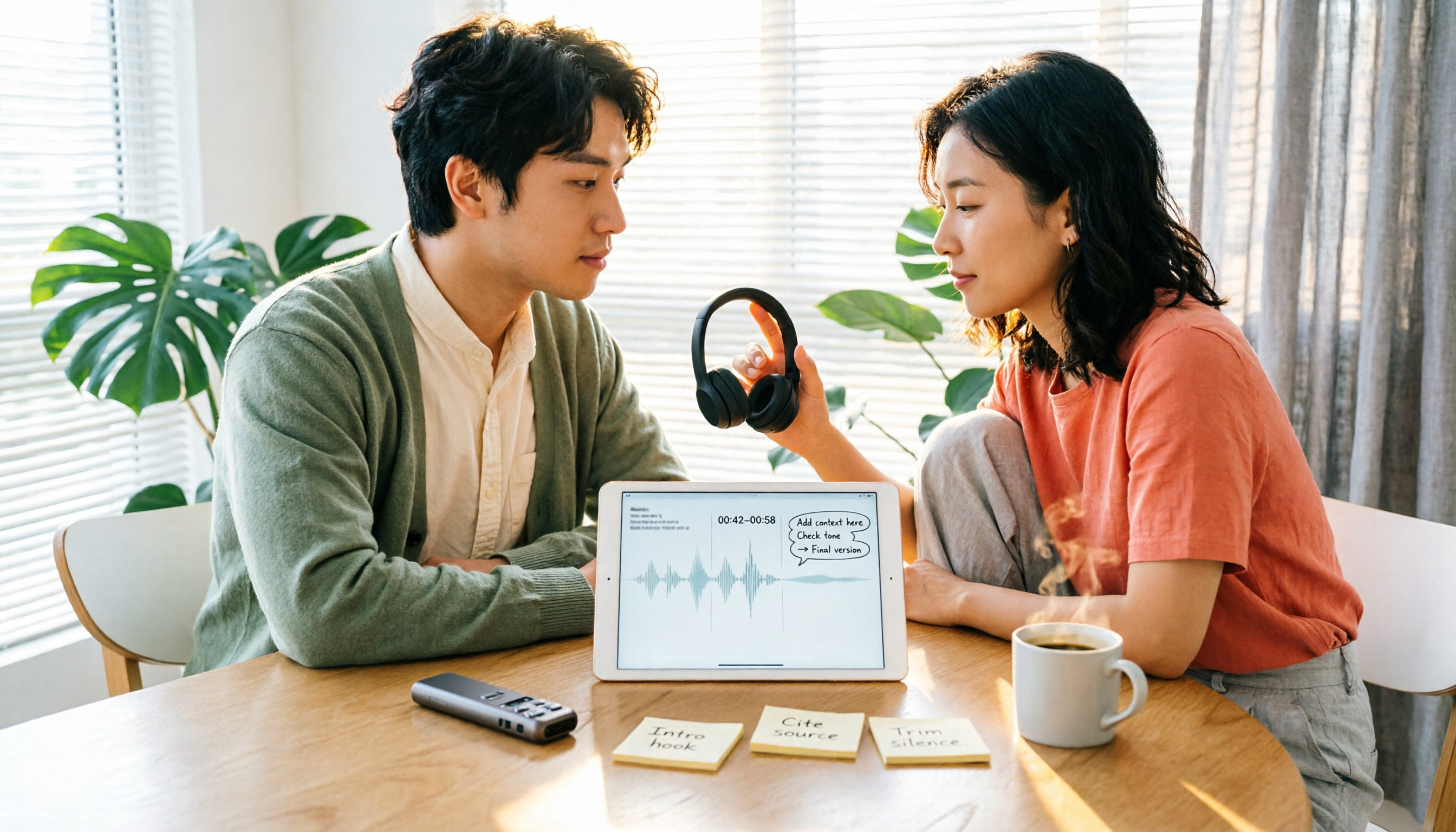
2026 Comparison of 5 Speech-to-Text Tools: Yating Transcribe Latest News and Free Quotas — Which Is Most Sufficient?
Many people only compare recognition accuracy when choosing a transcription tool, but overlook export, editing, and team sharing. This article compiles the latest updates for Yating Transcribe (including iOS 3.12.0 and an explanation of the Studio progress bar at 99%), and compares the positioning, free quotas, and suitable scenarios of Tinrec, Otter.ai, Notta, and TurboScribe, helping you choose the right tool based on your needs.

How Much Does Yating Transcription Cost in 2026? 5-Step Test and Pricing Breakdown
Does Yating transcription cost money? This article starts with the actual pricing model and walks you through 5 steps to calculate the real cost of free quotas, queue times, and hour top-ups. It also compares tools like Tinrec, Otter.ai, and TurboScribe to help you decide which plan fits your usage.

Yating Transcript Pricing Explained: 2026 Test of 4 Transcription Tools, How to Get the Best Value at $100 per Hour
Yating Transcript charges by audio length: $100 per hour, 10% off for 3 hours at $270, and hours can be used within 3 years from purchase. This article breaks down Yating Transcript's latest pricing structure, free quota, and billing pitfalls, and compares Tinrec, Otter.ai, and Notta in post-meeting organization and team collaboration, so you can justify your purchase in a procurement meeting.

2025 Comparison of 4 Transcription Tools: Is Yating's Free Quota Enough?
Is Yating Transcription's free quota enough? This article tests Yating, Tinrec, Otter.ai, and Notta using the same 10-minute Mandarin meeting recording and a 25-minute English interview audio file. It compares free rules, pricing, post-meeting summaries, and AI Q&A differences, with buying decision points and pitfalls to help you decide whether to pay.

6 Best Transcription Tools in 2026: Yating Pricing, Free Tiers & Alternatives Compared
Many people on Dcard ask how Yating transcription pricing works. This guide covers Yating's pricing, free quota, and limitations, and compares 6 transcription tools including Tinrec, Otter.ai, Notta, TurboScribe, and Granola to help you choose based on meeting type and budget.

2025 Comparison of 4 Transcription Tools: Which Offers Better Chinese Recognition and Post-Meeting Organization—Yating or Tinrec?
How to choose a transcription tool in 2025? This article starts with common misconceptions and compares Yating Transcript, Tinrec, Notta, and Otter.ai on accent recognition, post-meeting organization, online meeting recording methods, and pricing. It also summarizes 4 key purchasing factors and 3 pitfalls to avoid, helping you choose the one that fits your workflow.
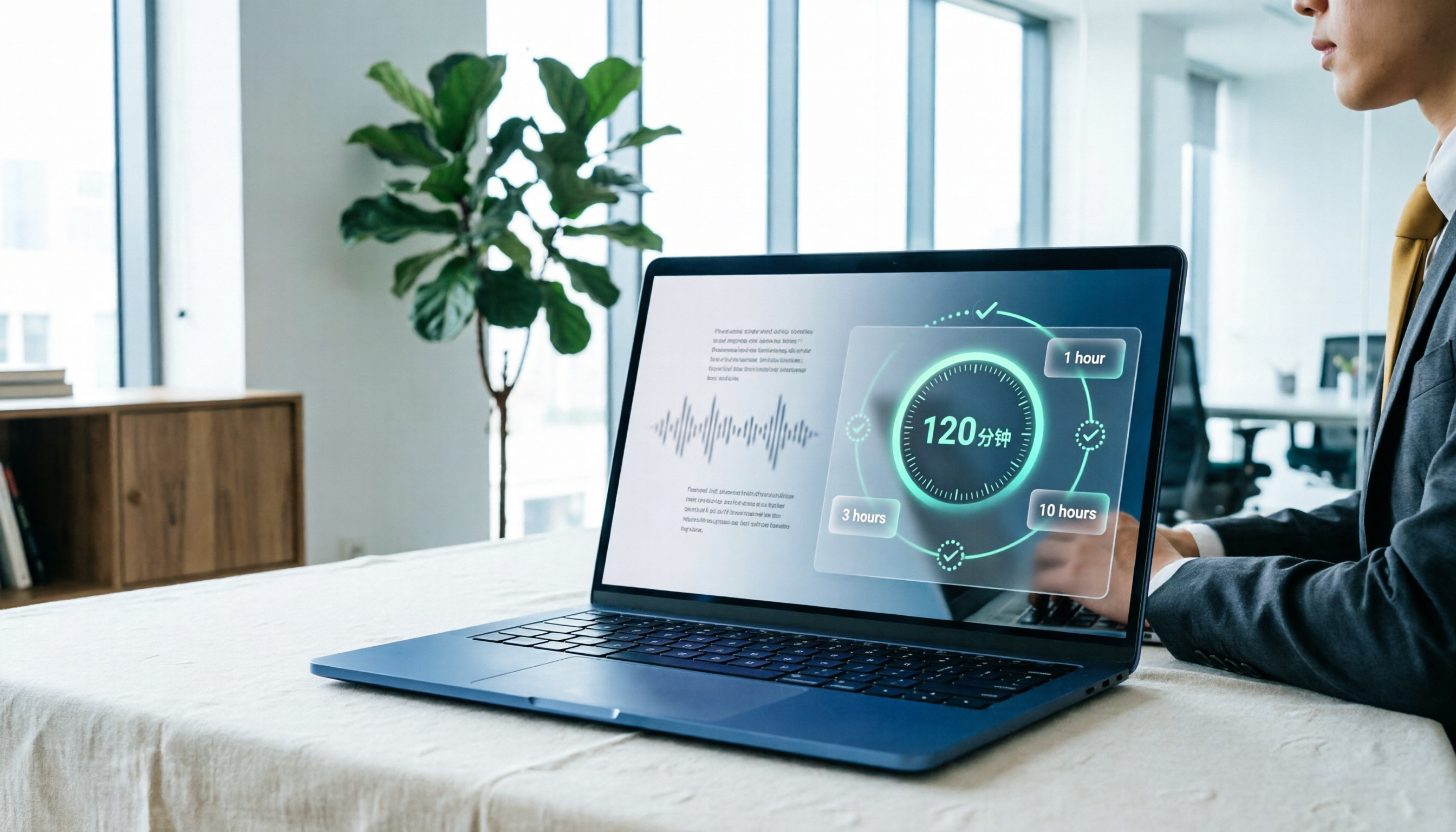
Yating Transcript Pricing in 2026: Free 120 Minutes + Hourly Plans Explained
How does Yating Transcript pricing work? Is the free 120 minutes enough? Should you buy the 1-hour, 3-hour, or 10-hour package? This guide breaks down Yating's pricing logic and free-tier limits, and compares Tinrec, Notta, and Otter.ai on cost and post-meeting organization, so you can choose based on actual usage—not buy hours you'll never use.

5 Best Transcription Tools in 2026: Yating vs. AI Meeting Assistants
What's new in the latest Yating transcription tool? How does it compare to Tinrec, Notta, TurboScribe, and Granola? This guide uses real student scenarios—a class, a group discussion, and an interview recording—to compare the positioning, core features, free tiers, and pricing of 5 transcription tools, and provides a selection framework to help you choose the one you'll actually use within your budget.

2026 Comparison of 6 Transcription Tools: Yating Pricing, Free Quotas, and Alternatives
Based on hands-on testing and pricing structure of Yating Transcription, we compare free quotas, pricing models, and use cases of Tinrec, Notta, TurboScribe, Granola, and built-in platform transcription to help you calculate the truly cost-effective choice.