

Turn recordings into transcripts and summaries in minutes
Upload audio or video for multilingual transcription, AI notes, and action items
Why Your Meeting Minutes Are Never Done? Three Misconceptions to Check First
A two-hour meeting followed by two hours of organizing—this is the daily routine for most office workers. What's worse, many people have tried AI tools but still end up working overtime because they used the wrong approach from the start.
Misconception 1: Treating the transcript as meeting minutes. A transcript is raw material, not a finished product. If the document you submit is just a verbatim record of speech, your manager still has to read through thirty minutes of dialogue to understand the conclusions.
Misconception 2: Typing while listening. This is the least efficient method. The text from audio recordings may be messy, but remember we have AI—feed the content into a chatbot to organize the meaning, and the results are often better than you imagine. You can save about 80% of the time spent re-listening.
Misconception 3: Assuming the job is done after feeding the entire recording to AI. AI-generated transcripts or notes are just materials, not verified originals. Automatically identified speakers should be marked "to be confirmed" first, then corrected after checking against the original audio or asking participants—this is a step you cannot skip.
If you've fallen into all three traps above, the problem isn't the tool—it's the process.
Before Organizing Meeting Transcripts, Understand These 4 Key Points
1. Transcription and organization are two separate tasks; handling them separately is faster. First get a readable text, then talk about summaries and decisions. Mixing the two tasks will have you jumping back and forth within the same recording.
2. Speaker identification and timestamps determine whether you can look things up later. With timestamps, you can go back to "who said what about the budget at what moment" within five minutes; without timestamps, the entire record relies solely on memory.
3. Data policy is more important than features. Before uploading company meeting audio, think once: "How will this tool use the data I upload?" If the content is sensitive, it's recommended to perform speech-to-text on your own computer—there are local solutions for both Windows and macOS.
4. Output formats must be portable. Only tools that support exporting to txt or other formats allow you to hand the transcript to colleagues or drop it into your own document system for further processing. Tools that only allow viewing but not exporting essentially lock you in.
5. Don't just look at the officially advertised accuracy rate. A quiet recording studio is very different from a real meeting room—air conditioning noise, keyboard sounds, multiple people talking over each other, mixed Chinese and English, all significantly degrade recognition results. Testing with your own recording is more accurate than any advertisement.
Practical Workflow: 4 Steps to Turn Transcripts into Actionable Meeting Minutes
This is the most recommended approach in this article: split "transcription" and "organization" into two tools, each doing its own job, with no need to type while listening throughout the process.
Step 1: Use NotebookLM (Gemini Notebook) to obtain the transcript. Upload the meeting recording or video file you have, and it will generate a transcript and summary. To get the full text, hover your cursor over the circle next to the summary, and the extracted transcript content will appear for you to copy. It's quite fast at sorting through long videos or interviews and captures core points well—currently the most effortless way to handle long recordings.
Step 2: Hand the recording file or transcript to Gemini. The current Gemini model is powerful and can directly accept uploaded recording files to the Gemini chatbot, asking it to organize the meeting transcript—results are quite good. If you already have text, you can paste it directly.
Step 3: Write prompts like assigning work, not chatting. Don't just write "help me organize." Clearly request four sections: 1) Meeting conclusions; 2) Resolutions; 3) To-do list (owner + deadline); 4) Items to be confirmed. Also specify: "Mark uncertain names and numbers as 'to be confirmed'; do not speculate." This sentence can prevent many AI hallucinations.
Stop organizing recordings by hand
Upload audio or video and automatically get a transcript, summary, and action items
Step 4: Manual verification—the only step that cannot be outsourced. Check against the original audio or ask participants to confirm resolutions, owners, and deadlines. Especially numbers and names—a single "change to twenty-four people" in the meeting means the invitation list, posters, and venue all need to change; such information errors require redoing everything once.
If you choose a route that doesn't retain audio, the "listen back to confirm" step doesn't exist. Then it's even more important to ask participants to verify resolutions, owners, and deadlines as soon as possible after the meeting; if you need to keep the original recording, first confirm consent has been obtained and that it complies with company policy.
By the way, transcripts from tools like CLOVA Note are likely not as "clean" as the demo screens—multiple people talking over each other, off-topic remarks, and filler words will all remain. Don't discard it; just paste the entire text into ChatGPT, Copilot, or Gemini for another round of organization—these chatbots are experts at semantic analysis.
Besides This Combination, What Other Options Are There?
CLOVA Note: Focuses on meeting speech-to-transcript, straightforward operation, suitable for those who simply want a text file. But the output is usually messy and still requires another AI for key point extraction; if your goal is to "see resolutions at a glance," it only completes the first half.
inFin: Available on mobile and computer, free and no registration required; AI can organize summaries, meeting notes, course highlights, and to-do items with one click—quite friendly for those who have meetings and classes daily. Limitation: recognition accuracy is relatively poor, and you still need to check the transcribed text yourself.
Easemate.AI: The website's "AI Meeting Recorder" offers free online real-time transcription, with timestamps, speaker identification, and key point summaries; what's special is you can directly converse with AI to ask follow-up questions. Suitable for occasions when you need immediate text and don't want to install anything.
ChatGPT: If you only need to "organize text into resolutions and to-dos," it's completely sufficient—paste and start. Note that the free plan currently cannot upload audio, so you need the transcript text first; also, its output is just material, not verified original text.
For the features and plan limitations of the above tools, please refer to the current screen of your account and official descriptions.
Pitfall Guide: The 3 Most Common Mistakes in Organizing Transcripts
Pitfall 1: Only looking at officially claimed accuracy rates. Promotional numbers usually come from ideal environments. Real meeting rooms have air conditioning noise and people talking simultaneously, so recognition rates will definitely drop. The correct approach is to run your own recording first to see how it performs with "your accent, your industry terminology."
Pitfall 2: Ignoring data policy. The data policy details of transcription tools are usually hard to understand at a glance. Before uploading company meeting audio, confirm how the tool will use your uploaded data; for sensitive content, take the local transcription route. Skipping this step may turn saved time into future risks.
Pitfall 3: Treating AI output as the final version and forwarding it directly. Automatically identified speakers, misheard numbers, and AI-added speculations will all sneak into the record when you're not paying attention. Treat "to be confirmed" as a required field and delete it only after verification.
Pitfall 4: Leaving no clues for later reference. If the tool doesn't retain audio or provide timestamps, you'll have no way to confirm "who exactly said this sentence" later. Half the value of meeting minutes comes from traceability—don't throw that half away.
Conclusion: Which Setup Should You Use for Your Situation?
- Want to handle long recordings, interviews, or lectures in one go → NotebookLM: First get the transcript and summary, then copy the full text for further processing.
- Have a recording file and want to generate meeting minutes directly → Gemini: Upload the audio and give instructions—suitable for those who don't want to open another tool.
- Already have transcript text and just want to quickly organize into resolutions and to-dos → ChatGPT: Paste and go; the free plan works too.
- Don't want to pay at all and need one-click summaries → inFin: Try it without registration, but remember to check for typos yourself.
- Need immediate transcription on the fly without installation → Easemate.AI: Online real-time transcription with follow-up questions.
- Content involves sensitive data → Local transcription solution: First convert speech to text locally on Windows or macOS, then decide whether to upload.
One final reminder: what really determines when you get off work is not the speed of transcription, but whether you've verified the resolutions, owners, and deadlines within ten minutes after the meeting ends. No matter how powerful the tool, this step still requires you to do it yourself.
References
- Master Meeting Minutes! How to Do AI Speech-to-Transcript? Gemini Notebook, Gemini, EchoScript Operation Analysis | 104 Career Power
- How to Use AI for Meeting Minutes? How to Organize Meeting Transcripts? | AI Speech-to-Transcript Tutorial | 104 Career Power
- EP10 | Boss Wants Meeting Minutes: How to Choose AI Transcription Tools? – Knowledge Nomad Studio
- ChatGPT Meeting Minutes Tutorial: Organize Transcripts into Resolutions and To-Dos, with Practice Examples | Learning Realm
- No Time Limit! 3 Free AI Transcription Tools, Highly Recommended! AI Voice Notes Generate Meeting Minutes, Presentations, Mind Maps | 104 Career Power
Turn every recording into actionable outcomes
Get 60 free transcription minutes when you sign in. No credit card required.
Related Reading
You might also like

How to Choose a Speech-to-Text Tool in 2026: A 5-Point Comparison of Free Tiers, Chinese Recognition, and Summarization
Choosing a speech-to-text tool isn't about which one is most accurate—it's about your usage volume, language needs, and post-processing workflow. This article compares five key aspects: free tier limits, Chinese and Taiwanese Hokkien recognition, timestamp proofreading, AI summarization, and import/export formats. With practical tips for meetings, classes, interviews, and content creation, it helps you make a confident choice between free and paid options.

2026 AI Transcription Complete Guide: How to Choose Tools Trending on PTT and Organize Class Recordings
Starting from campus scenarios, this guide breaks down the four most common mistakes when using AI to organize transcripts, explains the core capabilities of transcription AI, the practical workflow, and key purchasing considerations. It also uses Tinrec as an example to demonstrate the complete process from recording to key notes.

5 AI Transcription Tools Tested for 2026: How to Choose the Free Options Trending on Dcard
A roundup of the most discussed AI transcription tools on Dcard, starting from the decision point of 'who will read this transcript?' It explains the use cases, free limitations, and practical tips for NotebookLM, Buzz, Google AI Studio, Groq Cloud, iPhone Shortcuts, and Yating Transcription, helping you choose the right method before you start.

5 AI Meeting Transcription Tools Compared for 2026: How to Choose Based on Free Tiers, Chinese Recognition, and Summarization Features
How to choose an AI meeting transcription tool? First clarify whether data can be uploaded to the cloud, and whether you need subtitle files or meeting minutes, then compare the transcription and summarization capabilities of 5 common tools. This article covers practical workflows, key purchasing criteria, and 4 common pitfalls to help you find a truly time-saving approach.

How to Transcribe Meeting Audio with NotebookLM (2026): Upload Recordings, Get Transcripts & Auto-Generate Action Items
Tired of replaying meeting recordings to type transcripts? This guide focuses on NotebookLM, showing how to upload meeting audio, locate the auto-generated transcript, and use prompts to output timestamps and action items. It also covers five alternative methods—Gemini, EchoScript, MacWhisper, and iPhone Voice Memos—with selection advice.

2026 Comparison of 5 Speech-to-Transcript Tools: Free Quotas and Chinese Recognition—Which Is Enough?
Starting from the most common pitfalls when choosing a transcription tool, this article compares five speech-to-transcript tools—Yating Transcription, cSubtitle, Atter App, Easemate AI Meeting Recorder, and NotebookLM—on language support, free quotas, and import/export differences, helping you choose the right tool based on your recording scenario.

5 Best AI Meeting Transcription Tools in 2026: Free Tiers, Chinese Accuracy, and Summaries Compared
Tired of spending two hours after every meeting replaying recordings and typing transcripts? This guide walks through the actual workflows of five AI meeting transcription tools in 2026, comparing free tiers, Chinese and mixed Chinese-English recognition, speaker identification, and summary and action-item generation. It also includes a pitfalls guide and scenario-based recommendations to help you find the one that's good enough for free.
7 Free Meeting Transcription Software Compared: Which Free Tier Is Most Generous in 2026?
We reviewed the free plans of 7 meeting transcription tools, from 300 minutes and 120 minutes per month to completely free AI note-taking tools. We explain each plan's limits, restrictions, and ideal users to help you avoid mistaking a 'free trial' for a 'free plan'.
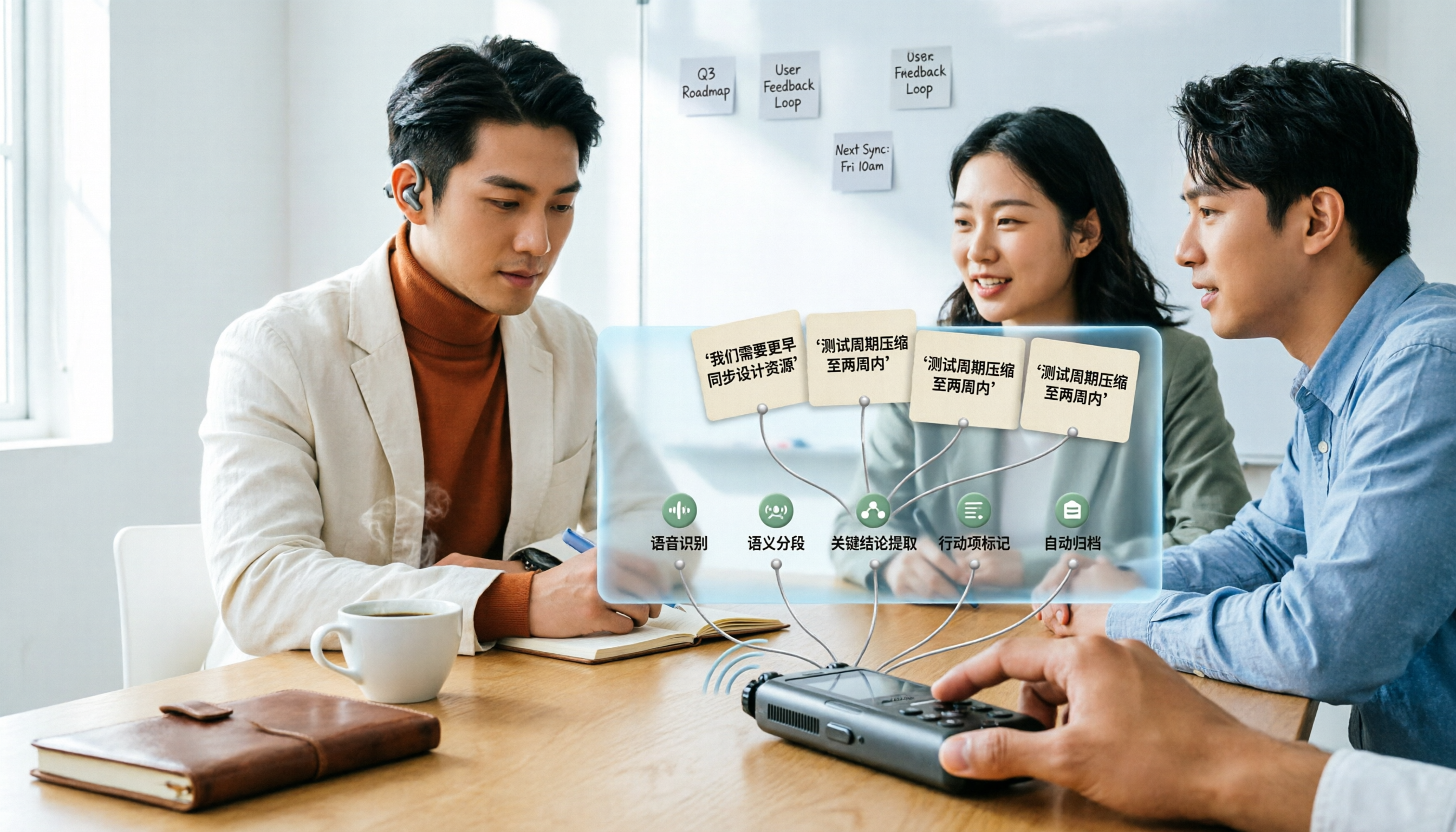
How to Use AI Transcription in 2026: 5 Steps from Recording to Meeting Notes
Many people upload a recording to AI and expect a perfect transcript, but end up with a document full of errors, no key points, and requiring re-listening. This article addresses common misconceptions, breaks down the key factors for choosing an AI transcription tool, and walks you through 5 steps from audio file to usable meeting notes. It also compares the suitable scenarios and limitations of different approaches such as Yating Transcription, Vocol.ai, and ChatGPT.