
Turn recordings into transcripts and summaries in minutes
Upload audio or video for multilingual transcription, AI notes, and action items
How to Use AI to Generate Meeting Minutes in Word (2026): No-Bot Recording + Auto Summaries & Action Items
The moment a meeting ends is usually when I least want to open my computer.
What was just discussed, who agreed to do what, and when it's due—all of that is still in my head, but the next meeting has already started.
My old approach was to leave the recording file alone and plan to organize it at night.
But at 11 p.m., I'd still be listening to the audio and typing out the transcript, halfway through doubting whether I remembered who said what correctly.
Later, I realized the problem wasn't typing speed.
The problem was the order of the process: first turn voice into text, then turn text into decisions, and finally turn decisions into a Word document that everyone can understand and directly schedule.
If you do these three things all at once, you'll be up until midnight.
This article is about how to design this process and which tools in 2026 can actually help you get through it.
Why Meeting Minutes Are Never Finished: The Problem Usually Isn't Typing Speed
The first pain point is the cost of re-listening.
For a one-hour meeting, even if you only re-listen to key segments, it's easy to spend forty minutes, and you'll go back and forth over the same section because you're not sure if the conclusion was "do A first" or "wait for B to confirm before doing A."
The second pain point is format.
A transcript follows the flow of time; meeting minutes do not.
Meeting minutes need topics, decisions, owners, and deadlines—this is reorganized information. So even if you have a complete transcript, turning it into a Word document you can send out still takes another round of work.
The third pain point is handoff.
After writing the minutes, you save them on your computer. Next time you need to check "the budget agreed upon last quarter," you'll find the file named "Meeting_Minutes_Final_2" and no one remembers which meeting that was.
These three pain points together are the real reason most people can't finish their meeting minutes.
And this is exactly where AI tools can help—provided you choose the right process, not just an app that converts speech to text.
Before Choosing an AI Meeting Minutes Tool, Think Through These 4 Things
First, how the meeting is recorded.
There are two common approaches for online meetings: one is to send a meeting bot to join as a participant, and the other is to capture system audio directly from your computer. The former is convenient but shows up in the participant list, which you may not want for some client meetings; the latter requires you to actively start recording, but to outsiders it looks like a normal meeting.
Second, what you get after transcription.
A tool that only gives you a transcript is essentially handing the organization work right back to you. What you should look for is whether it can provide summaries, chapters, action items, and ideally let you ask questions about the content directly.
Third, performance with Chinese and mixed Chinese-English.
Meetings in Taiwan are rarely pure Chinese; they always include product codes, English job titles, and technical terms. The recognition experience in such settings depends on whether the tool lets you maintain your own glossary.
Fourth, whether the team can take over.
If only you can see the meeting minutes, they're your notes; if they're to become a team asset, you need concepts like spaces, members, and permissions—not everyone sharing one account.
Once you think through these four points, you won't be swayed by numbers like "free minutes."
Tinrec: My Current Go-To for Turning Meetings into Word Documents
Tinrec is an AI meeting notes and collaboration tool for individuals and teams, available on web, desktop, and mobile. I place it in the middle of the process, responsible for "audio in, data out."
Here's how it works in practice: before a meeting, I press record on the desktop version, and it directly captures the computer's system audio, handling online meetings on Zoom, Google Meet, Microsoft Teams, and Webex without inviting a separate bot. The participants' view doesn't change, which makes a big difference in client meetings.
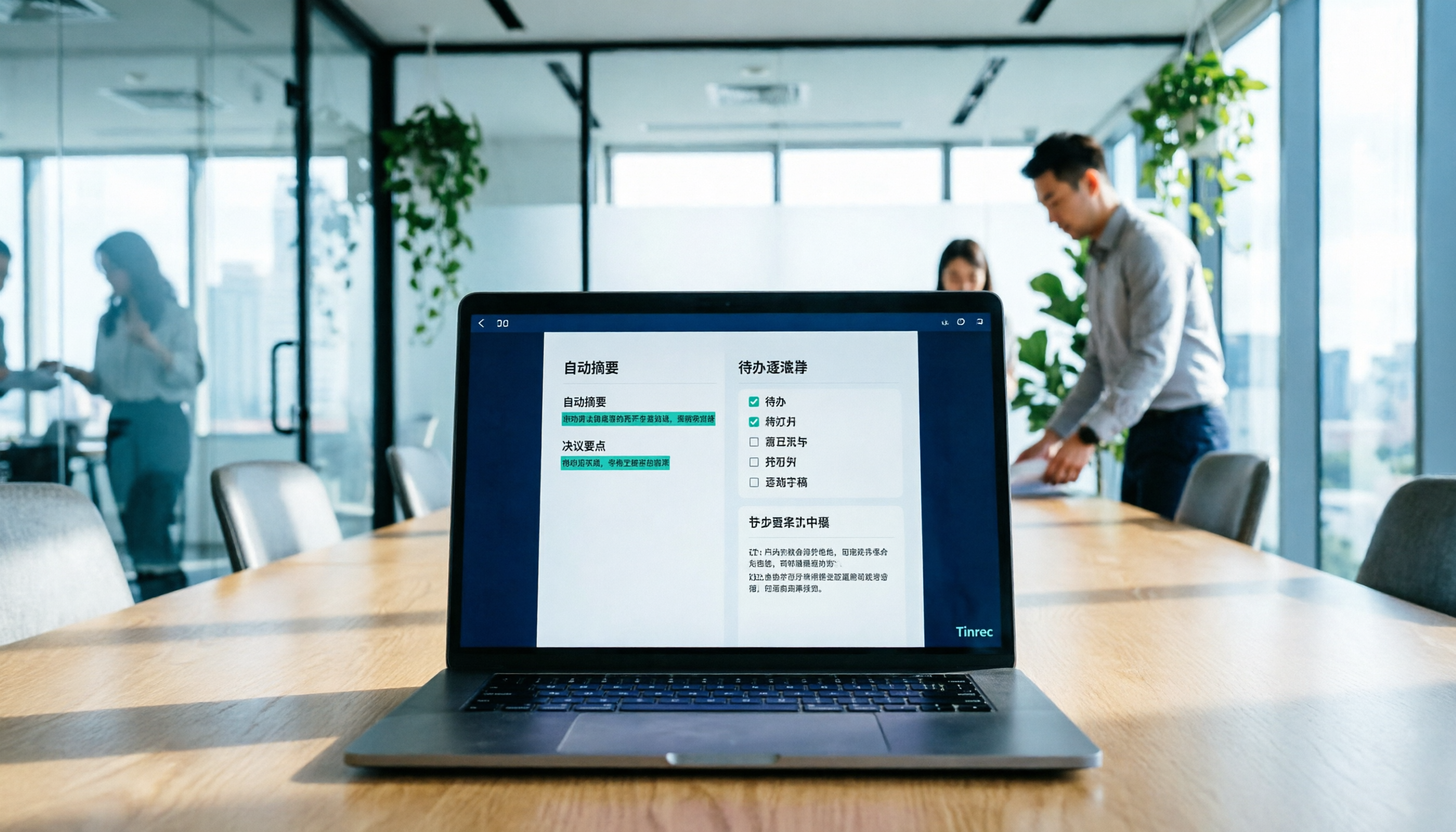
The transcript grows in real time while recording. After the meeting, the summary, chapters, key points, and action items are already formed. I first scan the action items to confirm the owners and deadlines are correct, then proceed.
What really made me stay was the post-meeting follow-up questions. I can directly ask it "how was the budget dispute finally resolved?" and it doesn't give me keyword search results but answers based on the content of that meeting. To compare the same topic across multiple meetings, I can pull them all in and ask together.
The third stage is output. It can export results to common file formats and also bring them to Notion, Google Docs, OneNote, or Dropbox for further editing; when a more formal deliverable is needed, you can use Agent post-processing to generate reports, tables, or documents from the meeting content. The Word meeting minutes I want are finalized at this step.
There are three reasons I think it's worth it. First, it doesn't require changing others' habits—no bot, no need to ask everyone to switch platforms. Second, it handles "after the meeting"—summaries, Q&A, action items, and export are all on the same line, not four separate features. Third, the team version turns it into a manageable space: meeting data belongs to the team, members join via invitation links, roles determine who can manage, and seats determine who can record and edit; members without seats can still view, play, and read team data.
Stop organizing recordings by hand
Upload audio or video and automatically get a transcript, summary, and action items
Limitations should also be clear. The free version has a basic quota, and heavy users need to upgrade; real-time recording currently doesn't deduct minutes under an active team plan and active seat, but file and link imports consume the team's shared quota. Also, it currently shares at the team level, not fine-grained file-level permissions. If your organization needs to set visibility lists for each file, you should think this through first.
Who is it for? People who frequently hold Chinese or mixed Chinese-English meetings, don't want a bot to join the meeting, and want to continue asking questions about the content afterward.
Besides Tinrec, What Other Options Are There?
Otter.ai: A veteran choice for English meetings. The free Basic plan offers 300 minutes per month; Pro annual billing is about USD 8.49 per user per month, including 1,200 minutes per month and 10 file imports (refer to the official pricing page). It's very handy for all-English meetings. But if the meeting is entirely in Chinese with internal codes, Tinrec's team hotwords and Agent post-processing will be more suitable for terminology recognition and post-meeting organization.
Granola: An AI meeting notes tool that also takes the no-bot approach, strong at combining your own handwritten notes with AI-enhanced content. Business is about USD 14 per user per month (refer to the official pricing page). Note that it doesn't support uploading existing recording files and doesn't retain meeting audio. If you need to turn last week's recording into minutes or replay a sentence to verify, Tinrec's design of retaining recordings and file import is much more practical.
Notta: Started with multilingual transcription. The free version offers 120 minutes per month, up to 3 minutes per session; Pro annual billing is about USD 8.17 per month, with 1,800 minutes per month (refer to the official pricing page). If your main need is to transcribe already-recorded files into text, create subtitles, or translate, it's a reasonable choice. But for no-bot recording during meetings, post-meeting AI Q&A, and team data accumulation, Tinrec is more complete.
Pitfall Guide: The 4 Most Common Mistakes When Using AI to Generate Meeting Minutes
Pitfall 1: Thinking a transcript is meeting minutes.
A transcript is raw material; meeting minutes are the finished product. If your tool only stops at transcription, you've just replaced typing with pasting—the organization work hasn't decreased at all. The test is simple: can this output be sent directly to someone who didn't attend the meeting?
Pitfall 2: Only looking at free quota, not what you can do after the meeting.
A large quota sounds cost-effective, but if it can't do Q&A or export to the format you need, you'll still have to manually transfer it. First think about what your final product should look like, then check if the quota is enough.
Pitfall 3: Sending AI output directly without verification.
This is the most dangerous one. Names, dates, numbers, and conditional clauses in decisions must be checked against the original text. My habit is to click each action item in the summary back to the corresponding position in the transcript—thirty seconds per check, much cheaper than correcting later.
Pitfall 4: The team sharing one personal account.
It seems to save money short-term, but long-term you'll face the problem of "someone left, and their data is in their account." The biggest difference between team and personal versions isn't the number of features but data ownership: data in the team space belongs to the team, and when members change, it can be handed over and won't disappear with an individual's departure.
My Practical Workflow: From Recording to an Editable Word Meeting Minutes
Step 1: Start recording before the meeting begins and give the meeting a good name. The name is the key to future searches—don't use "ad hoc discussion."
Step 2: After the meeting, first look at the summary and chapters and do only one thing: confirm that the meeting's conclusions match your understanding.
Step 3: Use the following prompt to organize the transcript into a formal structure. This is my most-used one; you can copy it directly into the tool or use it with Tinrec's Agent post-processing:
You are a professional meeting minutes organizer. Below is the transcript of a meeting.
Please organize it into meeting minutes that can be pasted directly into Word, using English,
and output according to the following structure:

1. Meeting title and date
2. Attendees (identify from the transcript; mark "TBD" if uncertain)
3. Meeting objectives (within three sentences)
4. Key discussion points (sectioned by topic, 3 to 5 points per section)
5. Decisions (list only items with clear consensus)
6. Action items table: Item / Owner / Deadline / Notes
7. Unresolved issues and suggested agenda for next meeting

Rules:
- Do not add information not in the transcript
- Mark "TBD" when names, dates, or numbers are uncertain
- Attach one original quote as evidence for important decisions
Step 4: Paste the output into your own Word template, apply your company's format, and only adjust heading levels and table styles—don't rewrite the content.
Step 5: Extract the action items and put them into the team space or your usual task tool, so they become the basis for follow-up tracking, not just a line in a document.
Conclusion: Which Path Should You Choose for Your Situation?
In one sentence: the bottleneck of meeting minutes isn't typing; it's whether the three stages—"voice to text, text to decisions, decisions to document"—are connected.
- If you want Chinese meetings, no-bot recording, and the ability to ask follow-up questions after the meeting: choose Tinrec; it satisfies these three needs at once.
- If you need to turn historical recordings into meeting minutes: choose Tinrec; it supports audio and video file import, while Granola can't do this.
- If your team wants to accumulate meeting data and manage members and usage: choose Tinrec Team; roles, seats, usage analytics, and audio recycle bin are all in one space.
- If the meeting is entirely in English and you only need a mature automated process: Otter.ai is a reasonable choice—this is one of the few situations where I'd recommend someone else.
- If you only need batch transcription and subtitles for a large number of files: Notta or a dedicated file transcription tool is more suitable; meeting scenarios are not its main strength.
Quick start checklist—you can run it tonight:
- Pick a meeting you have tomorrow and give it a recognizable name first.
- Start recording with the desktop version and confirm system audio is captured.
- After the meeting, read the summary and chapters first; click back to the transcript to verify anything that seems off.
- Paste the prompt above to generate structured content.
- Apply your company's Word template, adjusting only the format without rewriting.
- Extract the action items separately and schedule them in next week's calendar.
Just run one of your own meetings with the free quota first and see if the output can go directly into your Word template. Test step by step, and you'll gradually master this process.
References
- Meeting Minutes: AI Note-Taking Features in Microsoft Word | Microsoft Word
- How to Write and Record Meeting Minutes with AI in Word | Microsoft Word Blog
- Using NotebookLM to Quickly Create Meeting Minutes - 1/2 | Venus's Fantasy World
- 4 Must-Have AI Meeting Minutes Tools in 2026: Generate Key Points with One Click and Ditch Tedious Notes - Tinrec Blog
- GitHub - Xiachuan945/meeting-record-generator: Meeting Minutes Generator · GitHub
Turn every recording into actionable outcomes
Get 60 free transcription minutes when you sign in. No credit card required.
Related Reading
You might also like

Tinrec vs Notta 2026: 5-Dimension Comparison — Which Handles End-to-End Meeting Processing Better?
The value of an AI Agent isn't just having an 'AI button' — it's whether it can take a meeting from recording to transcript, summary, and action items all the way to deliverable documents. This article compares Tinrec and Notta across 5 dimensions, breaking down processing chain completeness, follow-up Q&A and verification, team governance, language support, and actual cost to help you make a purchasing decision.

2026 AI Meeting Assistant Comparison: Why Tinrec May Fit Chinese Meetings Better Than Fireflies
Starting from the pain point of rushing to write meeting minutes after a meeting ends, this compares Tinrec and Fireflies on meeting capture, Chinese-language experience, post-meeting workflows, team governance, and pricing/quotas, and summarizes Tinrec's core features, real-world scenarios, and buying considerations.

2026 AI Meeting Recorder Showdown: Tinrec vs Granola — Which Is Better for Chinese-Speaking Teams?
This comparison of Tinrec and Granola, two bot-free AI meeting note tools, covers meeting capture, input sources, audio retention, Chinese-language experience, post-meeting outputs, and team management. It outlines each tool's ideal use cases and pricing to help you decide which fits your meeting workflow.

2026 AI Meeting Productivity Tools Buyer's Guide: 4 Hands-On Tests and Selection Advice
How do you choose an AI meeting tool? This guide examines four key criteria—meeting capture method, post-meeting outputs, Chinese-language experience, and team data governance—and hands-on tests Tinrec, Otter.ai, Notta, and Granola to compare their differences. It also includes a pitfalls guide and scenario-based selection advice to help you pick the one tool you'll actually use after meetings.

2026 Comparison of 4 AI Agent PPT Generators: Where the Content Comes From Is What Matters
The success of AI Agent PPT generation often depends less on layout and more on whether the input material is solid enough. This article compares Tinrec, PowerPoint AI Generator, MiniMax Agent, and MultiAgentPPT across four dimensions—content source, editability, outline structure, and team knowledge retention—to help you determine which workflow suits your presentation scenario.

2026 Meeting Efficiency Agents Compared: Tinrec vs. Notta — Which Turns Meetings into Action?
Meeting efficiency agents are about more than transcription accuracy. This comparison of Tinrec and Notta covers how online meetings are captured, post-meeting outputs, AI follow-up questions, team data governance, and pricing structure to help you decide which workflow fits your work style.

2026 AI Agent Excel Tools Tested: Which One Actually Saves Time on Post-Meeting Spreadsheets?
AI agents that generate Excel files sound amazing, but in practice you often get spreadsheets that look polished and are full of wrong numbers. Drawing on my own trial and error, this article breaks down the three most common pitfalls of AI-generated Excel and explains why the key isn't generation—it's what data you feed the AI. It also shows how Tinrec turns meeting recordings into structured input that can then produce action-item trackers, requirements summaries, and project status sheets.

2026 AI Meeting Notes Tools Compared: Context Understanding and Retention
AI Agents often fail not because of the model, but because of the context you feed them. This article starts with common misconceptions and reviews 6 solutions that can capture meeting content, structure it, and make it queryable, comparing their positioning, pricing, and ideal users.

4 AI Agent Word Generation Tools Tested: Which Turns Meeting Content into Deliverable Documents? (2026)
People searching for 'AI Agent generate Word' fall into two camps: those who want content generated from scratch, and those who need to turn a finished meeting into a document they can hand off. This article compares four approaches—Tinrec, OfficeCLI, Kimi Agent, and ChatGPT/Gemini export—based on real workflows, and outlines selection criteria, common mistakes, and recommendations.