
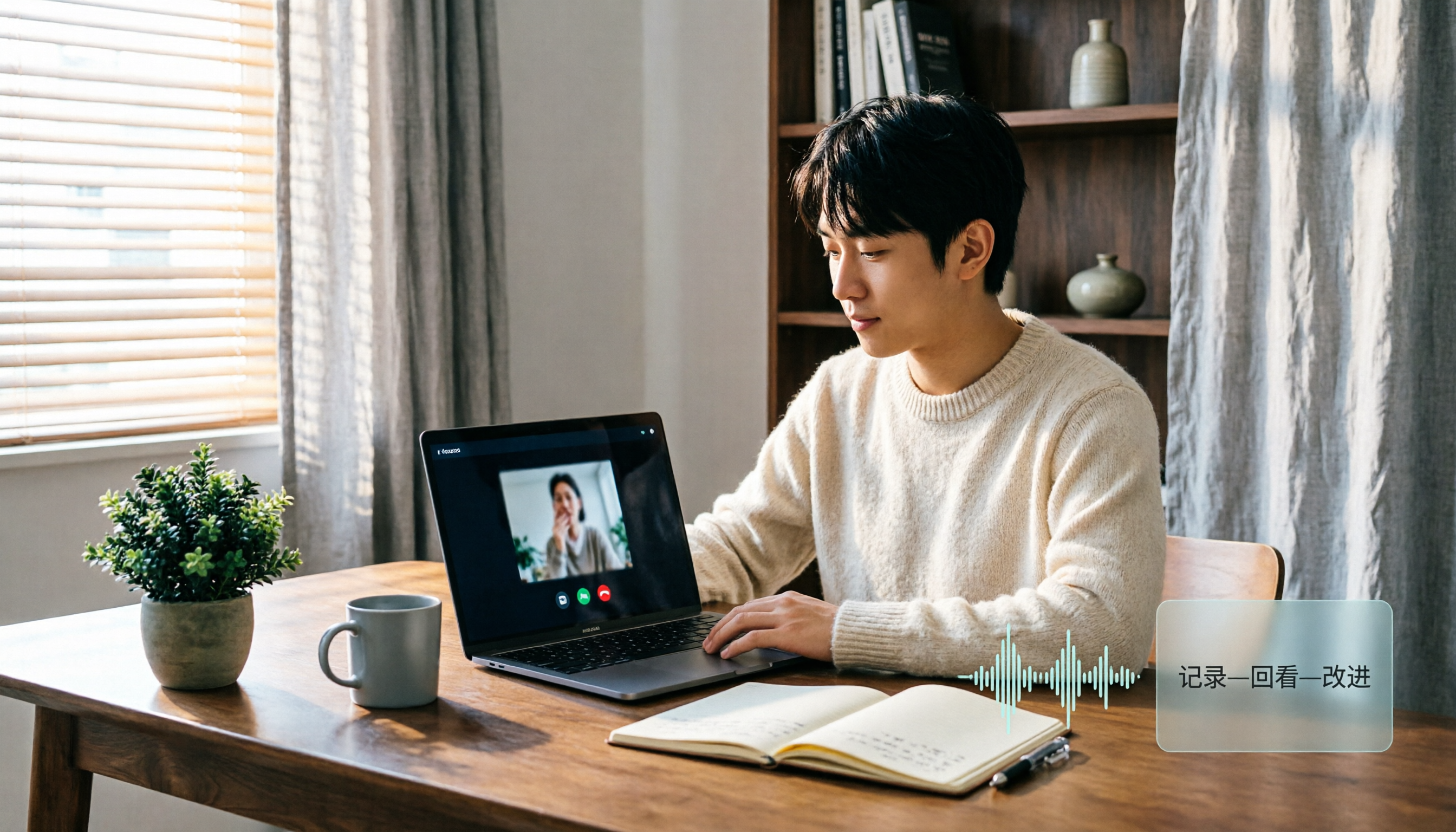
Turn recordings into transcripts and summaries in minutes
Upload audio or video for multilingual transcription, AI notes, and action items
Best Google Meet Backgrounds for Interviews: 6 Tested in 2026, Subtle Study Wins
Five minutes before your interview, you open Google Meet to test your camera and realize there's a drying rack, an unmade bed, and your roommate might walk by. Many people think that for a video interview, as long as your face looks neat, it's fine—but if your background has clutter, backlighting, or edge glitches, the interviewer will get distracted. More commonly, a background that's too pretty, too vacation-like, or too much like a model home can shift the focus away from your answers. This article organizes 6 Google Meet backgrounds based on interview scenarios. Here's the bottom line first: for most jobs, a subtle study or blurred background is the safest; if your room isn't tidy yet, a blurred background is safer than forcing a fancy image.
Five minutes before the interview, a background mistake is more unfair than a wrong answer
The first situation is when the room simply can't be tidied in time. There are notes, cups, charging cables on the desk, and a bed or clothes rack behind you. These things get magnified on camera. The interviewer may not say anything, but their focus will be pulled away.
The second situation is when the background edges keep flickering. You use a beautiful office image, but your hair edges glitch, your hand disappears when you raise it, or the background suddenly blurs. This kind of image subconsciously makes people think you're not stable, which is especially disadvantageous for roles that require attention to detail, client interaction, or management.
The third situation is when the background style doesn't match the position. Applying for finance, legal, or administrative roles but having a beach or party background; applying for research or consulting but having an empty white wall. The background isn't about acting like someone else; it's about keeping the interviewer's attention on your answers.
Before choosing a Google Meet interview background, understand these 5 key points
Safety is more important than beauty. The interviewer is evaluating your professionalism, not interior design. A blurred background, neutral solid color, or clean, tidy office is usually safer than a fancy image with unstable edges.
Get the aspect ratio and resolution right first. The ideal size for a Google Meet virtual background is 1920 x 1080 pixels, which is the common 16:9. Uploading a low-resolution image will easily blur when enlarged, and details like text cards or bookshelves will become a mess.
Lighting determines how professional you look. Rather than spending time finding a background, first face a window or desk lamp to get even frontal light. If there's strong light behind you, your face will be dark even with the best background.
The background should match the job context. Research, consulting, and teaching roles can use a library or bookshelf to convey "my statements are backed up"; business, customer success, and project management are suitable for a tidy office or neutral-colored wall; creative roles can have some style, but don't let the background steal the show.
First confirm your device can handle it. Google Meet custom backgrounds are more stable on Chrome M84+ (Windows, Mac, Linux), ChromeOS M86+, with hardware acceleration enabled and WebGL 2.0 support; for Android, Android P+ is recommended. If your laptop fan is spinning wildly or edges keep flickering, decisively switch to blur or solid color.
Tinrec — The top choice for pre-interview practice and post-meeting review
Let's be clear: Tinrec is not a Google Meet background gallery; it doesn't provide virtual background images. It's suitable for the interview preparation process, helping you record and review your actual performance after adjusting the background. Tinrec is an AI meeting notes and collaboration tool for individuals and teams. The desktop version can directly capture computer system audio and process online meetings on Google Meet, Zoom, Microsoft Teams, Webex, etc., without inviting a meeting bot to join. That means you can start a mock Google Meet interview yourself and press record proactively, without an extra bot disturbing the screen.
The actual usage is simple: first adjust the background, lighting, and camera angle as suggested in this article, then start a 15-minute mock interview and go through your self-introduction, project experience, reasons for leaving, and questions to ask. Tinrec will transcribe while recording, and after finishing, generate a summary, chapters, and action items. You can review which part you spoke too long, which question you answered in a scattered way, and even ask questions directly about this mock interview, such as "What are my most frequently repeated words" or "Which part didn't mention quantified results." It will organize answers based on the meeting content, saving you the time of repeatedly dragging the progress bar.
Tinrec's value isn't just in transcription. It supports real-time translation and bilingual viewing, which helps with mixed Chinese-English interviews; after the meeting, you can export transcripts, summaries, and action items to Notion, Google Docs, OneNote, Dropbox, etc., and also use Agent post-processing to generate reports, tables, or meeting minutes. If you're applying for a position that requires a lot of communication, client interviews, or cross-department collaboration, this "record, then ask and organize" workflow is more practical than simple recording.
If a recruiting team wants to establish an interview process, the Tinrec team version provides independent team spaces, members and roles, seat management, shared benefits, usage analytics, and audit logs. Interview data belongs to the team, and when members leave, resources can be handed over, not just scattered files in personal accounts. However, the team version is priced per paid seat; actual benefits and prices are subject to the official purchase page.
Stop organizing recordings by hand
Upload audio or video and automatically get a transcript, summary, and action items
Limitations should also be clearly stated: Tinrec is not a background tool, nor does it promise a fixed accuracy rate; transcription quality can be affected by microphone, ambient noise, accents, overlapping speech, and technical terms. The free version has a basic quota, and heavy users need to pay. It's best for those who need Chinese or mixed Chinese-English interview practice, want to keep mock Q&A for review, and need to export and organize after meetings.
6 Google Meet interview backgrounds tested and evaluated
The following scores are subjective ratings by the editorial team based on interview interference, professionalism, and stability, out of 10, not laboratory data. Actual results will still be affected by your camera, lighting, network, and laptop performance.
| Background Type | Score | Best For | Notes |
|---|---|---|---|
| Subtle study or tidy bookshelf | 9.2 | Most jobs, research, consulting, teaching | Don't overstuff books; avoid clutter, reflections, and overly staged look |
| Blurred background | 9.0 | Messy room, little time, any job | Hair and shoulder edges may glitch; sit still and ensure even lighting |
| Neutral solid color wall | 8.8 | Business, finance, administrative, legal | Avoid too bright white or fluorescent colors; gray-blue, warm gray are safer |
| Bright, tidy office | 8.5 | Client-facing, project management, business development | Don't use overly luxurious boardroom images; can look unnatural |
| Library or research bookshelf | 8.0 | Research, consulting, teaching, expert roles | Bookshelf too fake, too dark, or messy book titles will lose points |
| Minimalist meeting room or private office | 7.8 | Management, consulting, B2B roles | Avoid empty, cold tones; model-home look creates distance |
The subtle study ranks first because it solves both "professionalism" and "storytelling." For the interviewer, a tidy bookshelf indicates you have a habit of organizing materials; for research or consulting roles, a bookshelf also implies your statements are backed up. But you don't need many books—two tidy rows of books and a warm desk lamp are enough; no drying racks or clutter behind you.
Blurred background is the safe bet. It's built into Google Meet, no need to find images, and you don't worry about background style mismatching the job. The downside is edges may be visible, especially with fine hair, thin stripes, or when raising hands. If your room really isn't tidy, a blurred background is usually safer than forcing a high-profile office image.
Neutral solid color walls are the least error-prone, especially suitable for finance, legal, and administrative roles that value credibility. Gray-blue, warm gray, and light beige are better than pure white, because pure white easily overexposes, and fluorescent colors make the camera adjust strangely.
Tidy offices suit client-facing and business roles, but don't choose an obviously luxurious boardroom background. The interviewer wants to know you can work, not whether you have a corner office. The same goes for minimalist meeting rooms—too cold and too large a space makes people seem distant.
Library backgrounds add points for research, teaching, and consulting because they convey "your opinions are backed by research." But the bookshelf must be real and well-lit; if the whole image is too dark or book titles are blurry, it looks like a template.
Where to find background images? 3 alternative sources and limitations
Google Meet built-in blur: free, most stable, can be used from the menu during a meeting. It doesn't provide style, nor can it help you review your answers. If you just want to pass safely, this is the easiest choice; but if you need to practice interview responses, Tinrec can turn a mock interview into a transcript and summary, which built-in blur can't do.
Livestorm free background page: offers images with a professional office style, suitable for business meetings, client presentations, or online interviews. It's a static gallery, won't test your camera edges, and has no interview Q&A organization features. You can download images as backgrounds, then use Tinrec to record a mock interview and check if the background is stable in motion.
Hello Backgrounds: provides a large number of video and image backgrounds, many choices, suitable for those who need stylized visuals. Video backgrounds are more performance-intensive; if your laptop isn't powerful enough, edges may flicker. These galleries only solve the visuals, not the answers; Tinrec can keep your practice content and use AI Q&A to find key points after the meeting—different purposes.
Pitfall guide: 4 most common mistakes when choosing interview backgrounds
Pitfall 1: Only looking at the beautiful background, ignoring clutter and movement behind. The camera will capture clothes racks, mugs, and roommates you didn't notice. Before the interview, use Meet preview for thirty seconds to confirm there's nothing moving at the edges.
Pitfall 2: Using a video background without testing performance first. Dynamic backgrounds are cool, but if your laptop can't handle it, the image will lag and glitch, and the interviewer will immediately think you're not stable. Rather than risk it, use a static image or blur.
Pitfall 3: Background mismatched with the job. Using a vacation style for a rigorous industry, or a too-formal blank wall for a creative role, both make the image less convincing. Before choosing a background, ask yourself: what impression does this job want me to give?
Pitfall 4: Only adjusting the background, not practicing answers. The background only reduces interference; the answer is the main thing. You can use Tinrec desktop to record a mock Google Meet interview, then review the transcript and summary to find filler words, tangents, and missing results. This is closer to getting hired than repeatedly changing backgrounds.
Conclusion: Which one should you choose?
Room not tidy, just want to pass quickly and safely: choose Google Meet built-in blur.
Want to look steady and prepared: choose a subtle study or tidy bookshelf, highest score, and best for most jobs.
Applying for business, finance, legal, or administrative: choose a neutral solid color wall or bright tidy office, avoid too flashy.
Applying for research, consulting, teaching: you can choose a library or research bookshelf, but keep the bookshelf restrained and well-lit.
Want to practice both background and answers: first use Meet preview to confirm the image, then use Tinrec desktop to record a mock interview, and review the transcript, summary, and action items afterward. It doesn't provide background images, but it turns your practice into reviewable data.
Recruiting teams wanting to establish a consistent interview record process: consider Tinrec team version, using team spaces, seats, usage, and audit to centrally manage interview data.
Choose the right background so the interviewer can focus back on you. Spend thirty seconds testing the camera, then fifteen minutes recording a round of mock Q&A—more useful than hastily changing ten backgrounds.
Data references: 40 Best Google Meet Backgrounds 2026, Best Interview Backgrounds for Teams & Zoom 2026, 5 Best Google Meet Backgrounds Tested in 2026, Google Meet Background Professional Setup Guide, Hello Backgrounds Google Meet Video Conference Backgrounds.
References
- 40 Best Google Meet Backgrounds 2026
- Best Interview Backgrounds for Teams & Zoom (2026) | Resumemate
- 5 Best Google Meet Backgrounds Tested in 2026: Professional Picks Without the Guesswork - Official Tinrec Blog
- Google Meet Backgrounds: Setup Guide for Professional Virtual Meetings | Illumina Backdrops
- Google Meet Backgrounds for Video Meetings - Hello Backgrounds
Turn every recording into actionable outcomes
Get 60 free transcription minutes when you sign in. No credit card required.
Related Reading
You might also like
Google Meet Live Translation in 2026: A Complete Guide (It Works, But Has More Limits Than You Think)
Google Meet's Gemini voice translation can indeed translate spoken content into another language in real time, but eligibility requirements, a 90-minute limit per meeting, and no support for recording or live streaming are often discovered only after the meeting starts. This article explains what it can do, where it falls short, and how Tinrec fills the gap with bilingual transcripts, summaries, action items, and team knowledge retention.
2026 Google Meet Hardware License Buying Guide: 5 Purchasing and Support Options
Bought Google Meet hardware but stuck on the registration page? Drawing from a mid-level manager's real purchasing experience, this article outlines 5 options for buying Google Meet hardware licenses and post-meeting support: self-purchase via Admin console, reseller purchase, buying hardware and licenses separately, built-in platform transcription, and using Tinrec to turn meeting content into team data—plus 4 things to know before buying.

Google Meet Free Plan Guide 2026: 5 Options and Tools Compared
You don't actually 'buy' Google Meet—personal accounts get a free version, paid plans are Google Workspace subscriptions, and physical meeting rooms require hardware through resellers. This guide breaks down the real costs, limits, and use cases of 5 options from a mid-level manager's procurement perspective, plus post-meeting organization, so you know where to spend your budget.
2026 Google Meet Headset Buying Guide: 5 Key Factors and Selection Tips
In online meetings, whether others can hear you clearly often matters more than audio specs. This guide outlines 5 factors for choosing a Google Meet headset in 2026, from microphone noise cancellation and wearing comfort to connection stability, plus practical tips for organizing meeting content afterward, helping you choose the right device for your meeting style.

Google Meet Premium in 2026: 5 Upgrade Paths Compared
Google Meet Premium isn't sold separately—recording, attendance tracking, and breakout rooms are tied to specific Google Workspace or Google One plans. This guide breaks down 5 upgrade paths from a mid-level manager's purchasing perspective: Google One Premium 2TB, Google Workspace, third-party resellers, the free version, and using Tinrec to fill the post-meeting workflow gap. Includes purchase steps, plan differences, and pitfalls to avoid.

Google Meet Pro in 2026: 7 Upgrade Options Compared (No Standalone Plan Exists)
Searching for 'buy Google Meet Pro' returns no product page because Google doesn't sell a standalone Meet Pro plan. Drawing from my own experience, this guide covers 7 ways to enhance Google Meet: official Workspace and Google One subscriptions, third-party AI meeting tools, and free transcription options, with real prices and use cases.

6 Google Meet Extensions Compared for 2026: From Timers and Noise Cancellation to Tinrec Post-Meeting Organization
Google Meet extensions can smooth out the meeting itself, but post-meeting transcripts, summaries, action items, and team archiving are often the real time sinks. This article compares six common extensions—timers, noise cancellation, auto-admit, and AI note-takers—from a mid-level manager's hands-on perspective, and explains how Tinrec's desktop bot-free recording fills the post-meeting workflow gap, including features, team plan seats, and pricing.

2026 Google Meet Hardware Buying Guide: Licensing, Budget, and Post-Meeting Organization
Evaluating Google Meet hardware? This guide breaks down the licensing, display, and peripheral compatibility issues you must confirm before purchasing, explains why the real cost for most teams lies in post-meeting organization, and shows how Tinrec uses bot-free recording, AI summaries, action item extraction, and team spaces to retain meeting content.

2026 Google Meet Account Buying Guide: 7 Plans Tested and Recommended
Buying a Google Meet account isn't actually buying an account—it's choosing among three different purchase targets: a free Google account, a Google Workspace subscription, and Google One AI Premium. This article breaks down the use cases, costs, and limitations of 7 plans from a mid-level manager's practical perspective, and provides a procurement decision checklist you can report directly to your boss.