

Turn recordings into transcripts and summaries in minutes
Upload audio or video for multilingual transcription, AI notes, and action items
Why eight out of ten people start off on the wrong foot when it comes to "buying a Google Meet account"
Last month I was tasked with evaluating how much it would cost to "buy a Google Meet account." I opened a search, read three articles, and only then realized one thing—Google doesn't sell such a thing separately at all.
Google Meet's basic video functionality can be started with a free Google account. So "buying a Google Meet account" strictly speaking doesn't exist; what really needs to be decided is a different question. I stumbled into three pitfalls the first time I did this—let me tell you about them first:
Misconception 1: Thinking there's a product called a "Google Meet account" that you can order separately. There isn't. Paid Meet features are bundled into Google Workspace (for teams) or Google One AI Premium (for individuals). You're buying a "plan," not an "account."
Misconception 2: Thinking that buying Google One automatically unlocks Meet's AI features. This is where most people get tripped up. Google One comes in various storage tiers, and not every one includes Meet's advanced features. What you need to confirm is whether the plan name includes the words "AI Premium," not how much storage it has.
Misconception 3: Thinking "buy one account and everyone takes turns using it" is the most economical. Team plans buy an "organization's version," not "someone's Meet." If you use a personal account and take turns logging in, all meeting data, recordings, and permissions are tied to that one person—when they leave, everything goes with them.
Once you understand these three things, the question shifts from "which account to buy" to "what are we actually missing." The 7 plans below cover the full path from free to paid, from having meetings to post-meeting organization. I've arranged them in the order you'd encounter them in practice.
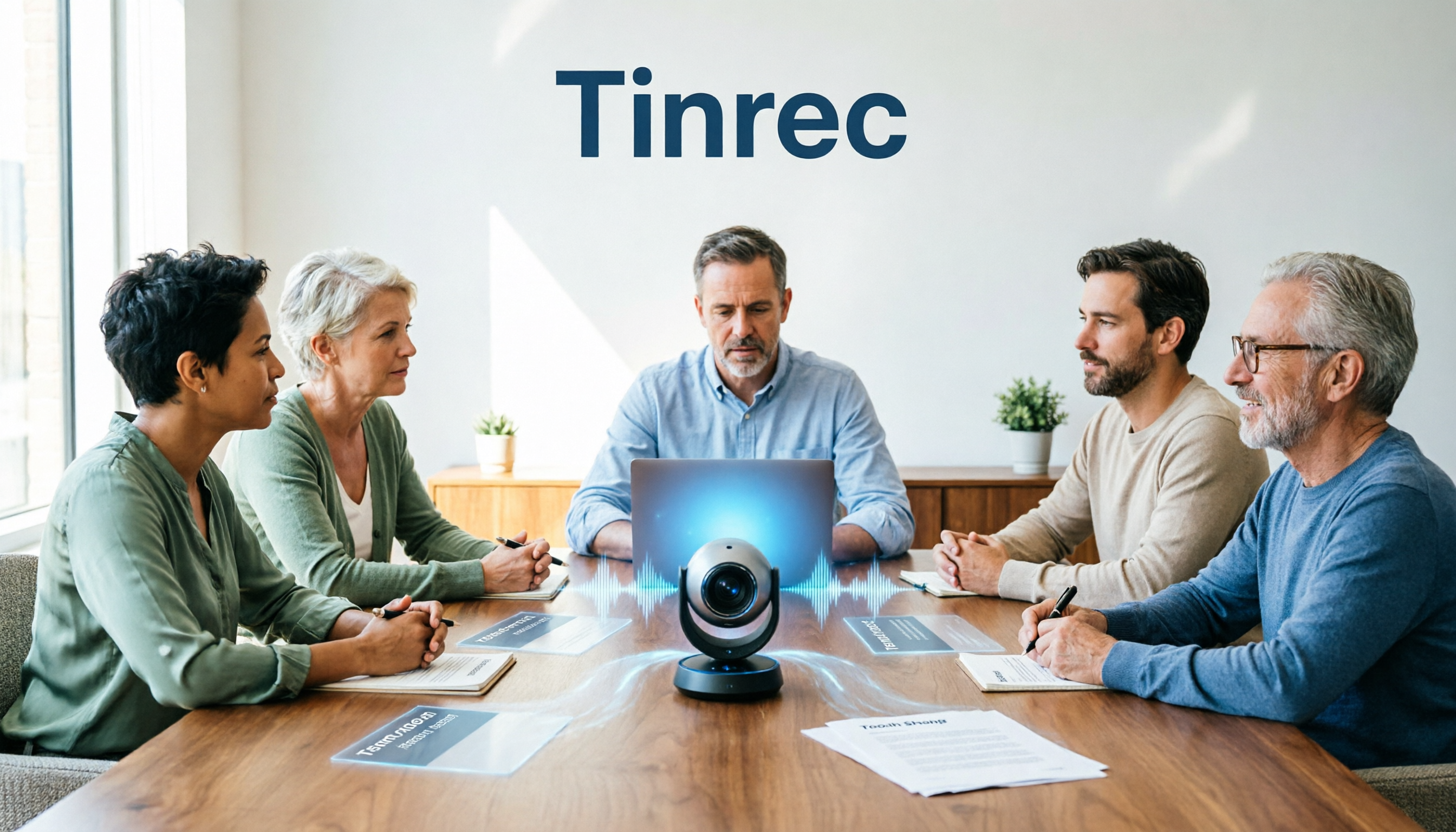
Plan 1 | Tinrec (Instant Recording)—Turn meetings into trackable records
One-sentence positioning: It doesn't sell you a meeting room; it makes sure your meeting doesn't turn into a waste of time after it ends.
I'm starting with this because no matter which Google plan you ultimately buy, what really eats up your time is the post-meeting phase. I calculated last quarter that I have about 15 meetings a week, and post-meeting organization takes up nearly half my work hours.
Key highlights:
- Record online meetings without a meeting bot. The desktop version directly captures your computer's system audio and works with Zoom, Google Meet, Microsoft Teams, and Webex—no need to invite some random account into the meeting room. This is especially noticeable in cross-department meetings because the other party doesn't need to install anything to accommodate you.
- AI Q&A is what sets it apart from ordinary transcription tools. Anyone can generate a transcript, but when your boss asks "what exactly did we decide in that last meeting," you can query the meeting content directly instead of scrolling from the beginning.
- Summaries, chapters, and action items all at once. When I used to assign tasks to colleagues and ask about them two days later, I'd get "I forgot." Now action items grow directly out of the meeting—who promised what and when it's due, in black and white.
- Team spaces keep data within the company. The team version is an independent collaboration space; when members leave, they don't take meeting data with them. Admins can also see seats, usage, and activity logs.
Plans and pricing: The personal version has a free tier (basic quota, good for trying it out), a weekly pass (suitable for project sprints), and Pro monthly and Pro annual plans (for long-term data accumulation). The team version is currently USD 29.80 per paid seat per month, or USD 199 per paid seat per year (about USD 16.58 per month) with annual billing. First-time eligible users get a 7-day trial, 1 free seat, and 300 shared minutes. Actual prices and benefits are subject to the official purchase page.
Who it's for: Mid-level managers and project teams with many meeting decisions who need to look back at "what was said at the time"; especially departments already using Google Meet for meetings but relying entirely on human memory afterward.
Plan 2 | Google Workspace Business Plans—The official solution for team procurement
One-sentence positioning: If you want to buy "Meet for the whole organization," this is the answer.
This is the most orthodox path for enterprise procurement. You choose a plan (Business Starter, Business Standard, or higher), bind your company domain, create an admin account, and add members. After payment, members log into Meet with "their own accounts" and feature permissions take effect automatically—this point is important: what's upgraded is the organization's version, not an individual's account.
Key highlights: Meeting recordings can be saved directly to Drive; meeting participant limits, advanced security, and admin controls increase with plan tier; account, email, and file permissions can be managed centrally.
Pricing: Common market pricing starts at about USD 7 per person per month; higher tiers include more complete Meet features. Actual amounts depend on the plan and region—be sure to check the official page before ordering.
Who it's for: Companies that need centralized management of accounts, meeting data, and file permissions; teams of 5 or more usually find this the most hassle-free route.
Plan 3 | Google One AI Premium—The individual AI upgrade path
One-sentence positioning: If only you need an upgrade and you don't want to touch the whole organization, take this route.
This is the personal paid path. It brings AI features into your Google account, and you can use them within your own Meet.
Key highlights: A personal account can unlock advanced meeting assistance features without needing company IT to grant permissions; for freelancers or those in a department who want to "try it themselves first," the barrier is lowest.
Stop organizing recordings by hand
Upload audio or video and automatically get a transcript, summary, and action items
Note: Again, not every Google One plan includes Meet's advanced features—read the plan name carefully. Also, some features (such as watermarks) require an eligible Workspace subscription, which buying Google One may not provide.
Who it's for: Individual workers, freelancers, or those who want to verify results themselves before proposing to the company.
Plan 4 | Free Google Personal Account—Zero cost, but with a ceiling
One-sentence positioning: If all you need is "the ability to have meetings," this plan already solves it without spending anything.
I have to be honest: many companies say they want to "buy a Meet account," but after taking inventory, it turns out their needs are just having meetings and sharing screens. The free version can do both.
Key highlights: Zero cost, zero procurement process; basic features like meetings and screen sharing are complete.
Limitations: No cloud recording, no AI summaries or notes, no advanced participant management, and no centralized management of organizational meeting data. The free version gives you "meetings" but not "records."
Who it's for: Small teams or individuals who have occasional meetings and don't need records; or as a transitional period before procurement.
Plan 5 | Otter.ai—A mature choice for English business meetings
One-sentence positioning: If 80% of your meetings are in English, it's one of the most mature AI meeting assistants on the market.
Key highlights: Supports Zoom, Teams, and Google Meet, with real-time transcription, speaker identification, AI Chat, and team management; very stable experience for English business meetings.
Pricing: Basic is free (300 minutes per month); Pro annual billing works out to about USD 8.49 per user per month, including 1,200 minutes per month and 10 file imports; Business has separate plans with pricing that varies by activity.
Who it's for: Foreign companies or multinational teams that primarily hold English meetings and need mature workflows and integrations.
Plan 6 | Notta—Multilingual transcription and translation
One-sentence positioning: Transcription, translation, and team plans all in one, with a high overlap with Chinese-language scenarios.
Key highlights: Supports multi-platform transcription and meeting notes, file import, and translation; the Business plan offers unlimited transcription, role permissions, and usage reports.
Pricing: Free is 120 minutes per month (max 3 minutes per single item); Pro annual billing works out to about USD 8.17 per month, 1,800 minutes per month; Business annual billing works out to about USD 16.67 per seat per month.
Who it's for: Teams that need multilingual transcription and translation and want team permission management features.
Plan 7 | TurboScribe—The transcription workhorse for large, long files
One-sentence positioning: It's not a meeting tool; it's a batch machine for "turning a pile of audio files into text."
Key highlights: Strong long-file processing capability; the paid version supports up to 10 hours or 5 GB per file, can upload 50 files at once, and includes subtitles and translation.
Pricing: Free is 3 files per day, 30 minutes per file; Unlimited annual billing is USD 120 (about USD 10 per month).
Who it's for: People with a whole batch of interviews, courses, or historical recordings to clear out at once—but it won't help you organize meeting workflows or action items.
With so many plans, how should you choose?
Here's my decision order—you can follow it directly:
- Want automatic records, summaries, and action items after meetings, plus the ability to query content afterward → Tinrec. This is the only option on the list that strings "transcription + AI Q&A + action item extraction + team knowledge retention" into a single workflow.
- Need Chinese meetings, mixed Chinese-English, and bilingual comparison → Tinrec. Its Chinese and multilingual meeting experience is a primary selling point, and team hotwords can improve recognition of internal company terminology.
- Don't want to add another bot account to meetings → Tinrec's desktop version captures system audio directly and works with Google Meet, Zoom, and Teams.
- Team needs centralized storage of meeting data and handover when members change → Tinrec team version, with role and seat management, data owned by the team.
- Company needs unified account, email, and file permissions, with Meet as a side benefit → Google Workspace Business plans.
- Only I need an upgrade and I don't want to involve IT → Google One AI Premium.
- Just want to have meetings and don't need any records → Free Google account; don't spend extra.
For the actual procurement order, I suggest thinking in reverse: first assess how much time the team spends organizing meetings each week, then decide which Google plan to upgrade to, and finally determine whether you need a post-meeting organization tool. Don't start by asking "which Premium is better"; start by asking "where are the meeting costs stuck."
4 things to know before procurement
1. Separate "having meetings" from "recording." The free version can have meetings; what you pay for is recording, AI, and management capabilities. If your report says "buy a Meet account" and your boss asks what you'll get extra after buying it and you can't answer, the approval won't go through.
2. Buying Workspace means buying an organizational version, not one person's account. Members log in with their own accounts and permissions apply—make this clear in the report, or it may be misunderstood as "everyone sharing one set of credentials."
3. Roles and seats are two different things. Taking Tinrec's team version as an example, roles determine who can manage members and settings, while seats determine who can record, upload, and edit. Members without seats can still view team data but cannot perform resource operations—this distinction will come up when aligning specs with IT.
4. Confirm authorization before recording. Meeting recording involves personal data and local regulations. For cross-department or external meetings, it's advisable to obtain participants' consent first and confirm internal company policies. Do this first, and you'll save a lot of trouble later.
Conclusion
When you break down the phrase "buy a Google Meet account," it's actually three decisions: whether to upgrade to an organizational version, whether to buy a personal AI upgrade, and what to use for the post-meeting phase. The first two are cost issues; the third is what really affects what time you get off work every day.
My practical advice: if your team is already using Google Meet for meetings, start by using the free version or a team trial to fill in the "recording" gap, then decide whether to touch the Workspace budget. Turning meetings from "over when the talking stops" into "searchable and followable"—you'll feel the difference within a week.
References
- How to Buy a Google Meet Account? First Separate the Three Purchase Targets, Who Pays, and Four Things to Confirm Before Reporting Back - Official Tinrec Blog
- How to Buy Google Meet Subscription in 2026: A Complete Guide to Google One Premium and Google Workspace Plans - Official Tinrec Blog
- How to Buy Google Meet in 2026: Personal Upgrade vs. Team Plans Explained - Official Tinrec Blog
- Google Meet Subscription Guide 2026: Free Plan, Gemini, and Upgrade Options Explained - Official Tinrec Blog
- How to Buy Google Meet Premium in 2026: 3 Plans Compared—Which One Is Worth Your Money? - Official Tinrec Blog
Turn every recording into actionable outcomes
Get 60 free transcription minutes when you sign in. No credit card required.
Related Reading
You might also like

Google Meet Live Translation in 2026: A Complete Guide (It Works, But Has More Limits Than You Think)
Google Meet's Gemini voice translation can indeed translate spoken content into another language in real time, but eligibility requirements, a 90-minute limit per meeting, and no support for recording or live streaming are often discovered only after the meeting starts. This article explains what it can do, where it falls short, and how Tinrec fills the gap with bilingual transcripts, summaries, action items, and team knowledge retention.
2026 Google Meet Hardware License Buying Guide: 5 Purchasing and Support Options
Bought Google Meet hardware but stuck on the registration page? Drawing from a mid-level manager's real purchasing experience, this article outlines 5 options for buying Google Meet hardware licenses and post-meeting support: self-purchase via Admin console, reseller purchase, buying hardware and licenses separately, built-in platform transcription, and using Tinrec to turn meeting content into team data—plus 4 things to know before buying.

Google Meet Free Plan Guide 2026: 5 Options and Tools Compared
You don't actually 'buy' Google Meet—personal accounts get a free version, paid plans are Google Workspace subscriptions, and physical meeting rooms require hardware through resellers. This guide breaks down the real costs, limits, and use cases of 5 options from a mid-level manager's procurement perspective, plus post-meeting organization, so you know where to spend your budget.

2026 Google Meet Headset Buying Guide: 5 Key Factors and Selection Tips
In online meetings, whether others can hear you clearly often matters more than audio specs. This guide outlines 5 factors for choosing a Google Meet headset in 2026, from microphone noise cancellation and wearing comfort to connection stability, plus practical tips for organizing meeting content afterward, helping you choose the right device for your meeting style.

Google Meet Premium in 2026: 5 Upgrade Paths Compared
Google Meet Premium isn't sold separately—recording, attendance tracking, and breakout rooms are tied to specific Google Workspace or Google One plans. This guide breaks down 5 upgrade paths from a mid-level manager's purchasing perspective: Google One Premium 2TB, Google Workspace, third-party resellers, the free version, and using Tinrec to fill the post-meeting workflow gap. Includes purchase steps, plan differences, and pitfalls to avoid.

Google Meet Pro in 2026: 7 Upgrade Options Compared (No Standalone Plan Exists)
Searching for 'buy Google Meet Pro' returns no product page because Google doesn't sell a standalone Meet Pro plan. Drawing from my own experience, this guide covers 7 ways to enhance Google Meet: official Workspace and Google One subscriptions, third-party AI meeting tools, and free transcription options, with real prices and use cases.

6 Google Meet Extensions Compared for 2026: From Timers and Noise Cancellation to Tinrec Post-Meeting Organization
Google Meet extensions can smooth out the meeting itself, but post-meeting transcripts, summaries, action items, and team archiving are often the real time sinks. This article compares six common extensions—timers, noise cancellation, auto-admit, and AI note-takers—from a mid-level manager's hands-on perspective, and explains how Tinrec's desktop bot-free recording fills the post-meeting workflow gap, including features, team plan seats, and pricing.

2026 Google Meet Hardware Buying Guide: Licensing, Budget, and Post-Meeting Organization
Evaluating Google Meet hardware? This guide breaks down the licensing, display, and peripheral compatibility issues you must confirm before purchasing, explains why the real cost for most teams lies in post-meeting organization, and shows how Tinrec uses bot-free recording, AI summaries, action item extraction, and team spaces to retain meeting content.

Best Google Meet Backgrounds for Interviews: 6 Tested in 2026, Subtle Study Wins
Starting from the most common video interview problems—clutter, backlighting, and background glitches—this guide compiles the suitable scenarios and ratings for 6 Google Meet interview backgrounds, and explains key points for selection and setup. It also demonstrates how to use Tinrec desktop to record a mock interview, review the transcript and summary, so your background and answers are both on point.