
Turn recordings into transcripts and summaries in minutes
Upload audio or video for multilingual transcription, AI notes, and action items
Why can't you start a meeting even after buying hardware?
Last month I submitted the purchase order for Google Meet hardware for our company's 6 conference rooms. On delivery day, colleagues plugged in the devices, turned them on, and tried to log in—but the screen stayed on the registration page and they couldn't get into any meeting. A call to the reseller revealed: hardware is hardware, licenses are licenses. Each device needs a corresponding Meet hardware license; a machine without a license is just an expensive screen.
This taught me that the Google Meet hardware purchasing checklist actually has two lines: one for devices, one for licenses. And how you buy licenses directly affects your billing, renewals, and transfer flexibility later on.
Google's documentation states clearly: your organization must first have a Google Workspace subscription, then each device needs a Meet hardware license; if you want two conference rooms to call each other, you need at least 2 devices. So this article won't discuss hardware specs—only "how to buy licenses" and "how to retain meeting content afterward"—the latter being the real purpose of spending money.
Option 1 | Tinrec—Hardware makes meetings happen; it makes meetings last
One-line positioning: An AI meeting notes and collaboration tool for individuals and teams, turning meetings into searchable, collaborative, actionable team data.
Hardware licenses solve "getting into the meeting room," but what about after the meeting? Attendees return to their desks, and decisions, action items, and who promised what are scattered across people's heads and chat logs. That's why I later added Tinrec to our team workflow.
Key highlights:
- No meeting bot required. The desktop version directly captures computer system audio, handling meetings on Zoom, Google Meet, Microsoft Teams, and Webex without needing an extra bot account to join. For scenarios like ours with frequent external clients, one less unfamiliar participant means one less explanation.
- Transcripts are just the starting point; AI Q&A is the differentiator. After the meeting, it automatically generates summaries, chapters, key points, and action items. Two weeks later, when the boss asks "What was the conclusion about that production line last time?" I don't flip through notes—I ask the meeting directly, and the answer links to the timestamp in the original transcript.
- Post-meeting outputs become work deliverables. You can generate reports, tables, and documents, and export to Notion, Google Docs, OneNote, or Dropbox for further processing—no more copying and pasting ten times.
- Team spaces and governance. The team edition is an independent collaboration space where meeting data belongs to the team; admins can manage roles and seats, view usage trends and member details, query and export audit logs, plus an audio recycle bin (30-day retention) and team hotwords. When a member leaves or loses their seat, their team resources must be handed over to other active members—data doesn't leave with the person.
Plans and pricing: The personal edition offers a free version (basic quota), weekly pass, Pro monthly, and Pro annual, depending on usage frequency; the team edition is USD 29.80 per paid seat per month, or USD 199 per paid seat per year (about USD 16.58/month), with each paid seat providing 2,000 minutes of team shared import quota per month. Under an active team plan, live recording currently does not deduct minutes. Eligible teams can try 7 days free with 1 free seat and 300 minutes of shared import quota. Prices and benefits are subject to the official purchase page.
Who it's for: Departments already setting up conference room hardware that also need to turn hybrid meeting (in-person + remote) content into team assets.
Option 2 | Buy directly from Google Admin console—fastest for 10 or fewer
One-line positioning: Official self-service purchase path, suitable for teams with few licenses who want to control billing themselves.
The process: go to the Google Admin console, navigate to the Billing purchase or upgrade page, click "Devices & browsers," find the Google Meet hardware section, and click "Get started." This path requires billing management permissions, so in practice it's usually either IT or finance who has the rights. Confirm before purchasing who can press that button—otherwise you'll be stuck on unboxing day.Who it's for: Small offices needing 10 or fewer licenses who don't want an extra reseller layer.
Stop organizing recordings by hand
Upload audio or video and automatically get a transcript, summary, and action items
Option 3 | Buy from a reseller—for more than 10 or automatic renewal
One-line positioning: The standard solution for larger quantities, consolidated invoicing, or automatic renewal.
Google's documentation states that if you need more than 10 licenses, buy from a reseller; if your Google Workspace subscription itself was purchased through a reseller, or you want the convenience of automatic renewal, a reseller is also recommended. Resellers typically ask for device license information, then handle invoicing, shipping, and tracking. Some resellers will prorate new licenses to align with the same expiration date as your first license, making renewal easier.Who it's for: Mid-to-large teams deploying multiple conference rooms at once who need procurement processes and invoice records.
Option 4 | Buy hardware and licenses separately, transfer later
One-line positioning: Hardware from one vendor, licenses from another—maximum billing flexibility.
Google explicitly allows buying hardware from one reseller and licenses from another. A common reason is wanting licenses and the Google Workspace subscription with the same reseller for easier billing reconciliation. If you buy separately initially, you can later transfer licenses to the reseller handling Workspace. Note that after devices arrive, setup and registration must be completed before licenses are assigned to devices—don't assume plugging in is enough.Who it's for: Enterprises with an established hardware supplier that want software licenses managed by their Workspace reseller.
Option 5 | Built-in platform transcription—the zero-budget option
One-line positioning: The meeting platform you already use has transcription built in—use it as-is.
Built-in meeting transcription in platforms like Google Meet has the advantage of no extra installation or cost, sufficient for simply "keeping a text record." The limitations are clear: it only covers meetings on its own platform, so it can't handle Zoom or Teams; output is mainly transcripts, and cross-meeting accumulation, follow-up questions, action item organization, and team sharing are relatively weak.Who it's for: Small teams that meet on a single platform and only need to review text afterward.
With so many options, how should you choose?
- Just want licenses fast, quantity 10 or fewer → Admin console (Option 2)
- More than 10 licenses, need invoices and automatic renewal → Reseller (Option 3)
- Want to negotiate hardware and software separately, consolidate later → Buy separately then transfer (Option 4)
- Zero budget, single-platform meetings only → Built-in platform transcription (Option 5)
- Want meeting content to become searchable, queryable, transferable team data after buying licenses → Tinrec (Option 1). This is the only option on the list that combines "bot-free recording + AI Q&A + action item extraction + team space and seat governance"; its handling of Chinese and mixed Chinese-English meetings is also the main reason my team actually kept using it
- Need unified organization across platforms (Meet, Zoom, Teams mixed) rather than separate records per platform → Tinrec; the desktop version captures system audio, so you don't need different solutions for each platform
- Team has turnover and meeting assets need to stay with the organization, not personal accounts → Tinrec team edition, with roles and seats managed separately
4 things to know before buying
- Licenses count "devices," not "people." First count how many conference rooms and devices you have, then decide how many licenses to buy; to connect two rooms, you need at least 2 devices.
- Confirm billing permissions first. The Admin console path requires billing management permissions, which in many companies aren't held by IT—if not aligned beforehand, you'll be stuck at the last step.
- Licenses can be transferred, but devices must be registered first. Buying separately from different resellers is fine, and licenses can later be moved to your Workspace reseller; the key is completing setup and registration after devices arrive for licenses to take effect.
- Hardware in place doesn't mean meeting quality in place. Recording and transcription involve personal data and local regulations; informing attendees and obtaining consent beforehand is essential. For important decisions, also cross-check against transcript timestamps and recordings—don't rely entirely on AI summaries.
Conclusion
The logic of buying Google Meet hardware licenses isn't complicated: first confirm you have a Workspace subscription, then buy licenses based on device count—self-purchase for 10 or fewer, reseller for more than 10, and hardware and licenses can be bought separately and transferred.
What's easily overlooked is the second half—after the meeting ends, where does the data go? My approach is hardware for hardware procurement, meeting content to Tinrec: no meeting bot, transcripts plus AI Q&A and action items, ultimately retained in team spaces—people leave, data stays. If your conference rooms are being commissioned, I suggest running a weekly meeting on the free version first to see if the generated minutes can be used directly for reporting, then decide whether to upgrade.
References
Turn every recording into actionable outcomes
Get 60 free transcription minutes when you sign in. No credit card required.
Related Reading
You might also like

Google Meet Recording Detection in 2026: The Complete Guide to Bot-Free Recording and Meeting Retention
Google Meet only sends notifications and sounds for its built-in recording feature; external recording tools are generally undetectable. This complete guide breaks down three recording scenarios and explains why, instead of worrying about detection, you should switch to Tinrec desktop for bot-free recording that turns meetings into searchable, queryable, and deliverable transcripts, summaries, and action items.
How to Record Google Meet in 2026: 3 Methods + Bot-Free Backup Tested
Google Meet can record, but not everyone sees the record button. This guide starts with three key questions: does your account have recording permission, whose cloud storage will the file land in, and who will organize it after the meeting. It compares Meet's built-in recording, computer screen recording, and Tinrec's bot-free desktop recording, with 5 steps, troubleshooting, and advanced tips.
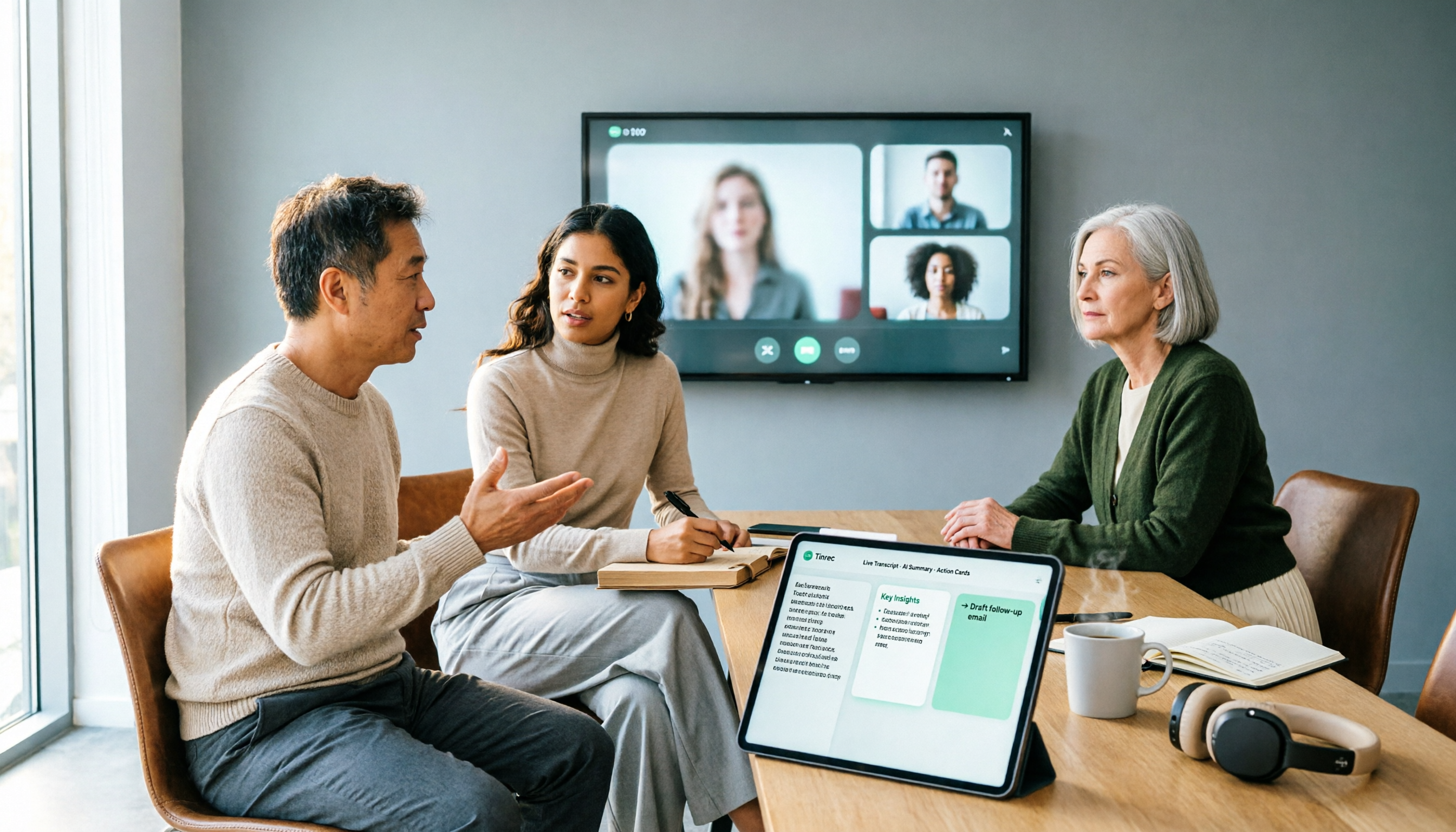
The Complete Guide to Google Meet Meeting Notes in 2026: From Licensing to Transcripts in Practice
Buying a Google Meet license doesn't mean your meetings will automatically be recorded. This article starts with the three most common purchasing pitfalls, first clarifying the difference between Workspace subscriptions and meeting room device licenses, then explaining what's really missing for meeting notes: bot-free recording, live transcripts, AI summaries and action items, and team knowledge retention—demonstrated with Tinrec's actual workflow.
4 Best Google Meet Attendance Extensions for 2026: From Free to Team Plans
A manager who runs over a dozen meetings a week shares hands-on insights: how to choose a Google Meet attendance extension, whether the free version is enough, how data storage makes a difference, and which tool to use for meeting notes and action items after attendance is recorded.
Google Meet Live Translation in 2026: Complete Guide to Features, Limits, and Meeting Notes Alternatives
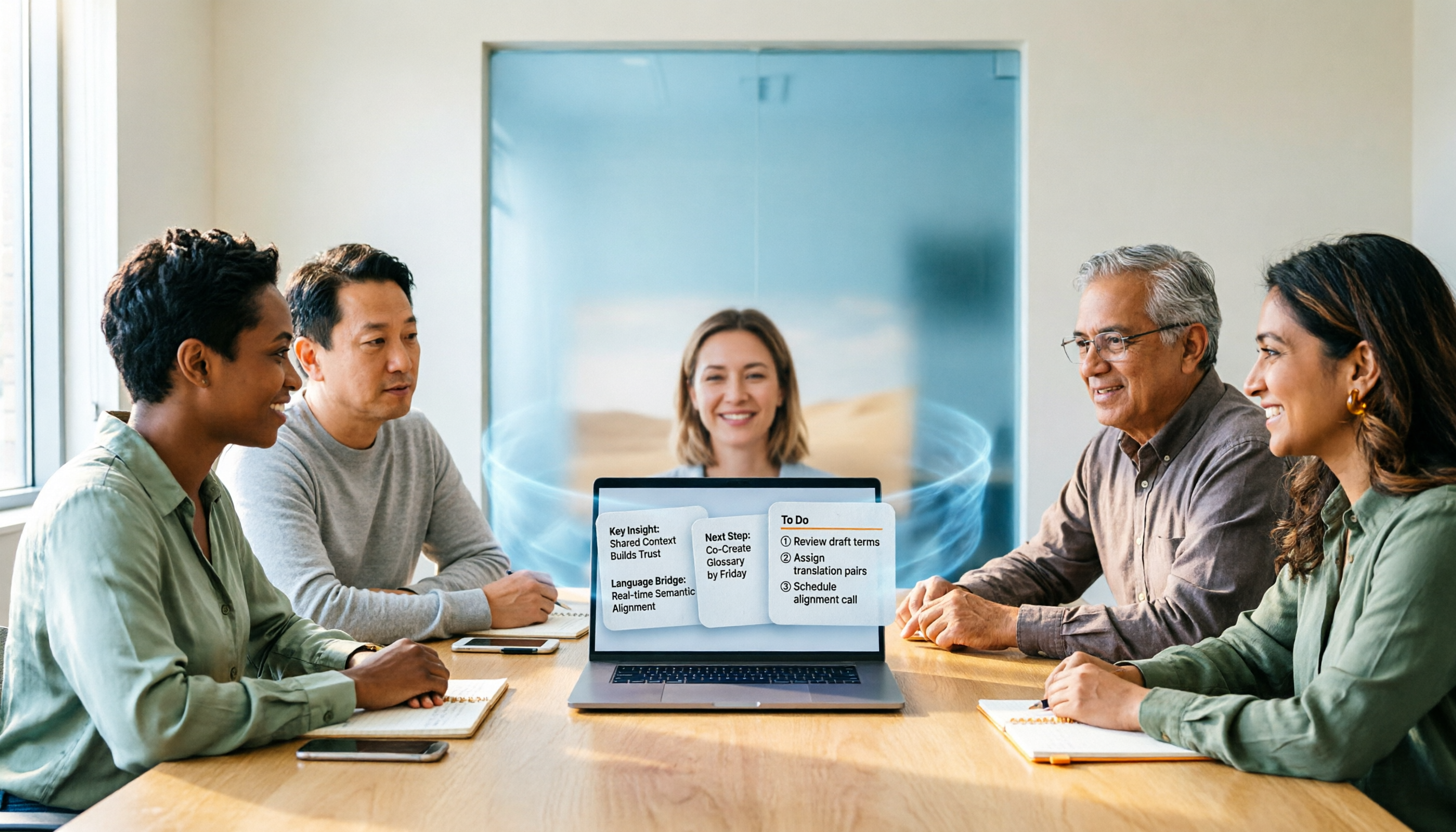
Google Meet does offer live translation, but both translated captions and speech translation only solve the problem of understanding in the moment. This article starts with a common misconception, explains the two forms of Google Meet live translation and their practical limits, then discusses why the truly usable approach is a workflow that connects translation with transcripts, summaries, and action items, using Tinrec as an example.

Google Meet Live Translation in 2026: A Complete Guide (It Works, But Has More Limits Than You Think)
Google Meet's Gemini voice translation can indeed translate spoken content into another language in real time, but eligibility requirements, a 90-minute limit per meeting, and no support for recording or live streaming are often discovered only after the meeting starts. This article explains what it can do, where it falls short, and how Tinrec fills the gap with bilingual transcripts, summaries, action items, and team knowledge retention.

Google Meet Free Plan Guide 2026: 5 Options and Tools Compared
You don't actually 'buy' Google Meet—personal accounts get a free version, paid plans are Google Workspace subscriptions, and physical meeting rooms require hardware through resellers. This guide breaks down the real costs, limits, and use cases of 5 options from a mid-level manager's procurement perspective, plus post-meeting organization, so you know where to spend your budget.

2026 Google Meet Headset Buying Guide: 5 Key Factors and Selection Tips
In online meetings, whether others can hear you clearly often matters more than audio specs. This guide outlines 5 factors for choosing a Google Meet headset in 2026, from microphone noise cancellation and wearing comfort to connection stability, plus practical tips for organizing meeting content afterward, helping you choose the right device for your meeting style.

Google Meet Premium in 2026: 5 Upgrade Paths Compared
Google Meet Premium isn't sold separately—recording, attendance tracking, and breakout rooms are tied to specific Google Workspace or Google One plans. This guide breaks down 5 upgrade paths from a mid-level manager's purchasing perspective: Google One Premium 2TB, Google Workspace, third-party resellers, the free version, and using Tinrec to fill the post-meeting workflow gap. Includes purchase steps, plan differences, and pitfalls to avoid.