
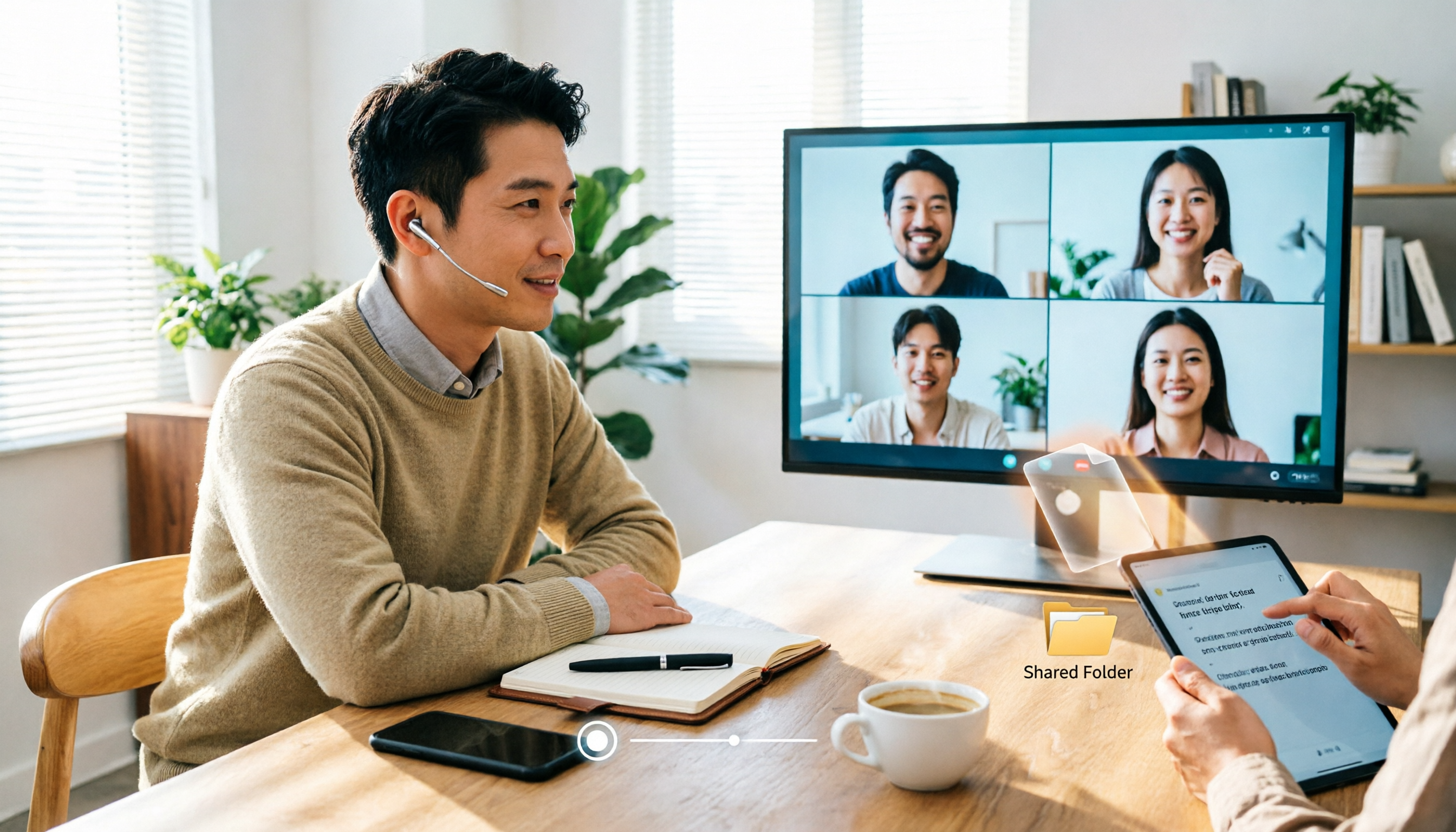
Turn recordings into transcripts and summaries in minutes
Upload audio or video for multilingual transcription, AI notes, and action items
How to Record Google Meet in 2026: 3 Methods + Bot-Free Backup Tested
"Can Google Meet actually record?" A colleague asked me this after a cross-department meeting last month—he couldn't find the record button in the meeting controls. The answer is: yes, but not everyone can press it; and once you do, the real hassle begins after recording.
So this article skips the guesswork and starts with three judgments you should make first: 1) Does your account have recording permission? 2) Whose cloud will the recorded file land in? 3) Who will turn it into minutes and action items afterward? Once you answer these three, you'll know whether to use Meet's built-in recording, your computer's built-in screen recording, or a desktop bot-free recording tool like Tinrec.
First Answer: Can Google Meet Record?
Yes. According to Google's official documentation, when creating a meeting, the host can enable recording, transcription, or Gemini notes to start automatically via the "Video call options" meeting records setting. The recording includes the current speaker and everything shared on screen, and captions can be saved separately.
But there are several practical conditions to clarify upfront:
- Whether the recording option appears depends on your account plan and administrator settings—not everyone sees that button when they open a meeting.
- Recordings are saved in the meeting host's Google Drive, not on your hard drive.
- All participants are notified when recording starts and stops, but they cannot control it.
- If continuous chat is disabled for the meeting, Meet will also save the chat history, meaning the entire conversation is retained.
- Recording files and transcripts/captions may not be generated at the same time; captions may take a few hours to become available.
In other words, Meet's built-in recording solves "keeping the meeting" but not "turning the meeting into usable data." That's why I later added another layer of tools for my team.
Before You Start | What You Need to Prepare
- Confirm your account permissions: First figure out whether you're the host or a participant, and whether your plan includes recording capability. Checking this five minutes before the meeting is better than panicking during it.
- Decide where the recording will go: Built-in recording goes to the host's cloud drive. If the host is an external client or a colleague about to leave, think ahead about how to obtain it later.
- Prepare a post-meeting organization tool: I use Tinrec (Miaoting Recording); the desktop version directly captures system audio and handles online meetings like Meet, Zoom, Teams, and Webex without pulling an extra bot into the meeting room.
- Inform participants and get consent: Recording involves local regulations and company policies; I always mention it at the start.
Step 1 | First Confirm Whether You Can Press That Record Button
Purpose: Avoid discovering you have no permission only when the meeting starts, wasting the whole session.
How: Before the meeting, start a test meeting with the same account and check if the record option appears in the controls. If not, ask IT or your administrator whether the plan doesn't include it or the setting is locked.
Why: Meet recording is an account-level capability, not something available just because you can start a meeting. Many people can't find the button not because they're blind, but because of permissions.
Result: You'll know clearly whether to use built-in recording or go straight to a backup solution. If you're not the host or don't have permission, Tinrec desktop lets you start your own recording without waiting for the host.
Step 2 | Start Recording When the Meeting Begins
Purpose: Capture audio and screen completely—this is the foundation of everything.
How: If you have permission, the host can start recording from the meeting controls. If you're the one who needs your own transcript, open Tinrec desktop before the meeting, select the system audio source, then join the meeting and start recording.
Why: The difference is "who owns the file." Built-in recording belongs to the host; your own recording belongs to you, giving you more freedom to organize, follow up, and export afterward.
Result: You can see the transcript appear line by line during the meeting, rather than opening the file afterward and guessing what was said.
Step 3 | Confirm the Recording and Transcript Are Actually Generated
Purpose: Don't discover the file isn't ready when you need it.
How: After built-in recording ends, find the recording in the host's Google Drive; download and play it with VLC or QuickTime, enabling captions if needed. With Tinrec, the transcript is ready right after recording, and summaries and chapters can be generated next.
Why: Recording files and captions are processed at different times; Google also states captions may be available a few hours after the recording file. If you need the content for a report that afternoon, this time gap can hurt.
Result: You know what you have and what's missing, instead of finding only an unopenable file ten minutes before your report.
Stop organizing recordings by hand
Upload audio or video and automatically get a transcript, summary, and action items
Step 4 | Turn the Transcript into Meeting Minutes and Action Items
Purpose: This is what most managers actually lack—not the recording, but actionable conclusions.
How: Feed the transcript to AI for organization. Tinrec automatically generates summaries, chapters, and action items; you can also use AI Q&A to ask "what was decided in this meeting" or "who promised what by when."
Why: I have about 15 meetings a week; if I had to listen to each recording from scratch, it would be like having another meeting afterward. Rather than re-listening, I let the tool extract the structure first and I just verify key decisions.
Result: A meeting summary you can paste into an email or group chat, plus an action list with owners and items. I still double-check important numbers against the transcript—AI isn't 100% perfect, and I won't pretend otherwise.
Step 5 | Export and Share So the Data Reaches the Team
Purpose: Recorded content is only valuable if others can use it.
How: For personal use, export results to Google Docs, Notion, OneNote, or Dropbox for further editing; Tinrec can also use Agent post-processing to turn meeting content into reports, tables, or documents.
Why: The biggest problem with meeting records is never the recording—it's that they get buried in someone's account and no one can find them three months later.
Result: Content goes to a shared team space. For team scenarios, Tinrec's Team plan offers a dedicated team space where meeting data belongs to the team, with members managed by roles and seats—members without a seat can still view, play, and read data, but recording, uploading, and editing require a seat. It also includes usage analytics, audit logs, audio recycle bin, and team hotwords. The Team plan is currently USD 29.80 per paid seat per month, or USD 199 annually (about USD 16.58/month), with each paid seat getting 2,000 minutes of shared team import quota per month; under an active plan and seat, real-time recording currently does not deduct minutes. Actual prices and benefits are subject to the official purchase page.
FAQ and Troubleshooting
Q: Why doesn't my meeting have a record button?
First check two things: whether your plan includes this capability, and whether your administrator has enabled it. This is not a browser issue. If you can't get permission soon, a practical approach is to record your own participation with a desktop tool instead of waiting for others.
Q: Who stores the recording? What if the host leaves?
It's stored in the meeting host's Google Drive. This is the most overlooked risk of built-in recording—when the person leaves, the file becomes hard to find. For long-term team retention, data should live in a team space, not an individual's cloud drive. Tinrec's Team plan keeps meeting resources owned by the team; when a member exits or is removed, their resources need to be handed over to other active members.
Q: Will participants know they're being recorded?
Yes, notifications appear when recording starts and stops, but they cannot control it. That's why I always mention it at the start—technically possible, but polite to say.
Q: When will the transcript or captions be ready?
Not necessarily at the same time as the recording file; it may take a few hours. If you need to see text in real time, live transcription during recording better fits the need.
Q: Can I record Google Meet on my phone?
In practice, recording operations are mainly done on a computer. I treat mobile as a backup: if I'm out, I use Tinrec mobile to record audio and organize it later.
Q: Is the free version enough?
If your meeting volume is low, trying a few meetings with the basic quota is reasonable. For someone like me with over ten meetings a week, the free quota runs out in about a week, so going straight to a monthly or annual plan is more practical.
Advanced Tips | 3 Ways to Turn Meeting Recordings into Usable Data
1. Use team hotwords to correct technical terms
Product names, project codes, and abbreviations are always the most error-prone in transcription. Tinrec's Team plan lets you maintain team hotwords and pre-build the terms your company uses often. Most tools only give you a generic recognition model, leaving you to fix internal jargon manually.
2. Real-time translation and bilingual view
In international meetings, you can switch between original, translated, or bilingual views during recording. Doing this after recording costs much more—you can confirm during the meeting whether you understood the other party correctly.
3. Use AI Q&A to follow up across meetings
"Where did we last discuss this?" is the question managers get asked most and find hardest to answer. Once meeting data is centralized, asking the content directly is much faster than flipping through notes. A plain recording file can't do this—it only gives you a timeline.
If You Don't Use Tinrec, These Options Exist
Google Meet built-in recording: Easiest, provided you have permission. The file goes to the host's Drive, with transcription and captions, but no action item extraction or cross-meeting search.
Computer built-in screen recording: Completely free, no installation needed; the downside is you only get a video file and still have to re-listen and type everything yourself afterward.
Both help you "keep the meeting"; the difference is whether you have the energy to use it afterward.
Conclusion
Back to the three initial judgments: if you have permission, use Meet's built-in recording; if not, record yourself; store files where the team can access them, not locked in personal cloud; and always have a tool to turn recordings into minutes and action items—otherwise you just have another video file that never gets opened again.
Our team's current approach: for external meetings, use Tinrec desktop bot-free recording, then directly generate transcripts, summaries, and action items, and double-check important decisions against the original text. The free version's basic quota is enough to try two or three meetings; upgrade if it fits. With meeting records, what you save isn't typing time—it's not having to re-listen to what was said today at night.
References
- Record a video meeting - Computer - Google Meet Help
- Record a video meeting - Computer - Google Meet Help
- Record a video meeting - Android phone & tablet - Google Meet Help
- How do I record my video calls in google meet ? - Google Meet Community
- How to record on Google Meet: All your options | Zapier
Turn every recording into actionable outcomes
Get 60 free transcription minutes when you sign in. No credit card required.
Related Reading
You might also like
Google Meet Mute Permissions & 3 Meeting Tools Tested: Who Makes Post-Meeting Notes Easiest?
Many assume meeting hosts can always mute everyone, but Google Meet mute permissions depend on your account plan, host management settings, and your role in the meeting. This article clarifies the mute scope and limits for hosts and co-hosts, then compares Google Meet built-in transcription, Otter.ai, Notta, and Tinrec for post-meeting notes—helping you handle both 'keeping the meeting quiet' and 'finding the information afterward.'

The Complete Guide to Recording Google Meet in 2026: Free Account Limits and Bot-Free Recording Solutions
Google Meet allows recording, but free accounts, host permissions, and plan restrictions often gray out the record button. This guide covers native recording requirements, file locations, and explains how to use Tinrec desktop for bot-free recording, real-time transcription, AI summaries, and team knowledge retention.

The Complete Guide to Google Meet Recording in 2026: Limitations, Alternatives, and Post-Meeting Organization
Google Meet does support recording, but most people get stuck on admin settings, paid plans, and device limitations. This article addresses three common misconceptions, clarifies the real requirements for built-in recording in Google Meet, explains how to handle meeting notes after recording, and shows how Tinrec fills the post-meeting organization gap with bot-free recording, transcripts, AI summaries, and team spaces.

The Complete Guide to Buying a Google Meet Subscription in 2026: Plan Selection and Meeting Notes Workflow
People searching for 'buy google meet subscription' really need to decide which plan to buy and how to handle post-meeting organization. This article breaks down the choice between Google One and Google Workspace from a mid-level manager's perspective, and explains why meeting notes and action items should be handled by Tinrec.

Google Meet Screen Sharing: The Complete 2026 Guide — From Presenting to Capturing What Matters
Google Meet lets you share your screen, but sharing well and keeping a record of the meeting are two different things. Starting from real meeting scenarios, this guide explains Google Meet's three sharing modes, audio sharing, and common limitations, then shows how Tinrec's desktop app records meeting audio without a bot, filling the gap after sharing ends with transcripts, summaries, action items, and AI Q&A. It also covers team plan seats and pricing.

Google Meet Recording Detection in 2026: The Complete Guide to Bot-Free Recording and Meeting Retention
Google Meet only sends notifications and sounds for its built-in recording feature; external recording tools are generally undetectable. This complete guide breaks down three recording scenarios and explains why, instead of worrying about detection, you should switch to Tinrec desktop for bot-free recording that turns meetings into searchable, queryable, and deliverable transcripts, summaries, and action items.

The Complete Guide to Google Meet Meeting Notes in 2026: From Licensing to Transcripts in Practice
Buying a Google Meet license doesn't mean your meetings will automatically be recorded. This article starts with the three most common purchasing pitfalls, first clarifying the difference between Workspace subscriptions and meeting room device licenses, then explaining what's really missing for meeting notes: bot-free recording, live transcripts, AI summaries and action items, and team knowledge retention—demonstrated with Tinrec's actual workflow.
4 Best Google Meet Attendance Extensions for 2026: From Free to Team Plans
A manager who runs over a dozen meetings a week shares hands-on insights: how to choose a Google Meet attendance extension, whether the free version is enough, how data storage makes a difference, and which tool to use for meeting notes and action items after attendance is recorded.

Google Meet Live Translation in 2026: Complete Guide to Features, Limits, and Meeting Notes Alternatives
Google Meet does offer live translation, but both translated captions and speech translation only solve the problem of understanding in the moment. This article starts with a common misconception, explains the two forms of Google Meet live translation and their practical limits, then discusses why the truly usable approach is a workflow that connects translation with transcripts, summaries, and action items, using Tinrec as an example.